
VP Networks SuperAP 570n Manuale utente

SuperAP 570n
User Manual
October, 2012

Overview
The 570n 1 Watt AP/bridge offers excellent and reliable performance along ith
cost-effective point-to-multipoint outdoor and indoor ireless solutions perfectly suited for
access technology, private net orks and hotspots. The 570n orks in the unlicensed 2.4
GHz Wi-Fi frequency band. It supports the ne est IEEE 802.11n standard and is
compatible ith IEEE 802.11b/g, ith options for SISO and MIMO functionality. The
private protocol iPoll offers effective point-to-multipoint deployment scenarios.
Contents
1 Deployment Scenarios
♦ 1.1 HotSpot
♦ 1.2 Point to Multipoint
♦ 1.3 Light PTP
2 Initial Device Setup
♦ 2.1 Initial 570n Setup
♦ 2.2 Initial Station Setup
3 Operation Mode
♦ 3.1 Bridge Mode
♦ 3.2 Router Mode
4 General Device operation
♦ 4.1 Web Management Structure
♦ 4.2 570npling and Saving Configuration Changes
5 Configuration Guide
♦ 5.1 Status
5.1.1 Information
5.1.2 Net ork
5.1.3 Wireless
5.1.4 Routes
5.1.5 ARP
♦ 5.2 Configuration
5.2.1 Net ork
5.2.2 Bridge Mode
5.2.2.1 IPSettings
5.2.2.2 VLAN to SSID Mapping
5.2.2.3 Management VLAN

5.2.3 Router Mode
5.2.3.1 WAN Settings
5.2.3.2 LAN Settings
• 5.2.3.2.1 LAN DHCP Settings
5.2.4 Wireless
5.2.5 Wireless Mode: Access Point (auto WDS)
5.2.5.1 570n Basic Wireless Settings
5.2.5.2 570n Security Settings
5.2.5.3 570n Advanced Wireless Settings
5.2.6 Wireless Mode: Station
5.2.6.1 Station Basic Wireless Settings
5.2.6.2 Station Security Settings
5.2.6.3 Station Advanced Wireless Settings
5.2.7 Wireless Mode: iPoll Access Point
5.2.7.1 iPoll 570n Basic Wireless Settings
5.2.7.2 iPoll 570n Security Settings
5.2.7.3 iPoll 570n Advanced Wireless Settings
5.2.8 Wireless Mode: iPoll Station
5.2.8.1 iPoll Station Basic Wireless Settings
5.2.8.2 iPoll Station Security Settings
5.2.8.3 iPoll Station Advanced Wireless Settings
5.2.9 Virtual 570n
5.2.10 Wireless ACL
5.2.11 Traffic Shaping
5.2.11.1 Limit all traffic
5.2.11.2 Limit per IP traffic
5.2.12 Port For arding
5.2.13 Static Routes
♦ 5.3 Services
5.3.1 WNMS
5.3.2 System alerts
5.3.2.1 SNMP Traps Settings
5.3.2.2 SMTP Settings
5.3.3 SNMP Settings
⋅ 5.3.3.1 Clock/NTP
5.3.4 SSH
5.3.5 HTTP
♦ 5.4 System
5.4.1 Administration
5.4.1.1 Device settings
5.4.1.2 Account settings
5.4.1.3 System functions
5.4.2 Log
5.4.3 LED Control
5.4.4 Firm are Upgrade
♦ 5.5 Tools
5.5.1 Antenna Alignment

5.5.2 Site Survey
5.5.3 Delayed Reboot
5.5.4 Ping
5.5.5 Traceroute
5.5.6 Spectrum Analyzer
♦ 6 UAM (Universal Access Method)
6.1 UAM Overvie
6.2 UAM Configuration
6.3 White/Black List
Deployment Scenarios
HotSpot
The 570n can easily create a hotspot net ork on the 2.4 GHz unlicensed band. IEEE 802.11n
lets you achieve (depending on laptop, smart-phone or PDA capabilities) maximum throughput
and supports all possible client equipment (based on IEEE 802.11b/g/n). Hotspot zones can be
created indoor or outdoor. WLAN hotspots are very popular in hotels, MTU/MDU, hospitals,
schools, government buildings, companies, and retail.
Point to Multipoint
IEEE 802.11n ireless multipoint hich delivers several times higher throughput than 802.11a/g.
The 570n supports a private ireless point to multipoint protocol called iPoll hich allo s
connecting more than one iPoll Stations to the iPoll Access Point thus creating a robust point to
multi point net ork.

Lig t PTP
The 570n supports access point and station operating modes, therefore point-to-point can be
created bet een AP and Station, or bet een 2 Stations, or bet een 2 APs. There are available
options for SISO and MIMO antennas. Maximum achievable real data throughput is up to 160
Mbps.
Initial Device Setup
The default IP address is 192.168.2.66. To access the Web management interface, configure
your PC ith a static IP address on the 192.168.2.X subnet ith mask 255.255.255.0. Connect
the 570n device in to the same physical net ork as your PC. Open the Web bro ser and type the
default IP address of the 570n device https://192.168.2.66/and the login page ill be loaded.
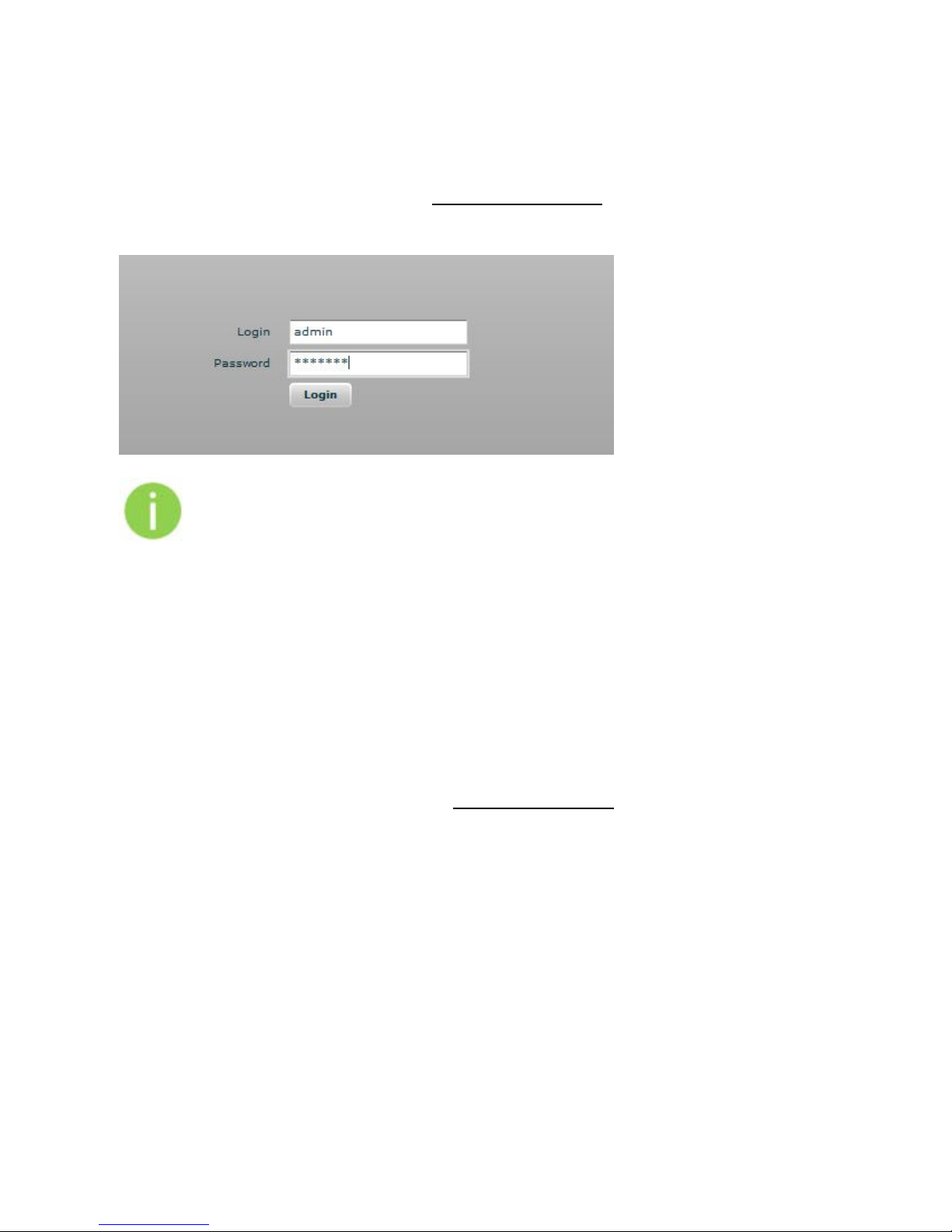
Enter default administrator login settings:
The default administrator login settings are:
Login: admin
Pass ord: admin01
After successful administrator login you ill see the main page of the device Web management
interface. The device no is ready for configuration.
Initial 570n Setup
Follo the steps for initial ireless Access Point setup that ill be prepared to accept ireless
Station connections (refer to the section Initial Station Setup for instructions).
1. Connect an Ethernet cable bet een your computer and the 570n.
2. Make sure your computer is set to the same subnet as the 570n, i.e. 192.168.2.150
3. Start your Web bro ser.
4. 570n uses follo ing default settings:
WAN IP: 192.168.2.66
Subnet mask: 255.255.255.0
Username: admin
Pass ord: admin01
The initial login screen looks as follo :
Step 5. Enter the default pass ord, and then press the Login button to enter the 570n eb
management page.
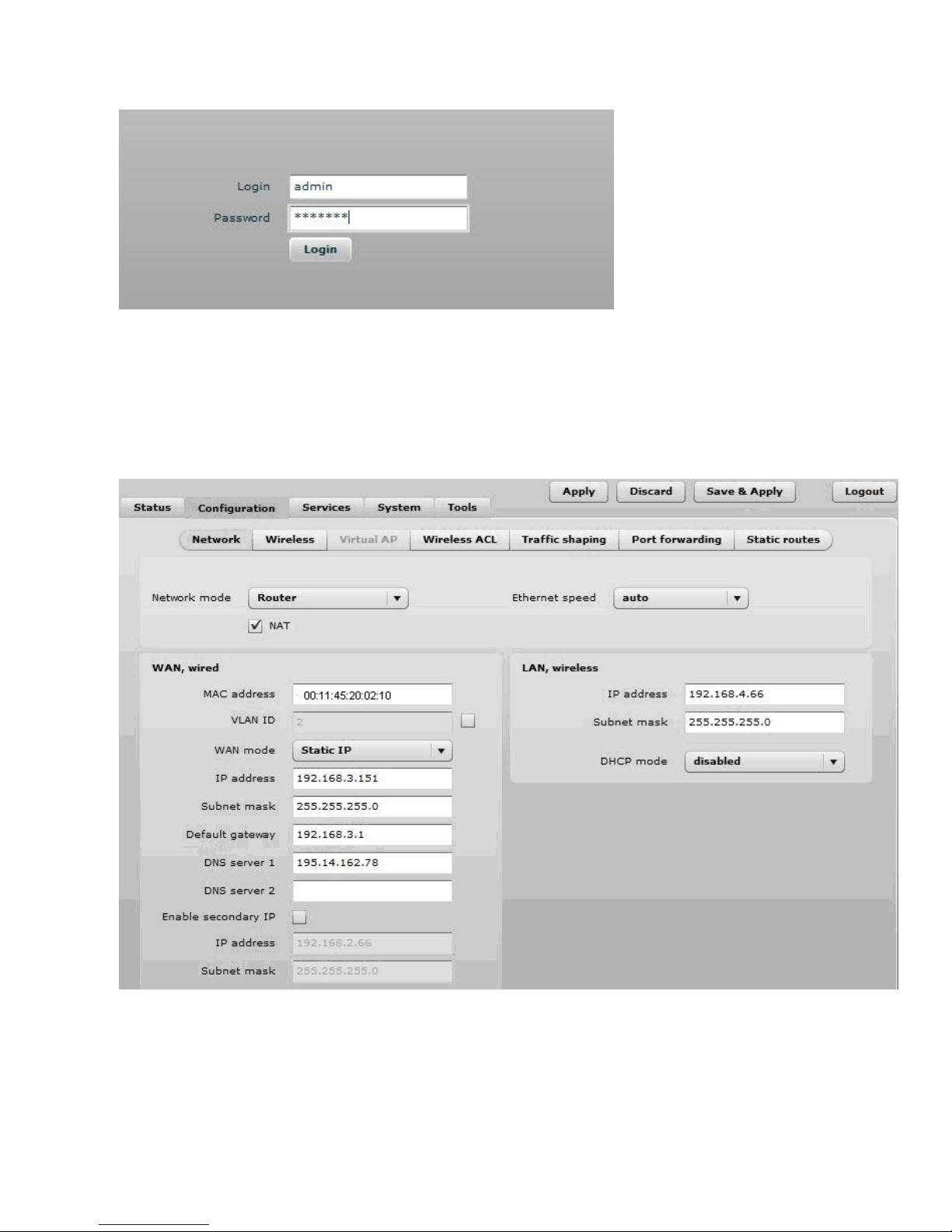
Step 6. Navigate to the Configuration | Network tab and choose the Router net ork mode ith
NAT enabled, Static IP enabled on WAN side, LAN settings ith DHCP server enabled (to loan
an IP addresses for connected clients) on LAN side and click Save&Apply:
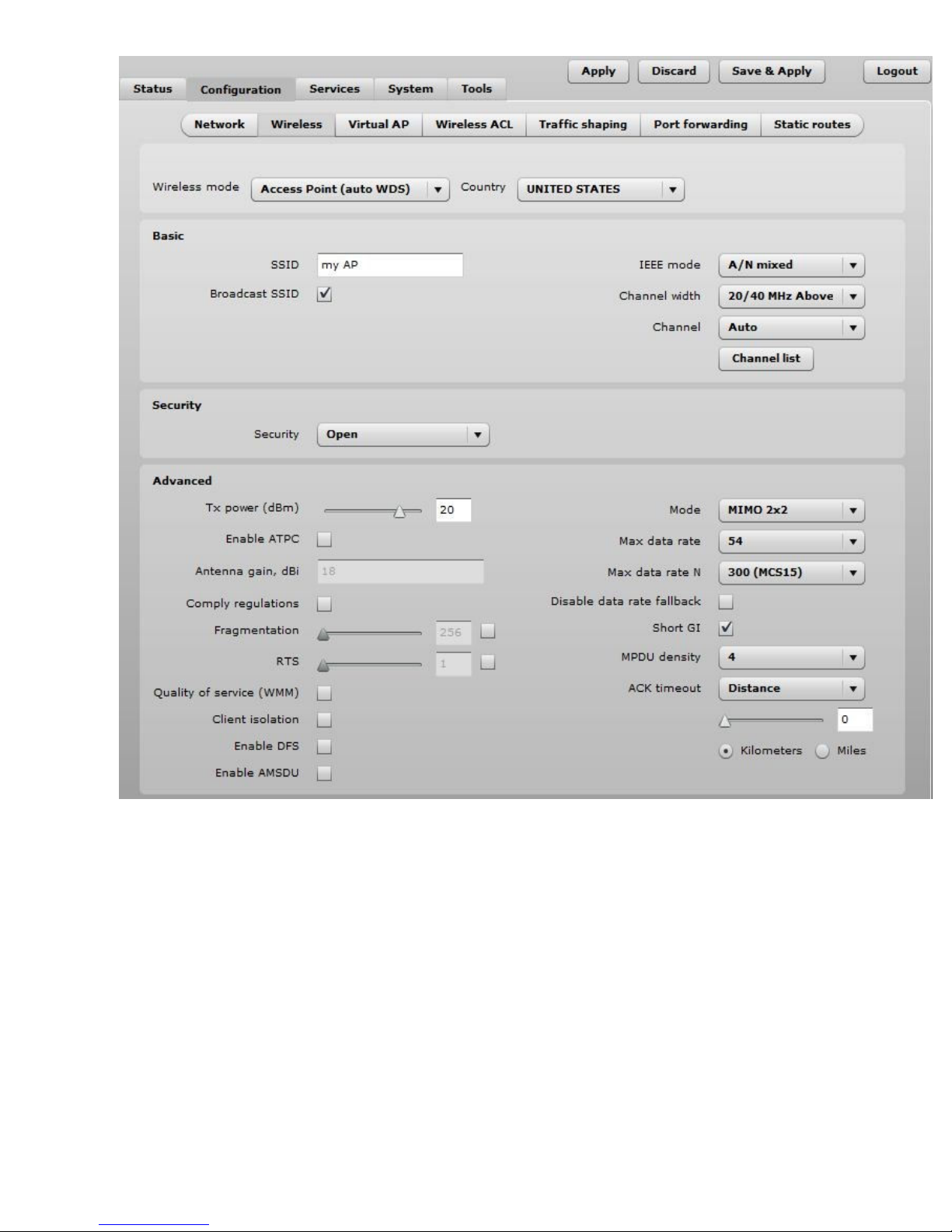
Step 7. Navigate to the Configuration | Wireless tab, choose Access Point ireless mode ith
WDS enabled, specify the SSID ith Broadcast enabled, Security parameters and IEEE mode
and click Save&Apply:
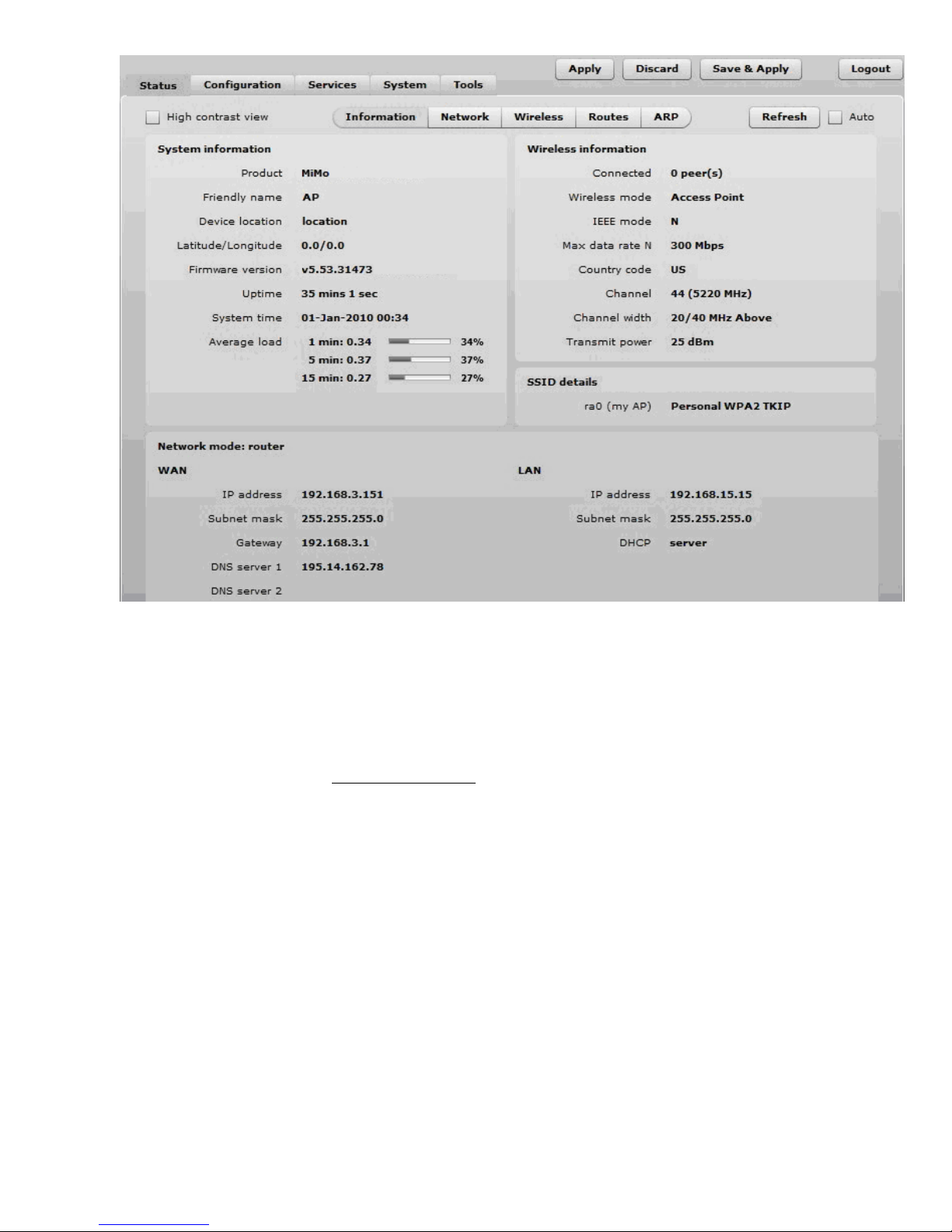
Step 8. Verify connection. Navigate to Status | Information menu to check if the Station is
successfully connected to the 570n device:
Initial Station Setup
Follo the steps for initial ireless client setup that ill be connected to the previously configured
570n (refer to the section Initial 570n Setup).
Step 1. Connect an Ethernet cable bet een your computer and the 570n device.
Step 2. Make sure your computer is set to the same subnet as the 570n, i.e. 192.168.2.150
Step 3. Start your Web bro ser.
Step 4. Each 570n devices uses follo ing default settings:
WAN IP: 192.168.2.66
Subnet mask: 255.255.255.0
Username: admin
Pass ord: admin01
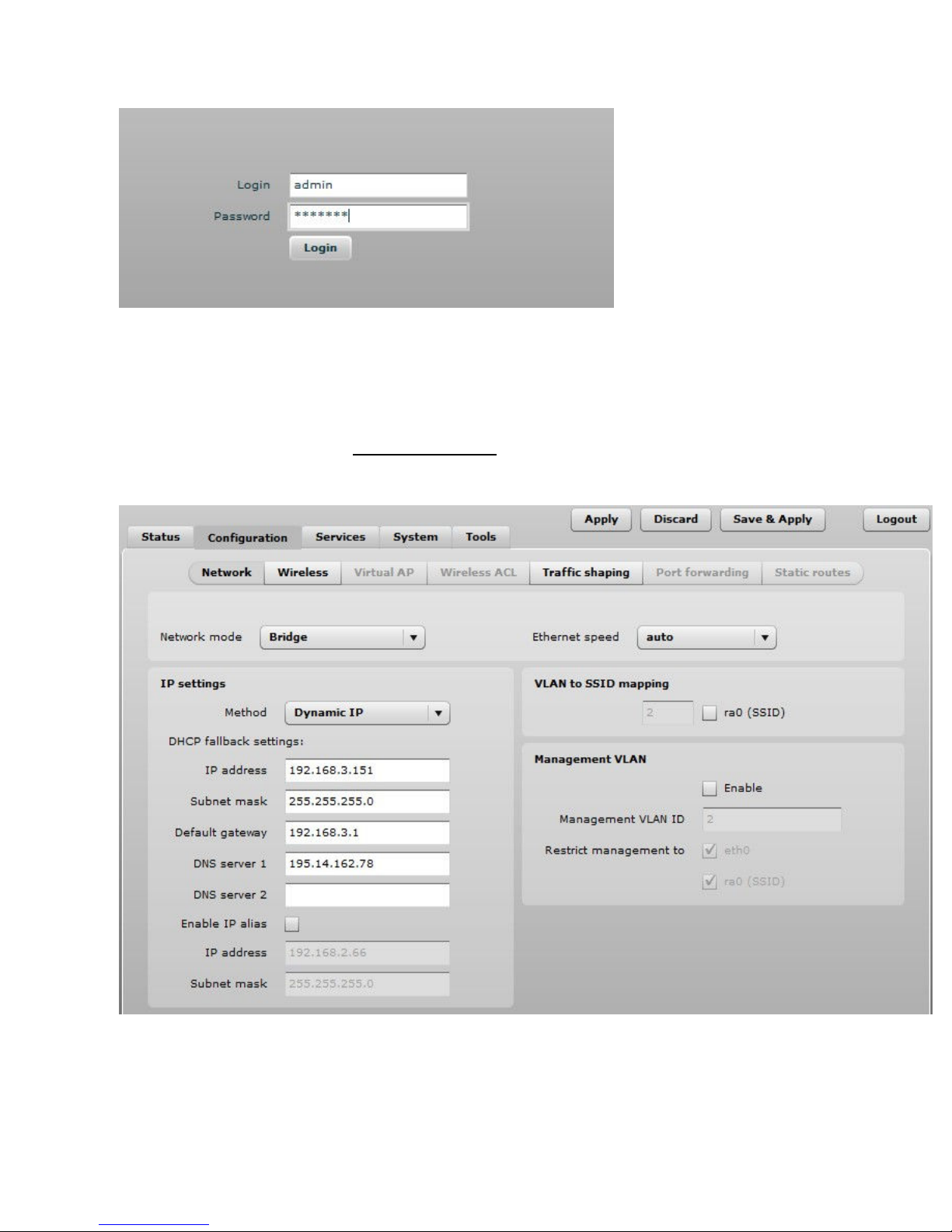
The initial login screen looks as follo :
Step 5. Enter the default pass ord, and then press the Login button to enter the 570n eb
management page.
Step 6. Navigate to the Configuration | Network tab and choose the bridge net ork mode ith,
Dynamic IP enabled (be sure that 570n to hich the device ill be associated has a DHCP server
running (refer to the section Initial 570n Setup for instructions), specify the DHCP fallback
settings in case the DHCP server is unreachable and click Save&Apply button:
Step 7. Navigate to the Configuration | Wireless tab, choose Station WDS ireless mode, click
Scan button near the SSID entry field to choose the SSID of the 570n here the station ill be
associated to. Specify the Security parameters for the 570n, check IEEE mode (these settings
must conform ith 570n ireless settings) and click Save&Apply:
Indice
Altri manuali VP Networks Punto di accesso wireless


