VuQube VQ1000 Manuale utente

Portable Satellite TV Antenna
VQ1000
Owner’s Manual
11200 Hampshire Avenue South, Bloomington, MN 55438-2453
Phone: (952) 922-6889 Fax: (952) 922-8424
www.kingcontrols.com
Solutions for Mobile Markets
Model VQ1
®
20963 REV E
®


Page 1
IMPORTANT!
The satellite TV market is expanding and changing. The information in this manual was accurate at the time
of printing. If your VuQube does not operate as outlined in this manual please call King Controls at
(952) 922-6889 or visit our website at www.kingcontrols.com.
Please read this entire manual before using your VuQube.
TABLE OF CONTENTS
Section Contents Page
1. OVERVIEW AND CONNECTIONS ........................................2-3
2. OPERATION..........................................................4-5
3. AUTOMATIC SATELLITE SWITCHING FOR DISH AND BELL TV . . . . . . . . . . . . . . . .6-11
4. ELEVATION MAPS...................................................12-15
5. TROUBLESHOOTING ...................................................16
6. SECURITY FEATURE ...................................................17
7. ACCESSORIES . . . . . . . . . . . . . . . . . . . . . . . . . . . . . . . . . . . . . . . . . . . . . . . . . . . . . . . . 17
8. MAINTENANCE ........................................................18
9. FCC USER INFORMATION...............................................19
10. LIMITED WARRANTY ...................................................20
Bell TV is an ofcial trademark of Bell Canada.
DIRECTV is a registered trademark of DIRECTV, Inc.
DISH is a registered trademark of DISH Network L.L.C.
VuQube and King Controls are registered trademarks of Electronic Controlled Systems, Inc. DBAKing Controls.

Page 2
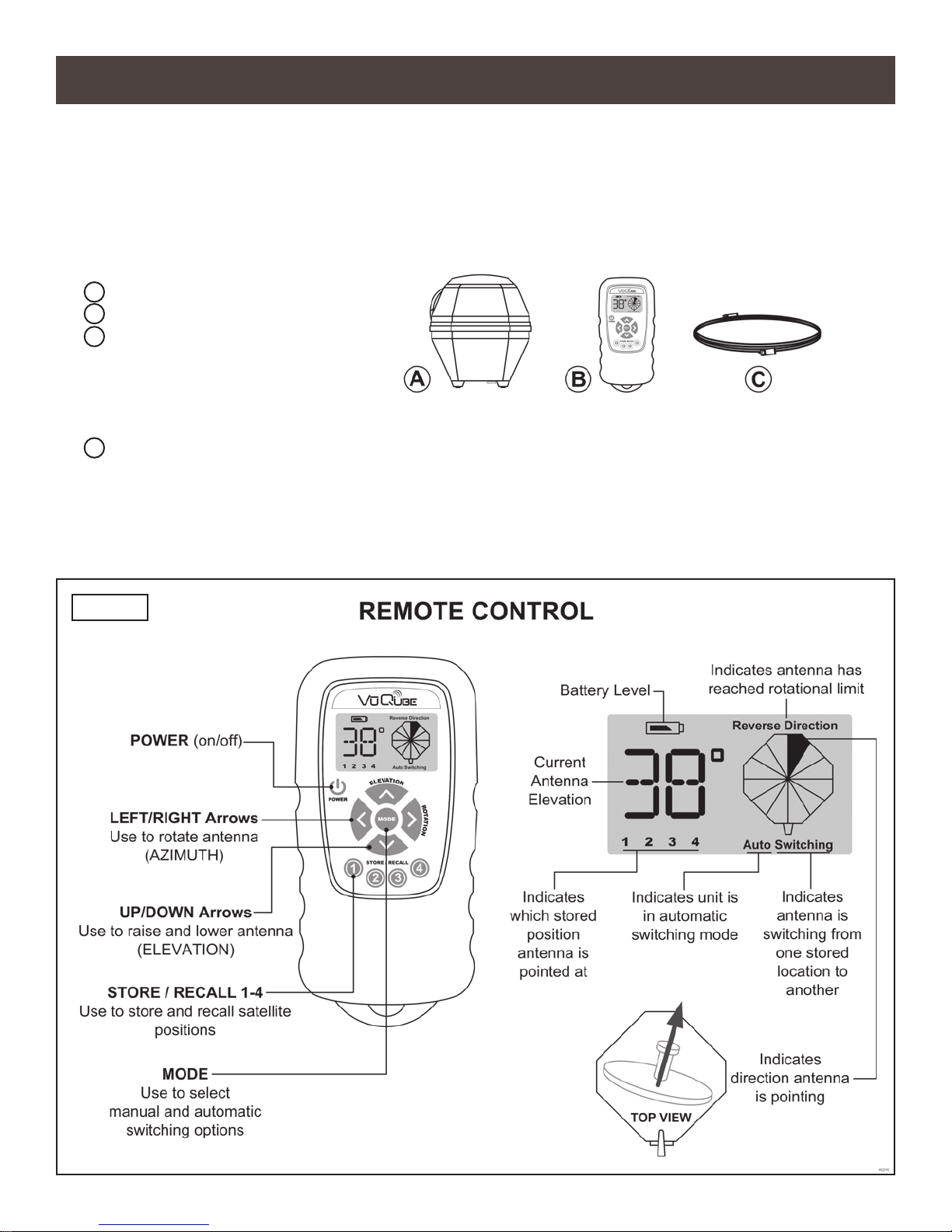
The VQ1000 comes with the following items:
AAntenna Unit
BRemote Control (Fig. 1)
C50’ Coax Cable
You will also need:
DItems sold separately:
• TV
• Receiver
• Satellite TV Subscription Service
Section 1 OVERVIEW AND CONNECTIONS
Congratulations on your purchase of the ultra-portable VuQube Satellite TV Antenna.
The VQ1000 is equipped with a wireless remote control to allow quick and easy one person
positioning of the antenna while monitoring your receiver’s signal meter screen on your TV.
FIG. 1

Page 3
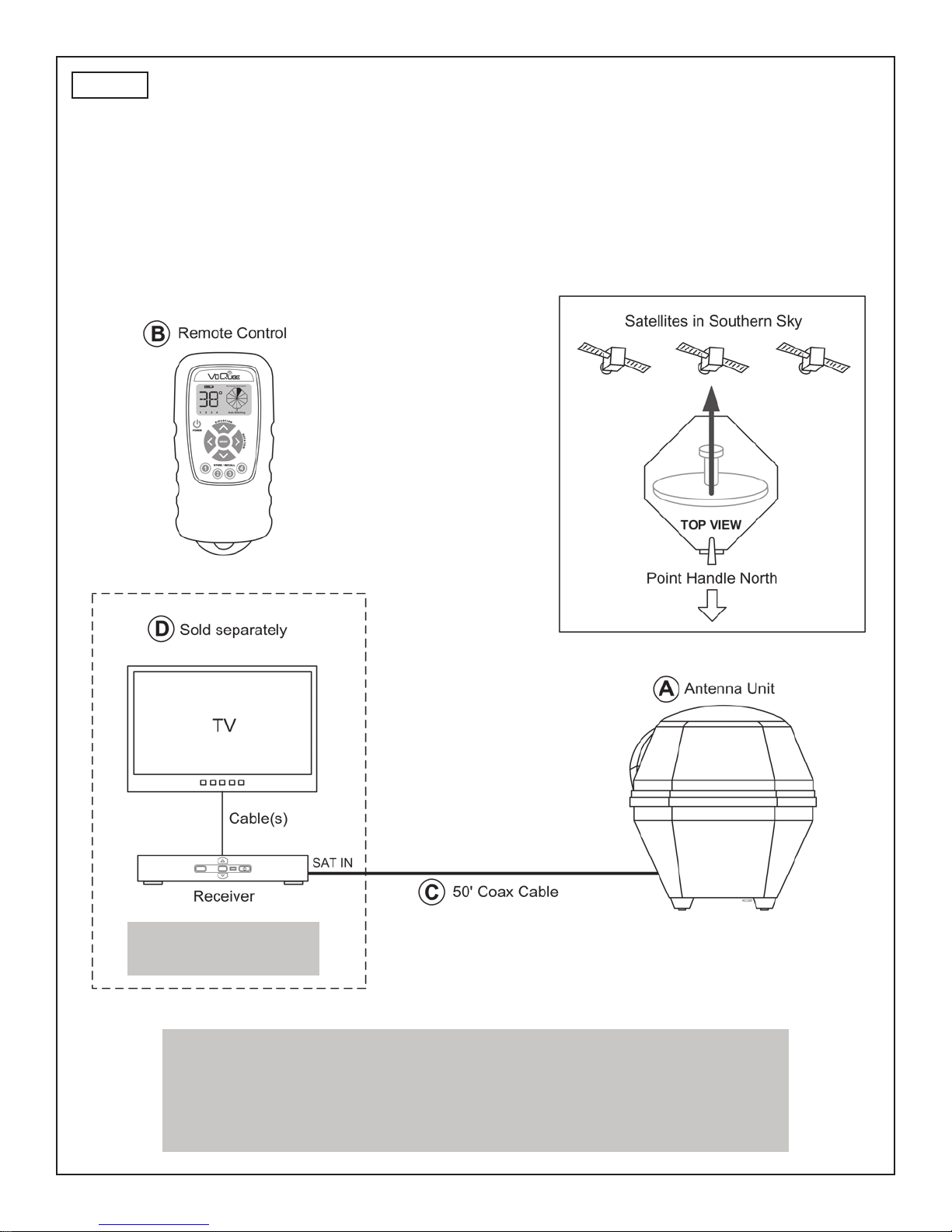
NOTE: Hand tighten coax connections. DO NOT USE A WRENCH.
Make sure to connect coax to SATELLITE IN on your receiver.
Do not allow the coax cable to become bent or kinked.
Do not leave the coax cable where it can be tripped on or run over by a vehicle.
Satellite TV subscription
service also required.
POSITION AND CONNECT THE VUQUBE
1. Place the VuQube on a stable surface with a clear view of the southern sky. (With its built-in
leveling feature, the VuQube does not need to be level, but make sure it is stable to prevent
movement during operation.) Point the handle to the north (this will speed up search time).
2. Connect coax cable from the VuQube to the SATELLITE IN port on your receiver.
3. Go to OPERATION on page 4.
FIG. 2

Page 4
SATELLITE ACQUISITION
1. Determine the look angle for your desired satellite at your present location from the appropriate
map in Section 4 ELEVATION MAPS, or by entering the local zip code into your receiver’s
setup menu (see your receiver’s owner’s manual).
2. Follow the instructions in your receiver’s owner’s manual and navigate to the signal meter
screen. Select the appropriate transponder:
DIRECTV®101 = 19 119 = 22
DISH®61.5 = 14 110 & 119 = 11 129 = 21
Bell TV 82 & 91 = 11
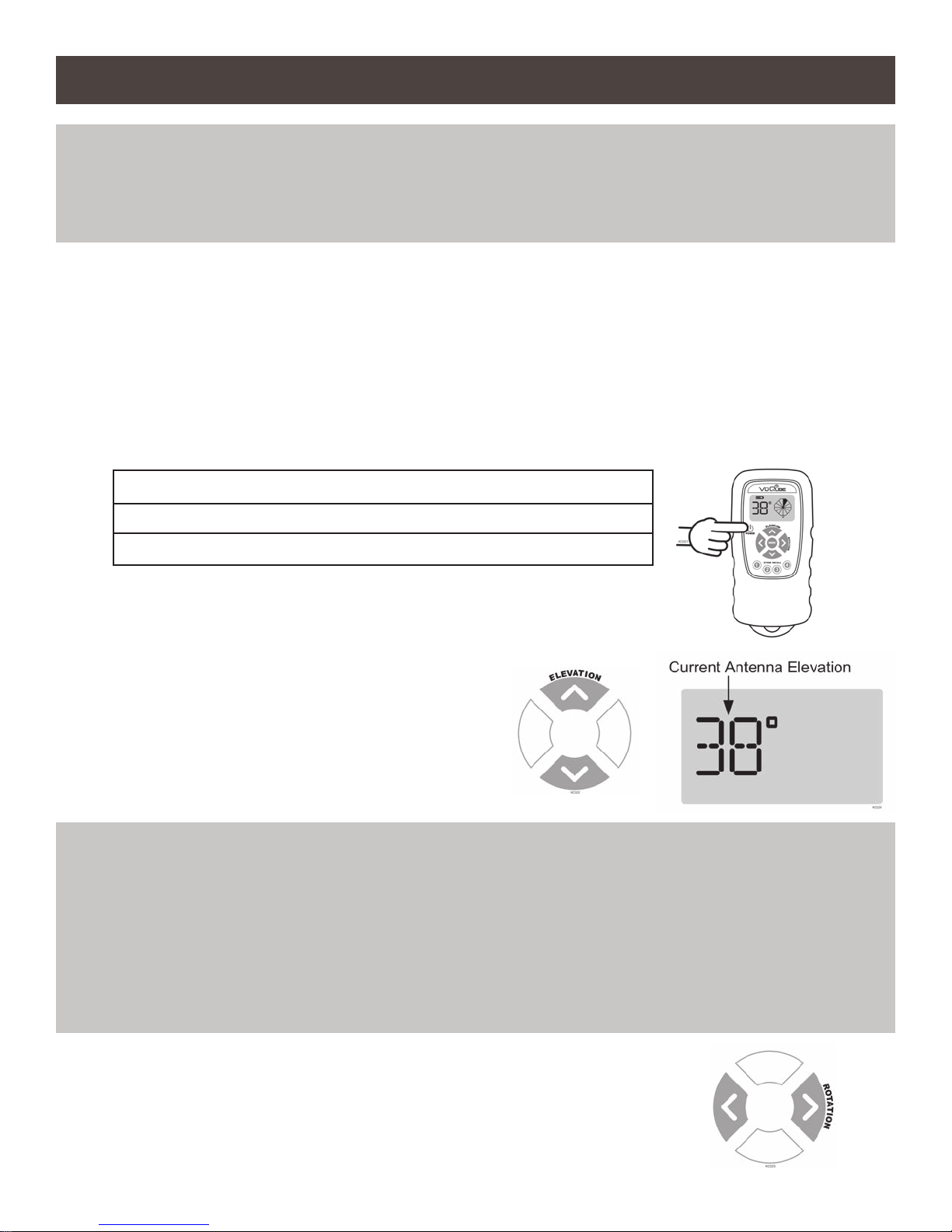
3. Press and hold POWER on VuQube remote until it turns ON.
The remote will display the current antenna elevation angle.
4. Use the UP and DOWN arrows to change the
antenna elevation angle as shown on the
remote control to the proper elevation
determined in step 1.
5. With the satellite signal meter screen displayed on your TV, use the
LEFT and RIGHT arrows to rotate the antenna and watch for signal
to appear on the meter.
Section 2 OPERATION
IMPORTANT! For satellite acquisition, there must be a clear “line of sight” to the southern sky. Mountains,
buildings, trees, telephone poles, etc. can all block the satellite signal from reaching the antenna
(inside the VuQube).
NOTE: Pressing and releasing buttons on the remote control will produce an electronic click.
IMPORTANT! STEP 5. You must watch your TV for signal strength while rotating the antenna in step 5.
See your receiver’s owner’s manual to determine how to display the signal meter screen on
your TV.
When pressing the left and right arrows, the remote will continuously beep with a short pause
in between: (beep - beep - beep...)
If the unit reaches its rotational limit in either direction, the remote will display REVERSE
DIRECTION and beep rapidly: (beep beep beep...) Press other rotational arrow to reverse
direction.

Page 5
6. When signal strength appears, stop rotating the antenna.
Use the UP, DOWN, LEFT and RIGHT arrows as necessary
to maximize the satellite signal.
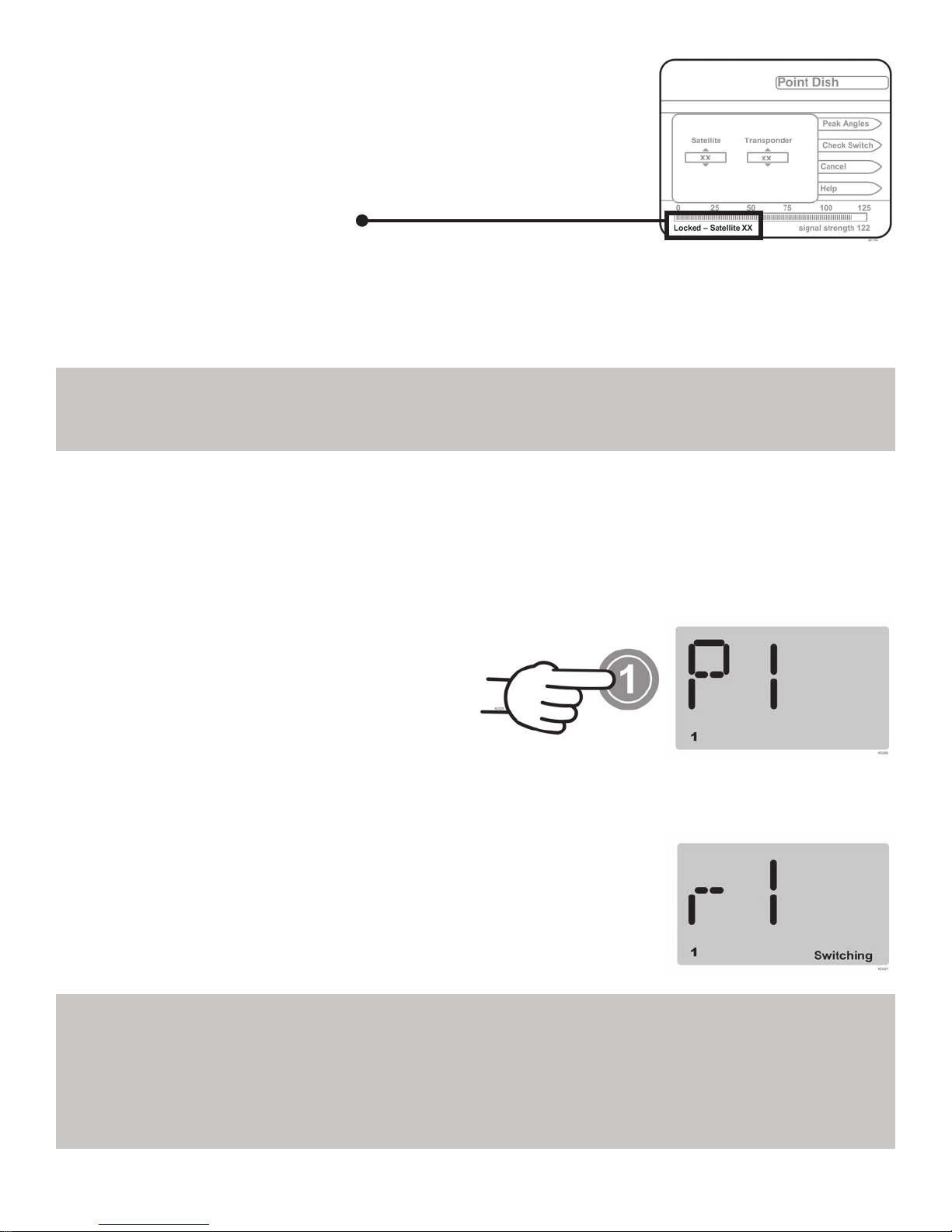
For DISH and Bell TV, verify the signal meter screen
shows the correct satellite.
7. Press POWER again to turn the VuQube remote OFF. (The remote turns off automatically
after 90 seconds if no buttons are pressed.)
8. Exit the Signal Meter Screen to download the guide and view your programming.
STORE / RECALL (Manual Satellite Switching)
You can STORE up to 4 satellite positions using the STORE/RECALL feature.
1. Lock onto a satellite using steps 1-6 on pages 4-5.
2. Press and hold the 1 button for 3 or more
seconds. The number “1” will illuminate
and the display will show P1.
(When button is released, display will
show the elevation.)
3. Repeat for up to 3 more satellites using the 2, 3 and 4 buttons.
4. To RECALL a stored position, momentarily press the desired
button (1, 2, 3 or 4) (do not press for more than 2 seconds).
The recalled location and “Switching” will be displayed as the
antenna moves to the recalled position.
NOTE: It may take several minutes to download programming from the satellite before you can watch TV.
If you move the VuQube you must re-acquire the satellite. Follow the directions on pages 4-5.
NOTE: When recalling a stored position, if you hold the button for more than 2 seconds, the current position will be
stored rather than a previous position being recalled.
To cancel moving to a stored position, press any of the arrow buttons.
If you move the VuQube you will have to re-acquire the satellites and store the positions again. Follow the
instructions on pages 4-5.

Page 6
The satellite TV channels you watch may be broadcast from more than one satellite. When selecting
a channel that is broadcast from a different satellite, the VuQube antenna must switch to the new
satellite in order for you to view that channel.
The VuQube can be congured to automatically switch between satellites. To do this you must store
all applicable satellites into memory in the correct order and then activate the automatic satellite
switching feature. Doing this allows the VuQube to automatically change satellites as necessary
when you simply select a new channel with your receiver’s remote control.
To enable the automatic satellite switching feature you must follow this 3 step conguration process:
Step A: CHECK SWITCH TEST. Run a check switch test (before satellite acquisition) to clear
the memory of your receiver (page 7). This is a one time procedure.
Step B: SATELLITE ACQUISITION. Lock on and store each satellite’s location into the
VuQube’s memory (page 8).
Step C: SWITCHING MODE AND FINAL CHECK SWITCH TEST. Put the VuQube in the
proper switching mode and run a check switch test to congure your receiver for
automatic switching (pages 9-11).
GO TO PAGE 7 AND BEGIN WITH STEP A.
Section 3 AUTOMATIC SATELLITE SWITCHING FOR
DISH AND BELL TV
NOTE: After running the check switch test in step C you will not have to run it again (see page 9 for exceptions).

Page 7
STEP A: CHECK SWITCH TEST (Before satellite acquisition)
1. Disconnect the coax from “SAT IN” on the back of your receiver.
2. Turn on your TV and receiver.
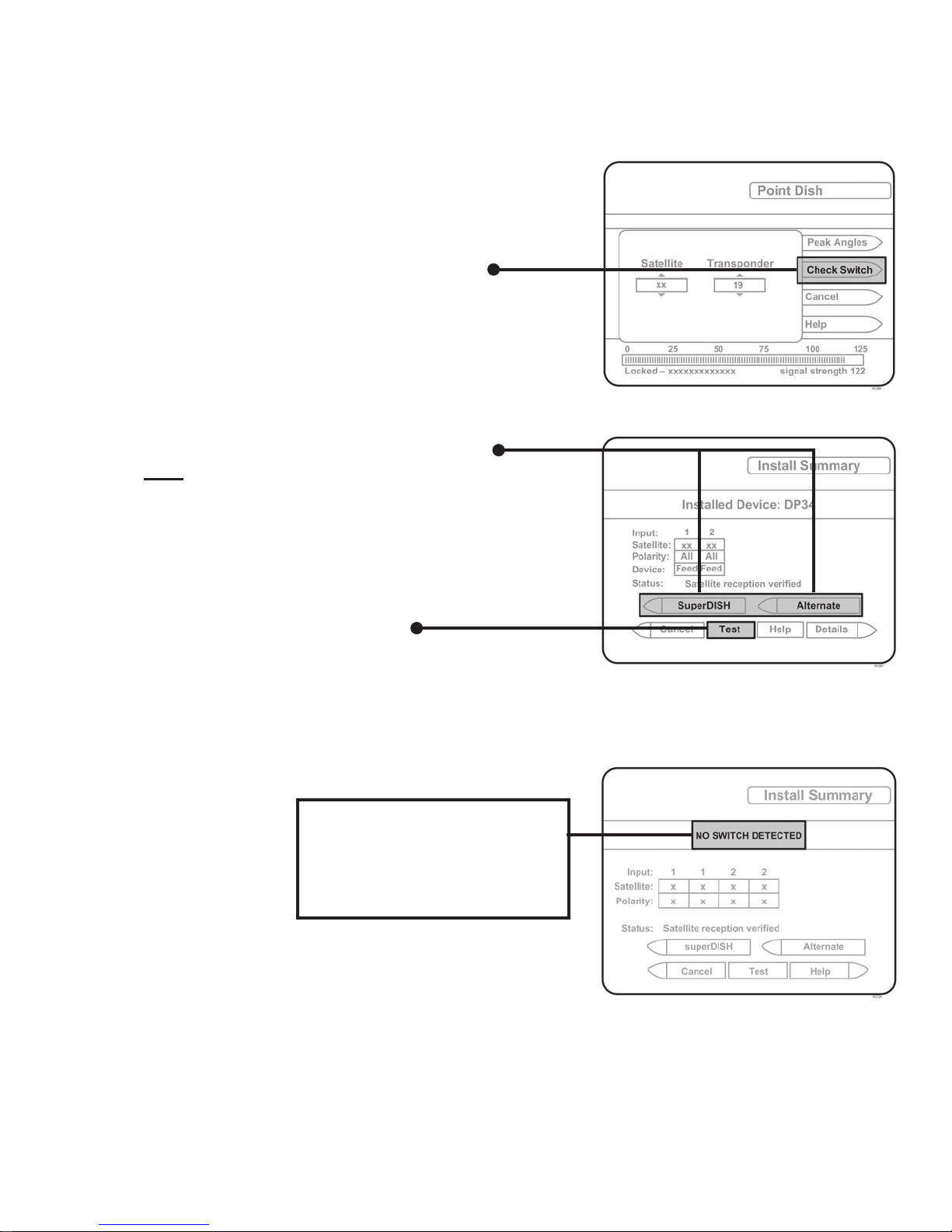
3. On your receiver’s remote, press (MENU, 6, 1, 1) to
display the signal meter screen.
4. Highlight “Check Switch” and press SELECT.
Note: Some receivers may prompt you to select
“Check Switch” a second time to initiate the test.
5. Make sure “Superdish” and “Alternate” boxes
are NOT selected.
Note: Not all receivers will display a screen
with options that include “Superdish” and
“Alternate” boxes.
6. Highlight “Test” and press SELECT.
Your receiver will perform a check switch test. (This process will take several minutes.)
7. When test is complete, a screen similar to this should appear.
(Receivers are always changing, and therefore screen
graphics may vary.)
If you get a WARNING screen stating you have
fewer satellites than previously detected, with
the option to save the settings, select “SAVE”
and continue. (You may have to choose “SAVE” twice.)
8. Highlight “OK” and press SELECT to return to the Point Dish Screen.
9. Reconnect the coax to “SAT IN” on the back of your receiver.
10. GO TO PAGE 8, STEP B.
Screen graphics may vary.
“NO SWITCH DETECTED”
or
“INSTALLED DEVICE UNKNOWN”
or similar

Page 8
STEP B: SATELLITE ACQUISITION
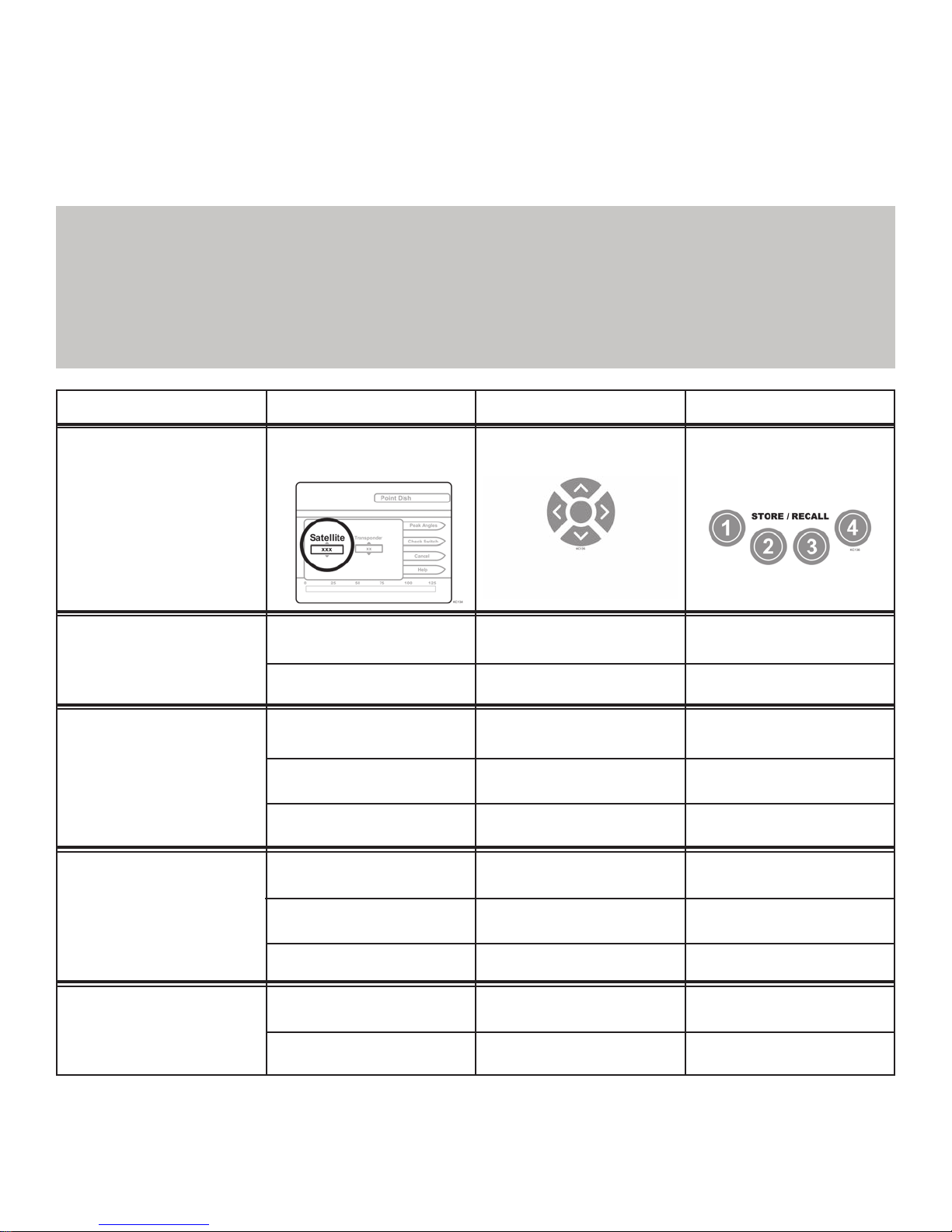
Determine which satellites you wish to switch between, and for each satellite listed, follow steps B-1,
B-2 and B-3.
WHEN COMPLETE, GO TO PAGE 9, STEP C.
Example for DISH SD:
• Choose the 110 satellite on your receiver screen (Step B-1), lock onto it (Step B-2), and then store it in position 1
(Step B-3).
• Choose the 119 satellite on your receiver screen (Step B-1), lock onto it (Step B-2), and then store it in position 2
(Step B-3).
Step B-1 Step B-2 Step B-3
DISH SD 110
119
110
119
1
2
DISH SD and HD
110
119
129
110
119
129
1
2
3
DISH SD and HD
Alternate
61.5
110
119
61.5
110
119
1
2
3
Bell SD and HD 82
91
82
91
1
2
On Point Dish Screen of your
receiver, choose satellite: Use steps 1-6 on pages 4-5
and lock onto satellite:
(Be sure to verify you are on
the correct satellite as shown
in step 6 on page 5.)
Use steps 1-2 on page 5
and store location in position:
Altri manuali per VQ1000
3
Questo manuale è adatto per i seguenti modelli
1
Indice
Altri manuali VuQube Antenna TV