
Western Digital Data Lifeguard Diagnostic Utility Manuale utente

Software Manual
Data Lifeguard
Diagnostic Utility

WD
Data Lifeguard Diagnostic Utility (DLGDIAG)
User Manual
Information furnished by WD is believed to be accurate and reliable; however, no responsibility is assumed by WD for its use nor for
any infringement of patents or other rights of third parties which may result from its use. No license is granted by implication or
otherwise under any patent or patent rights of WD. WD reserves the right to change specifications at any time without notice.
Western Digital is a registered trademark; and WD, the WD logo, and Data Lifeguard Tools are trademarks of Western Digital
Technologies, Inc. Other marks may be mentioned herein that belong to other companies.
© 2006 Western Digital Technologies, Inc. All rights reserved.
2779-701022-A00 July 2006

TABLE OF CONTENTS – i
Table of Contents
1 Introduction . . . . . . . . . . . . . . . . . . . . . . . . . . . . . . . . . . . . . . . . . . . 1
DLGDIAG Options . . . . . . . . . . . . . . . . . . . . . . . . . . . . . . . . . . . . . . . . . 1
When to Use DLGDIAG. . . . . . . . . . . . . . . . . . . . . . . . . . . . . . . . . . . . . . 2
Before using DLGDIAG . . . . . . . . . . . . . . . . . . . . . . . . . . . . . . . . . . . . . . 2
2 DLGDIAG for Windows. . . . . . . . . . . . . . . . . . . . . . . . . . . . . . . . . . 3
Supported Products . . . . . . . . . . . . . . . . . . . . . . . . . . . . . . . . . . . . . . . . . . 3
Supported Operating Systems . . . . . . . . . . . . . . . . . . . . . . . . . . . . . . . . . . 3
Installing DLGDIAG for Windows . . . . . . . . . . . . . . . . . . . . . . . . . . . . . 4
Using DLGDIAG for Windows. . . . . . . . . . . . . . . . . . . . . . . . . . . . . . . . . 5
3 DLGDIAG for DOS . . . . . . . . . . . . . . . . . . . . . . . . . . . . . . . . . . . . . 10
Supported Products . . . . . . . . . . . . . . . . . . . . . . . . . . . . . . . . . . . . . . . . . 10
Creating Bootable DLGDIAG for DOS Disks. . . . . . . . . . . . . . . . . . . . . 10
Using DLGDIAG for DOS . . . . . . . . . . . . . . . . . . . . . . . . . . . . . . . . . . 11
Command Line Switches . . . . . . . . . . . . . . . . . . . . . . . . . . . . . . . . . . . . . 14
Error/Status Codes . . . . . . . . . . . . . . . . . . . . . . . . . . . . . . . . . . . . . . . . . 15
4 Service and Support. . . . . .. . . . . . . . . . . . . . . . . . . . . . . . . . . . . 18

DATA LIFEGUARD DIAGNOSTICS (DLGDIAG)
INTRODUCTION – 1
USER MANUAL
Introduction
The Data Lifeguard diagnostic utility (DLGDIAG) is designed to test WD hard drives
for errors. If DLGDIAG reports errors, you can use the program to attempt to restore
the hard drive to a defect-free status.
DLGDIAG supports WD external and SATA hard drives. It also supports EIDE hard drives
installed on both primary and secondary IDE ports (either the motherboard or a controller
card). DLGDIAG must be run separately to test each WD hard drive in the system.
Depending on your hard drive model and diagnostic requirements, you can use either the
Windows or DOS version of DLGDIAG. Windows and DOS versions of the DLGDIAG
software are available at support.wdc.com/download.
DLGDIAG Options
Windows
Quick Test — performs a quick S.M.A.R.T. self-test to gather and verify the Data
Lifeguard information contained on the drive.
Extended Test — performs a Full Media Scan to detect bad sectors. Test may take several
hours to complete depending on the size of the drive.
Write Zeros — writes zeros to the drive using the Full Erase or Quick Erase option.
Erases all data on the drive by writing zeros to each sector – file system and data will be
lost.
View Test Results — displays results for the last hard drive tested.
DOS
Select Drive — selects the hard drive to test and displays status for all hard drives.
Quick Test — tests the drive quickly for any major physical problems.
Extended Test — checks the drive thoroughly for any major physical problems.
Write Zeros To Drive — wipes any and all data off the drive. Use this option when your
data is no longer usable or recoverable.
View Test Results — displays results for the last hard drive tested.
Print Test Results — prints results for the last hard drive tested (USB printers not
supported).
Log File Open/Close — stores results for all hard drives tested (DLGDIAG.LOG)
Enter & Print RMA Information — enters and prints RMA information for returning a
hard drive to WD.
Help — brief descriptions of each option and explanations of error codes.
Quit — reboot your system once you have completed the selected tasks.
1

DATA LIFEGUARD DIAGNOSTICS (DLGDIAG)
INTRODUCTION – 2
USER MANUAL
When to Use DLGDIAG
If the hard drive reports errors, if you are unable to access files on the hard drive, or if another
diagnostic utility such as SCANDISK, CHKDISK, DEFRAG, or Norton Utilities reports
errors on the hard drive, run DLGDIAG to determine if they are hard drive-related.
DLGDIAG does not report errors associated with the system BIOS, controller card, or
motherboard of your system.
DLGDIAG can be used at any time to test for hard drive errors. If you experience problems
accessing files or encounter other apparent hard drive errors, you can safely run the Quick
Test option to confirm your hard drive integrity.
DLGDIAG’s Repair Drive feature allows the user to restore any errors found during the
Extended Test scan of your hard drive without destroying all data on the drive.
DLGDIAG does not resolve mechanical damage such as noisy drives or drives that do not
spin up. Contact WD technical support (see “Service and Support” on page 19) if you have a
hard drive that exhibits the above difficulties.
Before using DLGDIAG
If used properly, DLGDIAG does not overwrite data on the hard drive during the scan and
will not result in data loss. However, you should always back up your data before running any
diagnostic utility. Back up all data on your hard drives(s) before using DLGDIAG.
CAUTION: Back up all data on your hard drive(s) before using DLGDIAG. You
will erase all data if the Write Zeros To Drive option is invoked.

DATA LIFEGUARD DIAGNOSTICS (DLGDIAG)
DLGDIAG FOR WINDOWS – 3
USER MANUAL
DLGDIAG for Windows
DLGDIAG for Windows is a Windows version of the Data Lifeguard Diagnostics utility. The
utility can perform drive identification, diagnostics, and repairs on a WD FireWire, EIDE, or
USB drive. In addition, it can provide the drive's serial and model numbers.
Supported Products
Internal Hard Drives
WD SATA
WD EIDE
External Hard Drives
WD USB
WD FireWire®
WD Combo
Supported Operating Systems
Windows XP
Windows 2000
Windows Me
Windows 98SE
2
DATA LIFEGUARD DIAGNOSTICS (DLGDIAG)
DLGDIAG FOR WINDOWS – 4
USER MANUAL
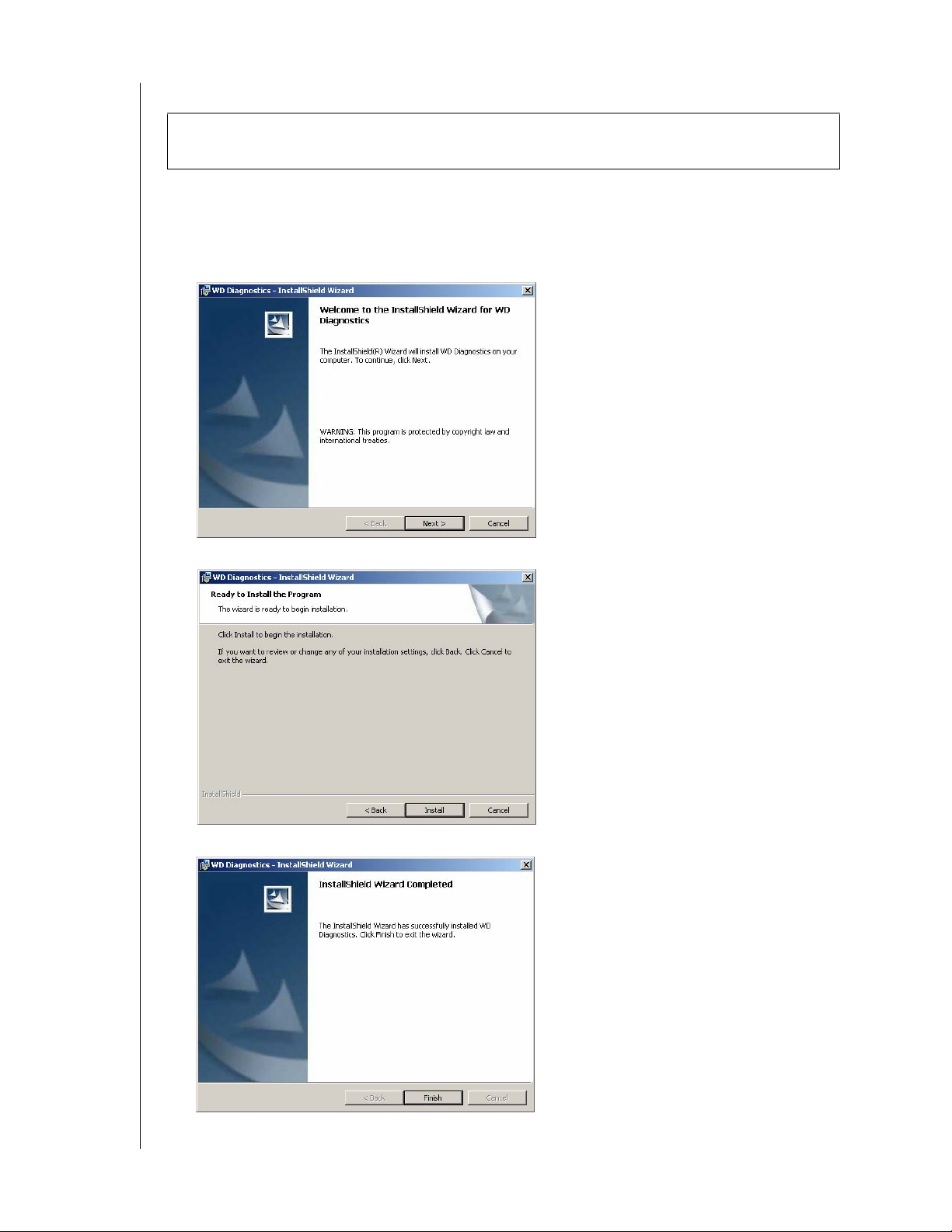
Installing DLGDIAG for Windows
1. Go to support.wdc.com/download and download the Data Lifeguard Diagnostics for
Windows program (WinDLG.zip).
2. Extract and run the Setup.exe program.
3. The WD Diagnostics InstallShield Wizard screen appears. Click the Next button.
4. Click Install.
5. Click Finish.
Important: If you have a pop-up blocker installed, you may need to disable it to download
the DLGDIAG software.

DATA LIFEGUARD DIAGNOSTICS (DLGDIAG)
DLGDIAG FOR WINDOWS – 5
USER MANUAL
Using DLGDIAG for Windows
1. Click the Start button and point to Programs --> WD Diagnostics- WD Diagnostics.
2. Click I accept this License Agreement, then click Next.
3. The main program screen displays. The top window shows the drives in your system that
are available for testing. The model number, serial number, and capacity of each drive are
displayed. In the bottom window, the partition information for the selected drive is
displayed. Highlight the drive and double-click the physical drive icon on the top row to
run diagnostic testing.
4. The DLGDIAG - Select an Option window displays the four DLGDIAG for Windows
options.

DATA LIFEGUARD DIAGNOSTICS (DLGDIAG)
DLGDIAG FOR WINDOWS – 6
USER MANUAL
Quick Test
Quick Test performs a S.M.A.R.T. drive quick self test to gather and verify Data Lifeguard
information on the drive.
Note: Quick Test will perform a S.M.A.R.T. drive self-test only if it's supported and
accessible by DLGDIAG. Otherwise. it will perform a short media scan. The S.M.A.R.T.
feature is not supported for external hard drives connected to the computer via the FireWire
interface. Some IDE and SATA controllers do not allow S.M.A.R.T. information to be read
from the hard drive. For more information, please contact the manufacturer of the controller
to determine if the controller supports S.M.A.R.T. attribute reading.
1. Click Quick Test, then click Start.
2. Close any open programs to prevent data loss, then click OK.
3. Quick Test begins. The test may take several minutes to complete depending on the size
of the hard drive tested. When the test is complete, click Close.
Extended Test
Extended Test performs a full media scan to detect bad sectors. This test may take up to
several hours to run depending on the size of the drive.
1. Click Extended Test, then click Start.
2. Close any open programs to prevent data loss, then click OK.

DATA LIFEGUARD DIAGNOSTICS (DLGDIAG)
DLGDIAG FOR WINDOWS – 7
USER MANUAL
3. Extended Test begins. The test may take several hours to complete depending on the size
of the hard drive tested. When the test is complete, click Close.
Write Zeros
Write Zeros writes zeros to the drive with the option to perform a quick erase or full erase.
Selecting the write zeros option the file system and all data on the drive being tested.
1. Click Extended Test, then click Start.
2. If you are sure that you want to write zeros to the drive, click Yes.
3. Select Quick Erase or Full Erase, then click OK.
4. Write Zeros begins. When Write Zeros is complete, click Close.
CAUTION: Back up all data on your hard drive(s). You will erase all data if the
Write Zeros option is invoked.
Questo manuale è adatto per i seguenti modelli
1
Indice
Altri manuali Western Digital Software


Manuali Software popolari di altre marche


PS Audio
PS Audio PowerPlay Manuale del proprietario

Brady
Brady LOCKOUT PRO 3.0 Manuale di servizio

Avaya
Avaya Interaction Center Manuale utente

Texas Instruments
Texas Instruments TI-83 Plus Silver Edition Manuale

Novell
Novell GROUPWISE 8 - INTERNET AGENT Manuale utente

Oracle
Oracle Application 9i Manuale utente

Acer
Acer RDM Manuale utente

Canon
Canon Vixia HF21 Manuale utente

Canon
Canon ZR950 Manuale utente

Samsung
Samsung Auto Backup Manuale utente

Polycom
Polycom Vortex EF2201 Istruzioni per l'installazione e il funzionamento

Brocade Communications Systems
Brocade Communications Systems Brocade 8/12c Manuale utente