Yamaha RM-CG Manuale utente

RM-CG Reference Manual
1
INTRODUCTION....................................................................................................................................................................1
Information............................................................................................................................................................................................... 1
CONTROLS AND FUNCTIONS ............................................................................................................................................2
Front panel............................................................................................................................................................................................... 2
Side panel................................................................................................................................................................................................ 3
WEB GUI................................................................................................................................................................................4
Starting RM-CG Device Manager ............................................................................................................................................................ 4
Structure of RM-CG Device Manager...................................................................................................................................................... 6
Functions of RM-CG Device Manager..................................................................................................................................................... 8
Alert log list ............................................................................................................................................................................................ 19
Thank you for purchasing the Yamaha RM-CG ceiling microphone. This document provides detailed information on the product functions
and specifications as well as the Web GUI. For correct and safe use of this product, be sure to first read this manual carefully together
with the RM-CG Installation Manual (included with the product).
Information
• The illustrations and images shown in this manual are for instructional purposes only.
• The company names and product names in this manual are trademarks or registered trademarks of their respective companies.
• We are continuously improving the software for our products. The latest version can be downloaded from the Yamaha website.
• This document is based on the latest specifications at the time of publication. The latest version can be downloaded from the Yamaha
website.
• Reproduction of this manual in whole or in part without permission is prohibited.
CONTENTS
INTRODUCTION
CEILING MICROPHONE
RM-CG
Reference Manual

RM-CG Reference Manual
2
Front panel
1Front panel indicator
NOTE: Occurrences of errors and severe errors are recorded in the alert log. For details, refer to page 19.
2Reset button
NOTE: Use a fine-tipped object such as an ejector pin to press the reset button.
CONTROLS AND FUNCTIONS
Condition Front panel indicator Unit status
LAN cable plugged into Dante/PoE port Lit green Microphone on
LAN cable plugged into Dante/PoE port Flashes green Starting up
Identify button in Web GUI clicked Flashes white Responding (to Identify function)
Updating firmware Flashes white quickly Firmware being updated
Updating firmware (After flashing white quickly)
Flashes green quickly Firmware updated successfully
Muted Lit red
(Flashes every 2 seconds) Microphone off
– Flashes red Error occurring
– Flashes red quickly Severe error occurring
Condition Front panel indicator Unit status
Reset button long-pressed for 4 seconds to less
than 8 seconds, then released
Flashes blue twice per second
(during long-pressing/resetting)
Network-related settings
Waiting for resetting/Resetting
Reset button long-pressed for 8 seconds to less
than 12 seconds, then released
Flashes blue three times per second
(during long-pressing/resetting)
All settings
Waiting for resetting/Resetting
1 2
With grille Without grille

RM-CG Reference Manual
3
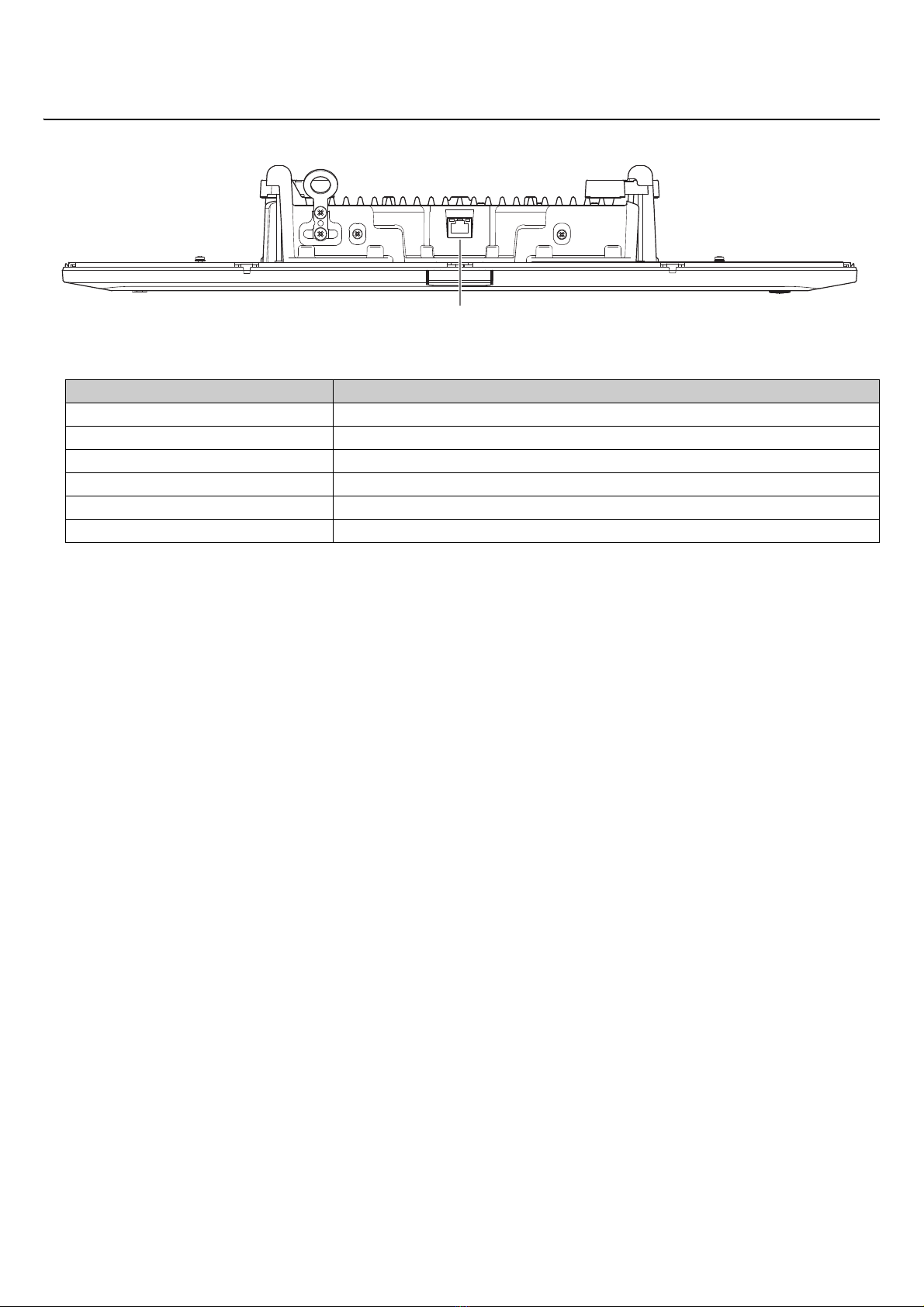
Side panel
1Network port indicators (Dante/PoE port)
NOTICE: • When disconnecting the LAN cable from the Dante/PoE port, wait at least five seconds before reconnecting the cable.
Otherwise, damage or malfunctions may result.
• With a Dante network, do not use the EEE function* of the network switch. Although mutual power consumption settings
are automatically adjusted between switches that support the EEE function, some switches do not perform that properly.
As a result, the switch’s EEE function may be enabled inappropriately in the Dante network, possibly degrading clock
synchronization performance and interrupting audio. Therefore, please note the following.
- When using managed switches, turn off the EEE function on all ports used for Dante. Do not use a switch that does not
allow the EEE function to be turned off.
- When using unmanaged switches, do not use switches that support the EEE function. In such switches, the EEE func-
tion cannot be turned off.
* EEE (Energy-Efficient Ethernet) function: Technology that reduces the power consumption of Ethernet devices during
periods of low network traffic; also known as Green Ethernet or IEEE802.3az.
Network port indicator Unit status
Left indicator lit green Link up
Left indicator flashes green Transferring data
Left indicator unlit Link down
Right indicator lit green Operating on word clock of peripheral device (master)
Right indicator flashes green Acting as word-clock master
Right indicator flashes orange Word clock unlocked
1

RM-CG Reference Manual
4
Use the Web GUI “RM-CG Device Manager” to check/change the settings of this unit.
IMPORTANT: Check/change the settings after the installation of this unit is completed. For details on installing this unit, refer to the
RM-CG Installation Manual.
Starting RM-CG Device Manager
Prepare the following.
• Computer
• LAN cable
1. Connect the computer to the network switch (where this unit is connected) with a LAN cable.
2. Download the application “RM Device Finder” from the Yamaha website (U.S.A. and Canada: https://
uc.yamaha.com/support/, Other countries: https://download.yamaha.com/), and then start it.
3. Select a network in the [Select Network Interface Card] window, and then click [OK].
4. Select this unit in the [Detected Devices] window, and then click [Browse].
The first login window of RM-CG Device Manager appears.
WEB GUI

RM-CG Reference Manual
5
5. Click the [SIGN UP] button in the first login window.
6. Specify a password in the password settings window, and then click the [SUBMIT] button.
7. Type the password into the login window, and then click the [LOGIN] button.
The [HOME] window appears.
This completes the startup.

RM-CG Reference Manual
6
Structure of RM-CG Device Manager
Refer to the page listed to the right for details on each item available in the various windows.
The following icons/buttons are used in RM-CG Device Manager.
(Information icon): Move the pointer over this icon to see more information about the item.
(Identify button): Click to cause the indicator of the corresponding device to flash.
[HOME] [SYSTEM STATUS]
[LED INDICATION STATUS]
[SETTINGS] [PASSWORD SETTINGS]
[SECURITY SETTINGS]
[DEPLOYMENT SERVER SETTINGS]
[SYSLOG SERVER SETTINGS]
[LED INDICATION SETTINGS]
[Admin]
[Network] [IP ADDRESS SETTINGS]
[HOST NAME SETTINGS]
[Region]
[TIME SETTINGS]
[DAYLIGHT SAVING SETTINGS]
[SYSTEM SETTINGS]
[MICROPHONE SETTINGS]
[DIGITAL SIGNAL PROCESSING SETTINGS]
[Processing]
[TOOLS] [Update]
[Dante] [INPUT STATUS]
[OUTPUT STATUS]
[DEVICE STATUS]
[FIRMWARE UPDATE]
[AUDIO]
[Configuration] [EXPORT CONFIGURATION]
[Logs]
[RESET DEFAULTS]
[DOWNLOAD LOGS]
[IMPORT CONFIGURATION]
Page 8
Page 8
Page 9
Page 9
Page 9
Page 10
Page 10
Page 11
Page 11
Page 12
Page 12
Page 12
Page 13
Page 14
Page 15
Page 15
Page 16
Page 16
Page 17
Page 17
Page 18
Page 17

RM-CG Reference Manual
7
IMPORTANT: Be sure to click the [SUBMIT] button after changing settings in RM-CG Device Manager. The [SUBMIT] button always
appears in the upper-right corner of the window.

RM-CG Reference Manual
8
Functions of RM-CG Device Manager
[HOME]
1[SYSTEM STATUS]
Allows you to check basic information on this unit.
2[LED INDICATION STATUS]
Allows you to check the status of the front panel indicator.
1
2

RM-CG Reference Manual
9
[SETTINGS]
[Admin]
1[PASSWORD SETTINGS]
Allows you to check/change the password for logging in to RM-CG Device Manager.
2[SECURITY SETTINGS]
3[DEPLOYMENT SERVER SETTINGS]
• Allows you to select whether to use a deployment server. If using a server, select whether to detect it automatically or configure it
manually.
• Allows you to check/adjust the server provisioning interval.
1
2
3

RM-CG Reference Manual
10
4[SYSLOG SERVER SETTINGS]
Allows you to select whether to use a syslog server.
5[LED INDICATION SETTINGS]
Allows you to check/adjust the brightness of the front panel indicator.
4
5
Indice
Altri manuali Yamaha Microfono

Yamaha
Yamaha YVC-1000 Manuale utente

Yamaha
Yamaha MZ103Be Manuale utente

Yamaha
Yamaha PGM1 Manuale utente

Yamaha
Yamaha AG01 Manuale utente

Yamaha
Yamaha DM-105 Manuale utente

Yamaha
Yamaha YVC-1000 Manuale utente

Yamaha
Yamaha RM-TT Manuale utente

Yamaha
Yamaha PJP-25URS Manuale utente

Yamaha
Yamaha RMWMIC Manuale utente

Yamaha
Yamaha YVC-MIC1000EX Manuale utente