
2-Wire third-party wireless Ethernet adapters Manuale utente

Wireless Client
Configuration Guide
for third-party wireless Ethernet adapters

Notice to Users
©2002 2Wire, Inc. All rights reserved. This manual in whole or in part, may not be reproduced, translated, or reduced to any machine-readable form without
prior written approval.
2WIRE PROVIDES NO WARRANTY WITH REGARD TO THIS MANUAL, THE SOFTWARE, OR OTHER INFORMATION CONTAINED HEREIN
AND HEREBY EXPRESSLY DISCLAIMS ANY IMPLIED WARRANTIES OF MERCHANTABILITY OR FITNESS FOR ANY PARTICULAR
PURPOSE WITH REGARD TO THIS MANUAL, THE SOFTWARE, OR SUCH OTHER INFORMATION, IN NO EVENT SHALL 2WIRE, INC. BE
LIABLE FOR ANY INCIDENTAL, CONSEQUENTIAL, OR SPECIAL DAMAGES, WHETHER BASED ON TORT, CONTRACT, OR OTHERWISE,
ARISING OUT OF OR IN CONNECTION WITH THIS MANUAL, THE SOFTWARE, OR OTHER INFORMATION CONTAINED HEREIN OR THE
USE THEREOF.
2Wire, Inc. reserves the right to make any modification to this manual or the information contained herein at any time without notice. The software described
herein is governed by the terms of a separate user license agreement.
Updates and additions to software may require an additional charge. Subscriptions to online service providers may require a fee and credit card information.
Financial services may require prior arrangements with participating financial institutions.
2Wire, the 2Wire logo, and HomePortal are trademarks of 2Wire, Inc. All other trademarks are trademarks of their respective owners.
___________________________________________________________________________________________________________________________

Contents
Wireless Client Configuration Guide
Introduction ........................................................................................................................................... 1
Locate the serial number and wireless encryption key ......................................................................... 1
Agere ORiNOCO PC Card - Silver or Gold .......................................................................................... 2
Cisco Aironet ........................................................................................................................................ 6
D-Link Air DWL-650 .............................................................................................................................. 9
Apple AirPort card ...............................................................................................................................11
Other wireless Ethernet adapters ....................................................................................................... 12
Wireless configuration with Windows XP ........................................................................................... 13

Contents

1
Wireless adapter configuration
Introduction
After your 802.11b wireless adapter is installed in your computer, you must configure it to communicate
with the HomePortal. This guide describes how to configure the following wireless Ethernet (IEEE
802.11b) adapters to operate with the HomePortal:
• Agere (ORiNOCO PC Card Silver or Gold)
• Cisco (Aironet 340 Series 11Mbps Wireless LAN Adapter)
• D-Link Air DWL-650
• Apple AirPort card
• Other third-party wireless Ethernet cards
Note: The instructions for Agere, Cisco, and D-Link cards are for computers running Windows 98. The
instructions for the Apple card are for computers running MacOS 9.0. Because not all Windows and
Macintosh versions respond to new hardware in the same way, screens may appear in a different order and
may have a slightly different appearance than the screens shown in these instructions.
Locate the serial number and wireless encryption key
Your HomePortal is configured with unique security parameters that must be configured into your wireless
adapter.
On the bottom of your HomePortal you will find two important pieces of information required for
configuring your adapter: the serial number and the wireless encryption key.
After you have located the serial number and wireless encryption key, perform the following steps to
configure your wireless adapter.
2
Agere ORiNOCO PC Card - Silver or Gold
Consult the documentation provided with your wireless adapter to install the Agere ORiNOCO PC Card -
Silver or Gold, then follow these steps:
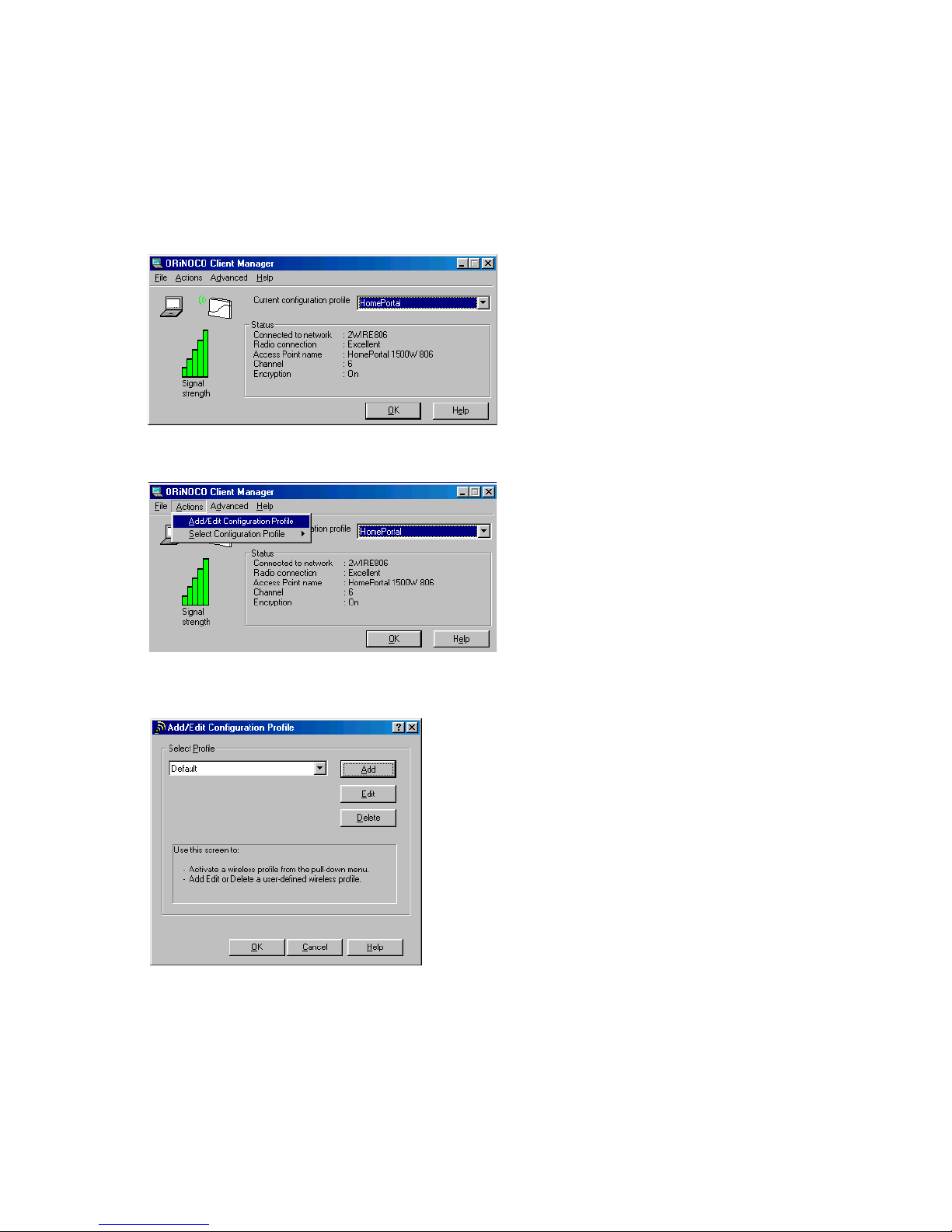
1. From the Start menu, select Programs > ORiNOCO > Client Manager.
The ORiNOCO Client Manager screen appears.
2. From the Actions menu, select Add/Edit Configuration Profile.
3. The Add/Edit Configuration Profile screen appears.

3
4. To create your profile, click Add. The Edit Configuration screen appears. Enter a profile name in the
Profile Name field. The profile name identifies your wireless profile, and should be no more than 29
characters in length.
5. From the Network Type pulldown menu, select Access Point.
6. To identify your network, click Next. The Edit Configuration screen appears.
7. In the Network Name field, enter the word “2WIRE” followed by the last three digits of your
HomePortal serial number, located on the bottom of your HomePortal. This is the Wireless Network
Name. The Wireless Network Name is case-sensitive, so it is important that you enter the word
“2WIRE” in capital letters.
4
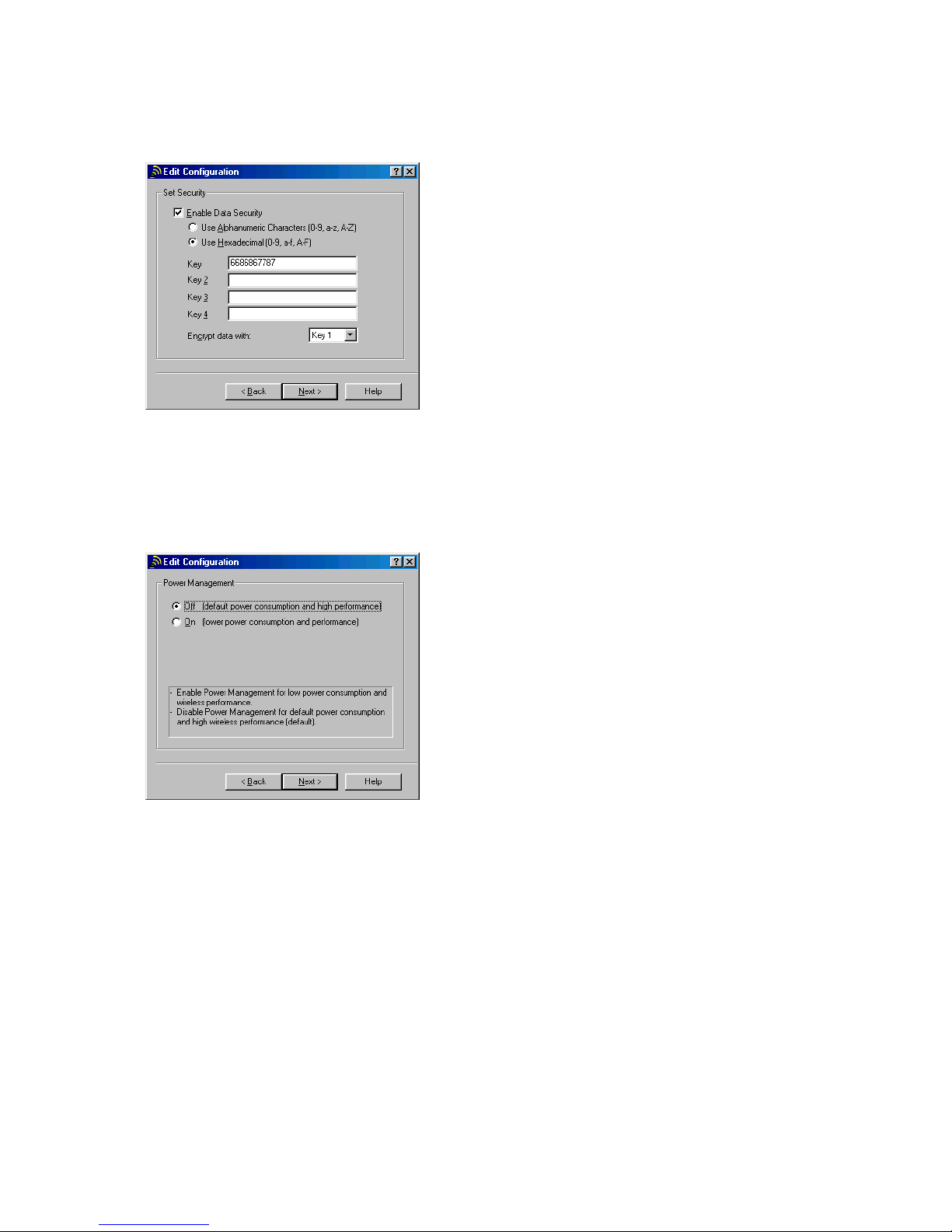
8. Click Next. In the Set Security field, check the Enable Data Security checkbox. Verify that the Use
Hexadecimal (0-9, a-f, A-F) radio button is selected.
9. In the Key field, enter your ten-digit Wireless Encryption Key, located on the bottom of your
HomePortal.
10. Verify that Key 1 is selected in the Encrypt data with pulldown menu (this is the default).
11. To select a power management option, click Next. The following screen appears.
12. Select the power management option that you wish to use (the default is Off), and click Next.
5
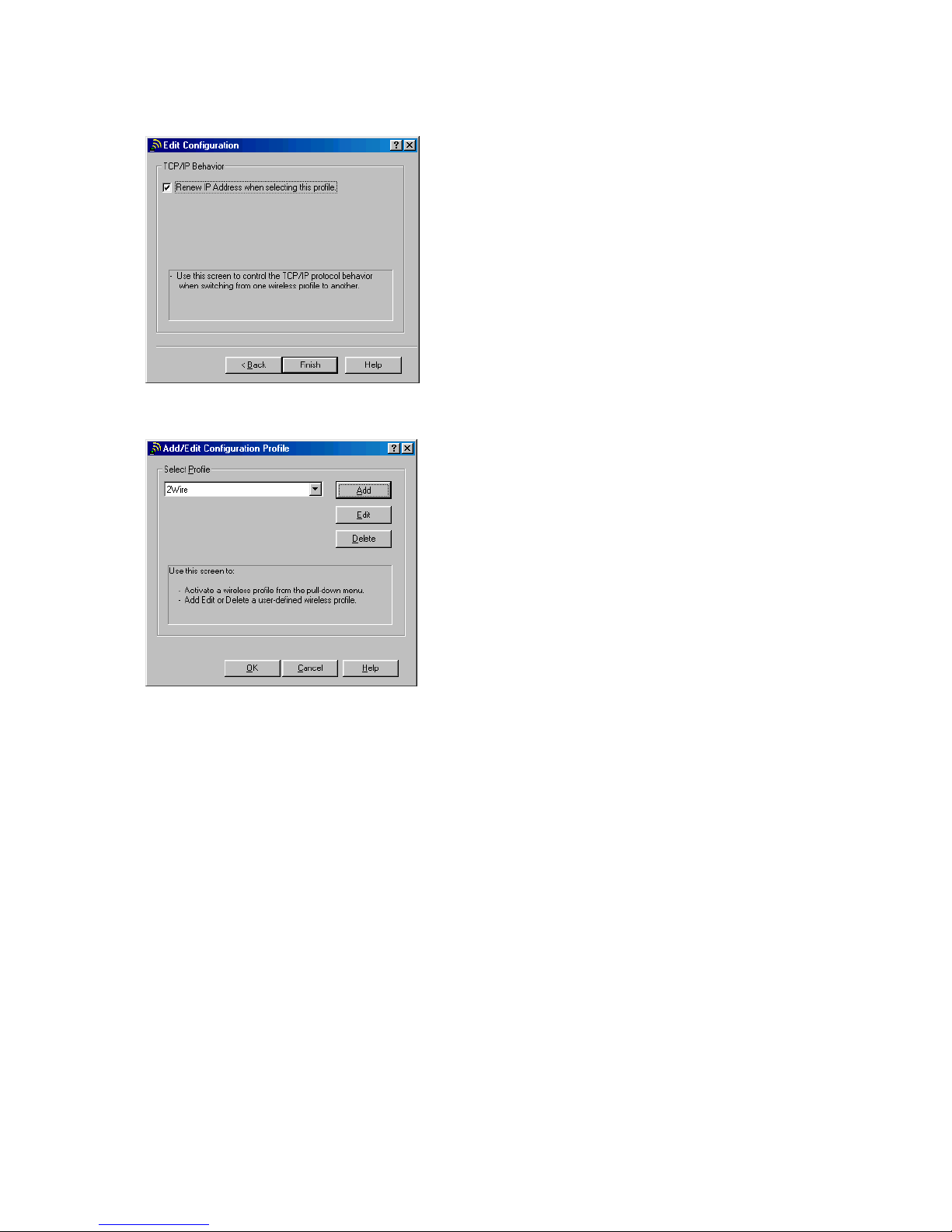
13. In the TCP/IP Behavior field, check the Renew IP Address when selecting this profile checkbox.
14. Click Finish. The following screen appears.
15. Click OK.

6
Cisco Aironet
Consult the documentation provided with your wireless card to install the Cisco Aironet adapter, then
follow these steps:
1. Double-click the Aironet Client Utility icon on your desktop. The Aironet Client Utility screen
appears.
2. Click the Profile Manager button. The Profile Manager screen appears.
3. Click Add.
4. In the Profile Management field, enter your profile name. The profile name identifies your wireless
profile, and should be no more than 29 characters in length.
5. Click Apply. The 340 Series Properties screen appears.
Indice
Altri manuali 2-Wire Scheda di rete

Manuali Scheda di rete popolari di altre marche


Buffalo
Buffalo AirStation WLI-PCM-L11GP Manuale utente

National Instruments
National Instruments NI 9234 Manuale utente

Hama
Hama 49276 Manuale utente

Linksys
Linksys WCF54G - Wireless-G Compact Flash Card Manuale operativo

Compaq
Compaq Wireless LAN 100 Manuale utente

Bose
Bose PowerMatch Dante Manuale utente