acaia Pearl S Manuale utente

Acaia Pearl Model S
User Manual
FW 1.0.003
PS003 / PS004

In the Box
Introduction
Scale Overview
Getting Started
Placement
Power On / Off
Tare Weight
Switch between Grams / Ounces
Switch Modes
Product Care Information
Battery Charge
Battery Level Indicator
Calibration
Using the Acaia Brewguide
Using Brewguide for the First Time
Using Brewguide on Pearl Model S
Sound Notication
Mode Introduction
Mode 1 – Weighing Only Mode
Mode 2 – Dual Display Mode
Mode 3 – Pour-Over Auto-Start Timer Mode
Mode 4 – Portalter Mode
Mode 5 – Espresso Mode
Mode 6 – Flowrate Mode
Mode 7 – Brewguide Mode
Mode 8 – Countdown Mode
Conguration
Appendix
Buttons
LED Indicators
Error Codes
Other
Specications
3
3
3
4
4
4
4
4
4
5
5
5
5
6
6
6
7
8
8
8
9
10
11
12
12
13
14
20
20
21
22
22
23
Contents

Next, follow the instructions in the “Getting Started” chapter in this manual to start using
your scale. To take full advantage of the many features of the Pearl Model S, carefully read
through this user manual for step-by-step procedures, examples, and other information.
Warning: Incorrect handling of this product could result in personal injury or physical damage.
Thank you for choosing one of our scales. The Acaia Pearl Model S is designed and
manufactured to the most rigorous standard to give you the best coffee brewing experience.
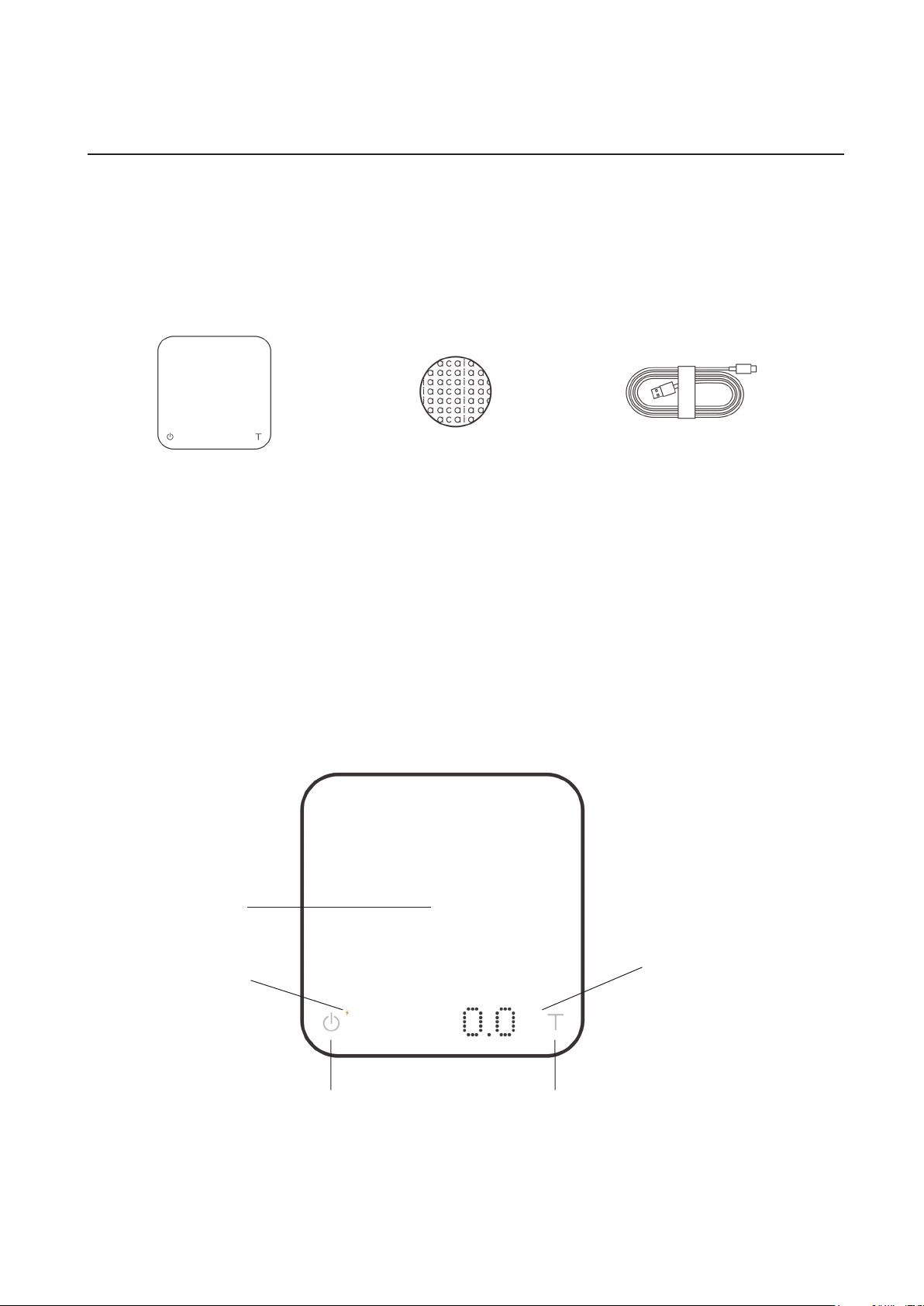
First, check the shipping carton to nd the following:
*Note: For the best performance, place the weight in the center of the weighing pan.
In the Box
Introduction
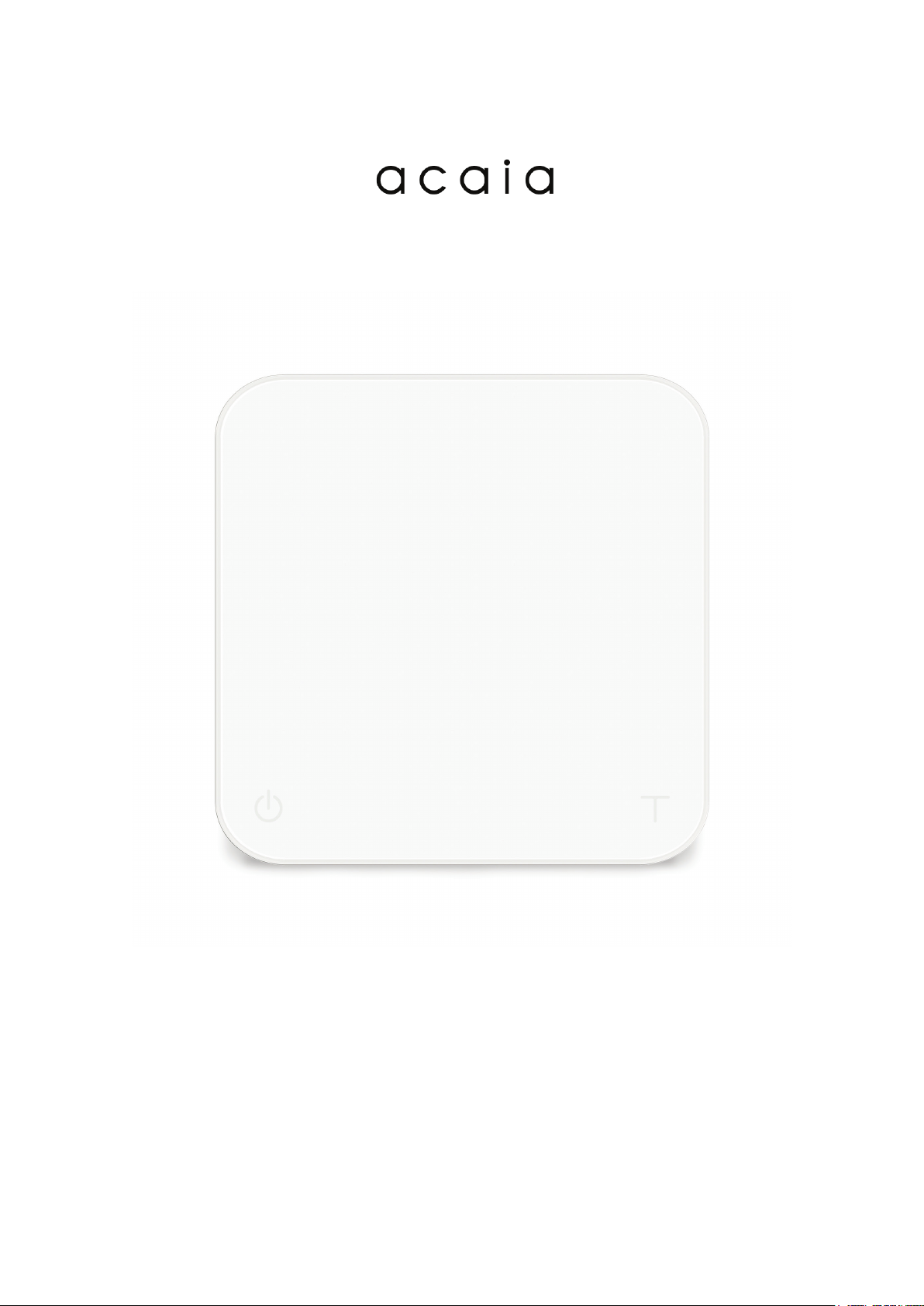
Scale Overview
Weighing Pan
Power Button Tare Button
LED Display
Charging / Low Battery
Indicator
Acaia Pearl Model S
Coffee Scale
Heat Resistant Coaster USB Type-C Charging Cable
3

Getting Started
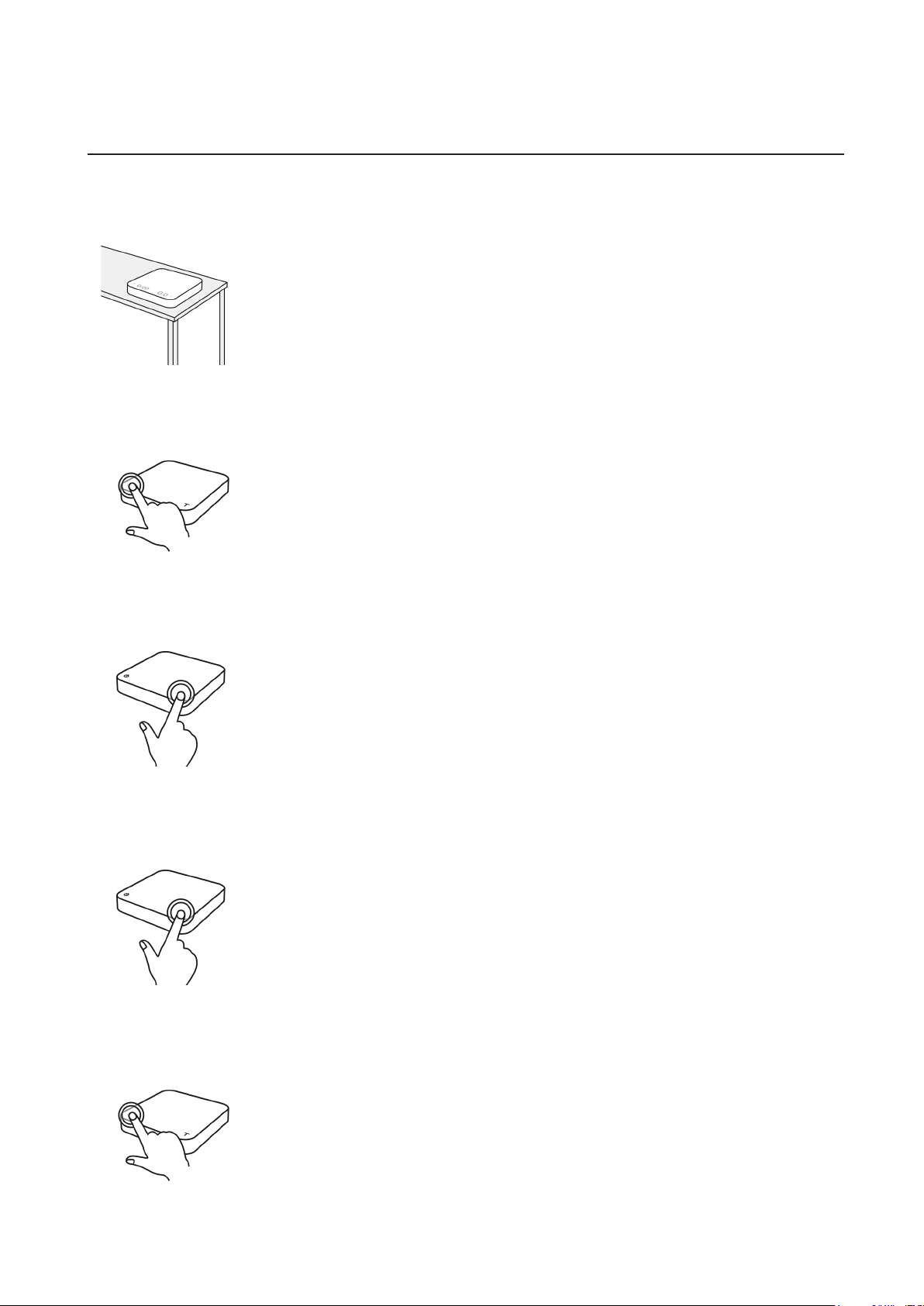
Placement
Power On / Off
Tare Weight
Switch between Grams / Ounces
Switch Modes
Select a work surface that is stable, vibration-free and level to
place the scale.
4
Tap the Power button to turn on the scale.
Double tap the Power button to turn off the scale.
Tap the Tare button to tare / zero the weight.
Press and hold the Power button to switch modes.
* Please see the “Mode Introduction” section for more details.
Press and hold the Tare button to switch between grams / ounces.

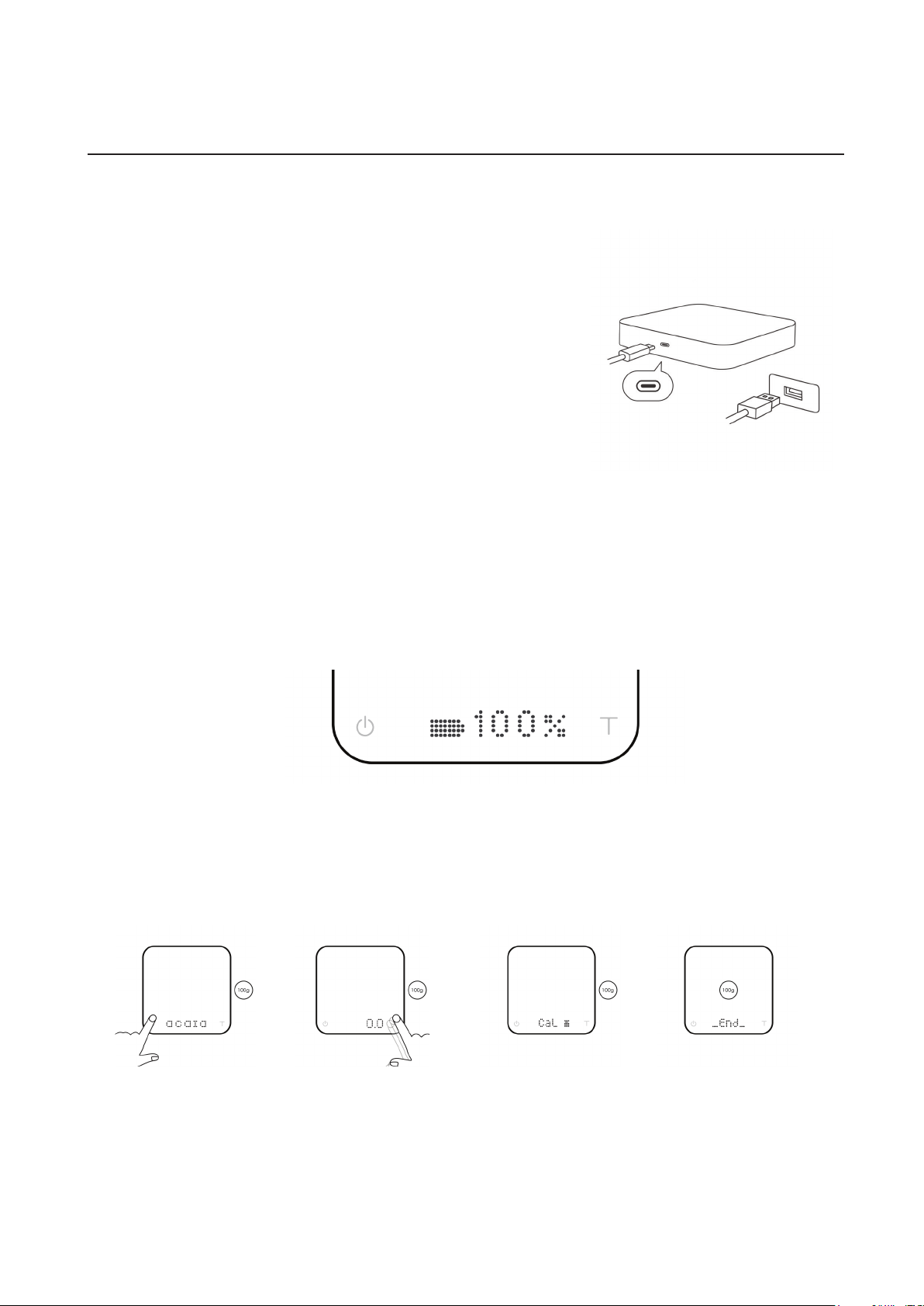
• You can charge the battery by plugging the USB cable into
any of the power supplies listed below:
• A computer
• A USB wall-charger with an output of 5 volts and 1 amp
• A DC car-charger with an output of 5 volts and 1 amp
• A USB-C PD charger supporting 5 volts
• It takes about 3-4 hours to fully charge the battery from
empty. Try not to let the battery completely run out before
charging. Charge the battery as needed.
• A fully charged battery can provide up to 16 hours of
working time in normal brightness and up to 40 hours in low
brightness mode.
• To check remaining battery level, see “Battery Level
Indicator” section.
* Note: The Acaia Pearl Model S is equipped with charging protection to prevent the battery from
charging under high temperatures. It is normal if the scale does not charge when the surface is
hot from brewing coffee. Battery charging function will be enabled once the scale has cooled.
Turn to Weighing
Mode, with the unit
set to ‘grams’.
Rapidly tap the Tare
button until ‘CaL’
is shown on the
display.
Place an Acaia or
F2 class standard
weights on the scale
(100 g / 500 g /
1000 g / 2000 g).
When the display
show ‘_End_’.
Calibration is now
complete!
Product Care Information
Turn on scale Tap Tare button See CaL display Place a weight
Battery Charge
Calibration
5
Battery Level Indicator
• When the Pearl Model S is powered off, press and hold the Power button. The LED will
display [ acaia ], [ Settings ], and then the battery percentage.
• You can also check the battery level by connecting the Pearl Model S to Acaia Apps.

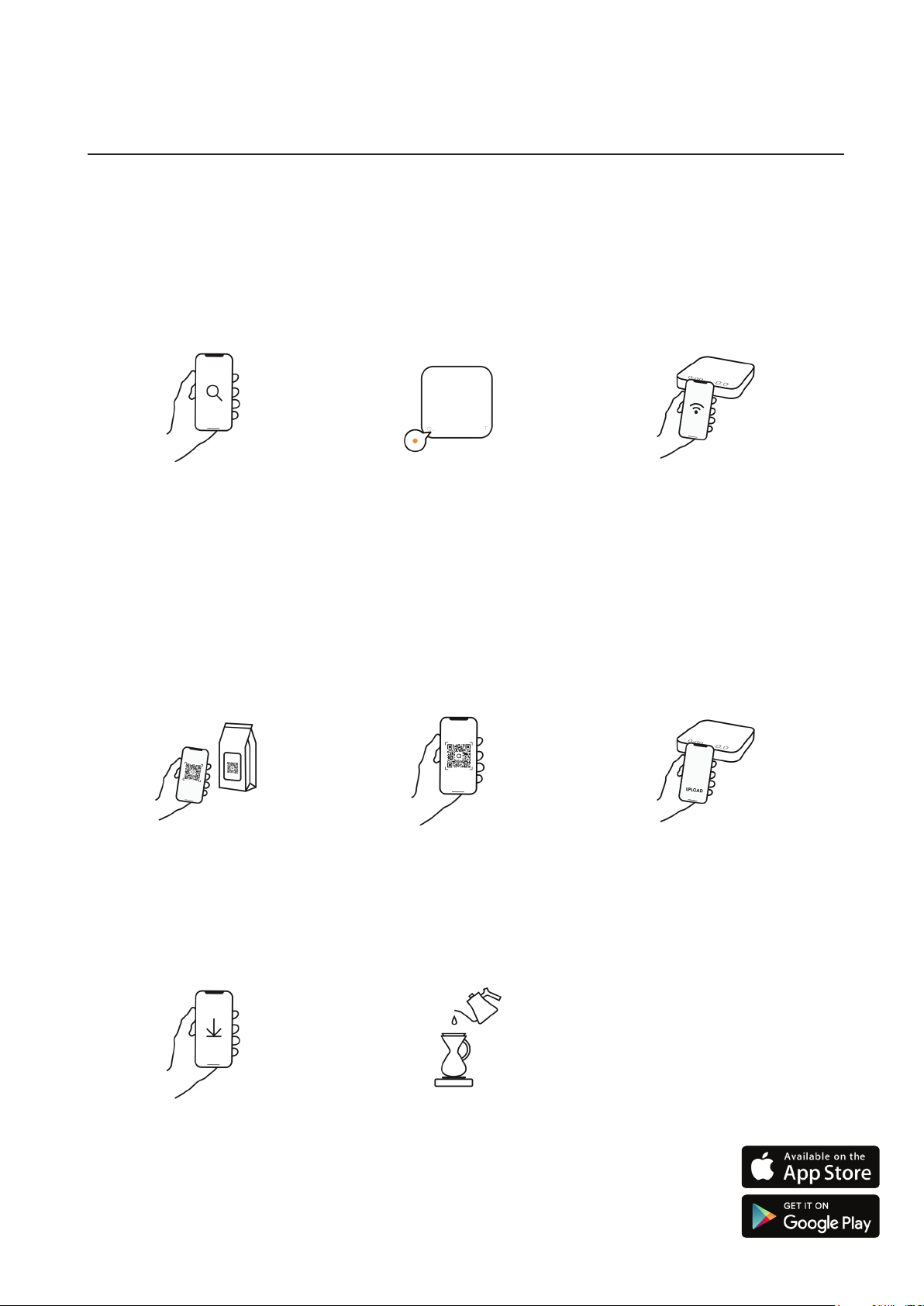
Brewguide is a step-by-step interactive guide to brewing coffee. Simply scan the Acaia
Brewguide QR code on the coffee bean bag, and use the Acaia Brewguide app to download
the recipe to your Pearl Model S. In the Brewguide app, you can also discover guides
created by roasters around the world.
Download the
Brewguide app
Search or scan the QR
Code to nd the Brewguide
you need.
Wait until the Brewguide is
sent to the Pearl Model S;
this may take up to one
minute.
Activate Bluetooth on
your phone and connect
with the Pearl Model S
Select a brewguide.
Follow the guide and get
brewing!
Follow the instructions on
the Brewguide app
Choose “Upload to Pearl S”
in the app to send it to the
Pearl Model S.
Using the Acaia Brewguide
Download
1
4
Connect
2
5
Start personalization
3
Using Brewguide for the First Time
Using Brewguide on Pearl Model S
6

The Pearl Model S comes with sound notication to enhance your brewing experience. Hear
the weight and time notied at xed intervals to help you focus on your brewing workow.
You can further personalize Sound Notications with the choices of voice, sound effect, or
turn it off in Advanced Settings:
Enter Advanced Settings Menu and look for [ Timer Notication Sound ] setting. Available
options for this setting:
Enter Settings Menu and look for [ Weight Notication Sound ] setting. Available options for
this setting:
1. When the Timer and Weight are both set to Voice, if there is an overlap in notication, the
Pearl Model S will prioritize and announce the Weight rst, then the Time.
2. When the Timer and Weight are both set to Sound, if there is an overlap in notication,
the Pearl Model S will prioritize the Time and omit the Weight notication.
3. When the Timer is set to Sound, and Weight is set to Voice, if there is an overlap in
notication, the Pearl Model S will prioritize the Time, and omit the Weight notication.
Timer Notication Sound is supported in Dual Display Mode, Espresso Mode, Pour-Over
Auto-Start Timer Mode, and Flowrate Mode.
Weight Notication Sound is supported in Weighing Only Mode, Dual Display Mode,
Espresso Mode, Pour-Over Auto-Start Timer Mode, and Flowrate Mode.
Sound Notication
Personalize Sound Notication
Timer Notication Sound
Weight Notication Sound
Sound Notication Priorities
Sound The scale noties with sound effect as a reminder every 10 seconds
and 60 seconds once the timer is started.
Voice The scale reads out the time every 10 seconds once the timer is
started.
Off Sound Notication for timer disabled.
Sound When a ow detected, the scale beeps as a reminder every 20
grams or the equivalent at every 0.7 ounces.
Voice When a stable weight is detected, the scale reads out the weight.
When a ow is detected, the scale reads out weight increment every
20 grams or the equivalent at every 0.7 ounces.
Off Sound Notication for weight disabled.
7

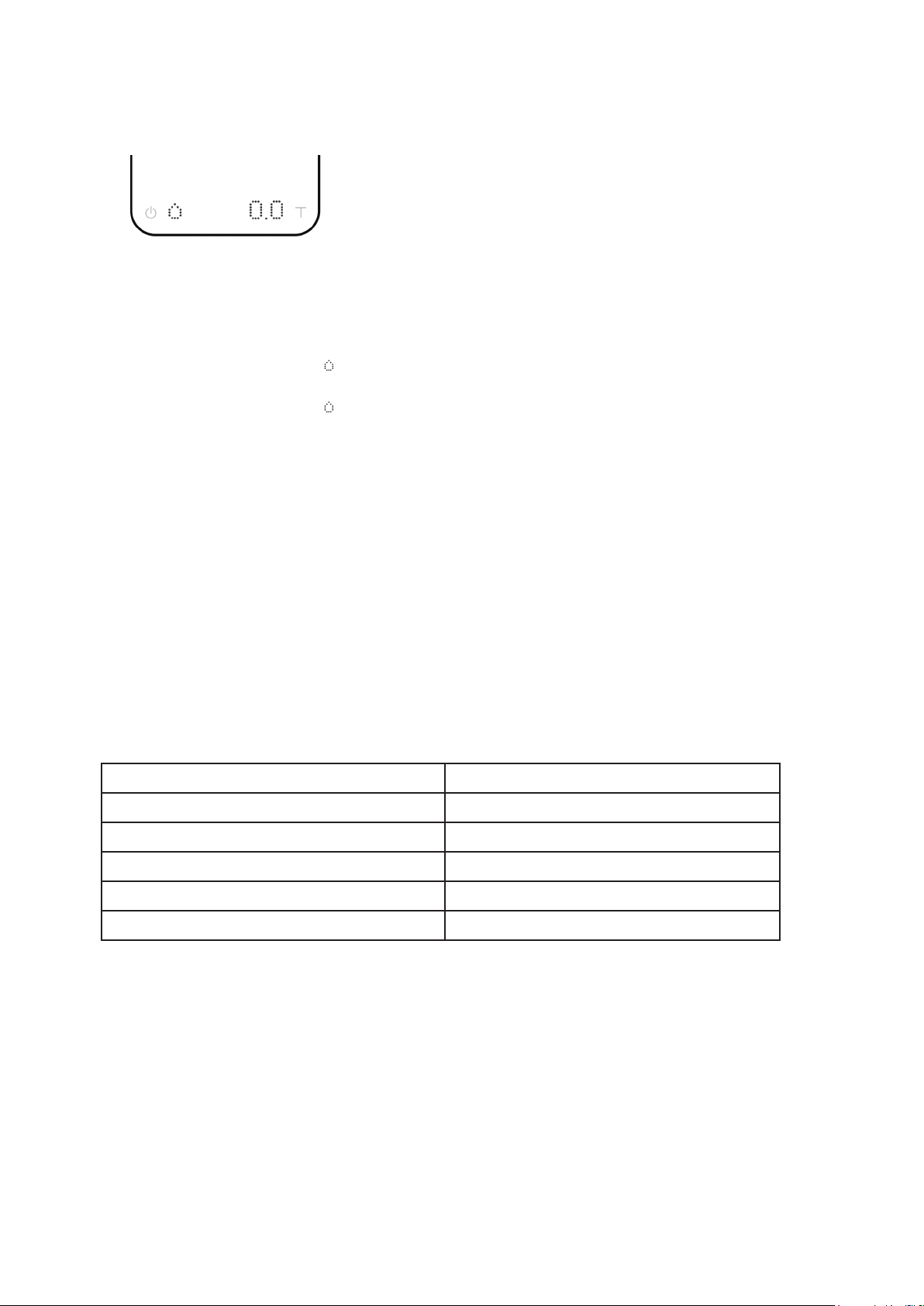
In the Weighing Only Mode, the scale will only display
weight, in either grams or ounces.
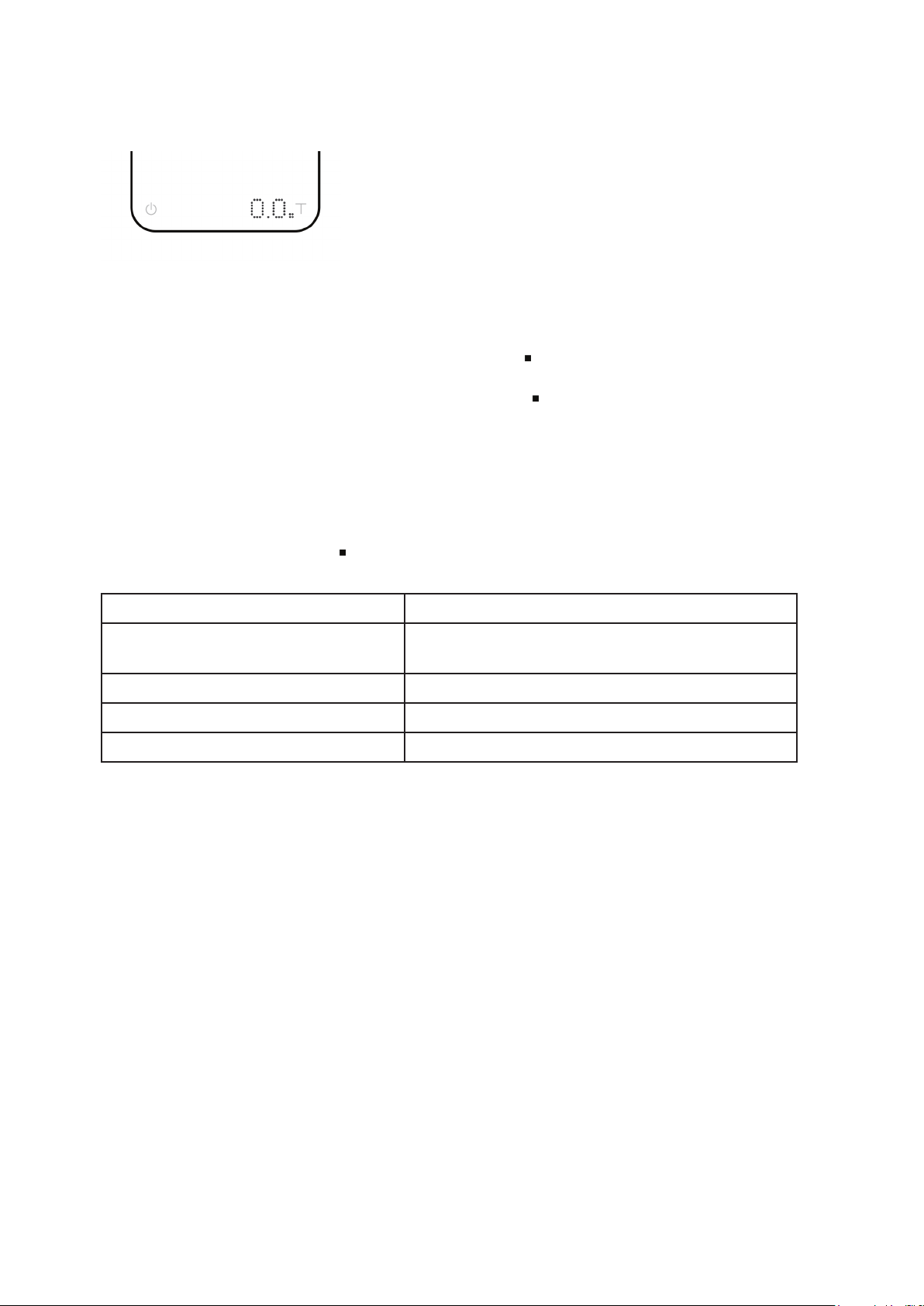
In the Dual Display Mode, the scale displays [ 0:00 0.0 ]
with a timer (left) and weight (right).
• There are two different weighing units in Weighing Only Mode: grams and ounces. A
green dot will appear in the upper right of the LED display and the scale will read 0.000
when weighing in ounces.
• The LED display shows [ 0.0 ] when the scale is measuring in grams.
• The LED display shows [ 0.000 ] when the scale is measuring in ounces.
• The readability is 0.1 g for grams and 0.005 oz for ounces.
• There are two different weighing units in Dual Display Mode: grams and ounces.
• The LED display shows [ 0:00 0.0 ] when the scale is measuring in grams.
• The LED display shows [ 0:00 0.000 ] when the scale is measuring in ounces.
• When the weight exceeds 999 grams, the LED display only shows the integer part
(the decimal point will not be displayed). The LED display shows up to a maximum of
3000 grams. If the weight exceeds 3000 grams, the scale will display [ Maximum ].
Mode Introduction
Mode 1 - Weighing Only Mode
Mode 2 - Dual Display Mode
Action Operation
Tare Weight Tap Tare button
Switch between Grams / Ounces Press and hold Tare button
Reset Mode Double tap Tare button
Switch Mode Press and hold Power button
Action Operation
Start / Stop / Reset Timer Tap Power button
Tare Weight Tap Tare button
Reset Mode Double tap Tare button
Switch between Grams / Ounces Press and hold Tare button
Switch Mode Press and hold Power button
8

• The LED display ashes [ 0.0 ] and [ 0:00 0.0 ] when measuring in grams and the
timer is idle.
• The LED display ashes [ 0.000 ] and [ 0:00 0.000] when measuring in ounces and the
timer is idle.
• Once the timer has started, the LED display shows [ 0:00 0.0 ], with the time elapsed on
the left and the weight on the right in grams.
• Once the timer has started, the LED display shows [ 0:00 0.000], with the time elapsed on
the left and the weight on the right in ounces.
• When the weight exceeds 999 grams, the LED display only shows the integer part (the
decimal point will not be displayed). The LED display shows up to a maximum of 3000 grams.
If the weight exceeds 3000 grams, the scale will display [ Maximum ].
• If the timer has not started yet, the display will ash 0:00 and a water droplet.
• The timer will start automatically when the rst ow of water is detected.
• The timer stops when the brewing equipment is removed. The scale will ash between
the beverage weight and the tare weight of the items on the scale.
Mode 3 - Pour-Over Auto-Start Timer Mode
Mode Description
Display
Action Operation
Start / Stop / Reset Timer Tap Power button
Tare Weight Tap Tare button
Reset Mode Double tap Tare button
Switch between Grams / Ounces Press and hold Tare button
Switch Mode Press and hold Power button
The Pour-Over Auto-Start Timer Mode is designed to
aid pour-over coffee brewing. The scale will detect
the start of the ow from kettle into the vessel and
automatically start the timer function; the timer stops
when the brewing equipment has been removed
from the scale. When the vessel is removed from the scale, the display ashes the nal
beverage weight.
9

Note
1. If the scale is left idle for 15 seconds or you double tap the Tare button, the Pearl Model S
will automatically reset the mode to default for the next auto-tare operation.
2. To change the timer reset length in Portalter Mode, see the “Conguration” section (p.14-
15).
Mode 4 - Portalter Mode
Action Operation
Tare Weight Tare function begins automatically when a stable
weight is placed on the scale
Reset Mode Double tap Tare button
Switch between Grams / Ounces Press and hold Tare button
Switch Mode Press and hold Power button
• When measuring in grams, the display shows [ 0.0 ] before a portalter is placed
on the scale.
• When measuring in ounces, the display shows [ 0.000 ] before a portalter is placed
on the scale.
• The display shows [ 0.0 ] / [ 0.000 ] after a portalter has been registered.
• Place an empty portalter on the scale, and the scale will register the weight of the
portalter.
• Remove the portalter after [ ] disappears.
Display
Mode Description
The Portalter Mode is designed to speed up the
workow of accurately weighing coffee grounds in a
portalter. The scale automatically tares the portalter
and allows for the adjustment of the ground coffee. The
mode will reset 15 seconds after removing the portalter
to enable weighing for the next shot.
10
Altri manuali per Pearl S
2
Questo manuale è adatto per i seguenti modelli
2
Indice
Altri manuali acaia Scala

acaia
acaia Coffee Scale Manuale utente

acaia
acaia Pearl S Manuale utente

acaia
acaia Pearl Manuale utente

acaia
acaia pearl coffee scale Manuale utente

acaia
acaia lunar Manuale utente

acaia
acaia AC001 Manuale utente

acaia
acaia Pyxis Manuale utente

acaia
acaia Pearl Scheda tecnica

acaia
acaia Cinco Manuale utente

acaia
acaia Pearl Manuale utente

acaia
acaia Pearl Manuale utente

acaia
acaia AL010 Manuale utente

acaia
acaia Pearl Manuale utente

acaia
acaia Pearl Manuale utente

acaia
acaia AP009 Manuale utente

acaia
acaia Pearl Manuale utente

acaia
acaia lunar Manuale utente

acaia
acaia Pearl Scheda tecnica

acaia
acaia Pearl Manuale utente

acaia
acaia PS001 Manuale utente