
AKG PERCEPTION 120 USB Manuale utente

Perception 120 USB
BEDIENUNGSANLEITUNG ....................................2
Bittevor Inbetriebnahme des Gerätes lesen!
USER INSTRUCTIONS........................................16
Please read the manual before using theequipement!
MODE D’EMPLOI...............................................30
Veuillez lire cette notic e av ant d’utiliser le système!
ISTRUZIONI PER L’USO.....................................44
Prima di utilizzare l’apparecchio, leggere il m anuale!
MODO DE EMPLEO ............................................58
¡Sirvase leer el m anual antes de utilizar el equipo!
INSTRUÇÕES DE USO........................................72
Favor lei a este manual antes de usar o equipamento!

Table of Contents
16
Perception USB
1 Safety ............................................................................................... 17
Environment ....................................................................................... 17
2 Description ....................................................................................... 18
Introduction ........................................................................................ 18
Scope of supply .................................................................................. 18
Optional Accessories ........................................................................... 18
Summary ........................................................................................... 18
3 Installation ........................................................................................ 19
Settin up the microphone .................................................................. 19
Connectin the microphone ................................................................. 19
4 Configuration / Volume control ......................................................... 2
WINDOWS XP ..................................................................................... 20
WINDOWS VISTA ................................................................................ 21
WINDOWS 7 ....................................................................................... 22
MAC OS X .......................................................................................... 23
Level settin s ..................................................................................... 24
5 Operation .......................................................................................... 25
Operatin instructions ......................................................................... 25
Control elements ................................................................................ 26
6 Cleaning ........................................................................................... 27
Microphone ........................................................................................ 27
7 Specifications ................................................................................... 28
Table of Contents

Safety
Perception USB
17
ATTENTION
Risk of dama e
Risk of dama eRisk of dama e
Risk of dama e
Please make sure that the piece of equipment your microphone will be
connected to fulfills the safety re ulations in force in your country and is
fitted with a round lead.
1) When the product reaches the end of its life, separate the housin ,
electronics and cables and dispose of all components in accordance with
local waste disposal re ulations.
2) The packa in can be recycled. Dispose of the packa in in a suitable
collection system.
1Safety
Environment

Description
18
Perception USB
Thank you for purchasin an AKG product. This Manual contains important
instructions for settin up and operatin your equipment. Please take a few
minutes to read the instructions below carefully before operating the
equipment. Please keep the Manual for future reference. Have fun and
impress your audience!
•Perception 12 USB microphone
•Table tripod
•Tripod adapter
•USB cable
•Quick Start Guide
Please check that the packa in contains all the components listed above. If
anythin is missin , please contact your AKG dealer.
For optional accessories, refer to the current AKG catalo or folder, or visit
www.ak .com. Your dealer will be lad to help.
The Perception 120 USB microphone expands AKG's successful Perception
ran e and is also the first USB-equipped condenser microphone from AKG.
With the widespread USB standard, ease of use and real plu -and-play, users
without any recordin experience can quickly and easily make hi h-quality,
professional recordin s usin PC or Mac - with no installation and no additional
equipment such as mixin desks or special sound cards.
The microphone features an inte ral analo -to-di ital converter. It is the only
USB microphone in its class to have a separate analo -to-di ital converter (24-
bit, 128x oversamplin ) instead of the normal sin le chip system, offerin
convincin sound quality and low noise.
The Perception 120 USB contains a 2/3" condenser capsule for clear,
transparent sound, an inte ral pop filter, a switchable bass-cut filter and an
attenuation switch.
NOTE
For further information about the features and use of USB microphones and
frequently asked questions, see the product description on the AKG website at
http://www.ak .com/perception120usb
2Description
Introduction
Scope of supply
Optional Accessories
Summary

Installation
Perception USB
19
Figure 1: Setting up the microphone
1) Screw the tripod adapter on to the table tripod.
2) Screw the microphone on to the tripod adapter.
Figure 2: Connecting the microphone
3) Connect the USB cable to the microphone and the recordin device (e. .
computer).
4) The LEDs on the selector switches li ht up to show that the power supply
is OK.
The computer operatin system detects the microphone and automatically
installs the device driver.
3Installation
Setting up the microphone
Connecting the
microphone

Configuration / Volume control
20
Perception USB
Figure 3: Sound settings in WINDOWS XP
1) Open the sound settin s in Control Panel.
2) Select the Audio tab.
3) Recommendation: The Sound pl yb ck device must be chan ed from
"Perception 120 USB" back to the ori inal playback device.
Figure 4: Volume control in WINDOWS XP
4) If the AKG Perception 120 USB is not selected automatically as the
default sound recordin device, select it usin the drop-down menu.
5) Open the volume control on your recordin software or click on Volume to
open the volume control window.
6) Use the slider to select the volume required for your recordin s, see Level
Level Level
Level
setti
settisetti
settings
ngsngs
ngs (Pa e 24).
4Configuration / Volume control
WINDOWS XP

Configuration / Volume control
Perception USB
21
Figure 5: Sound settings in WINDOWS VISTA
1) In the Control Panel open the "Hardware and Sound" cate ory and select
Sound.
2) Select the Pl yb ck tab.
3) Recommendation: The Sound pl yb ck device must be chan ed from
"Perception 120 USB" back to the ori inal playback device.
Figure 6: Volume control in WINDOWS VISTA
4) Select the Recording tab.
5) Ensure that the AKG Perception 120 USB is hi hli hted and the reen
tick is in place.
6) Click on Properties to open the volume control.
7) Select the Levels tab.
8) Use the slider to select the volume required for your recordin s, see Level
Level Level
Level
settings
settingssettings
settings (Pa e 24).
WINDOWS VISTA

Configuration / Volume control
22
Perception USB
Figure 7: Sound settings in WINDOWS 7
1) In the Control Panel open the "Hardware and Sound" cate ory and select
Sound.
2) Select the Pl yb ck tab.
3) Recommendation: The Sound pl yb ck device must be chan ed from
"Perception 120 USB" back to the ori inal playback device.
Figure 8: Volume control in WINDOWS 7
4) Select the Recording tab.
5) Ensure that the AKG Perception 120 USB is hi hli hted and the reen
tick is in place.
6) Click on Properties to open the volume control.
7) Select the Levels tab.
8) Use the slider to select the volume required for your recordin s, see Level
Level Level
Level
settings
settingssettings
settings (Pa e 24).
WINDOWS 7

Configuration / Volume control
Perception USB
23
Figure 9: Sound settings in MAC OS
1) Open the sound settin s in the system preferences.
2) Select the Output tab.
3) Recommendation: The Sound pl yb ck device must be chan ed from
"Perception 120 USB" back to the ori inal playback device.
Figure 10: Volume control in MAC OS
4) Select the Input tab.
5) If the AKG Perception 120 USB is not selected automatically on the list of
sound recordin devices, hi hli ht it in the list.
6) Open the volume control in your recordin software or use the slider to
select the volume required for your recordin s, see Level se
Level seLevel se
Level settings
ttingsttings
ttings (Pa e
24).
MAC OS X

Configuration / Volume control
24
Perception USB
Use your recordin software to set the volume. When usin the microphone or
recordin from a sound source, adjust the volume control and check the level
indicator.
For best results we recommend the hi hest possible volume settin to reduce
unwanted noise. The settin should not be too hi h, however, as this can
cause unpleasant distortion. This will normally be indicated in red on the
recordin software.
Carefully increase the volume until the level display in your recordin software
no lon er shows an overload (red).
For best results when recordin speech we recommend placin the
microphone 20 to 40 cm (8 to 16 inch) in front of the speaker(s).
Level settings
Figure 11: Volume control
Altri manuali per PERCEPTION 120 USB
5
Indice
Altri manuali AKG Microfono

AKG
AKG CK 63-ULS Manuale utente

AKG
AKG c4000 Manuale utente

AKG
AKG C 2000 B Manuale utente

AKG
AKG C 444 Manuale utente
AKG
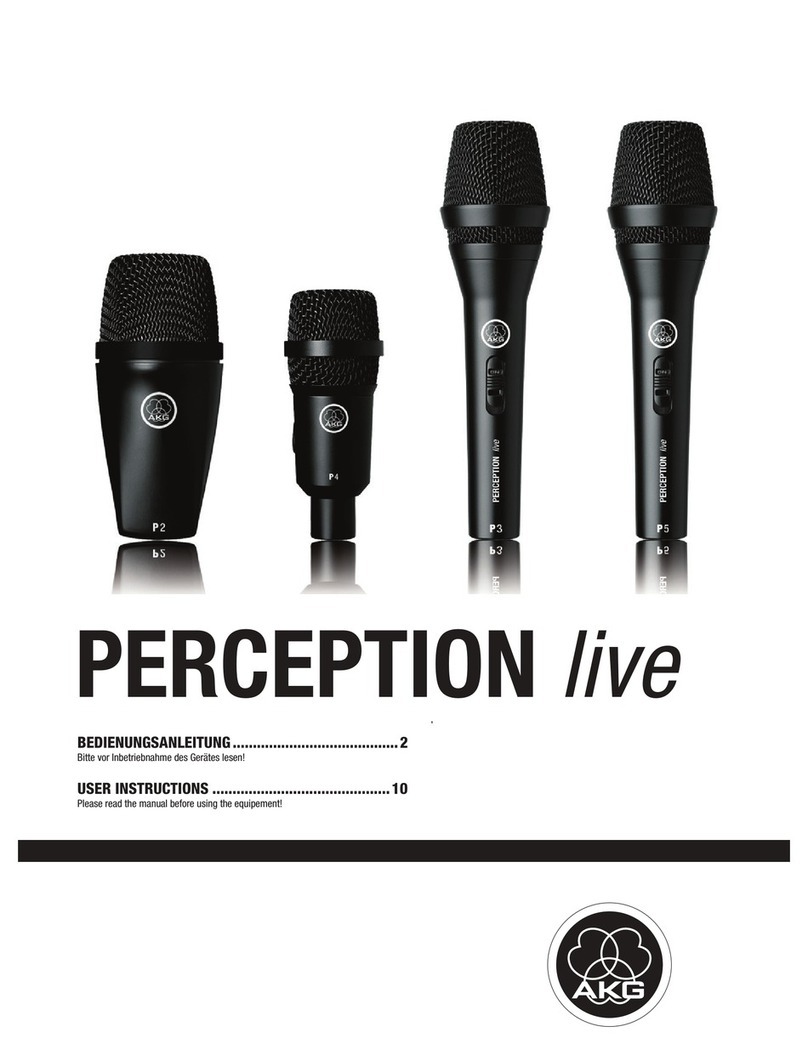
AKG PERCEPTION live Manuale utente

AKG
AKG D 40 Manuale utente

AKG
AKG D 112 Manuale utente

AKG
AKG EMOTION D 770 Manuale utente

AKG
AKG PERCEPTION 120 USB Manuale utente

AKG
AKG P820 Manuale utente

AKG
AKG D660 S Manuale utente

AKG
AKG C 451B Manuale utente

AKG
AKG CK 91 Manuale utente

AKG
AKG 6000H50930 Manuale utente

AKG
AKG PZM-10 Manuale utente

AKG
AKG MicroMic C417 III Manuale utente

AKG
AKG C 516 ML Manuale utente

AKG
AKG C4500 BC Manuale utente

AKG
AKG D 12/60 Istruzioni per il montaggio

AKG
AKG D 3800 Manuale utente


