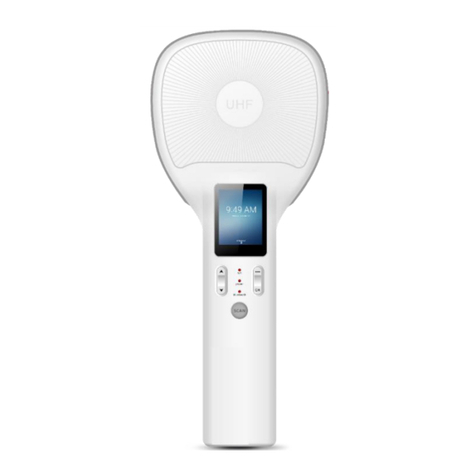
AXEM Technology S-8600 Manuale utente

AXEM Technology
11 rue Auguste Perret, 94042 Créteil, FRANCE – [email protected] – +33 (0)1 41 94 11 85 – www.axemtec.com
Siret : 45071140300045 - APE : 4652Z - RCS : CRETEIL 450711403 - N° TVA intracom : FR05450711403 - Capital : 500 000,00 €
Fichier : 20190517_S-8600_&_M-2800_User_guide S-8600
& M
-
2800
Version : V1.0
1/27
S
-
8600
& M
-
2800
User guide

AXEM Technology
11 rue Auguste Perret, 94042 Créteil, FRANCE – [email protected] – +33 (0)1 41 94 11 85 – www.axemtec.com
Siret : 45071140300045 - APE : 4652Z - RCS : CRETEIL 450711403 - N° TVA intracom : FR05450711403 - Capital : 500 000,00 €
Fichier : 20190517_S-8600_&_M-2800_User_guide S-8600
& M
-
2800
Version : V1.0
2/27
Table of content
1 Background.............................................................................................................................. 4
2 S-8600 view ............................................................................................................................. 5
1-1: Front View ............................................................................................................................ 5
1-2: Back View ............................................................................................................................ 5
1-3: Side View ............................................................................................................................. 5
3 Reader Configurations ............................................................................................................. 6
3.1 Initial Use .......................................................................................................................... 6
3.1.1 Step 1: Powering the Reader ..................................................................................... 6
3.1.2 Step 2: Connecting Antenna(s) to Reader.................................................................. 6
3.1.3 Step 3: Connecting Data Line to Reader .................................................................... 7
3.1.4 Step 4: Operating Reader via Demo .......................................................................... 8
3.2 Setting RF Parameter ..................................................................................................... 10
3.2.1 Setting RF Output Power ......................................................................................... 10
3.2.2 Setting RF Spectrum ............................................................................................... 11
3.2.3 Antenna Connection Detector .................................................................................. 11
3.2.4 Measure RF Port Return Loss ................................................................................. 12
3.3 ISO-18000-6C tag inventory ........................................................................................... 12
3.3.1 Real Time Mode & Buffer Mode ............................................................................... 12
3.3.2 Fast Switching Antenna to Inventory Tags ............................................................... 15
3.4 Accessing ISO-18000-6C Tag ........................................................................................ 16
3.4.1 Read tags ................................................................................................................ 16
3.4.2 Write Tags ............................................................................................................... 17
3.4.3 Lock Tags ................................................................................................................ 17
3.4.4 Kill Tags ................................................................................................................... 18
3.4.5 Tag Selection ........................................................................................................... 18
3.4.6 Error Display Might Be Returned ............................................................................. 19
3.5 Accessing & Inventorying ISO-18000-6B Tag ................................................................. 20
3.5.1 ISO-18000-6B Tag Inventory ................................................................................... 20
3.5.2 Accessing to ISO-18000-6B Tag .............................................................................. 21
3.6 Other Settings ................................................................................................................. 22
3.6.1 Set DRM Status ....................................................................................................... 22
3.6.2 Operating Temperature Monitoring .......................................................................... 23

AXEM Technology
11 rue Auguste Perret, 94042 Créteil, FRANCE – [email protected] – +33 (0)1 41 94 11 85 – www.axemtec.com
Siret : 45071140300045 - APE : 4652Z - RCS : CRETEIL 450711403 - N° TVA intracom : FR05450711403 - Capital : 500 000,00 €
Fichier : 20190517_S-8600_&_M-2800_User_guide S-8600
& M
-
2800
Version : V1.0
3/27
3.6.3 Set GPIO Level ........................................................................................................ 23
3.6.4 Setting Buzzer Status .............................................................................................. 25
3.6.5 Charging The Serial Communication Baud Rate ...................................................... 26
4 Develop your own RFID Application ....................................................................................... 27

AXEM Technology
11 rue Auguste Perret, 94042 Créteil, FRANCE – [email protected] – +33 (0)1 41 94 11 85 – www.axemtec.com
Siret : 45071140300045 - APE : 4652Z - RCS : CRETEIL 450711403 - N° TVA intracom : FR05450711403 - Capital : 500 000,00 €
Fichier : 20190517_S-8600_&_M-2800_User_guide S-8600
& M
-
2800
Version : V1.0
4/27
1 Background
Description Date Version Author Auditor
First parution 17/05/2019 V1.0 CLO YDA, ACA

AXEM Technology
11 rue Auguste Perret, 94042 Créteil, FRANCE – [email protected] – +33 (0)1 41 94 11 85 – www.axemtec.com
Siret : 45071140300045 - APE : 4652Z - RCS : CRETEIL 450711403 - N° TVA intracom : FR05450711403 - Capital : 500 000,00 €
Fichier : 20190517_S-8600_&_M-2800_User_guide S-8600
& M
-
2800
Version : V1.0
5/27
2 S-8600 view
1-1: Front View
1-2: Back View
1-3: Side View

AXEM Technology
11 rue Auguste Perret, 94042 Créteil, FRANCE – [email protected] – +33 (0)1 41 94 11 85 – www.axemtec.com
Siret : 45071140300045 - APE : 4652Z - RCS : CRETEIL 450711403 - N° TVA intracom : FR05450711403 - Capital : 500 000,00 €
Fichier : 20190517_S-8600_&_M-2800_User_guide S-8600
& M
-
2800
Version : V1.0
6/27
3 Reader Configurations
3.1 Initial Use
3.1.1 Step 1: Powering the Reader
Plug the power cable in, with the indicator light on and sound of a short beep, reader is ready. As
illustrated below:
3.1.2 Step 2: Connecting Antenna(s) to Reader
Connect the antenna(s) with the antenna port as illustrated below:
Access up to 4 antennas, as illustrated below:

AXEM Technology
11 rue Auguste Perret, 94042 Créteil, FRANCE – [email protected] – +33 (0)1 41 94 11 85 – www.axemtec.com
Siret : 45071140300045 - APE : 4652Z - RCS : CRETEIL 450711403 - N° TVA intracom : FR05450711403 - Capital : 500 000,00 €
Fichier : 20190517_S-8600_&_M-2800_User_guide S-8600
& M
-
2800
Version : V1.0
7/27
3.1.3 Step 3: Connecting Data Line to Reader
Method NO.1: You can connect the reader to your PC via RS-232 serial port, as illustrated below:
Next, please switch the DIP to the position as illustrated below:
Method NO.2: You can also connect the reader to your PC via TCP/IP, as illustrated below:
Next, please switch the DIP to the position as illustrated below:

AXEM Technology
11 rue Auguste Perret, 94042 Créteil, FRANCE – [email protected] – +33 (0)1 41 94 11 85 – www.axemtec.com
Siret : 45071140300045 - APE : 4652Z - RCS : CRETEIL 450711403 - N° TVA intracom : FR05450711403 - Capital : 500 000,00 €
Fichier : 20190517_S-8600_&_M-2800_User_guide S-8600
& M
-
2800
Version : V1.0
8/27
DIP Switch:
①:EN, ON Status, EN is low level.
②:GPIO1, ON Status, GPIO1 is low level.
③④:TCP/IP, ON Status is TCP/IP communication.
⑤⑥:Blank.
⑦⑧:RS232, ON Status is RS232 communication.
3.1.4 Step 4: Operating Reader via Demo
Put the UHFDemo.exe, reader.dll, customControl.dll into the same folder, and double-click
UHFDemo.exe to run the software.
1. Open the software and it will shows as below:
2. Please select RS232 as Connection if the reader is connected via RS -232 port. Choose the
corresponding Serial Port and Baudrate(default baudrate is 115200). As illustrated below:

AXEM Technology
11 rue Auguste Perret, 94042 Créteil, FRANCE – [email protected] – +33 (0)1 41 94 11 85 – www.axemtec.com
Siret : 45071140300045 - APE : 4652Z - RCS : CRETEIL 450711403 - N° TVA intracom : FR05450711403 - Capital : 500 000,00 €
Fichier : 20190517_S-8600_&_M-2800_User_guide S-8600
& M
-
2800
Version : V1.0
9/27
3. Click Connect, if it succeeds, the Operation History will display as below:
If the reader is connected via TCP/IP, please follow those steps:
Ensure that an Ethernet Card has been installed in the PC.
Ensure that PC and reader in the same network segment.
1. Default settings when connected via TCP/IP as follows:
IP addresses: 192.168.0.178
Net mask: 255.255.255.0
Port No.: 4001
For more TCP / IP configuration details, please defer to the document supplied:\ tcpip configuration
\ IPORT-1UM.PDF
2. Click Connect, if it is connected successfully, the Operation history will display as below:

AXEM Technology
11 rue Auguste Perret, 94042 Créteil, FRANCE – [email protected] – +33 (0)1 41 94 11 85 – www.axemtec.com
Siret : 45071140300045 - APE : 4652Z - RCS : CRETEIL 450711403 - N° TVA intracom : FR05450711403 - Capital : 500 000,00 €
Fichier : 20190517_S-8600_&_M-2800_User_guide S-8600
& M
-
2800
Version : V1.0
10/27
Text communication with the reader:
Click on Get in Firmware Version or in Reader Identifier, the following screen displays:
Now the reader has been connected to PC successfully.
3.2 Setting RF Parameter
After connecting the reader with PC, we need to set some basic RF parameters: RF Output Power
& RF Spectrum. Please select RF Setup as illustrated below:
3.2.1 Setting RF Output Power
RF Output Power is the strength of RF output signal from antenna port whose unit is dBm.
Questo manuale è adatto per i seguenti modelli
1
Indice
Altri manuali AXEM Technology Sistema RFID

AXEM Technology
AXEM Technology UniSled Manuale utente

AXEM Technology
AXEM Technology AX'Up wire Manuale utente

AXEM Technology
AXEM Technology Atid AT188N Manuale utente

AXEM Technology
AXEM Technology S-8800 Manuale utente

AXEM Technology
AXEM Technology Eagle Manuale utente

AXEM Technology
AXEM Technology D-10 Series Manuale utente

AXEM Technology
AXEM Technology Atid AT188N Manuale utente