BEAMEX MC6-WS Manuale utente

MC6-WS
Advanced Workshop
Calibrator and Communicator
Applies to firmware version 3.2
Dear user,
We have made every effort to ensure the accuracy of the contents of this
manual. Should any errors be detected, we would greatly appreciate to receive
suggestions to improve the quality of the contents of this manual.
For more detailed technical data about Beamex MC6 Advanced Workshop
Calibrator and Communicator, please contact the manufacturer.
© Beamex 2023
Beamex Oy Ab
Ristisuonraitti 10
FIN-68600 Pietarsaari
Finland
Tel:
E-mail:
Website:
+358-10-5505000
https://www.beamex.com
8860500 / MC6-WSuEng / Version 3.3

Table of Contents - ii
Table of Contents
Feedback..........................................................................................6
Part 1, Introduction.........................................................................7
General.......................................................................................................7
About This Manual............................................................................7
Where am I?.............................................................................8
Typographical Conventions......................................................8
Unpacking and Inspection.................................................................8
About MC6-WS...........................................................................................9
Starting MC6-WS...............................................................................9
Firmware..........................................................................................10
Hardware......................................................................................... 14
General...................................................................................14
Pressure Modules...................................................................15
Front Panel Connection Details............................................. 16
Connectors At The Back of MC6-WS.................................... 17
Memory...................................................................................18
Display....................................................................................18
Batteries..................................................................................19
PC Communication/Calibration software.........................................19
UBS Communication Driver................................................... 20
MC6-WS Related Tools Available for PC...............................20
Options......................................................................................................20
Software Options.............................................................................20
Hardware Modules/Options and Accessories..................................21
Related Products.............................................................................22
Part 2, Active Terminals and Connections.................................23
General.....................................................................................................23
Measurements..........................................................................................24
Pressure Measurement...................................................................24
Connecting and Disconnecting External Pressure Modules...24
Zeroing a Pressure Module....................................................25
Current Measurement......................................................................25
Voltage Measurement..................................................................... 26
Temperature Measurement (Thermocouple)...................................27
Temperature Measurement (RTD)..................................................27
Resistance Measurement................................................................28
Frequency Measurement.................................................................29
Pulse Counting................................................................................29
Switch Sensing................................................................................30
Generations/Simulations...........................................................................31
Changing the Generated/Simulated Value......................................31

Table of Contents - iii
Using the Soft Numeric Keypad.............................................31
Spinning..................................................................................32
Current Generation (Source or Sink).............................................. 33
Voltage Generation..........................................................................34
Thermocouple Simulation................................................................34
RTD Sensor Simulation...................................................................35
Resistance Simulation.....................................................................36
Frequency Generation.....................................................................37
Pulse Generation.............................................................................37
Thermocouple Connections......................................................................38
Part 3, Meter.................................................................................. 40
About Meter..............................................................................................40
Part 4, Calibrator...........................................................................42
About Calibrator........................................................................................42
Tools.........................................................................................................43
General............................................................................................43
Part 5, Documenting Calibrator...................................................47
General.....................................................................................................47
Calibration Software........................................................................48
Calibrating Instruments.............................................................................48
Generating/Simulating the Input Value............................................49
Instrument List.................................................................................49
Instruments.............................................................................50
Plant Structure Levels............................................................51
Instrument List Window Menu................................................52
Instrument Overview Window..........................................................53
Calibrating an Instrument Using MC6-WS...................................... 54
Changing the Pressure Module During Calibration................58
About Fieldbus and HART Device Specifics..........................58
Group Calibration..................................................................................... 60
Collecting Instruments/Functions for Group Calibration..................60
Editing a Group......................................................................62
Calibrating a Group.........................................................................63
Group Settings........................................................................63
Performing the Calibration......................................................64
Calibration Results................................................................................... 65
Deleting Calibration Results............................................................66
Digital Communication and MC6-WS's Instrument Data..........................66
Getting and Editing Mapped Data...................................................67
Preparations............................................................................67
Getting Default Mappings.......................................................67
Customizing the Mappings.....................................................68
Part 6, Data Logger.......................................................................72
General.....................................................................................................72

Table of Contents - iv
Doing a Data Log.....................................................................................73
Configuring.......................................................................................73
Saving and Opening Configurations.......................................74
Starting the Data Log......................................................................75
Viewing and Saving or Deleting the Results...................................76
Viewing Saved Data Log Results....................................................77
Transferring Data Log Results to a Personal Computer................. 78
Part 7, Communicator...................................................................80
General.....................................................................................................80
Warnings..........................................................................................82
Connections..............................................................................................83
Selecting the Instrument.......................................................................... 84
List of Found Devices..................................................................... 84
About Instrument Parameters.................................................................. 86
Instrument Parameters in General..................................................86
Calibrating or Data Logging HART Instruments..............................87
Calibrating or Data Logging Fieldbus Instruments..........................88
Editing Parameters..........................................................................88
Trimming a Fieldbus Instrument......................................................89
Trimming a HART Instrument......................................................... 91
HART Device Description Specifics.........................................................93
General............................................................................................93
Basic View..............................................................................95
Managing Smart Transmitter Configurations............................................96
General............................................................................................96
Tools in MC6-WS............................................................................97
Saving Configurations............................................................ 97
Viewing/Managing Configurations..........................................97
Beamex MC6 Fieldbus Configuration Viewer..................................98
Uploading Configurations....................................................... 99
Linking Configurations to CMX...............................................99
Part 8, Settings............................................................................100
Settings...................................................................................................100
Optional Security Tool............................................................................101
General..........................................................................................101
Applied Restrictions..............................................................101
Part 9, Additional Information....................................................103
Additional Information.............................................................................103
User Defined Pressure Units.........................................................104
User Defined PRT/RTD Sensors.................................................. 105
General.................................................................................105
Callendar van Dusen Formula for PRTs..............................107
ITS-90 PRT Sensor..............................................................108
Factor....................................................................................110
Check Sensor Conversion....................................................111

Table of Contents - v
User Defined Transfer Functions..................................................112
User Defined Steps/Calibration Points..........................................114
Controller Communication.............................................................115
What Can be Done With Controller Communication............ 115
Configuring Controller Communication.................................117
Changing Controller During Calibration................................118
Appendix...................................................................................... 119
Safety......................................................................................................119
Approvals.......................................................................................119
Symbols Used............................................................................... 119
Safety Precautions and Warnings.................................................120
Operating Conditions............................................................120
General Warnings.................................................................120
Warnings Concerning the Lithium Polymer Battery Pack.... 121
Disposal/Replacement of Battery Pack................................121
Charging the Lithium Polymer Battery Pack.........................122
Storing...................................................................................123
Warnings Concerning Electrical Measurement and
Generation........................................................................123
General Warnings Concerning Pressure Measurement.......124
Warnings Concerning High Pressure...................................125
Disposal of Waste Electrical and Electronic Equipment.........................126
Beamex and WEEE...................................................................... 126
Disposal of Battery Pack......................................................126
Service....................................................................................................127
Cleaning MC6-WS.........................................................................127
The Battery Charger......................................................................127
Sending MC6-WS for Service.......................................................127
Firmware Update...........................................................................128
Resetting MC6-WS........................................................................129
Recalibrating MC6-WS..................................................................129
Uninstalling/installing Modules to/from CENTRiCAL.....................130
MC6-WS's Battery Pack And Charger.......................................... 130
Removing/Replacing the MC6-WS Battery Pack................. 130
Index................................................................................................................132

Feedback - 6
Feedback
We want to improve our products and services constantly. Therefore we’d like
to know Your opinion of the product You use. Please spend a moment of Your
valuable time by giving us feedback about the product.
Beamex Oy Ab
Quality Feedback
Ristisuonraitti 10
FIN-68600 Pietarsaari
Address:
FINLAND
E-mail: [email protected]
Fax: +358 - 10 - 5505404
Internet: https://www.beamex.com

Part 1, Introduction - 7
Part 1, Introduction
Things discussed in this part:
• About this manual
• Briefly about MC6-WS's hardware and firmware
• Available software and hardware options
General
Thank you for buying Beamex MC6 Advanced Workshop Calibrator and
Communicator. Because of its versatile features, it really is "more than a
calibrator".
MC6-WS is one device with five different operational modes: Meter, Calibrator,
Documenting Calibrator, Data Logger and Fieldbus Communicator.
Note: Before taking MC6-WS into use, please read the warnings
available in Appendix.
About This Manual
MC6-WS User Manual is divided into several parts as follows:
•Part 1, Introduction discusses general matters.
•Part 2, Active Terminals and Connections. Whatever you measure, generate
or simulate, here's how to make the necessary connections.
•Part 3, Meter introduces the metering tool, which is handy for making quick
measurements. One measurement at a time.
•Part 4, Calibrator. A more versatile tool which allows you to measure/
generate/simulate two things simultaneously etc.
•Part 5, Documenting Calibrator concentrates on instrument calibration using
the full featured documenting calibrator.
•Part 6, Data Logger. Collecting and reviewing data and transferring logged
data to a PC.
•Part 7, Communicator. Invoking digital communication with modern
instruments.
•Part 8, Settings. How to customize MC6-WS and what the About window
contains.
•Part 9, Additional Information. About advanced tools for, e.g. adding custom
pressure units, connecting external devices etc.

Part 1, Introduction - 8
Where am I?
The header of each spread in MC6-WS User Manual informs you of where you
are: The even page shows the part you are in and the odd page shows the main
topic you are currently viewing.
Example of even page header:
2 – Part 1, Introduction
Example of odd page header:
About This Manual – 3
Typographical Conventions
The following typographical conventions apply to MC6-WS User Manual:
Bold text is used in following situations:
• References to User Manual topics and parts,
• MC6-WS keywords, i.e. terms shown in the User Interface and
• other keywords, e.g. the names of fieldbus parameters.
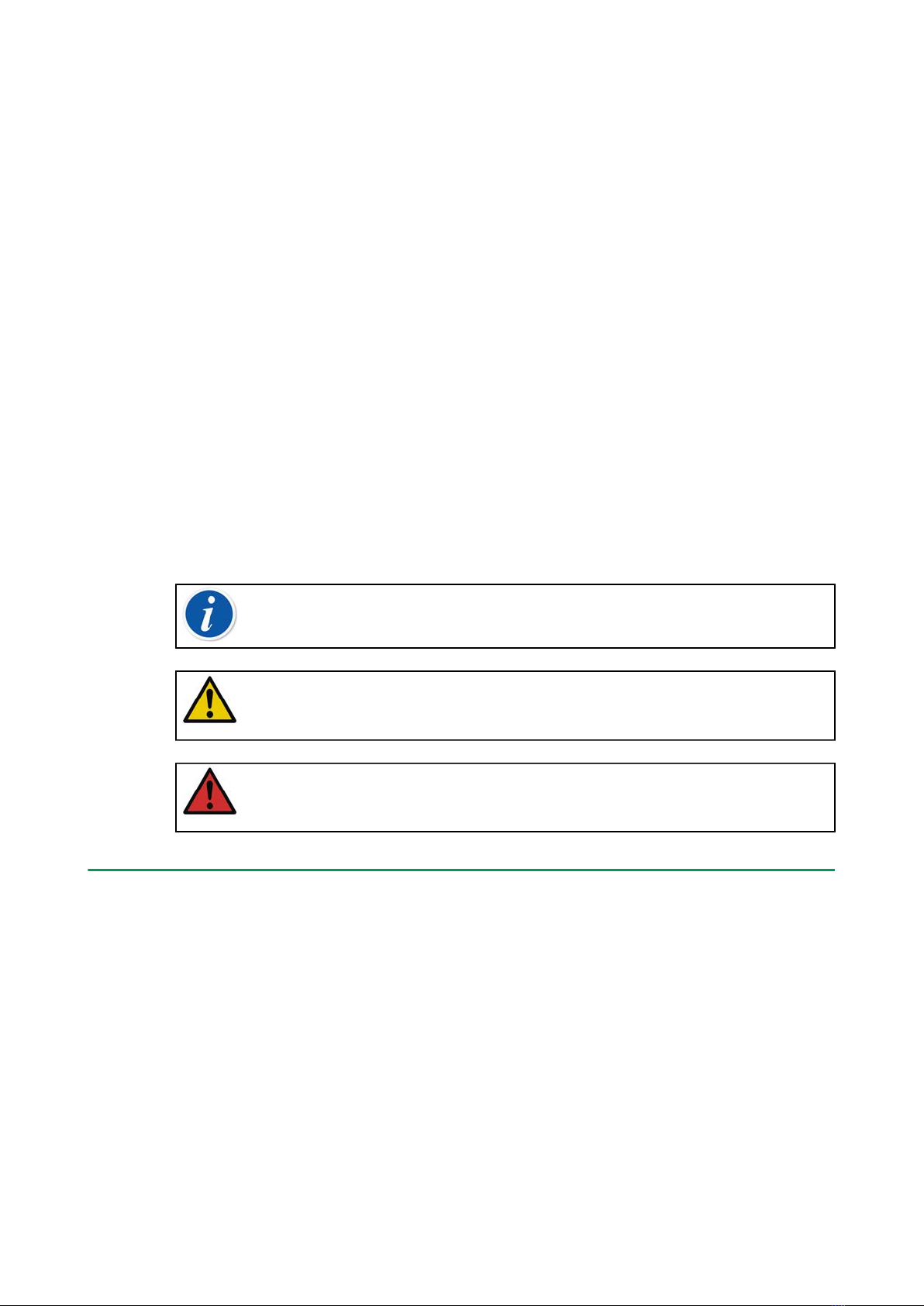
Note: This is a note. Notes typically inform you of something useful
concerning the current topic.
Caution: This is a caution. Whenever you see a caution, read it
carefully and take it seriously. By not observing cautions, you may
damage the calibrator.
Warning: This is a warning. Whenever you see a warning, read it
carefully and take it seriously. By not observing warnings, you may -at
worst- damage the calibrator and/or even risk your life.
Unpacking and Inspection
At the factory each new MC6-WS passes a careful inspection. It should be
free of scrapes and scratches and in proper operation order upon receipt.
The receiver should, however, inspect the unit for any damage that may have
occurred during transit. If there are signs of obvious mechanical damage,
package contents are incomplete, or MC6-WS does not operate according to
specifications, contact the purchasing sales office as soon as possible.
If you have to return the instrument to the factory for any reason, use the
original packing whenever possible. Include a detailed description of the reason
for the return. Read also chapter Sending MC6-WS for Service in Appendix.
For a description of available options, see Options.

Part 1, Introduction - 9
Standard accessories:
• Accredited calibration certificate,
• this User Manual,
• Warranty Card,
• test leads and clips,
• USB cable.
About MC6-WS
Starting MC6-WS
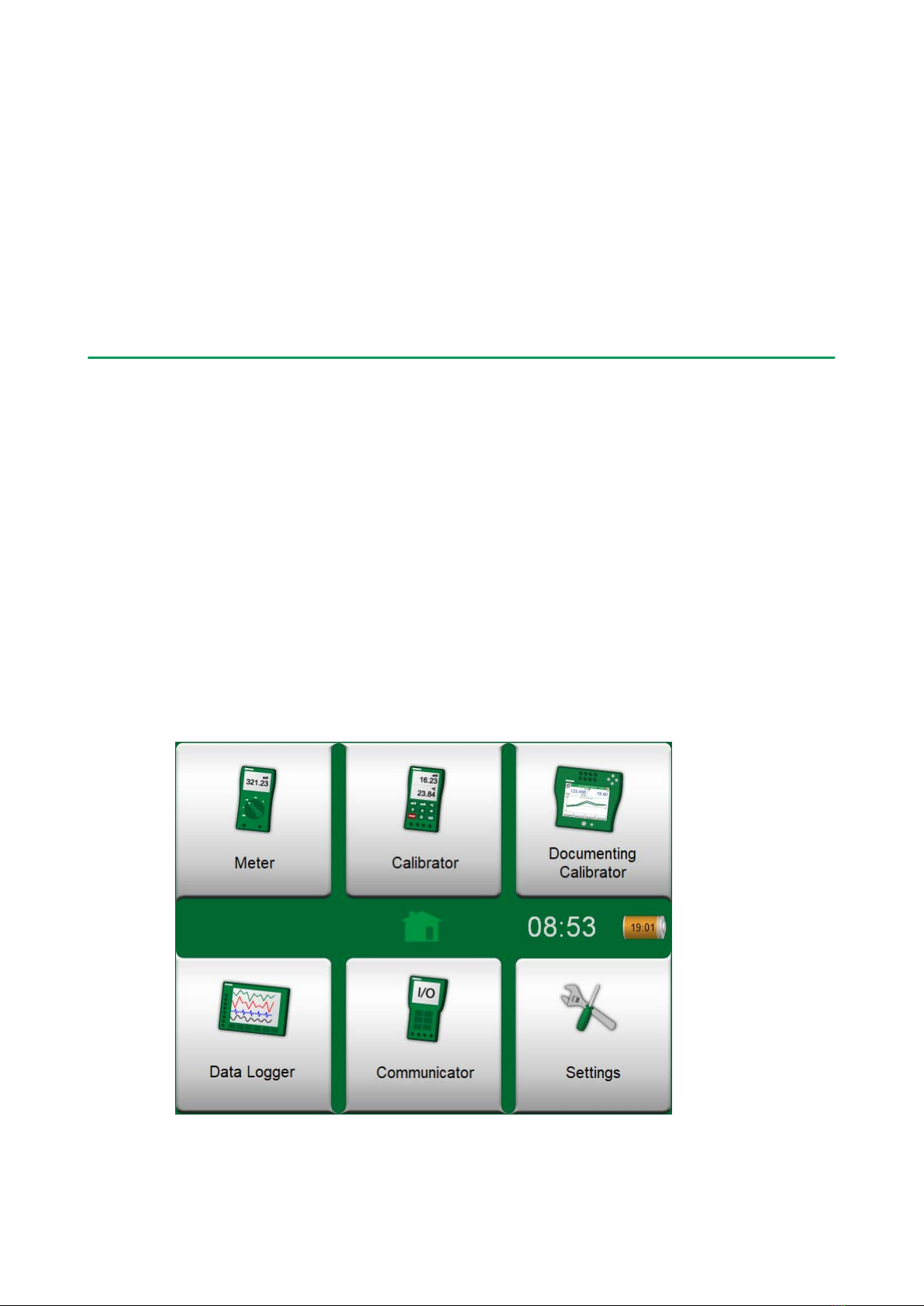
To start MC6-WS, switch the CENTRiCAL on. The MC6-WS will start
automatically. To switch on just the MC6-WS, press and hold the Power button
for a few seconds. The startup procedure ends in Home View. From MC6-
WS's Home View you may advance to any of the available main functions. This
manual contains detailed information of main functions as follows:
•Meter in Part 3,
•Calibrator in Part 4,
•Documenting Calibrator in Part 5,
•Data Logger in Part 6,
•Communicator in Part 7 and
•Settings in Part 8.
Figure 1: Home view

Part 1, Introduction - 10
Figure 2: Power button (left) and Home button (right)
With the Home button (see Figure 2: Power button (left) and Home button
(right)) you can always return to Home View from wherever you are.
When MC6-WS is already running, pressing the Power button briefly opens a
dialog with the following options:
•Power Off to shut down MC6-WS in Backup Mode, i.e. minimum power
consumption and full startup procedure.
•Standby to set MC6-WS in Standby Mode allowing faster startup when the
Power button is pressed again.
•Backlight Off to temporarily set the backlight off.
The button on the right side of the dialog:
•Power Management to define Backlight Brightness and other power
management related settings. More in Part 8, Settings.
MC6-WS will shut down immediately when the bench's Main switch is switched
off. The Battery Charging status window will not be displayed. MC6-WS can
still be operated normally on battery power, when the bench's Main switch is
switched off.
Note: Certain main functions are options. They may not be available
in your MC6-WS. More of this in chapter Options.
Firmware
You can interact with MC6-WS by tapping on available buttons/controls
displayed on the touch screen. Optionally: use the hardware arrow keys
to move between the available buttons/controls. The first time you push a
hardware arrow key the Hardware Focus Indicator is displayed (a blue border
around the active button/control). When using the hardware arrow keys, use the
hardware Enter key to select ("tap") a button/control.
Figure 3: Button without and with a Hardware Focus Indicator
Buttons often open a pop-up window for entering data, e.g. a unit button with
the text "mmH2O" opens a pop-up window of available units. Certain buttons
do have special functionality, like "Accept" and "Close" buttons. They close
Indice
Altri manuali BEAMEX Apparecchiature di prova

BEAMEX
BEAMEX FB150 Manuale utente

BEAMEX
BEAMEX MCS100 Manuale utente

BEAMEX
BEAMEX PO8C Manuale utente

BEAMEX
BEAMEX MC5-IS Manuale utente

BEAMEX
BEAMEX MC5P Manuale utente

BEAMEX
BEAMEX MC5 Guida

BEAMEX
BEAMEX MC6 Manuale utente

BEAMEX
BEAMEX MC6-Ex Manuale utente

BEAMEX
BEAMEX CENTRICAL Manuale utente

BEAMEX
BEAMEX MC4 Manuale utente
Manuali Apparecchiature di prova popolari di altre marche

SMART
SMART KANAAD SBT XTREME 3G Series Manuale utente

Agilent Technologies
Agilent Technologies BERT Serial Manuale utente

Agilent Technologies
Agilent Technologies N3280A Manuale utente

Vernier
Vernier Go Direct Voltage Manuale utente

Lifeloc
Lifeloc R.A.D.A.R. Manuale utente

Fluke
Fluke T5-600 Istruzioni per l'uso e l'installazione