Page 6
Software Setup
MINI-MAX/ARM9260-E first boots up from on-board DataFlash memory. Compressed Linux image is
decompressed to MINI-MAX/ARM9260-E’s on-board RAM and executed. This loads Linux kernel,
drivers, and applications such as BusyBox. Much like the Linux distributions on regular PC’s, MINI-
MAX/ARM9260-E Linux runs from RAM.
MINI-MAX/ARM9260-E ’s Linux distribution includes standard Linux kernel drivers as well as BiPOM-
supplied drivers for various popular USB devices.
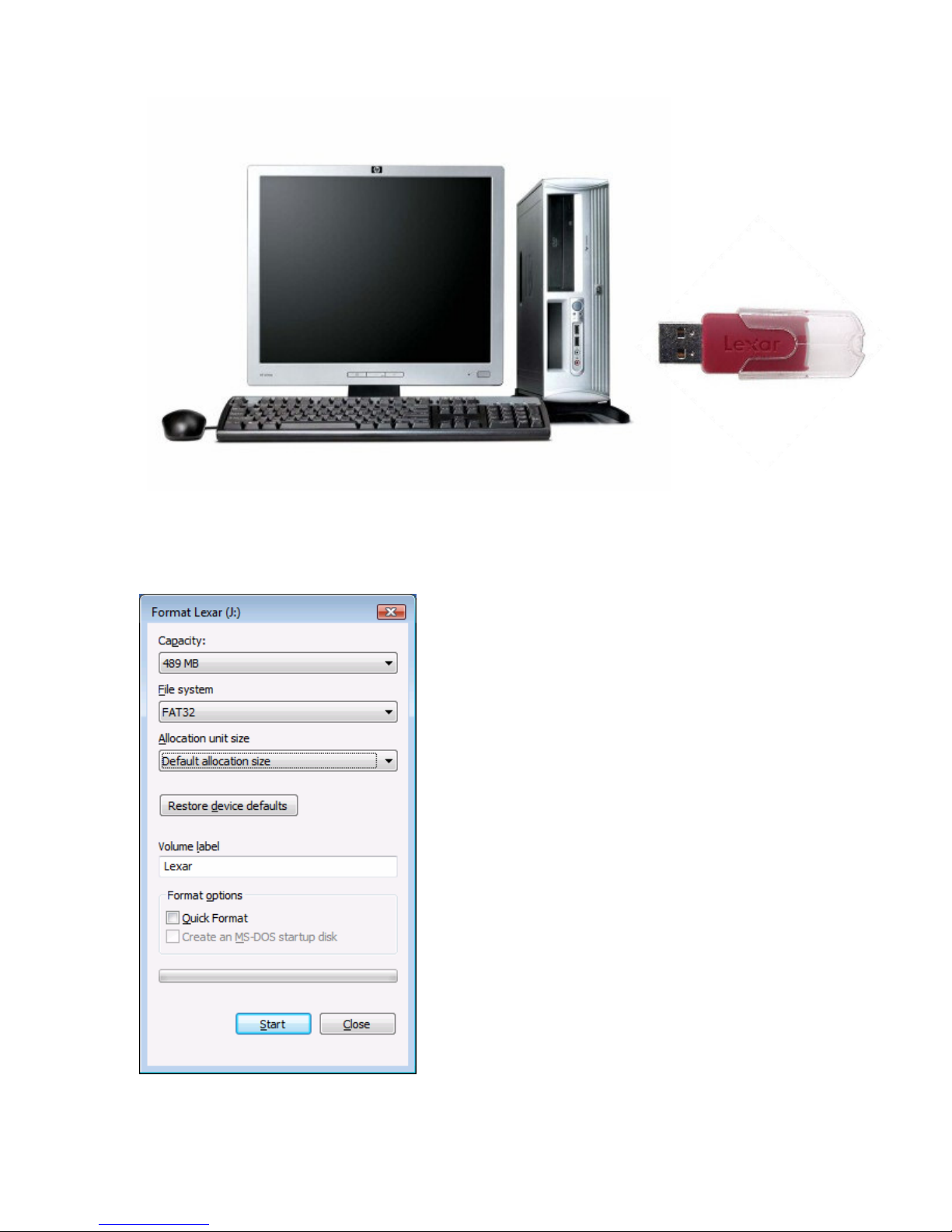
MINI-MAX/ARM9260-E automatically detects USB Flash Drives ( for example, Thumb drives ). To
make MINI-MAX/ARM9260-E run your own applications and any custom commands, place commands
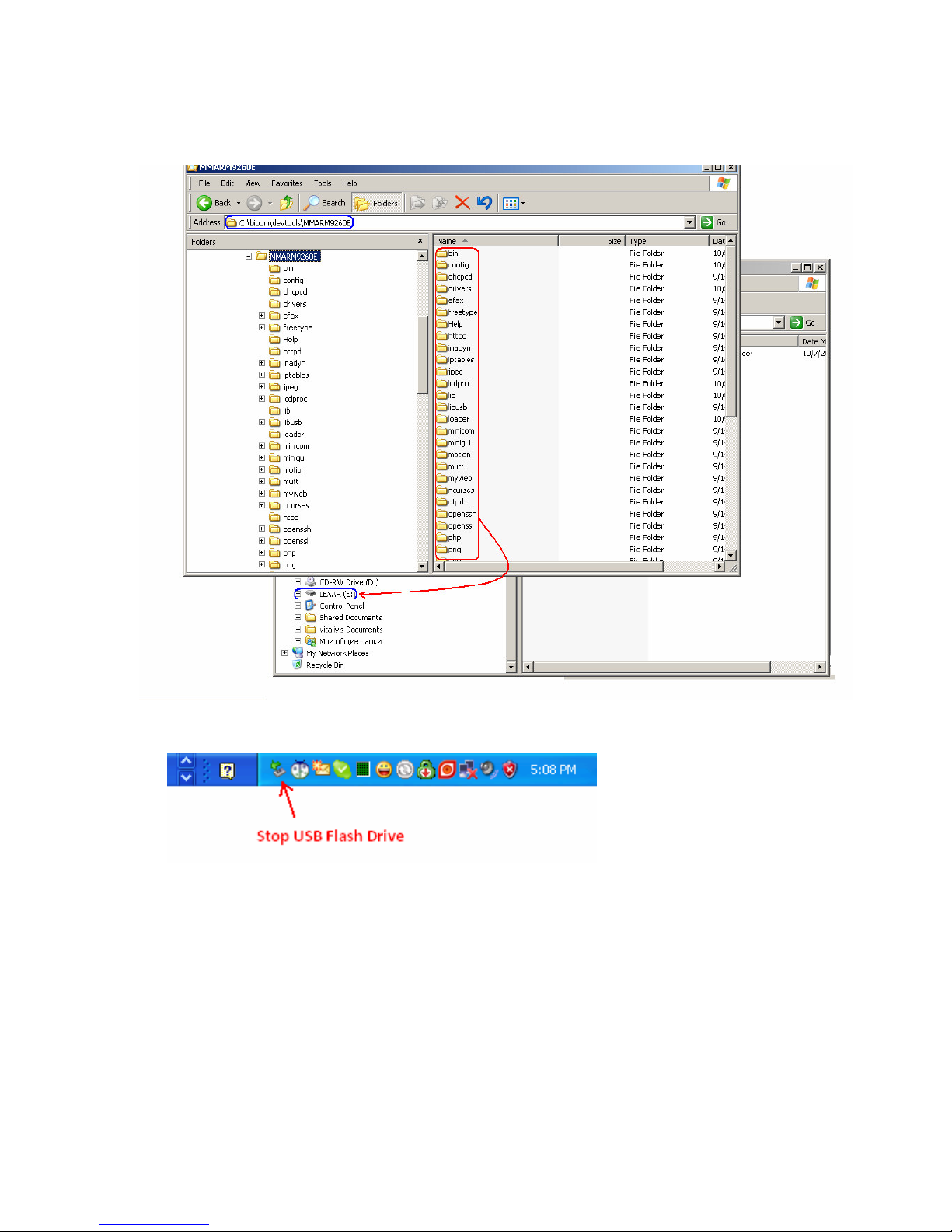
to special shell file ( Bash Shell ) with the name user_cmds.sh. This file is in sh folder in root directory
on USB Flash Drive. Also you can configure the Linux with Linux Control Panel. This software allows
to change many options like Network settings, Hardware list etc,
Here are the steps to configure and run MINI-MAX/ARM9260-E Linux:
1. Download latest MINI-MAX/ARM9260-E Linux Release (Windows Installation) from
http://www.bipom.com/web_softwares/2900044.html and install it.
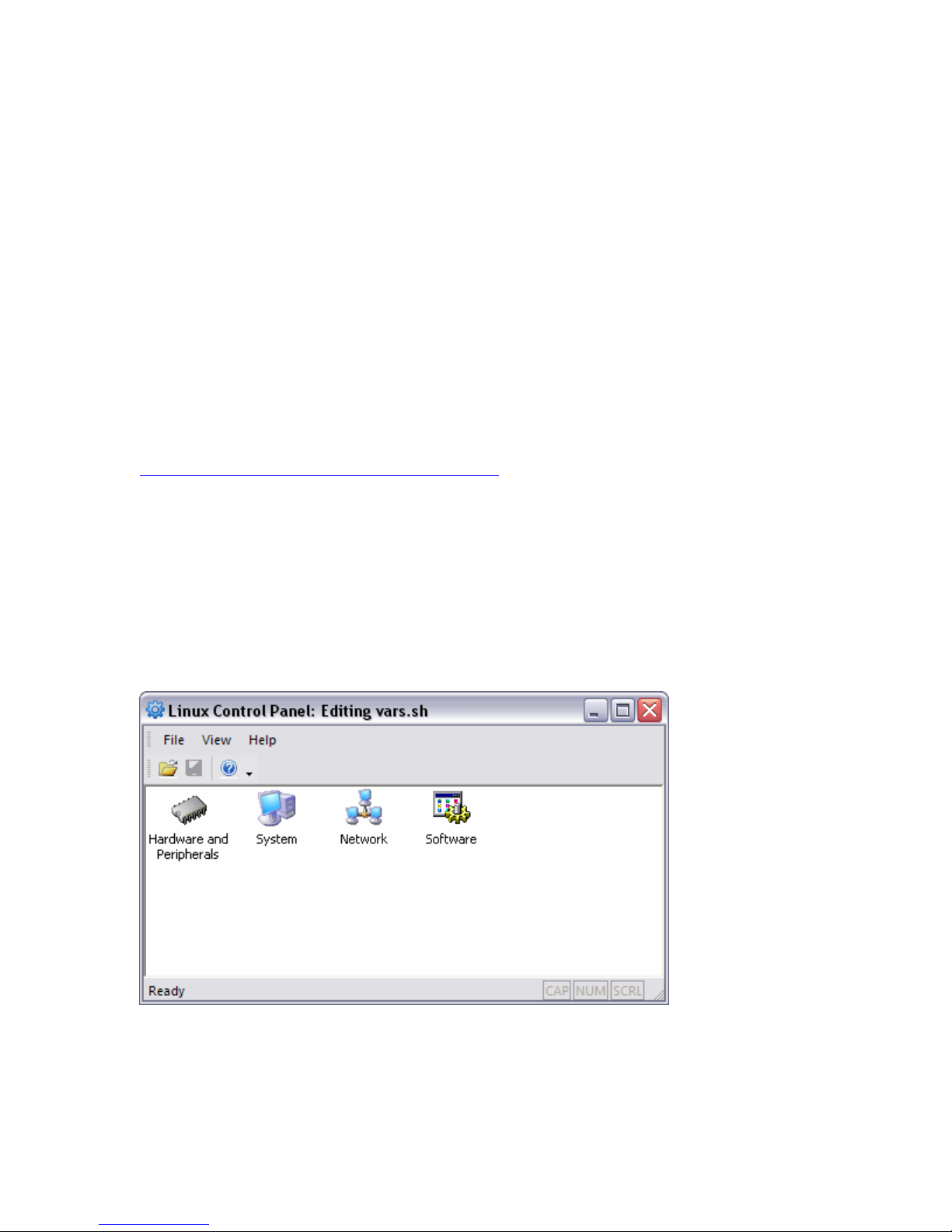
2. In order to configure MINI-MAX/ARM9260-E Linux, start Linux Control Panel software from Start -
> All Programs -> MMARM9260E -> Linux Control Panel. After Linux Control Panel starts, open
vars.sh file that is located in c:\bipom\devtools\MMARM9260E\sh ( if you installed Linux Control
Panel to its default path ).
Select File
Open from the menu and open vars.sh file in sh folder. By default, the program would
start from the folder where MINI-MAX/ARM9260-E release was installed.
When you open vars.sh file, you will see configuration group icons such as Hardware & Peripherals,
Software, System and Network.
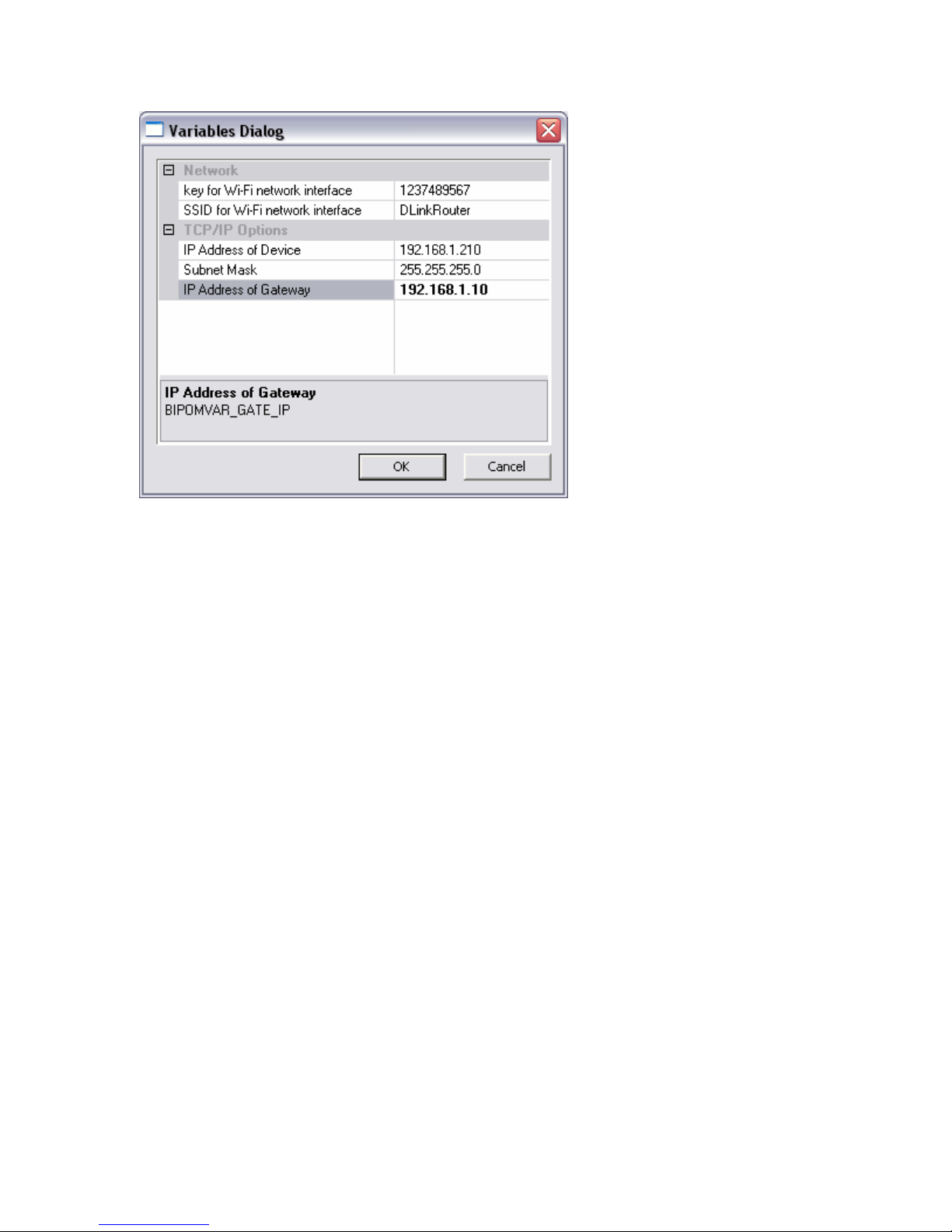
Now you can double click on any icon to view and edit all possible configuration options for that group.