Champtek IG-300 Manuale utente

IG-300
2DImagerBarcodeScanner
User’sManual

Contents
1.Introduction ..........................................................................1
1.1Safety&Caution................................................................1
1.2FCCWarning......................................................................2
2.GeneralDescription ...............................................................3
2.1ProductDescription...........................................................3
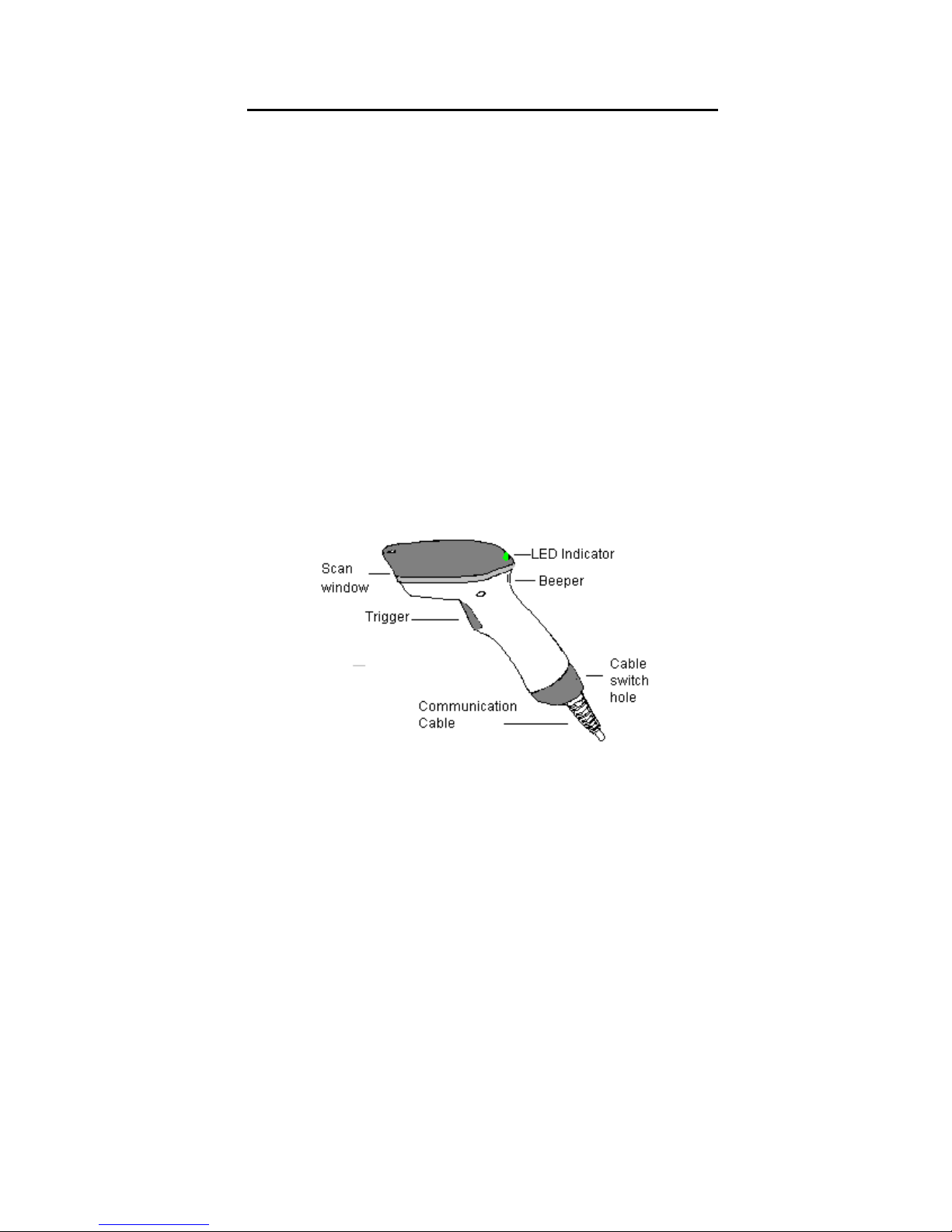
2.2Illustration.........................................................................3
3.Installation ...........................................................................4
3.1Unpacking..........................................................................4
3.2Mounting...........................................................................4
3.3USBDriver..........................................................................5
3.4SwitchingCable..................................................................5
4.Configuring...........................................................................6
4.1Preface...............................................................................6
4.2ScannerSettingswithProgrammingCodes.......................6
4.3ScannerSettingswithUtilityTool......................................7
4.4FactoryDefaultSettings.....................................................7
5.OperatingSettings .................................................................8
5.1ScanningTriggering............................................................8
5.2TimeOut..........................................................................10
5.3GoodReadMode.............................................................10
5.4BuzzerBeepTone............................................................10
5.5GoodReadDuration........................................................12
5.6BadReadMessageSettings.............................................13
6.ImagerSettings....................................................................14
6.1ImagerMode...................................................................14
6.2FirmwareVersion............................................................15
7.ProgrammingCodes ............................................................16
7.1FactoryDefault................................................................16
7.2RS232ParametersBaudRate..........................................17
7.3DecodingSelection..........................................................23
Appendixes .............................................................................32
A.DecimalValueTable............................................................32
B.ASCIITable...........................................................................33
C.ReadableSymbologies.........................................................34
D.TechnicalSpecifications......................................................35
E.ScanMap.............................................................................37
F.TestSymbologies.................................................................38

1
1. Introduction
Thank you for purchasing this brand-new designed 2D
imager hand held barcode scanner.
This is a cutting-edge gun-type Area Imaging barcode
scanner which is designed specifically for retailer,
entertainment coupons, medical environment, shipping
industry and etc. That adds on more user friendly
functions and has replaceable cable that makes it
more easily to be operated by the customers.
This high performance gun-type scanner provides the
customer with the most cost effective solution in the
market. It is perfectly suitable and definitely the best
choice for you.
1.1 Safety & Caution
1) Please read the following safety statement
carefully.
2) Please preserve this user manual for reference
sometime.
3) Before cleaning the device, the users must cut off
all AC power. Do not use liquid or spray type of
detersive to clean the device. Please use
dampish cotton cloth to clean the device.
4) The outlet must set nearby the device for
connecting power easily.
5) Keep the device dry to avoid short circuit.
6) During installation you must fix the equipment at
solid table to avoid damage caused by falling.
7) Before inserting power please ensure the voltage
is healthy to the equipment.
8) For safety please tie wire well and don’t put
anything on the wire.
9) If you don’t use this equipment for long time,
please cut off the power to avoid damage from
surge power.
10)Don’t spray any liquid on this scanner because it
may cause a fire or short circuit.
11)Please do not open the equipment. For safety
only the qualified serviceman can open the
equipment.

12)If there are the following situations please contact
with the qualified serviceman to check this
equipment.
13)The damage of wire or pin of power supply.
14)Some Liquid infiltrate into the equipment.
15)The equipment has been exposed to wet
environment.
16)The equipment can’t work well.
17)The equipment has any obvious damage, making
the device working abnormally.
18)Don’t storage the device at the temperature lower
than -20°C (-4°F) or higher than +70°C (158°F) to
avoid any damage.
1.2 FCC Warning
This equipment complies with the requirements in
Part 15 of FCC.
Any operation must comply with the conditions
below:
1) The equipment will not cause any severe
interference.
2) The equipment can avoid any interference from
environment.
Statement:
This product is classified as B class product.
In environment this product may cause some
interference. In this situation the user may do
something to avoid interference.
2

2. General Description
2.1 Product Description
IG-300 is a high performance wire 2D imager barcode
scanner supporting liner, area imager barcode
scanning and picture capture.
This device is very easy to configure by this manual,
you can set up by scanning all necessary programming
codes one time that meet applications, the settings are
directly saved permanently, and all settings can be
disabled after scan reset factory default.
2.2 Illustration
IG-300 Series
3

4
3. Installation
3.1 Unpacking
1) Take device and its accessories out of the box.
2) Remove the packing material.
3) Check the standard shipment packing list to make
sure you have received all of the items ordered.
IG-300 series
-2D Imager Scanner
-Power Adaptor (if applied)
-Communication Cable
-User Manual
4) Visually inspect the device and accessories for any
evidence of physical damage.
5) If anything is missing or appears to be damaged,
immediately contact your dealer.
ATTENTION:
Store the packing material and boxes: it should
be used whenever the device is transported for
servicing.
3.2 Mounting
Once you have unpacked all components, you can
start installing the device as below steps:
IG-300 2D Imager Barcode Scanner
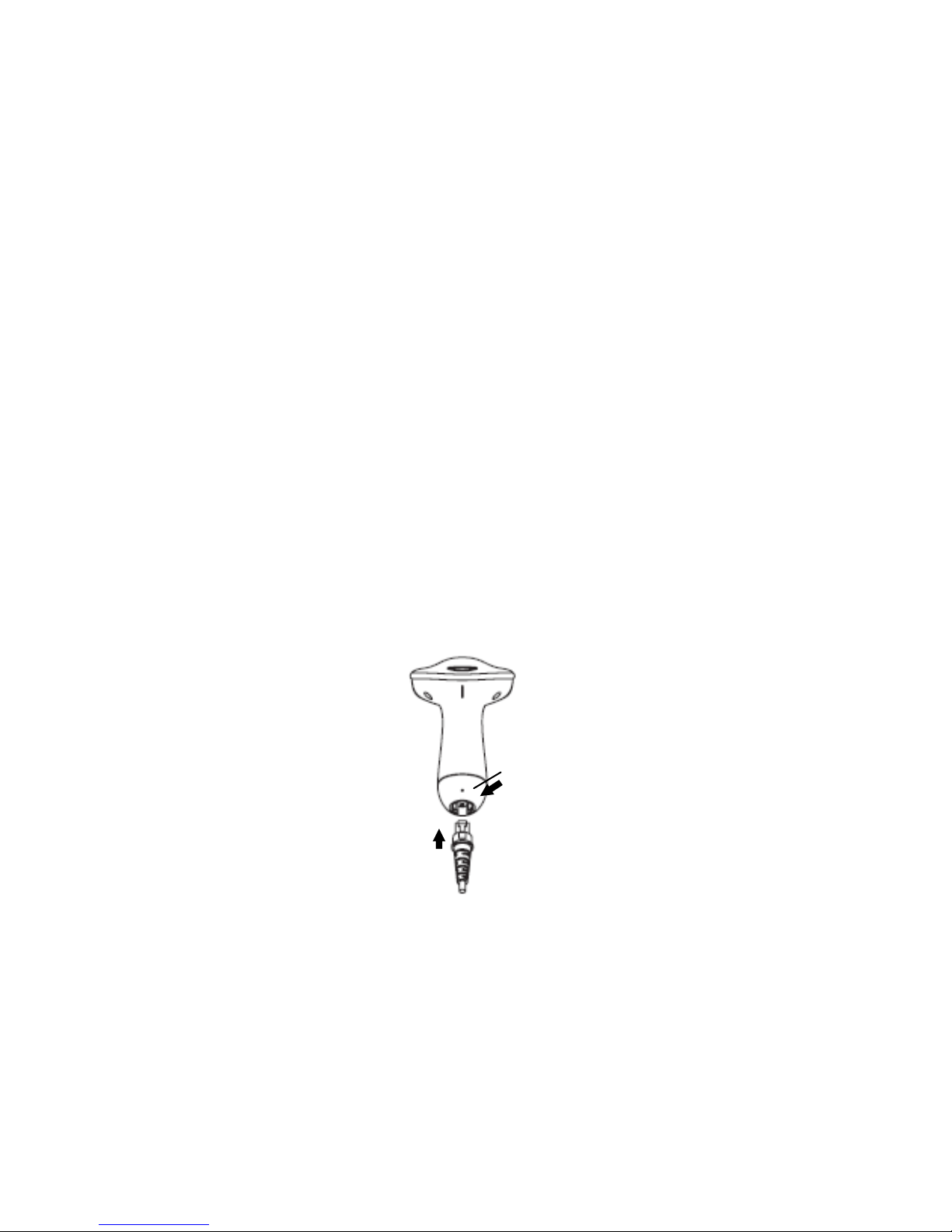
1) Connect the supplied communication cable at the
bottom side of the scanner and you will hear a
“click” when the connection is made.
2) Turn off the host system.
3) Connect the communication cable to Host system.
4) Connect the Power supply (if needed) to Power
cable inlet. And plug the power supply into the
AC outlet.
5) Turn on the host system.

3.3 USB Driver
In case you will use the device with USB Virtual
COM port emulation, please contact with your
dealer and download the correct USB driver for
Virtual COM port. Since it is necessary to install the
USB driver on your Host system and operate
correctly between the device and your system.
3.4 Switching Cable
Before removing the cable from the scanner, it’s
recommended to turn off the power of the host
system and the power supply has been
disconnected from unit.
1) Find the small “Pin-hole” on the bottom of the
unit.
2) Use a bended regular paperclip and insert the
tip into the hole.
3) You will hear a “click”, then gentle on the strain-
relief of the cable and it will slide out of the
scanner.
5

6
4. Configuring
4.1 Preface
How to configure this device: The Barcode
Programming Feature gives the possibility to change
the scanner settings with use programming codes.
4.2 Scanner Settings with Programming
Codes
You can setup your device by scanning all necessary
programming codes for parameters that meet
applications. After these scans, the device will save
directly and permanently. To go back to the factory
default settings, just scans the programming code
factory default.
In order to change the scanner settings please follow
the sequence below:
1) Power-up the scanner.
2) Change scanner settings by scanning any of the
programming code that meet applications.
An Example:
For changing the Baud rate to 38400 only scan the
programming code that represents this.
After reading a valid programming code the scanner
will give a High beep and the green led indicator will
lights on.
At any moment, you can stop your programming and
read programming code factory default to go back to
default.

7
4.3 Scanner Settings with Utility Tool
Manufacturer has setup this scanner with the most
common used programming codes, it could be
possible that you need more advanced settings to use
the scanner without any problems into your application.
In this case you can setup your scanner by using the
advanced Utility Tool. This tool can be used with the
following operation systems: Windows98,
Windows2000, Windows XP en Windows Vista.
This Utility Tool can be delivered on request. Please
contact your dealer
4.4 Factory Default Settings
The factory default settings are shown with * and bold
in the followings sections
The readable and default enable symbologies list,
please see Appendixes C.

5. Operating Settings
5.1 Scanning Triggering
<Level>
A reading session begins (lighting and decode
processing on) when beam is activated and stops
when beam is deactivated.
Continuous Scanning
When the scanner is turned on a continuous reading
session begins (lighting and decode processing on).
Pulse
A reading session begins when beam is activated and
stays on until a period of inactivity lasting the time
specified by the timeout.
After the timeout, the scan engine turns off.
Flashing
Flashing mode allows power up the lighting and
decoding are on (no need to activate the trigger line)
and after a period of inactivity lasting the time specified
by the trigger timeout, the scanner starts flashing,
checking for a bar code to be read.
When a bar code is detected, the lighting and decoding
automatically turn on and stay on until another period
of inactivity (timeout), after the timeout the scanner
starts flashing again.
8
Indice
Altri manuali Champtek Lettore di codici a barre

Champtek
Champtek SG700BT Istruzioni operative

Champtek
Champtek IG300BT Manuale utente

Champtek
Champtek SG700BT Manuale utente

Champtek
Champtek VM200 Manuale utente

Champtek
Champtek SCANTECH ID VM200 Manuale utente

Champtek
Champtek IG500 Manuale utente

Champtek
Champtek MB200 Series Manuale utente

Champtek
Champtek IG300BT Manuale utente

Champtek
Champtek SLIM S-9080i Manuale utente
Manuali Lettore di codici a barre popolari di altre marche

POSMicro
POSMicro Datalogic PowerScan D7100 Manuale utente

Marson
Marson MT780 Guida rapida alla configurazione

NCR
NCR RealPOS Manuale utente

Motorola
Motorola SE3300 Guida rapida alla configurazione

Element
Element P130BT Manuale utente

Motorola
Motorola Symbol LS3008 Manuale di installazione e funzionamento