Channel Master CM-7600 Manuale utente

QUICK START GUIDE
CM-7600
v9

Warning and Attention Symbols
Important Safety Instructions
You must be aware of safety when you install and use this
system. This Quick Start Guide provides various procedures.
If you do some of these procedures carelessly, you could
injure or kill yourself or damage equipment or property.
Some other procedures require special attention.
1. Read these instructions.
2. Keep these instructions.
3. Heed all warnings.
4. Follow all instructions.
5. Do not use the apparatus near water.
6. Clean only with a dry cloth.
7. Do not block any ventilation openings. Install in accordance
with the manufacturer’s instructions.
8. Do not install near any heat sources such as radiators,
heat registers, stoves, or other apparatuses (including
ampliers) that produce heat.
9. Do not defeat the safety purpose of the polarized or
grounding-type plug. A polarized plug has two blades with
one wider than the other. A grounding-type plug has two
blades and a third grounding prong. The wide blade or the
third prong are provided for your safety. If the provided
plug does not t into your outlet, consult an electrician for
replacement of the obsolete outlet.
10. Protect the power cord from being walked on or pinched,
particularly at plugs, convenience receptacles, and the
point where they exit from the device.
11. Only use attachments/accessories specied by the
manufacturer.
12. Unplug the apparatus during lightning storms or when
unused for long periods of time.
13. Refer all servicing to qualied service personnel. Servicing
is required when the apparatus has been damaged in any
way, such as the power supply cord or plug is damaged,
liquid has been spilled or objects have fallen into it, the
apparatus has been exposed to rain or moisture, does not
operate normally, or has been dropped.
14. WARNING: To reduce the risk of re or electric shock, do
not expose this apparatus to rain, moisture, dripping or
splashing.
15. The power adapter must remain easy to unplug from the
power socket once the equipment is installed.
16. DO NOT expose the remote control batteries to excessive

i
Installation
Protect from Water
General Precautions
Equipment Care
heat such as re or sunshine.
17. Safety-related markings can be found on the underside of
the receiver.
18. WARNING: This product can expose you to (chemicals
including) lead, which is known to the State of
California to cause cancer, and DNP which is known
to the State of California to cause birth defects or
other reproductive harm. For more information go to
www.P65Warnings.ca.gov.
• Ground the installation in accordance with NEC® or other
applicable codes.
• Locate the power adapter and receiver indoors in an open,
well-ventilated area. Do not place them in an enclosure
(such as a cabinet) without proper ventilation.
• Place the receiver on its feet on a rm, stable, horizontal
surface.
• Unplug the power adapter from the power socket during
installation and follow all connection instructions.
• Only connect the original power adapter to the receiver.
Other power adapters may damage the circuitry and
cause a re risk.
• DO NOT place heavy objects on the receiver or power
adapter.
• Keep plastic packaging and small parts away from babies
and children.
• DO NOT place objects lled with liquids, such as vases or
drinks, on or near the power adapter or receiver.
• DO NOT remove the power adapter cover due to risk of
electric shock from live parts inside.
• DO NOT allow objects to drop or be pushed inside the
receiver, for example by children.
• DO NOT place naked flames such as lighted candles on or
near the receiver or power adapter.
• Unplug the power adapter from the power socket before
cleaning.
• If the power adapter or receiver is damaged, unplug it
from the power socket and have it checked by qualied
personnel before operating it any further.

ii
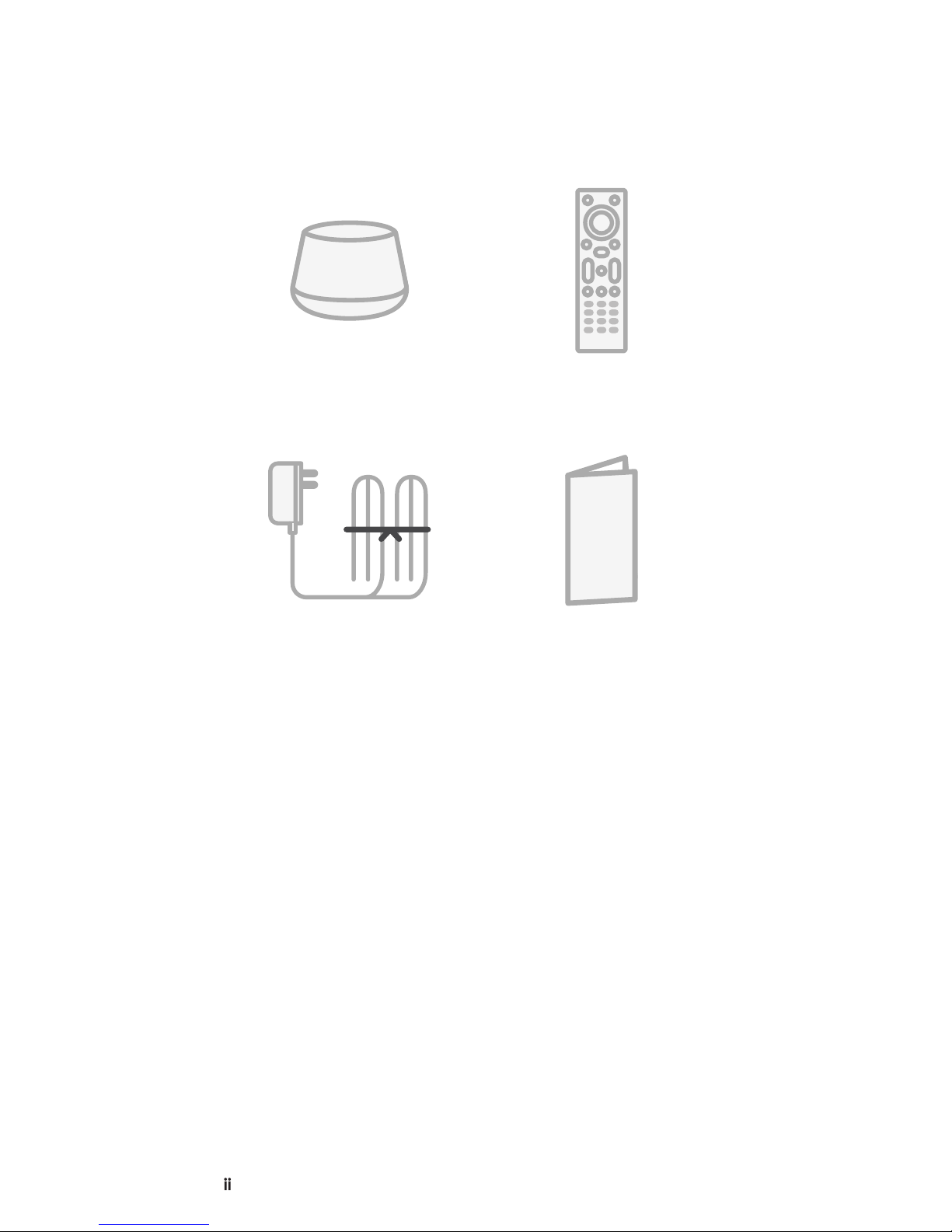
WHAT’S INCLUDED
SET-TOP BOX
POWER SUPPLY
REMOTE CONTROL
QUICK START GUIDE

Inserting a Micro
SD storage card
enables personal
media storage.
Connecting a
External USB Hard
Drive enables Live
Channels DVR
capability.
1
SET-TOP BOX

2
Connect the device to the TV using
a Channel Master 4K compatible
HDMI Cable (not included).
Connect an over-the-air TV antenna
to the device via a professional-
grade Channel Master coaxial cable
(not included).
Provides high denition video and audio to
the TV.
Enables tuner compatible apps such as
Google Live Channels to receive over-the-air
broadcasts.
SETUP
2
1

3
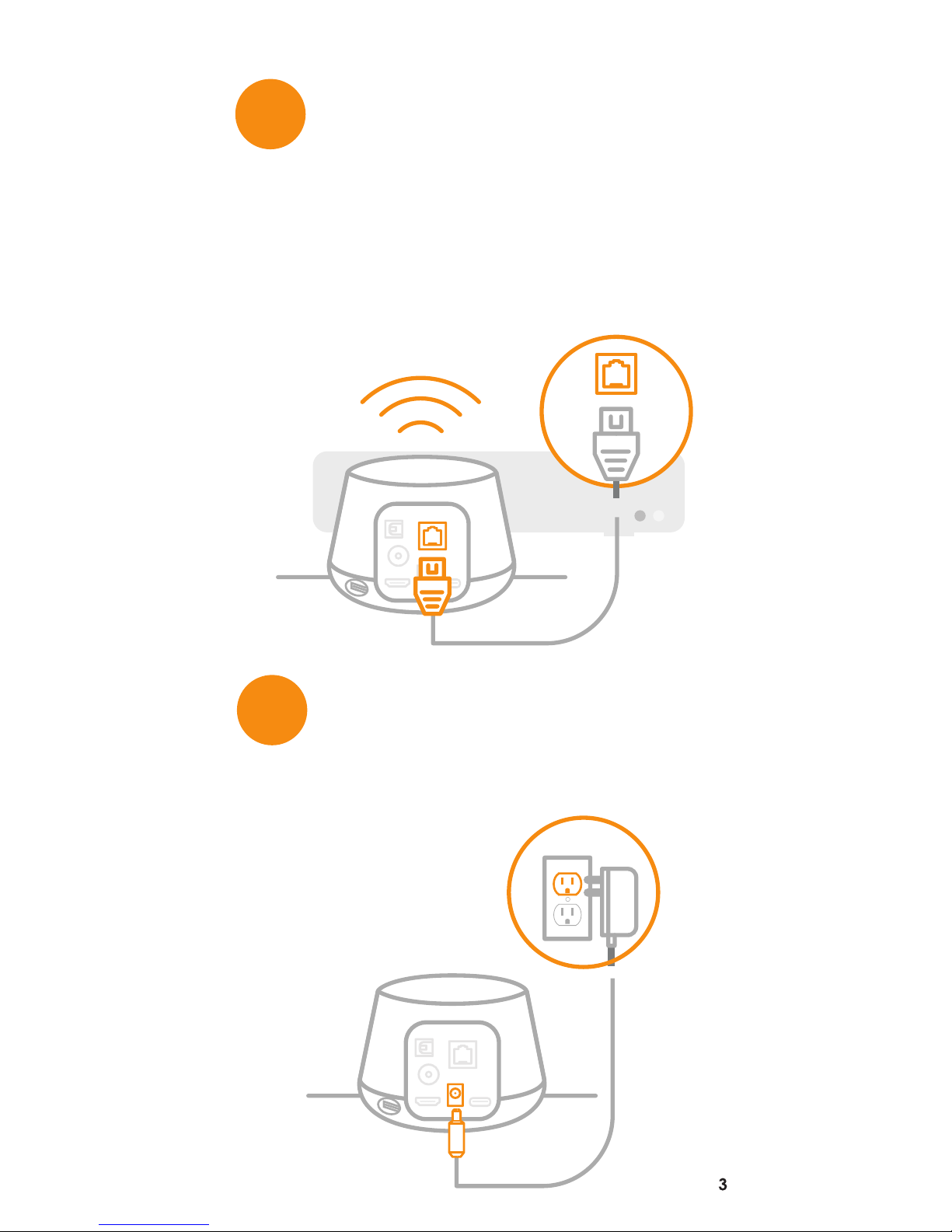
Connect the device to a power
outlet.
Connect the device to the internet
with a high speed ethernet cable
(not included) if modem/router is
close to the TV.
If you are unable to connect via Ethernet,
skip this step and you will be prompted to
connect via Wi-Fi in the set-up wizard.
4
3

4
On-screen Setup Wizard
Upon successful completion of steps 1
through 4. Double check your connections
are secure and that the selected HDMI input
on your TV is correct. Follow the on-screen
instructions to complete the installation.
Note: If you need additional assistance
please refer to the FAQ section in this Quick
Start Guide or visit
www.ChannelMaster.com/Support.
USE
5

5
Remote control overview
6
For more information on the Google Live
Channels app features and functionality
including DVR capability, please visit
www.ChannelMaster.com/LiveChannels.

6
FAQS
1. What is Android TV?
Android TV is a smart TV platform developed
by Google. Based on the Android operating
system, it creates an interactive television
experience by allowing users to download
popular streaming video apps and more from
the Google Play store. Visit https://www.
android.com/tv for more info.
2. How do I watch Live Over-The-Air
Channels?
Open the Live Channels App and select a
channel you would like to watch using the
channel up and down buttons on the remote
control or by pressing the Guide button on the
remote control and navigating the on-screen
program guide.
3. How do I enable DVR capability in the
Google Live Channels App?
To enable DVR capability within the Google Live
Channels App you will need to connect a USB
External Hard Dive to the available USB port on
the back of your Steam+.
4. What types of storage devices are
compatible/recommended?
For a list of storage devices known to have
issues, please visit www.channelmaster.com/
support. We recommend External USB Hard
Drives.
5. How do I know how many hours I will be
able to record per GB of storage?
Channel Master suggests using 8 minutes
per GB of storage to calculate OTA recording
capacity. Example: (16GB X 8Min = 128Min or
roughly 2 hours of recorded HD content)
6. How Do I install Apps?
Open App titled Google Play Store
• Search or Browse for an app that you
would like to install. Select an app to
Indice
Lingue:
Altri manuali Channel Master Decoder