Clear One NS-MNE Manuale utente

Musica™ - NS-MNE Musica Network Interface
NS-MNE a N d iMu S i c a iN S t a l l a t i o N a N d
op E r a t i o N Ma N u a l

Chapter 1: Introduction.........................................................................................................................................................1
PRODUCT OVERVIEW
Browser Operation......................................................................................................................................................1
iMusica Operation ......................................................................................................................................................1
PACKAGE CONTENTS
HARDWARE REQUIREMENTS
SOFTWARE REQUIREMENTS
INSTALLER REQUIREMENTS
INSTALLATION AND OPERATION OVERVIEW
Chapter 2: Installing and Configuring the NS-MNE .............................................................................................................3
Configuring Methods .......................................................................................................................................................3
IN-NETWORK METHOD
Information Required ..................................................................................................................................................4
Discovering and Configuring the NS-MNE Units .......................................................................................................5
Running MNE_Finder ................................................................................................................................................5
Configuring with MNE_Finder.....................................................................................................................................5
Other Finder Controls .................................................................................................................................................6
STANDALONE METHOD
Information Required ..................................................................................................................................................7
Configuration Process ................................................................................................................................................7
Chapter 3: Using the Browser NS-MNE Musica Interface .................................................................................................12
MUSICA BROWSER CONTROL SCREENS
Startup Screen ........................................................................................................................................................13
Room Selection.......................................................................................................................................................13
Standby Screen.......................................................................................................................................................14
Control Screen ........................................................................................................................................................14
Player Controls........................................................................................................................................................15
Settings Screen.......................................................................................................................................................15
Transfer ...................................................................................................................................................................16
Table of Contents

In s t a l l a t I o n a n d op e r a t I o n Ma n u a l 3
Chapter 4: Downloading, Configuring, and Using the iMusica Software...........................................................................17
CONFIGURING iMUSICA
OPERATING THE MUSICA ADC WITH iMUSICA
Startup Screen ........................................................................................................................................................20
Room Selection.......................................................................................................................................................20
Standby Screen and Source Selection Screen.......................................................................................................21
Player Control Screens ...........................................................................................................................................21
Amp Settings Screen ..............................................................................................................................................22
Room Settings Screen ............................................................................................................................................22
Tuner Screens .........................................................................................................................................................23
Chapter 5: Using iTunes with iMusica.................................................................................................................................24
PAIRING WITH A DIFFERENT ITUNES LIBRARY
NS-MNE Technical Specifications ......................................................................................................................................28

1 te c h n I c a l su p p o r t : 800.283.5936
Chapter 1: Introduction
PRODUCT OVERVIEW
The ClearOne NS-MNE Musica Network Interface adapter connects the MusicaTM MU5066ADC RS-
232 connector to an RJ-45 Ethernet connection allowing IP-control of the Musica system through
an Adobe®Flash®-enabled browser or using the iMusica application with an Apple®iPhone®, iPad®
or iPod touch®.
The NS-MNE is compact in size and the software is built in so it requires no programming. Simple
configuration is all that is required to take IP-control of the Musica system.
In addition, up to 3 MU5066ADC units can be connected using 3 NS-MNEs to make an 18-zone
system.
Note: Installing one or more NS-MNE units is essentially the same, however, this»
guide assumes multiple NS-MNEs are being installed and configured.
Br o w s e r op e r a t I o n
PC’s, tablets and smartphones with Flash enabled browsers access and control the NS-MNE over
its Ethernet connection from a GUI generated within the unit.
IMu s I c a op e r a t I o n
iMusica is an application written for use with the Apple iPhone, iPod touch and iPad products that
provides the same functionality using an optimized interface. It additionally provides access to an
iTunes Library running on a networked computer.
PACKAGE CONTENTS
The following illustration shows the parts that ship in the box with the NS-MNE.
Note: ClearOne is not responsible for product damage incurred during shipment. You»
must make claims directly with the carrier. Inspect your shipment carefully for obvious
signs of damage. If the shipment appears damaged, retain the original boxes and
packing material for inspection by the carrier. Contact your carrier immediately.
Null- Modem RS-232 Cable for IP
Addressing and Connection with
the ADC
NS-MNE Unit (RS-232
Connector Showing.
The Opposite End Has
RJ-45 Ethernet and
Power Connectors.)
9-30 VDC @ 370mA
Power Supply

In s t a l l a t I o n a n d op e r a t I o n Ma n u a l 2
HARDWARE REQUIREMENTS
To complete an installation for one or more NS-MNE’s, you will need:
NS-MNE (one for each MU5066 Audio Distribution Center• ®)
NetStreams Musica MU5066 Audio Distribution Center (ADC)•
An Ethernet Switch/Wireless Router•
A computer running MS-Windows•
Ethernet cable•
RS-232 cable•
All units require power cables
SOFTWARE REQUIREMENTS
The software required to install and configure the NS-MNE includes:
Computer running Windows XP, SP2 or higher (for configuring the IP Address of the NS-MNE)•
For PC’s, tablets and smartphones
Adobe Flash running on the web browser•
Windows XP, SP2 or higher (for configuring the IP Address of the NS-MNE)•
A Flash-compatible web browser•
MNE_Finder.exe for discovering and configuring the NS-MNE (Download from the Musica Tools•
area in the Resource Library of the NetStreams website.)
For iPads, iPhones, or iPod touch devices
iMusica (Downloadable from the Apple Apps Store)•
INSTALLER REQUIREMENTS
This manual assumes the installer:
Knows how to install a Musica MU5066ADC system•
Knows how to use basic installation tools such as an RJ-45 crimper to terminate CAT5e wire•
Has pulled the required wires to the locations where the keypads and speakers are installed•
Understands basic MS-Windows commands; such as how to browse, create and save files and•
folders, etc.
INSTALLATION AND OPERATION OVERVIEW
This Installation Manual will guide you in all the tasks to configure the NS-MNE Musica Network
Interface adapter, install the NS-MNE, and how to access the Flash GUI and iMusica software used
in it’s operation. These include:
Installing and Configuring the NS-MNE•
+ In-Network Method
+ Standalone Method
Using the Browser NS-MNE Interface•
Downloading, Configuring, and Using the iMusica Software•
Using iTunes with iMusica•

3 te c h n I c a l su p p o r t : 800.283.5936
Chapter 2: Installing and Configuring the NS-MNE
Each NS-MNE must be installed and configured with the information needed to uniquely identify it
and for it to communicate with both the Ethernet network and its Musica MU5066ADC.
co n f I g u r I n g Me t h o d s
There are two methods which can be used to do this depending on your situation and
preferences:
In-Network Method - Configuration can be accomplished after connecting the devices to the
Ethernet network using the MNE_Finder application to identify and configure the devices. This the
recommended and easiest method.
Standalone Method - Allows configuring the information into the NS-MNE devices before
connecting them into the network, such as before installing at the customer site.
Note: Configuration must be performed for each NS-MNE that is to be installed in»
the system. Up to 3 NS-MNE’s (and the accompanying Musica ADC’s) are allowed
creating up to 18 zones.
IN-NETWORK METHOD
To configure the NS-MNE devices in-network, complete the following steps by referring to the
diagrams below:
Verify the DIP switches on the bottom of the NS-MNE unit are in the proper positions as shown:1.
Connect each NS-MNE to the Musica MU5066ADC it will control using its null modem cable.2.
Connect the Ethernet port of each NS-MNE to the home Ethernet network switch.3.
Connect the PC to the home Ethernet network; wired or wirelessly.4.
Ensure all power cables are plugged in.5.
Start the computer.6.
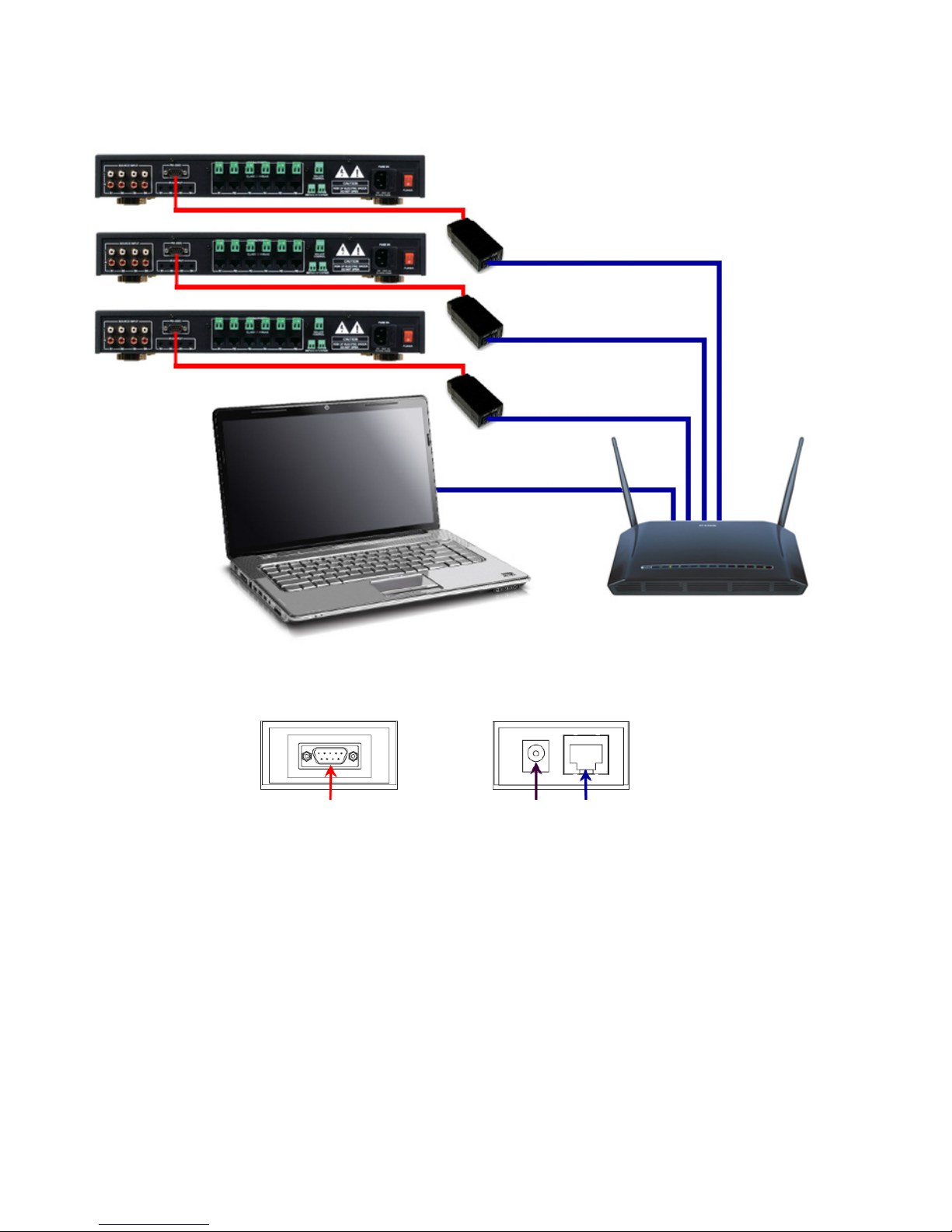
An 18-zone connected setup including 3 Musica ADC’s and 3 NS-MNE interfaces would appear
like this:
DIP Switch Positions

In s t a l l a t I o n a n d op e r a t I o n Ma n u a l 4
RS-232 DB-9M Connector Power Connector
NS-MNE Ethernet and
Power Connector End
NS-MNE RS-232
Connector End
RJ-45 Ethernet Connector
MU5066ADC
NS-MNE RS-232 to ADC Connection
(One for each NS-MNE)
Power and other connections for all devices not shown
MU5066ADC
MU5066ADC
Home Network with 3 Musica ADC’s and 3 NS-MNE’s Comprising an 18-Zone System
NS-MNE Connectors
Ethernet Switch/Wireless Router
PC to Ethernet Switch/
Wireless Router Connection.
Can be wired or wireless.
NS-MNE to Ethernet
Switch/Wireless Router
Connection
(One for each NS-MNE)
Personal Computer
In f o r M a t I o n re q u I r e d
You will need to provide the following information for each NS-MNE as you configure:
Static IP Address•
Note: In systems where more than one NS-MNE is configured, the IP addresses that are»
assigned must be sequential. For example, the first NS-MNE could be 10.15.100.150,
then the second would be 10.15.100.151, and the third 10.15.100.152.
Subnet Mask•
Gateway Address•

5 te c h n I c a l su p p o r t : 800.283.5936
You will also need the MAC Address of each NS-MNE device (printed on bottom of the unit)
dI s c o v e r I n g a n d co n f I g u r I n g t h e ns-Mne un I t s
The MNE_Finder application running on a PC connected to the network discovers any NS-MNE units
that are connected via the local Ethernet even if their current IP address settings are incompatible
with those of the PC running the program.
ru n n I n g Mne_fI n d e r
Make sure each NS-MNE unit is powered on and connected to the Ethernet network via its Ethernet
port.
On a PC running Windows connected to the same Ethernet network, run the MNE_Finder.exe
program. The program automatically discovers and shows a list of all connected NS-MNE units
along with their current IP address, MAC address, and firmware revision.
If you need to repeat the discovery, press the “Refresh List” button.
CONFIGURING WITH MNE_FINDER
To configure, perform the following:
Identify the NS-MNE unit you will configure by the MAC address that is listed by the MNE_1.
Finder.
Select it then click the2. Configure IP Settings button.

In s t a l l a t I o n a n d op e r a t I o n Ma n u a l 6
Enter the IP Address, Subnet Mask, and Default Gateway for the device.3.
Enter the password, which is “4. sysadm” (the field is case sensitive).
Click on5. Apply which pushes the address into the device over the network. After the informa-
tion has been sent to the device the MNE_Finder main screen will be displayed (about 30 sec-
onds).
Reboot the NS-MNE by either unplugging and restoring the power to the device, or by select-6.
ing the device and clicking on the Reboot Device button on the side panel of the MNE_Finder
program. (Using the Reboot Device button requires that the password be entered.)
After the device is rebooted verify the IP Address, Subnet Mask and Default Gateway are as7.
intended.
Repeat the process for each NS-MNE in the system.8.
Subsequent possible operations are available via buttons on the left hand side of the interface,
which are described below. Wherever a password is needed, it will be the root password for the
unit, which is “sysadm” by default.
OTHER FINDER CONTROLS
The MNE_Finder application has other controls running along the side of the screen whose functions
are described below:
Device Info - Shows a summary of the information available on the NS-MNE unit.
Reboot Device - Reboots the device. Requires a password.
Refresh List - Performs a new discovery of NS-MNE devices.
Close - Closes the MNE_Finder application.

7 te c h n I c a l su p p o r t : 800.283.5936
STANDALONE METHOD
In f o r M a t I o n re q u I r e d
You will need to provide the following information for each NS-MNE as you configure:
Static IP Address•
Note: In systems where more than one NS-MNE is configured, the IP addresses that are»
assigned must be sequential. For example, the first NS-MNE could be 10.15.100.150,
then the second would be 10.15.100.151, and the third 10.15.100.152.
Subnet Mask•
Gateway Address•
co n f I g u r a t I o n pr o c e s s
To configure the NS-MNE, connect the hardware, then use the Windows HyperTerminal or similar
application to perform the configuration. (HyperTerminal can be downloaded for Windows 7.)
Verify the DIP switches on the bottom of the NS-MNE unit are in the proper positions as shown:1.
Connect the NS-MNE to the computer serial port using the null modem cable provided.2.
DO NOT CONNECT POWER TO NS-MNE.
NOTE: If your computer does not have a serial port, you need to use an adapter that»
converts from USB to serial. Note the COM port number.
Start the computer.3.
Establish a COM Port connection to the NS-MNE device using the MS-Windows HyperTerminal4.
program. Select Start>All Programs>Accessories>Communications>HyperTerminal.
The HyperTerminal Screen Displays
RS-232 Connector on End of NS-MNE
Connects by Null Modem Cable to PC
Power
Connector
of NS-MNE
Ethernet Connector
of NS-MNE not used
for Standalone
Configuration
DIP Switch Positions
Questo manuale è adatto per i seguenti modelli
1
Indice
Manuali Scheda di rete popolari di altre marche

Buffalo
Buffalo AirStation WLI-PCM-L11GP Manuale utente

National Instruments
National Instruments NI 9234 Manuale utente

Hama
Hama 49276 Manuale utente

Linksys
Linksys WCF54G - Wireless-G Compact Flash Card Manuale operativo

Compaq
Compaq Wireless LAN 100 Manuale utente

Bose
Bose PowerMatch Dante Manuale utente