
Comset CM550W-POE Manuale utente
http://www.comset.com.au
1
Comset CM550W-POE 5G Router User Guide
Comset CM550W-POE 5G Router
User Guide
http://www.comset.com.au
2
Comset CM550W-POE 5G Router User Guide
Copyright © COMSET 2022
Comset is a registered trademark of Comset. Other brands used in this manual are trademarks of their
registered holders.
Specifications are subject to change without notice. No part of this manual may be reproduced without
the consent of Comset. All rights reserved.
WARNING: Keep at least a 20cm distance between the user’s body and the modem/router device.
Address
:
37/ 125 Highbury Road, Burwood VIC 3125, Australia
Web
:
http://www.comset.com.au
Phone: +61 3 9001 9720
Fax: +61 3 9888 7100

Comset CM550W-POE 5G Router User Guide
1
Contents
1 Hardware Installation .......................................................................................................................................... 3
1.1 Panel ................................................................................................................................. 3
1.2 LED Status ....................................................................................................................... 4
1.3 Dimensions ....................................................................................................................... 5
1.4 Powering up the CM550W-POE Router ...................................................................... 5
2 Router Configuration ........................................................................................................................................... 8
2.1 Configuration from a local network ............................................................................... 8
2.2 Status ................................................................................................................................ 9
2.3 Tools Column ................................................................................................................. 11
2.4 Basic Network ................................................................................................................ 14
2.5 WLAN Settings............................................................................................................... 25
2.6 Advanced Network Settings ......................................................................................... 28
2.7 Firewall ............................................................................................................................ 39

Comset CM550W-POE 5G Router User Guide
2
2.8 VPN Tunnel .................................................................................................................... 41
2.9 Administration ................................................................................................................ 54
2.10 “Reset” Button to Restore Factory Settings ............................................................ 70
3 Configuration Examples.................................................................................................................................... 72
3.1 VLAN .............................................................................................. 72
3.2 WAN Backup (WAN as Main, Cellular as Backup) ................. 74
3.3 Port Forwarding ............................................................................ 77
3.4 IP Passthrough ............................................................................. 80
3.5 Captive Portal ............................................................................... 82
3.6 GPS Settings (GPS version only) .............................................. 86
3.7 Firewall .......................................................................................... 87
3.8 VPN Tunnel ................................................................................... 89
Comset CM550W-POE 5G Router User Guide
3
1 Hardware Installation
The images below might be slightly different from the actual product, but the specifications are the
same.
1.1 Panel
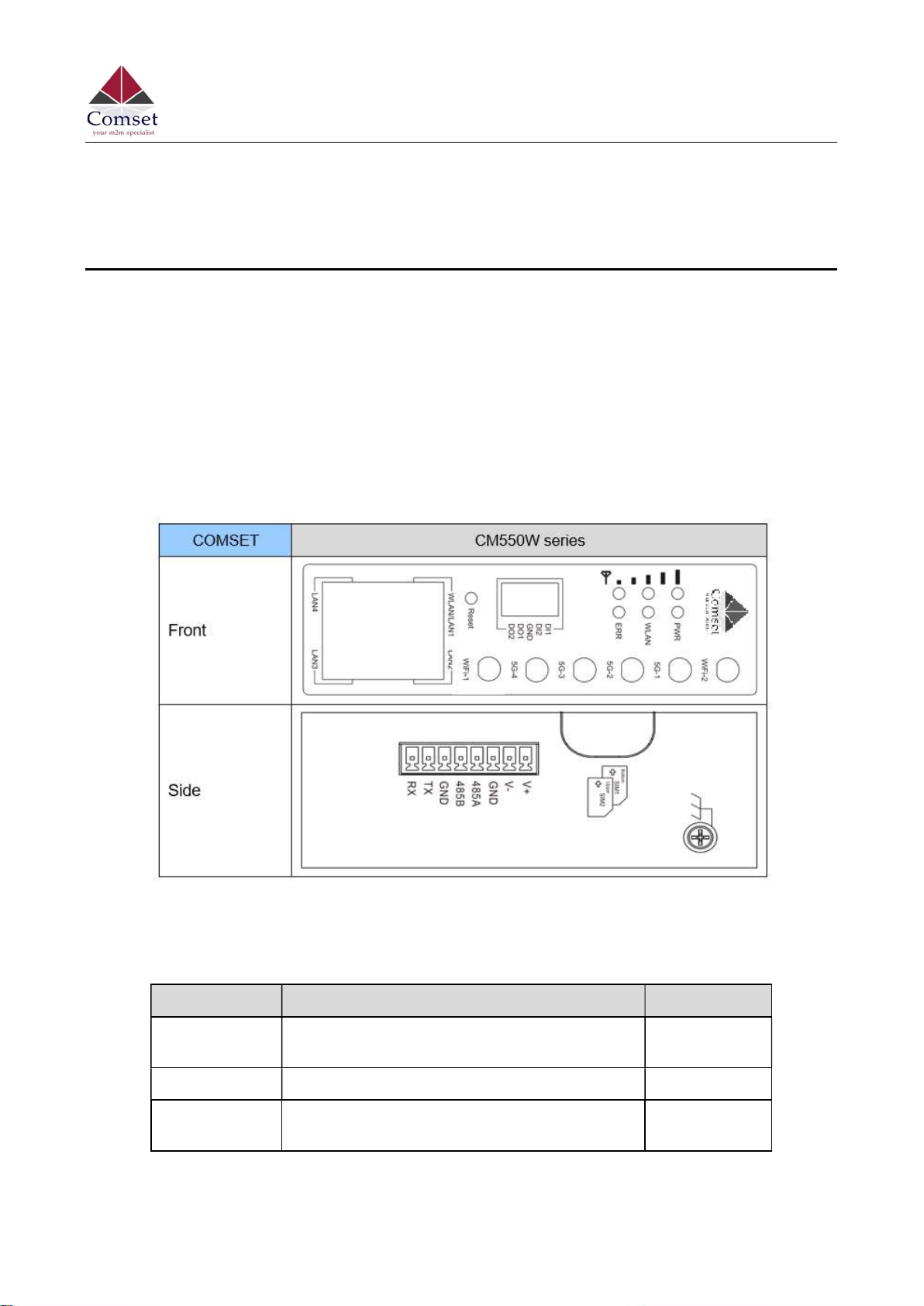
Table 1-1 CM550W-POE Interface
Table 1-2 Router Interface
Port Instructions Remark
USIM Standard size SIM Slot, supports 1.8/3V/5V
automatic detection.
Main 5G-1~5G-4 antennas, SMA connectors, 50Ω.
GPS 5G-4 can be used as a GPS antenna, SMA
connector, 50Ω.
Optional
Comset CM550W-POE 5G Router User Guide
4
Port Instructions Remark
Wi-Fi 2.4GHz Wi-Fi, 5GHz Wi-Fi. Dual-band
antennas, SMA connectors.
LAN0~LAN4 10/100/1000Base-TX,MDI/MDIX self-
adaption, LAN1 & LAN2 for PoE and PoE+.
Reset Reset button. Press and hold for at least 5
seconds.
PWR Power connector. 44~57VDC
for PoE
IO Interface 5xPins. 2 x DI, 2 x DO and GND.
Terminal Block 1 x RS232,1 x RS485, 1 x DC Power.
1.2 LED Status
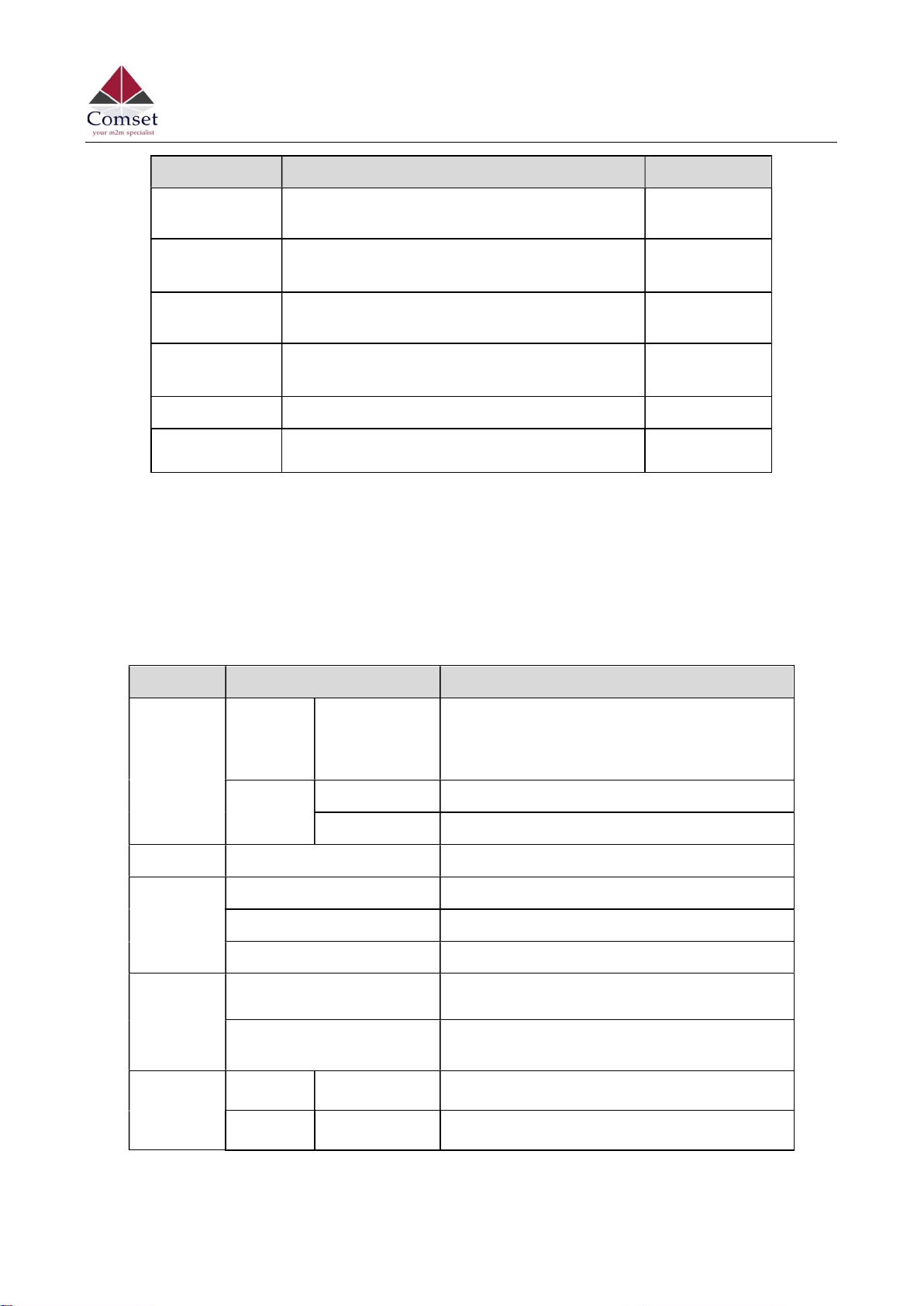
Table 1-3 Router LED indicator Status
silk-screen
status Description
Signal
Signal Solid light LED1 indicates signal is weak (CSQ0~10)
LED2 indicates signal is good (CSQ11~19)
LED3 indicates signal is strong (CSQ20~31)
Signal 1
Blinking Dialing.
Solid light Online.
PWR Solid light System power operation.
WLAN
Solid light WLAN enabled, but no data communication.
Blinking rapidly Data is being transmitted.
Light off WLAN disabled.
ERR
Light off System in operation and 5G/4G is online.
Solid light (Red) System fail indicator. This indicates failure with
the SIM card and/or the module.
LAN
Green Solid light Connected.
Green Blinking Data is being transmitted.
Comset CM550W-POE 5G Router User
Guide
5
https://www.comset.com.au
silk-screen
status Description
Green Light off Disconnected.
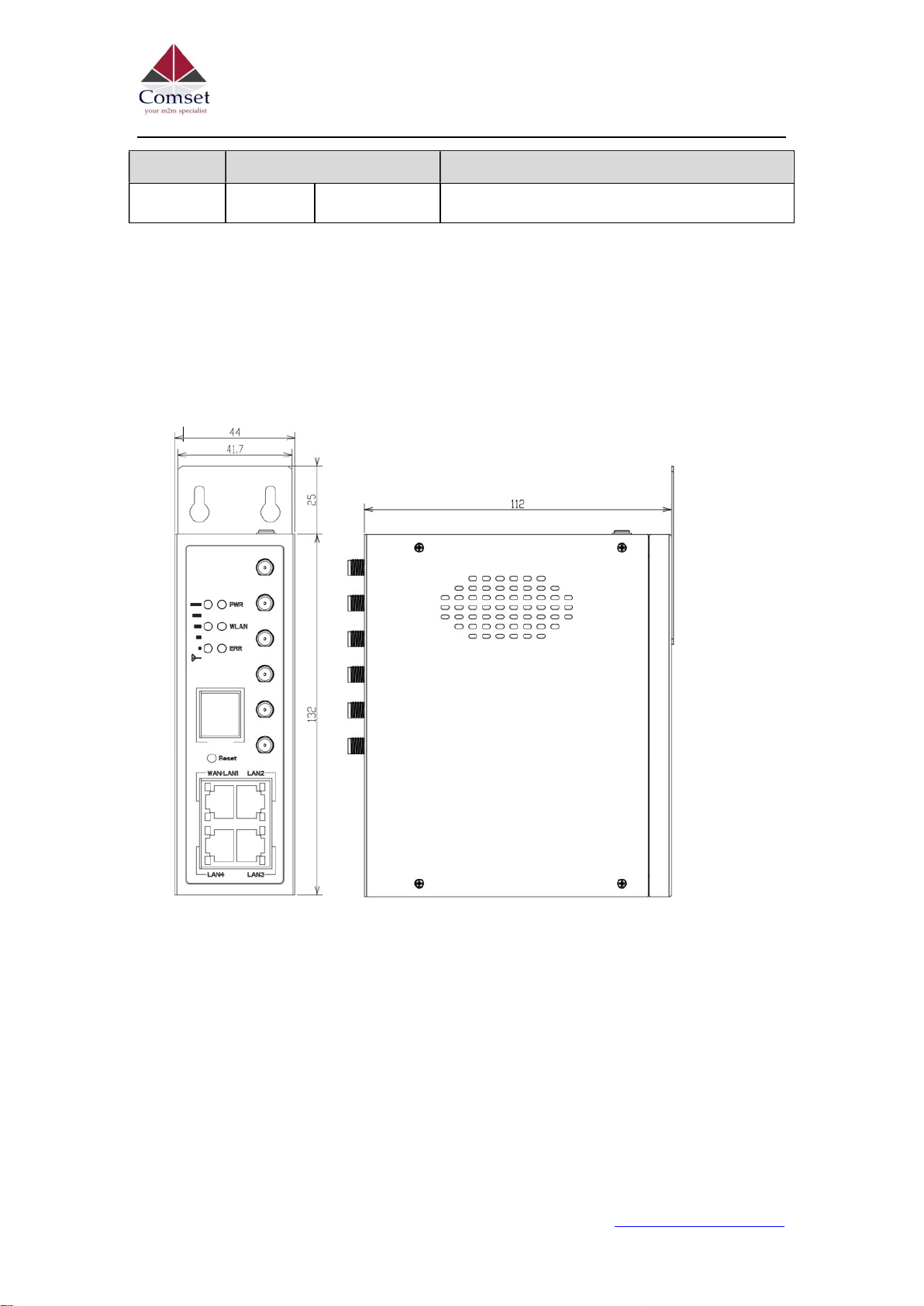
1.3 Dimensions
Figure 1-1 CM550W-POE Router Dimensions
1.4 Powering up the CM550W-POE Router
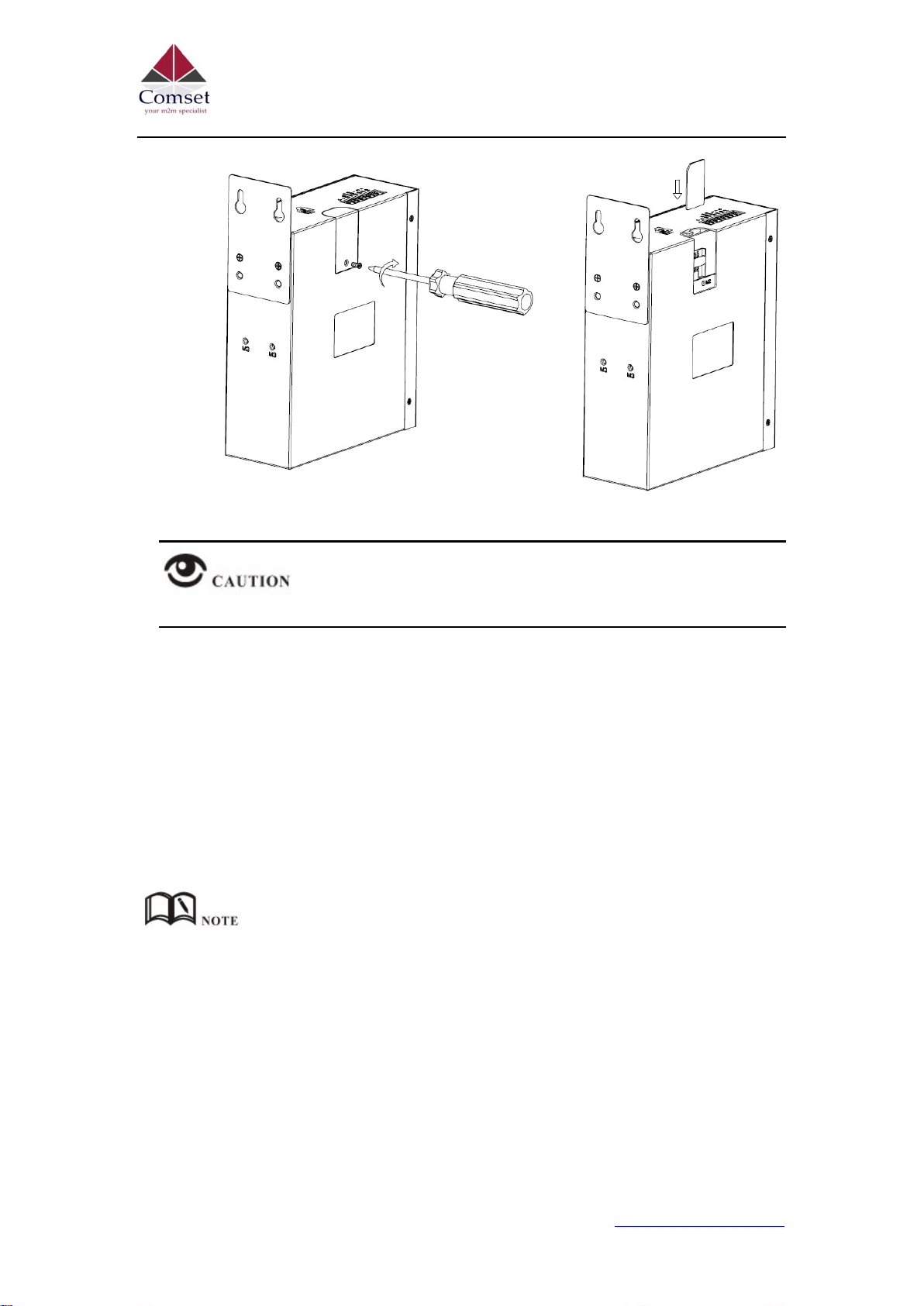
1.4.1 SIM/UIM card installation
Please insert the SIM card(s) prior to configuring the router. Use a standard size SIM card.
Comset CM550W-POE 5G Router User
Guide
6
https://www.comset.com.au
Before connecting any cables, please disconnect the power source.
1.4.2 Ethernet Cable Connection
Use an Ethernet cable to connect the LAN port of the 5G Router to the LAN port of your
PC or laptop computer.
1.4.3 5G and Wi-Fi Antenna Plug
Connect the four magnetic base 5G antennas to antenna sockets 5G-1 to 5G-4, and the
two paddle shape Wi-Fi antennas to the Wi-Fi antenna sockets.
The Wi-Fi antennas support dual-band Wi-Fi 2.4GHz and 5GHz bands.
1.4.6 Power Supply
The CM550W-POE router supports a wide range of DC voltage between 44VDC and
57VDC.
Comset CM550W-POE 5G Router User
Guide
7
https://www.comset.com.au
1.4.7 Review
After inserting the SIM/UIM card(s) and connecting the Ethernet cable and antennas,
please connect the power adaptor or power cable.
Please connect the antennas prior to powering up the router, otherwise you may get a
poor signal due to a mismatching impedance.
Note:
Step 1 Check the antennas’ connection.
Step 2 Check the SIM/UIM card is inserted.
Step 3 Power up the CM550W-POE Router.

Comset CM550W-POE 5G Router User
Guide
8
https://www.comset.com.au
2 Router Configuration
The CM550W-POE Router can be configured via a web interface using a web browser
such as Internet Explorer, Firefox, or Google Chrome.
2.1 Configuration from a local network
To configure the CM550W-POE, please connect an Ethernet cable between the router and
your PC computer. The IP address on your PC can be a static IP address, or you can select
DHCP so that your computer can automatically obtain a Dynamic IP address. The default
IP address of the router is 192.168.1.1. The subnet mask is 255.255.255.0. Please follow
the instructions below:
Step 1 Click “start > control panel”, find “Network Connections” icon and double click it.
Select “Local Area Connection” corresponding to the network card on this page.
Refer to the figure below:
Figure 2-1 Network Connection
Step 2 Select “Obtain an IP address automatically” or set up a fixed IP address in the
range 192.168.1.xxx (xxx can be any number between 2~254)
Step 3 Run Internet Explorer, or any other web browser, and enter 192.168.1.1 in the
address bar and press “enter”.
The default username is admin, and the default password is admin.
Indice
Altri manuali Comset Router di rete

Comset
Comset CM685V-1 Manuale utente

Comset
Comset CM685VX Manuale utente

Comset
Comset CM685V Manuale utente

Comset
Comset CM685V-6 Manuale utente

Comset
Comset CM820Q-6 Manuale utente

Comset
Comset CM685V-4 Manuale utente

Comset
Comset CM510Q-W Manuale utente

Comset
Comset CM950W Manuale utente

Comset
Comset CM820V-W Manuale utente

Comset
Comset CM770W-6 Manuale utente


Manuali Router di rete popolari di altre marche


NETGEAR
NETGEAR FS526T - Switch Manuale utente

Korenix
Korenix JetNet 5710G Series Manuale utente

Automated Logic
Automated Logic ZN551 Manuale del proprietario

Cisco
Cisco ASR 1000 Series Manuale dell'operatore

EnGenius
EnGenius ESR-9710 Manuale utente

Cisco
Cisco 805 Series Istruzioni operative e di sicurezza