
Fetch TV iinet Manuale utente

1
Quick Start Guide

2

1
It’s here – a New Breed
of TV entertainment.
Welcome to Fetch TV – an exciting new television experience
that puts you in control of the best TV, great movies, and
popular interactive applications.
There are 5 easy steps to get you started:
1. Unpacking the box
2. Connecting the Set Top Box to your broadband modem
3. Connecting the Set Top Box to your TV Antenna
4. Connecting the Set Top Box to your TV
5. Turning on Fetch TV
This booklet tells you all you need to know about setting up,
and guides you through the ve steps to get you ready to
turn on Fetch TV. It also provides you with important safety and
usage information.
It’s Fetch TV and it’s ready when you are.

2
1
Unpacking the box
Before you install your
Fetch TV Set Top Box
(STB), check that all the
accessories you need have
been supplied using this
page as a checklist.
You will need:
1 STB Unit
1 Power Adaptor
1 Power Cord (1.5m)
1 Antenna Cable (1.5m)
1 HDMI Cable (1.8m)
1 Remote Control
2 AA Batteries
1 RJ45 Ethernet Cable (2m)
You may not need to use:
1 RYW Composite Cable (1.5m)
You may also have received:
PLC Adaptors, or Wireless Bridge Devices if you
ordered them from your Fetch TV Service Provider

3
Installation Tips
Position the STB horizontally on a clean, dry,
steady surface with 5cm of space all around it.
Don’t stack it on audiovisual appliances that
generate heat or electromagnetic radiation.
Keep the STB away from direct sunlight, carpet,
heating and cooking sources. Do not place it
in closed cabinets, on vibrating surfaces or on
loudspeakers.
Make sure the STB is close to the TV and/or
home theatre it’s being connected to, and within
6 metres from where the remote control is
generally used.
Only use a clean, dry cloth to clean the STB
and remote control. Don’t use solvents or
cleaning agents of any kind.
Please don’t open the STB in any way. It could
be dangerous and you may lose any entitlement
to free servicing or a replacement unit.
Obviously, it’s perfectly ne to change the batteries
in the remote control.
And Now a Safety Message
The Fetch TV STB is designed to operate from
a 100V-240V 50Hz AC power source only.
Use only the original power cord and power adaptor
supplied and ensure it’s fully inserted into the back
panel of the STB before turning the Power on. Check
that the cord is free from obstruction.
If the cord is damaged, turn the power off and
contact your Service Provider for a replacement.
Before cleaning, always disconnect the Power
at the wall and back of STB. Never remove the
plug by yanking the cord.
Keep the STB away from babies, children and
sharp objects.
Do not place liquid lled items on top of the
STB and do not insert any objects through the
ventilation holes in the cover.
Any problems with the STB should only be examined
by approved and qualied service personnel.

4
Connect the STB
to your modem
Fetch TV is delivered by
broadband, so you need
to connect your STB to
the modem.
There are various ways to
do this:
- Ethernet Cable
- Powerline Communications
(PLC)
- Wireless Bridge
2
Connection Option 1 – Ethernet Cable: Modem direct
to STB
You can use this option if your TV and STB are close
enough to your modem to connect them using an Ethernet
cable.
1. Plug one end of an Internet Ethernet Cable into any
available port on your broadband modem.
2. Plug the other end into the port labelled Internet on the
back of your STB.
Connection Option 2 – Ethernet Cable: Modem to STB
using data cabling
You can use this option if your installation location has
internal data cabling.
1. Plug one end of an Internet Ethernet Cable into any
available port on your broadband modem.
2. Plug the other end into the Internet Ethernet wall socket
nearest to your broadband modem.
3. Plug one end of a second Internet Ethernet Cable into the
port labelled Internet on the back of your STB.
4. Plug the other end into the Internet Ethernet wall socket
nearest your TV and STB.

5
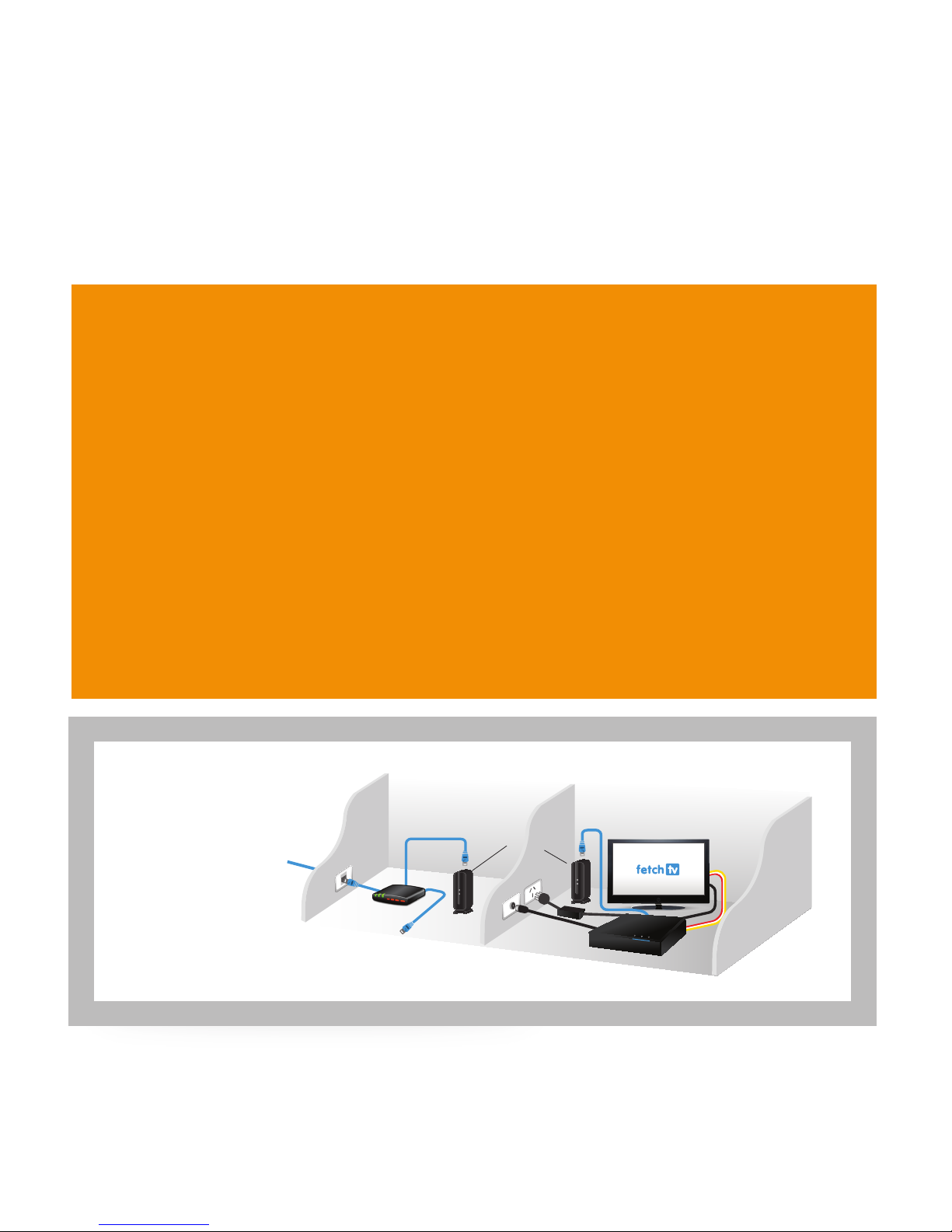
Connection Option 3 – PLC Adaptors
You can use this option if you cannot connect using Ethernet Cable and you ordered PLC Adaptors with your Fetch
TV service. The PLC adaptor will transmit your Fetch TV service to your STB using the existing power cables inside
your walls.
1. Plug one PLC adaptor into an electrical socket located near your broadband modem.
2. Plug one end of an Internet Ethernet cable into the port on the PLC device.
3. Plug the other end into any available port on your broadband modem.
4. Plug the other PLC adaptor into an electrical socket located near your TV and STB.
5. Plug one end of an Internet Ethernet cable into the port on the PLC device.
6. Plug the other end into the port labelled Internet on the back of your STB.
The PLC Adaptor should be plugged directly into the wall socket. Do not use a double adaptor or power board for
the PLC unless there is no other socket available, in which case they must not have surge protectors or noise
ltering. If using a power board, plug the PLC adaptor into the rst outlet (the one nearest the cord).
Connecting with
PLC Adaptors
Room 1
Outside
Broadband
Connection
Fetch TV
SignalFetch TV
Signal
TV Aerial
AV
Cable
Normal
Broadband
Use
Broadband
Modem
Room 2
PLC Adapter
6
Connection Option 4 – Wireless Bridge
You can use this option if you ordered the Wireless Bridge with your Fetch TV service. Install the Wireless
Bridge using the instructions included with it. Locate one device near your broadband modem, and the other
near your TV and STB.
1. Plug one end of an Internet Ethernet cable into the port on the Wireless Bridge located near your modem.
2. Plug the other end into any available port on your broadband modem.
3. Plug one end of an Internet Ethernet cable into the port on the Wireless Bridge located near your STB.
4. Plug the other end into the port labelled Internet on the back of your STB.
Connecting with
Wireless Bridge
Room 1Outside Room 2
Broadband
Connection
Fetch TV Signal
Fetch TV
Signal
Broadband
Modem
Normal
Broadband
Use
TV Aerial
AV
Cable
Wireless
Bridge
7
Connecting
the Set Top Box
to your TV Antenna
You receive your free-to-air Digital
TV channels using your normal TV
antenna. They are not delivered over
broadband.
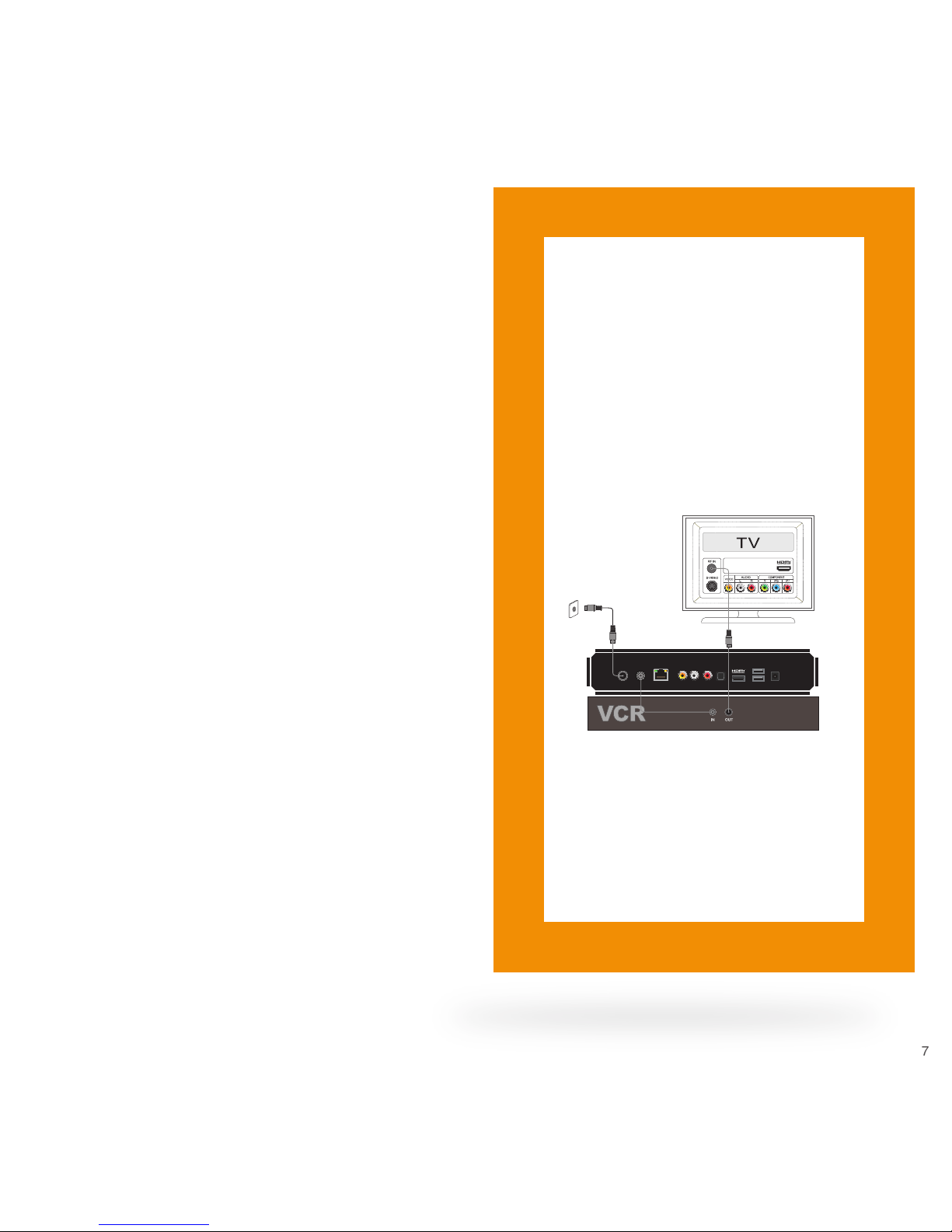
Unplug any existing antenna cables
from your TV but leave it connected
to the wall. You will need your
existing TV antenna cable as well as
the one that came with your STB.
3
1. Plug the other end (not connected to the
wall) of the existing antenna cable into the
socket labelled Antenna-IN on the
back of your STB.
2. Plug one end of the second antenna cable
into the socket labelled Antenna-OUT on
the back of your STB.
3. Plug the other end into the antenna socket
on the back of your TV.
You can also connect to a DVD/VCR as
indicated below.
Connecting to a Home Theatre
(Digital Audio)
Your STB has both coaxial and optical
digital audio outputs. Either of these may
be used to connect to your home theatre
so you can enjoy various 5:1 surround
sound modes. Refer to your home theatre
supplier for more details.
ANTENNA AUDIO OPTICAL
INTERNET VIDEO
IN OUT L R
HDMI USB POWER
12V AC

8
Connecting
The Set Top Box
To Your TV
There are various ways to connect
the Fetch TV STB to your TV or home
theatre system. The one you choose
will depend on the display capability
of your TV and the connection
ports available.
HDMI is the recommended
connection option if available.
4
Recommended Option 1
Digital High Denition (HDMI)
This connection delivers the highest quality
picture and audio letting you watch High
Denition programming. Only the HDMI
cable is required.
1. Plug the HDMI cable into the port labelled
HDMI on the back of the STB.
2. Plug the other end into any available HDMI
port on your TV.
* ADSL or cable modem
ANTENNA AUDIO OPTICAL
INTERNET VIDEO
IN OUT L R
HDMI USB POWER
12V AC
Antenna
HDMI
IN - ANT ANT - OUT
Ethernet
Questo manuale è adatto per i seguenti modelli
1
Indice
Altri manuali Fetch TV Decoder

Fetch TV
Fetch TV Mini Manuale utente

Fetch TV
Fetch TV Yes TV Manuale utente

Fetch TV
Fetch TV Fetch Mini Manuale utente

Fetch TV
Fetch TV Set Top Box Manuale utente

Fetch TV
Fetch TV MIGHTY Manuale utente

Fetch TV
Fetch TV SmartBox 8320HD Manuale utente

Fetch TV
Fetch TV My Media Hub Manuale utente

Fetch TV
Fetch TV Gen 1 Manuale utente

Fetch TV
Fetch TV Multiroom Manuale utente


