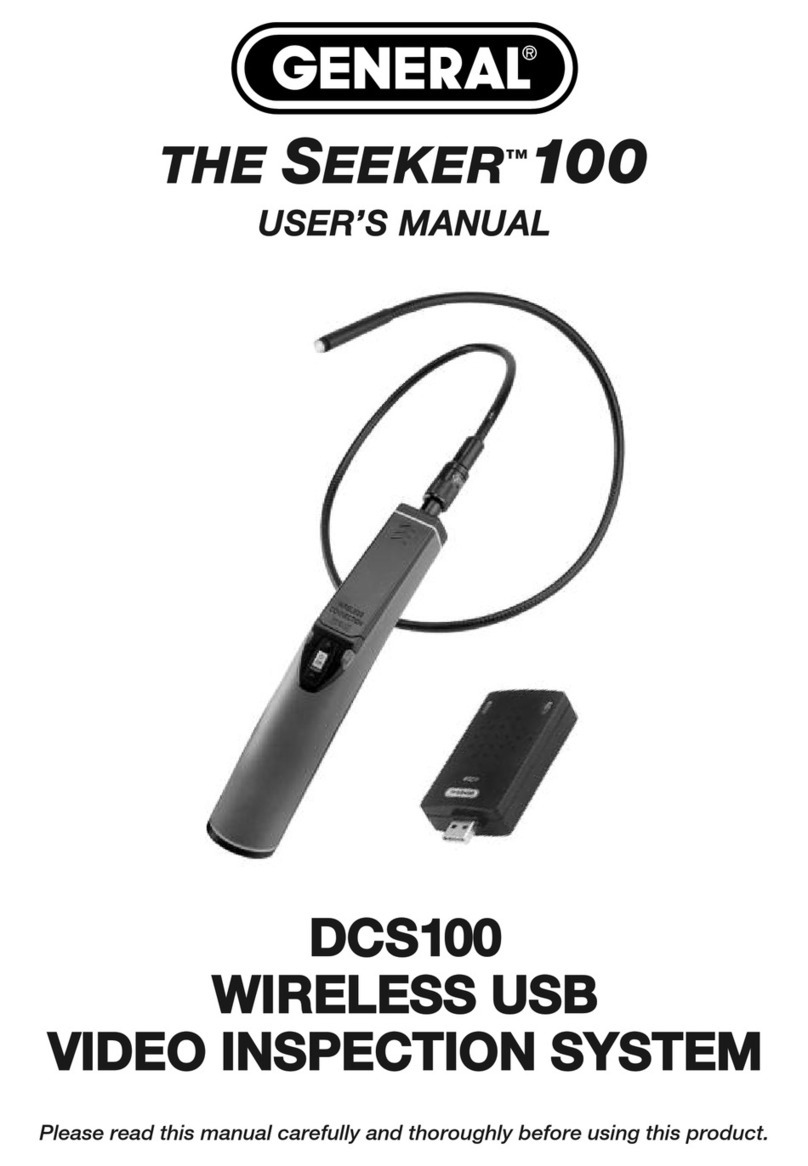
General DPS16 Manuale utente

PIPE & DUCT RECORDING VIDEO
BORESCOPE INSPECTION SYSTEM
USER’S MANUAL
DPS16
99 Washington Street
Melrose, MA 02176
Phone 781-665-1400
Toll Free 1-800-517-8431
Visit us at www.TestEquipmentDepot.com

TABLE OF CONTENTS
Introduction . . . . . . . . . . . . . . . . . . . . . . . . . . . . . . . . . . . . . . . . . . . 3
Key Features . . . . . . . . . . . . . . . . . . . . . . . . . . . . . . . . . . . . . . . . . . 4
Safety Instructions . . . . . . . . . . . . . . . . . . . . . . . . . . . . . . . . . . . . . 4
What’s in the Case. . . . . . . . . . . . . . . . . . . . . . . . . . . . . . . . . . . . . . 5
Product verview . . . . . . . . . . . . . . . . . . . . . . . . . . . . . . . . . . . 6 –8
Setup Instructions . . . . . . . . . . . . . . . . . . . . . . . . . . . . . . . . . . . 8 –9
Attach Probe to Console . . . . . . . . . . . . . . . . . . . . . . . . . . . . . 8
Charge Console Battery . . . . . . . . . . . . . . . . . . . . . . . . . . 8 –9
Insert SD Card. . . . . . . . . . . . . . . . . . . . . . . . . . . . . . . . . . . . . 9
Install Batteries in Probe Length Counter. . . . . . . . . . . . . . . . 9
perating Instructions – H16 . . . . . . . . . . . . . . . . . . . . . . . . 10 – 14
Viewing Live Video on the Console . . . . . . . . . . . . . . . . . . . . 10
Viewing Live Video on a TV Monitor . . . . . . . . . . . . . . . 10 – 11
Taking Pictures and Recording Videos . . . . . . . . . . . . . . . . . 11
Viewing Photos and Playing Back Videos. . . . . . . . . . . 11 – 12
Accessing SD Card Content . . . . . . . . . . . . . . . . . . . . . . . . . 12
Navigating the Main Menu . . . . . . . . . . . . . . . . . . . . . . 12 – 14
perating Instructions - P16PIP . . . . . . . . . . . . . . . . . . . . . . 14 – 16
Attaching an Accessory . . . . . . . . . . . . . . . . . . . . . . . . 14 – 15
Using the Probe Length Counter. . . . . . . . . . . . . . . . . . . . . . 16
Specifications . . . . . . . . . . . . . . . . . . . . . . . . . . . . . . . . . . . . 16 – 18
perating, Maintenance &
Troubleshooting Tips - H16 . . . . . . . . . . . . . . . . . . . . . . . . . . . . . . 18
perating & Maintenance Tips - P16PIP . . . . . . . . . . . . . . . . 18 – 19
ptional Probes & Accessories . . . . . . . . . . . . . . . . . . . . . . . . . . . 19
Warranty Information . . . . . . . . . . . . . . . . . . . . . . . . . . . . . . . . . . 20
Return for Repair Policy . . . . . . . . . . . . . . . . . . . . . . . . . . . . . . . . 20
2

INTRODUCTION
Thank you for purchasing General Tools & nstruments’ (General’s) DPS16 Pipe & Duct Recording
Video Borescope nspection System. Please read this user’s manual carefully and thoroughly
before using the instrument.
The DPS16 has two components: the H16 Handheld Recording Video Borescope Console and the
P16P P Pipe & Duct nspection Probe & Reel Set. The H16 is the console of General’s DCS1600,
DCS1600ART, DCS16HPART and DPS16 video borescope inspection systems.
A thumbwheel on the left side of the H16 allows you to adjust the brightness of the LEDs
illuminating the camera at the end of any probe attached to it. The P16P P probe and reel set
included in the DPS16 system is tailored for inspecting water and sewer pipes carrying running
water, as well as HVAC ducts.
The H16 also can serve as the console of a general-purpose recording video borescope system
with the addition of a compatible probe. See p. 19 for a list and descriptions of six other VGA
resolution probes compatible with the H16.
The H16 has three operating modes: Preview, Playback and Menu:
•In Preview mode, video framed by the camera’s field of view is displayed in real time on
the console’s LCD. The H16 automatically enters this mode when powered on.
A front-panel button allows you to increase the size of a target by 50% (a zoom level of 1.5X)
or double it (a zoom level of 2X). The same button allows you to “mirror” video, making it
possible to read serial numbers seen and “reversed” by an attached probe with a mirrored
viewing tip. The zoom and mirroriing functions can be applied at the same time. n Preview
mode, real-time video also can be exported through an included video cable to any NTSC- or
PAL-format TV monitor with an RCA input jack.
Operating in Preview mode, the H16 also allows you to record inspection videos (at 320 x
240 pixel resolution) and photos (at 640 x 480 pixel resolution) on an included SD memory
card by pressing icon-labeled buttons on the console’s front panel. The remaining front-
panel buttons enable access to Playback and Menu modes.
•In Playback mode, you can browse the SD card for saved video and picture files and view
the media on the console’s LCD or a larger TV monitor. Video clips and photos also can be
viewed on a PC in either of two ways: 1) by removing the SD card and plugging it into the
computer directly or through a card reader; or 2) by using a supplied cable to connect the
H16 to the PC through one of its USB ports. Because videos are saved as .asf files and
photos as .jpg files, applications found on most PCs (Microsoft Windows Media Player and
Microsoft Office Picture Manager) can open the files. The 4GB SD memory card included
in the DPS16 case can store at least 5 hours of video, recorded at an average of
6 Mbytes/minute, in addition to hundreds of photos.
•In Menu mode, you use familiar scrolling motions and responses to dialog boxes to navigate
a main menu with six submenus. When selected, submenu items execute “housekeeping”
functions such as deleting files, setting the date and time, enabling or disabling date and
time stamps, choosing any of 27 languages for display indications, selecting an analog video
out format and adjusting the console’s Auto Power Off trigger.
3

KEY FEATURES
• deal for examining the interior of water pipes, sewer pipes, and HVAC ducts. Especially
tailored for 2, 4 and 6 in. .D. pipes by included probe centering accessories
• 72 ft. (22m) long probe with 1.1 in. (28mm) diameter camera head
• Eight super-bright white LEDs give probe 640 x 480 pixel (VGA) resolution; superior optics
yield excellent depth of field of 0.4 in. (10mm) to infinity
• Probe is water-tight to P68 standard (depth of 33 ft./10m) and flexible enough to make two
or more (depending on conditions inside the pipe) 90° bends in a 1.6 in. (40mm) .D. pipe
• Stainless steel camera head is immune to bathroom toilet cleaner, pipe and drain cleaning
chemicals, gasoline, brake/transmission fluid and machine oil
• Steel probe reel is sturdy and dust-tight to P65 standard. Reel works vertically or
horizontally and includes P55-rated probe length counter and bracket for H16 (DCS1600)
console
•
3.5 in. diagonal color LCD for viewing probe video in real time and saved video and pictures later
• Compatible with six other VGA resolution camera-tipped probes from General (see p. 19)
• Thumbwheel for adjusting brightness of camera lighting
• Familiar menu-driven user interface for viewing and recording videos and photos on
standard SD memory card (4GB card included) and playing back media on console, TV or PC
• Rechargeable battery with 4-hour capacity
• 1-year limited warranty
SAFETY INSTRUCTIONS
CAUTION!
Never i sert a y probe attached to the H16 i to a y structure or space k ow
or suspected to co tai live electric wiri g
• The DPS16 and H16 are intended for industrial applications only. Do not use a compatible
probe for human or any other biological inspections.
• Never insert an attached probe into any flammable gas or liquid (including fuels in an oil,
gasoline or diesel tank)
• Do not disassemble the H16 console or P16P P probe & reel set. Doing so creates a
potentially fatal electrical hazard (and voids the warranty as well).
4

WHAT’S IN THE CASE
The DPS16 comes in a custom hard plastic protective carrying case. nside the case are:
• The H16 console. The console integrates an LCD monitor, a connector for a high-
performance camera-tipped probe from General, and front-panel controls for controlling the
camera’s lights, adjusting system parameters, and recording and playing back videos and
photos captured by an attached probe.
• The P16P P Pipe & Duct nspection Probe & Reel Set, including a probe length counter
• One spherical metal ring for centering the probe in 2 in. .D. pipes
• One brush set for centering the probe in 4 in. .D. pipes
• One brush set for centering the probe in 6 in. .D. pipes
• A 5/64-in. Allen wrench for attaching the 2 in. probe centering ring
• A plastic bag containing five spare 5/64-in. Allen screws
• A 4GB SD memory card for the H16
• An AC adaptor/battery charger for a 110/220VAC supply. The adaptor has a 5.5VDC, center-
positive output plug.
• An analog video cable for connecting the H16 to a TV monitor. The cable has RCA plugs at
one end and a mini-stereo plug at the other end.
• A USB cable with a mini-USB plug on one end and a full-size USB plug on the other end. t
can be used to display the contents of the SD card on a computer directly, without removing
the card from the H16 console.
• A package of desiccant
• (2) “AAA” batteries for the probe length counter
• This user’s manual
5

RODUCT OVERVIEW
Fig. 1 below shows the names and locations of all of the controls, ports and jacks of the H16.
Table 1 on the next page details how the function of each front-panel button changes with the
console’s operating mode. Familiarize yourself with the labels, positions and functions of all
buttons and connectors before moving on to the Setup nstructions and Operating nstructions.
Fig. 1. The controls, ports and jacks of the H16
6
11
12 5
4
6
7
2
1
3
14
13
15
8
9
10
LEFT SIDE FR NT BACK RIGHT SIDE
1 Start/Stop Video Recording Button
2 Snapshot Button
3 Power n/ ff Button
4 Previous Video/Photo Button
5 ▼Next Video/Photo Button
6 OK OK Button
7 ESC Escape/Zoom/Mirror Button
8 SD Card Socket
9 TV ut Jack
10 AC Adaptor Jack
11 Mini-USB Jack
12 Brightness Adjustment Thumbwheel
13 Hanger Hole
14 Probe Connector
15 Reset Button

7
Fig. 2 at right shows the
key components of the
P16P P. Fig. 3 on the next
page details the anatomy
of the camera-tipped end
of the probe. Familiarize
yourself with the names
and positions of these
components before
moving on to the Setup
and Operating
nstructions.
Camera head
H16
console holder
Probe guide/camera
head stopper
Handle
Reel frame
Coiled probe
Reel stopper
Probe connector
(to borescope console
or handle/controller)
Table 1. The H16’s multi-function buttons
Button Label In Preview Mode In Playback Mode In Menu Mode
▲Switches to Selects next-oldest Moves up one line;
Playback mode video or photo when setting DATE/TIME,
moves back one field
▼Switches to Selects next-newest Moves down one line;
Playback mode video or photo when setting DATE/TIME,
moves ahead one field
OK Switches to Menu mode Pauses/plays video clip Executes highlighted command
ESC Presssed briefly, enlarges Switches to Preview mode Switches to Preview mode
target by 50% (zooms 1.5X)
or by 100% (zooms 2X);
Pressed and held,
mirrors video
Takes a picture N/A When setting DATE/TIME,
(stores .jpg photo on SD card) increases value by one unit
per button press. Also used to
enable/disable superimposition
of date and time stamps on
photo/video displays.
Starts/stops recording an Enables deletion of any When setting DATE/TIME,
.avi video on SD card individual photo or video decreases value by one unit
per button pres
Fig. 2. The key
components
of the P16PIP
Probe length
counter

8
Fig. 3. tructures near the
camera-tipped
end of the probe
SETU INSTRUCTIONS
ATTACH PROBE TO CONSOLE
Attach the P16P P to the H16 by 1) inserting the H16 into the bracket at the top of the P16P P
and 2) plugging the P16P P’s probe connector (see bottom of Fig. 2 on the previous page) into the
connector at the top of the console (Fig. 1, Callout 14). The connectors mate in only one way,
when the two dots—one on the console’s connector and the other under the collar at the end of
the probe—are aligned. After you have lined up the dots, push the two connectors together so
the alignment keys on opposite sides of the probe’s connector slide over the flats of the console’s
connector. Slide the collar on the probe’s connector forward and tighten the collar by turning it
clockwise.
You can now remove the protective rubber cap from the camera-tipped end of the probe. t is
good practice to replace the cap whenever the probe will not be used for a while. Now is also the
time to peel away the plastic film that protects the console’s LCD.
To disconnect the probe from the console, turn the collar counterclockwise and pull the probe
straight out and away.
CHARGE CONSOLE BATTERY
To power on for the first time, plug one end of the supplied AC adaptor/battery charger into a
110VAC outlet. Then swing the black rubber protective flap away from the right side of the H16 to
expose the AC adaptor jack (Fig. 1, Callout 10). nsert the cylindrical plug at the end of the
adaptor/charger cable into the AC adaptor jack. This will begin charging the console’s battery.
Camera head
Rubber probe cover
Joint ball
Probe
Accessory mounting ring
Metal coil
spring sleeve

Press the button on the H16 console and hold it for at least five seconds. The LCD will
illuminate. t will first show a color-bar test pattern, and then (briefly) a battery icon at lower left,
superimposed on video being captured in real time by the camera at the end of the probe.
Use the thumbwheel on the left side of the console (Fig. 1, Callout 12) to adjust the intensity of
the camera’s lighting. n a brightly lit room, moving the thumbwheel has a big effect on the
brightness of the LEDs at the tip of the probe, but a much smaller effect on the brightness of
video on the LCD. The on-screen impact of changing brightness is more pronounced in dark
environments.
To power off the H16, press the button and hold it for at least five seconds.
t will take several hours to fully charge the H16’s Lithium-ion battery the first time. You cannot
replace the battery, which can only be replaced by General-authorized service personnel.
Do not open the case in an attempt to change the battery yourself. Doing so creates a
potentially fatal electrical hazard (and voids the warranty as well) with the AC adaptor plugged in.
With proper care (charging the battery often, and never allowing it to completely discharge), you
can expect the H16’s battery to last four or five years. A fully charged battery should power at
least four hours of operation.
INSERT SD CARD
This step enables the H16 to store video clips and photos. Remove the supplied 4GB SD memory
card from its packaging. Discard the packaging, but save the plastic storage case.
Push the SD card into the socket on the right side of the console (Fig. 1, Callout 8). Be sure the
card’s gold contacts are facing the rear of the unit and enter the socket first. Push in the card
until you feel it spring back and you hear a click.
To remove the card later, push it in gently until you hear a click and the card pops out far enough
for your fingers to grab.
INSTALL BATTERIES IN PROBE LENGTH COUNTER
1. Lay the P16P P down horizontally with the probe length counter facing up.
2. Use a small Phillips-head screwdriver to open the battery compartment cover at the bottom
front of the probe length counter.
3. Set and cover and screw aside, and take care not to lose the small screw.
4. nstall the two included “AAA” batteries in the compartment, using the polarity marks inside it
as a guide.
5. Replace the cover and secure it by replacing and tightening the small Phillips-head screw.
9

O ERATING INSTRUCTIONS – H16
VIEWING LIVE VIDEO ON THE CONSOLE
While the battery charges, General recommends becoming familiar with the H16’s controls,
indicators and menu options in Preview mode, before taking the unit out into the field. The H16
operates the same way whether powered by its battery or the AC adaptor.
To begin, power off the unit by pressing and holding the button. Then press and hold the
button again to power the console back on. Each time the console is powered on, the screen
shown below right will appear briefly. The battery icon at left will be in white and the bars at right
will be in green, superimposed on live video captured by the camera probe. Together, the number
of bars and the color of the icon represent the H16’s two “vital signs”—available memory
capacity and battery charge, respectively.
The number of filled-in bars at the right of the screen reflects
the amount of data currently stored on the SD card. A full card
would produce four bars. The whiter the icon at lower
left, the higher the current level of battery charge. A completely
white icon indicates a fully charged battery.
Next, get used to manipulating your probe. nstructions for
using the P16P P probe and reel can be found beginning on
p. 14 of this manual.
Finally, note the dual function of the H16 console's E C button in Preview mode:
• Press the E C button briefly and targets will be enlarged by 50% as the camera’s field of
view is reduced by that amount. This represents a zoom level of 1.5X. The text +1.5X will
appear at the lower right of the LCD. Press the E C button briefly again to increase the zoom
level to 2X and change the on-screen text to +2.0X.
• Press and hold the E C button and
video will be mirrored horizontally, as
shown in the two photos at right. The
effect makes it possible to read text
or serial numbers“reversed” by an
attached probe with a mirrored
viewing tip—by undoing the reversal.
An icon of a mirror will appear at
the lower right of the LCD to indicate that video is being mirrored.
You can mirror and zoom videos at the same time by pressing the E C button briefly, and then
pressing and holding the button.
VIEWING LIVE VIDEO ON A TV MONITOR
The DPS16 comes with a video cable for connecting the console to a TV or TV monitor that uses
either the NTSC or PAL analog broadcast standard. By making the connection, you can view live
video (or saved videos and pictures) on a screen larger than the H16’s.
10
Indice
Altri manuali General Strumento analitico

General
General iBORESCOPE4 Manuale utente

General
General LDM1 Manuale utente

General
General CL10 Manuale utente

General
General Seeker 400 Series Manuale utente

General
General TS03 Manuale utente

General
General DCS200 Manuale utente

General
General DCS1600ART Manuale utente

General
General SeaScope 600 Manuale utente

General
General P16PIP Manuale utente

General
General DCS100 Manuale utente

General
General DCS1800 Manuale utente

General
General DCS2000 Manuale utente

General
General DCS500 Manuale utente

General
General The Seeker DCS050 Manuale utente

General
General DCS600A Manuale utente

General
General DCS660A Manuale utente

General
General GLDM25 Manuale utente

General
General DCS200 Manuale utente