
infobit iSpeaker M600 Manuale utente

iSpeaker M600
5.8G wireless cacading speakerphones kit
User Manual V1.0

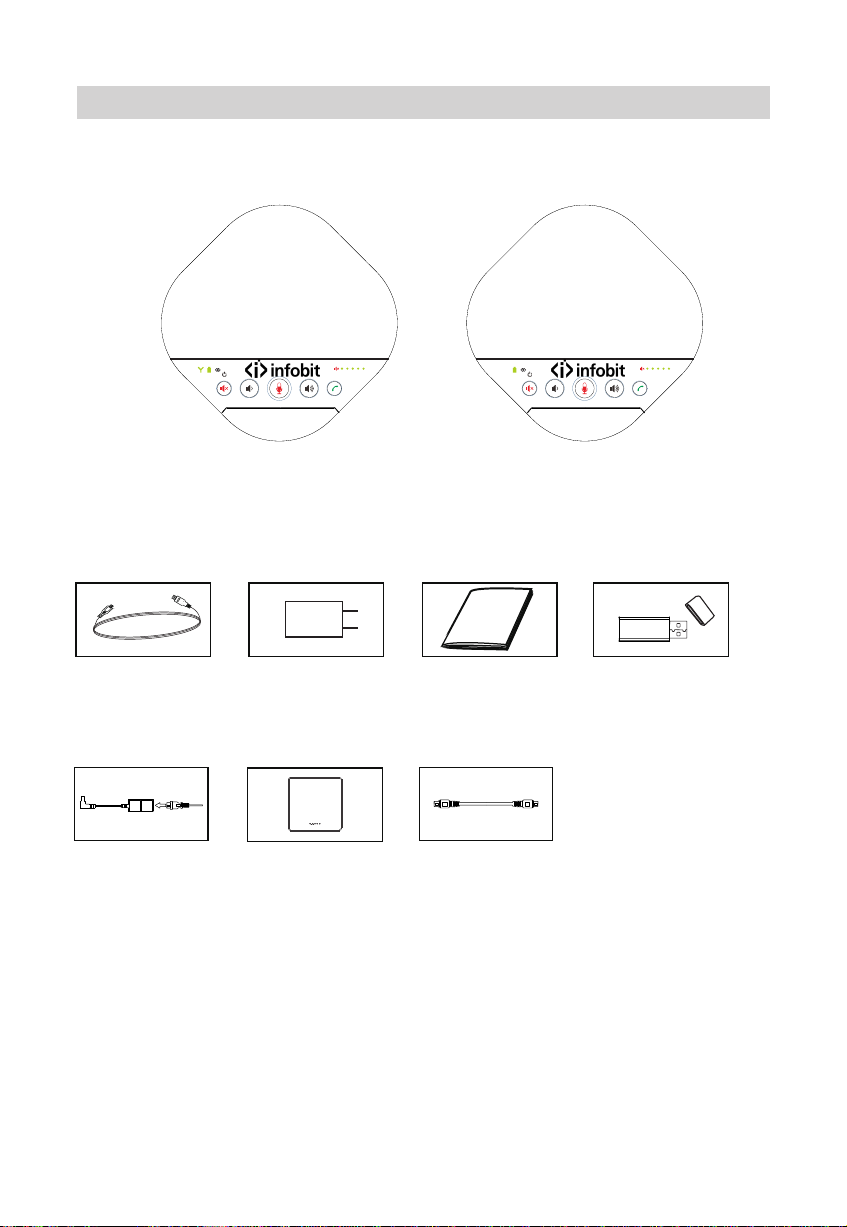
1.1 Speakerphone
1.2 Parts List
1.3 Oponal Accessories
Packing Contents
2. Interface and Display Instrucons
2.1 Hub (Optional)
3. Introducon to Speakerphone
3.1 The Master Keypad
3.2 Master LED Status Indicator
3.3 The Slave Keypad
3.4 Slave LED Status Indicator
4. How to Use Speakerphone
4.1 USB Connecon Steps
4.2 Note: PC Common Reference Sengs in USB Mode
4.3 Cascade
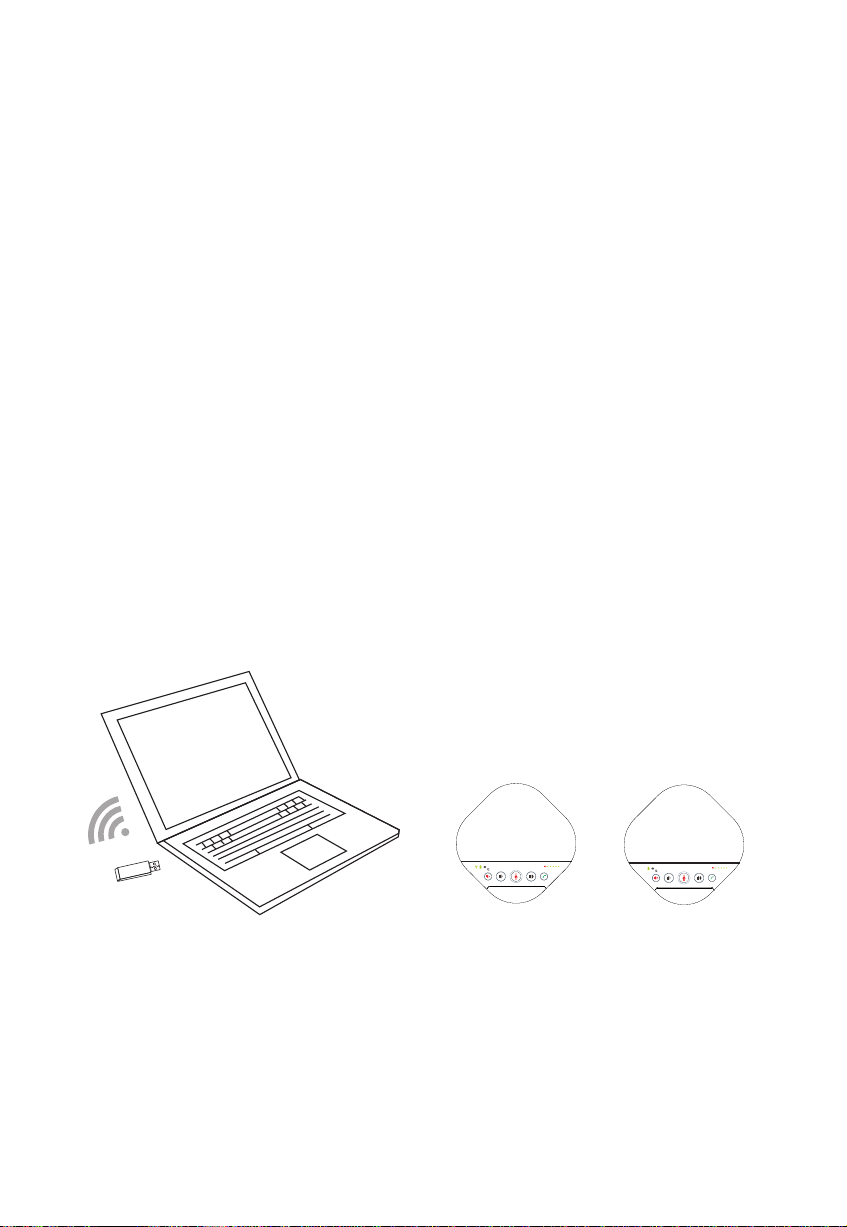
4.4 Wireless Cascade Connecon Steps
6. Technical Specificaons
7. Warranty
2
2
2
2
3
3
4
4
5
6
7
8
8
9
9
10
11
12
5. Installaon and Use of Oponal Hub 10
Content
2
Speakerphone
Hub
Part List
Oponal Accessories
5m DIN6 data cable
Power Adapter
Wireless Adapter
5.8G
Master slave
If any accessories are missing or damaged, please contact the purchase immediately.
Do not use damaged products!
Packing Contents
USB cable X2
Power adapter X2
User Manual Wireless adapter
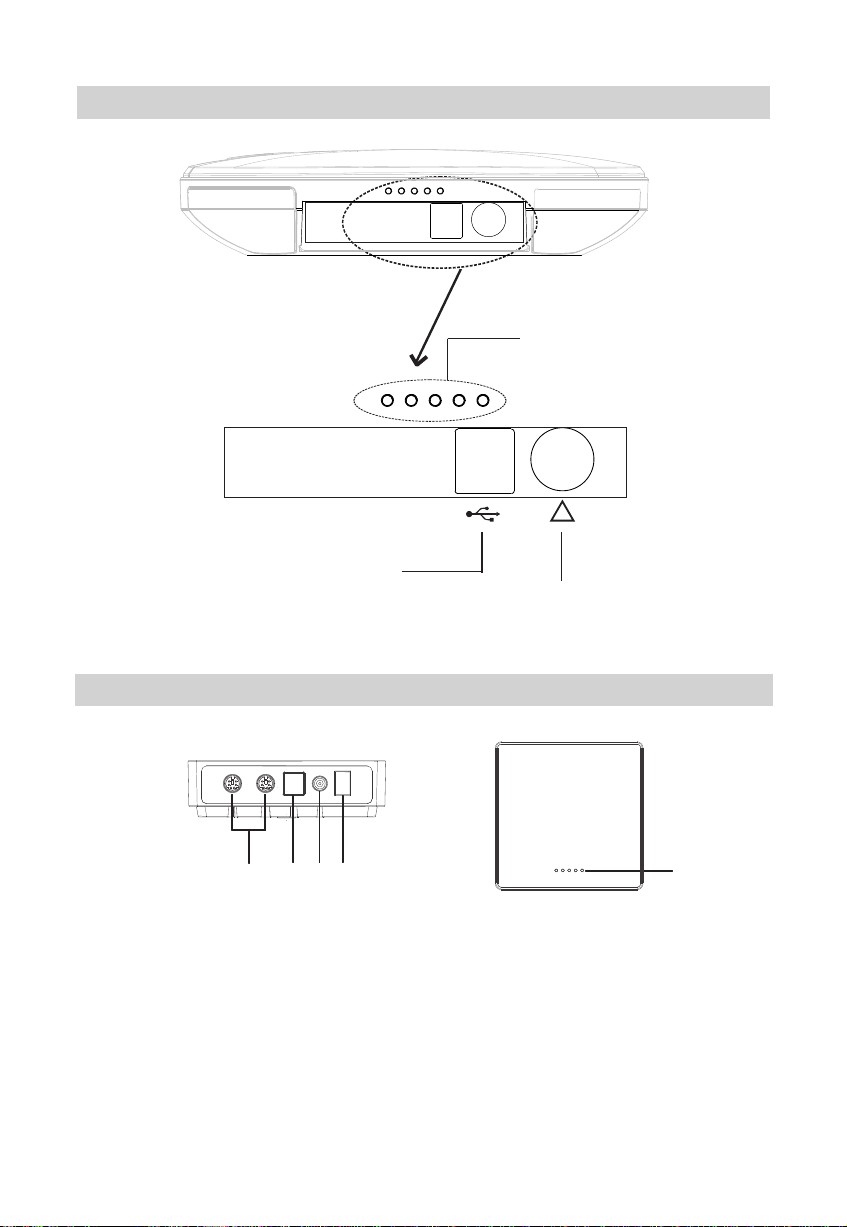
LED Status Indicator
USB Port (power supply)
DIN6 Cable Port
(connect to Hub)
3
5
4
32
1
1. DIN6 Cable port
2. USB port
3. Power port
4. Turn on/off
5. Status Indicator
Hub (Optional)
Interface and Display Instrucon
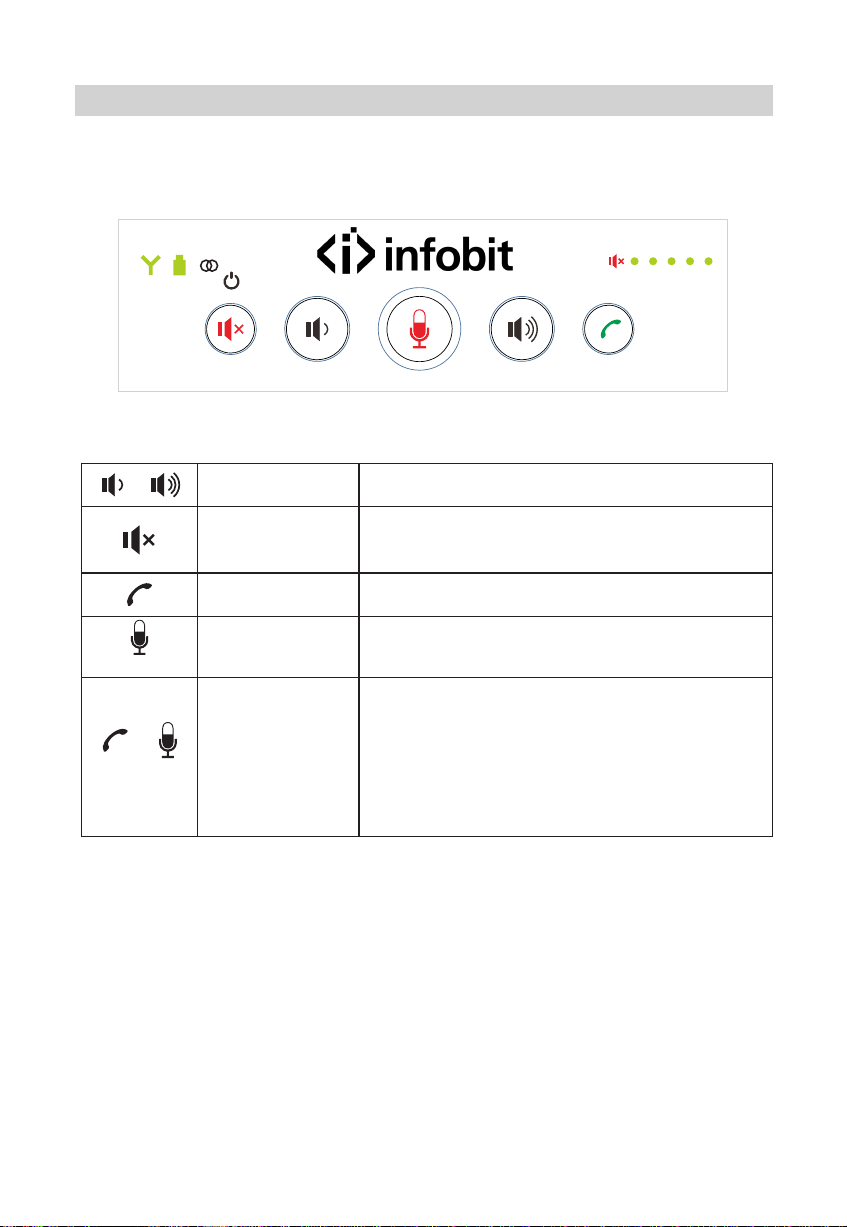
The Master Keypad
4
Introduction to Speakerphone
Volume Button
Speaker Mute
Answer/End call
Mute microphone
Eco Cancellation
Mode
Decrease/increase volume
Short press turn on/off Speaker Mute button
Long press 3 seconds to power on/off
Press the answer /end call button
Turn on/off mute microphone
Press the answer/end calls button and
microphone mute button at the same time for
4 seconds to enter/exit echo cancellation mode.
Enter the echo cancellation mode , the blue light
of the working status lamp will flash blue three
times and exit flashes two times
+

5
Microphone status
indicator
Red light on Microphone mute status
Green light on Exit Microphone mute status
Master LED Status Indicator :
LED status indicator
Wireless indicator
(connect to Hub)
Baery indicator
Turn on/off indicator
Cascade indicator
Microphone Status indicator
Speaker mute indicator
Volume status indicator
Speaker mute indicator Red light on Speaker mute status
Volume status indicator Green light on Current volume status
Cascade indicator
Green light on
Green light off Cascade disconnecon
Cascade connecon
Red light on
In expansion mode. The cascade
condition does not enter the
dormant state (allowing cascading
connection status)
Red light flashing
In expansion mode. The cascade
condion enter the dormant state.
(not allow cascading connecon
status)
6
Green light flashing
Baery indicator charging
Red light on Low baery
Blue light on
LED Status indicator
USB connecon
Red light on Microphone mute status
Green light off Fully baery
Green light always on
Wireless indicator
Wireless connecon
Green light off Wireless disconnecon
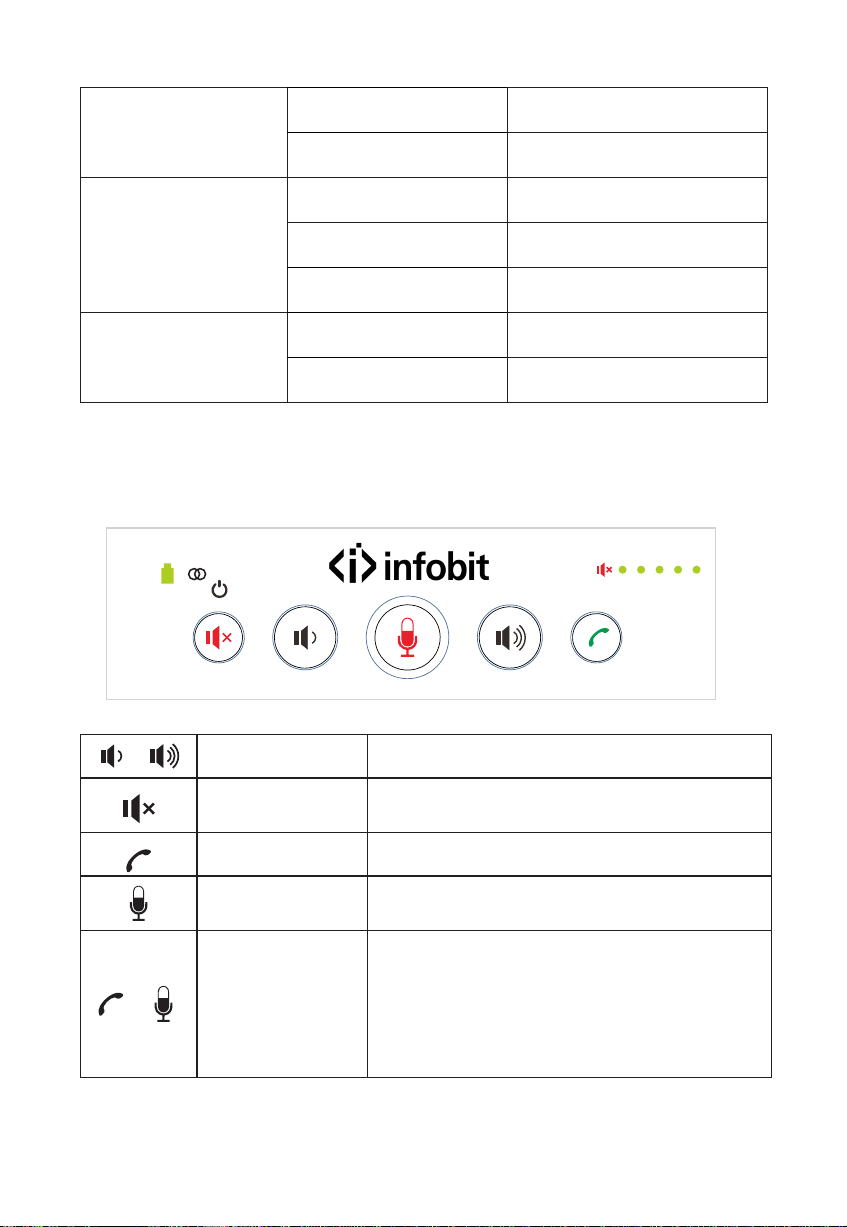
The Slave Keypad
Volume Buon
Speaker Mute
Answer/End call
Mute microphone
Decrease/increase volume
Short press turn on/off Speaker Mute buon
Long press 3 seconds to power on/off
Press the answer /end call buon
Turn on/off mute microphone (Long pressing
for 3 seconds to enter expansion mode)
+Eco Cancellaon
Mode
Press the answer/end calls buon and
microphone mute buon at the same me for
4 seconds to enter/exit echo cancellaon mode.
Enter the echo cancellaon mode , the blue
light of the working status lamp will flash blue
three mes and exit flashes two mes

7
Slave LED Status Indicator :
LED status indicator
Battery indicator
(connect to Hub)
Turn on/off indicator
Cascade indicator
Microphone Status indicator
(connect to Hub)
Speaker mute indicator
(connect to Hub)
Volume status indicator
(connect to Hub)
Microphone status
indicator
Red lighton Microphone mute status
Greenlighton ExitMicrophone mute status
Speaker mute
indicator Red light on Speakermute status
Volumestatus
indicator Greenlighton Currentvolumestatus
Greenlighton Cascadeconnect ion
Greenlightoff Cascadedisconnect ion
Red lighton
Cascade indicator
In expansion mode. The cascade
condition does not enter the
dormant state (allowing cascading
connection status)
Red light
flashing
In expansion mode. The cascade
condion enter the dormant state.
(not allow cascading connecon
status)

8
߅ࠏҠቔ
How to Use Speakerphone
USB Connecon Steps :
You can connect the power supply equipment with the original power adapter or
connect one end of the USB cable to the USB port of the PC and video
conference system, and connect the other end to the speakerphone.
Batteryindicator
Greenlightoff Fullybattery
Greenlight
flashing charging
Red lighton Low battery
LEDStatusindicator Bluelighton USBconnection
Redlighton Microphone mute status
You can connect the speakerphone and Hub(oponal) by using the original DIN6
data cable, connect one end of the USB cable to the USB port of the PC or video
conference system and connect the other end to the USB socket of the Hub
(oponal),and connect the power supply equipment with the original power
adapter;
Turn on the power buon aer the connecon was confirmed correct.And wait
for the speakerphone self-check completed.
It will take a few seconds to install the driver automacally for the first setup.
Turn on the terminal . Third-party conference soware, and select the
microphone and speaker driver to start the audio and video conference with the
device.
Baery charging instrucons:
You can use DIN6 interface or USB interface of the
speakerphone to charge. When the DIN6 interface and USB interface are used at
the same me, the speakerphone is preferred to use DIN6 interface for charging.
4.
3.
2.
1.
9
Master Slave
Wireless A dapter
Note: PC Common Reference Sengs in USB Mode
Please adjust the volume of horns and microphones comprehensively to ensure
the communicaon is clear and smooth.
Cascade
This series has advanced cascade technology, which can be cascaded very
conveniently. When it comes to meeng the need for longer collecon distances and
larger meeng rooms, it can be achieved through double cascading units. A single
unit is suitable for a conference room around 30 square meters, and supports within
15 aendees. When two units are cascaded, it can be applied to a conference room
of 60 square meters. The double wireless cascade speakerphone adopts advanced
5.8G wireless technology with its own wireless USB dongle. It is convenient to
wireless cabling and audio equipment arrangement. The wireless signal coverage
can reach 25 meters.
2. Don't turn on the speaker and microphone automac gain.
3. Give priority to turning off the audio processing funcons of the PC soware/video
soware (such as turning off automac gain, echo cancellaon, noise , reducon etc.)
Please use those speeches coding that has a higher sound quality as far as possible.
1.
4.
Indice
Altri manuali infobit Altoparlanti


