
JBL LSR4300 Manuale utente

LSR4300
Control Center Software
User’s Guide

2
Table Of Contents
Introduction ....................................................................................3
System Requirements ...................................................................3
Installation ......................................................................................4
Launching The Software ...............................................................4
Reference .......................................................................................5
Main Screen ...........................................................................................5
Room View .............................................................................................6
Speaker Pop-Up Window .......................................................................8
Control Panel ..........................................................................................9
Equalization Controls ............................................................................12
Options Menu .......................................................................................15
Technical Support .......................................................................18
Copyright © Harman International Industries, Incorporated. All Rights Reserved.

3
Introduction
LSR4300 Control Center Software is a useful system set-up utility that allows you to ac-
cess any of the functions of your LSR4300 speakers using a computer. Without leaving
your mix position, LSR4300 Control Center Software gives you the ability to modify sys-
tem settings, and also view multiple speaker parameters at once in an easy-to-understand,
user-configurable graphic display.
In addition, the Control Center Software provides a number of advanced capabilities not
available from the speaker’s front panel or remote control:
• Custom EQ presets can be created and stored in the connected speakers or memory
on disk. EQ settings can also be downloaded from speakers or loaded from disk.
• LF and HF corner frequencies for the EQ can be changed.
• Independent fine speaker Level Trim controls in 0.25 dB increments are provided,
from +3 dB to -10 dB.
• Independent speaker muting and soloing as well as overall system Mute and Dim.
• You can view all filter and delay settings created for each speaker during RMC cali-
bration. Delay settings can be displayed in feet, meters, or milliseconds.
• Complete system configurations (including system volume, EQ presets, input selec-
tion, and other settings) can be saved to and loaded from your computer.
In the following pages, we’ll take you through all the necessary procedures to install and
run your LSR Control Center Software, and explain all screen displays and functions.
We’ll
assume that you are already familiar with basic computer operations such as launching
applications and using a mouse to select parameters and navigate through screens and
menus. If not, consult the documentation provided with your computer.
Throughout this manual, important tips and cautions will be presented like this.
System Requirements
Hard Drive: 100 MB space available
RAM: 128 MB minimum required by this application, over and above the memory re-
quired by other applications running simutaneously.
Operating System: Windows 2000, Windows XP
Introduction - System Requirements

4
CPU: Pentium III 750 MHz or higher
Installation
1. Insert the CD-ROM in an available CD-ROM drive.
2. From the Start Menu, click RUN.
3. Click BROWSE.
4. Locate the JBL CD containing LSR4300 Control Center Software.
5. Click on the file named dotnetfx.exe to install the .NET framework required by
the application. An installer will automatically install the file in the correct location
on your computer.
6. When dotnetfx installation is complete, click on the file named
LSR4300ControlCenter.exe (lableled a “Setup Launcher” in Windows XP).
An installer will appear. Follow the prompts to complete the installation.
There is no need to restart your computer.
Launching The Software
1. Following installation, a shortcut to the LSR4300 Control Center Software is placed
on your desktop and in your computer’s Start menu.
Installation - Launching The Software

5
Double-click on the desktop icon (or single-click on the Start menu icon) to launch the
software. See the Reference section below for details about all LSR4300 Control Center
display and menu options.
2. If no speakers are connected to your computer, the LSR4300 Control Center Software
will launch in “Demo” mode, which allows you to explore its features and learn about
LSR4300 capabilities. However, there is no communication between the software and
your speakers in Demo mode, so if you want the software to be fully functional, first
make sure that all speakers are networked together properly and that their DIP switches
are correctly set.
(Refer to the LSR4300 Owner’s Manual for more information.) Then use the supplied
USB cable to make a connection between your computer and the LSR4300 speaker
labeled “Left” (LEFT DIP switch up). Finally, press the “Left” speaker Power button
so that the JBL logo is glowing brightly. All networked speakers should power up at the
same time.
3.
If no LSR4300 Series studio monitors are connected to your computer via the supplied USB
cable, the Control Center Software will automatically start up in Demo mode.
Reference
Main Screen
Whenever you first launch the LSR4300 Control Center Software, you will be shown the
main screen, which consists of two sections:
Launching The Software/Reference/Main Screen

6
• A Room View, which allows you to view settings and make changes to individual
speakers
• A Control Panel, which allows you to make global changes to your entire LSR4300
system.
Room View
The upper area of the Main Screen is the “Room View.” It provides a graphic display
showing all the connected LSR4300 speakers in your network, along with meters for each.
When audio signal is actively passing through the speakers, the meters in the Room View
are active and show the continuous output level of each speaker, same as the meters
on the front panels of the speakers themselves. By clicking on the “Solo” and “Mute”
buttons in each meter, you can selectively solo or mute individual speakers within your
network. Simply click on them a second time to un-solo or un-mute the speaker(s).
All front-panel buttons on connected LSR4300 speakers and wireless remote control buttons re-
main fully functional even when the Control Center Software is running. Thus, you can, for example,
Solo a speaker from your computer and un-solo it by pressing the speaker’s SOLO button, or vice
versa.
The Room View can show configurations of up to eight LSR4328P or LSR4326P speak-
ers (and up to two LSR4312SP subwoofers) that range from a single mono speaker on its
own to a full-fledged eight-speaker surround system with two subwoofers. You can view
systems other than the connected system using the Demo mode. (See Options Menu, page
17) The illustration below shows the Room View display for a standard 5.1 surround
system:
Reference - Main Screen/Room View

7
Rolling the mouse over any speaker in the Room View (sometimes called a “mouse-over”)
and pausing for a moment causes a small informational window to pop up which shows
the designation of the speaker (as set by its rear panel DIP switch) and the amount of de-
lay that has been applied by RMC calibration.* The delay time can be displayed in feet,
meters, or milliseconds. See “Options Tab” below.
The “head” in the Room View is an icon which represents the listener at the mix position
if all speakers are positioned correctly. (See the LSR4300 Owner’s Manual for hints and
tips about speaker positioning.) The appearance of this “listener” as well as the overall
appearance of the Room View can be changed if desired. See “Options Tab” below.
*In LSR4300 firmware version 1.1, delay for all speakers is set to 0. Delay will be enabled
in future firmware releases to enhance functionality for surround sound production.
Reference - Room View

8
Speaker Pop-Up Window
Double-clicking on any speaker in the Room View causes a pop-up window to appear, as
follows:
This window is divided into three sections and provides the following important informa-
tion about each individual speaker:
1. The “Speaker” section presents information about each speaker’s model and ID (i.e.,
Left, Right, Center, Left Surround, Right Surround, etc.)
2. The “Settings” section allows you to Solo and Mute individual speakers and also
enables you to set a “Level Trim” for each speaker, adjustable in 0.25 increments,
from -10 to + 3 dB. Level Trim is a fine control that gives you the ability to manually
compensate for perceived level differences which may occur if your listening position
is not equidistant from all speakers. Other displays in this section show whether the
speaker is carrying the left (“Ch A”) or right (“Ch B”) signal if connected to a digital
signal source and the amount of level adjustment and delay (RMC Trim and RMC
Delay) that has been applied by RMC calibration. For more information about input
selection and RMC calibration, refer to the LSR4300 Owner’s Manual.
3. The “Correction” section shows a simulated graph representing the effect of filters
applied by RMC calibration. Double-click on the simulated RMC graph to view the
actual NUMERIC RMC settings for all connected speakers. For more information
about RMC calibration, refer to the LSR4300 Owner’s Manual.
Reference - Speaker Pop-Up Window

9
Each time you double-click on a different speaker, a new pop-up Speaker window is generated,
but it will be overlaid directly on top of the previous one. To have multiple Speaker pop-up windows
open at the same time, simply move each new one by clicking on the dark gray vertical area at the far
left and dragging it to a new location.
Control Panel
The bottom area of the Main Screen houses the Control Panel, which allows you to make
global changes to all LSR4300 speakers in your network.
Reference - Speaker Pop-Up Window/Control Panel
10
The Control Panel is divided into the following four sub-panels, from right to left:
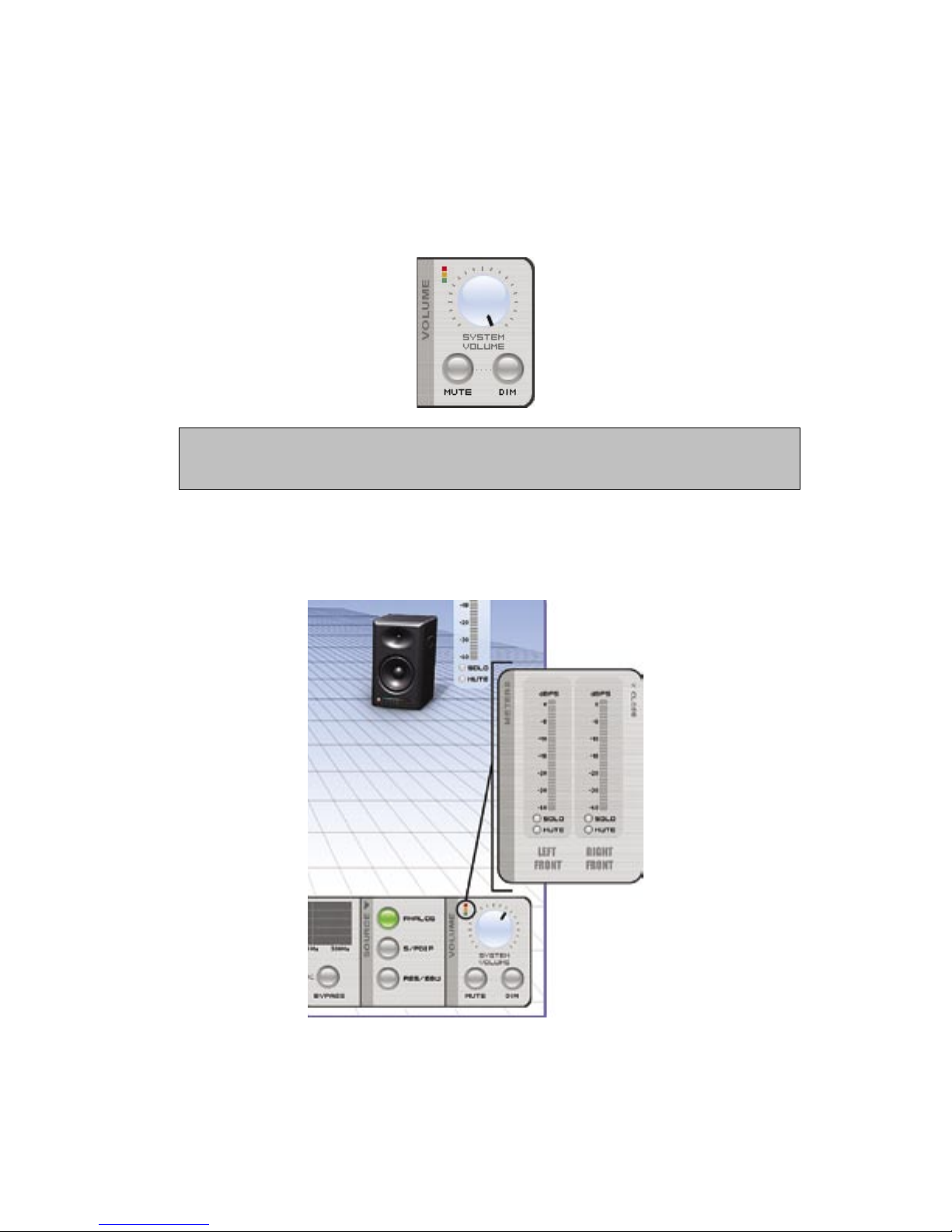
1. Volume – enables you to change the overall volume (simply click on the onscreen
dial and drag it), instantly mute the entire system, or DIM (partially reduce) system
volume. (When the system is set to full volume, and DIM is selected, the amount of
attenuation is -12 dB). For best results, click directly on the black indicator of the
knob and apply a circular motion.
Rapid movement of the onscreen volume control can cause a delayed response in the speak-
er system. This is normal. This delayed response can be alleviated by slowing your movement
of the volume control, or by using the supplied remote control.
System volume settings are stored when using the Save Configuration function in the
Options Menu. Using a calibrated signal and the Save Configuration function, it is
possible to store and recall calibrated volume settings for the system. For more infor-
mation, see Appendix E in the LSR4300 Owner’s Manual.
Clicking on the red, amber and green squares above the volume control reveals a set of
meters that you can position on your desktop. These remain in view even when the LSR
Control Center Software is minimized.
Reference - Control Panel
Indice
Altri manuali JBL Altoparlanti

JBL
JBL CF100 Manuale utente

JBL
JBL Control Series Manuale utente

JBL
JBL Charge 2 Plus Manuale utente

JBL
JBL STADIUM UB4100 Manuale utente

JBL
JBL L8400P/230 Manuale utente

JBL
JBL L7 Manuale utente

JBL
JBL Control Series Manuale utente

JBL
JBL RIF5 Manuale utente

JBL
JBL EON 315 Manuale utente

JBL
JBL JBL AC26-WH Manuale utente

JBL
JBL JRX112M Manuale utente

JBL
JBL K2 S9900 Manuale utente

JBL
JBL STUDIO L Series Manuale

JBL
JBL AM7212/00-WH Manuale utente

JBL
JBL EON ONE PA Manuale utente

JBL
JBL Spot Manuale utente

JBL
JBL MEDIA 200 Manuale utente

JBL
JBL VTX Series Guida rapida

JBL
JBL Harman TUNER2 Manuale utente

JBL
JBL SRX715/F Manuale utente


