Kapture KPT-250 Manuale utente

IN-CAR
HD Digital Video Recorder
USER MANUAL
KPT-250

2
In order to ensure better use of each function of your Kapture
In-Car HD DVR, it is recommended that you read these product
instructions carefully before using this product.
Note:
1. Please abide by the relevant laws in your local area; please
do not use this product for illegal purposes.
2. Please insert your Micro SD (up to 32GB) memory card
before recording video
3. Please install the memory card in the correct orientation in
order to avoid damage to the card or the DVR.
4. To avoid losing important footage, it is suggested that you
back-up footage on a weekly basis to your computer.
5. Please ensure the windscreen mounting bracket is installed
securely to avoid damaging the DVR.
6. Battery charge will diminish over time. If the DVR is not used
for a long period of time, please ensure the DVR is charged
fully before use.
7. The working temperature of the DVR is 0 to 40 degrees
Celsius.
8. Please do not leave the DVR in an excessively humid
environment as it is not water resistant.
9. Please avoid shooting footage directly into the sun so as to
avoid damage to the DVR.
10. Please avoid using the DVR in an excessively dusty
environment so as to not obstruct the camera lens.
11. The lens can be cleaned by wiping gently with a soft glass
cleaning cloth.
12. This DVR is a precision electronic product; please do not
expose it to strong shock, vibration, magnetic fields or heavy
current fields.

3
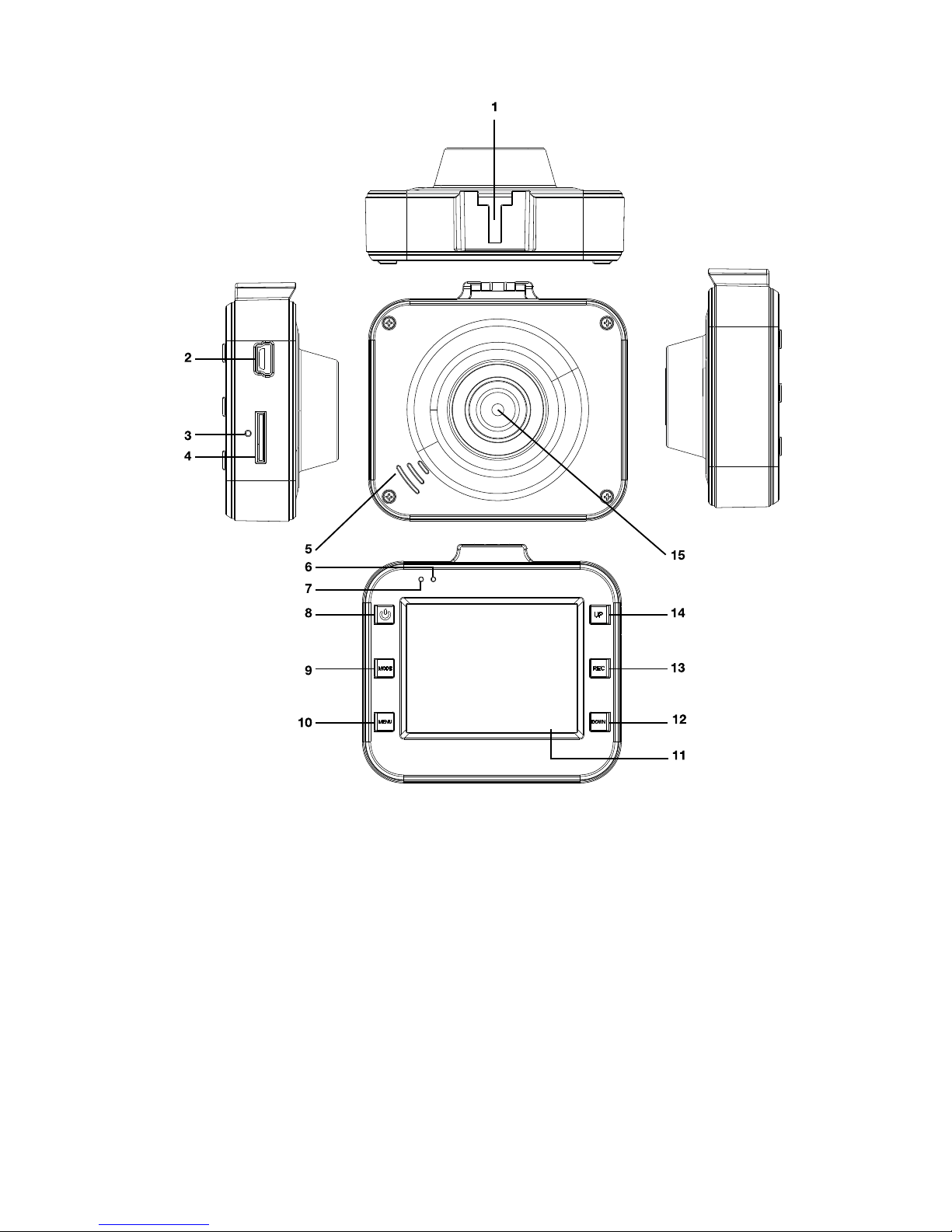
A. Product Details
1. Bracket receiver
2. USB port
3. Reset button
4. Micro SD card slot
5. Speaker
6. Operation indicator
7. Power indicator
8. On/Off button
9. Mode button
10. Menu button
11. LCD Screen
12. Down button
13. Start & Stop Record /
Select button
14. Up button
15. Camera Lens

4
B. Product Accessories:
• Manual • USB Cable • Car Mount • Car Charger
C. Product Features
• Supports true High Definition resolutions of 1080FHD,
1080p, 720p, 480p and lower
• Built-in microphone and speaker
• Fast initialisation and shut-down
• Fast operation Screen Saver
• Supports high capacity Micro SD cards up to 32GB
• Charge while the DVR is operational
• Automatic Start-Up and Shut-Down
• Motion Detection – works even when you are not in the
vehicle
• Takes still images in high definition up to 12MP
D. Product Operation
1. Start-Up and Shut-Down:
• Starting Up Parkmate Kapture KPT-250 DVR:
i. To Start-Up from a powered off state with no charger
connected, press & hold for 3 seconds the “On/
Off” button. Your DVR will enter into video mode and
commence recording video; the flashing green light
indicates operation.
ii. To Start-Up from a powered off state with the charger
connected, your DVR will automatically enter into video
mode and commence recording video when your car’s
ignition is engaged; the flashing green light indicates
operation.
• Shutting Down your Parkmate Kapture KPT-250 DVR:
i. To Shut-Down from a powered state with no charger
connected, quickly press the “On/Off” button.
ii. When the charger is connected, your DVR will
automatically enter shut down mode after 5 seconds
when your car’s ignition is turned off.

5
iii. When battery power is insufficient, the DVR screen
will shut down and the DVR will automatically save
the video file.
2. Charging The battery:
• You can charge the DVR battery by via a USB cable or via
the car charger.
• If the DVR is turned off while charging a red light will
indicate charging status.
• The red light will turn off once the DVR is fully charged.
3. Inserting the Memory Card:
• Please be careful to insert your Micro SD card according
to indicated direction until you hear the card engage.
4. Capturing Video:
• As soon as you press the “Record” button, the DVR will
enter into video recording mode and begin capturing
video, a flashing green light will indicate operational status.
• To stop the video and save the file, press the “Record”
button, a static green light will indicate Standby mode.
• When in Standby Mode, press the “On/Off” button to turn
video sound recording on or off.
• When in Standby or Video Recording mode, press the
“Up” button to turn the LCD screen off to save battery
power.
5. Capturing Still Images:
• Press the “Mode” button to enter Photo mode.
• Press the “Record” button to capture still photos.
6. Playback and Delete:
• When in Standby mode, press the “Mode” button and the
DVR enters into Playback mode
• Press the “Up” or “Down” button to select the preview of
the file.
• Press the “Record” button to start or stop selected file
playback.
• If you wish to delete the selected file, press the “Menu”
button to enter the Delete menu.

6
• Select the option “Delete Current” or “Delete All”
• Press the “Record” button to confirm your selection
• Press the “Menu” button to exit the Delete menu and return
to playback mode.
7. SOS function:
• When in video capture mode, in the case of an incident that
occurs in front of your car, press the “Menu” button.
• This will ensure the current recording is saved for later
review and will not be overwritten.
8. G Sensor:
• When in Video Recording mode with G Sensor active,
if your vehicle is stopped suddenly by the driver or by
external impact, the G Sensor will cause the DVR save the
current file.
• The sensitivity of the G Sensor can be set in the main
system under Menu choices “High”, “Medium” and “Low” in
order to suit the different speed requirements of the user.
9. Motion Detection function:
• To initiate Motion Detection mode, when in video capture
mode press the “Down” button and the DVR will stop loop
recording.
• Press the “Down” button again and the DVR will
automatically switch to Motion Detection Standby mode.
• Once motion is detected, the DVR will start recording.
• After 8 seconds the DVR will stop recording and return to
Motion Detection Standby mode until the next motion has
been detected by the DVR.
• Works even when you are not in the vehicle eg: when
parked
E. Options and system Settings
• In standby mode, press the “Menu” button to enter the
Settings Menu.
• Press the “Up” or “Down” button to make selections
• Press the “Record” button to confirm selections
• Press the “Menu” button to exit the Settings Menu.

7
F. Function Directory
Image Settings
Mode Menu Select Settings Remark
Video
Resolution
1080FHD 1920x1080
1080P 1440x1080
720P 1280x720
WVGA 848x480
VGA 640x480
25fps
25fps
30fps
30fps
30fps
Cycle recording Off / 30 seconds / 1min
/ 2mins
Exposure
Compensation
-+2.0, +5/3, +4/3,
+1.0, +2/3, +1/3, +0.0,
-1/3, -2/3, -1.0, -4/3,
-5/3, -2.0
Motion
Detection Off / On
Video & Audio Off / On
Date Label Off / On
Record Mode
Single shooting /
2 second timer /
5 second timer /
10 seconds timer
Select the time
required.

8
Image Settings
Mode Menu Select Settings Remark
Photo
Resolution
12M 4032 x 3024
10M 3648 x 2736
8M 3264 x 2448
5M 2592 x 1944
3M 2048 x 1536
2M 1920 x 1080
1.3M 1280 x 960
VGA 640 x 480
Higher resolution
= larger file size
Continuous
Shooting Off / On
Image Quality High quality / Standard /
Economy
Sharpness Strong / Standard / Soft
Each setting may
change image
effects
White Balance
Auto / Daylight
Cloudy / Tungsten Lamp
/ Fluorescent Lamp
Each setting may
change image
effects
Colour Colour / Black & White
/ Tan
Each setting may
change image
effects
ISO Auto / 100 / 200 / 400
Each setting may
change image
effects
Exposure
Compen-
sation
+0.0, -1/3,-2/3, -1.0,
-4/3, -5/3, -2.0, +2.0,
+5/3, +4/3, +1.0, +2/3,
+1/3
Each setting may
change image
effects
Face
Recognition
Off / Face / Smile
Recognition
Anti-Shake Off / On
Quick Preview Off / 2 seconds /
5 seconds
Date Label Off / On

9
Image Settings
Mode Menu Select Settings Remark
Play
Back
Cancel Delete Current / Delete All
Protection
Lock Current / Unlock
Current / All Lock /
Unlock All
Slide Show 2 seconds / 5 seconds /
8 seconds
System Settings
Menu Select Settings Remark
Date/Time MM/DD/YY, DD/MM/YY,
YY/MM/DD
Automatic
Shut-down Off / 1 min / 3 mins
Key Sound Off / On
Fill Light Off / On Use “Up” button
to turn On / Off
Language
English / French /
Spanish Portuguese
/ German Italian /
Simplified Chinese
Traditional Chinese /
Russian / Japanese /
Korean
TV Mode NTSC / PAL
Optical
Frequency 50Hz / 60Hz
Format Micro SD Card
Default
Settings
Restore Default Settings /
Cancel / OK
Automatic
Off-Screen
Off / 1 min / 2 mins /
5 mins
Use “Up” button
to turn On / Off
G-sensor Off / Low / Medium / High

10
G. Connecting DVR to PC for Download of Video and
Photo Data:
• When the DVR is connected via the USB cable to a
computer, the camera’s red power light turns on
• The LCD screen will display Menu Setting Options: “Mass
Storage / PC Camera”.
• When “Mass Storage” is selected, the screen will turn
black and the computer will automatically identify
“Removable Disk”. Use your computer to browse and
manage files.
• When “PC Camera” is selected, the DVR can be used as
web cam.
• Once connection with your PC is complete, press the “On/
Off” button and unplug the USB cable.
• When the data cable or car charger is connected to
charge the DVR, a long pulse red light is displayed. A
constant red light indicates the DVR is fully charged.
H. Note
• If the DVR is incorrectly operated, you can press the “On/
Off” button for more than 5 seconds to Shut Down.
• You can also RESET the DVR using a paper clip or small
thin object.
Indice
Altri manuali Kapture Telecamera da cruscotto

Kapture
Kapture KPT-522 Manuale utente

Kapture
Kapture KPT-890 Manuale utente

Kapture
Kapture KPT-900 Manuale utente

Kapture
Kapture KPT-2200 Manuale utente

Kapture
Kapture KPT-942 Manuale utente

Kapture
Kapture KPT-590GPS Manuale utente

Kapture
Kapture KPT-590 Manuale utente

Kapture
Kapture KPT-920 Manuale utente

Kapture
Kapture KPT-1442 Manuale utente

Kapture
Kapture KPT-850 Manuale utente