
KIP TASKalfa 2420w Manuale utente

Version A1
7.X Enterprise
Print Management Version

7.X Enterprise
Print Management Version
This information is solely for use of Personnel and Authorized Dealers. No part of this publication may be copied, reproduced or
distributed in any form without express written permission from . 2011
PrintNET 7.X Enterprise Introduction
PrintNET Enterprise includes job building features found in PrintNet Client, plus provides a versatile
electronic work order tool that allows decentralized users to request prints from reprographic service
companies via internet or central print rooms via intranet.

7.X Enterprise
Print Management Version
This information is solely for use of Personnel and Authorized Dealers. No part of this publication may be copied, reproduced or
distributed in any form without express written permission from . 2011
- 1 -
Contents
PrintNET 7.X Enterprise Introduction............................................................................................................................. 1
Installation Requirements ........................................................................................................................................... 3
Server Installation............................................................................................................................................................ 4
PrintNET Enterprise .......................................................................................................................................................... 8
Main Screen .................................................................................................................................................................... 8
Key Functions .................................................................................................................................................................. 9
User Login ...................................................................................................................................................................9
Creating a Print Set for Submittal ....................................................................................................................... 10
New Job .................................................................................................................................................................. 10
Add Files .................................................................................................................................................................. 10
Image Viewing.............................................................................................................................................................. 11
Select specific pages from Multipage Files (.PDF/.DWF)...................................................................................... 12
Job Defaults .................................................................................................................................................................. 13
Printing Properties......................................................................................................................................................... 14
Individual Parameters.................................................................................................................................................. 15
Submitting the Job .......................................................................................................................................... 16
Work Order .................................................................................................................................................................... 18
File Conversion.............................................................................................................................................................. 19
HPGL / HP-RTL Pen Settings and Image Adjustment ............................................................................................. 20
Modify Pens ............................................................................................................................................................ 20
Use Colors ........................................................................................................................................................... 20
Force Pens .......................................................................................................................................................... 20
Line Width Compensation ............................................................................................................................... 21
Vector Line Dither Pattern ............................................................................................................................... 21
HP-RTL Photo Mode........................................................................................................................................... 21
HP-RTL Photo Mode Dither............................................................................................................................... 21
HP-RTL Raster Density ........................................................................................................................................ 21
Clip to Image Size.............................................................................................................................................. 21
Line Merge .......................................................................................................................................................... 22
Use Round End Capping ................................................................................................................................. 22

7.X Enterprise
Print Management Version
This information is solely for use of Personnel and Authorized Dealers. No part of this publication may be copied, reproduced or
distributed in any form without express written permission from . 2011
- 2 -
Border .................................................................................................................................................................. 22
Fold Parameter Selection ........................................................................................................................................... 22
Digital Image Stamp Selection.................................................................................................................................. 22
Modify Stamp ......................................................................................................................................................... 22
Stamp Schemes................................................................................................................................................. 23
All Stamps must be saved prior to their use. ........................................................................................................... 24
Stamp Settings ................................................................................................................................................... 24
Units ...................................................................................................................................................................... 24
Allows for the choice between English or Metric................................................................................................... 24
Text ....................................................................................................................................................................... 24
Graphic ............................................................................................................................................................... 24
Merge Type......................................................................................................................................................... 25
Screening ............................................................................................................................................................ 25
Modify Output Size....................................................................................................................................................... 25
Force Size ................................................................................................................................................................ 25
Enlarge / Reduce .................................................................................................................................................. 26
Image Size: Displays the image size of the digital file........................................................................................... 26
Administration Features............................................................................................................................................... 27
Administration ............................................................................................................................................................... 28
Accounts Management ............................................................................................................................................. 29
New Account creation ............................................................................................................................................... 30
Editing Account Information...................................................................................................................................... 31
WorkOrders .................................................................................................................................................................... 32

7.X Enterprise
Print Management Version
This information is solely for use of Personnel and Authorized Dealers. No part of this publication may be copied, reproduced or
distributed in any form without express written permission from . 2011
- 3 -
Installation Requirements
Supported Operating Systems: Windows 2000 Server, Windows 2003 Server, Windows
2003 Server R2, Windows 2008 Server*, Windows 2008 R2 Server*
* Requires Installation of "Desktop Experience" Feature
Operating System Requirements: IIS (Internet Information Services) with Classic ASP
supporting components
MDAC (Microsoft Data Access Components) 2.7 or greater
Operating System Firewall (Windows Firewall)/ Network Firewall Requirements*: TCP
Inbound to port 80, TCP inbound from remote port 20 to any TCP port on hosting server
*Operating System Firewall (Windows Firewall) can be configured automatically during installation, or
manually configured by Network Administrator
Recommended Server Hardware Requirements: x86 PC with Intel Core 2 (2.0 GHz or
better) processor(s)
4GB DDR2 RAM or better
750GB available HD space for Database storage/ Image storage
10/100/1000 NIC (Network Interface Card).
7.X Enterprise
Print Management Version
This information is solely for use of Personnel and Authorized Dealers. No part of this publication may be copied, reproduced or
distributed in any form without express written permission from . 2011
- 4 -
Server Installation
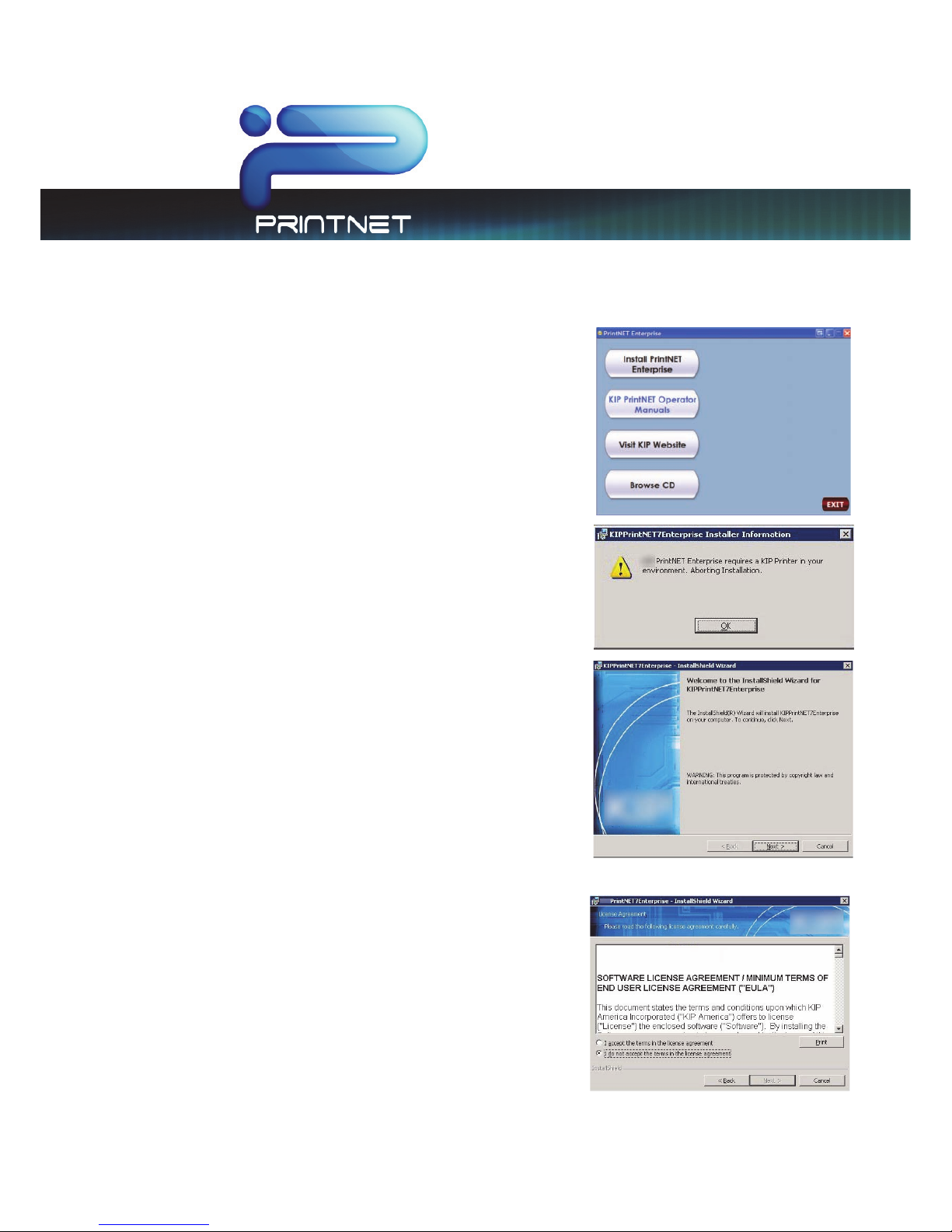
1. Ensure installer has local Administrative privileges
2. Insert the PrintNET Enterprise CD (this will Auto Launch)
3. Select the Install PrintNET Enterprise button
4. Once the installer runs it will check for installed printers.
If none are found the following message will appear
and installation with stop.
5. If a printer is found the Installation Wizard will open
select “Next” to continue.
6. The next screen is the License agreement, after reading
the agreement select “I accept the terms in the license
agreement” and select “Next”.

7.X Enterprise
Print Management Version
This information is solely for use of Personnel and Authorized Dealers. No part of this publication may be copied, reproduced or
distributed in any form without express written permission from . 2011
- 5 -
7. Fill in the appropriate information in the Customer
Information section.
8. The next step is selecting the destination folder.
Note: The destination location is the location where
the website files or content will be installed.
Note: The Destination folder location may be
changed and a new location set up. In this example
the location DATA2 was created as the new location.
7.X Enterprise
Print Management Version
This information is solely for use of Personnel and Authorized Dealers. No part of this publication may be copied, reproduced or
distributed in any form without express written permission from . 2011
- 6 -
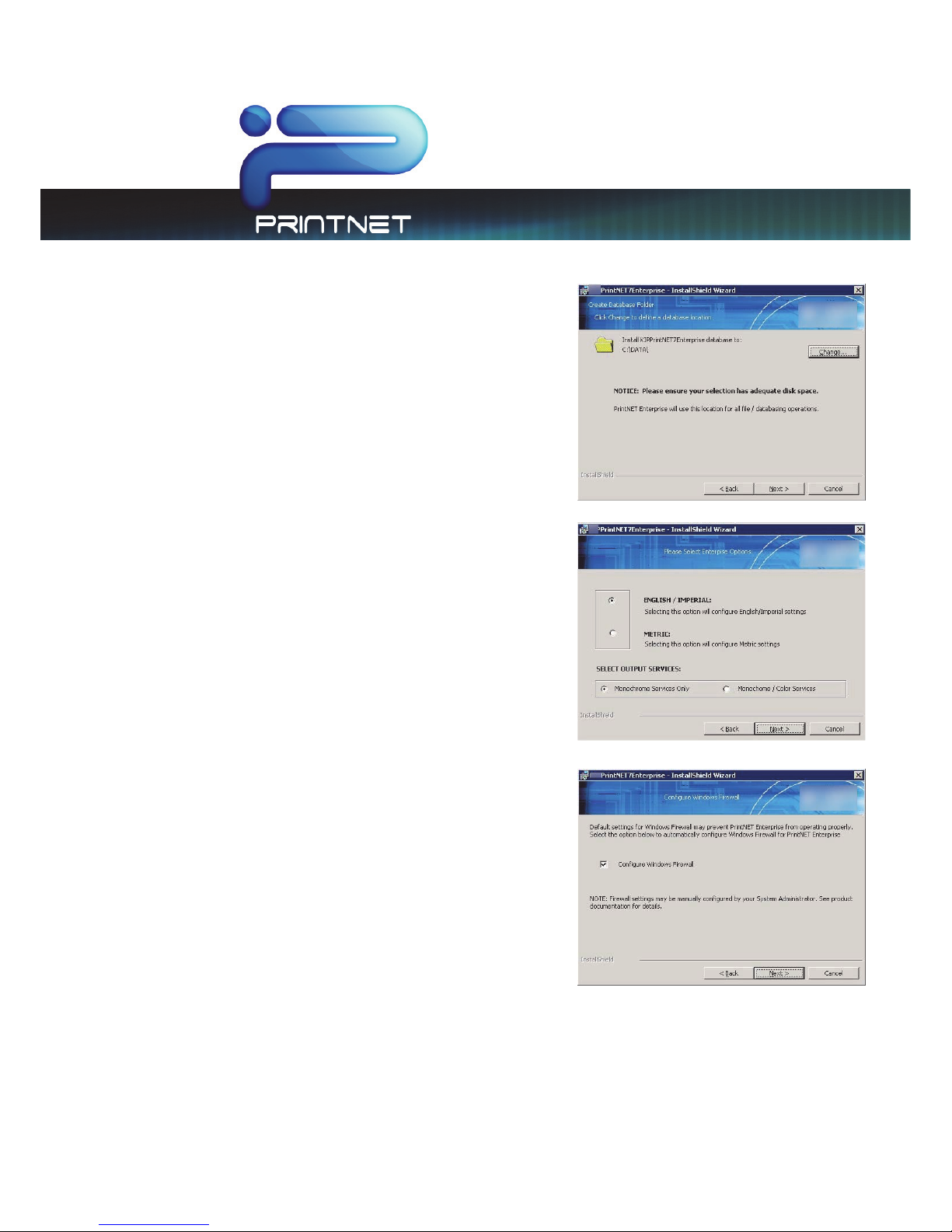
9. Next create the Database folder location.
Note: this is the actual database location for
uploaded files, customer information and all data
operations.
10. Next select from English or Metric settings along with
output services.
Note: at this point the Administrator will determine
whether the files being uploaded will be
Monochrome only or Monochrome and Color.
11. Next the Administrator can choose to either let the
installer configure the Windows Firewall or to do it
manually after the install is complete.
Note: Checking the Configure Windows Firewall box
will make the appropriate exceptions for PrintNET
Enterprise to work correctly. Uncheck to set firewall
manually. Any 3rd Party Firewall software or hardware
will also need to be configured.
7.X Enterprise
Print Management Version
This information is solely for use of Personnel and Authorized Dealers. No part of this publication may be copied, reproduced or
distributed in any form without express written permission from . 2011
- 7 -
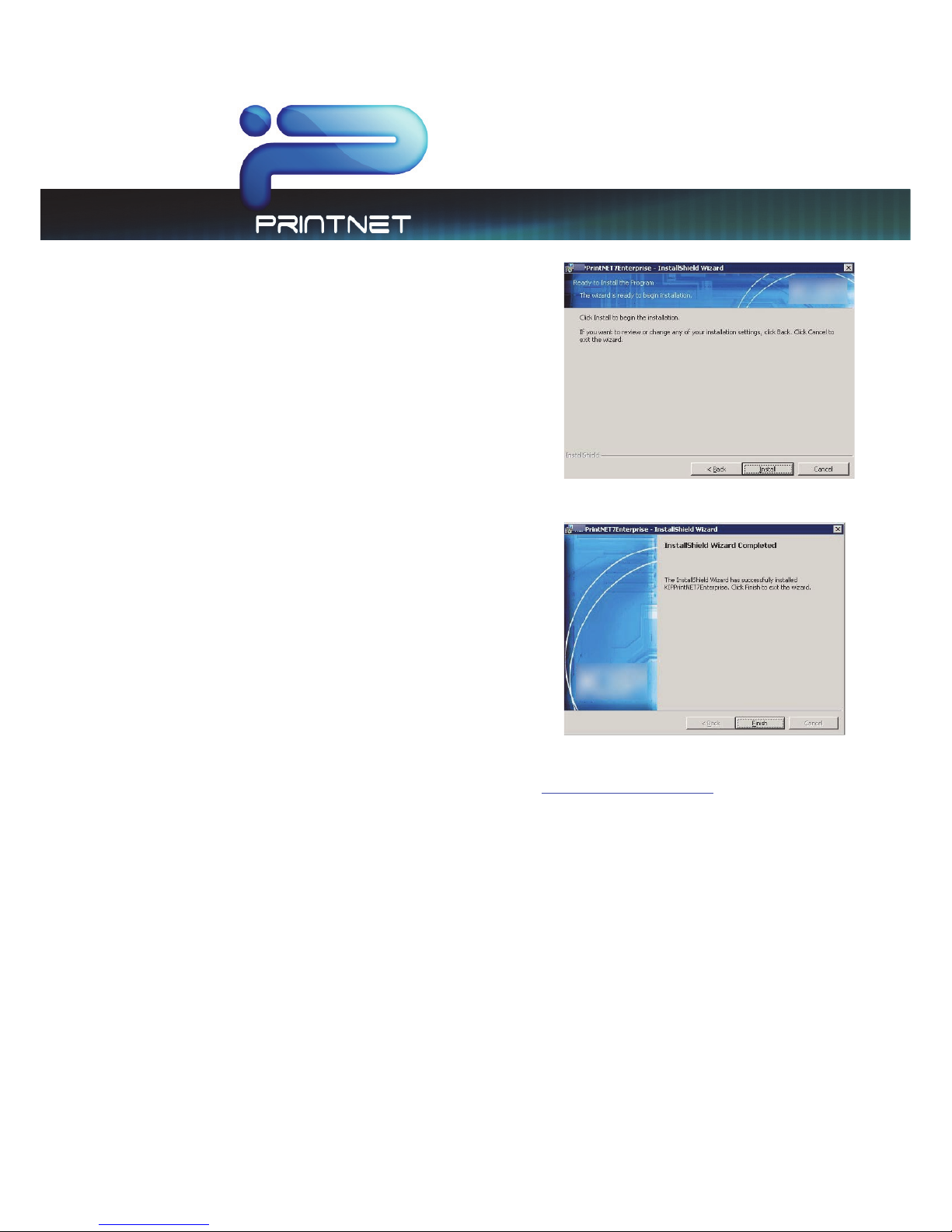
12. Begin Installation
13. When Installation is complete select “Finish”
14. Access PrintNET by keying in the appropriate URL: (HTTP://Localhost/PrintNET) in a Web Browser.
15. User Name and Password will be: User = Admin, Password = 12345qwerty. The Admin password
may be changed after first launch.
7.X Enterprise
Print Management Version
This information is solely for use of Personnel and Authorized Dealers. No part of this publication may be copied, reproduced or
distributed in any form without express written permission from . 2011
- 8 -
PrintNET Enterprise
Main Screen
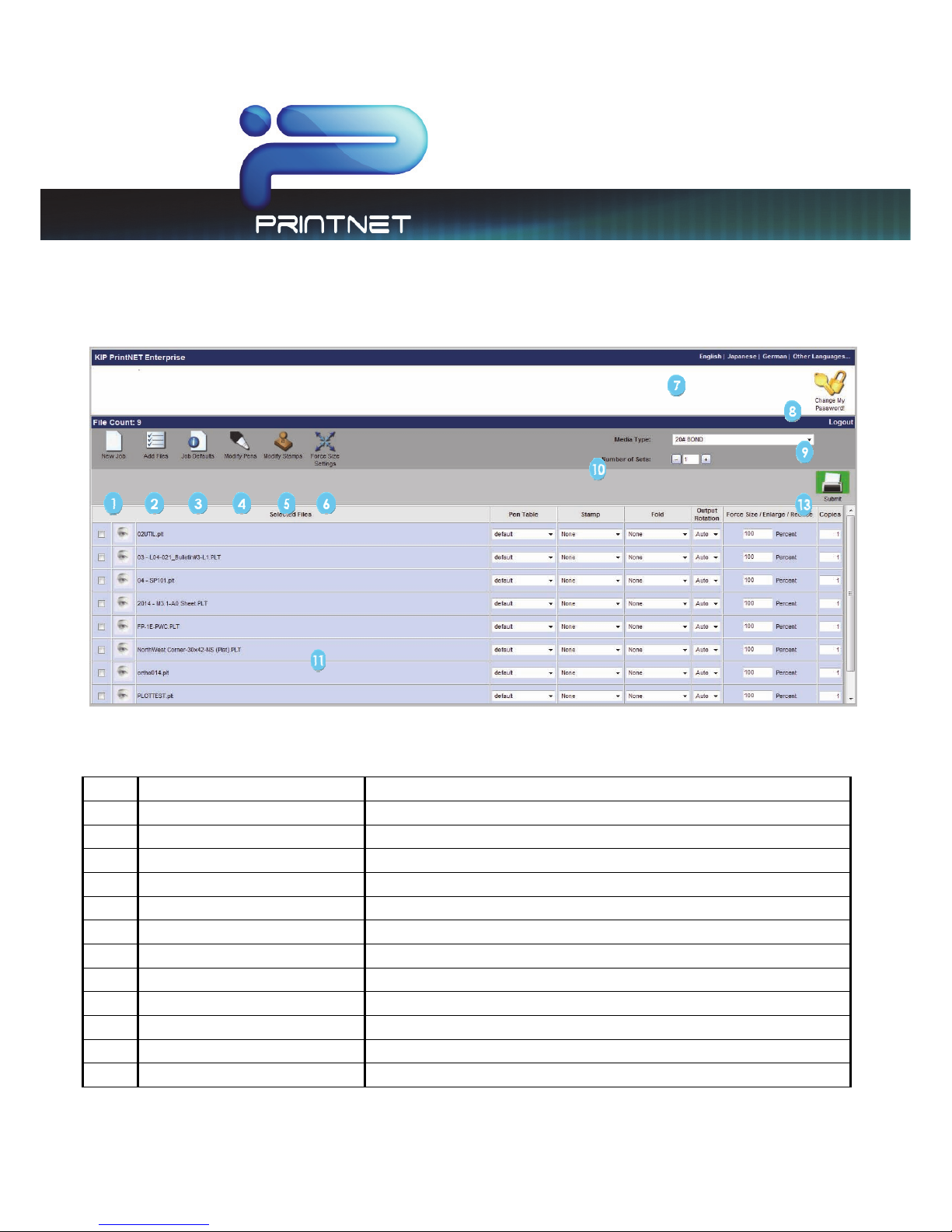
NO. NAME FUNCTION
1 New Job Create a New Print Job
2 Add Files Add Files From Local PC or Network Resource
3 Job Defaults Print Job Preferences
4 HPGL Pen Table Settings Manage HPGL Pen Table Settings
5 Stamp Settings Create / Modify Digital Image Stamps
6 Force Size Settings Select or create a force size setting
7 Language Selection Select From One of 23 Languages
8 Change User Password Change the password associated with the current account
9 Logout Log out of the current user sessions
10 Number of Sets Set the Output Print Job Number of Copies
11 Job Setup Grid Display Print Job Images and Print Job Settings
12 Submit Print Dispatches Print Job to Selected Printer
Altri manuali per TASKalfa 2420w
4
Questo manuale è adatto per i seguenti modelli
2
Indice
Altri manuali KIP Software


Manuali Software popolari di altre marche


PS Audio
PS Audio PowerPlay Manuale del proprietario

Brady
Brady LOCKOUT PRO 3.0 Manuale di servizio

Avaya
Avaya Interaction Center Manuale utente

Texas Instruments
Texas Instruments TI-83 Plus Silver Edition Manuale

Novell
Novell GROUPWISE 8 - INTERNET AGENT Manuale utente

Oracle
Oracle Application 9i Manuale utente

Acer
Acer RDM Manuale utente

Canon
Canon Vixia HF21 Manuale utente

Canon
Canon ZR950 Manuale utente

Samsung
Samsung Auto Backup Manuale utente

Polycom
Polycom Vortex EF2201 Istruzioni per l'installazione e il funzionamento

Brocade Communications Systems
Brocade Communications Systems Brocade 8/12c Manuale utente