
Lncoon JC261P Manuale utente


Content List
Appearance ..............................................................................................................................................3
Accessories ...............................................................................................................................................3
Hardwire connection ................................................................................................................................4
Wiring Diagram.........................................................................................................................................6
Install SIM & TF Card.................................................................................................................................7
Download App ..........................................................................................................................................8
Sign up & Log in ........................................................................................................................................9
Add Device..............................................................................................................................................10
Top up ....................................................................................................................................................12
Ensure Device Online ..............................................................................................................................13
Status Indicator.......................................................................................................................................13
Device Inactive ........................................................................................................................................................13
Device Offline..........................................................................................................................................................13
Install Camera.........................................................................................................................................14
Install Accessories...................................................................................................................................15
Get Help..................................................................................................................................................16
App Instruction.......................................................................................................................................17
Media Center..........................................................................................................................................18
Live Stream.............................................................................................................................................19
Event Video Setting.................................................................................................................................20
Real Time Tracking..................................................................................................................................21
History Playback .....................................................................................................................................22
Geo Fence...............................................................................................................................................23
Alert Setting............................................................................................................................................24
FAQ.........................................................................................................................................................25
LED Indicators.........................................................................................................................................26

Appearance
Accessories
External SOS Key*1
Screwdriver*1
Hardwire Cable*1
Relay*1
Screw*2
Card Slot Cover*1
Windshield
3M Mount *1
GSM
GPS
Power
Speaker
Light sensor
Mount
Front camera 1080P
Inner camera 720P
IR light
Restart Button
SIM&TF
Slot

Hardwire connection
⚫Wire Definition:
⚫Install Video: JC261P Install Guide
⚫How to connect:
1. Connect Power Supply: Take out the attached wire, connect the red end to
the positive of the car battery, and the black end to the negative.
If the device is powered on successfully, the red LED will light up.
(When the engine is turned on, a 12V voltage can be detected with a multimeter between
the positive and negative)
2. ACC Detection: Connect the yellow end to the ACC fuse to ensure the engine
detection works correctly.
3. Remote Power Cut-off (Optional):
(i)Find the fuel tank wire and cut it in two at the proper location.
GND
Black
Battery - (Negative)
B+
Red
Battery + (Positive)
ACC
Yellow
Remote Fuel Cut
Green
White
ACC

5
(ii)Twist the white end and the green (87a) end together and connect to the
end of the oil pump wire near the ACC fuse.
(iii)Connect the green (30) end to the end of the oil pump wire near the oil
pump.
(iv)Connect the yellow end(camera end) to the yellow end(86) of the relay to
ensure the fuel cut-off works correctly.

6
Wiring Diagram
⚫Please connect the wires when ACC off. Once the wiring is completed, connect the
cable bus to the power cord of the camera.
⚫If the device turned even the ACC is off, it means the ACC line is connected incorrectly.
Please check the wiring again.
⚫Ignite the car and the camera turns on, means the device is connected correctly.
7
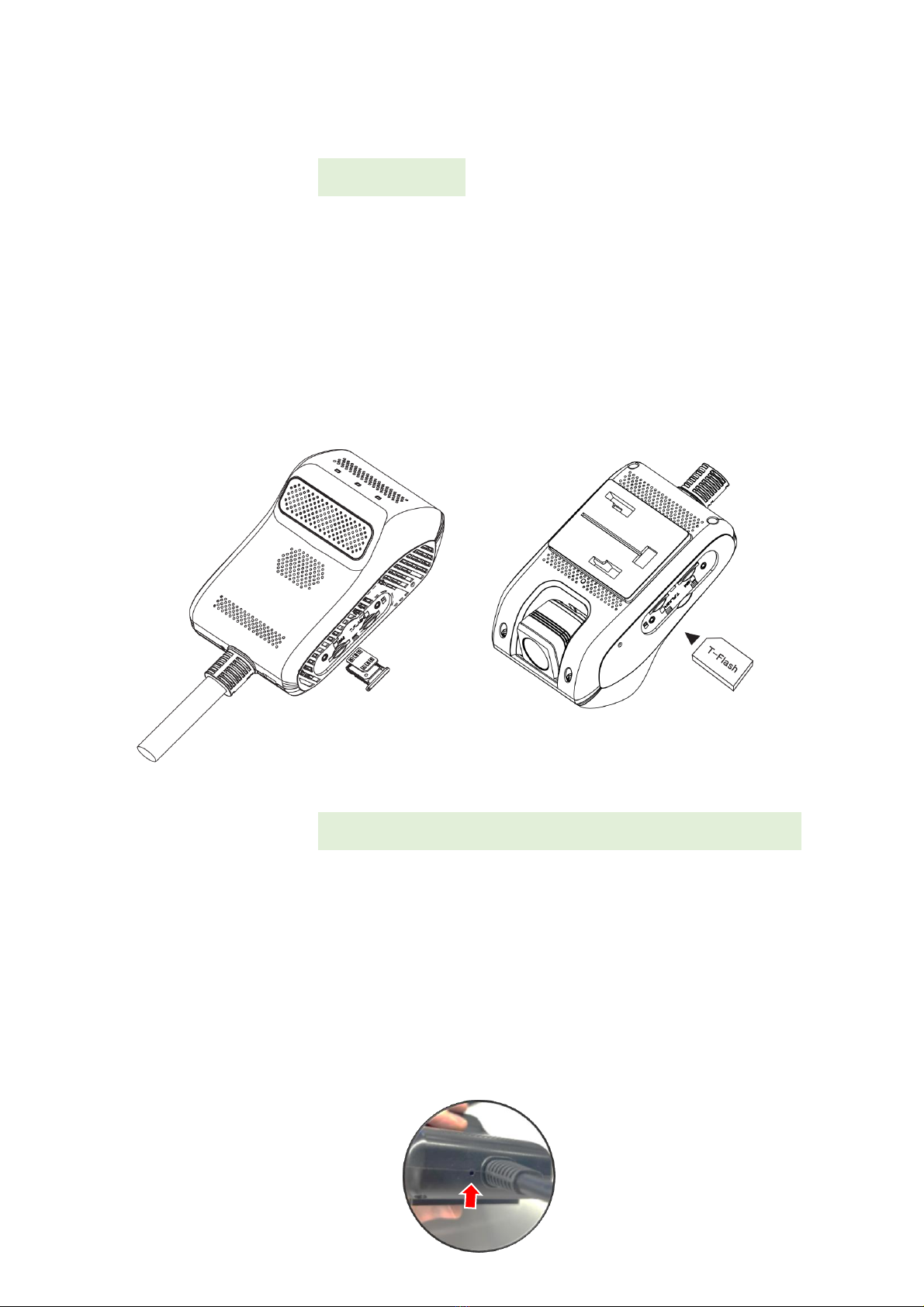
Install SIM & TF Card
⚫SIM Card Standards: 4G/3G/2G Nano SIM
⚫Recommend: Lncoon SIM
Before install, you can confirm the following points in
advance:
1. The PIN is disabled.
2. There is no restriction of the IMEI# from the operator.
3. The SIM card is with balance and data.
⚫TF Card Standards: 32GB to 258GB TF Card
⚫Recommend: 128GB TF Card (FAT32 Speed Class 10)
Install Step:
⚫ACC off, insert both SIM and TF card into the camera.
⚫Turn on the car and press the restart button to restart.
⚫Once the blue led went solid, means the SIM is working.


9
Sign up & Log in
⚫Click Sign Up
①Choose your country or region
②Enter a valid email address
③Click ‘→’ to get a verification code from noreply@lncoon.com
*(If no email received, please check the trash or spam.)
④Set up and confirm Password
⑤Check and agree the terms and policy
⑥Click on Submit
*The App will automatically log in to your account, please remember your account
and password for future login.
①
②
③
④
⑤
⑥
10
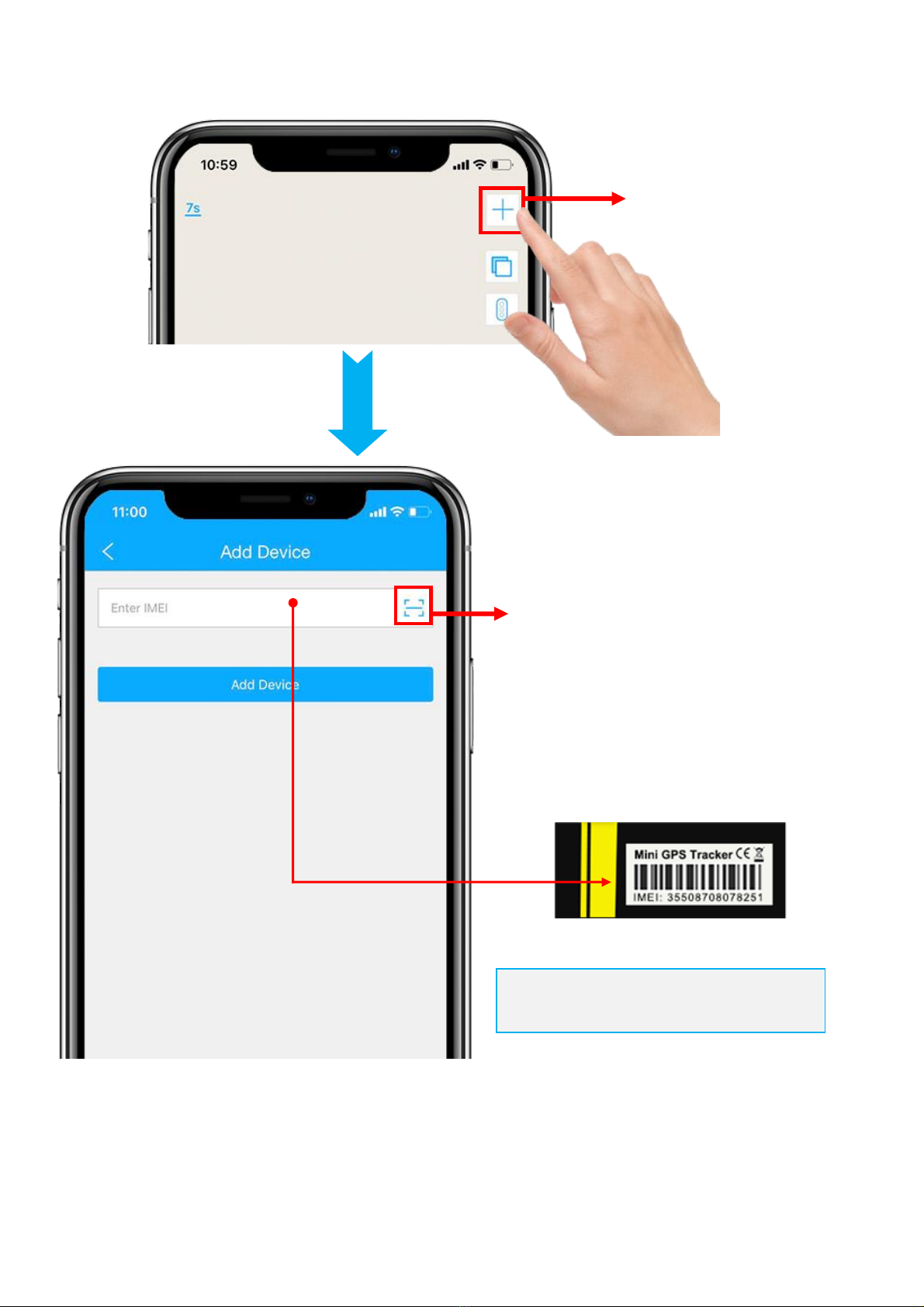
Add Device
1. Click the ‘+’ on the top right to add device.
2. Scan or type in the IMEI number on the package or device body.
Add Device
Find the IMEI barcode on
package or camera body
Scan barcode to quickly
enter IMEI
(To use this feature, the App will ask to
allow phone camera authorization)
Indice


