Maxtor 16Channel Stand Alone DVR Manuale utente

16Channel Stand Alone DVR
Audio, USB Backup available
VER1.2

1
INSTALLATION & SAFEGUARDS
All the safety and operating instructions should be read before the unit is operated.
Environment Condition for Inst ll tion
- To prevent electric shock or other hazard, do not expose units to rain, moisture, or dust.
- This unit should be located in an area with low humidity and a minimum of dust..
- lace this unit in a well-ventilated place and do not place heat-generating objects on this unit.
- This unit should not be located in an area where it is likely to be subjected to mechanical shocks.
Before You St rt
- Ensure the power switch is in the OFF position prior to starting.
- Do not attempt to service this unit yourself as opening or removing covers may expose you to
dangerous voltage or other hazards.
- Installation should be performed by qualified service personnel only.
- This unit should be operated only from the type of power source indicated on the manufacturer’s
label and with the power supply included with the unit.
Notice
NoticeNotice
Notice
- Be aware thoroughly about the power connection before installation of the unit.
- Before initial configuration or operation you must first set the TIME/DATE, followed by
setting the unit to the FACTORY DEFAULT settings, lastly clearing the HDD. Please follow
these steps in order.
- Pull the unit out of record mode prior to cutting power to the unit. Do this by entering the
setup menu, followed by switching the unit off. Powering off the unit while writing to the
disks can cause critical malfunctions. (ex: Recording Error, Playback Error, System Error)
- When you set the record type, you have to set the Record Configuration and also
Schedule Setup. This unit records as per the Record type & Schedule setup.
- The [REC] button on the front panel is for emergency record using highest image quality.
The lightning flash with arrowhead symbol within an equilateral triangle is intended to alert the
user of this equipment that there are dangerous voltages within the enclosure which may be of
sufficient magnitude to constitute a risk of electric shock.
The exclamation point within an equilateral triangle is intended to alert the user to presence of
important operating and maintenance(Servicing) instructions in the literature accompanying the
appliance.
Installation & Safeguards

2
Contents
Contents
CHA . 1 Features & ackage Contents ---------------------------------------------------------------- 4
1-1. Features ---------------------------------------------------------------- 4
1-2. ackage Contents ---------------------------------------------------------------- 5
CHA . 2 Function of Each Button ---------------------------------------------------------------- 6
2-1. Front ---------------------------------------------------------------- 6
2-2. Rear ---------------------------------------------------------------- 8
CHA . 3 Installation ---------------------------------------------------------------- 9
3-1. Installation Configuration ---------------------------------------------------------------- 9
3-2. Detailed Installation ---------------------------------------------------------------- 10
1) Rack Mount ---------------------------------------------------------------- 10
2) HDD(Hard Disk Drive) ---------------------------------------------------------------- 10
3) Camera ---------------------------------------------------------------- 11
4) Monitor ---------------------------------------------------------------- 11
5) ower ---------------------------------------------------------------- 11
6) S OT, Video rinter ---------------------------------------------------------------- 12
7) Other External Device ---------------------------------------------------------------- 12
CHA . 4 Operation ---------------------------------------------------------------- 13
4-1. System Log-in ---------------------------------------------------------------- 13
4-2. Factory Default ---------------------------------------------------------------- 13
4-3. Display Configuration ---------------------------------------------------------------- 14
4-4. Live View Setup ---------------------------------------------------------------- 14
1) Full / Multiple View ---------------------------------------------------------------- 14
2) View in Sequence ---------------------------------------------------------------- 15
3) I View ---------------------------------------------------------------- 15
4) Freeze View ---------------------------------------------------------------- 15
5) Zoom View ---------------------------------------------------------------- 15
4-5. Record ---------------------------------------------------------------- 16
4-6. layback ---------------------------------------------------------------- 16
4-7. Search ---------------------------------------------------------------- 17
4-8. TZ Camera Operation ---------------------------------------------------------------- 18
4-9. Data Back-Up ---------------------------------------------------------------- 18
4-10. Audio Operation ---------------------------------------------------------------- 18

3
Contents
CHA . 5 Set Up ---------------------------------------------------------------- 19
5-1. Entering the Menu ---------------------------------------------------------------- 19
5-2. Display Setup ---------------------------------------------------------------- 20
1) Screen Display ---------------------------------------------------------------- 20
2) Monitor Setup ---------------------------------------------------------------- 20
5-3. Configuration ---------------------------------------------------------------- 21
1) HDD Management ---------------------------------------------------------------- 21
2) TIME/DATE Setup ---------------------------------------------------------------- 23
3) Camera Setup ---------------------------------------------------------------- 23
4) Interval Setup ---------------------------------------------------------------- 25
5) Alarm Setup ---------------------------------------------------------------- 25
6) Event opup Setup ---------------------------------------------------------------- 25
7) Buzzer Setup ---------------------------------------------------------------- 26
8) assword Setup ---------------------------------------------------------------- 26
9) System Information ---------------------------------------------------------------- 26
5-4. Record Setup ---------------------------------------------------------------- 27
1) Record Configuration ---------------------------------------------------------------- 27
2) Schedule Setup ---------------------------------------------------------------- 28
3) Holiday Setup ---------------------------------------------------------------- 28
5-5. Back-Up (CDR, USB) ---------------------------------------------------------------- 29
5-6. External Device ---------------------------------------------------------------- 30
1) TC /I Setup ---------------------------------------------------------------- 30
2) RS-232C Setup ---------------------------------------------------------------- 32
3) an Tilt Zoom Setup ---------------------------------------------------------------- 32
4) Spot Monitor Setup ---------------------------------------------------------------- 33
5) Audio Setup ---------------------------------------------------------------- 33
5-7. Factory Default ---------------------------------------------------------------- 34
5-8. Language Setup ---------------------------------------------------------------- 34
CHA . 6 Network Setup ---------------------------------------------------------------- 35
6-1. DVR Network Configuration ---------------------------------------------------------------- 35
6-2. Remote Viewer rogram ---------------------------------------------------------------- 39
6-3. Back-Up CD layer ---------------------------------------------------------------- 44
CHA .7 DDNS Web Server ---------------------------------------------------------------- 46
CHA .8 Specification ---------------------------------------------------------------- 52
CHA .9 Remocon Key Definition ---------------------------------------------------------------- 53

4
Live View
Real time display per camera
Auto Sequence
I ( icture in picture)
Event opup
Digital Zoom
Display Freeze
Simple layback mode
Simple TZ camera control
Record
Variable Record resolution (For higher picture quality or higher recording speed)
Efficient Image Quality setup in 5 steps
Schedule Record / Holiday Record
Event Record (Alarm / Motion)
Emergency Record
Network
View Live and layback images across I network
Copy images across the network
Pl yb ck
Search & layback by Date/Time, Event and Camera
Outstanding picture quality by J EG 2000 compression algorithm (No mosaic effect)
Suitable for recording not only images but also text
Various steps in Forward layback Speed (X1/16, X1/8, X1/4, X1/2, X2, X4, X16, X32, X64)
Various steps in Backward layback Speed (X1/16, X1/8, X1/4, X1/2, X2, X4, X16, X32, X64)
Easy and convenient search by Jog Shuttle & Remote Controller
D t B ck-Up
Simple Back-Up using built-in CD Writer (Back-up CD layer included in the package)
Network Back-Up using Remote Viewer program(Remote Viewer included in the package)
Supports bigger capacity of HDD (300GB or bigger)
USB Device Back-Up available
Others
Multi-Language (English, Spanish, German, French, Italy, Japan, China)
VGA option board supports both TFT LCD monitor and CRT monitor
Lock the system by assword
JOG / SHUTTLE
AL/NTSC Auto detection
Control the unit by using Remote Controller
Audio recording : IN-4ch, OUT-1ch (mono)
CHAP. 1 Features & Package
Contents
CHAP. 1 Fe tures & P ck ge Contents
1-1. Fe tures

5
CHAP. 1 Features & Package Contents
1-2. P ck ge Contents
1. DVR Main Unit
2. Remote Controller
3. ower Cable
4. ower Adapter 5. User’s Manual
6. Software CD
7. Rubber ad 8. HDD absorber 9. Battery for remote controller 10. Bolts
ackage Contents Description
1. DVR Main Unit STAND-ALONE DIGITAL VIDEO RECORDER
2. Remote Controller DVR control
3. ower Cable AC power supply to adapters for 12 V DC power
4. ower Adapter 12 V DC power supply
5. User’s Manual User’s Manual
6. Software CD Remote Viewer Software & Back up CD player
7. Rubber ad revent DVR from slipping. Attach it to the bottom of main unit
8. HDD absorber Absorbing the mechanical shock of HDD against the case bottom
9. Battery Battery for remote controller
10. Rack mount
bracket / Bolts
Rack mount bracket
For fixing Rack Mount bracket to DVR (6ea)
For fixing DVR with Rack Mount bracket to 19” Rack (4ea)
For fixing Hard Disk Drive into DVR (8ea)

6
CHAP. 2 Function of Each
Button
Name Function
①LED Lamps Shows status of operation
②-1 USB HOST Back-Up by connecting USB Media to USB HOST
②-2 USB Device Firmware upgrade by connecting C with latest firmware to USB port
③IR IR receiver
④Camera
selection
&
TZ camera
control
1. ressing this button will display a full screen image of that camera
2. Control TZ camera (Each button is assigned for each TZ command)
• ON : LIGHT ON • SET : SET RESET
• OFF : LIGHT OFF • CLEAR : CLEAR RESET
• O EN : IRIS O EN • GOTO : GOTO RESET
• CLOSE: IRIS CLOSE • AUTO : AUTO SCAN
• NEAR : FOCUS NEAR • F1 : USER 1
• FAR : FOCUS FAR • F2 : USER 2
• WIDE : ZOOM IN • F3 : USER 3
• TELE : ZOOM OUT
⑤Record /
layback
REC Emergency Record at continuous, 60ips, SU ER FINE size
STO Stop of Emergency Record and return to Schedule Record
from Emergency Record. layback stop.
LAY layback of recorded data on HDD
SEARCH Search recorded data on HDD
⑥SETU MENU Set up for SYSTEM MENU or Use to exit the menu
Press MENU button before powering off the unit.
ENTER Selects each menu option
NEXT Move to next step
▲▼◀▶ Navigate in the menu
+ - Reduce or increase the option value in the menu
2-1 FRONT
CHAP. 2 Function of E ch Button

7
Name Function
⑦LIVE View
Control
TZ On/Off for AN/TILT/ZOOM control mode
ress this button first to control TZ camera connected to
DVR unit via RS-485
ZOOM Zooming an image
FRZ Freezing an image
MODE Switch to split display
MODE button changes screen-division from (to) full screen
to (from) 16-split screen.
I Display in I ( icture in icture) mode
SEQ Auto camera image sequencing in full screen mode
K.LOCK Lock the key function.
To unlock, press longer time (for several seconds) and then
input the password.
Q. lay
(Quick lay)
lay from image recorded 2 minutes ago in forward
direction. (in case recorded in continuous mode).
AUDIO Select audio channel
⑧Jog Shuttle
Control
J/SHUTTLE ressing Jog Shuttle button (Ready for use Jog/Shuttle)
: In playback mode, pressing J. SHUTTLE button make
images frozen.
RUN LED on : While you operate Jog or Shuttle
ACTIVE LED on : When J. SHUTTLE button is pressed
⑨Jog Shuttle Very easy and convenient search : ress J. Shuttle button, and images in
playback pause, and then Jog and Shuttle makes it very easy and convenient
to search, forward or backward, fast and slow, as user want.
⑩CD Recorder Data Back-up and Firmware Upgrade using built-in CD writer
CHAP. 2 Function of Each Button

8
CHAP. 2 Function of Each Button
2-2. REAR
Name Function
1 RS 485 Connection with TZ Camera or other external device using RS 485
interface
RELAY Output Relay out terminal
SENSOR Input Sensor input terminal
2 VGA Connection to VGA Monitor (CRT type or TFT LCD monitor)
Just in case you purchased DVR with VGA option board fixed on the main
board of DVR, you can connect VGA Monitor to DVR unit.
3 ETHERNET Connection to ETHERNET device
4 RS-232C Connection to external device as C using RS-232C to control the DVR
5 CAMERA Input Connection with camera
6 LOO Output Camera loop out
7 MONITOR
Output
Connection with Composite Monitor
8 S OT Connection with additional composite monitor
9 DC ower DC 12V 6.67A Adaptor
10 OWER
SWITCH
ower ON/OFF switch for adapters
To avoid accidental deletion of HDD data, please make sure to press
MENU button and enter into setup menu before powering off the unit.
This takes the unit out of record mode for safe shutdown.
11 Audio Input Microphone Input (4ch)
Audio Output Speaker Output (1ch)

9
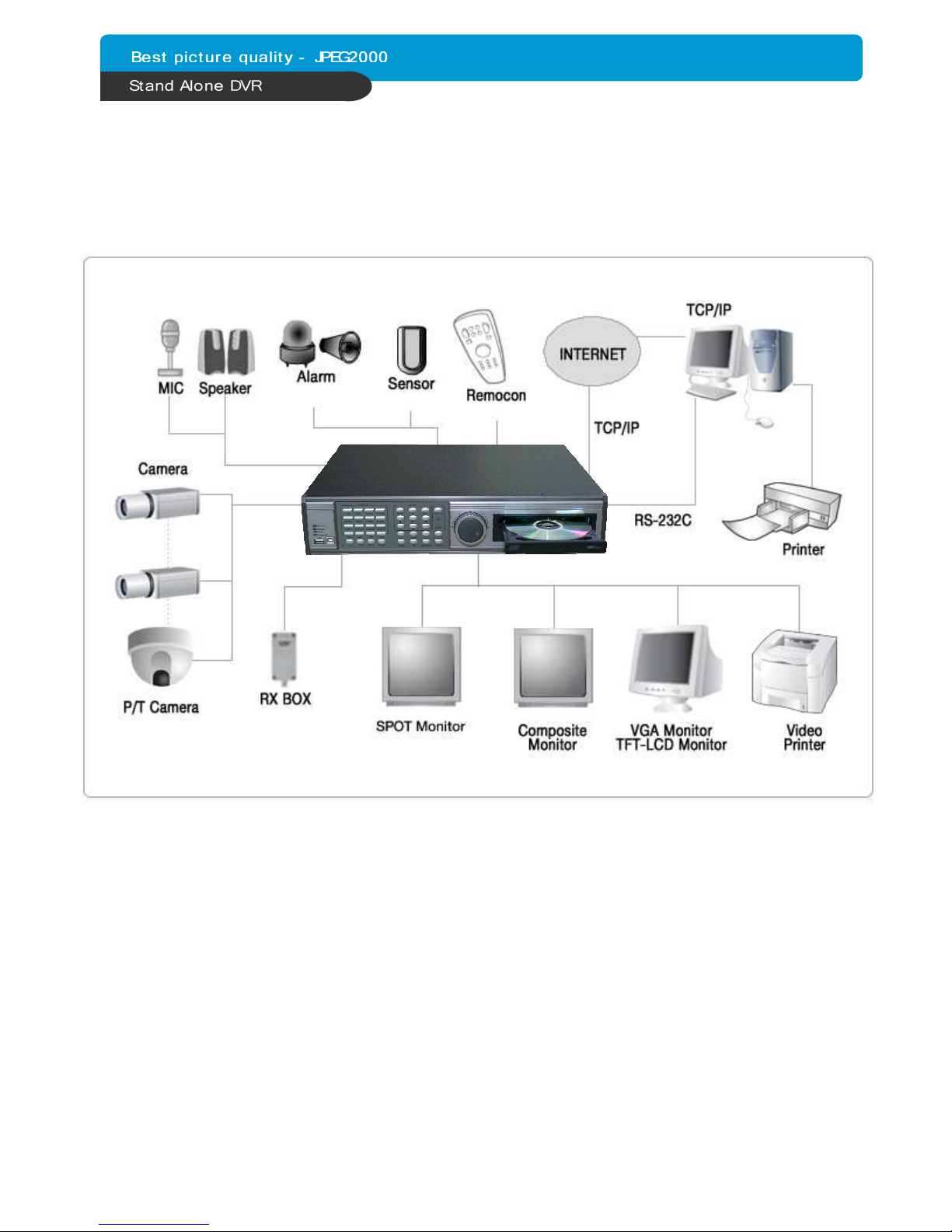
3-1. Inst ll tion Configur tion
CHAP. 3 Installation
CHAP.3 Inst ll tion
Indice
Altri manuali Maxtor Registratore digitale

Maxtor
Maxtor CDR-04S Manuale utente

Maxtor
Maxtor 4 Channel Stand-alone DVMR Manuale utente

Maxtor
Maxtor SSA-0412 Manuale utente

Maxtor
Maxtor Built in Digital Video Recorder Manuale utente

Maxtor
Maxtor 16 Channel Digital Video Recorder Manuale utente

Maxtor
Maxtor 4-Channel DVR (Digital Video Recorder) Manuale utente

Maxtor
Maxtor Digital Video Recorder CBC V 0.4 Manuale utente

Maxtor
Maxtor 4 CH Digital Multiplex Recorder Manuale utente

Maxtor
Maxtor pmn Manuale utente

Maxtor
Maxtor 777 W V1.0 Manuale utente