
MISUMI MP-600HD Manuale utente

MP-600HD USER’S MANUAL
Mobile DVR (3.5” Touch Screen)
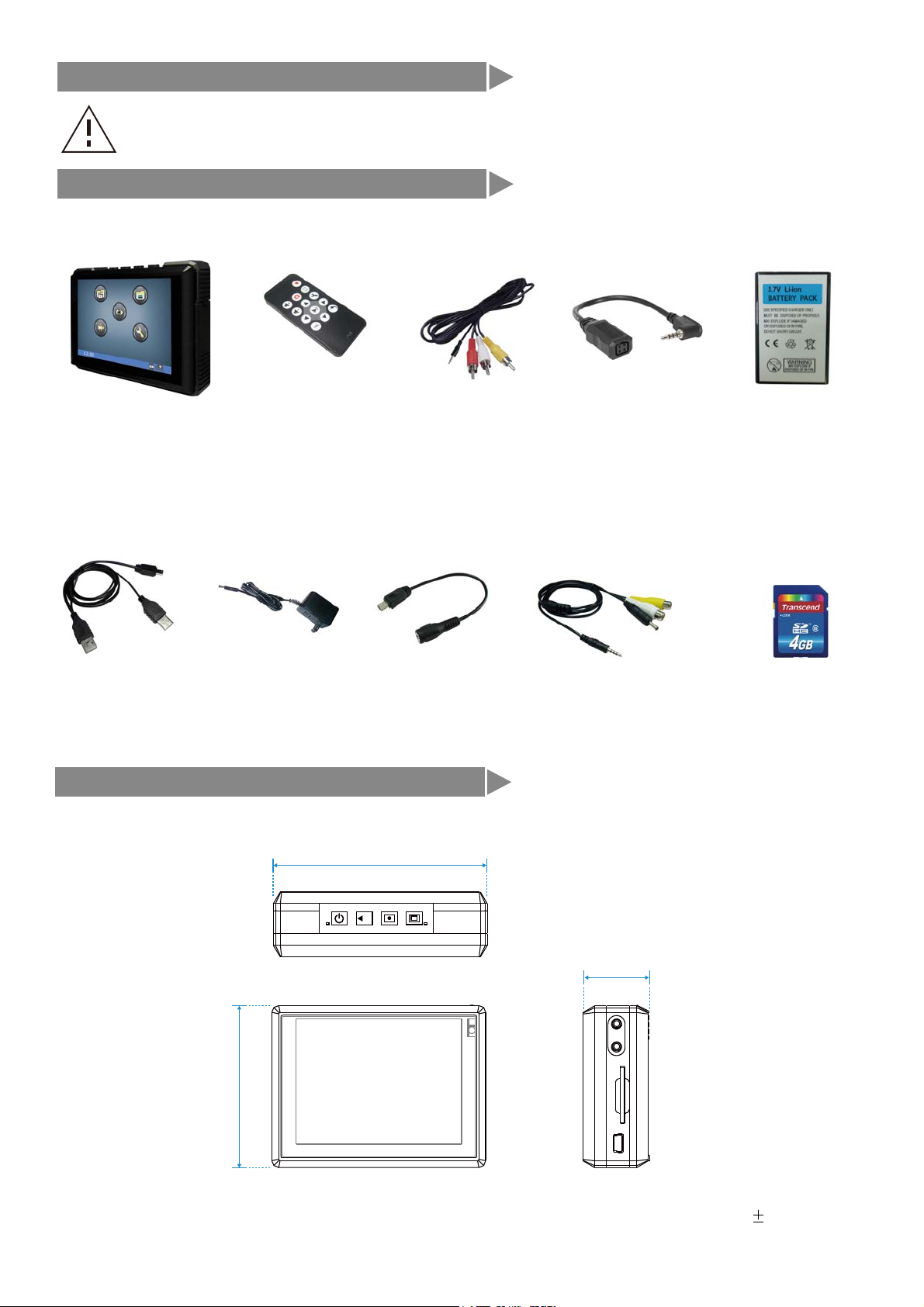
Accesorios
Dimension
Unit : mm ( 0.5)
98
30
75
H
Battery
Remote Control
Adaptor
MP-600HD
Clean the product by any chemicals such as alcohol is prohibited.
Warning
USB Cable/charge
(AF-UU070)
AV Cable
(AF-PRRR12)
Plug convertor
For camera
(AF-224)
10 pin USB Cable
(AF-UD02)
Cable for
external camera
(AF-PDRR12-01)
4 GB SDHC
Part Name
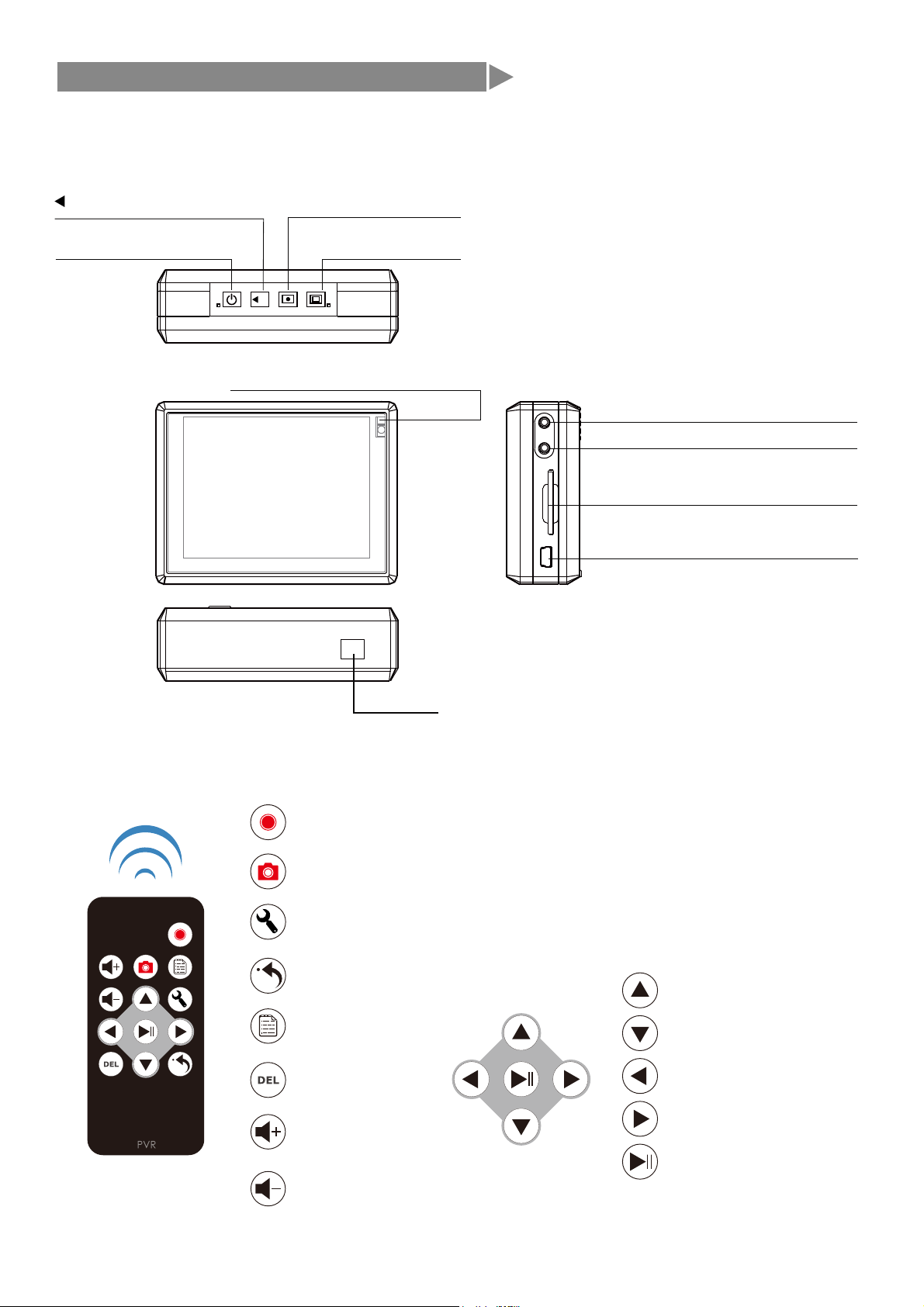
DC 5 V (130mA-max)Cam in
Power ON/OFF
TFT LCD Off / key lock
MP-600HD MAIN DEVICE
REMOTE CONTROL
REC.
Snapshot
IR Remote Control Receiver
Reset
A/V Ouput
SD/SDHC Slot
MINI USB / Power In
Esc/Return
File menu
Snapshot
REC.(record)/ Stop REC. /perview
Menu/Setup
Delect
Volume up
Volume down
up
down
left
right
play / stop / comfirm
H

c. press or button ,blue indicator light will turn off, and start REC.
d. Rec. times
b. press button ,blue indicator light will be on, and start REC.
REC. Mode
a. press button ,yellow indicator ( )and red indicator light will be on, now it
enters into start up ready mode
1.Manual button description
A
c. press button ,blue indicator ( ) light will be on, and start REC.
D
A
LED(yellow / red)
Power REC. Snapshot
LED (blue)
A
1
1
2
2
2
User needs to unlock hold key in order for MP-600 to turn on
BD
C
a. touch screen
a. b. c & d.
00:01:30
2.Touch Screen description
M
A
H
TFT LCD Off/Key Lock
Hold
TFT LCD On
e. press button ,into REC. setting
f. press item or press & to choose item
e.
M
f.
Quality QVGA
ON
ON
HD
Dual
Display Information
REC. Date Time
Storage
Display
b. press button ,blue indicator( ) light will flash(one time), and take snapshot.
C

g. press item then press & to chose item.after choose you wanted item ,press
item directly or press to be set
g.
Quality QVGA
ON
ON
HD
Dual
Display Information
REC. Date Time
Storage
Display
Quality QVGA QVGA or VGA or D1
ON
ON
HD
Dual
Display Information
REC. Date Time
Storage
Display
ON or OFF
ON or OFF
HD or SD
Dual
Overwrite ON
HQ
Bitrate
ON or OFF
HQ or Normal
a. press remote control the button ,MP-600HD of blue indicator light will be on,
now it starts to REC. press remote control again to stop REC.
3.Remote control operate description
a. press ”snapshot” button ,blue indicator light will flash(one time), and take snapshot.
Snapshot Mode
1.Manual button description
Power REC. Snapshot
Snapshot
H
Hold

Menu
a. press remote control button ,blue indicator light will flash(one time), and
snapshot.
c.
d.
M
c. press button ,blue indicator light will flash(one time), and snapshot
a. touch screen
b. press icon button into what you want item
Video files photo files
setuprecording setting
16:00
recording
a. press button into main menu
a.
M
b.
2.Touch Screen description
3.Remote control operate description

1.VIDEO Files
a. press icon into video files , press item or press & to chose item .
press item again or to start preview video.
16:00
Toshuba Demo2.avi
*Video Files*
Toshuba Demo2.avi
16:00
Toshuba Demo2.avi
*Video Files*
Toshuba Demo2.avi
16:00
b. press screen to appear icon
c. press screen icon to into this video editing, here you can change video repeat ,
screen or display press & to chose item ,press item again or to finish
setting ,then press return to preview video
volume +
fast backward
fast forward pre
page up
menu
next
pause
volume - +
-
+
-
on or off
Full Screen
Display Dual
off
Video Repeat No
00:00:00
Dual
No or Single or All
d. press screen icon to into this video item, here you can delete , copy or remove
it. press & to chose item ,press item again or to finish setting
on or off
move
*Video Files*
16:00
video repeat single
protect
copy one
one
off
delete ALL
one or all
one or all
all or single or no
one or all SD or HD
*Video Files*
16:00
file informaton
Storage SD
Toshuba Demo2.avi
*Video Files*
Toshuba Demo2.avi
16:00

press icon directly or press screen & icon to chose item, then press
or press “ok” to delete , then press screen icon to return to
video files menu
1.delete
delete select file
ok cancel
16:00
move select file
ok cancel
16:00
press icon directly or press screen & icon to chose item, then press
or press “ok” to move , then press screen icon to return to
video files menu
2.move
b. press screen to appear icon,then press screen icon to into this photo editing,
here you can chane display press & to chose item ,press item again or
to finish setting ,then press icon to return to browse photos
Display Dual
00:00:00
Dual
2.PHOTO Files
a. press icon into photo files , press item or press & to chose item
press item again or to browse Photos
Toshuba Demo2.jpg
*photo Files*
Toshuba Demo2.jpg
16:00
OTO
Fi
s
s
item
a
16:00
6
:
00

press icon directly or press screen & icon to chose item, then press
or press “ok” to move
b. press screen icon to into this photo item, here you can delete , copy or remove
it. press & to chose item slightly,press item again or to finish setting
on or off
move
*Photo Files*
16:00
protect
copy one
one
off
delete ALL
one or all
one or all
one or all
SD or HD
*Photo Files*
16:00
file informaton
Storage SD
press icon directly or press screen & icon to chose item, then press
or press “ok” to delete.
1.delete
delete select file
ok cancel
16:00
move select file
ok cancel
16:00
press screen icon to return to photo files menu
press screen icon to return to photo files menu
2.move
Toshuba Demo2.JPG
*Photo Files*
Toshuba Demo2.JPG
16:00
3.Recording & Record setting
a. press icon into REC.
b. press icon into Record setting
s
16:00
16
:
00
16:00
6
:
00

C. In the record setting ,press screen item directly or press & to chose item ,
press item again or to finish setting
Video Line in REC : in this mode you can manual-control REC.
Motion detect : in this mode , MP-600HD connected camera and it will motion
detect automatically.
*Record setting*
16:00
Video Line in REC
Motion detect
press screen icon to return to main menu
Motion Detect Area : there are nine zones ,and it can easy to set motion detect
area what you want (note:the red squares part can be motion detect)
1In Motion detect ,press screen to appear icon,then press icon to into Motion detect
editing,press & to chose item
30 sec or 1min or 3min or 5min or 10min
HQ or Normal
*Video Files*
16:00
3min
Normal
Motion Detect Level
Motion Detect rectime
Motion Area Setting
Bitrate
Low Low or Middle or high
Quality QVGA QVGA or VGA or D1
ON
ON
HD
LCD
Display Information
REC. Date Time
Storage
Display
ON or OFF
ON or OFF
HD or SD
Dual
Indice


