NEC NP1150 XGA Manuale utente

Security
Security
WPA Network
Security
LAMP
STATUS
POWER
ON/STANDBY
SOURCE
AUTOADJUST
3DREFORM
SELECT
USB
LENSSHIFT
LEFTRIGHT
DOWN
UP
WIRELESS
WIRELESS
LCD Projector
NP3150/NP2150/
NP1150/NP3151W
WPA Setting Guide Supported
Authentication
Method
WPA-PSK
WPA-EAP
WPA2-PSK
WPA2-EAP

NOTES
(1) The contents of this guide may not be reprinted in part or whole without permission.
() The contents of this guide are subject to change without notice.
(3) Great care has been taken in the preparation of this guide; however, should you
notice any questionable points, errors or omissions, please contact us.
(4) Notwithstanding article (3), NEC will not be responsible for any claims on loss of
prot or other matters deemed to result from using the Projector.
© NEC Display Solutions, Ltd. 008 1st edition April 008
Reproduction, modication, and other uses are prohibited without the permission of NEC Display Solutions, Ltd.
Contents
Introduction ....................................................................................................... 3
1. Setting WPA-PSK or WPA2-PSK.................................................................... 5
2. Setting DATE, TIME PRESET.......................................................................... 8
3. Setting WPA-EAP or WPA2-EAP .................................................................... 9
4. Checking Authentication Status on [INFORMATION] Screen........................ 16

3
Continued on next page
Introduction
Thank you for purchasing the LCD Projector NP3150/NP150/NP1150/NP3151W.
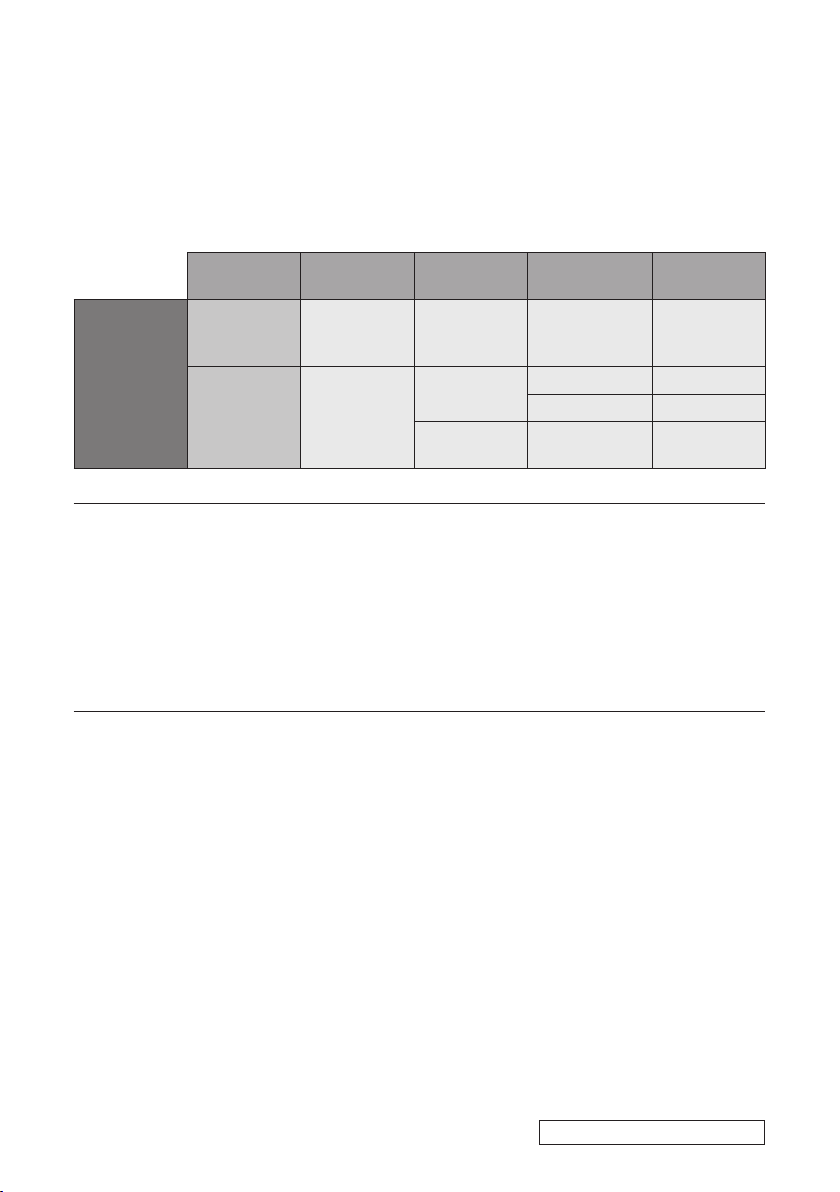
This guide explains how to set the enhanced wireless LAN security (authentication
method) on the projector as shown on the table below.
Set the projector according to the security environment of your network.
Authentication
method
Encryption
type EAP type Digital certi-
cate
Format of
certicate
Wireless LAN
WPA-PSK,
WPA-PSK
(→ Page 5)
TKIP
AES – Not used –
WPA-EAP,
WPA-EAP
(→ Page 9)
TKIP
AES
EAP-TLS Client certicate PKCS#1
CA Certicate DER
PEAP-
MSCHAPv CA Certicate DER
Important:
• Please note that instructions and explanation on security functions on the above table is
not included in the supplied “User’s Manual” or within the “Wired and Wireless Network
Setup Guide”.
• When you set WPA-EAP or WPA-EAP, be sure to set [DATE, TIME PRESET] before
installing digital certicates. (→ page 8)
If setting of [DATE, TIME PRESET] is not correct, a message “authentication error” will be
displayed.
• To install digital certicates on the projector, use a USB memory device in the market.

4
Other Notes
• Contact your network administrator for information about access point and settings
for authentication server (authentication method, encryption type, EAP type, and
digital certicates).
• For using the on-screen menu on the projector, see the “User’s Manual” (PDF) on
the supplied CD-ROM.
• See the supplied “Wired and Wireless Network Setup Guide” for instructions on set-
ting IP address, subnet mask, SSID, and WEP on the projector.
• WPA-PSK, WPA-EAP, WPA-PSK and WPA-EAP are available only when [INFRA-
STRUCTURE] is selected in [NETWORK TYPE] of the [CONNECTION] page. They
are not available when [AD HOC] is selected.
• WPA-PSK stands for “Wi-Fi Protected Access-Pre-Shared Key”, TKIP for “Temporal
Key Integrity Protocol”, AES for “Advanced Encryption Standard”, EAP for “Extensible
Authentication Protocol”, TLS for “Transport Layer Security”, PEAP for “Protected
Extensible Authentication Protocol”, MSCHAPv for “Microsoft Challenge Hand-
shake Authentication Protocol version ”, DER for “Distinguished Encoding Rules”,
PKCS for “Public-Key Cryptography Standards”.

5
1. Setting WPA-PSK or WPA2-PSK
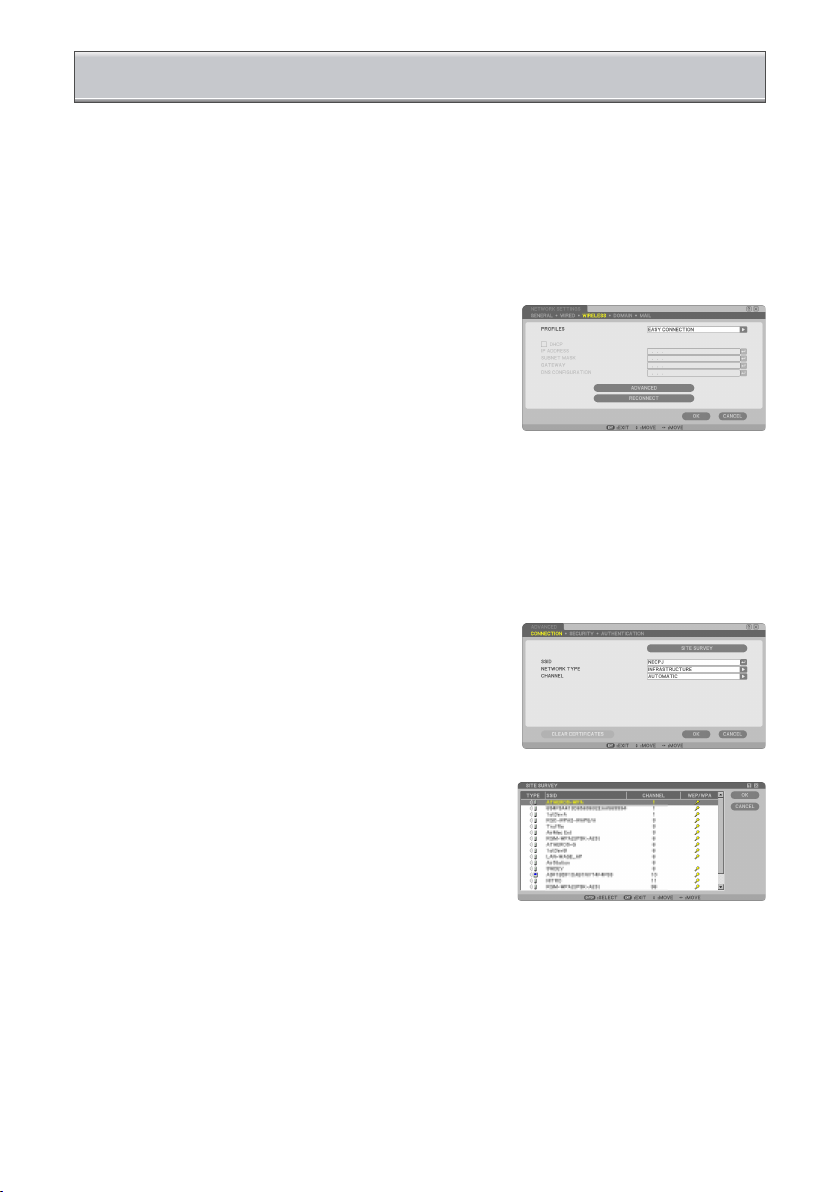
From the on-screen menu on the projector, select [SETUP] → [INSTALLATION()] tab
→ [NETWORK SETTINGS] screen and follow the instructions below.
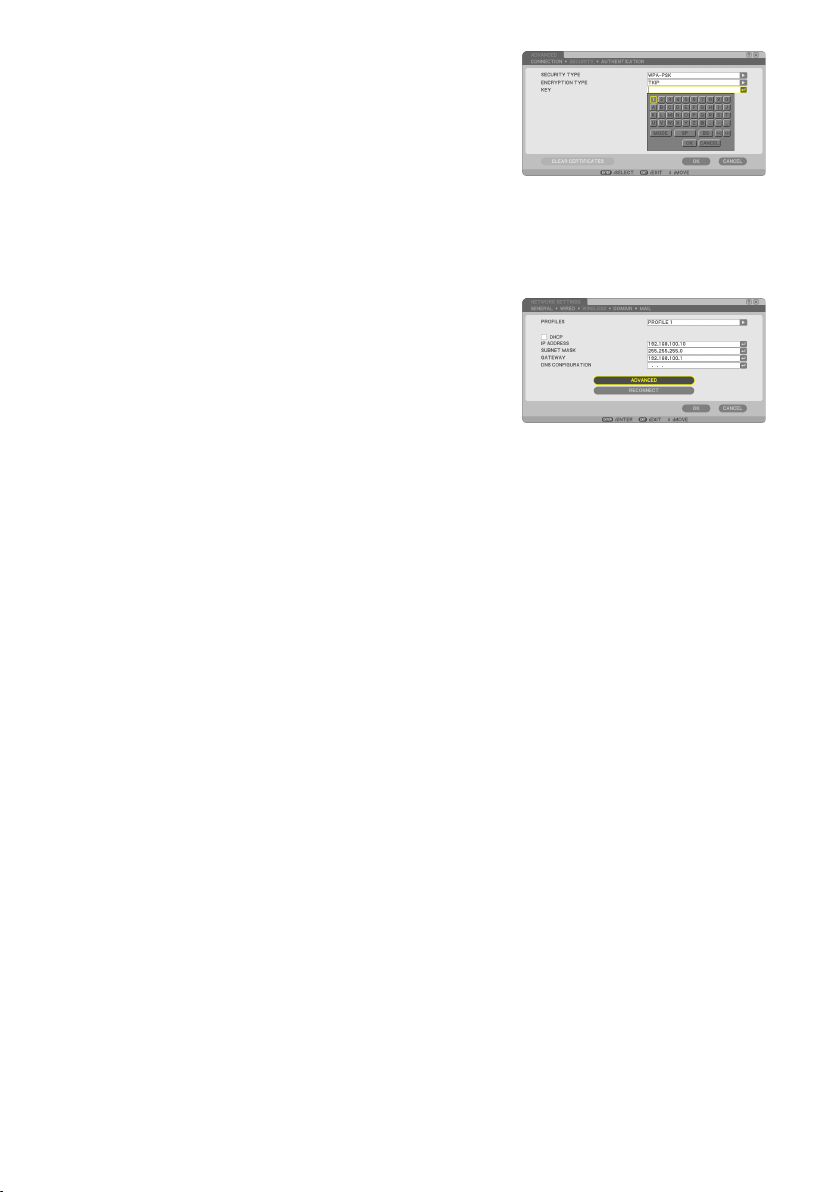
➊ Display the [NETWORK SETTINGS]
screen.
• See page 17 of “Wired and Wireless Network
Setup Guide” for setting wireless LAN.
➋ Use the SELECT ▶ button to select the
[WIRELESS] tab.
The [WIRELESS] page will be displayed.
➌ Set items such as PROFILE, DHCP, IP
ADDRESS, SUBNET MASK and others
as required.
• Select [PROFILE 1] or [PROFILE ] for
[PROFILES]. If [EASY CONNECTION] is se-
lected, WPA-PSK, WPA-PSK, WPA-EAP, or
WPA-EAP is not available.
➍ Use the SELECT ▼ button to select
[ADVANCED SETTINGS] and press the
ENTER button.
The [ADVANCED SETTINGS] screen will be
displayed.
➎ Select [SITE SURVEY] and press the
ENTER button.
The “SSID” list will be displayed.

➏ Use the SELECT ▼▲ button to select
a connecting SSID, and then press the
SELECT ▶ button to select [OK].
Finally press the ENTER button.
• Select the SSID for which WPA-PSK or
WPA-PSK is set.
• Select [INFRASTRUCTURE ( )] for [NET-
WORK TYPE]. WPA-PSK, WPA-PSK,
WPA-EAP, or WPA-EAP is not available
when [AD HOC ( )] is selected.
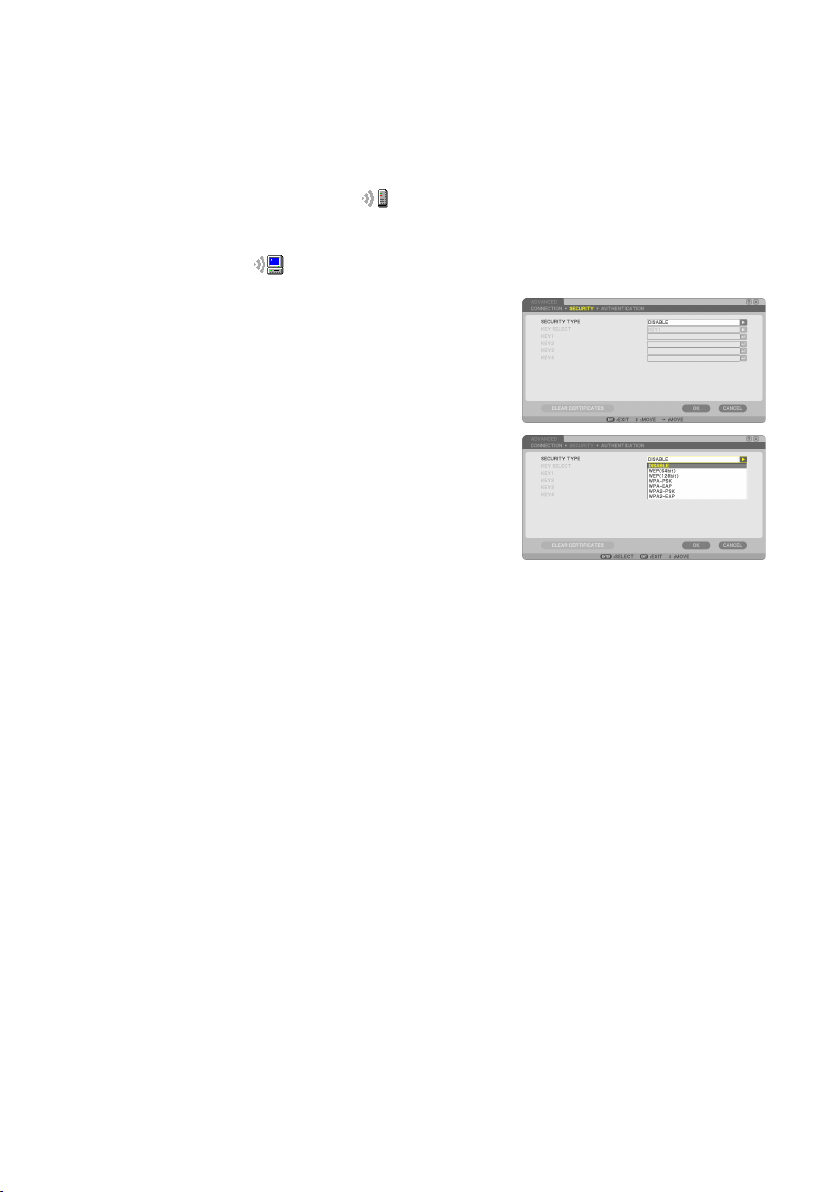
➐ Use the SELECT ▲ button to select the
[CONNECTION] tab and then SELECT ▶
button to select the [SECURITY] tab.
The [SECURITY] page will be displayed.
➑ Use the SELECT ▼ button to select the
[SECURITY TYPE] eld and press the
ENTER button.
The pull-down list will be displayed.
➒ Use the SELECT ▼▲ button to select
[WPA-PSK] or [WPA2-PSK] and press
the ENTER button.
❿ Use the SELECT ▼ button to select the
[TKIP/AES] eld and press the ENTER
button.
The pull-down list will be displayed.
⓫ Use the SELECT ▼▲ button to select
[TKIP] or [AES] and press the ENTER
button.
Select [TKIP] or [AES] according to the setting
for your access point.

7
⓬ Use the SELECT ▼ button to select the
[KEY] eld and press the ENTER but-
ton.
The character entry screen (software keyboard)
will be displayed. Set a key.
• A key must be between 8 and 3 characters
in length.
• See page of “Wired and Wireless Network
Setup Guide” for using the software keyboard
to enter a key.
⓭ Use the SELECT ▼ button to select [OK]
and press the ENTER button.
The [WIRELESS] page will be returned.
⓮ Use the SELECT ▼ button to select [RE-
CONNECT] and press the ENTER but-
ton.
⓯ Use the SELECT ▼ button to select [OK]
and press the ENTER button.
This completes the WPA-PSK or WPA2-
PSK settings.

8
Before installing a digital certicate on the projector, you are required to set [DATE,
TIME PRESET] for checking the expiration date of the digital certicate.
Set the current date and time (i.e., local time), and the time zone.
Important:
• If setting of [DATE, TIME PRESET] is not correct, a message “authentication error” will be
displayed because of failure of checking the expiration date of the digital certicate when
you install a digital certicate. (→ page 1)
• The projector has a built-in clock. The clock will keep working for about weeks after the
main power is turned off. If the main power is off for weeks or more, the built-in clock
will cease. If the built-in clock ceases, set the date and time, and the time zone again.
The built-in clock will not cease while in the standby mode.
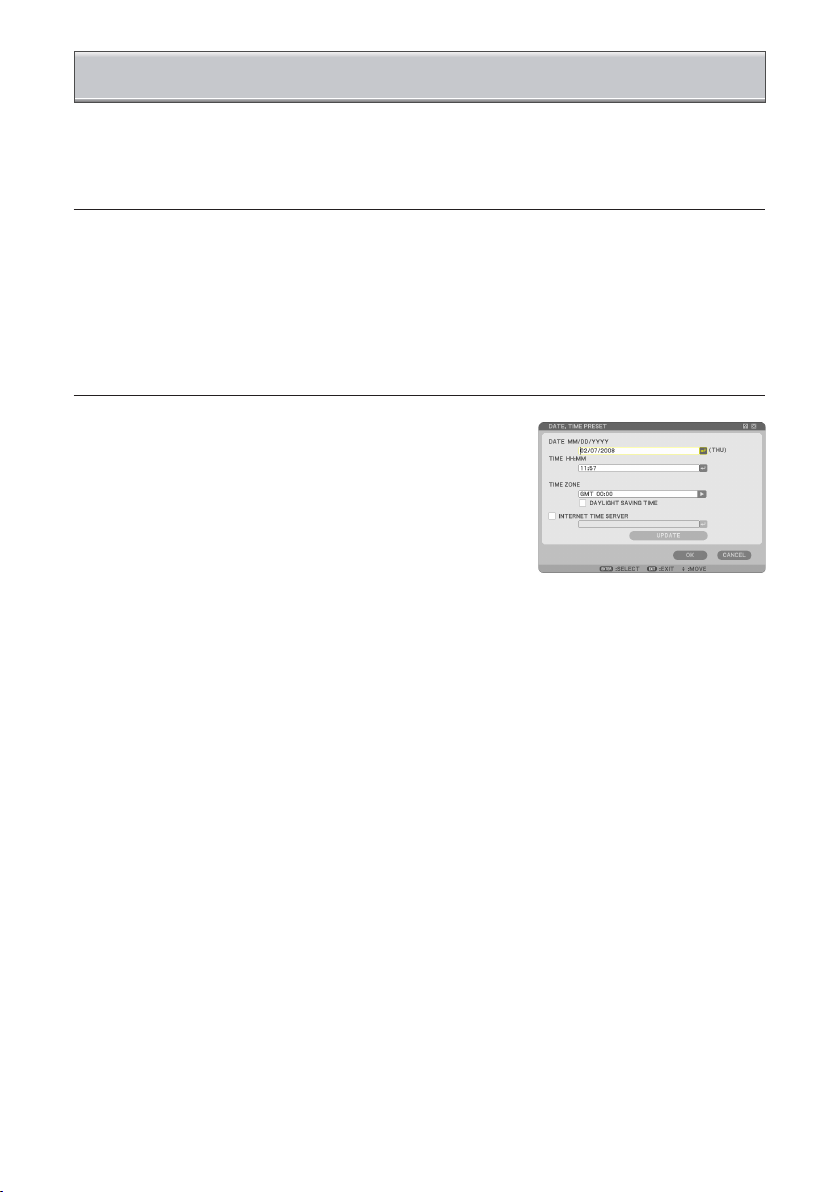
❶ Display the [DATE, TIME PRESET] set-
ting screen.
• From the on-screen menu, select [SETUP]
→ [BASIC] tab → [TOOLS] → [DATE, TIME
PRESET].
❷ Set the DATE, TIME and TIME ZONE.
❸ After setting, select [OK] and press the
ENTER button.
The DATE, TIME PRESET time has been set.
2. Setting DATE, TIME PRESET

9
Select a wireless LAN compliant WPA-EAP or WPA-EAP authentication and install a
digital certicate on the projector.
❶ Set [DATE, TIME PRESET] on the pro-
jector. (See previous page)
❷ Use a computer to save digital certi-
cates (les) for WPA-EAP or WPA2-EAP
setting to your USB memory device.
After completing saving the file, remove the
USB memory device from the computer.
Important:
• The file formats of digital certificate that are supported by the projector are DER and
PKCS#1 only.
• The projector cannot handle any digital certicate whose le size exceeds 8 KB.
• CRL (Certicate Relocation List) is not supported.
• Client certicate chain is not supported.
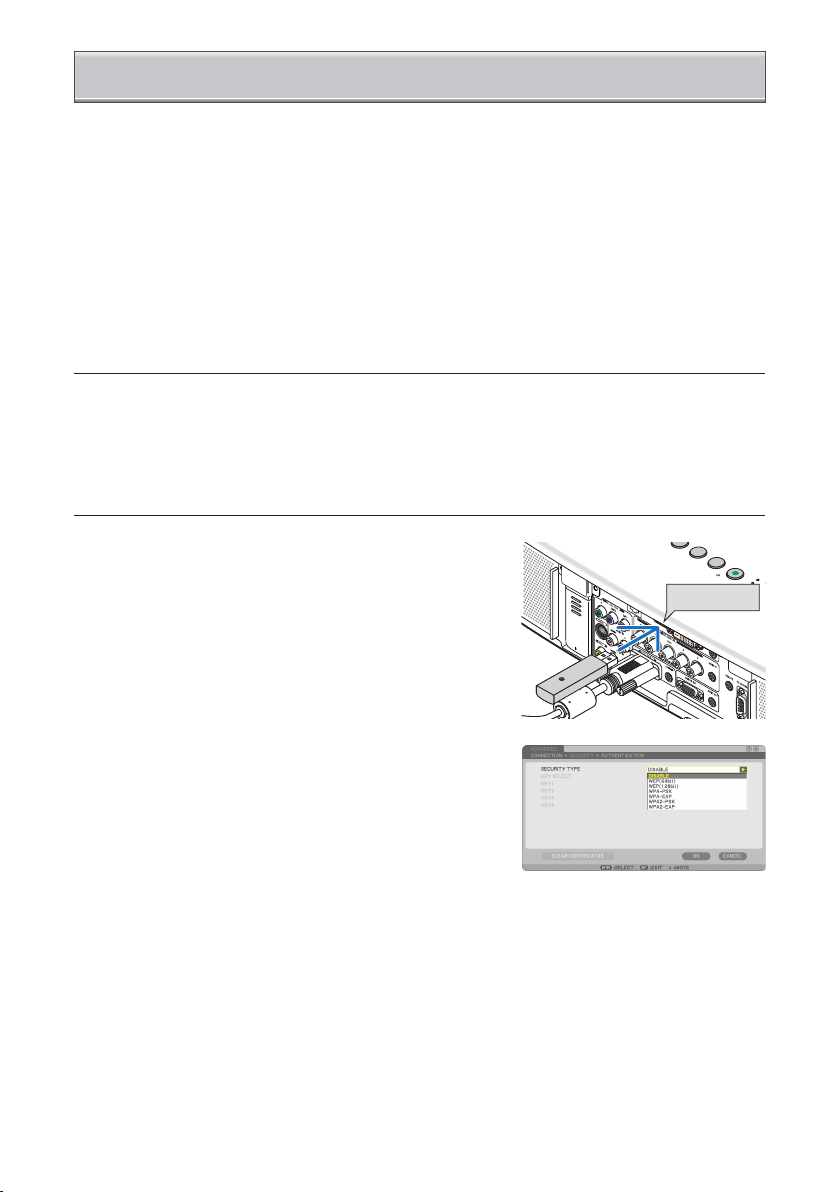
❸ Plug the USB memory device into the
USB port of the projector.
❹ Repeat steps ❶ on page 5 to ❽ on page
6.
The pull-down list will be displayed.
❺ Use the SELECT ▼▲ button to select
[WPA-EAP] or [WPA2-EAP] and press
the ENTER button.
❻ Use the SELECT ▼ button to select the
[TKIP/AES] eld and press the ENTER
button.
The pull-down list will be displayed.
LAMP
STATUS
POWER
ON/STANDBY
SOURCE
AUTO ADJUST
3D REFORM
SELECT
USB
LENS SHIFT
LEFT RIGHT
DOWN
UP
WIRELESS
WIRELESS
LENSSHIFT
LEFT RIGHT
DOWN
UP
LAMP
STATUS
POWER
ON/STANDBY
SOURCE
AUTO ADJUST
3D REFORM
SELECT
USB
LENS SHIFT
LEFT RIGHT
DOWN
UP
WIRELESS
WIRELESS
LENSSHIFT
LEFT RIGHT
DOWN
UP
3. Setting WPA-EAP or WPA2-EAP
USB port

10
❼ Use the SELECT ▼▲ button to select
[TKIP] or [AES] and press the ENTER
button.
Select [TKIP] or [AES] according to the setting
for your access point.
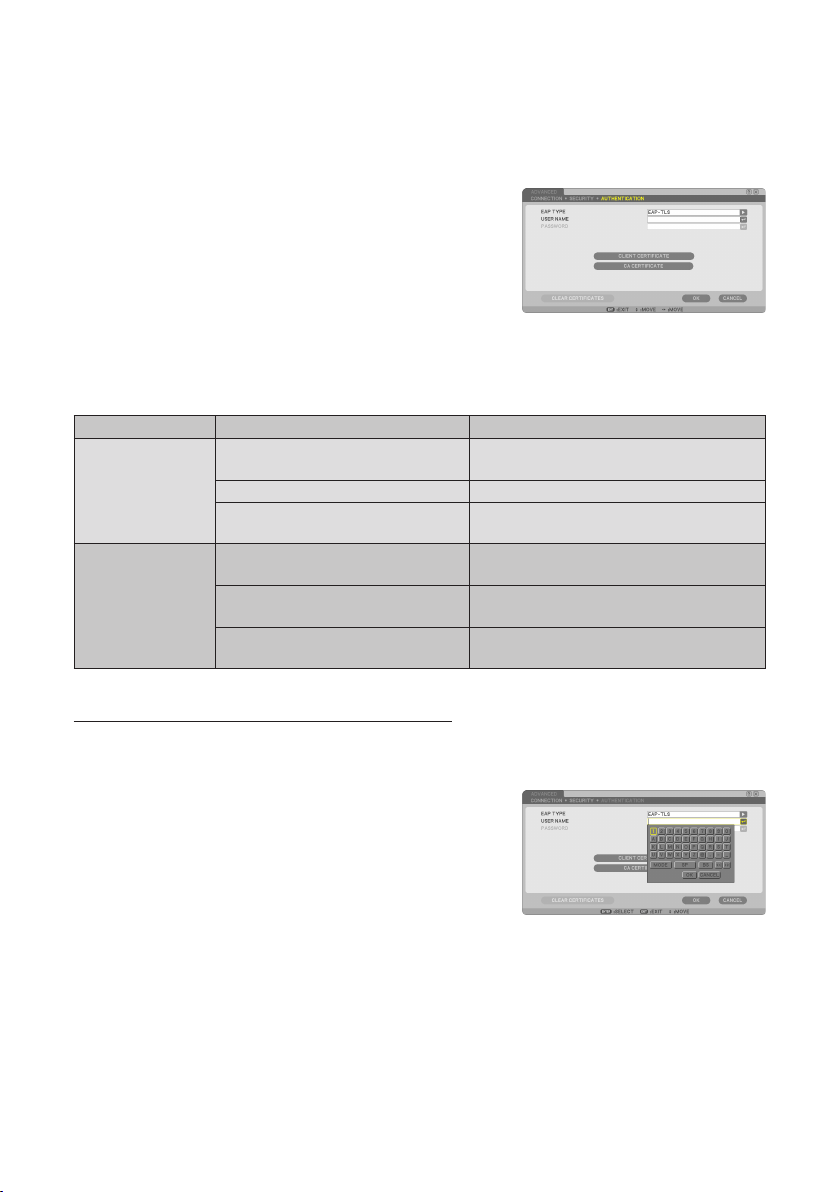
❽ Use the SELECT ▲ button to select the
[SECURITY] tab and press the SELECT
▶ button.
The [AUTHENTICATION] page will be dis-
played.
Select either [EAP-TLS] or [PEAP-MSCHAPv] for [EAP TYPE]. The setting items vary
depending on the EAP type.
See the table below.
EAP Type Setting Item Note
EAP-TLS
User Name 1 character or more and 3 characters or
less
Client Certicate PKCS#1 format le
CA Certicate
(Certicate authority’s certicate) DER format le
PEAP-MSCHAPv
User Name 1 character or more and 3 characters or
less
Password 1 character or more and 3 characters or
less
CA Certicate
(Certicate authority’s certicate) DER format le
① Selecting [EAP-TLS] for [EAP TYPE]:
The following section explains the operation for selecting [EAP-TLS].
For selecting [PEAP-MSCHAPv], go on to Step ➒ on page 13.
❾ Use the SELECT ▼ button to select
[USER NAME] eld and press the EN-
TER button.
The character entry screen (software keyboard)
will be displayed. Set a user name.
• A user name must be 1 character or more
and 3 characters or less.
• See page of “Wired and Wireless Network
Setup Guide” for using the software keyboard
to enter characters.
Altri manuali per NP1150 XGA
2
Questo manuale è adatto per i seguenti modelli
6
Indice
Altri manuali NEC Proiettore

NEC
NEC M350XS Manuale utente

NEC
NEC NP-PH1400U Manuale utente

NEC
NEC LCDMT1055 Manuale di installazione e d'uso

NEC
NEC M350X Manuale utente

NEC
NEC VT650 Istruzioni per il montaggio

NEC
NEC VT46 Istruzioni per il montaggio

NEC
NEC NP216 Series Manuale utente

NEC
NEC V300X Series Manuale utente

NEC
NEC NP-CR5450H Manuale utente

NEC
NEC ShowCase Series Manuale utente