Ninebot BT2928 Manuale utente

Welcome
Engine Speaker User Manual
Thank you for choosing Ninebot Engine Speaker (hereinafter referred to as “the
speaker"). This product can be connected to mobile phones to play music, and can also
be connected to many Segway-Ninebot vehicle models. When connected to vehicles, it
can simulate different engine sound effects.
Enjoy these interesting and cool sound effects!

The manufacturer reserves the right to make changes to the product and update this manual at any time. Product parameters are subject to change without prior notice.
Visit www.segway.com to download the latest user materials.

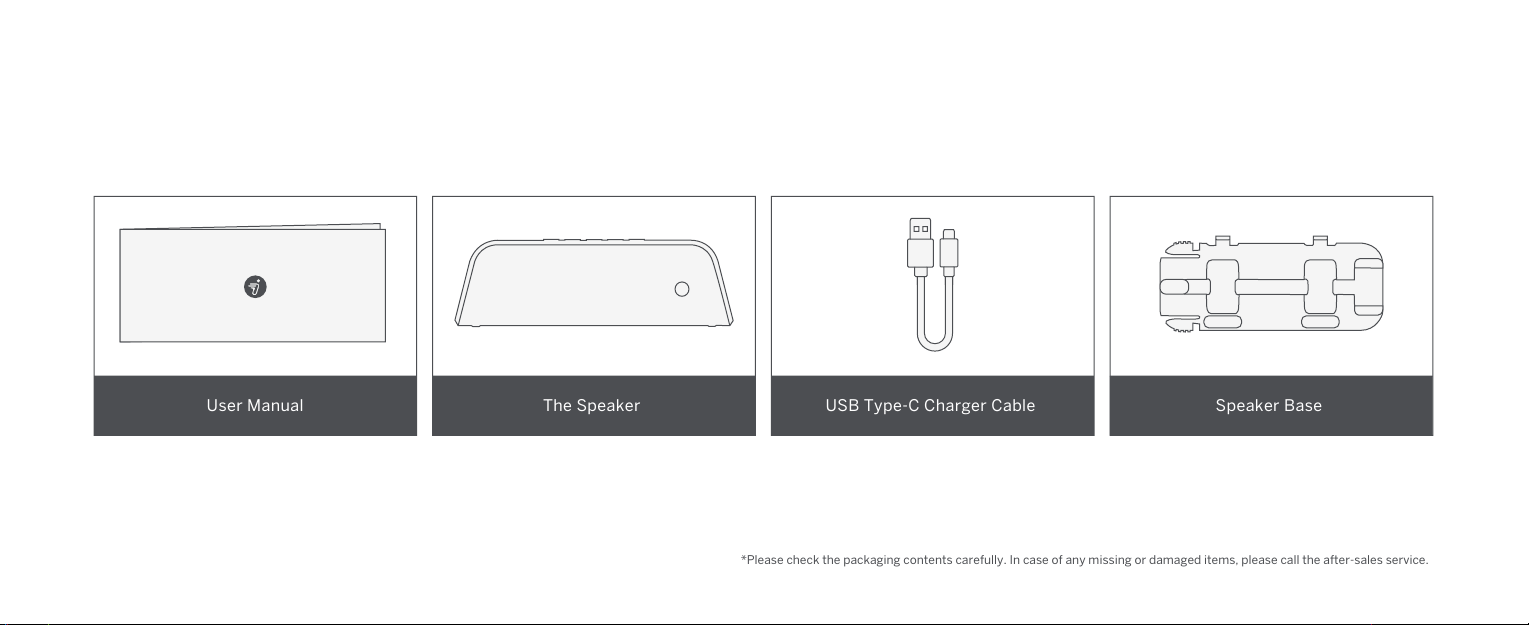
*Please check the packaging contents carefully. In case of any missing or damaged items, please call the after-sales service.
User Manual USB Type-C Charger Cable The Speaker Speaker Base

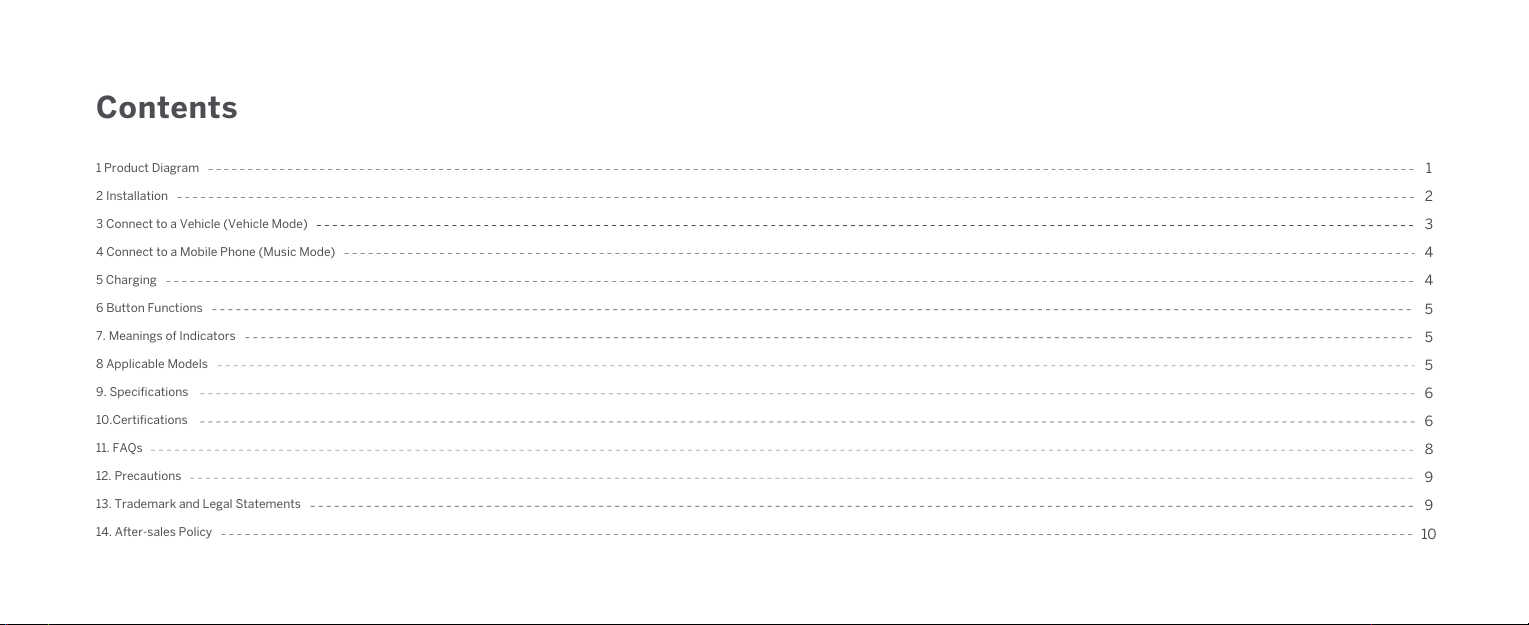
Contents
5
1 Product Diagram
2 Installation
3 Connect to a Vehicle (Vehicle Mode)
4 Connect to a Mobile Phone (Music Mode)
5 Charging
6 Button Functions
7. Meanings of Indicators
8 Applicable Models
9. Specifications
10.Certifications
11. FAQs
12. Precautions
13. Trademark and Legal Statements
14. After-sales Policy
1
2
3
4
4
5
5
6
6
8
9
9
10

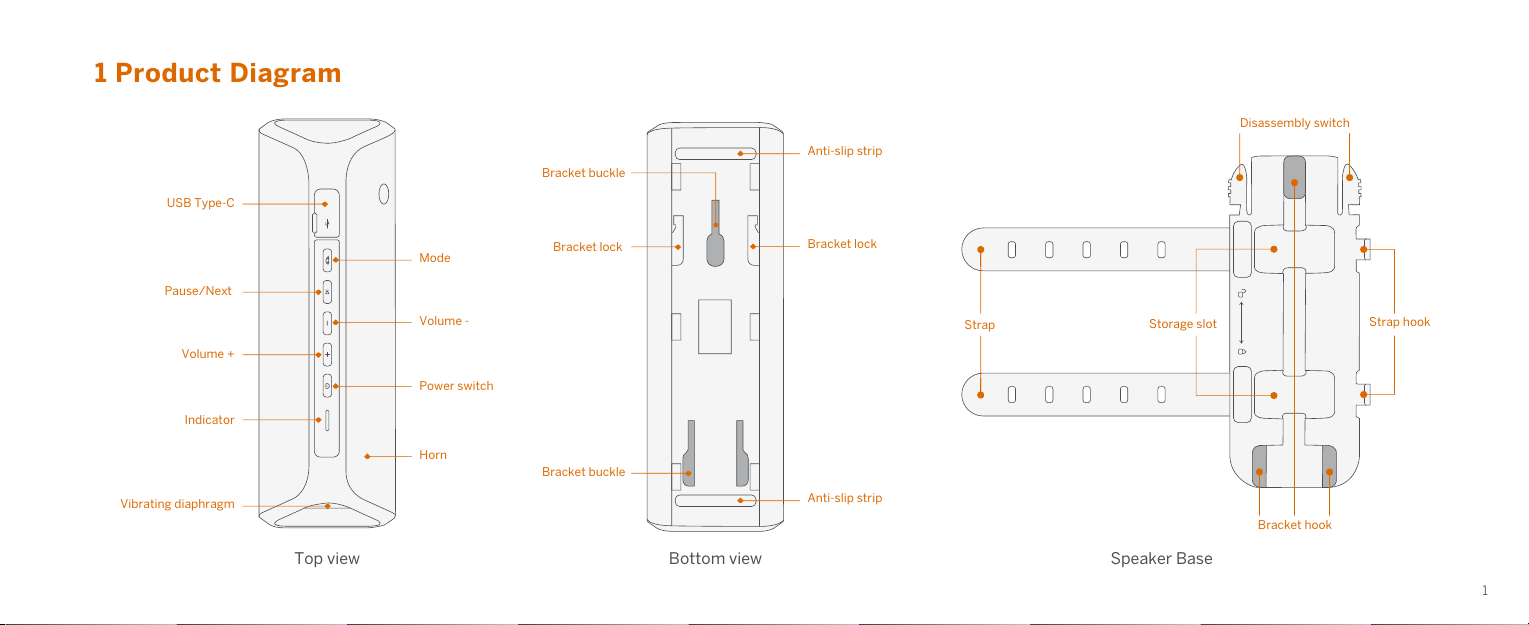
1 Product Diagram
Bottom view Speaker Base
Horn
Indicator
Power switch
Volume -
Pause/Next
Mode
USB Type-C
Vibrating diaphragm
Bracket buckle
Bracket buckle
Bracket lock
Bracket lock
Anti-slip strip
Anti-slip strip
Storage slot
Strap
Disassembly switch
Strap hook
Bracket hook
Top view
Volume +
1

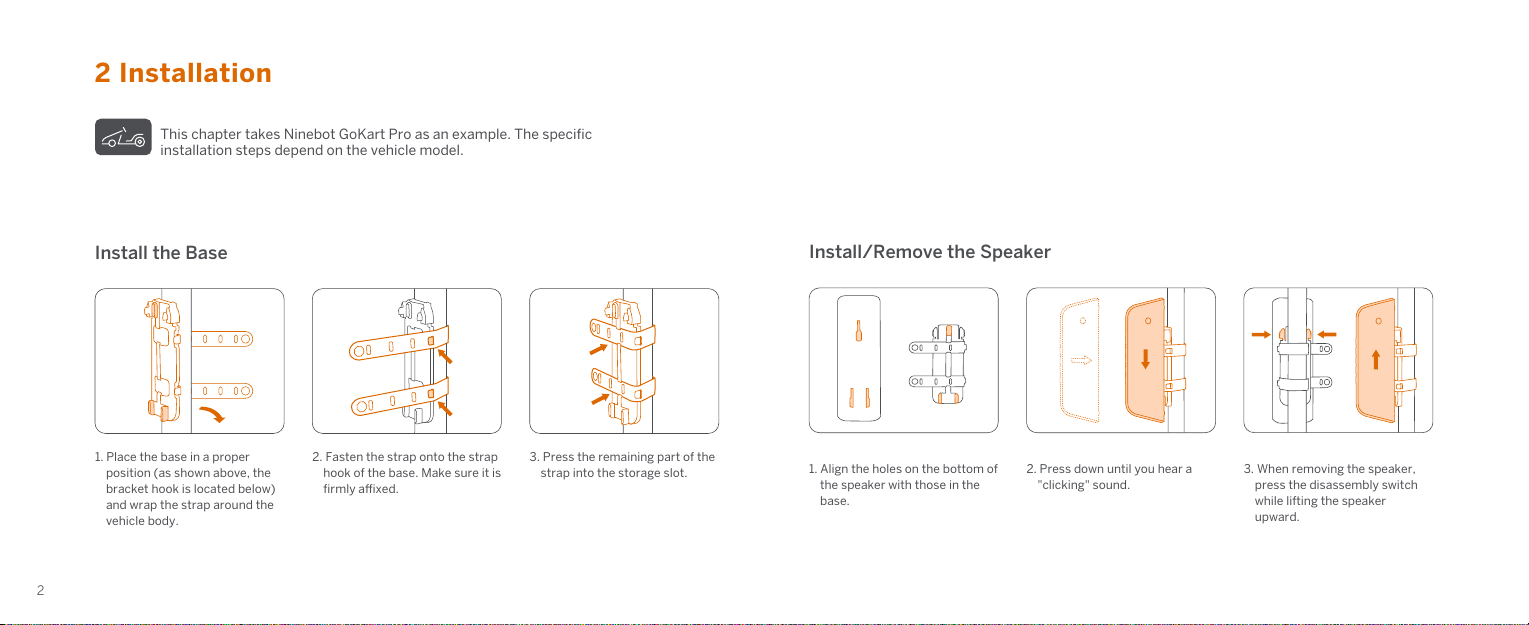
1. Place the base in a proper
position (as shown above, the
bracket hook is located below)
and wrap the strap around the
vehicle body.
2. Fasten the strap onto the strap
hook of the base. Make sure it is
firmly axed.
3. Press the remaining part of the
strap into the storage slot. 1. Align the holes on the bottom of
the speaker with those in the
base.
2. Press down until you hear a
"clicking" sound.
3. When removing the speaker,
press the disassembly switch
while lifting the speaker
upward.
2 Installation
Install the Base Install/Remove the Speaker
This chapter takes Ninebot GoKart Pro as an example. The specific
installation steps depend on the vehicle model.
2

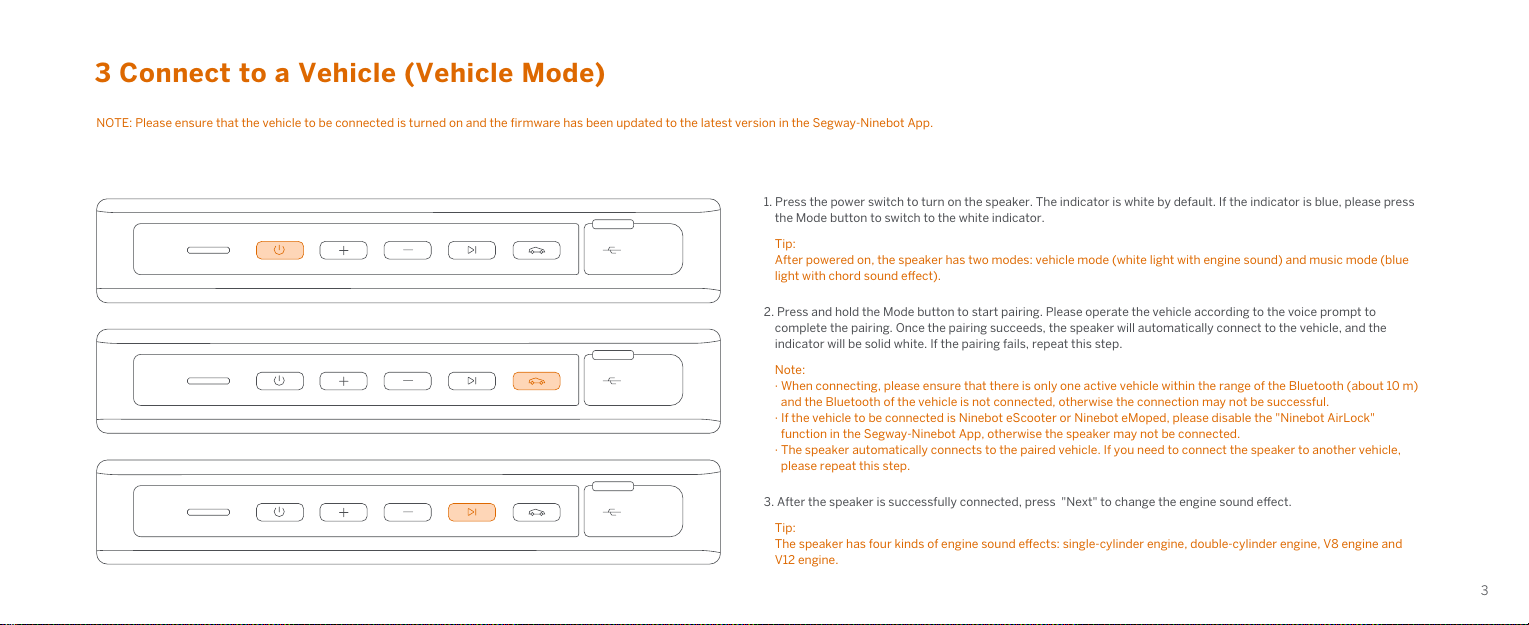
3 Connect to a Vehicle (Vehicle Mode)
NOTE: Please ensure that the vehicle to be connected is turned on and the firmware has been updated to the latest version in the Segway-Ninebot App.
1. Press the power switch to turn on the speaker. The indicator is white by default. If the indicator is blue, please press
the Mode button to switch to the white indicator.
Tip:
After powered on, the speaker has two modes: vehicle mode (white light with engine sound) and music mode (blue
light with chord sound eect).
2. Press and hold the Mode button to start pairing. Please operate the vehicle according to the voice prompt to
complete the pairing. Once the pairing succeeds, the speaker will automatically connect to the vehicle, and the
indicator will be solid white. If the pairing fails, repeat this step.
Note:
· When connecting, please ensure that there is only one active vehicle within the range of the Bluetooth (about 10 m)
and the Bluetooth of the vehicle is not connected, otherwise the connection may not be successful.
· If the vehicle to be connected is Ninebot eScooter or Ninebot eMoped, please disable the "Ninebot AirLock"
function in the Segway-Ninebot App, otherwise the speaker may not be connected.
· The speaker automatically connects to the paired vehicle. If you need to connect the speaker to another vehicle,
please repeat this step.
3. After the speaker is successfully connected, press "Next" to change the engine sound eect.
Tip:
The speaker has four kinds of engine sound eects: single-cylinder engine, double-cylinder engine, V8 engine and
V12 engine.
3

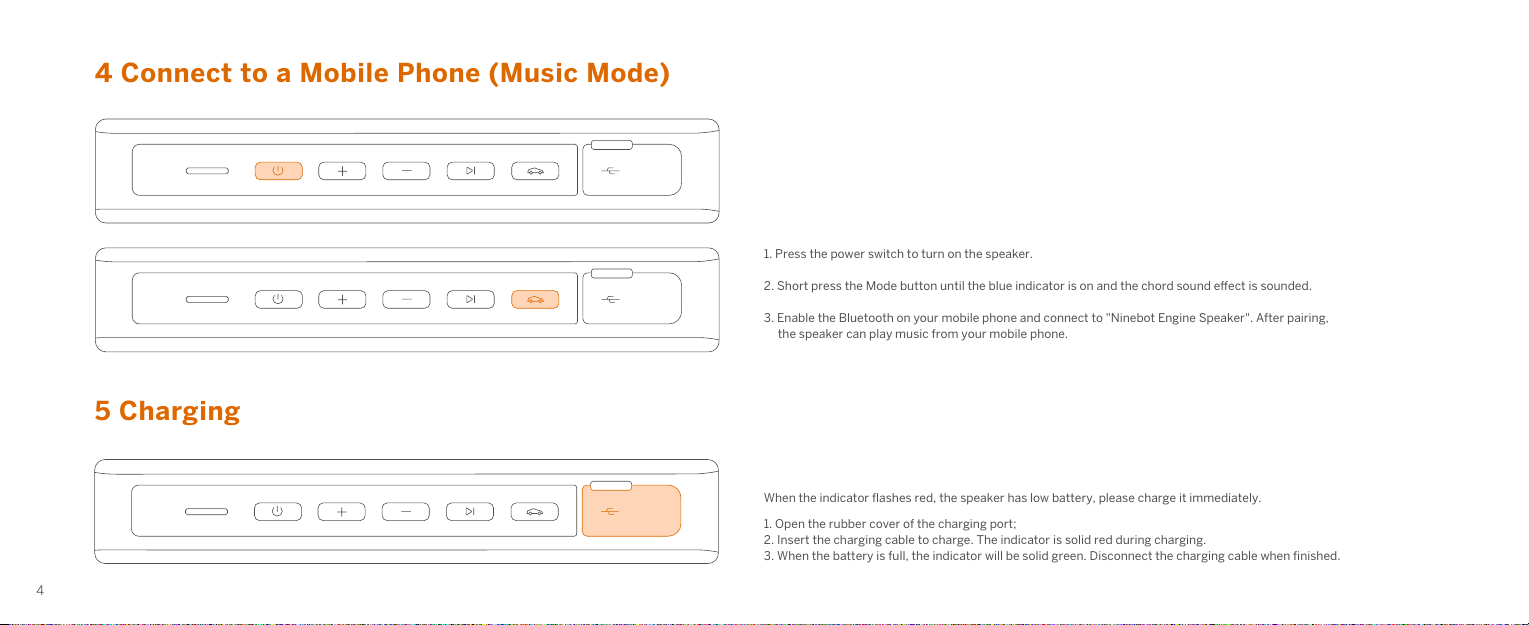
5 Charging
4 Connect to a Mobile Phone (Music Mode)
1. Press the power switch to turn on the speaker.
2. Short press the Mode button until the blue indicator is on and the chord sound eect is sounded.
3. Enable the Bluetooth on your mobile phone and connect to "Ninebot Engine Speaker". After pairing,
the speaker can play music from your mobile phone.
When the indicator flashes red, the speaker has low battery, please charge it immediately.
1. Open the rubber cover of the charging port;
2. Insert the charging cable to charge. The indicator is solid red during charging.
3. When the battery is full, the indicator will be solid green. Disconnect the charging cable when finished.
4

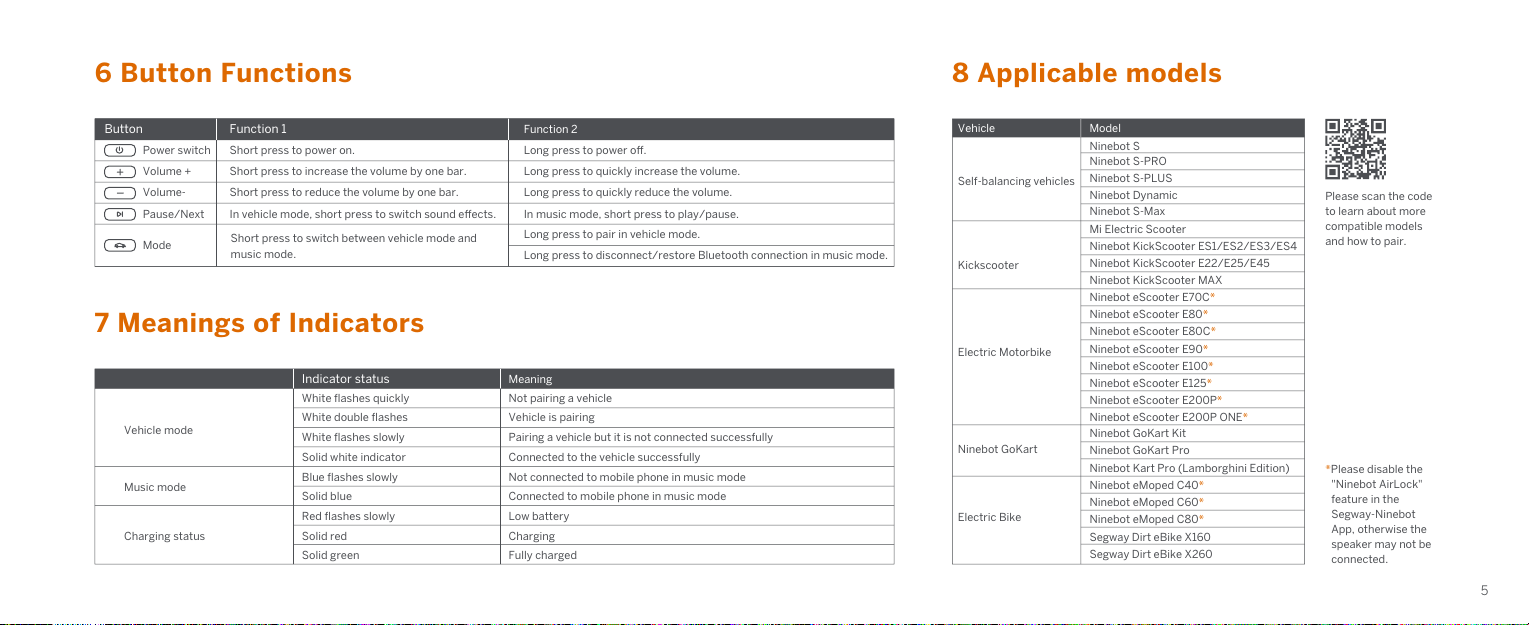
6 Button Functions
7 Meanings of Indicators
Short press to power on.
Short press to increase the volume by one bar.
Short press to reduce the volume by one bar.
In vehicle mode, short press to switch sound eects.
Long press to power o.
Self-balancing vehicles
Kickscooter
Electric Motorbike
Ninebot GoKart
Electric Bike
Ninebot S
Ninebot S-PRO
Ninebot S-PLUS
Ninebot Dynamic
Ninebot S-Max
Mi Electric Scooter
Ninebot KickScooter ES1/ES2/ES3/ES4
Ninebot KickScooter E22/E25/E45
Ninebot KickScooter MAX
Ninebot GoKart Kit
Ninebot GoKart Pro
Ninebot Kart Pro (Lamborghini Edition)
Ninebot eMoped C40*
Ninebot eMoped C60*
Ninebot eMoped C80*
Segway Dirt eBike X160
Segway Dirt eBike X260
Ninebot eScooter E70C*
Ninebot eScooter E80*
Ninebot eScooter E80C*
Ninebot eScooter E90*
Ninebot eScooter E100*
Ninebot eScooter E125*
Ninebot eScooter E200P*
Ninebot eScooter E200P ONE*
Long press to quickly increase the volume.
Long press to quickly reduce the volume.
In music mode, short press to play/pause.
Long press to pair in vehicle mode.
Long press to disconnect/restore Bluetooth connection in music mode.
8 Applicable models
Power switch
Volume +
Volume-
Pause/Next
Mode
Vehicle mode
White flashes quickly
White double flashes
White flashes slowly
Solid white indicator
Blue flashes slowly
Solid blue
Red flashes slowly
Solid red
Solid green
Not pairing a vehicle
Vehicle is pairing
Pairing a vehicle but it is not connected successfully
Connected to the vehicle successfully
Not connected to mobile phone in music mode
Connected to mobile phone in music mode
Low battery
Charging
Fully charged
Music mode
Charging status
Function 1 Function 2 Vehicle Model
Indicator status Meaning
Button
*Please disable the
"Ninebot AirLock"
feature in the
Segway-Ninebot
App, otherwise the
speaker may not be
connected.
Please scan the code
to learn about more
compatible models
and how to pair.
Short press to switch between vehicle mode and
music mode.
5

10 Certifications
Product name
Product model
Dimensions (length ×width ×height)
Net weight
IP rating
Button functions
Charging port
Dimensions
Material
Specifications
Power
Bluetooth protocol
Bluetooth version
Frequency
Working distance
Number of channels
Output power (Max)
Rated power
Frequency range
Signal to noise ratio
Rated capacity
Play time
Charging input
Charging time
Storage environment
Operating environment
Ninebot Engine Speaker
BT2928
248 ×83 ×77 mm
715 g
IP55
Power on/o, volume +, volume -, next, mode switching.
USB Type-C
50 ×50 mm
NdFeB
20-core double magnetic trumpet
8 W ×4
HFPV1.6 HSPV1.2 A2DPV1.2 AVRCPV1.4 DIV1.3
V 4.2 and above
2.4 GHz–2.48 GHz
Approx. 10 meters
Double channel
8 W ×4
5 W ×4
100 Hz – 20 KHz
> 80 dB(2 W)
2200 mAh (7.4 V)
2–3h
5 V, 3 A
2.5h
-10–60℃
-10–50℃
9 Specifications
Product
Basic information
Horn
Bluetooth specification
Audio specification
Battery specification
Ambient temperature
The battery complies with UN/DOT 38.3
Federal Communications Commission (FCC) Compliance Statement for USA
This device complies with Part 15 of the FCC Rules. Operation is subject to the following two conditions: (1) This
device may not cause harmful interference, and (2) this device must accept any interference received, including
interference that may cause undesired operation.
Note: This equipment has been tested and found to comply with the limits for a Class B digital device, pursuant to
Part 15 of the FCC Rules. These limits are designed to provide reasonable protection against harmful interference
in a residential installation. This equipment generates, uses and can radiate radio frequency energy and, if not
installed and used in accordance with the instructions, may cause harmful interference to radio communications.
However, there is no guarantee that interference will not occur in a particular installation.
If this equipment does cause harmful interference to radio or television reception, which can be determined by
turning the equipment oand on, the user is encouraged to try to correct the interference by one or more of the
following measures:
-- Reorient or relocate the receiving antenna.
-- Increase the separation between the equipment and receiver.
-- Connect the equipment into an outlet on a circuit dierent from that to which the receiver is connected.
-- Consult the dealer or an experienced radio/TV technician for help.
This equipment complies with FCC radiation exposure limits set forth for an uncontrolled environment. This
equipment should be installed and operated with minimum distance 20cm between the radiator and your body.
This transmitter must not be co-located or operating in conjunction with any other antenna or transmitter.
Industry Canada (IC) Compliance Statement for Canada
This device contains licence-exempt transmitter(s) that comply with Innovation, Science and Economic
Development Canada’s licence-exempt RSS(s).
Operation is subject to the following two conditions:
1.This device may not cause interference.
6
Altri manuali per BT2928
1
Indice
Altri manuali Ninebot Altoparlanti