Palm 3169WW - Universal Wireless Keyboard Manuale utente

User Guide
Using Your Universal Wireless Keyboard

Universal Wireless Keyboard ii
Copyright and Trademark
© 2004-2005 Palm, Inc. All rights reserved.
Palm and Palm OS are among the trademarks or registered trademarks owned by or licensed to
Palm, Inc. All other brand and product names are or may be trademarks of, and are used to
identify products or services of, their respective owners.
Disclaimer and Limitation of Liability
Palm, Inc. assumes no responsibility for any damage or loss resulting from the use of this guide.
Palm, Inc. assumes no responsibility for any loss or claims by third parties which may arise
through the use of this software. Palm, Inc. assumes no responsibility for any damage or loss
caused by deletion of data as a result of malfunction, dead battery, or repairs. Be sure to make
backup copies of all important data on other media to protect against data loss.
[ ! ] IMPORTANT Please read the End User Software License Agreement with this product before
using the accompanying software program(s). Using any part of the software indicates that you
accept the terms of the End User Software License Agreement.
PN: 406-10170-01

Universal Wireless Keyboard iii
Table of Contents
About This Book ......................................................................v
Step-by-step instructions...................................................................... v
Sidebars ................................................................................................ vi
Chapter 1: Customizing the Keyboard ..................................1
Changing keyboard settings .......................................................................2
Changing settings on a Palm OS®device ...........................................2
Changing settings on a Pocket PC device ...........................................4
Assigning key combinations for opening applications ............................6
Assigning command keys for a Palm OS device ................................6
Assigning hotkeys for a Pocket PC device ...........................................8
Saving power while using the keyboard .................................................10
Saving power on a Palm OS device ...................................................10
Saving power on a Pocket PC device .................................................12
Chapter 2: Keyboard Shortcuts and Special Characters ...14
Cursor movements ....................................................................................15
Menu commands .......................................................................................16
Keyboard function keys .............................................................................18
Characters, symbols, and punctuation marks .........................................21
Accent marks...............................................................................................24
Keystrokes for the 5-way navigator on a Palm OS device ......................25
Chapter 3: Common Questions ...........................................26
Why isn’t the keyboard working?....................................................... 26
Why do random characters appear on my screen
after I stop typing? ........................................................................ 27
How do I display the list of keyboard shortcuts?.............................. 27
Why can’t I beam? ............................................................................... 27
Where can I get keyboard driver updates?........................................ 27

Universal Wireless Keyboard iv
How do I install keyboard driver updates?........................................ 27
Can I run the keyboard driver from an expansion card?.................. 27
How long will my keyboard batteries last? ....................................... 28
What devices are compatible with the keyboard?............................ 28
Product Regulatory Information ...........................................29

Universal Wireless Keyboard v
About This Book
This guide tells you how to customize the settings on your Universal Wireless
Keyboard, and use all the shortcuts, function keys, and special characters that it
offers.
Each chapter contains information and step-by-step instructions with cues for
action, and sidebars. Follow the instructions for the operating system (OS) used
on your device.
Step-by-step instructions
How-to information. Look for these cues in instructions:
at the bottom of a page means the procedure continues on the next page.
signals the end of the procedure. You're done.
A step that you must follow; otherwise, you could experience an error or even
lose information.
Information that applies only in certain cases or that tells more about a procedure
step.
Before You Begin
[!]
Complete the steps in the
Getting Started guide to
install the Universal
Wireless Keyboard driver
onto your device and attach
your device to the
keyboard.
Continued
Done
IMPORTANT
[!]
NOTE
[*]

Universal Wireless Keyboard vi
Sidebars
Before You Begin
[!]
Things you must complete before you can do the steps described in the chapter.
Tip
A suggestion on how to use a feature more fully; a shortcut; a pointer to a related feature.
Did You Know?
An interesting fact about the topic being described; may include a pointer to more information.
»
Key Term
A technical term related to the topic being described. It may appear in this guide or only on your
handheld.

Universal Wireless Keyboard 1
CHAPTER 1
Customizing the Keyboard
The Universal Wireless Keyboard is a light, foldable keyboard that works with
many popular models of Palm OS®and Pocket PC devices. You can easily
customize the keyboard for quick navigation and data entry—change the keyboard
settings to suit your typing preferences, assign applications to key combinations
so that you can open them with a few keystrokes, and choose a power-saving
setting that works for you.
Follow the instructions for the operating system used on your device.

Universal Wireless Keyboard 2
CHAPTER 1 Customizing the Keyboard
Changing keyboard settings
Use the keyboard settings options to turn the keyboard driver on or off and customize the
keyboard to your touch. The driver must be on for your device to communicate with the keyboard.
If you enable the keyboard’s power-saving option, the keyboard driver automatically
turns off when the keyboard is not in use. Follow these steps to turn the driver on again.
Changing settings on a Palm OS®device
1Open the Applications view and select Keyboard .
2Select Settings from the pick list
in the upper-right corner.
Continued
Tip
Need to beam
information from your
Palm OS device? Turn off
the wireless keyboard
driver first. The keyboard
driver uses the IR port—
so when the driver is
turned on, the IR port is
not available for
beaming. To turn off the
keyboard driver, see
Changing settings on a
Palm OS®device.
NOTE
[*]
Pick list

Universal Wireless Keyboard 3
CHAPTER 1 Customizing the Keyboard
3Change the settings:
Status Select On or Off to turn the keyboard driver on or off. The driver must
be on to use the keyboard.
Enable Click Sound Check this box if you want to hear a click when you press a
key. To hear clicks, the System Sound in Sounds and Alerts Preferences must
also be set to Low, Medium, or High.
Delay until repeat Tap the scale to lengthen or shorten the time that elapses
before a key repeats when you hold it down.
Keyboard repeat rate Tap the scale to adjust the speed at which a key repeats
when you hold it down.
4Test the repeat settings you
selected by pressing and holding
down a key in the Test typing
here area.
Done
Type here

Universal Wireless Keyboard 4
CHAPTER 1 Customizing the Keyboard
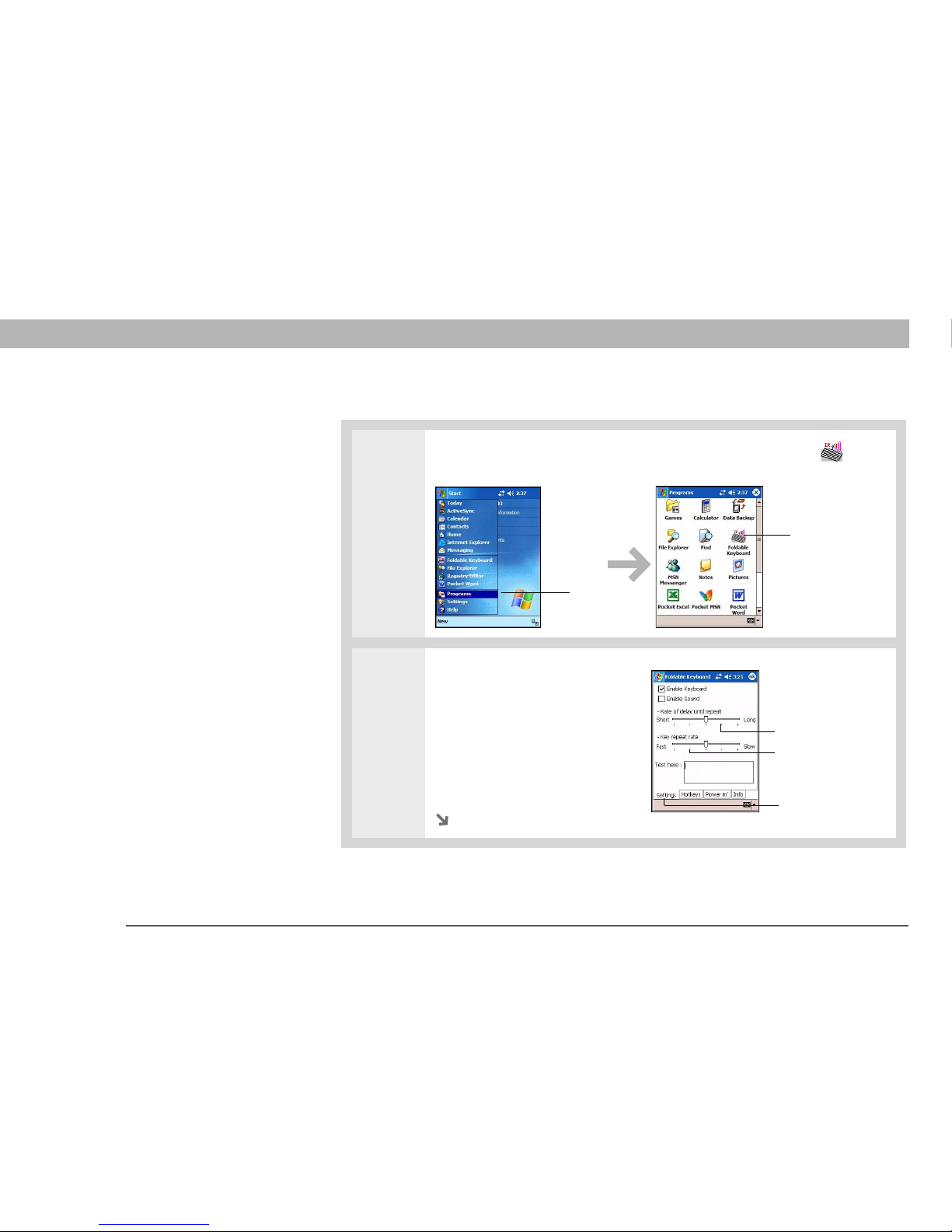
Changing settings on a Pocket PC device
0
1From the Start menu, select Programs. Then select Foldable Keyboard .
2Select the Settings tab.
Continued
Start menu
Keyboard icon
Settings tab
Slider
Slider
Questo manuale è adatto per i seguenti modelli
1
Indice
Altri manuali Palm Tastiera

Palm
Palm Portable Keyboard Manuale utente

Palm
Palm 3245WW - Wireless Keyboard With Bluetooth... Manuale utente

Palm
Palm Portable Keyboard Manuale utente

Palm
Palm P10802U Manuale utente

Palm
Palm Wireless Keyboard Manuale utente

Palm
Palm Ultra-Thin Keyboard Manuale utente

Palm
Palm 3245WW - Wireless Keyboard With Bluetooth... Istruzioni per l'installazione

Palm
Palm P10873U Manuale utente

Palm
Palm 3245WW - Wireless Keyboard With Bluetooth... Manuale utente