Palm Ultra-Thin Keyboard Manuale utente

Palm™Ultra-ThinKeyboardHandbook
HandbuchfürdieultraflacheTastaturvonPalm™
Manueld'utilisationduclavierultra-finPalm™
ManualdelTecladoultrafinodePalm™
ManualedellaTastieraultrasottilePalm™
ManualdotecladoultrafinoPalm™

2
Contents
English. . . . . . . . . . . . . . . . . . . . . . . . . . . . . . . . . . . . . . . . . . .3
Deutsch . . . . . . . . . . . . . . . . . . . . . . . . . . . . . . . . . . . . . . . . .25
Français . . . . . . . . . . . . . . . . . . . . . . . . . . . . . . . . . . . . . . . . .47
Español . . . . . . . . . . . . . . . . . . . . . . . . . . . . . . . . . . . . . . . . .69
Italiano . . . . . . . . . . . . . . . . . . . . . . . . . . . . . . . . . . . . . . . . .91
Português. . . . . . . . . . . . . . . . . . . . . . . . . . . . . . . . . . . . . . . 113
. . . . . . . . . . . . . . . . . . . . . . . . . . . . . . . . . . . . . . 135

3
Contents
Introducing the Palm™ Ultra-Thin Keyboard . . . . . . . . . . . . . . . . . . . . . . . . . . . 5
Installing the Application . . . . . . . . . . . . . . . . . . . . . . . . . . . . . . . . . . . . . . . . . . . . . 5
Setting Up the Keyboard . . . . . . . . . . . . . . . . . . . . . . . . . . . . . . . . . . . . . . . . . . . . . 6
Closing the Keyboard . . . . . . . . . . . . . . . . . . . . . . . . . . . . . . . . . . . . . . . . . . . . . . . . 7
Customizing the Keyboard . . . . . . . . . . . . . . . . . . . . . . . . . . . . . . . . . . . . . . . . . . . 8
Changing general settings . . . . . . . . . . . . . . . . . . . . . . . . . . . . . . . . . . . . . . . . . 8
Assigning applications to command key combinations . . . . . . . . . . . . . . . . . 9
Working with the pointer and the navigator . . . . . . . . . . . . . . . . . . . . . . . . . 10
Changing layout settings . . . . . . . . . . . . . . . . . . . . . . . . . . . . . . . . . . . . . . . . . 12
Viewing keyboard shortcuts . . . . . . . . . . . . . . . . . . . . . . . . . . . . . . . . . . . . . . . 14
Keyboard Navigation, Shortcuts, and Special Characters . . . . . . . . . . . . . . . . 15
Using keyboard function keys . . . . . . . . . . . . . . . . . . . . . . . . . . . . . . . . . . . . . 15
Cursor movements . . . . . . . . . . . . . . . . . . . . . . . . . . . . . . . . . . . . . . . . . . . . . . . 18
Menu commands . . . . . . . . . . . . . . . . . . . . . . . . . . . . . . . . . . . . . . . . . . . . . . . . 19
Extended character set . . . . . . . . . . . . . . . . . . . . . . . . . . . . . . . . . . . . . . . . . . . . 19
Frequently Asked Questions . . . . . . . . . . . . . . . . . . . . . . . . . . . . . . . . . . . . . . . . . 21
Product Specifications . . . . . . . . . . . . . . . . . . . . . . . . . . . . . . . . . . . . . . . . . . . . . . 22
Product Regulatory Information . . . . . . . . . . . . . . . . . . . . . . . . . . . . . . . . . . . . . . 23
Contents

Copyright
4
Palm™Ultra-ThinKeyboardHandbook
Copyright
© 1998-2002 Palm, Inc. All rights reserved. Graffiti, HotSync, and Palm OS are registered
trademarks of Palm, Inc. Palm and the Palm logo are trademarks of Palm, Inc. All other
brands are trademarks or registered trademarks of their respective owners.
Disclaimer and Limitation of Liability
Palm, Inc. assumes no responsibility for any damage or loss resulting from the use of this
guide.
Palm, Inc. assumes no responsibility for any loss or claims by third parties which may arise
through the use of this software. Palm, Inc. assumes no responsibility for any damage or
loss caused by deletion of data as a result of malfunction, dead battery, or repairs. Be sure
to make backup copies of all important data on other media to protect against data loss.
IMPORTANT Please read the End User Software License Agreement with this product before
usingtheaccompanyingsoftwareprogram(s).Usinganypartofthesoftwareindicatesthatyou
accept the terms of the End User Software License Agreement.

5
Introducing the Palm™Ultra-Thin Keyboard
The Palm™ Ultra-Thin Keyboard is the convenient, portable keyboard solution for
typing text and commands quickly and easily into your Palm OS®handheld. This
compact and fully functional keyboard enables you to do the following:
■Create and respond to e-mail messages
■Type meeting and classroom notes
■Type memos, reports, and other documents while on a plane, on the subway, in
a classroom, and in many other places
■Fold to fit in your pocket, backpack, or briefcase
This Handbook describes how to install and set up your keyboard, how to customize
settings to optimize your use of the keyboard, and the keyboard shortcuts that are
available for quick navigation and data entry.
Before you can use your keyboard, you must do the following:
■Install the Palm Ultra-Thin Keyboard application on your handheld
■Set up the keyboard and attach your Palm OS handheld
Installing the Application
Before you install the Palm Ultra-Thin Keyboard application on your handheld, it’s
a good idea to perform a HotSync®operation to back up your data.
The application for the keyboard controls the way the keyboard interacts with your
handheld. It’s a PRC file like most other applications for your handheld.
To install the keyboard application (Windows users):
1. Insert the CD-ROM into the CD-ROM drive.
2. Follow the onscreen instructions for completing the installation.
NOTE Ifinstallationdoesnotbegin,clicktheWindowsStartbutton,selectRun,
enter D:\autorun.exe, and then click OK. If necessary, replace D: with the drive
letter assigned to your CD-ROM drive.
To install the keyboard application (Mac users):
1. Insert the CD-ROM into the CD-ROM drive.
2. Double-click the Setup icon.
3. Double-click the keyboard.prc file. The file will be installed during your next
HotSync operation.

Setting Up the Keyboard
6
Setting Up the Keyboard
A few steps is all is takes to set up the keyboard and connect it to work with your
handheld.
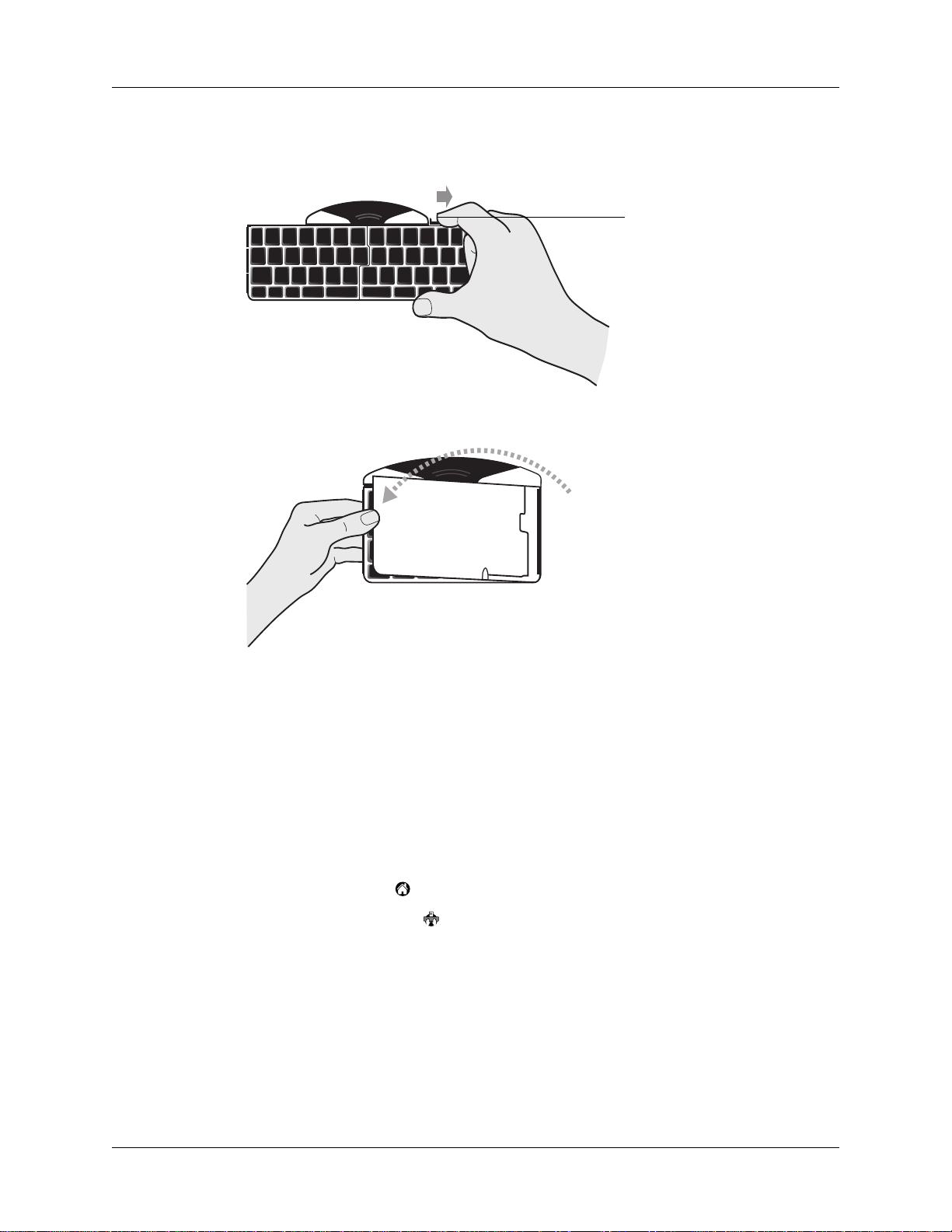
To open the keyboard:
1. Hold the keyboard in your right hand and push the latch button, located on the
left side.
2. Unfold the keyboard from left to right and push down on the right panel to snap
it into place. Place the keyboard on a hard, flat surface or on your lap to type
anywhere, anytime.
To attach your handheld:
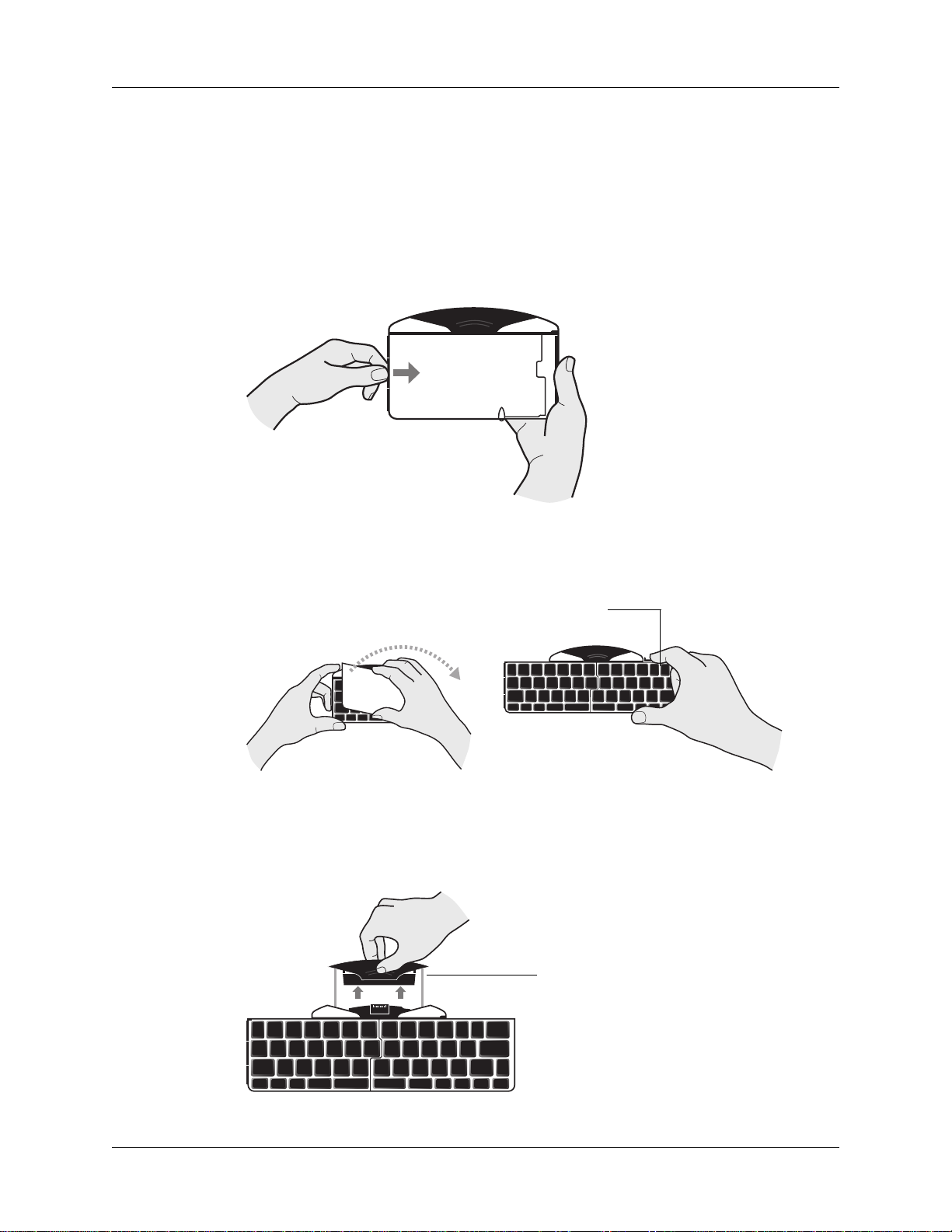
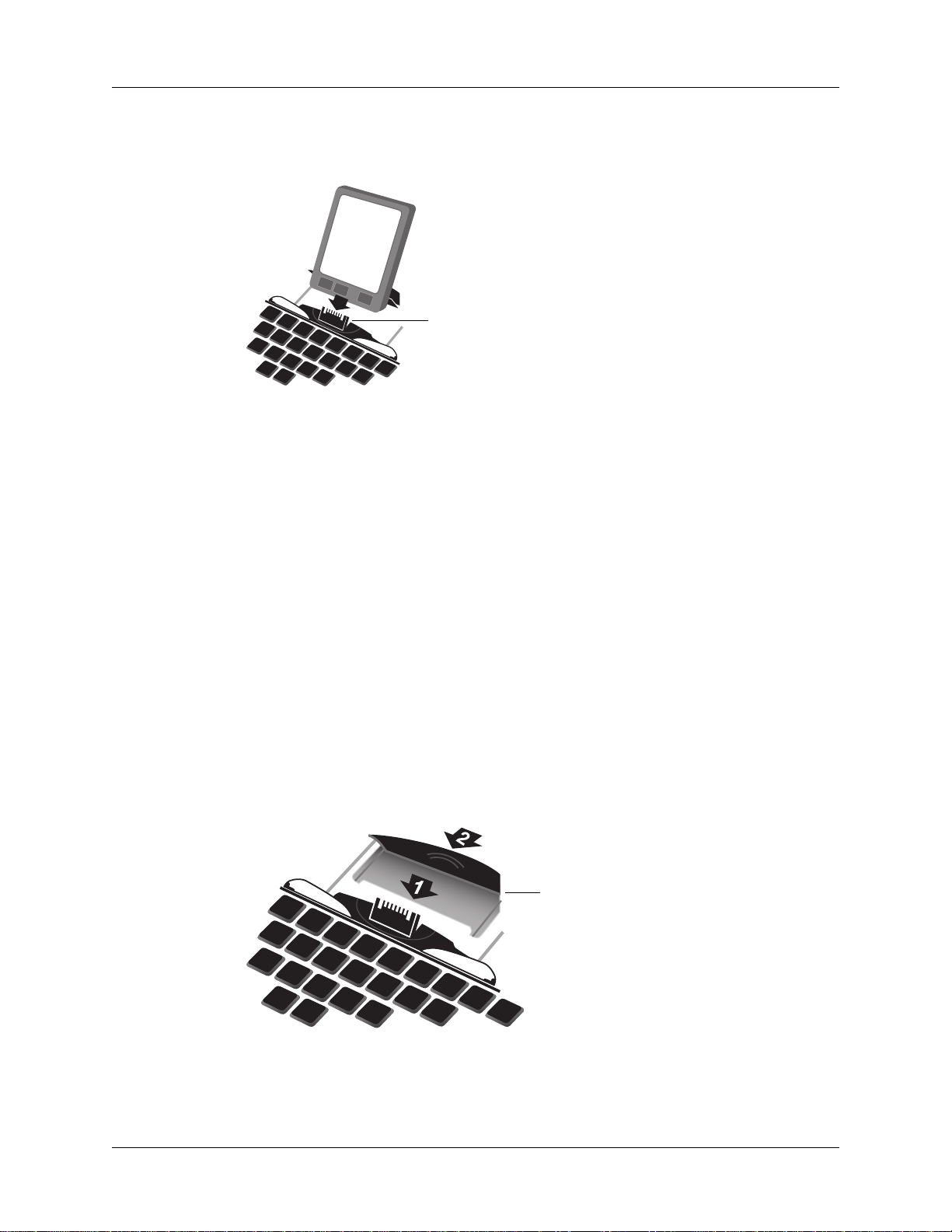
1. Locate the black connector cover at the top-center of the keyboard and slide it
out until the foot support springs upward.
Snap into place
Slide connector cover out

Closing the Keyboard
7
2. Insert your handheld by lining up the docking connector at the top-center of the
keyboard and pushing down firmly to make the connection.
After you install the keyboard application and connect the handheld, you can
begin typing.
NOTE If you connect your handheld to the keyboard before installing the keyboard
PRC file, you will start a HotSync operation. If this happens, simply remove the
handheld and press the onscreen cancel button. Then, install the keyboard PRC file.
To remove your handheld:
■Rotate your handheld forward in the docking connector, in the same way that
you remove it from the cradle.
Closing the Keyboard
When you finish using your keyboard, simply remove the handheld, unlock and
fold up the keyboard, and close it back into a portable case.
To close the keyboard:
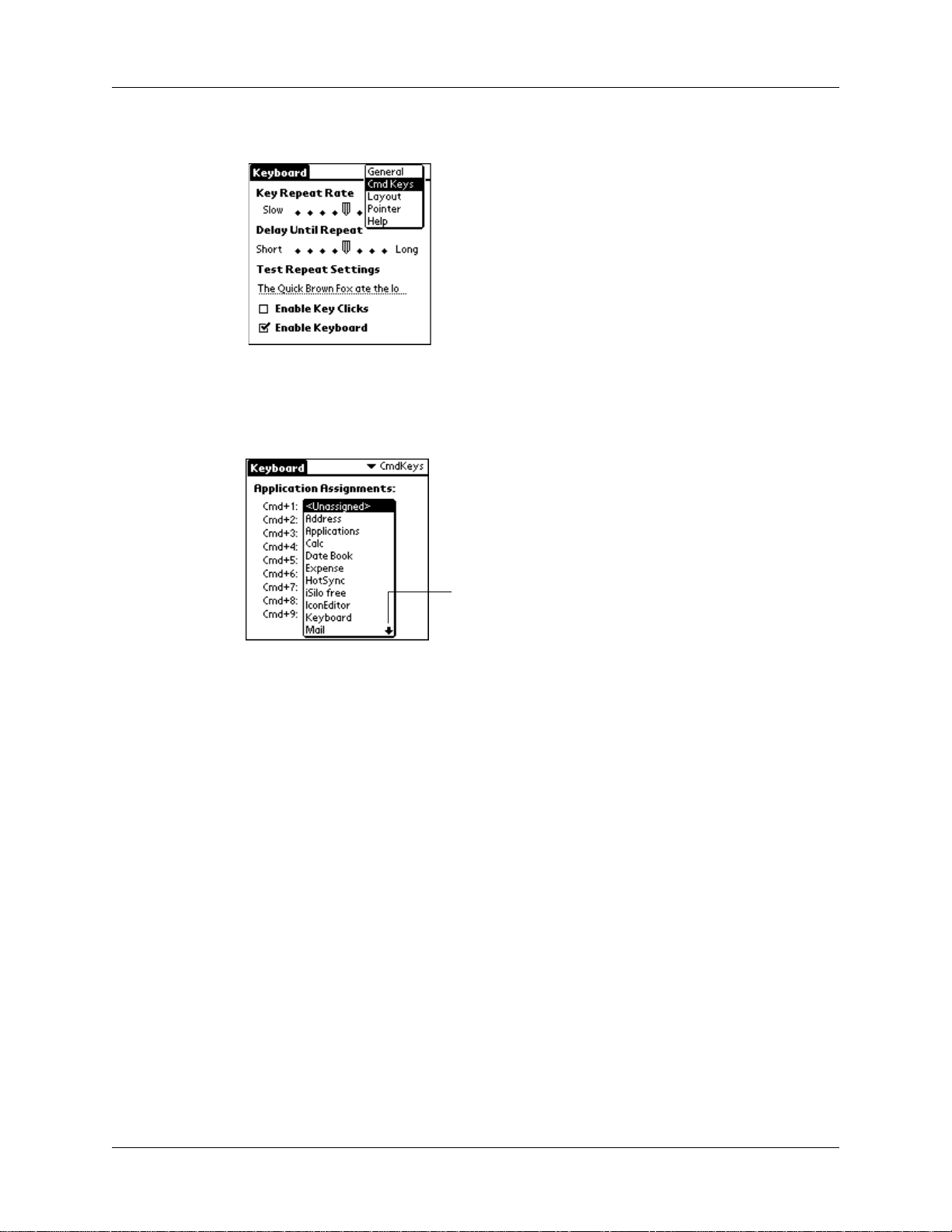
1. Push the foot support down and slide the black connector cover back into the
keyboard.
Push handheld onto docking
connector
Push down and slide in

Customizing the Keyboard
8
2. While holding the keyboard, slide the tab on the upper-right side of the
keyboard to the right so that the keyboard snaps out of the locked position.
3. Fold the right side of the keyboard into the left side, and snap to close.
Customizing the Keyboard
You can customize your keyboard using the options available in the keyboard
application on your handheld.
Changing general settings
The general settings control the interaction of the keyboard with the handheld.
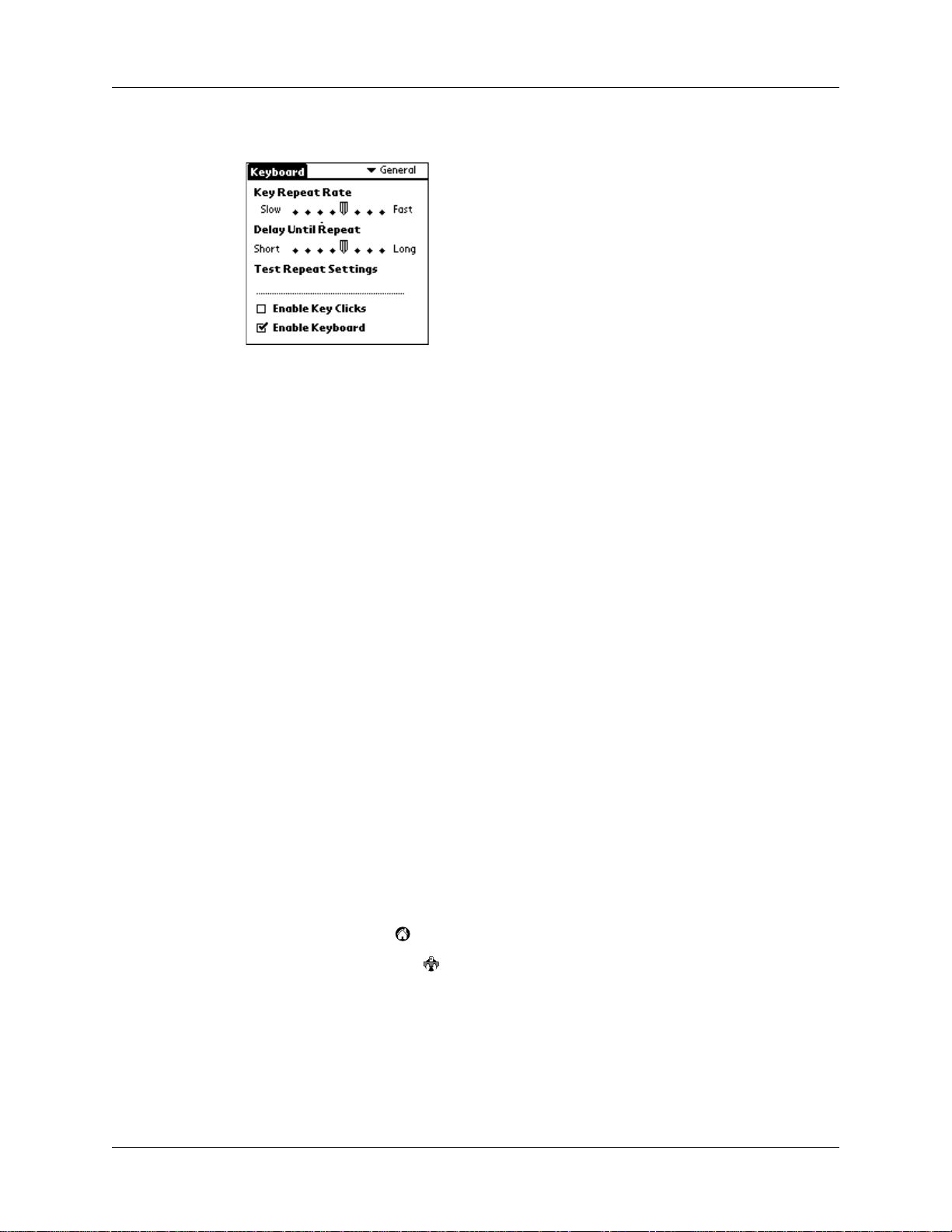
To change general settings:
1. Tap the Home icon .
2. Tap the Keyboard icon .
Slide tab to right to
release and close
keyboard

Customizing the Keyboard
9
3. Change the settings.
Assigning applications to command key combinations
You can open the main handheld applications—Date Book, Address Book, To Do
List, Note Pad, Launcher, Menu, Favorites, and Find—using the Blue FNkey on
your keyboard.
You can also open an application by using a command key combination that you
assign to it.
To assign an application to a command key combination:
1. Tap the Home icon .
2. Tap the Keyboard icon .
Key Repeat Rate Drag the indicator to speed up or slow down the rate at
which a character is typed when you hold down the key.
Delay Until Repeat Drag the indicator to lengthen or shorten the time between
typing the first key to repeat and the rate at which
subsequent repeated keys appear.
Test Repeat Settings Hold down a key in the edit line to test your selections for
Key Repeat Rate and Delay Until Repeat.
Enable key clicks Select the check box if you want to hear a click when you
press a key. You must also set the System Sound option in
the General Preferences for your handheld to Low,
Medium, or High.
Enable keyboard Select or deselect the check box to turn the keyboard driver
on or off. The default setting is on (selected).

Customizing the Keyboard
10
3. Tap the pick list in the upper-right corner of the screen and select Cmd Keys.
4. Tap the pick list of the command key combination that you want to assign to an
application.
5. Select the application that you want to assign to the key combination.
You can launch mapped applications in one of two ways:
■Press CMD+Blue FN+the assigned number key.
■If NUMLOCK (Blue FN+CAPS LOCK) is enabled: Press CMD+the assigned number
key.
Working with the pointer and the navigator
All Palm OS 4.1 handhelds support use of a pointer. You use keyboard commands
in combination with the pointer to navigate the screen.
Some Palm OS 4.1 handhelds support both the pointer and the navigator on the
front of the handheld. Pointer functionality works identically on all Palm OS 4.1
handhelds, whether or not the navigator is supported.
Palm OS 5 handhelds do not support pointer functionality. Instead, these
handhelds support the navigator on the front of the handheld.
Tap the arrow to move
through the list a page
at a time
Indice
Lingue:
Altri manuali Palm Tastiera

Palm
Palm 3245WW - Wireless Keyboard With Bluetooth... Istruzioni per l'installazione

Palm
Palm Portable Keyboard Manuale utente

Palm
Palm P10802U Manuale utente

Palm
Palm P10873U Manuale utente

Palm
Palm 3245WW - Wireless Keyboard With Bluetooth... Manuale utente

Palm
Palm 3245WW - Wireless Keyboard With Bluetooth... Manuale utente

Palm
Palm Wireless Keyboard Manuale utente

Palm
Palm 3169WW - Universal Wireless Keyboard Manuale utente

Palm
Palm Portable Keyboard Manuale utente