POS-X XTS4000 Manuale utente

TouchKit Manual for Win9X/ME v3.4.0 0
TouchKit
TouchScreen Controller
User Manual
for Windows 9X / ME
Version: 3.4.0

TouchKit Manual for Win9X/ME v3.4.0 1
CONTENT
CHAPTER 1. TOUCH PANEL CONTROLLER........................................................... 2
1.1 CONTROLLER..................................................................................................................................... 2
1.2 SPECIFICATIONS AND FEATURES........................................................................................................ 2
CHAPTER 2. INSTALLING TOUCHKIT......................................................................4
CHAPTER 3. CONFIGURATION UTILITY AND RIGHT BUTTON EMULATOR....... 8
CHAPTER 4. MONITOR ROTATION SETTING .......................................................23
4.1 ROTATING DISPLAY BY WAY OF NVIDIA OR ATI DRIVER .................................................................. 23
4.2 ROTATING DISPLAY BY WAY OF PIVOT............................................................................................. 24
CHAPTER 5. UNINSTALLING TOUCHKIT...............................................................27

TouchKit Manual for Win9X/ME v3.4.0 2
Chapter 1. Touch Panel Controller
This touch panel controller provides the optimal performance of analog resistive
touch panels for 5 wire models. It communicates with PC system directly through
RS232, PS/2 or USB connector. Users can see how superior the design is in
sensitivity, accuracy and friendly operation. The touch panel driver emulates mouse
left and right button function and supports operation systems including Microsoft
Windows 95 / 98 / ME /NT4 / 2000 / XP / XP Tablet PC Edition, Windows CE 2.12 /
3.0 / .NET, Linux, iMac and DOS.
1.1 Controller
Interface RS232 USB PS/2
5-wire Ready Ready Ready
Table 1. Controllers match with different interfaces
1.2 Specifications and Features
Specifications
Power requirements +5VDC ( Maximum 100mA, typical 70mA,
50mV peak to peak maximum ripple )
Operating temperature 0 to 50
Storage Temperature -40 to 80
Relative Humidity 95% at 60
Protocol RS232 Model: 9600 bauds, None parity, 8 data bits
and 1 stop bit
USB Model: USB 1.1 Low speed
PS/2 Model: PS/2 mouse
Resolution 2048 X 2048
Report rate RS232 Model: Max. 160 points/sec
USB Model: Max. 160 points/sec
PS/2 Model: Max. 140 points/sec
Response time Resistive: Max. 35 ms
Capacitive: Max. 20 ms
Pin out definition 5 wire model: UL, UR, COM, LR, LL
Panel resistance 5 wire resistive model: 50 ~ 200 ohm
( pin to pin on drive layer )
Regulatory Approvals FCC-B, CE

TouchKit Manual for Win9X/ME v3.4.0 3
Table 2. Specifications for TouchKit controller
Features
Calibration Fast full 4 points position
Compensation Accurate 25 points linearity compensation.
Draw Test Position and linearity verification
Language Support 10 languages for Windows
Advanced Feature 1. Support monitor / display rotation
2. Support multiple monitor / display
3. Support QVGA and Half-VGA function
4. Support edge compensation
5. Support constant touch
Controller Setting 1. Support multiple controllers
2. Dynamical add / remove controllers
3. Change Controller interface without rebooting.
Mouse Emulator 1. Right / Left button emulation
2. Normal / Click on touch / Click on release mode
3. Auto right button
Sound Notification 1. Sound option (No Sound / Touch Down / Lift Up)
2. Frequency adjustment
3. Duration adjustment
Double Click 1. Configurable double click speed
2. Configurable double click area
OS support 1. Windows 95 / 98 / ME / NT4 / 2000 / XP /
Windows XP Tablet PC Edition
2. Windows CE 2.12 / 3.0 / .NET
3. Linux ( RedHat / Fedora / Mandrake /
Suse / YellowDog )
4. iMac. OS9.X / OSX
5. MS-DOS:
Support display resolution:
320x200, 640x200, 640x350, 640x480, 800x600,
1024x768 and 1280x1024
COM port support 1. Support COM 1 ~ COM 256 for Windows and
Linux
2. Support COM 1 ~ COM 8 for DOS
Table 3. Features for TouchKit software

TouchKit Manual for Win9X/ME v3.4.0 4
Chapter 2. Installing TouchKit
TouchKit is software, which contains drivers for the touch panel controllers. For the
specified communication connectors, RS232, PS/2 and USB, and the other two
utilities:
•Touch Tray support
This utility is for emulating the right and left button of mouse through the touch
panel. Users can toggle between right or left mouse buttons by this utility.
•Configuration support
The calibration and draw test of touch panel are done through this utility. Users
can add or remove new RS-232, PS/2 or USB touch panel devices.
Follow these steps to install TouchKit.
1. Put the TouchKit CD to CD-ROM.
2. Change directory to Win9X_ME
3. Double click Setup.exe, the windows installation program will then start to run.
Notice DO NOT plug in the USB controller before the installation has been
finished.
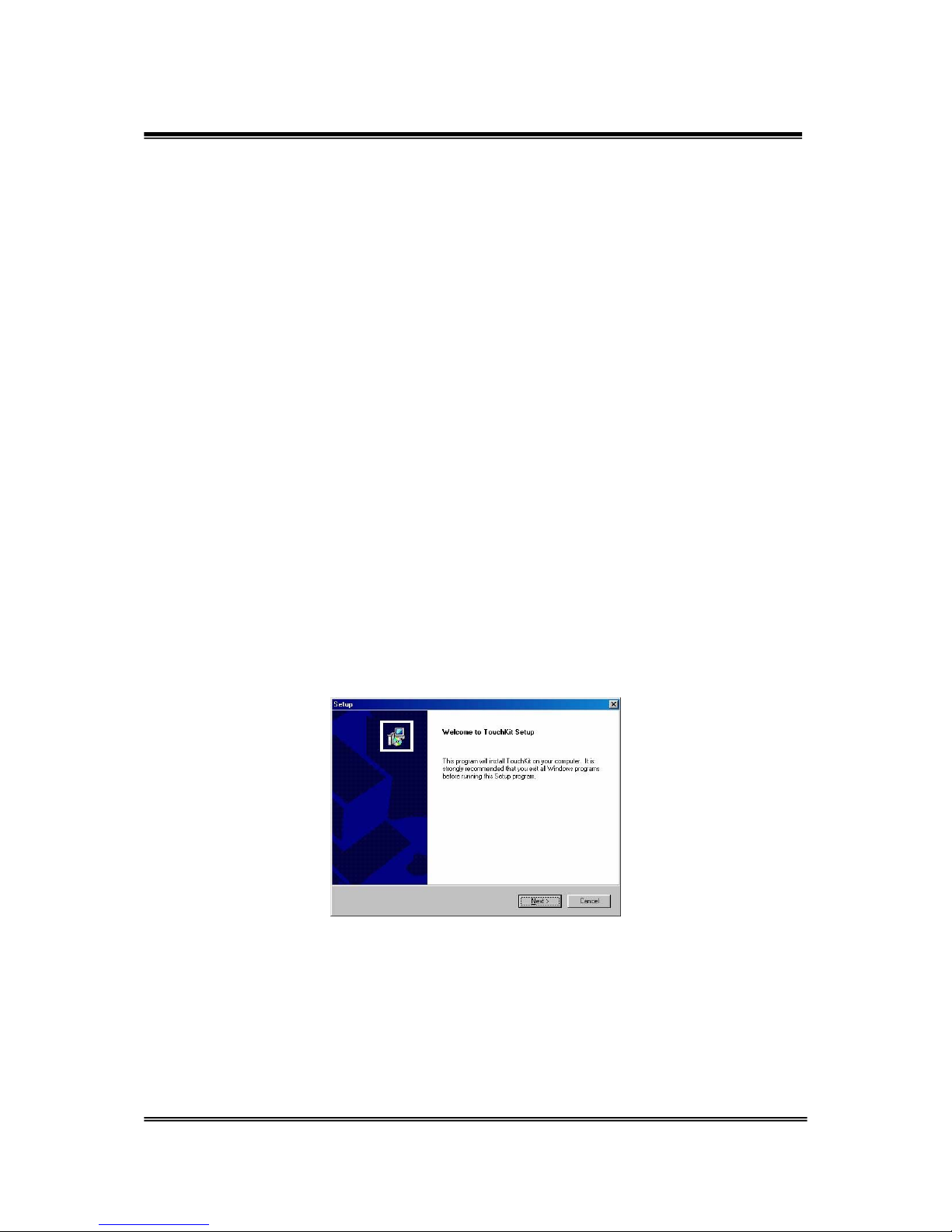
4. Click [Next >] button to continue installation.

TouchKit Manual for Win9X/ME v3.4.0 5
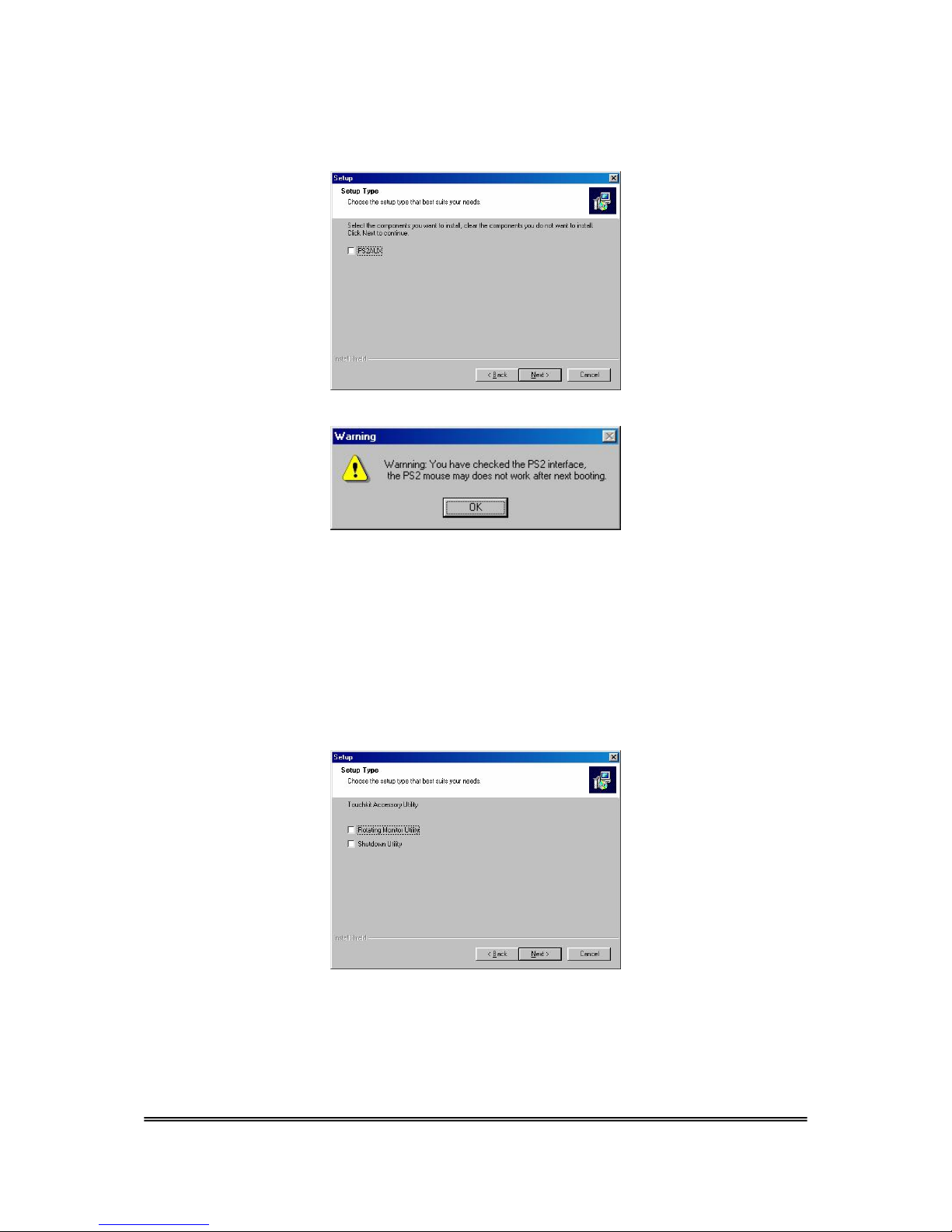
5. Then check the check box if PS/2 touch controller is to be installed. The default
is unchecked. Then Press [Next >] to continue installation.
System will give you a warning, if user checks the PS2AUX check box,
6. Choose the setup type that best suits your needs. There are two TouchKit
accessory utilities to choose from, Rotation Monitor Utility and Shutdown
Utility. Users can install the utility they want by checking the box. Press [Next >]
to continue installation.

TouchKit Manual for Win9X/ME v3.4.0 6
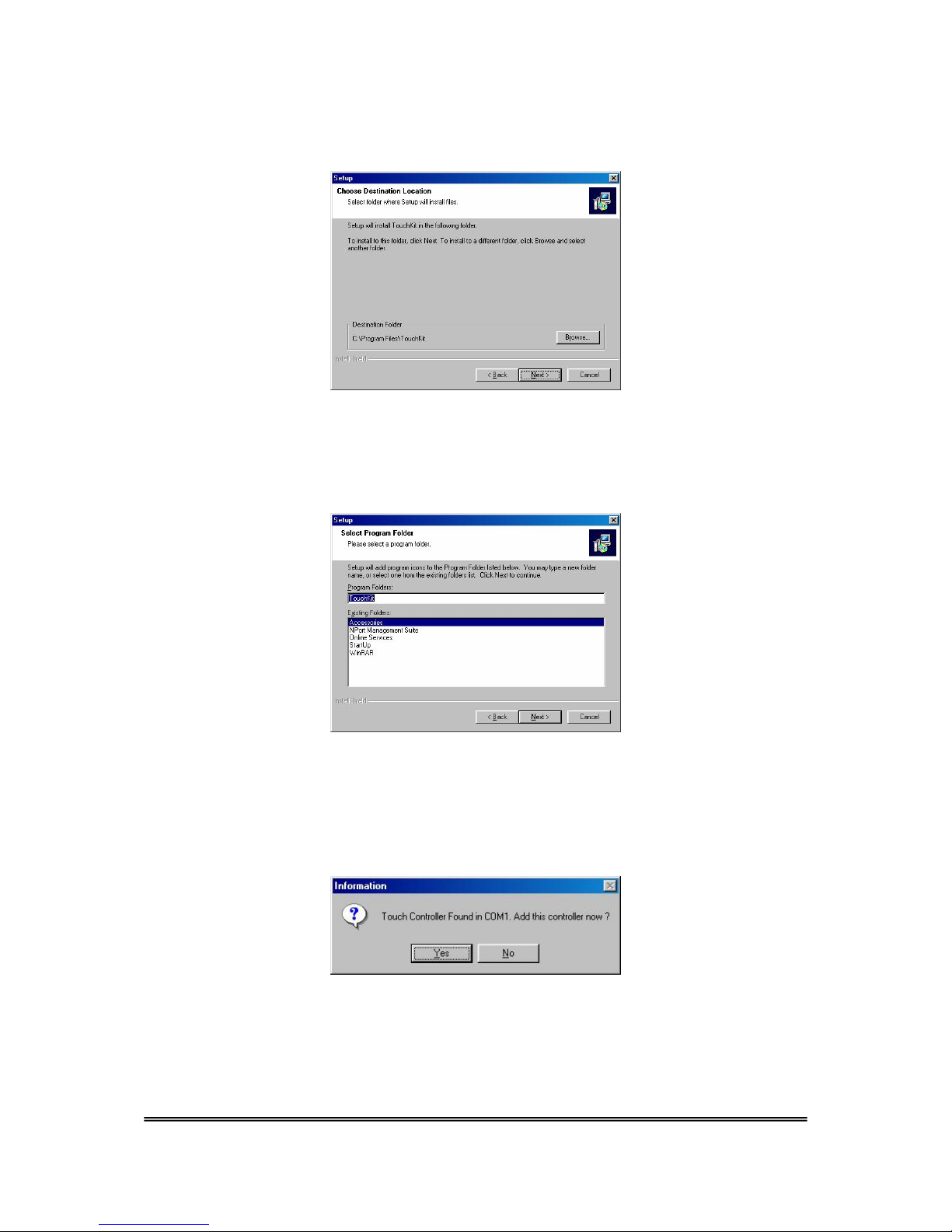
7. Select the appropriate folder where set-up files will be installed. Then Press
[Next >] to continue installation.
8. Then type in the name of program folder for TouchKit or press [Next >] to
continue. There will be a default name for it.
During driver installation, the setup program will scan COM port for RS232
Touchkit controller. Once the controller was scanned, the setup program will
display the following dialog
Click Yes to add the controller on the specified COM port automatically.

TouchKit Manual for Win9X/ME v3.4.0 7
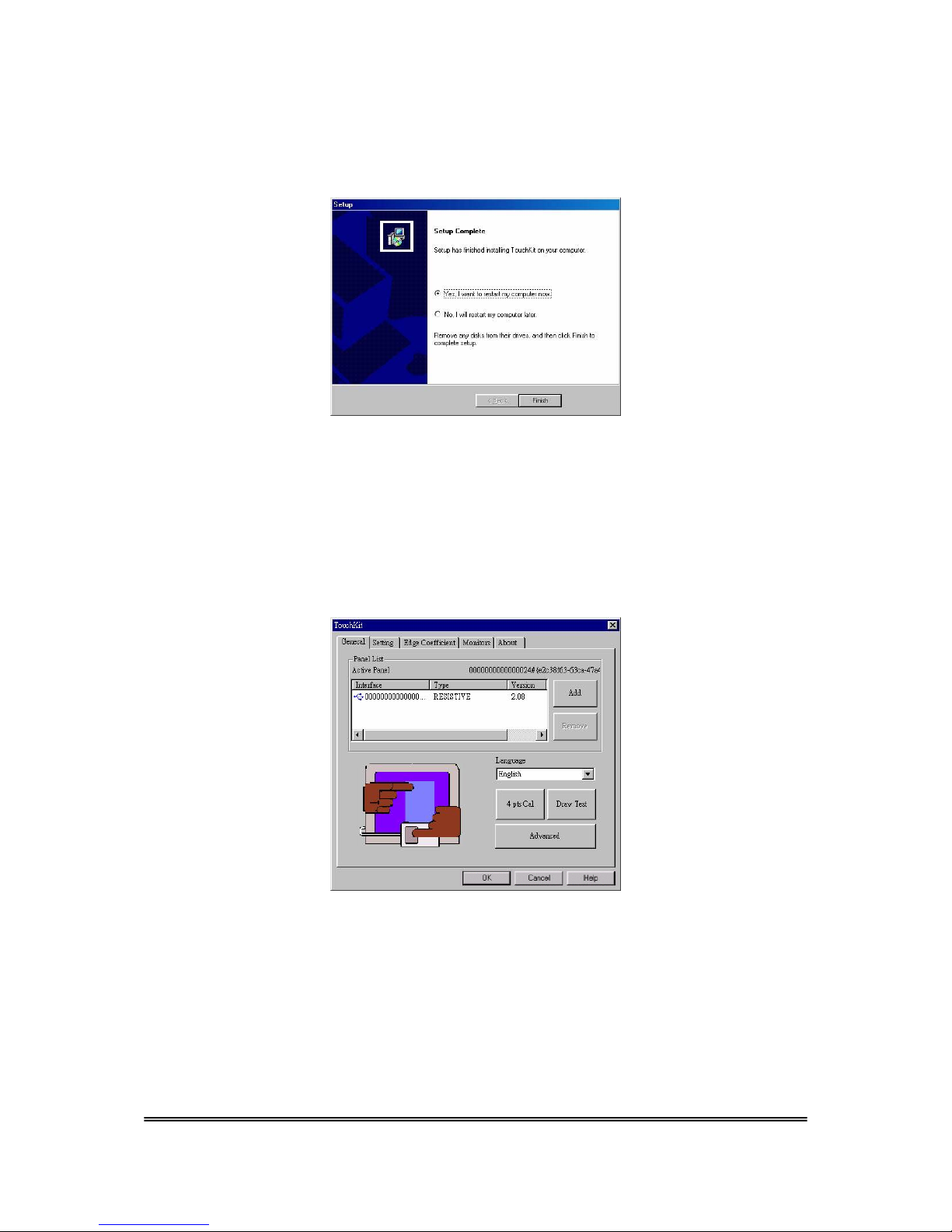
9. Windows will copying files once that is done it will request to re-boot computer.
Press [Yes >] to re-boot immediately or [No >] to re-boot later. The installation
will not be finished until system re-boot.
10.Setup is complete. After TouchKit installation, the USB device will be found
automatically as soon as it is plugged into the computer. Then users can see the
new device on the application program window. And, the program will remove the
USB Device automatically as soon as it is unplugged. ( USB device is not
supported for Windows95 )

TouchKit Manual for Win9X/ME v3.4.0 8
Chapter 3. Configuration Utility and Right Button Emulator
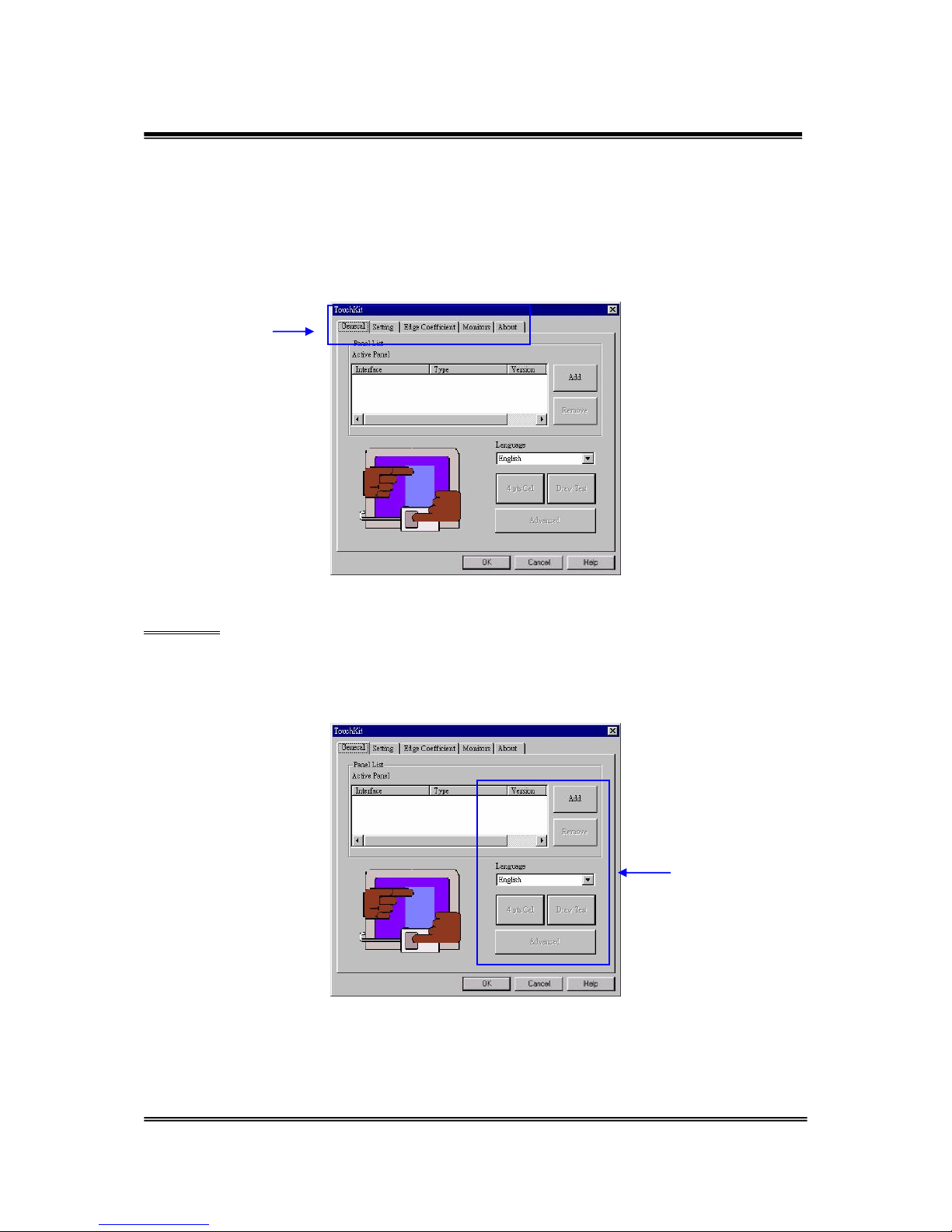
There are five property pages in TouchKit utility, they are General, Setting, Edge
coefficient, Monitors and About. Each property page contains different functions
for users to make adjustments. Therefore, users can easily manage all the TouchKit
controllers through the TouchKit utility.
General
General property page contains the functions of language selection, devices add/
remove, 4 points calibration,Draw test and Advanced.
Functional Group Tab
General Function

TouchKit Manual for Win9X/ME v3.4.0 9
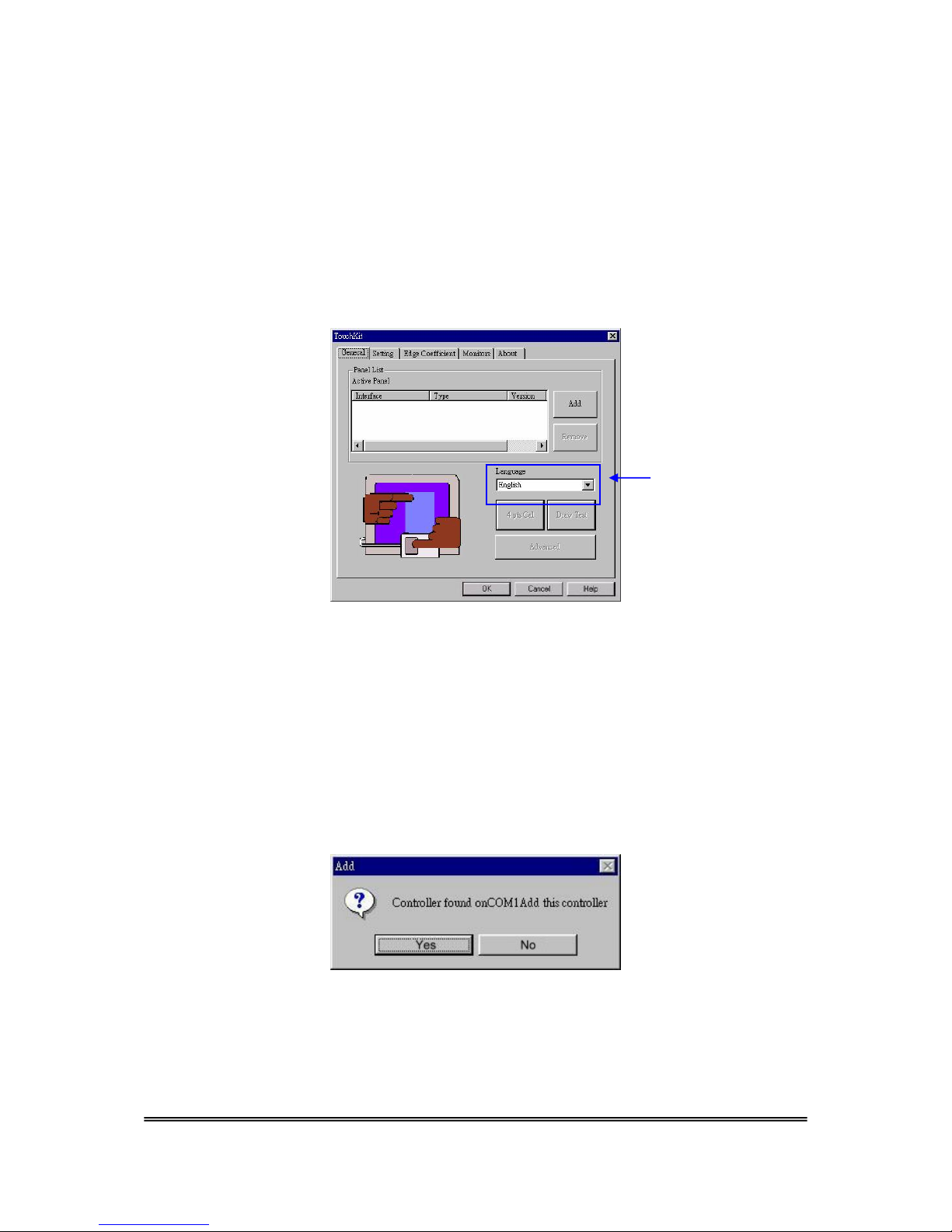
<Language>
TouchKit supports multi-language user interface. Users could select native
language that is compatible to operation system support. For example, if the
operation system is a traditional Chinese version, users could see the normal
display words under the traditional Chinese and English mode. There are ten
different languages, English,Traditional Chinese,Simplified Chinese,French,
Spanish,German,Japanese, Italian, Korean and Dutch supported in this
feature of TouchKit.
Select the compatible language first or users may not see the normal display of
each button.
<Add> / <Remove>
Please check the touch panel devices (including its controller) are equipped well,
then click [Add] button to add all of those RS-232 and PS/2 devices to the Panel
List dialogue box.
There is one devices found. Press [Yes] to continue.
Note to select the
compatible language first.
Altri manuali per XTS4000
2
Questo manuale è adatto per i seguenti modelli
1
Indice
Altri manuali POS-X Software
Manuali Software popolari di altre marche

PS Audio
PS Audio PowerPlay Manuale del proprietario

Brady
Brady LOCKOUT PRO 3.0 Manuale di servizio

Avaya
Avaya Interaction Center Manuale utente

Texas Instruments
Texas Instruments TI-83 Plus Silver Edition Manuale

Novell
Novell GROUPWISE 8 - INTERNET AGENT Manuale utente

Oracle
Oracle Application 9i Manuale utente

Acer
Acer RDM Manuale utente

Canon
Canon Vixia HF21 Manuale utente

Canon
Canon ZR950 Manuale utente

Samsung
Samsung Auto Backup Manuale utente

Polycom
Polycom Vortex EF2201 Istruzioni per l'installazione e il funzionamento

Brocade Communications Systems
Brocade Communications Systems Brocade 8/12c Manuale utente