
Realtek RTL8722DM Manuale

Ameba-D Application Note
Application Note All information provided in this document is subject to legal disclaimers. © REALTEK 2020. All rights reserved.
1
RTL8722DM
Build and Debug Environment Setup – IAR
This document illustrates how to build Realtek low power Wi-Fi software under IAR SDK environment.

Ameba-D Application Note
Application Note All information provided in this document is subject to legal disclaimers. © REALTEK 2020. All rights reserved.
2
1 IAR Build Environment Setup
This chapter illustrates how to setup IAR development environment for Realtek Ameba-D SDK, including building projects, downloading images
and debugging.
1.1 Requirement
1.1.1 IAR Embedded Workbench
IAR provides an IDE environment for code building, downloading, and debugging. Check “IAR Embedded Workbench” on http://www.iar.com/,
and a trail version is available for 30 days.
Note: To support ARMv8-M with Security Extension (Ameba-D HS CPU, also called KM4), IAR version must be 8.30 or higher.
1.1.2 J-Link or RLX Probe
If you need to download images or debug code for Ameba-D with IAR, then a J-Link adapter or a RLX Probe is necessary.
Note: For Ameba-D CPU, the J-Link version must be v9 or higher.
1.2 Hardware Configuration
The hardware block diagram of Ameba-D demo board is shown in Fig 1-1.
USB TO UART: supply power and print logs, baud rate is 115200 bps.
SWD: SWD interface, used for image downloading and debugging with IAR.
Reset button: reset Ameba-D to run firmware after IAR completes downloading.
Fig 1-1 Ameba-D demo board

Ameba-D Application Note
Application Note All information provided in this document is subject to legal disclaimers. © REALTEK 2020. All rights reserved.
3
1.2.1 Antenna description
The DUT has three types of antennas, both of which are 2.4 & 5GHz dual band antennas. The information is as follows. PIFA & Dipole antennas
are connected with module by IPEX.
1) PCB Onboard Antenna, 2.4G peak gain 4.1dbi, 5G peak gain 3.9dbi.
2) PIFA Antenna, 2.4G peak gain 3.5dbi, 5G peak gain 5dbi.
3) Dipole Antenna, 2.4G peak gain 3dbi, 5G peak gain 5dbi.
1.2.2 Connecting with J-Link
Refer to Fig 1-2 and Fig 1-3 to connect Ameba-D SWD interface with J-Link.
J-Link
Fig 1-2 J-Link and SWD connection diagram
Fig 1-3 J-Link and Ameba-D SWD connection
1.2.3 Connecting with RLX Probe
Refer to Fig 1-4 and Fig 1-5 to connect Ameba-D SWD interface with RLX Probe.

Ameba-D Application Note
Application Note All information provided in this document is subject to legal disclaimers. © REALTEK 2020. All rights reserved.
4
JRST
TCK
TMS
TDO
TDI
TRST
GND
14
12
10
8
6
4
2
13
11
9
7
5
3
1
RLX Probe
Fig 1-4 RLX Probe and SWD connection diagram
Fig 1-5 RLX Probe and Ameba-D SWD connection
1.3 How to Use IAR SDK?
1.3.1 IAR Project Introduction
Because Ameba-D is a dual-core CPU platform, two workspaces are provided to build for each core in
project\realtek_amebaD_va0_example\EWARM-RELEASE.
Project_lp_release.eww (KM0 workspace) contains the following projects:
km0_bootloader
km0_application
Project_hp_release.eww (KM4 workspace) contains the following projects:
km4_bootloader
km4_application
km4_secure
Each project in KM4 workspace has different build configurations, as Table 1-1 shows.
Table 1-1 Build configurations for KM4 project
Project
Build Configuration
Configure TrustZone
Enable MP
km4_bootloader
km4_bootloader - is1
N
N
km4_bootloader - tz2
Y
N
km4_application
km4_application - is
N
N
km4_application - tz
Y
N
Ameba-D Application Note
Application Note All information provided in this document is subject to legal disclaimers. © REALTEK 2020. All rights reserved.
5
km4_application - is (mp3)
N
Y
km4_application - tz (mp)
Y
Y
km4_secure km4_secure - tz Y N
km4_secure - tz (mp)
Y
Y
Note:
1. The configuration items with “-is” are ignore secure configuration, which are designed for applications that do not use TrustZone.
2. The configuration items with “-tz” are TrustZone configuration, which are designed for applications that use TrustZone.
3. The configuration items with “mp” are mass production configuration, which are designed for generating MP image.
For applications that do not use TrustZone, users should apply ignore secure configurations as Table 1-2 shows. The km4_secure project
which contains Trustzone-protected code, is not used.
For applications that use TrustZone, users should apply TrustZone configurations as Table 1-2 shows.
Table 1-2 Configurations for project with/without TrustZone
Project
TrustZone
Normal Image
MP Image
km4_bootloader
N
km4_bootloader - is
km4_bootloader - is
Y
km4_bootloader - tz
km4_bootloader - tz
km4_application
N
km4_application - is
km4_application - is (mp)
Y
km4_application - tz
km4_application - tz (mp)
km4_secure
Y
km4_secure - tz
km4_secure - tz (mp)
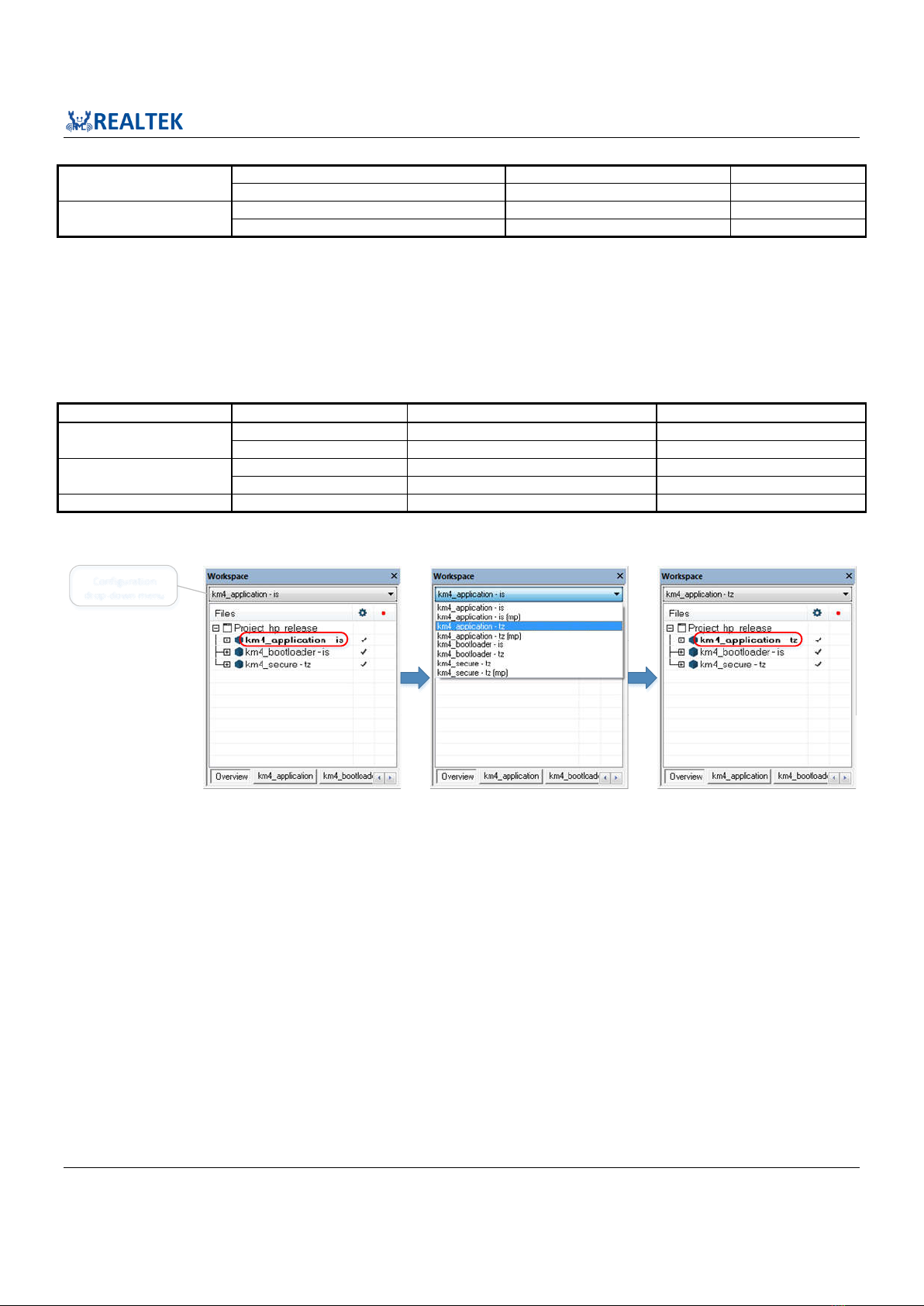
At the top of the Workspace window, there is a drop-down list where you can choose a build configuration for a specific project.
Configuration
drop-down menu ①
② ③
Fig 1-6 How to choose a build configuration
1.3.2 IAR Build
When building SDK for the first time, you should build both KM0 project and KM4 project. Other times, you only need to rebuild the modified
project.
1.3.2.1 Building KM0 Project
The following steps show how to build KM0 project:
(1) Open project\realtek_amebaD_va0_example\EWARM-RELEASE\Project_lp_release.eww.
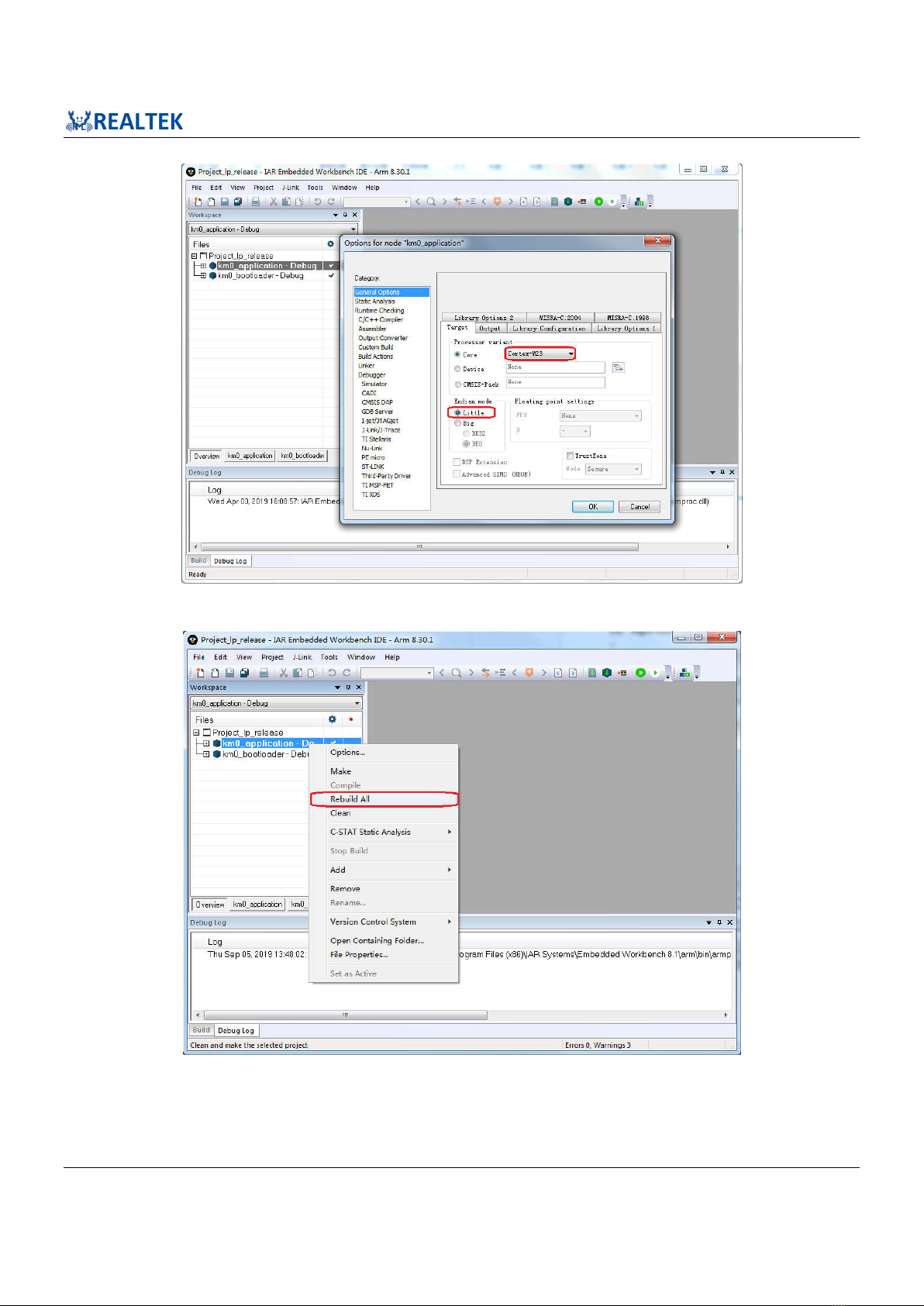
(2) Make sure km0_bootloader and km0_application are in Workspace. Click Project > Options, General Options > Target > Processor
Variant > Core, verify the CPU configurations according to Fig 1-7.
(3) Right click the project and choose “Rebuild All”, as Fig 1-8 shows. The km0_bootloader and km0_application should compile in order.
Ameba-D Application Note
Application Note All information provided in this document is subject to legal disclaimers. © REALTEK 2020. All rights reserved.
6
Fig 1-7 KM0 processor options
Fig 1-8 Building KM0 project

Ameba-D Application Note
Application Note All information provided in this document is subject to legal disclaimers. © REALTEK 2020. All rights reserved.
7
Note: After building each project, IAR will pop up a command prompt window to execute post-build action to generate images from
executable files. This may takes several seconds. Don’t stop it while it is in progress. After post-build action is completed, the window
would disappear automatically.
(4) After compile, the images km0_boot_all.bin and km0_image2_all.bin can be seen in project\realtek_amebaD_va0_example\EWARM-
RELEASE\Debug\Exe\km0_image.
1.3.2.2 Building KM4 Project
The following steps show how to build KM4 project:
(1) Open project\realtek_amebaD_va0_example\EWARM-RELEASE\Project_hp_release.eww.
(2) Refer to 1.3.1 and choose the build configurations for each project according to your application.
(3) Click Project > Options, General Options > Target > Processor Variant > Core, verify the CPU configurations according to Fig 1-9.
Fig 1-9 KM4 processor options

Ameba-D Application Note
Application Note All information provided in this document is subject to legal disclaimers. © REALTEK 2020. All rights reserved.
8
(4) Right click the project and choose “Rebuild All”, as Fig 1-10 shows. The km4_bootloader, km4_secure and km4_application should
compile in order.
Fig 1-10 Building KM4 project
Note:
When TrustZone is enable, the km4_secure project must be built before the km4_application project. When TrustZone is not used, there
is no need to compile the km4_secure project.
After building each project, IAR will pop up a command prompt window shown in the figure below to execute post-build action to
generate images from executable files. This may takes several seconds. Don’t stop it while it is in progress. After post-build action is
completed, the window would disappear automatically.
(5) After compile, the images km4_boot_all.bin and km0_km4_image2.bin can be seen in project\realtek_amebaD_va0_example\EWARM-
RELEASE\Debug\Exe\km4_image. For MP configurations, the km0_km4_image2_mp.bin would be generated instead.

Ameba-D Application Note
Application Note All information provided in this document is subject to legal disclaimers. © REALTEK 2020. All rights reserved.
9
1.3.3 IAR Download
The generated images can be downloaded in two ways:
IAR J-Link or RLX Probe SWD (introduced in the next section)
Ameba-D ImageTool, refer to Image Tool User Guide for more information.
Ameba-D demo board supports using J-Link and RLX Probe SWD to download and debug. Image of each project can be download individually.
Note: Considering KM4 is powered-on by KM0, you should make sure that KM0 has boot up already before downloading images to KM4.
Otherwise, for J-Link, J-Link can’t connect to KM4 and show the error message as Fig 1-11 shows. For RLX probe, RLX Probe driver can’t be
opened under KM4.
Fig 1-11 J-Link cannot find KM4
As a result, if the Flash memory is empty, the sequence to download images is:
(1) Download for km0_bootloader and km0_application projects
(2) Click Reset button on demo board to make KM0 boots up
(3) Download for km4_bootloader and km4_application projects
During development, if Flash memory is not empty and KM0 can boot up successfully, then you can download updated images to KM4 directly,
and there is no need to re-download for KM0.
The following steps show how to download image for the target project with IAR. If there is an error like Fig 1-24 displayed in IAR window, refer
to 1.3.4.3.
(1) Choose the target project display in Workspace window, for example, km4_bootloader as Fig 1-12 shows.
(2) If using J-link debugger, check whether the J-link debugger setting is correct.
a) Click Project > Options > Debugger > Setup > Driver, and choose “J-Link/J-Trace”, as Fig 1-13 shows.
b) Click Debugger > J-Link/J-Trace > Connection > Interface, and choose “SWD”, as Fig 1-14 shows.

Ameba-D Application Note
Application Note All information provided in this document is subject to legal disclaimers. © REALTEK 2020. All rights reserved.
10
Fig 1-12 Switching to the target project view
Fig 1-13 J-Link debugger setup
Indice
Altri manuali Realtek Scheda di rete


Manuali Scheda di rete popolari di altre marche


Buffalo
Buffalo AirStation WLI-PCM-L11GP Manuale utente

National Instruments
National Instruments NI 9234 Manuale utente

Hama
Hama 49276 Manuale utente

Linksys
Linksys WCF54G - Wireless-G Compact Flash Card Manuale operativo

Compaq
Compaq Wireless LAN 100 Manuale utente

Bose
Bose PowerMatch Dante Manuale utente