
Rolodex Rolodex RFPC-07 Manuale utente

RFPC-07
User’s Guide
PC Sync and
Organizer Setup
Instalación del PC Sync y
el Organizador
www.franklin.com Manual del usuario
cover.RFPC-07 11/28/00, 5:08 PM1

1
READ THIS LICENSEAGREEMENT BEFORE USING THE
ELECTRONIC REFERENCE. YOUR USE OF THE
ELECTRONIC REFERENCE DEEMS THAT YOU ACCEPT
THE TERMS OF THIS LICENSE. IF YOU DO NOTAGREE
WITH THESE TERMS, YOU MAY RETURN THIS PACKAGE
WITH PURCHASE RECEIPT TO THE DEALER FROM
WHICH YOU PURCHASED THE ELECTRONIC REFER-
ENCEAND YOUR PURCHASE PRICE WILL BE
REFUNDED. ELECTRONIC REFERENCE means the
software product and documentation found in this package and
FRANKLIN means Franklin Electronic Publishers, Inc.
Limited Use License
All rights in the ELECTRONIC REFERENCE remain the
property of FRANKLIN. Through your purchase, FRANKLIN
grants you a personal and nonexclusive licensed to use this
ELECTRONIC REFERENCE. You may not make any copies
of the ELECTRONIC REFERENCE or of the data stored
therein, whether in electronic or print format. Such copying
would be in violation of applicable copyright laws. Further, you
may not modify, adapt, disassemble, decompile, translate,
create derivative works of, or in any way reverse engineer the
ELECTRONIC REFERENCE. You may not export or reexport,
directly or indirectly, the ELECTRONIC REFERENCE without
compliance with appropriate governmental regulations. The
ELECTRONIC REFERENCE contains Franklin’s confidential
and proprietary information which you agree to take adequate
steps to protect from unauthorized disclosure or use. This
license is effective until terminated. This license terminates
immediately without notice from FRANKLIN if you fail to
comply with any provision of this license.
License Agreement
RFPC-07.Eng 10/24/01, 3:12 PM1

2
Your CD comes with a README file (English only)
which contains detailed instructions on how to use
your PC Sync. Please note that the program has
the following system requirements:
• Windows 95 or 98 (English version)
• 10 MB RAM
• 20 MB hard disk space
• CD-ROM drive (for installation)
• One free serial communications (COM) port
Do the following to install the PC Sync on your
personal computer.
1. Go to Start | Run.
2. Type d:\setup-eng and press ENTER.
3. Follow the instructions on the screen.
The default drive for the CD ROM is
d:.
If your
CD-ROM drive letter is different, then replace
d:
with the letter you designated for your CD-ROM
drive.
To start your PC Sync Program, do the following:
1. Go to Start | Programs|PC Organiser.
2. Click on PC Organiser.
Installing the PC Sync
RFPC-07.Eng 10/24/01, 3:12 PM2
3
Connecting the Serial Cable
Before you can transmit or receive records you need
to do the following:
1. Turn your personal computer
off.
2. Connect the 9-pin plug of the
Organizer PC Sync cable into a
free communications (COM)
port.
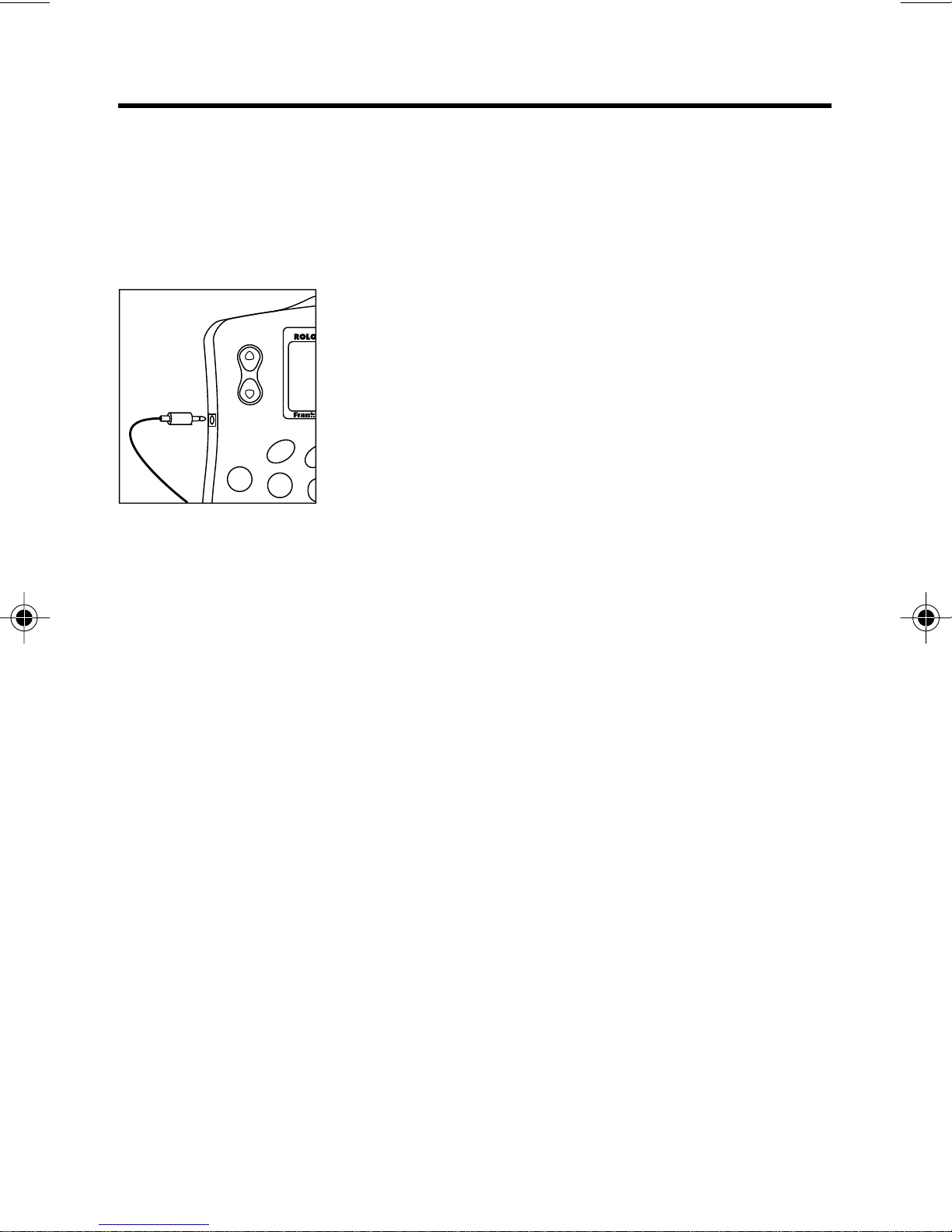
3. Connect the single-pin plug of the cable into
the PC PORT hole on the left side of your
organizer.
Confirming the Configuration of the
Organizer Software
On your PC, go to Start|Programs|PC Organiser and
click PC Organiser.
Note: Make sure the model number displayed on the
title bar matches the model number on your Rolodex
unit. If the model number does not match do the
following:
1. Go to File|New and re-name the existing Folder.
You may select any name of your choice. Please
type the name without spaces.
2. Select your model number from the drop-down
menu under Model.
3. Click OK.
Transmitting or Receiving Records
RFPC-07.Eng 10/24/01, 3:13 PM3

4
Transmitting or Receiving Records
Synchronizing Data With PC Sync
When you synchronize your data, records that were
deleted either in your Organizer or PC Sync Program
will be deleted in both. New records added in either, will
now be added in both. Edited records will be updated in
both. If you edit the same record in both your Organizer
and your PC Sync Program, copies of both records will
be retained.
Warning! The initial transfer of data MUST BE an
Import or an Export. Synchronize is to be used
ONLY to merge information between the PC and
the unit. Also, Synchronize is not to be used for
one-way transfers. Failure to follow these
instructions can result in corruption and/or loss of
data.
1. Make sure that the cable is connected securely to
both the PC and the Organizer.
2. In the PC Sync for Windows, click File | Sync with
Organizer on the menu bar.
Verify the model and COM port information.
3. Click SYNC to confirm synchronization.
4. Press (Time) on your Organizer until the
Home Time screen appears.
5. Press Sync to enter the data communication
mode.
RFPC-07.Eng 10/24/01, 3:13 PM4

5
1-SYNC?
2-TX?
3-RX?
6. Use or to select
1-SYNC?
or press 1.
7. Press ENTER to start synchronization.
During synchronization, you will see the following
messages:
Transmitting…this means your Organizer is
transmitting the data necessary for
synchronization.
Receiving…this means your PC has processed the
data and is transmitting back the data
necessary for synchronization.
WAIT…this means the Organizer is updating
the records.
OK! this means synchronization is
complete.
After two seconds, your Organizer will return to the
initial display mode.
Transmitting or Receiving Records
WARNING! Once you transfer data between your
organizer and the PC, they become a matched
pair. Should you try to synchronize data between
your organiser and a different PC, your data is
likely to be corrupted. It is best to synchronize
between a single matched pair.
RFPC-07.Eng 10/24/01, 3:13 PM5

6
Note: You cannot send or receive a single directory
between your handheld Organizer and PC Sync for
Windows. You can send either a single record or all the
directories.
Warning! When you transfer all directories, your
old records at the receiving end will be overwritten.
If you wish to retain records unique to your
Organizer or PC Sync, choose Synchronization
instead of Import or Export.
Importing A Single Record from the
Organizer
1. Click (
RECEIVE
RECORD
) on the toolbar of your PC
Sync for Windows.
2. Click OK.
Verify the model and COM port information.
3. Click the Import button to confirm the operation.
4. Find the file you wish to transmit on your handheld
Organizer.
5. Press Sync and select
2-TX
or press 2.
6. Press ENTER to start the transmission.
The record will be added to PC Sync as a new record.
Importing All Records from the Organizer
1. Click File | Import from Organizer on the menu bar
of your PC Sync.
Verify the model and COM port information.
Transmitting or Receiving Records
RFPC-07.Eng 10/24/01, 3:13 PM6

7
Transmitting or Receiving Records
2. Click the Import button.
3. Press (Time) on your handheld Organizer
until the Home Time screen appears.
4. Press Sync to enter the data communication
mode.
5. Use or to select
2-TX
or press 2.
6. Press ENTER to start the transmission.
Receiving a Single Record from the PC
1. In the PC Sync for Windows, select the record you
wish to transmit.
The arrow marks the selected record.
2. Click (
SEND
RECORD
) on the toolbar of your PC
Sync for Windows.
3. Click OK.
Verify the model and COM port information.
4. Press (Time) on your handheld Organizer
until the Home Time screen appears.
5. Press Sync to enter the data communication
mode.
6. Use or to select
3-RX
or press 3 and then
press ENTER to start receiving the data.
7. Click the Export button to begin transmission.
The record will be added to your Organizer as a new
record.
RFPC-07.Eng 10/24/01, 3:13 PM7

8
Receiving All Records from the PC
1. Press (Time) on your handheld Organizer
until the Home Time screen appears.
2. Click File | Export to Organizer on the menu bar of
your PC Sync.
Verify the model and COM port information.
3. Press Sync on your unit to enter the data
communication mode.
4. Use or to select
3-RX
or press 3 and then
press ENTER to start receiving the data.
5. Click the Export button on the PC to start the
transmission of data.
Transmitting or Receiving Records
Password Protection: You can set or change
your password in your PC Sync by clicking on
File|Password and entering a numeric password
of up to 6 digits. It is recommended that your write
your password down and keep it in a safe place.
WARNING: If you lose your password you will
have to reset your unit and you will lose all your
data.
You can change or remove your password at any
time. Click on File|Password and enter your
password in the
Change Password for Folder
dialog box. In the
New Password for Folder
dialog
box, enter a new password and verify it to change
your old password, or click OK to remove your
existing password.
RFPC-07.Eng 10/24/01, 3:13 PM8

9
This product, excluding batteries is guaranteed by
Franklin for a period of one year from the date of pur-
chase. It will be repaired or replaced with an equiva-
lent product (at Franklin’s option) free of charge for
any defect due to faulty workmanship or materials.
Products purchased outside the United States that
are returned under warranty should be returned to the
original vendor with proof of purchase and description
of fault. Charges will be made for all repairs unless
valid proof of purchase is provided.
This warranty explicitly excludes defects due to mis-
use, accidental damage, or wear and tear. This guar-
antee does not affect the consumer’s statutory rights.
Limited Warranty (outside U.S.)
© 2000 Franklin Electronic Publishers , Inc.
Burlington, N.J. 08016-4907 U.S.A..All rights reserved.
ROLODEX®isaregisteredtrademarkof BerolCorporation,
a subsidiary of Newell Rubbermaid, Inc.
RFPC-07.Eng 10/24/01, 3:13 PM9
Indice
Altri manuali Rolodex PDA

Rolodex
Rolodex RF-8001 Guida rapida

Rolodex
Rolodex Rolodex RF-8121 Manuale utente

Rolodex
Rolodex Rolodex RT-8015 Manuale utente

Rolodex
Rolodex RF-3A Manuale utente

Rolodex
Rolodex Mini-USB Organizer RL-8221 Manuale utente

Rolodex
Rolodex RF-8013 Istruzioni per il montaggio

Rolodex
Rolodex RF-8120 Manuale utente

Rolodex
Rolodex Rolodex RFPC-06 Guida rapida

Rolodex
Rolodex Rolodex RF-8003 Guida utente

Rolodex
Rolodex Rolodex RFNA-2 Manuale utente


