SATO Argox XM4 Series Manuale utente

XM4 Series Printer
User Manual
i
Liability Disclaimer
Argox Corporation takes steps to assure that the company’s published
engineering specifications and manuals are correct; however, errors do
occur. Argox reserves the right to correct any such errors and disclaims any
resulting liability. In no event shall Argox or anyone else involved in the
creation, production, or delivery of the accompanying product (including
hardware and software) be liable for any damages whatsoever (including,
without limitation, damages for loss of business profits, business
interruption, loss of business information, or other pecuniary loss) arising
out of the use of or the results of use of or inability to use such product,
even if Argox has been advised of the possibility of such damages.
FCC Compliance Statement
This equipment has been tested and found to comply with the limits for a
Class A digital device, pursuant to Part 15 of the FCC Rules. These limits are
designed to provide reasonable protection against harmful interference in a
residential installation. This equipment generates, uses, and can radiate
radio frequency energy and, if not installed and used in accordance with the
instructions, may cause harmful interference to radio communications.
However, there is no guarantee that the interference will not occur in a
particular installation. If this equipment does cause harmful interference to
radio or television reception, which can be determined by turning the
equipment off and on, the user is encouraged to try to correct the
interference by the following measures:
Reorient or relocate the receiving antenna.
Increase the separation between the equipment and the receiver.
Connect the equipment into a different outlet on a different circuit.
Consult the dealer or an experience Radio/TV technician for help.
This unit was tested with shielded cables on the peripheral devices. Shielded
cables must be used with the unit to insure compliance. The user is
cautioned that any changes or modifications not expressly approved by
Argox Information Co., Ltd. could void the user’s authority to operate the
equipment.

XM4 Series Printer
User Manual
ii
This is a Grade A product. In living environment, the product may cause
interference to radio communications. In this case, the user is encouraged to try to
correct the interference by effective measures.
Caution
Ensure to connect the power cord of power adapter to a socket-outlet
with earth connection.
CAUTION: Risk of Explosion if Battery is replaced by an Incorrect Type. Dispose of
Used Batteries According to the Instructions.
ATTENTION: Risque d’explosion si la batterie est remplacée par un type incorrect.
Mettre au rebus les batteries usagées selon les instructions.
Caution
Any changes or modifications not expressly approved by the party
responsible for compliance could void the user's authority to operate the
equipment.
All rights reserved. Copyright © 2023 Argox Information Co., Ltd

XM4 Series Printer
User Manual
iii
Contents
1Introduction ........................................................................................................ 1
1.1 Features.................................................................................................... 1
1.2 Unpacking................................................................................................. 2
1.3 Understand your printer........................................................................... 3
1.3.1 Perspective view .......................................................................... 3
1.3.2 Back view..................................................................................... 4
1.3.3 Interior view ................................................................................ 5
1.4 Printer control panel................................................................................. 6
1.4.1 Status lights.................................................................................. 6
1.4.2 Buttons ........................................................................................ 8
2Get started .......................................................................................................... 9
2.1 Attach the power cord.............................................................................. 9
2.2 Turn on/off your printer.......................................................................... 10
2.2.1 Turn on your printer................................................................... 10
2.2.2 Turn off your printer .................................................................. 11
2.3 Load media ............................................................................................. 12
2.3.1 Prepare media ........................................................................... 13
2.3.2 Placing media roll....................................................................... 14
2.3.3 Media types............................................................................... 24
2.4 Load Ribbon............................................................................................ 26
2.4.1 Placing Ribbon Roll .................................................................... 27
3Printer operation............................................................................................... 30
3.1 Front Panel ............................................................................................. 30
3.2 LCD Function Setting Procedure ............................................................. 31
3.3 Control / Navigation Buttons .................................................................. 32
3.4 Printer Setup Menu ..................................................................................... 33
3.4.1 Settings............................................................................................. 34
3.4.2 System .............................................................................................. 38
3.4.3 Test40
3.4.4 Interface ........................................................................................... 41
3.4 Printing Media Calibration & Configuration............................................ 43
3.5 Printing a Configuration Report .............................................................. 43
3.6 Resetting to Factory Defaults.................................................................. 51
3.7 Media sensing......................................................................................... 52
3.7.1 Transmissive sensor ................................................................... 52
3.7.2 Reflective sensor........................................................................ 53

XM4 Series Printer
User Manual
iv
3.7.3 Adjust Position of Label Sensor.................................................. 54
3.8 Communications..................................................................................... 55
3.8.1 Interfaces and Requirements..................................................... 55
3.9 Driver installation ................................................................................... 57
3.9.1 Installing a Plug and Play printer driver (for USB only)............... 57
3.9.2 Installing a Printer Driver (for other interfaces except USB)....... 62
4Configuration on Web Setting Tool......................................................................... 67
4.1 Attaching the power cord............................................................................ 67
4.2 Connecting the printer to a LAN hub ................................................................. 67
4.3 Getting the IP address of the printer.................................................................. 68
4.4 Logging in to the web setting tool ............................................................... 68
5Maintenance ..................................................................................................... 70
5.1 Cleaning.................................................................................................. 71
5.1.1 Printhead ................................................................................... 71
5.1.2 Platen Roller............................................................................... 72
5.2 Printer Adjustments................................................................................ 72
5.2.1 Printer Head Pressure Adjustment ................................................... 72
5.2.2 Ribbon Tension Adjustment.............................................................. 74
5.2.3 Printing Wrinkle Adjustment............................................................. 76
5.2.4 Small-size Media Offset Adjustment................................................. 78
5.3 RTC Battery Replacement ....................................................................... 79
6Troubleshooting ................................................................................................ 80
6.1 Printer issues .......................................................................................... 80
6.2 Media issues........................................................................................... 81
6.3 Ribbon issues.......................................................................................... 82
6.4 Other issues............................................................................................ 83
7Specifications .................................................................................................... 84
7.1 Printer..................................................................................................... 84
7.2 Media & Ribbon...................................................................................... 85
7.3 Electrical and operating environment..................................................... 85
7.4 Physical dimension ................................................................................. 86
7.5 Fonts, Barcodes, and Graphics Specification........................................... 86
7.6 Interfaces................................................................................................ 89
7.6.1 USB ............................................................................................ 89
7.6.2 RS-232C...................................................................................... 90
7.6.3 Centronics.................................................................................. 91
7.6.4 GPIO........................................................................................... 92
7.6.5 Ethernet..................................................................................... 93

XM4 Series Printer
User Manual
1
1Introduction
Thank you for purchasing an Argox XM4 Series industrial barcode printer.
This manual provides information about how to set up and operate your
printer, load media, ribbon and solve common problems. Illustrations are
provided to help you quickly become familiar with the printer.
1.1 Features
■Fast Print Speed
Max. 12 IPS, fastest print speed in its class
■Communication
Standard: Ethernet, dual USB hosts, USB device, and RS-232
Option: Wi-Fi, GPIO, Parallel, and Buzzer
■Online management
Web management and SNMP v2 support
■Dual USB host function
Stand-alone mode of scanner/ keyboard multiple data entry devices
■New media calibration
Intelli mode & Auto-feed mode & Smart mode

XM4 Series Printer
User Manual
2
1.2 Unpacking
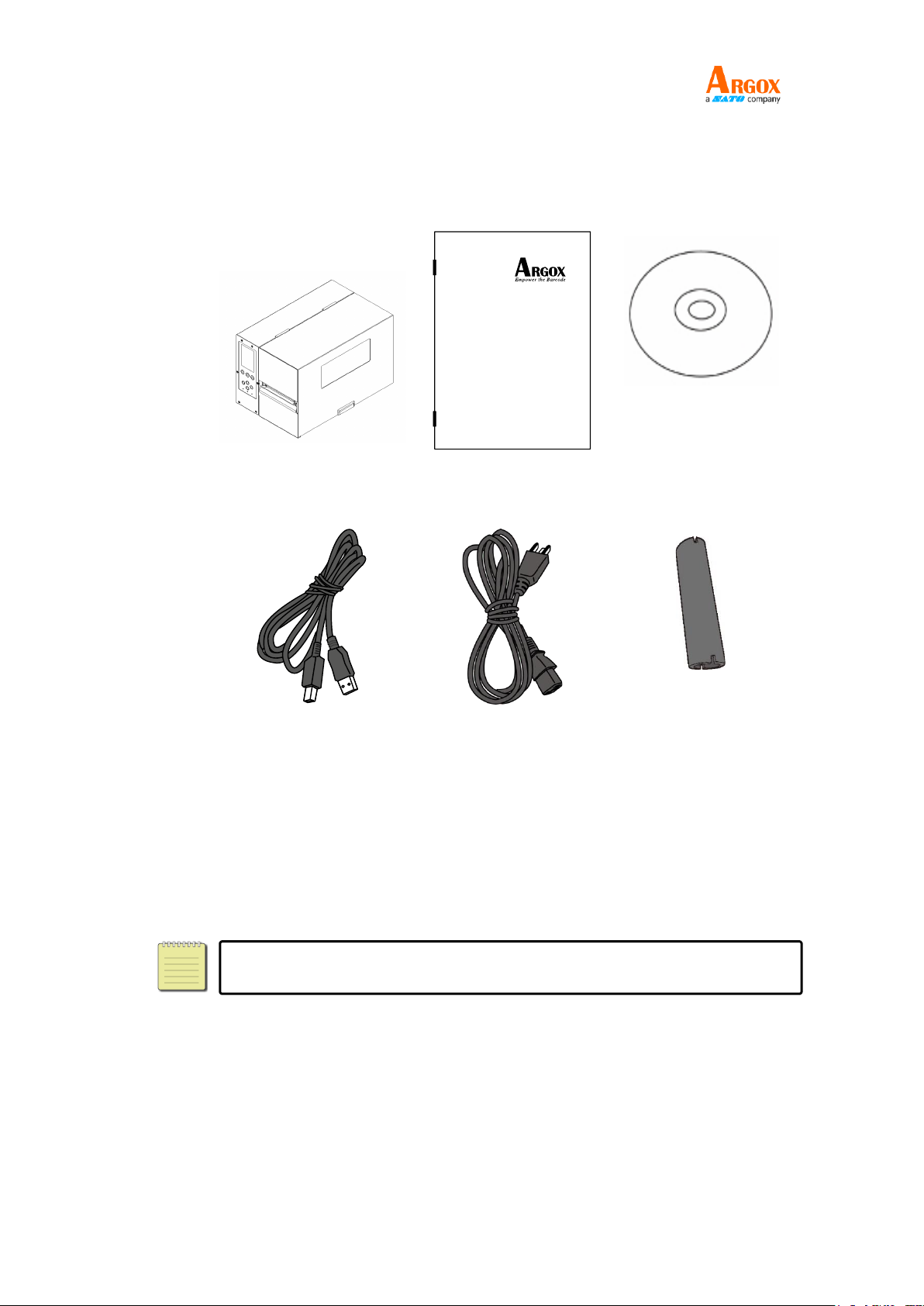
Make sure all of the following items are included in your package.
Printer
Quick Installation
Guide
DVD
USB Cable
AC Power Cord
1” ID Core for Ribbon
When you receive the printer, open the package immediately and inspect for
shipping damage. If you discover any damage, contact the shipping company
and file a claim. Argox is not responsible for any damage incurred during
shipping. Save all package materials for the shipping company to inspect.
Note If any item is missing, please contact your local dealer.

XM4 Series Printer
User Manual
3
1.3 Understand your printer
1.3.1 Perspective view
LCD Panel
FEED Button
PAUSE Button
CANCEL Button
Front Access Door
Top Access Door

XM4 Series Printer
User Manual
4
1.3.2 Back view
Standard
Optional
WIFI
USB Type A
Ethernet
USB Type B
RS232 Serial
Power switch
AC power socket
Parallel port
GPIO

XM4 Series Printer
User Manual
5
1.3.3 Interior view
Internal Parts and Features
Rotate Head Latch
Head latch
Paper sensor
Outside Media Guide
Thermal Print Head
Paper Roller
Ribbon Supply Spindle
Media Supply Spindle
Feed Slot
Ribbon Pick-up Spindle
Indice
Altri manuali SATO Stampante

SATO
SATO M-8465Se Manuale utente

SATO
SATO LM412e Manuale utente

SATO
SATO M10e Series Manuale utente

SATO
SATO CG208 DT/TT Manuale utente

SATO
SATO S8404 Standard Guida

SATO
SATO /gt Series Manuale utente

SATO
SATO MB400 Manuale utente

SATO
SATO M 8400S Manuale utente

SATO
SATO MN-4203 Manuale utente

SATO
SATO CL-408 Manuale per l'uso e la cura

SATO
SATO GL408e Manuale utente

SATO
SATO CG208 DT/TT Manuale utente

SATO
SATO MB200/201i Manuale utente

SATO
SATO PW208NX Manuale utente

SATO
SATO M8485S Manuale utente

SATO
SATO WS4 Series Manuale del proprietario

SATO
SATO CX400 Manuale utente

SATO
SATO CG4 Series Manuale utente

SATO
SATO M-84Pro Series Manuale utente

SATO
SATO M-5900RV Manuale per l'uso e la cura