
SAVV M35 Manuale utente

M35
User Manual
SAVV DASHCAM is a supplemental video recording device. Read the following
instructions carefully in this guide to properly use and maintain the product.
This device DOES NOT guarantee video recording for all accidents as the built-in
impact sensor may not be activated due to user settings and the level of impact
during the collision. Some of the functions may not be available depending on
the installation, driving conditions, and vehicle type.

2.
Caution before using DASHCAM
• Do not operate the DASHCAM while driving.
Driving under distraction may cause an accident.
•Do not park your vehicle under direct sunlight
during hot weather when the product is installed.
It may cause product failure.
•Do not touch or wipe the product with chemicals,
detergents, oil, etc.
Gently wipe with a dry cloth after disconnecting the
power.
•Keep product from foreign materials.
Foreign materials in SD card port or external
cable port of main body may cause product failure
or malfunction.
•Be aware that if the product is damaged or the
power is cut off as a result of an accident, the
video may not be recorded.
•Excessively tinted windows may interfere with
the image recording such as brightness and
sharpness of the video.
•Attach the cradle to the main body and mount it
securely to the glass surface.
Failure to fit properly may cause the product to
fall to damage the unit.
•When changing the mounting position of the cam-
era, make sure to readjust the camera angle and
review the recorded file.
If the camera is installed in a wrong position,
normal recording might not be possible.
•The temperature below -10 °C or above 60 °C may
cause malfunction during operation.
Please keep the unit under recommended
temperature even when not in use.
• The voltage for the device is 12 to 24 volts.
Use only the standard issued hardwiring power
cables or power source for this product.
•We recommend to use of authorized SD cards
provided by SAVV and we are not
responsible for any damage caused by using
unauthorized memory cards.
Precautions when using SD Card
•The SD card has limited lifespan and it needs
to be periodically inspected or replaced.
•The warranty period of the SD card supplied
by our company is 90 days.
3.
•Make sure to turn the power OFF before
removing the SD card.
•If you remove the SD card while product is on,
the stored data may be damaged or lost.
•The SD card or product can be damaged
if you insert the card with excessive force or
if inserted in the opposite direction.
•Periodically check the data stored on the
SD card to see if the DASHCAM is operating
properly.
•In case of accidental or manual power off
during recording, data will not be saved in
SD card.
•Please store important data separately. Make
sure to store it in another storage device.
(HDD, CD, USB card, etc.)
•Depending on the season, the temperature
inside the vehicle can rise due to direct sunlight,
causing the temperature of SD card to rise.
Please park your vehicle in cooler/shady areas
to prevent date loss.
1. SD Card warranty
2. How to manage SD Card
2

Precaution with ADAS Functions
• The GPS must be connected to the satellite in
order to be operated properly.
• If the front camera has poor image conditions
(listed below) the lane and vehicle information
may not be detected.
•When windshield is damaged, contaminated or
covered with dirt, snow or ice
•When camera lens is frosted or covered with debris
•When driving through winding, hilly roads or sharp
curved road with inconsistent lane visibility
•In case of poor lane visibility due to fog, rain,
or snow.
•In case of roads with complicated lanes such as
busy intersection or highway in rural are.
•In case of sudden change of light conditions such
tunnel, underground parking lots, under bridges.
•In case of light direction change such as direct
sun light to camera lens or reflection directly
to camera lens
•When headlights or windshield is not properly cleaned
May not operate normally in severe weather conditions
•When DASHCAM is not installed near the top center of
the front windshield or the camera lens angle is
incorrect.
(e.g. installed far left, far right, bottom near dash board,
etc.)
Paring remote control
2. How to use remote control
•Short click remote control
(less than 1 second)
is to save screenshot image
in DASHCAM,
•Depress remote control
(more than 3 second)
is to record video in DASHCAM.
•There will be a shutter click sound.
1. How to pair remote control
•Insert battery into the slot.
•Turn on the power of the
DASHCAM while depressing remote
control until display appears on
LCD screen.
•Press remote control to check
3

1. Product warranty and liability
The entire risk arising from the failure to comply with the instructions specified
in the user manual remains with the user and we assume no responsibility.
Data loss, or other occurrences of accident and vehicle damage while using
the product are the responsibility of the user.
Depending on the driving environment of the vehicle or the influence
of external devices, some features may not be supported and as a result,
normal video recording may not be possible. Use
DASHCAM as an auxiliary means to check the driving image.
The SD card requires continuous maintenance. Any damage incurred
by the user is your user's responsibility. SAVV Automotive is
NOT responsible for any problems arising from
1. Any indication of unauthorized modification of original
power cable supplied.
2. Using Non-certified cable as power source
3. In case of product malfunction or fire due to abnormal voltage
and current of the vehicle battery
2. Miscellaneous cautions
This product is designed for the specified voltage and use. If this is not observed,
it may cause product breakdown and may cause a fire.
If the user disassembles and repairs arbitrarily, defects that occur are not eligible
for warranty service at no charge. For your safety,
Do not bend the power cable excessively
Do not use a damaged power cable.
If the wiring finish is unstable, it may cause product malfunction and may cause a fire.
4

Power Cable
3. Check before installation
Please do not cut a power cable or remove fuses during installation
1. Power cable connection
① B+ Fuse : Connect this line to positive (+) post of the battery that provides
continuous power supply.
② ACC Fuse : Connect this line to ACC
③ GND : Connect this line to a chassis ground on the vehicle. Make sure the
connection is made
to mare metal
* Please carefully check B+, ACC, GND labels on the cable before installation.
This product provides continuous recording in driving /parking mode.
Make sure to connect B+ line to
battery for continuous recording. No recording will be made
if B+ and ACC wire are connected to ACC only.
2. Check installation
① Check if wiring is connected correctly.
② Make sure all connection is securely fastened.
5

Specification
Recording Continuous / Event / Manu
al / Parking
Sensor 1920 x 1080 CMOS
LENS
Front: 1/2.7”, 6G, Viewing
Angle 146∘
Rear : 1/3”, 4G, Viewing A
ngle 130
Output 3.5” Wide TFT LCD (480x
320
Resolution
Front : FHD (1920x1080) 3
0fps
Rear : FHD (1920x1080)
30fps
Input Capacitive Touch
Audio Internal Microphone
G Sensor G Sensor (3 Axis)
Voltage DC 12V/ DC 24V
Size 109mm x 69.5mm x 31mm
SPEC Micro SD / Class 10 (MLC Type)
32GB Size(Allocation
ratio) Rec. time / File
Driving mode 약16G (50%) 115 min / 60 sec
Event mode 약6.4G (20%) 45 min / 30 sec
Manual mode 약3.2G (10%) 23 min / 30 sec
Parking mode 약6.4G (20%) 45 min / 30 sec
Event Rec : 10 sec before, 20 sec after collision.
Manual Rec : 10 sec before, 20 sec after execution
Parking Rec : Records when motion is detected
IN / OUTPUT Pin Configuration
We cannot guarantee the normal operation
and warranty service if you don’t use parts
provided by SAVV. Please contact an
authorized dealer or distributor to purchase
optional parts if needed.
6
Power

Defect Analysis before Contacting Service Center
I cannot record in parking mode
In parking mode, continuous recording is not
possible but only when motion and G sensor
are detected.
Check configurations in Settings>Other
Settings>Parking Mode.
The LCD screen keeps turning off
The screen will automatically turn off after initial
set time.
Screen OFF and video recording are irrelevant but
recording continues even when screen is OFF.
You can change the settings in Settings>Display>
LCD Off Time.
Rear camera / GPS doesn’t connect
First connect the device before turning it on,
then it should work properly.
The SD card does not read
The metal part of the memory card may not be
in proper contact due to foreign substance.
Please wipe it with a dry cloth or eraser and try
again.
The video file has been erased
If there is not enough space for each folder the
memory management function will delete the
oldest files first and save the latest video file.
Down load to keep important files separately.
I cannot see the parking light
The light may look cloudy during the day.
Check configurations in Settings> Other
Settings> Parking LED setting.
I keep getting alerts during driving
A beep sounds when the G senor
detects a shock. Please adjust the
sensitivity of
G sensor in Settings> Sensor Settings.
Also check the rear camera
connection status / memory card
insertion status.
A beep may sound if the connection
status and insertion status are not normal.
The product keeps rebooting
The Device will reboot when the rear
camera connection or inserted
memory card are unstable.
Check the rear camera connection
status
memory card insertion status.
The video is blurred
The video may come out blurred due to
foreign substances in the windshield or
the camera lens.
Please clean the windshield and camera
lens before use.
7

Key Features
You can see video in real-time on the LCD monitor including date, time and information.
Function keys will appear by touching the screen
1.Real-Time Screen Switch
M35-F (2CH)
M35-H2 (3CH)
M35-S2,T2 (3CH)
Check model numbers for feature details
LCD DISPLAY
FRONT/CAM1/CAM2---FRONT---CAM1---CAM2
---CAM1/CAM2---FRONT/CAM1/CAM2
LCD DISPLAY
FRONT/SIDE1/SIDE2--FRONT--SIDE1--SIDE2--
SIDE1/SIDE2--FRONT/SIDE1/SIDE2
2. Manual Video Recording
You can immediately record the
current image at any time
4. Voice Guidance and Recording
Voice Guidance ON Voice Guidance OFF
Voice Recording ON Voice Recording OFF
5. Wi-Fi Control
To use the Wi-Fi feature, search for "DASHCAM3"
in Google Play Store or Apple App Store on your
smart phone, download and install it
Wi-Fi ON Wi-Fi OFF
3. Manual Video Recording
Click on the menu button to change
product settings
8

6. Menu > Screen Settings
Details of LCD Setting
1. LCD brightness control Levels 1~3 available.
(higher level is more brighter)
2. LCD OFF time Setting
- Set automatic LCD OFF time.
(turn OFF after 30 sec, clock mode after 30 sec, turn OFF after 3 min, always ON)
7. Menu > Player
You can review the recorded videos if you
press the button of each storing directory
The file format is in following order :
“Year>Month>Day>Hour>Minute>Second> Camera
Channel>Recording Mod>Camera Location”.
Touch the recorded file to play video
Play previous file Play next file
Play Pause
Backward 5 sec
Forward 5 sec
Change the playback channel.
(When external camera is
connected)
9
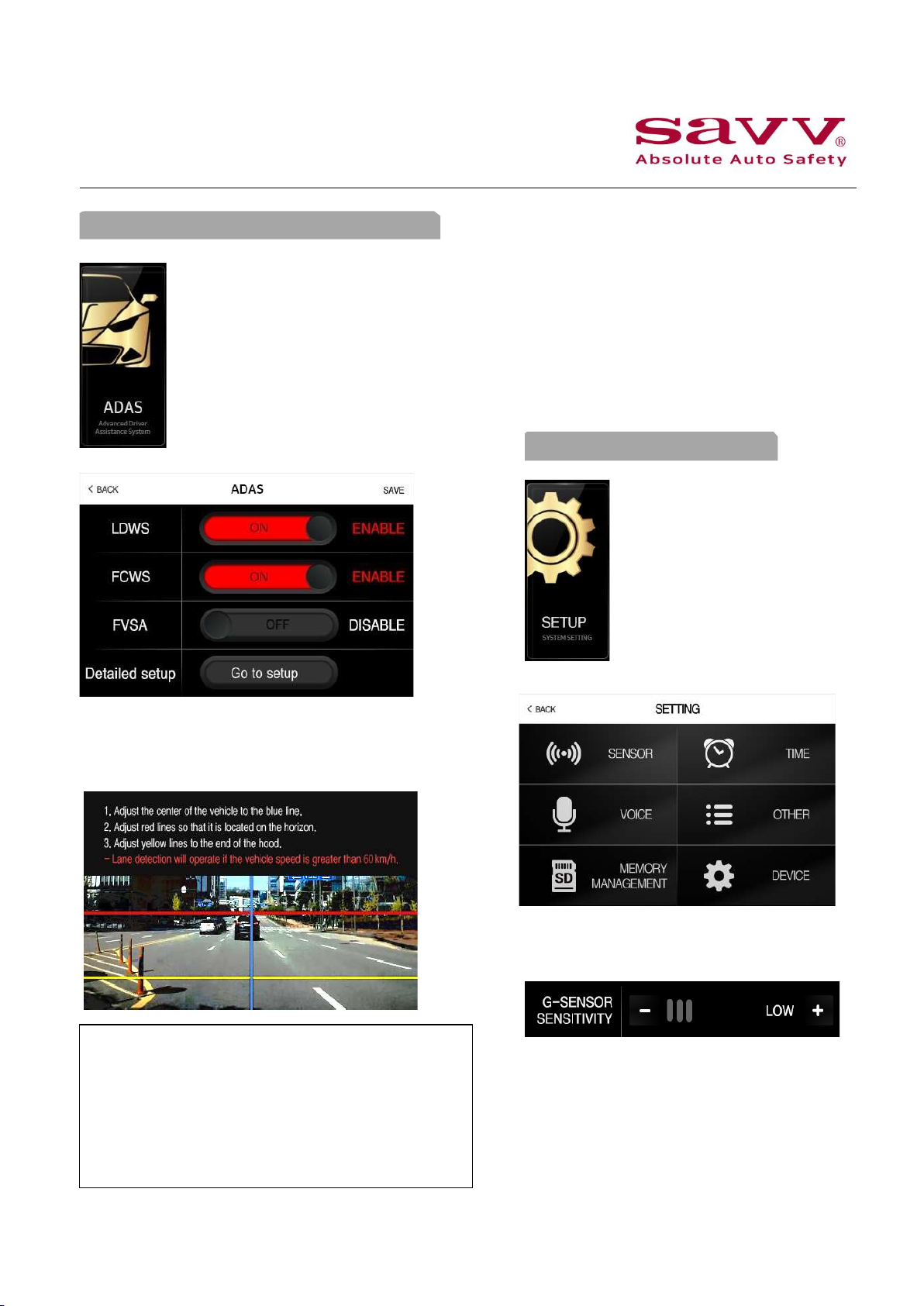
8. Menu > ADAS (Advance Driving Assistance
System)
The product supports Lane Departure
Warning System, Forward Collision
Warning System, and Forward Vehicle
Start Alarm functions of ADAS.
The ADAS LDWS, FCWS, and FVSA
functions notify the driver accordingly
in order to prevent any accidents while
driving.
You can enable the ADAS functions in this
menu. You can go to Detail Setup to establish
installation settings.
Blue line: Align at the center of the vehicle
Red line: Align at the ground level
Yellow line: Align at the tip of your hood
Select the color of the line you like to move, touch to move
up, down, left, right
Adjust the lines at flat ground surface for the best accuracy
The ADAS functions can only be operational
when a GPS is connected to the device and
will be activated in the following conditions
FVSA: when front of your vehicle is departing
but your vehicle is not moving
FCWS: when speed is over 9.3mph (15km/h)
LDWS: when speed is over 43.5mph (70km/h)
9. Menu > Setting
You can set up features of
the DASHCAM from
this menu.
SENSOR SETUP
Adjusts the G-Sensor sensitivity by choosing
from three levels: high, medium, and low.
10
Indice
Altri manuali SAVV Telecamera da cruscotto


