Sena 3S PLUS Manuale utente

© 1998–2020 Sena Technologies, Inc. All rights reserved.
Sena Technologies, Inc. reserves the right to make any changes and improvements to its product without providing prior notice.
Sena™ is a trademark of Sena Technologies, Inc. or its subsidiaries in the USA and other countries. SF1™, SF2™, SF4™, SFR™, SRL™, Momentum™,
Momentum INC™, Momentum Lite™, Momentum Pro™, Momentum INC Pro™, Momentum EVO™, Cavalry™, Latitude SR™, Latitude SX™, Latitude
S1™, 30K™, 50S™, 50R™, 5S™, 20S EVO™, 20S™, 10S™, 10C™, 10C PRO™, 10C EVO™, 10U™, 10Upad™, 10R™, 3S™, 3S PLUS™, SMH5™,
SMH5-FM™, SMH5 MultiCom™, SMH10™, SMH10R™, SPH10™, SPH10H-FM™, Savage™, Prism Tube WiFi™, Prism™, Bluetooth Audio Pack for
GoPro®, R1™, R1 EVO™, R1 EVO CS™, M1™, M1 EVO™, RC1™, RC3™, RC4™, Handlebar Remote™, Wristband Remote™, PowerPro Mount™,
Powerbank™, FreeWire™, WiFi Docking Station™, WiFi Sync Cable™, WiFi Adapter™,+mesh™, +Mesh Universal™, MeshPort Blue™, MeshPort Red™,
Econo™, OUTRUSH™, OUTSTAR™, EcoCom™, Parani M10™, Snowtalk™, Snowtalk2™, SR10™, SR10i™, SM10™, X1™, X1 Pro™, X1S™, Expand™,
Expand Boom™, Bluetooth Mic & Intercom™, Tufftalk™, Tufftalk Lite™, Tufftalk M™ are trademarks of Sena Technologies, Inc. or its subsidiaries. These
trademarks may not be used without the express permission of Sena.
GoPro® is a registered trademark of Woodman Labs of San Mateo, California. Sena Technologies, Inc. (“Sena”) is not afliated with Woodman Labs, Inc.
The Sena Bluetooth Pack for GoPro®is an aftermarket accessory specially designed and manufactured by Sena Technologies, Inc. for the GoPro®Hero3
and Hero4 allowing for Bluetooth capabilities.
The Bluetooth®word mark and logos are owned by the Bluetooth SIG, Inc. and any use of such marks by Sena is under license. iPhone®and iPod®touch
are registered trademarks of Apple Inc.

3S PLUS
1 PACKAGE CONTENTS ..................................................................................................4
2 INSTALLING THE HEADSET ON YOUR HELMET .......................................................6
2.1 Boom Microphone Type ................................................................................................................. 6
2.2 Universal Microphone Type ........................................................................................................... 7
3 GETTING STARTED.......................................................................................................9
3.1 Button Operation............................................................................................................................ 9
3.2 Sena Softwares ............................................................................................................................ 10
3.2.1 Sena Utility App............................................................................................................... 10
3.2.2 Sena Device Manager .................................................................................................... 10
3.3 Powering On and Off.................................................................................................................... 10
3.4 Charging....................................................................................................................................... 10
3.5 Checking the Battery Level.......................................................................................................... 11
3.6 Volume Adjustment ...................................................................................................................... 11
4 PAIRING THE HEADSET WITH OTHER BLUETOOTH DEVICES ............................11
4.1 Phone Pairing ............................................................................................................................... 11
4.1.1 Initially Pairing the headset ............................................................................................. 11
4.1.2 Pairing When the Headset Is Turned Off ....................................................................... 12
4.1.3 Pairing When the Headset Is Turned On ....................................................................... 12
4.2 Second Mobile Phone Pairing - Second Mobile Phone and SR10 ............................................. 12
4.3 GPS Pairing .................................................................................................................................. 12
5 MOBILE PHONE USAGE .............................................................................................13
5.1 Mobile Phone Call Making and Answering.................................................................................. 13
6 STEREO MUSIC ...........................................................................................................14
6.1 Bluetooth Stereo Music ................................................................................................................ 14
7 BLUETOOTH INTERCOM ............................................................................................14
7.1 Intercom Pairing ........................................................................................................................... 14
7.1.1 Pairing with Other Headsets for Intercom Conversation................................................ 14
7.2 Two-Way Intercom........................................................................................................................ 15
7.2.1 Starting and Ending Two-Way Intercom ......................................................................... 15
8 UNIVERSAL INTERCOM..............................................................................................15
9 FUNCTION PRIORITY.................................................................................................. 16
10 CONFIGURATION SETTING ....................................................................................... 16
10.1 Headset Conguration Setting..................................................................................................... 16
10.1.1 Delete All Pairings ........................................................................................................... 17
10.1.2 Factory Reset .................................................................................................................. 17
10.2 Software Conguration Setting .................................................................................................... 17
10.2.1 Unit Language................................................................................................................. 17
10.2.2 VOX Phone (Default: Enable).......................................................................................... 17
10.2.3 HD Intercom (Default: Enable)........................................................................................ 17
10.2.4 HD Voice (Default: Enable) ............................................................................................. 17
10.2.5 Voice Prompts (Default: Enable)..................................................................................... 18
10.2.6 Advanced Noise Control™ (Default: Enable)................................................................. 18
11 FIRMWARE UPGRADE ................................................................................................18
12 TROUBLESHOOTING ..................................................................................................19
12.1 Fault Reset.................................................................................................................................... 19
12.2 Factory Reset ............................................................................................................................... 19
CONTENTS
English

3S PLUS
4
1 PACKAGE CONTENTS
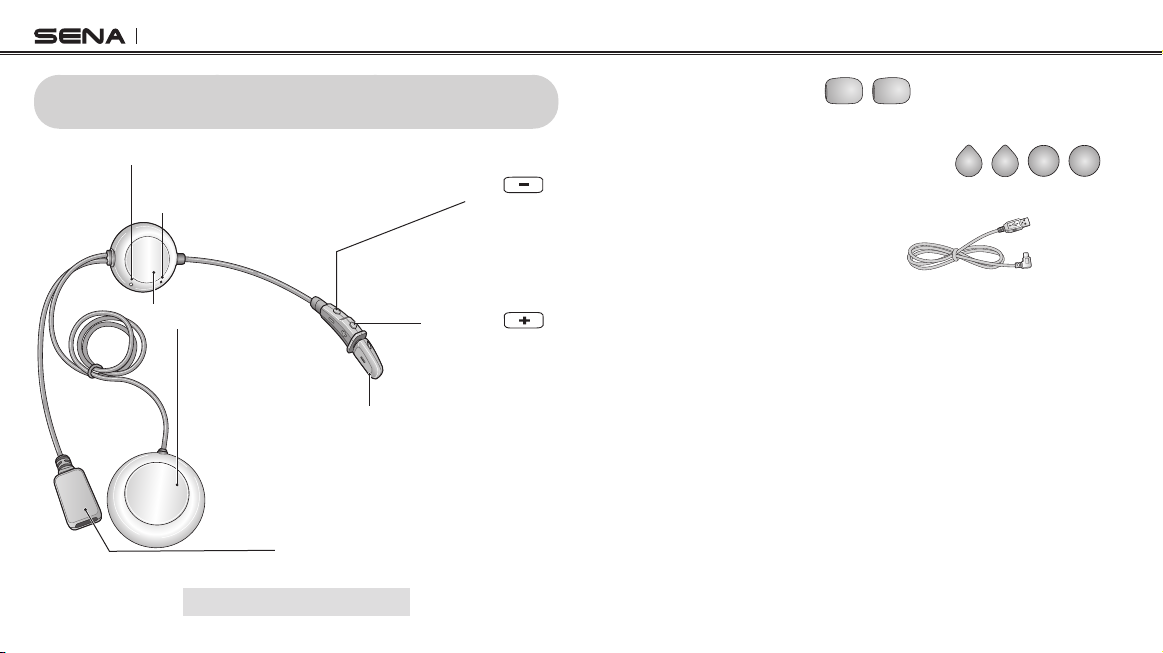
Status LED
Speakers
Microphone
(–) Button
(+) Button
Pin-hole
Reset Button
DC Power Charging &
Firmware Upgrade Port
Boom Microphone Type
• Microphone Sponges
• Hook and Loop Fasteners for Speakers
• USB Power & Data Cable (USB-C)

3S PLUS
5
English
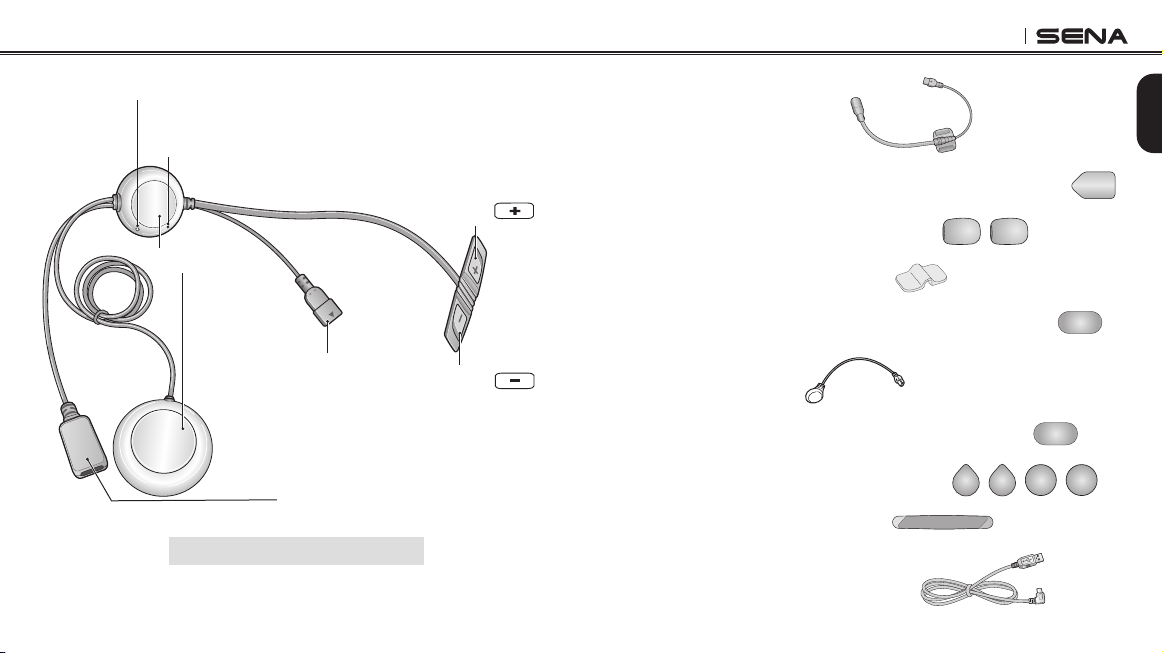
Microphone
Connector (–) Button
(+) Button
DC Power Charging &
Firmware Upgrade Port
Status LED
Speakers
Pin-hole
Reset Button
Universal Microphone Type
• Wired Boom Microphone
• Hook and Loop Fasteners for Wired Boom Microphone
• Wired Boom Microphone Sponges
• Wired Boom Microphone Holder
• Hook and Loop Fastener for Wired Boom Microphone
Holder
• Wired Microphone
• Hook and Loop Fasteners for Wired Microphone
• Hook and Loop Fasteners for Speakers
• Double Sided Adhesive Tape
• USB Power & Data Cable (USB-C)

3S PLUS
6
2 INSTALLING THE HEADSET ON YOUR
HELMET
2.1 Boom Microphone Type
1. Peel off the hook fasteners for the speakers and attach them on
the back sides of the speakers.
2. Attach the loop fasteners for the speakers in the deep ear pockets
of your helmet. Then place the speakers in the helmet along with
the hook and loop fasteners, centered to your ear.
Note: Locate the boom microphone as closely as possible to your mouth when
wearing the helmet.
3. Hide the wire under the helmet padding after the installation.

3S PLUS
7
English
2.2 Universal Microphone Type
1. Peel off the hook fasteners for the speakers and attach them on
the back sides of the speakers.
2. Attach the loop fasteners for the speakers in the deep ear pockets
of your helmet. Then place the speakers in the helmet along with
the hook and loop fasteners, centered to your ear.
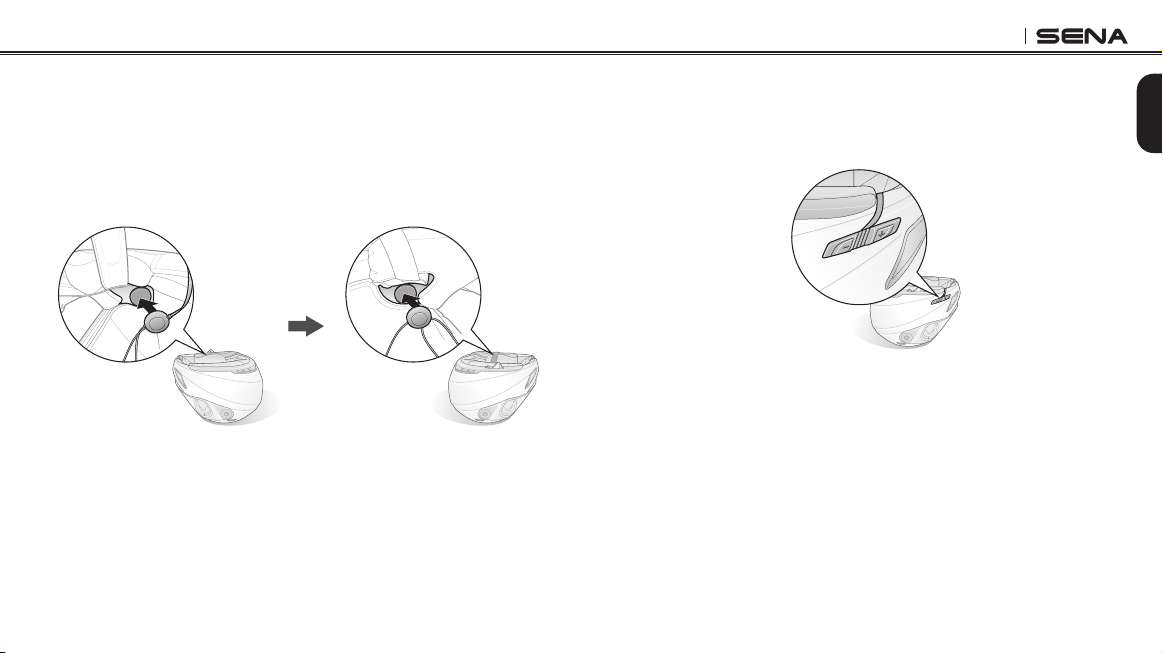
3. Locate a suitable surface on the left side of your helmet to attach
the unit, clean the location with a moistened towel, and allow to
dry thoroughly. Make sure that the control unit sticks on the helmet
rmly. Maximum adhesion occurs after 24 hours.

3S PLUS
8
Note: You can use the wired boom microphone holder after attaching the hook
and loop fastener for wired boom microphone holder on it to ensure secure
installation.
4-1. Attach the hook and loop fastener for the wired boom microphone
between the internal helmet cheek pad and the internal wall of the
helmet shell. Place the wired boom microphone on the hook and
loop fastener and attach the microphone connector to the 2 pin
connector of the main unit cable. The microphone should be
mounted so it is positioned close to your mouth when you are
wearing the helmet.

3S PLUS
9
English
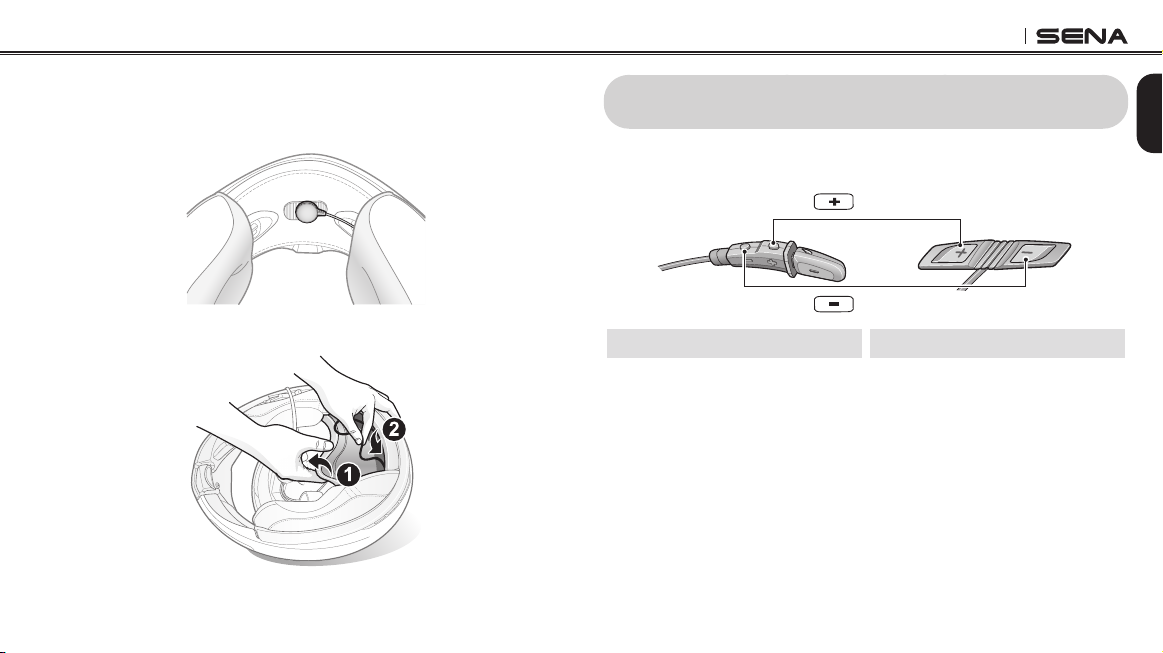
4-2. Attach the hook and loop fastener for the wired microphone to the
inside of the chin guard for full face helmets. Place the wired
microphone on the hook and loop fastener.
5. Hide the wire under the helmet padding after the installation.
3 GETTING STARTED
3.1 Button Operation
(+) Button
(–) Button
Boom Microphone Type Universal Microphone Type

3S PLUS
10
3.2 Sena Softwares
3.2.1 Sena Utility App
By simply pairing your phone with your headset, you can use the Sena
Utility App for quicker, easier setup and management.
• App Features
– Music, Device settings, Quick Start Guide, and User’s Guide.
• Download
– Android: Google Play Store > Sena Utility
– iOS: App Store > Sena Utility
3.2.2 Sena Device Manager
The Sena Device Manager allows you to upgrade rmware and
congure settings directly from your PC. Download the Sena Device
Manager from www.sena.com.
3.3 Powering On and Off
To power on the headset, press and hold the (+) Button and the
(-) Button for 1 second. To power off the headset, tap the (+) Button
and the (-) Button.
3.4 Charging
The headset will be fully charged in about 3 hours. The charging time
may vary depending on the charging method.
Note:
• Please make sure to take off your headset while charging. The headset
automatically turns off during charging.
• Any 3rd party USB charger can be used with Sena products if the charger
is approved by either the FCC, CE, IC or other locally approved agencies
that Sena accepts.
• The headset is compatible with 5 V/1 A input USB-charged devices only.
Altri manuali per 3S PLUS
3
Indice
Altri manuali Sena Sistema di conferenza

Sena
Sena SC1M Manuale utente

Sena
Sena TUFTTALK Manuale utente

Sena
Sena Tufftalk Lite Manuale utente

Sena
Sena 10U Manuale utente

Sena
Sena TUFFTALK M Manuale utente

Sena
Sena SP54 Manuale utente

Sena
Sena 20S Manuale utente

Sena
Sena 10s Manuale utente

Sena
Sena 5S Manuale utente

Sena
Sena SPIDER ST1 Manuale utente
Manuali Sistema di conferenza popolari di altre marche

Kramer
Kramer VIA GO Manuale utente

AVT
AVT MAGIC AC1 Go Manuale utente

ProSoft Technology
ProSoft Technology AN-X4-AB-DHRIO Manuale utente

Sony
Sony PCS-I150 Manuale utente

Middle Atlantic Products
Middle Atlantic Products VTC Series Manuale utente

Prentke Romich Company
Prentke Romich Company Vanguard Plus Guida