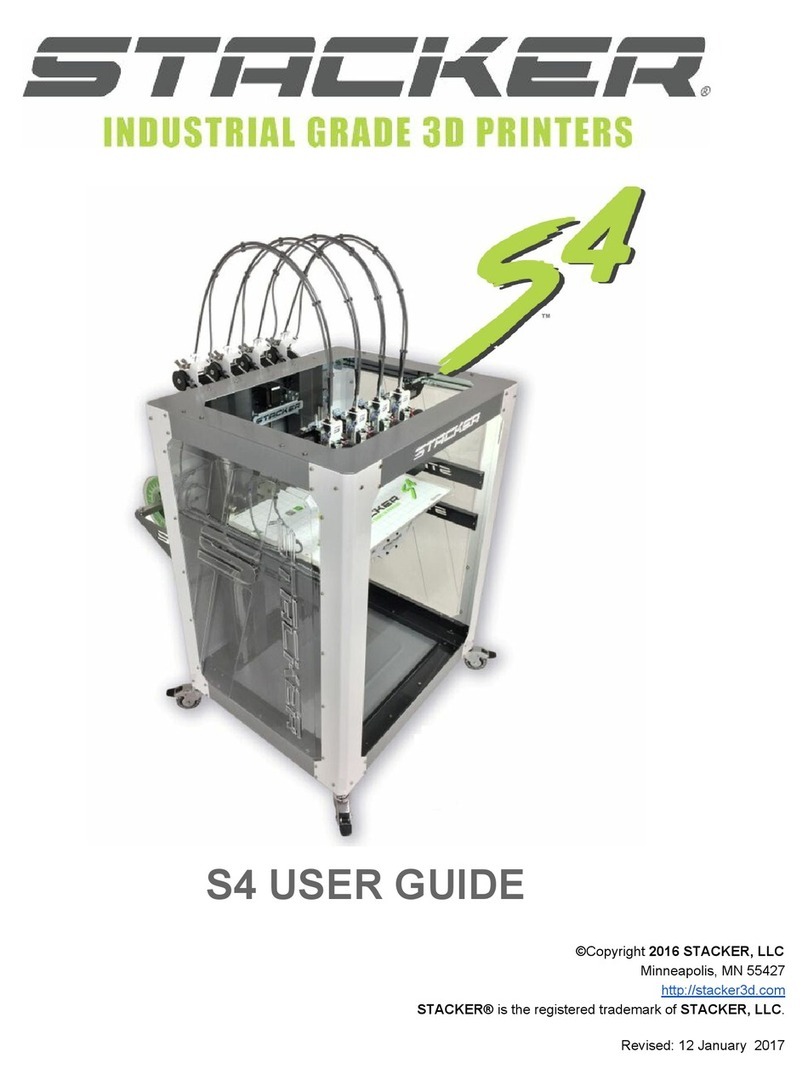
STACKER 500 Manuale utente

UserGuide
MODEL500(2015KS)
©Copyright2016STACKER,LLC
Minneapolis,MN55427
http://stacker3d.com
STACKER®istheregisteredtrademarkofSTACKER,LLC.
Revised:20February2016

STACKER500KSUSERGUIDE2
UserGuide
MODEL500(2015KS)
TABLEOFCONTENTS
1. Introduction
2. Warnings
3. UnpackingandFinalAssembly
3.1. LocateHardwareboxes&FilamentRail
3.2. UniversalFilamentRailInstallation
3.3. FilamentDriveIdlerAssemblyHardwareInstallation
3.4. FinalTapeRemoval
3.5. CableTies
3.6. BlowerFans
4. DownloadSTACKERRUNSoftware
5. PrinterSetup
5.1. PowerUpPrinter
5.2. LevelThePrintBed
5.3. AdjustingNozzleHeight
5.4. ChangingNozzles&FilamentGuideTube
5.5. LoadingFilament
5.6. ManualcontrolviaSTACKERRUN
5.7. SDCardPrinting
5.8. FirstPrint
5.9. MultiPartPrinting
5.10. MultiMaterialPrinting
5.11. SlicingEngine
6. TurningOffyourPrinter
7. VolumetricCalibration
8. Calibrationofx/y/zaxis
8.1. VrefSettings
9. UsefulInfo
9.1. PowerSupplyDataSheet
9.2. InstallingtheLCDSmartController
9.3. FilamentSettingsGuide
10. TermsandConditions

STACKER500KSUSERGUIDE3
1.Introduction
TheSTACKERModel500isahighperformance3Dprintercapableofproducingeverythingfrom
oneoffprototypestomultiplepartproductionruns.Togetthemostoutofyourprinter,pleaseread
throughthisUserGuidebeforeoperating.
ItisalsohelpfultobefamiliarwithsolidmodelingCADapplicationsinordertocreateand
manipulatethepartsyouwanttoprint.Forexample,asimpledesignmodificationorsplittinga
modelintosectionswillallowyoutoprintitfaster,better,andwithouttheneedforsupportmaterials.
ThefollowinglistofCADappsisagoodbalanceofpowerandvalue,someofwhicharefreeand
haverobustonlinetrainingandusercommunities.Nearlyalloftheseappswillexportyourmodels
tothepreferred.stlfileformat.
● Sketchup
● Autodesk123DappsincludingMeshmixerandTinkercad
● openSCAD,netfabstudiobasic,GeomagicDesign
● Fusion360,SolidWorks,Inventor,SolidEdge
Beforemakingyourfirstprintsyouwillbedirectedtodownloadsoftwareandviewonlinetraining
materialsatthelocationsbelow.
● Printersetupsupporthttp://stacker3d.com/kickstartersupport
●STACKERRUNsoftwaredownloadhttp://stacker3d.com/kickstartersupport
●STACKERRUNdocumentationhttp://www.repetier.com/#documantation

STACKER500KSUSERGUIDE4
2.Warnings
STACKER3Dprintersareindustrialmachinesthatshouldneverbeoperatedaroundchildrenorleft
unattended.Carefulsetupandtrainingisrequiredforoptimalresults.Readthroughthisguideand
viewonlineresourcesbeforeturningonyourprinter.
Note,thisprintedcopyoftheUserGuidemaynotbethemostcurrentversion.Werecommend
downloadingtheUserGuidefromourwebsitetoconfirmyouhavethelatestversion.Therevision
dateisnotedonthecoverpage.
PleasereadandtakeseriouslyallWarnings.Unsafeoperationofa3Dprintercanresultindamage
toyourprinterandseriousinjurytoyourself.TheWarningspagesareincludedintheboxwithevery
printerandarealsoavailableatthiswebsiteaddress:
● http://stacker3d.com/kickstartersupport

STACKER500KSUSERGUIDE5
3.UnpackingandFinalAssembly
IfyouhaveaSTACKER500Desktopmodel,youmustfirstcompleteallthestepsofthepagetitled
“UnboxingAssemblyInstructionsforDesktopModel500.”Ifthispagewasmissingfromyourprinter
pleasedownloadithere:
●http://stacker3d.com/pdf/desktopstartstkr500ks.pdf
Ifyouhaveafullheightmodelthatarrivedonapallet,carefullycutawaythepackagingandsetthe
unituprightonitscasters.
3.1.Locatethetwohardwareboxesanduniversalfilamentrail
TwosmallboxesandtheUniversalFilamentRailareeitherlocatedatthebottomofyourboxifyou
havethedesktopmodelorattachedtoyourprinterwithstretchwraponfullheightmodels.
Box#1containstheRightandLeftUniversalFilamentRailBrackets,shownbelow.

STACKER500KSUSERGUIDE6
Box#2containsthreemainhardwarebags:

STACKER500KSUSERGUIDE7
3.2.Attachtheuniversalfilamentrailassembly.
Step1.LocatetheUniversalFilamentRail,thetwoFilamentRailBrackets,andthetwoFilament
RailScrews.
Step2.Removethefour5mmx16mmSocketHeadCapScrewsthatalsosecuretheplasticwire
harnessesclamps(seephotobelow).Thesescrewsarelocatedonthebluecoloredcorner
brackets.YouwillreusethesescrewstomounttheFilamentRailBracketsinthenextstep.Usethe
supplied3mmhexwrenchandan8mmwrench/socket/pliers(notprovided).
Step3.Attachthefilamentrailbracketsusingthehardwareyouremovedinthepriorstep.Notethe
orientationintheimagebelow.Also,makesureallfourscrewsgobackthroughthewireharness
clamps.Failuretosecurethewireharnessescouldresultinseriousdamagetoyourprinterduring
operation.Repeattheinstallationonboththerightandleftsidesoftheprinter.

STACKER500KSUSERGUIDE8
3.3.Installthefilamentdrivehardware.
Step1.Locatethefilamentdriveidlerassemblyhardware.Eachfilamentdriverequires(2)
compressionsprings,(2)M4x30mmSocketHeadCapScrews,and(2)M4Thumbnuts,asshown.
NotetheredcoatingontheScrews,thisredcoatingwillpreventthethumbnutsfrombackdriving.
Step2.Attachthefilamentdriveidlerassemblyhardwaretoeachofyourprinter’sfilamentdrives,
asshownbelow.Thesmallknobsshouldbeflushtotheendofthescrews.Usethesupplied3mm
hexwrenchtoholdthescrewswhileyouhandtightentheknobs.

STACKER500KSUSERGUIDE9
3.4.Removethepackagingtape.
Toprotectyourprinterduringshipping,weattachedseveralpiecesoflowtacktapetotheXgantry,
YShaft,ZShaft,andglassbed.YouMUSTremoveallofthispackingtapebeforecontinuing.
Cleanoffanyresiduewithanalcoholwipe,ifnecessary.
3.5.Attachthecabletiesonyourfilamentguidetubes.
Usethesuppliedziptiestosecurethewireharnessesandguidetubestogether,asshownbelow.
Usefourtiesperguidetubethreeasshownandoneziptiethroughthespecialbracketmounted
oneachfilamentdrive.

STACKER500KSUSERGUIDE10
3.6.Attachtheblowerfans.
YourSTACKERcomeswithoneormore50mmblowerfanpreinstalledatthefactoryfortesting
purposes.Pleaseusethispreinstalledfanasareferencetoinstallyourotherblowerfans.Itis
criticalthatyourblowerfansarepositionedcorrectlyduringtheoperationofyourprinter!If
thefansarepositionedintheintheincorrectposition(seeimagesbelow),theblowerfanswillcrash
intotheframeofyourprinterwhenyouhometheYaxis.Topreventpossibledamagetoyour
printer,besuretolowerthefansandkeepthemcorrectlypositioned.
IMPORTANT!Theblowerfanwillcrashintotheprinter’sframeif
incorrectlypositioned.
Questo manuale è adatto per i seguenti modelli
1
Indice
Altri manuali STACKER Stampante 3D