
Synapptic TV Box Manuale utente

Getting Started
with your
Synapptic TV Box

Page 1
1.
About this booklet.......................................2
2.
What’s in the box?.......................................3
3.
The TV Box...................................................5
4.
Installation....................................................6
5.
The Remote................................................11
6.
The Bluetooth Keyboard...........................14
7.
Turning the TV Box on and off.................15
8.
Operating the menus.................................16
9.
Google Account settings..........................18
10.
Configuring Email......................................19
11.
Configuring Skype.....................................20
12.
Customisation............................................21
13.
Using Apps.................................................22
14.
Software updates.......................................24
15.
Synapptic help and support .....................25

Page 2
1. About this booklet
Thank you for purchasing a Synapptic product.
This booklet gives details of how to setup and use
your new TV Box for the first time.
Please read this booklet fully before using the
device.
This booklet is also available as a Microsoft Word
document, a Text Only document, Audio MP3 files
or an Audio CD.
Full help can be found within the product. See the
Help and Support section below for details.
Page 3
2. What’s in the box?
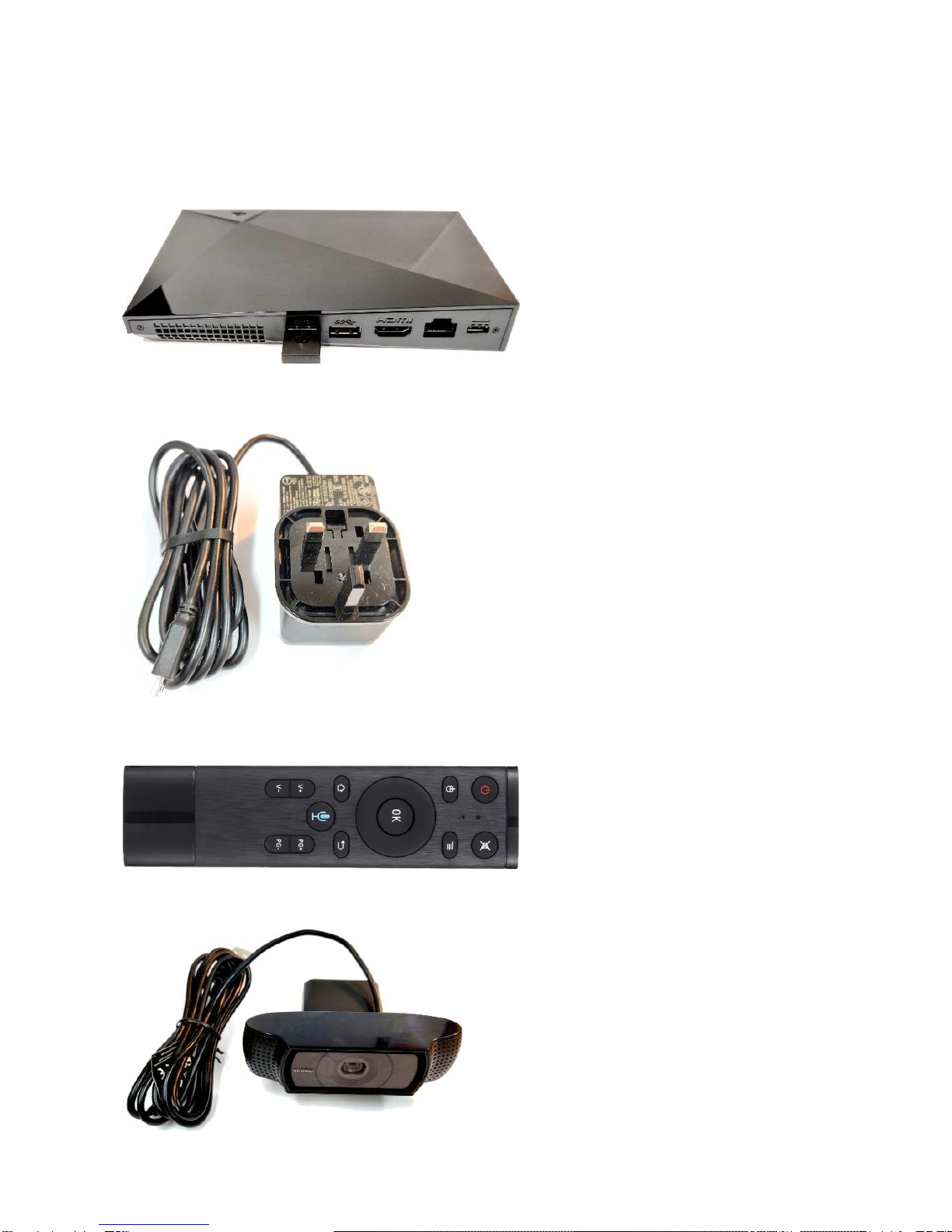
Your box should contain the following items:
Synapptic TV Box
(With remote control
receiver already
plugged in)
TV Box Power
supply
Remote control
(Batteries included)
Compact Webcam

Page 4
Webcam stand
HDMI cable
Wireless Keyboard
(in selected colour,
batteries included)
Make sure each item can be identified as it will be
needed during the following installation process.

Page 5
3. The TV Box
Before powering on your new Synapptic device,
let’s take a look at the various buttons, switches
and connection points.
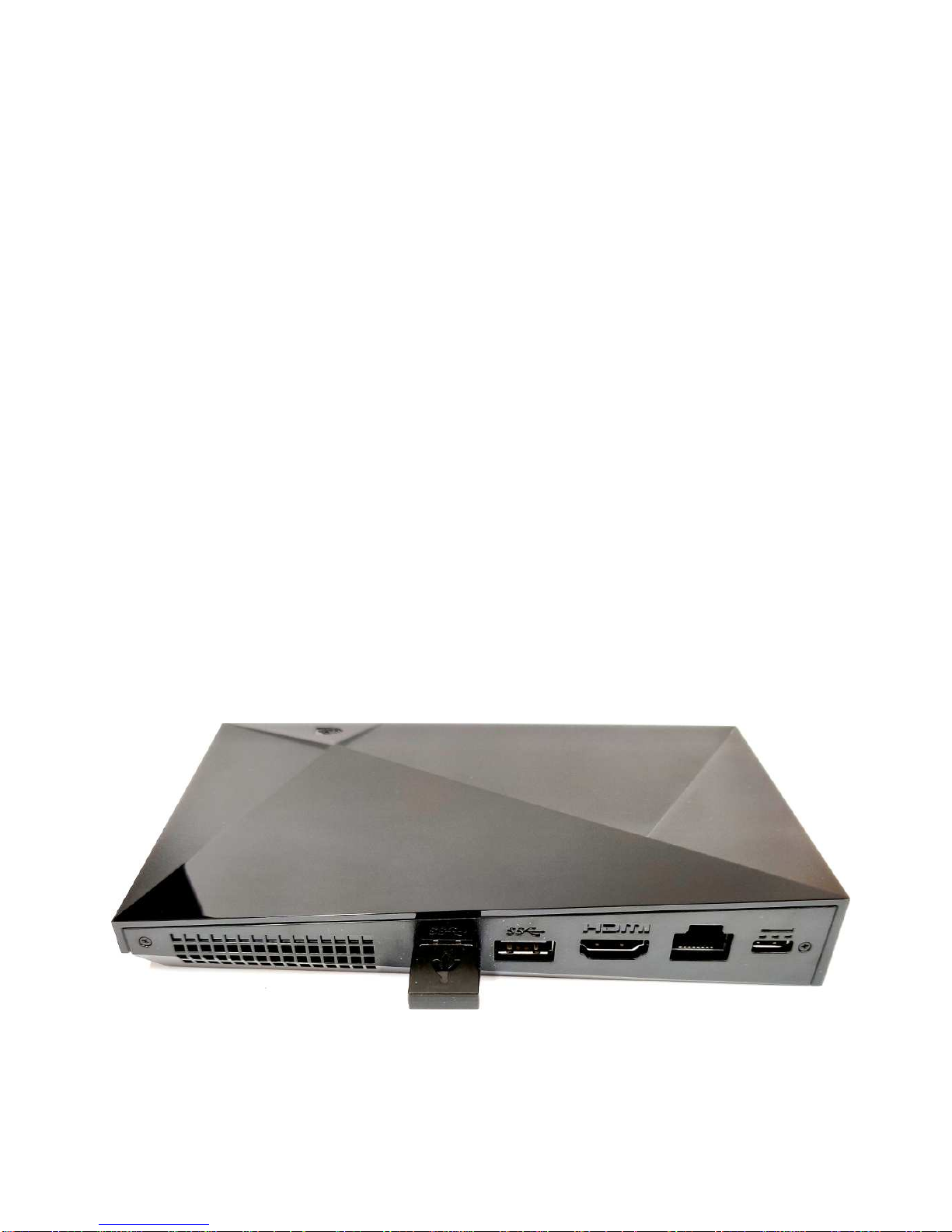
The TV Box itself is an irregularly shaped
rectangular box. The back right corner is the tallest
point and the front left is the shortest.
Along the back edge, going from left to right, is the
vent followed by two USB ports, where the camera
and the remote control receiver plug in. The ports
are thin rectangular slots.
Next is the HDMI port, where you plug in the cable
that connects to your TV. This cable is wide and
thin with indents in the two bottom corners.
USB
Port 1 USB
Port 2 HDMI Power
Input
Network
Port
Page 6
After that is the network port, which is usually not
used.
Finally there is the power port, which you plug the
power cable into, either side up.
4. Installation
To complete the installation you will need all the
items included in the packaging as described
above, along with a modern TV that has a spare
HDMI port. You will also need a Wifi or cabled
internet connection.
Follow the below instructions exactly to install and
setup your new Synapptic TV Box.
•Take the TV Box, camera, remote control,
stand, keyboard, power supply and HDMI wire

Page 7
out of the box. Some items may be located
below the foam packaging, so be sure to
remove everything from the box.
•Locate the HDMI cable. Plug one end into a
spare HDMI input on your TV and the other
end into the Synapptic TV Box
•The TV Box should come with the small
thumbnail-sized remote control receiver
module already plugged into one of the USB
ports.
•Plug the camera into the spare USB port and
either clip it on to the top of your TV or screw
it onto the supplied stand and place it near the
TV, facing your sofa or chair
•Plug one end of the power supply cable into
the TV Box and the other end into a 3-pin
mains socket
•Switch on the keyboard (see the separate
keyboard user manual for details).
•Switch on your TV and set the source to be
HDMI, if it’s not automatically selected for you.
You may need to press the Source or Input

Page 8
button on your remote control, to select the
correct HDMI source.
If you have completed everything successfully your
TV screen should look like the below image.
Please note: other screens will show while the TV
Box starts up and before the Main Menu appears.
Please allow a minute or so for the TV Box to
complete its startup tasks (your TV Box will show a
warning message during startup. This is nothing to
worry about and can be ignored).
If you have a very large black border around the
edge of the screen, or parts of the TV Box menu
have spilt off the edge of the screen, please contact
us for details of how to adjust your TV.

Page 9
4.1 Connecting to Wifi
Now that the TV Box is up and running, your first
task should be to connect the TV Box to your Wifi
Internet connection. Many TV Box features require
an Internet connection.
Press the Page Down button on the remote until
you reach Main Menu screen 5. Use the bottom of
the Navigation Control on the remote to move to
the Settings Menu option. Now press the OK
Button on the remote. The Settings Menu will
display.
Use the Page Down and Navigation Buttons on the
remote to find the Wifi option, then press the OK
Button on the remote. The Wifi Menu will display.
Select the Wifi (show Wifi list) option then pick your
Wifi connection from the list.
If a password is required for the selected Wifi
connection, Synapptic will prompt you for it. This
password will be remembered and the connection
automatically made when in range.
If a Wifi password is not asked for, we recommend
immediately opening up your Home Page in the
Web Browser. Some Wifi connections will force you
Indice


