Using your
NanoCore12DXC32 Quick-
Start Package
1. Getting Started
1.1 Hardware Setup:
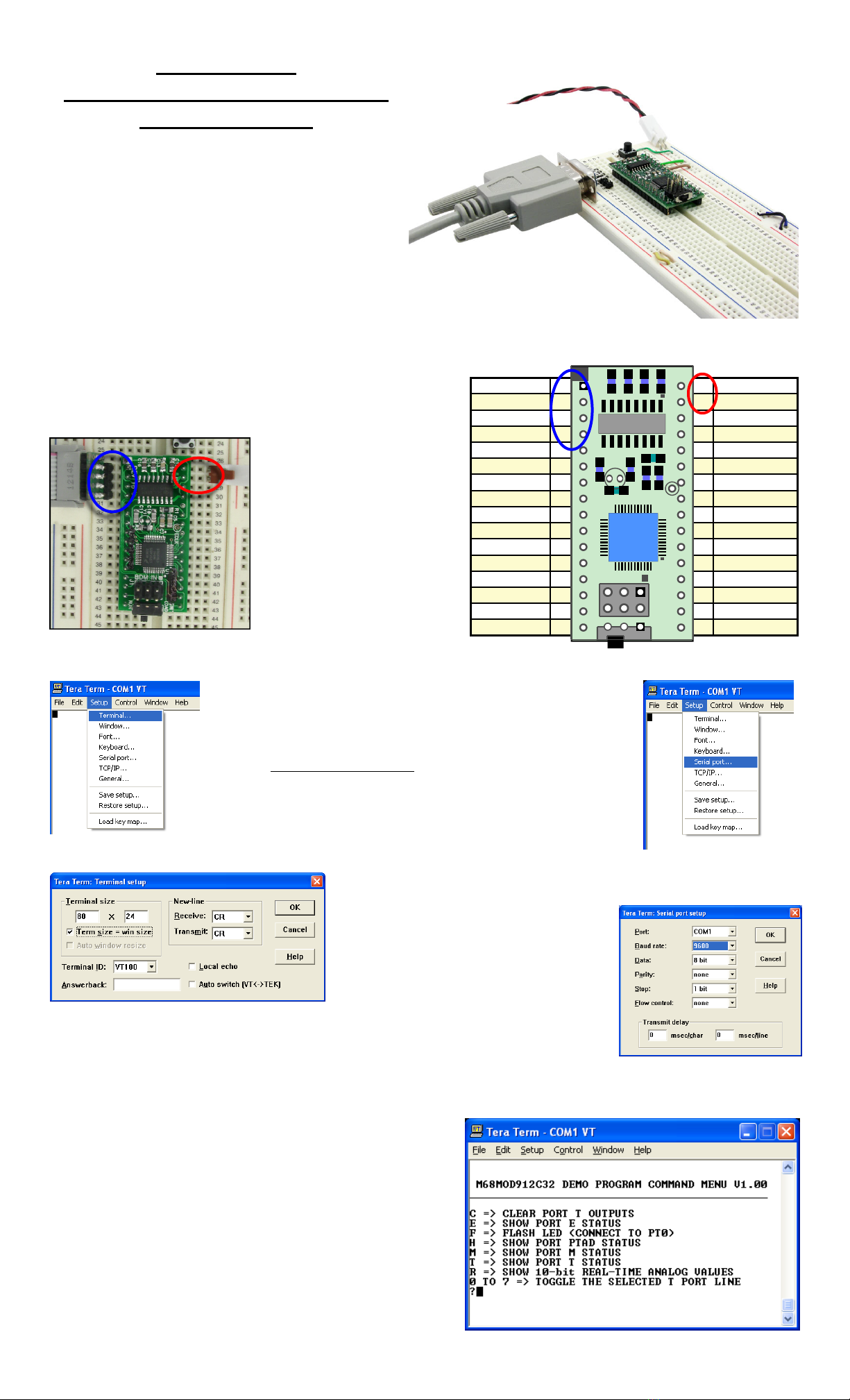
Plug the NanoCore12DXC32 module into your solder-
less breadboard. Attach the supplied serial cable (may
vary from cable shown in photo) between the TX,RX,
and GROUND pins of the module (pins 1, 2, and 4,
respectively) and the PC's Com Port (i.e. serial port).
(see Fig. 1). If your PC does not have a Com Port,
you'll also need a USB-to-Comport adapter
(#USB2COM or #USB232).
You'll need a DC power supply of at least 6V and not exceeding about 9V. With the power off, attach or splice your
power supply onto the red and black power cable assembly that came with your kit. Red is positive and black is nega-
tive. This cable assembly was designed to plug conveniently into
your solderless breadboard next to the Vin and Ground pins on
NanoCore12DXC32. The Vin (+) pin (32) goes to the red wire,
and VSS/Ground (-) pin (31) goes to the black wire. Refer to
Figure 2 for connection details.
Note: if you have a regulated
power supply of 3V or 5V, you
can connect it directly between
Vcc (pin 29, positive) and Vss
(pin 31, negative), and leave
Vin unconnected. Do not
apply power yet!
1.2 Verifying your Setup.
At this point, you should
have your hardware all set up
and ready to test.
Each NanoCore12 module
is shipped from the factory with a demo program loaded into
Flash. To use the demo program, you will need to launch a
terminal program on your PC. Some examples of terminal pro-
grams you can use are: HyperTerminal (included with Win-
dows), TeraTerm, MiniIDE, and the terminal program inside
ImageCraft's C compiler (ICC12 or ICC for CPU12). In this
guide, we will use TeraTermPro, available on the Resources
page of www.NanoCore12.com, or here:
http://support.technologicalarts.ca/docs/Third%20Party/TeraTe
rmPro/Tera%20Term%20Pro%202.3.zip
After unZIPping and installing TeraTermPro, launch the pro-
gram and select Setup from the drop-down menu. Select Ter-
minal (see Figure 3) and click on the button next to Term size
= win size, then click OK (see Figure 4). Again from Setup,
select Serial Port (see Figure 5) and select
the com Port you are using, 9600 for Baud rate,Data: 8 bit,Parity:
none,Stop: 1 bit,Flow control:
none (see Figure 6). Now, make sure
the Load/Run switch on
NanoCore12DXC32 is in the RUN posi-
tion and apply power to the module, as
described in 1.1, above. You should
immediately see a menu displayed in
your terminal window (see Figure 7). If
you don't see the menu, momentarily
bring the RESET pin (pin 30) on the
module to logic low (i.e. temporarily connect it to GROUND). If that doesn’t work,
re-read the above and verify your power supply voltage and connections.
Now press the Enter key on your PC keyboard, and NanoCore12 will re-send
the Demo Program Command Menu to your terminal window. If you got this far, it means that your module is suc-
cessfully powered up and running, and communication is work-
ing in both directions (i.e. transmit and receive).
1.3 Using the Demo Program:
Now it’s a good idea to attach a couple of LEDs to see the re-
sults of some of the Demo Program commands. Refer to Figure
8 for the connection details. The current-limiting resistor value
should be no less than 680 Ohms, to avoid drawing too much
current from the pin.
•Type the digit 0 repeatedly and observe that the LED con-
nected to PT0 (pin 19) toggles on and off.
•Type the digit 1repeatedly and observe that the LED con-
nected to PT1 (pin 20) toggles on and off.
Figure 2
Figure 1
Figure 3
Figure 4
Figure 5
Figure 6
Figure 7
TX (RS232) 1 32 VIN
RX (RS232) 2 31 VSS (GROUND)
DTR (N/C) 3 30 RESET*
VSS 4 29 VCC
AN0/PAD00 5 28 PE0/XIRQ*
AN1/PAD01 6 27 PE1/IRQ*
AN2/PAD02 7 26 PT7/IOC7
AN3/PAD03 8 25 PT6/IOC6
AN4/PAD04 9 24 PT5/IOC5
AN5/PAD05 10 23 PT4/IOC4/PW4
AN6/PAD06 11 22 PT3/IOC3/PW3
AN7/PAD07 12 21 PT2/IOC2/PW2
PM5/SCK 13 20 PT1/IOC1/PW1
PM4/MOSI 14 19 PT0/IOC0/PW0
PM3/SS* 15 18 PM0/RXCAN
PM2/MISO 16 17 PM1/TXCAN
SW1
ECLK
LOAD
RUN
U1
C11
Y1 R3
R1
C7
C5
C10
C15
C13
C14
C16
BDM IN
REV 1b
J1
U4


