
Tenda 3G150B Manuale utente


3G150B 150Mbps Portable 3G Wireless Router
1
Copyright Statement
is the registered trademark of Shenzhen Tenda
Technology Co., Ltd. All the products and product names mentioned
herein are the trademarks or registered trademarks of their
respective holders. Copyright of the whole product as integration,
including its accessories and software, belongs to Shenzhen Tenda
Technology Co., Ltd. Without prior expressed written permission
from Shenzhen Tenda Technology Co., Ltd, any individual or party is
not allowed to copy, plagiarize, reproduce, or translate it into other
languages.
All photos and product specifications mentioned in this manual are
for references only. Upgrades of software and hardware may occur;
Tenda reserves the right to revise this publication and to make
changes in the content hereof without obligation to notify any
person or organization of such revisions or changes. If you would
like to know more about our product information, please visit our
website at www.tenda.cn.

3G150B 150Mbps Portable 3G Wireless Router
2
Content
COPYRIGHT STATEMENT...............................................................................1
CHAPTER 1 PRODUCT OVERVIEW...............................................................4
1.1 OVERVIEW...........................................................................................4
1.2 FEATURES...........................................................................................5
1.3 PACKAGE CONTENTS............................................................................6
1.4 PANEL OVERVIEW.................................................................................7
CHAPTER 2 HARDWARE INSTALLATION...................................................9
2.1 INSTALLATION.......................................................................................9
2.2APPLICATION......................................................................................12
CHAPTER 3 LOGIN TO THE WEB-BASED UTILITY................................14
3.1 CONFIGURING WIRED CONNECTION.....................................................14
3.2 CONFIGURING WIRELESS CONNECTION................................................18
3.3 LOG IN TO THE WEB-BASED UTILITY .....................................................19
CHAPTER 4 QUICK INTERNET CONNECTION SETUP...........................22
4.1 IN 3G ROUTER MODE.........................................................................22
4.2 IN WIRELESS APMODE ....................................................................24
4.3 IN WIRELESS ROUTER MODE ..............................................................24
CHAPTER 5ADVANCED SETTINGS..............................................................29
5.1 LAN SETTINGS..................................................................................29
5.2 WAN SETTINGS.................................................................................31
5.3 DNS SETTINGS .................................................................................37
CHAPTER 6 WIRELESS SETTINGS..............................................................38
6.1 BASIC SETTINGS................................................................................38
6.2 WIRELESS SECURITY..........................................................................40
6.3 WIRELESS CLIENTS............................................................................43
CHAPTER 7 DHCP SERVER.......................................................................44
7.1 DHCPSERVER .................................................................................44
7.2 DHCPCLIENTS.................................................................................45

3G150B 150Mbps Portable 3G Wireless Router
3
CHAPTER 8 VIRTUAL SERVER................................................................47
8.1 PORT FORWARDING............................................................................47
8.2 DMZ SETTINGS .................................................................................49
8.3 UPNPSETTINGS................................................................................50
CHAPTER 9 3G STATISTICS......................................................................52
9.1 3G STATISTICS ..................................................................................52
CHAPTER 10 SECURITY SETTINGS ............................................................53
10.1 CLIENT FILTER.................................................................................53
10.2 URLFILTER ....................................................................................55
10.3 MACADDRESS FILTER.....................................................................56
10.4 PREVENTING NETWORK ATTACK ........................................................58
CHAPTER 11ROUTING SETTINGS...............................................................59
CHAPTER 12 SYSTEM TOOLS.......................................................................60
12.1TIME SETTINGS................................................................................60
12.2 BACKUP/RESTORE SETTINGS............................................................61
12.3 RESTORE TO FACTORY DEFAULT SETTINGS.........................................63
12.4 FIRMWARE UPGRADE........................................................................64
12.5 REBOOT..........................................................................................65
12.6 CHANGE PASSWORD ........................................................................65
12.7 SYSLOG..........................................................................................66
12.8 LOGOUT..........................................................................................67
APPENDIX 1 HOW TO SET A PC TO OBTAIN AN IPADDRESS
AUTOMATICALLY? .........................................................................................67
APPENDIX 2 HOW TO SETAWIRELESS NETWORK ADAPTER TO
CONNECT TO THE DEVICE AFTER IT IS ENCRYPTED? .......................71
APPENDIX 3 GLOSSARY.................................................................................74
APPENDIX 4 TROUBLESHOOTING..............................................................78
APPENDIX 5 COMPATIBILITY LIST OF 3G MODEMS V0.5....................82

3G150B 150Mbps Portable 3G Wireless Router
4
Chapter 1 Product Overview
1.1 Overview
Thank you for purchasing this 3G150B 150Mbps Portable 3G
Router/ Wireless AP/ Wireless Router (hereinafter referred as the
device).
3G150B, adopting IEEE802.11n standard, backwards compatible
with IEEE802.11b/g standards, combines 3G, WiFi, and routing, etc
technologies that support wired/ 3G wireless Internet access. Being
able to be powered either by battery or USB cable, featuring
exquisite design, ease to carry, user-friendliness, it is the best
choice for smart notebook, Ipad, MID, etc WiFi devices to access
mobile Internet.
This 3G150B supports 3 working modes to implement various
wireless applications:
Wireless AP Mode: This is the default mode which can be used as
a converter between wired and wireless signals. For example, when
the device is connected to broadband Internet using a network
cable, multiple computers can share Internet connection wirelessly
without configuration.
3G Router Mode: System automatically switches to this mode
when a 3G modem card is inserted into the device’s USB port and
Multi-computer can then share the 3G network service. It is

3G150B 150Mbps Portable 3G Wireless Router
5
especially suitable for users who do not have the convenience of
accessing fixed broadband or users who are in need of a mobile
shared Internet access solution.
Wireless Router Mode:To access this mode, go to the utility of
the router, enable Wireless Router and save settings before exit.
Connect it to your ADSL/Cable modem and multi-computers share
Internet access wirelessly.
In addition, this device is powered by a Lithium Ion-battery or over
USB, enabling you to flexibly establish wireless network anywhere
anytime.
With powerful functions, 3G150B is suitable for various wireless
applications. What is more, with exquisite, compact and portable
design, it is the ideal mobile Internet solution for people who travel.
1.2 Features
¾Supports 802.11n, 802.11g, 802.11b, 802.3, 802.3u
¾Supports EVDO/WCDMA/TD-SCDMA 3G modes
¾Supports 3G Router, wireless AP and wireless router working
modes
¾Delivers wireless speed up to 150Mbps
¾Provides 1*10/100Mbps auto-negotiation Ethernet port as a
LAN/WAN port
¾Supports WPA-PSK, WPA2-PSK, WPA&WPA2-PSK, etc
encryptions
¾Supports hidden SSID

3G150B 150Mbps Portable 3G Wireless Router
6
¾Built-in firewall against hacker attack
¾Provides syslog to record router's usage status
¾Supports to prohibit LAN clients from accessing Internet
¾Supports SNTP, UPnP, DMZ and Virtual server
1.3 Package Contents
Please unpack the box and check the following items:
¾3G150B 150Mbps Portable 3G wireless Router
¾Lithium Battery
¾Power Adapter
¾Quick Installation Guide
¾Manual on CD
¾USB cable
If any of the above items are incorrect, missing, or damaged,
please contact your Tenda reseller for immediate replacement.
Note: Using a power supply with a different voltage rating
than the one included with the 3G150B will cause damage.

3G150B 150Mbps Portable 3G Wireless Router
7
1.4 Panel Overview
1.4.1 Top Panel------LED overview
LED overview (from L to R):
: Power LED. A solid blue light indicates a proper connection to
the power supply.
:AP/Wireless router mode LED. A solid blue light indicates
device is working in AP or wireless router mode.
: 3G mode LED. A solid blue light indicates a successful 3G
connection.

3G150B 150Mbps Portable 3G Wireless Router
8
:Wifi LED. A blinking blue light indicates the device’s WIFI
feature is enabled successfully and functions normally.
: Battery capacity LED. A solid blue light indicates that the
battery is fully charged or USB power cord is correctly connected
(with no installed battery), a green light indicates the battery is
being charged up and a red light indicates the battery capacity
reaches threshold (3.3V).
1.4.2 Side Panel---Button Overview
RESET: Press this button for 7 seconds to restore factory default
settings.
ON/OFF: Power Switch: turn on/off the device’s power supply and
the corresponding LED on top panel will light up or off.
POWER: Mini USB power receptor for connecting to the supplied
power adapter or PC’s USB port via a USB cable.
1.4.3 Rear Panel View
Port Overview:(From L to R)
LAN/WAN: The 100Mbps LAN/WAN Ethernet port. In Wireless
3G150B 150Mbps Portable 3G Wireless Router
9
Router mode, it is used as a WAN port to connect to a DSL MODEM
or superior equipment, etc. While in 3G Router or AP mode, it is
used as a LAN port to connect to a PC or Ethernet Switch, etc.
USB: USB 2.0 port for 3G USB Modem connection, such as
TD-SCDMA, CDMA2000, and WCDMA modem cards, etc.
Chapter 2 Hardware Installation
2.1 Installation
Please follow the steps below for correct connection before
configuring the device. For better wireless performance, place it in
the center of wireless coverage area.
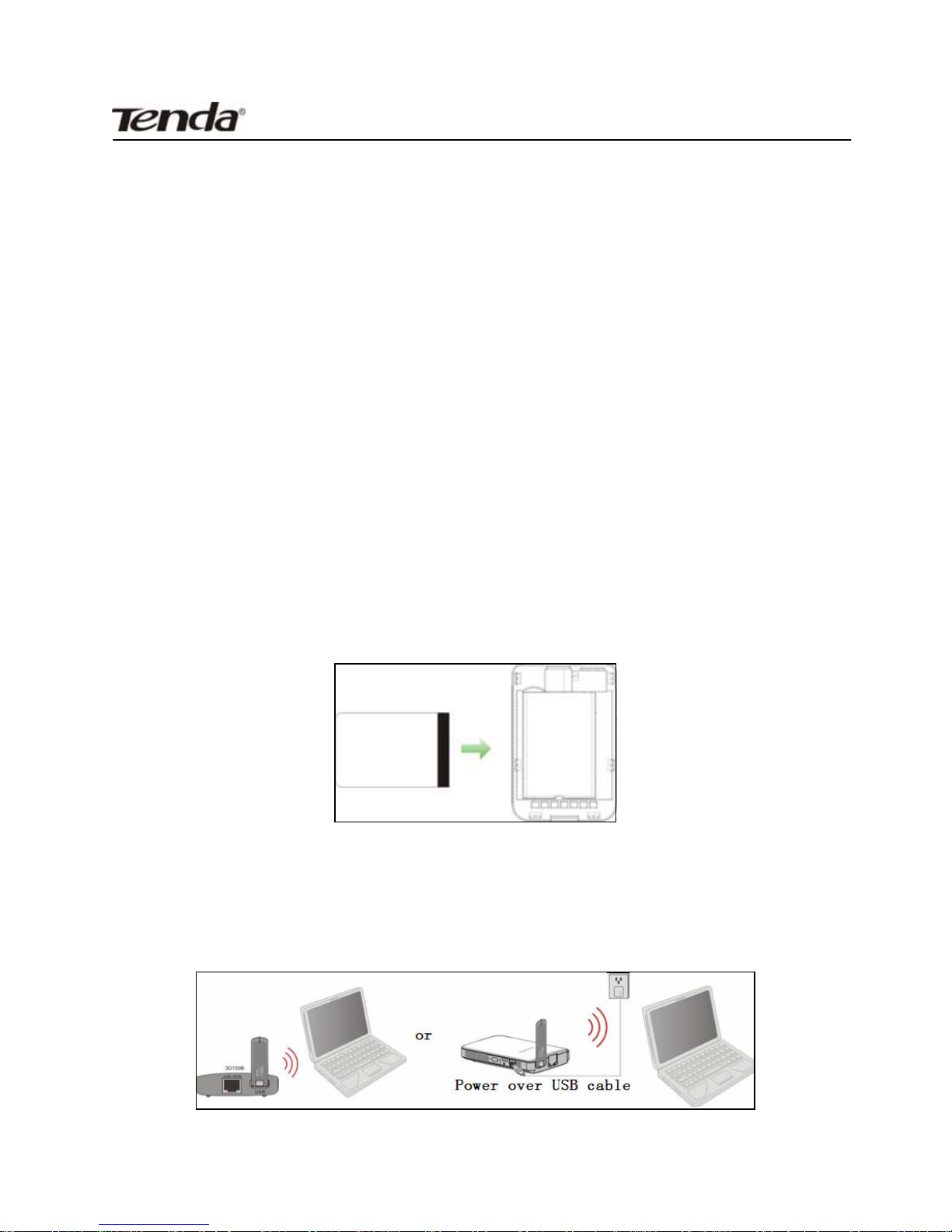
1. Please install the included Li-battery in the device.
2. Power the device: via battery, power adapter, notebook or
computer.
Indice
Altri manuali Tenda Router wireless

Tenda
Tenda W311R+ Manuale utente

Tenda
Tenda AC19 Manuale utente

Tenda
Tenda AC8 Manuale utente

Tenda
Tenda 4G680V2.0 Manuale utente

Tenda
Tenda W306R Manuale utente

Tenda
Tenda W168R Manuale utente

Tenda
Tenda W311R+ Manuale utente

Tenda
Tenda 4G301 Manuale utente

Tenda
Tenda W300D Manuale utente

Tenda
Tenda F3 Manuale utente

Tenda
Tenda 3G150M Manuale utente

Tenda
Tenda W310A Manuale utente

Tenda
Tenda 11N Wireless AP Manuale utente

Tenda
Tenda 3G622R+ Manuale utente

Tenda
Tenda AC5 Manuale utente

Tenda
Tenda 3G611R+ Manuale utente

Tenda
Tenda N300 Scheda informativa del prodotto

Tenda
Tenda 4G185 Manuale utente

Tenda
Tenda AC1200 Manuale utente

Tenda
Tenda AC6 Manuale utente


