Tenda 4G301 Manuale utente

3G/4G Wireless Router User Guide
I

3G/4G Wireless Router User Guide
I
Copyright Statement
is the registered trademark of Shenzhen Tenda Technology Co., Ltd. All the
products and product names mentioned herein are the trademarks or registered trademarks of
their respective holders. Copyright of the whole product as integration, including its accessories
and software, belongs to Shenzhen Tenda Technology Co., Ltd. No part of this publication can be
reproduced, transmitted, transcribed, stored in a retrieval system, or translated into any language
in any form or by any means without the prior written permission of Shenzhen Tenda Technology
Co., Ltd. If you would like to know more about our product information, please visit our website at
http://www.tendacn.com.
Disclaimer
Pictures, images and product specifications herein are for references only. To improve internal
design, operational function, and/or reliability, Tenda reserves the right to make changes to the
products described in this document without obligation to notify any person or organization of such
revisions or changes. Tenda does not assume any liability that may occur due to the use or
application of the product or circuit layout(s) described herein. Every effort has been made in the
preparation of this document to ensure accuracy of the contents, but all statements, information
and recommendations in this document do not constitute the warranty of any kind, express or
implied.

3G/4G Wireless Router User Guide
II
Preface
Thank you for choosing Tenda ! Please read this user guide before you start! This user guide
instructs you to install and configure your device. This user guide applies to 4G300, 4G301 and
4G302. The 4G301 is used as an example throughout this user guide.
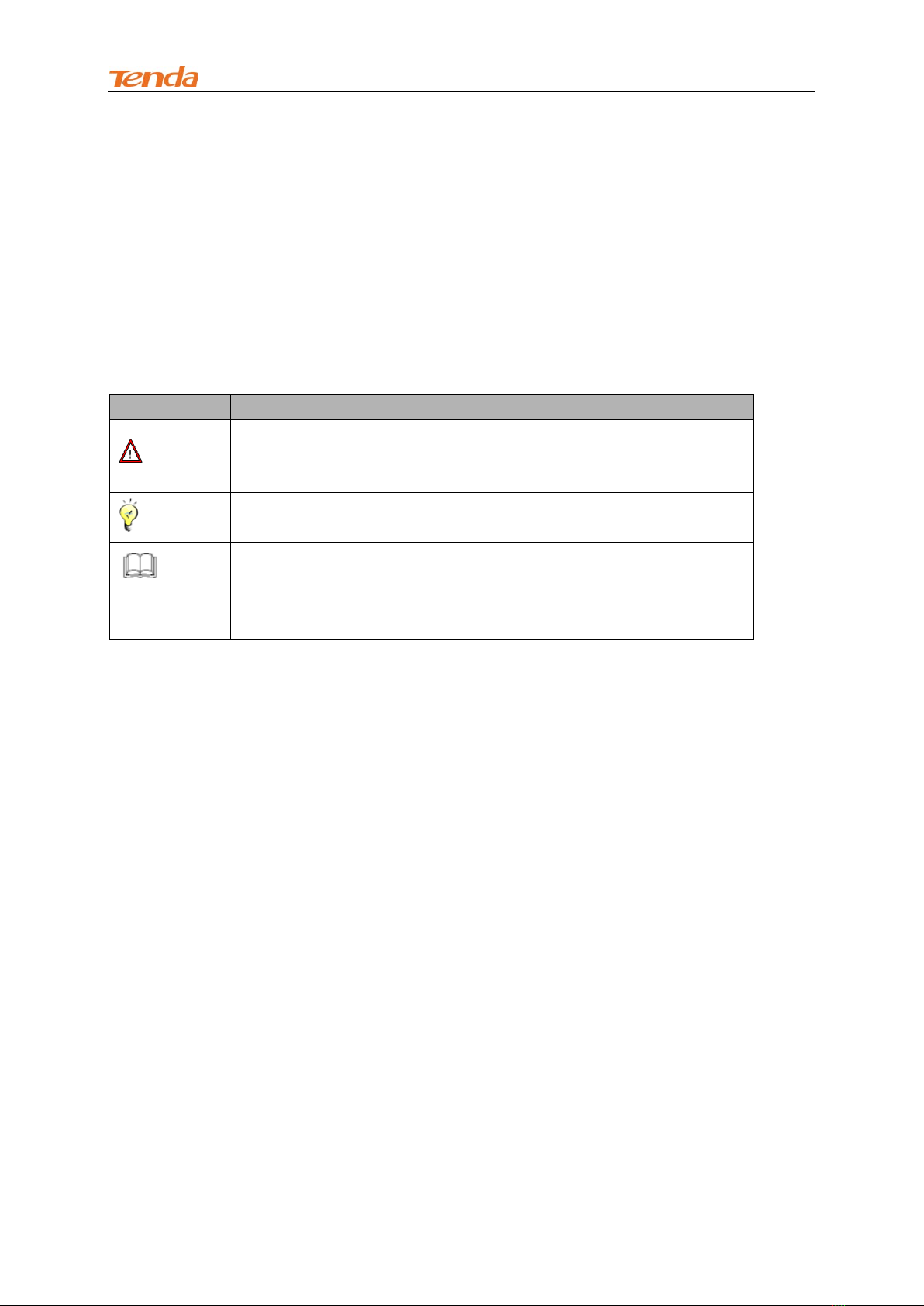
This user guide uses the following formats to highlight
special messages:
Icon
Description
Note
This format is used to highlight information of importance or special
interest. Ignoring this type of note may result in ineffective
configurations, loss of data or damage to device.
Tip
This format is used to highlight a procedure that will save time or
resources.
Knowledge
Center
Description of fields on the device GUI.
Technical Support
Website: http://www.tendacn.com
Email: support02@tenda.com.cn
Skype: tendasz
YouTube: Tendasz1999
Hotline:
1-800-570-5892 (USA) (061) 1300787922 (Australia)
(044)197-780-6119 (UK) (0852)36120883 (Hong Kong)
(064) 800787922 (New Zealand)

3G/4G Wireless Router User Guide
III
Table of Contents
Copyright Statement...........................................................................................................................................I
Disclaimer .............................................................................................................................................................I
Preface................................................................................................................................................................. II
This user guide uses the following formats to highlight special messages:.........................................................II
Technical Support................................................................................................................................................II
Table of Contents.............................................................................................................................................III
I Product Overview ............................................................................................................................................ 1
1 Package Contents.............................................................................................................................................. 1
2 Getting to know your router ............................................................................................................................. 1
2.1 LED............................................................................................................................................................ 1
2.2 Button & Interface ..................................................................................................................................... 3
2.3 Label .......................................................................................................................................................... 2
II Quick Internet Setup ...................................................................................................................................... 3
1 Getting Prepared............................................................................................................................................... 3
2. Hardware Install .............................................................................................................................................. 4
2.1 Charging Router......................................................................................................................................... 4
2.2. Hardware Install........................................................................................................................................ 4
3 Connect to Router............................................................................................................................................. 7
3.1 Connect to Device Wirelessly.................................................................................................................... 7
3.2 Connect to Device Using an Ethernet Cable............................................................................................ 12
4 Smart Mode (Auto-switch between 3GRouter and Wireless Router Mode)................................................... 12
5 Manual Internet Setup .................................................................................................................................... 13
5.1 Web Login................................................................................................................................................ 13
5.2 Manual Internet Setup& Wireless Security Setup.................................................................................... 15
III Features & Configurations........................................................................................................................ 25
1 Status .............................................................................................................................................................. 25
1.1 WAN Status.............................................................................................................................................. 26
1.2 LAN Status............................................................................................................................................... 27
1.3 Wireless Status......................................................................................................................................... 27
1.4 System Status........................................................................................................................................... 28
2 Basic Settings ................................................................................................................................................. 28
2.1 LAN Settings ........................................................................................................................................... 29
2.2 WAN Settings........................................................................................................................................... 30
2.3 WAN Speed.............................................................................................................................................. 36
2.4 DNS Settings............................................................................................................................................ 37
2.5 MAC Clone.............................................................................................................................................. 38

3G/4G Wireless Router User Guide
IV
2.6. DHCP...................................................................................................................................................... 39
2.7 DHCP Client List..................................................................................................................................... 40
3 Wireless Settings ............................................................................................................................................ 42
3.1 Wireless-Basic ......................................................................................................................................... 42
3.2 Wireless Security ..................................................................................................................................... 44
3.3 Access Control ......................................................................................................................................... 45
3.4 Connection Status .................................................................................................................................... 47
4 Security........................................................................................................................................................... 47
4.1 Client Filter.............................................................................................................................................. 48
4.2 MAC Filter............................................................................................................................................... 51
4.3 URL Filter................................................................................................................................................ 54
4.4 Remote Web Management ....................................................................................................................... 56
5 Advanced Applications................................................................................................................................... 58
5.1 DDNS ...................................................................................................................................................... 58
5.2 Port Forwarding....................................................................................................................................... 60
5.3 DMZ Host................................................................................................................................................ 63
5.4 UPNP....................................................................................................................................................... 64
5.5 Route Table.............................................................................................................................................. 65
6 Bandwidth Control ......................................................................................................................................... 65
7 Tools............................................................................................................................................................... 67
7.1 Time& Date.............................................................................................................................................. 67
7.2 Firmware Upgrade ................................................................................................................................... 69
7.3 Backup & Restore.................................................................................................................................... 71
7.4 Restore to Factory Default Settings ......................................................................................................... 74
7.5 Change Password..................................................................................................................................... 75
7.6 Logs ......................................................................................................................................................... 76
7.7 Reboot...................................................................................................................................................... 76
IV Appendix........................................................................................................................................................ 77
1 Configure PC TCP/IP Settings ....................................................................................................................... 77
Windows 7 ..................................................................................................................................................... 77
Windows XP.................................................................................................................................................. 83
2 FAQs............................................................................................................................................................... 86
3 Factory Default Settings................................................................................................................................. 87
4 Remove Wireless Network from Your PC...................................................................................................... 88
Windows 7 ..................................................................................................................................................... 88
Windows XP.................................................................................................................................................. 90
5 Safety and Emission Statement ...................................................................................................................... 92

I Product Overview
1
I Product Overview
1 Package Contents
Unpack the package. Your box should contain the following items:
If any of the parts are incorrect, missing, or damaged, contact your Tenda dealer. Keep the carton,
including the original packing materials, in case you need to return the product for repair.
2 Getting to know your router
2.1 LED
4G300

I Product Overview
2
LED
Status
Description
Battery Meter
Red
The amount of electrical energy capacity is less than
20%
Light Green
The amount of electrical energy capacity is more than
20%
Dark Green
The device is charging
Blue
The unit is fully charged up
4G301
LED
Status
Description
Battery Meter
Red
The power level is very low
Green
Display real-time level of power capacity
System LED
Blinking
The unit is starting up
Solid
The unit is functioning correctly
4G302

I Product Overview
3
LED
Status
Description
Battery Meter
Red
The power level is very low
Green
Display real-time level of power capacity
System LED
Blinking
The unit is starting up
Solid
The unit is functioning correctly
2.2 Button & Interface
4G300

I Product Overview
4
Button/Interface
Description
Micro USB
For charging the unit via a USB cable
USB
For connecting to a 3G/4G Modem or charging a terminal device
(such as iPad, iPhone)
ON/OFF Switch
Power button to turn the unit on or off. The unit functions as a 3G/4G
wireless router when turned on or a power bank when turned off
Reset
Pressing it with a needle for about 10 seconds resets the unit to the
factory defaults
RJ45
Functions as a LAN port for connecting to a PC or switch in 3G/4G
router mode and WISP mode. In other modes, this port functions as
a WAN port for connecting to ISP

I Product Overview
1
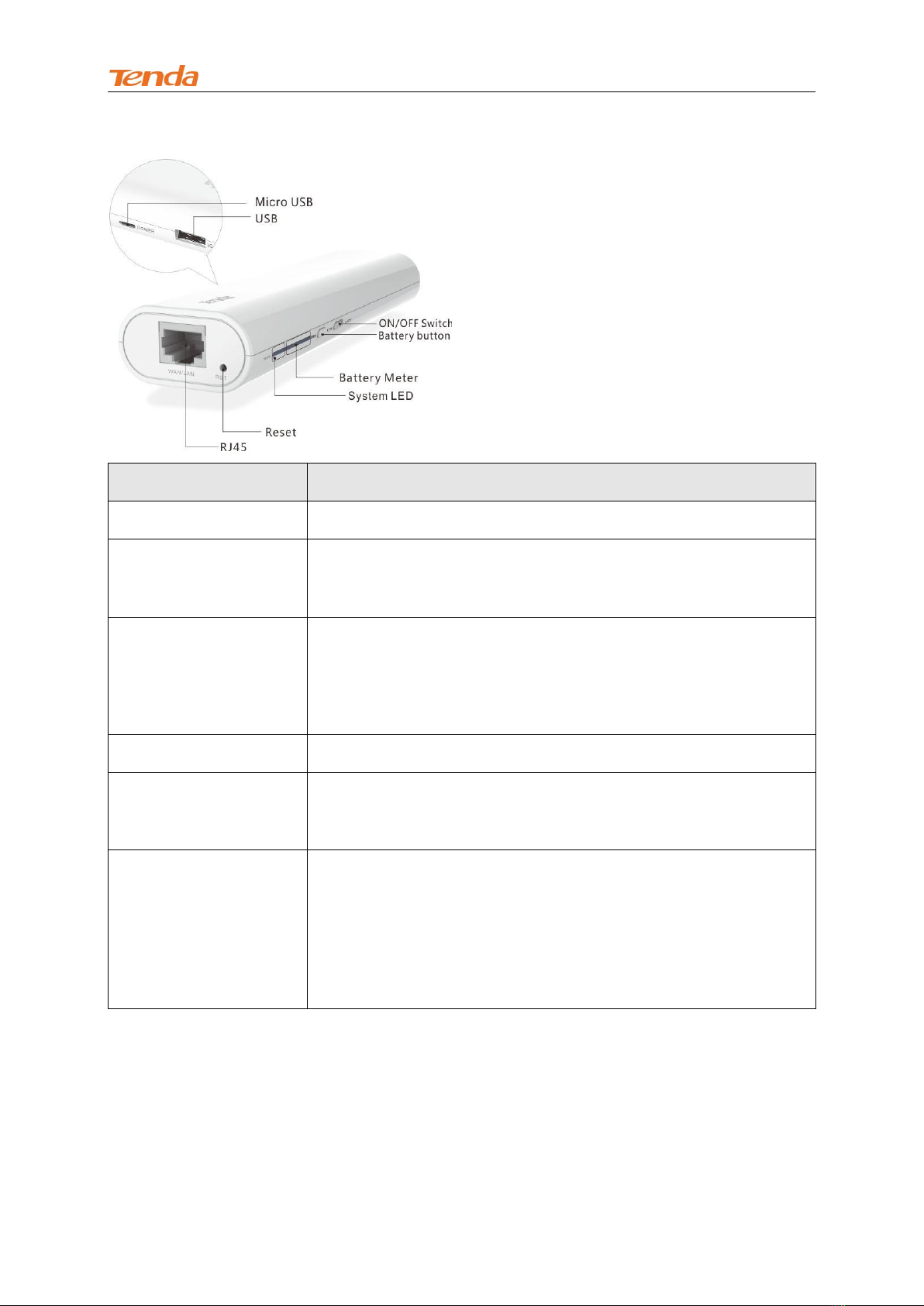
4G301
Button/Interface
Description
Micro USB Port
For charging the unit via a USB cable
USB
For connecting to a 3G/4G Modem or charging a terminal device
(such as iPad, iPhone)
ON/OFF Switch
Power button to turn the unit on or off. The unit functions as a 3G/4G
wireless router when turned on or a power bank when turned off
Battery Meter
Press it to view power level
Reset
Pressing it with a needle for about 10 seconds resets the unit to the
factory defaults
RJ45
Functions as a LAN port for connecting to a PC or switch in 3G/4G
router mode and WISP mode. In other modes, this port functions as
a WAN port for connecting to ISP
Questo manuale è adatto per i seguenti modelli
2
Indice
Altri manuali Tenda Router wireless

Tenda
Tenda 11N Wireless AP Manuale utente

Tenda
Tenda FH303 Manuale utente

Tenda
Tenda AC8 Manuale utente

Tenda
Tenda 3G611R+ Manuale utente

Tenda
Tenda A5 Manuale utente

Tenda
Tenda N60 Manuale utente

Tenda
Tenda 5G03 Manuale utente

Tenda
Tenda 3G622R+ Manuale utente

Tenda
Tenda W168R Manuale utente

Tenda
Tenda W300D Manuale utente

Tenda
Tenda 3G611R+ Manuale utente

Tenda
Tenda Portable 3G Wireless Router Manuale utente

Tenda
Tenda F452 Manuale utente

Tenda
Tenda AC19 Manuale utente

Tenda
Tenda 3G611R+ Manuale utente

Tenda
Tenda F303 Manuale utente

Tenda
Tenda 4G180 Manuale utente

Tenda
Tenda W311R+ Manuale utente

Tenda
Tenda AC11 Manuale utente

Tenda
Tenda 4G03 Pro Manuale utente