
Teracue AMINET110 Manuale utente

AmiNet110
User Guide V1.0.3
1
A
A
M
MI
I
N
N
E
ET
T
1
11
10
0
User Guide V1.0.3
Teracue AG
Schlossstr. 18
85235 Odelzhausen
Germany
Tel: +49 (0)8134-555-10
Fax: +49 (0)8134-555-199
www.teracue.com
Document Version 1.0.3/071018

AmiNet110
User Guide V1.0.3
2
C
OPYRIGHT
This document may not be reproduced in any form, in whole or in part, without
the prior permission of Teracue. Copyright © 2007 by Teracue, all rights
reserved.
D
ISCLAIMER
This publication supersedes all previous publications.
Information and specification in this documentation is subject to change
without notice. Please make sure you have the latest document version.
User guides are located at:
www.teracue.com/support
If you find some points in this user guide unclear then please let us know, so
we can improve this documentation.
All information within this document is confidential to Teracue
costumers and
should not be copied or distributed to non Teracue
customers.
T
RADEMARKS
All Teracue products are registered trademarks licensed to
Teracue
.
All other logos and trademarks both marked and not, may be trademarks or
registered trademarks and therefore property of their respective owners.

AmiNet110
User Guide V1.0.3
3
I. Information about the manual
This user guide is designed to help users to setup and to get to know and
understand the AmiNet110 set-top-box. The functionality and the advanced
features of the AmiNet110 are described in this documentation.
If you received this publication as a PDF, then it is a good idea to print it out for future reference.
It is best to use this user guide directly in front of your computer, by doing so you try out everything at
once.
.!. Important features are marked by this sign.
.!. The set-top-box configured set by factory default at DHCP, unless otherwise specified
in the Teracue STB IP configuration sheets.

AmiNet110
User Guide V1.0.3
4
II. Content
1.
YOUR AMINET110 ...................................................................................................................................... 5
2.
AMINET110 FEATURES ............................................................................................................................ 6
3.
SETUP ........................................................................................................................................................... 7
3.1
A
MI
N
ET
110
CONNECTED TO
TV,
NO
RF................................................................................................ 7
3.2
A
MI
N
ET
110
CONNECTED TO
TV
VIA
RF ................................................................................................ 8
3.3
A
MI
N
ET
110
CONNECTED TO
TV
VIA
T
ERACUE
A/V,
TO AMPLIFIER VIA
SP-DIF
AND TO
VCR
VIA
RF. 9
4.
MOUNTING THE AMINET110................................................................................................................. 10
4.1
H
ORIZONTAL MOUNTING
....................................................................................................................... 10
4.2
V
ERTICAL MOUNTING
............................................................................................................................ 10
5.
USING THE AMINET110 REMOTE CONTROL ................................................................................... 11
5.1
C
HANNEL
C
ONTROL
.............................................................................................................................. 12
5.2
V
IDEO
C
ONTROL
................................................................................................................................... 12
5.3
W
EB CONTROL
...................................................................................................................................... 12
5.4
C
HANGING
/
RESETTING THE USER PREFERENCES
.............................................................................. 12
6.
CONFIGURE USER PREFERENCES.................................................................................................... 13
6.1
K
EYBOARD SETTINGS
............................................................................................................................ 13
6.2
TV
SYSTEM AND AUDIO SETTINGS
........................................................................................................ 14
7.
ADVANCED PREFERENCES ................................................................................................................. 15
7.1
L
OGIN
.................................................................................................................................................... 15
7.2
N
ETWORK
C
ONFIGURATION
.................................................................................................................. 16
7.3
B
ROWSER
S
ETUP
.................................................................................................................................. 18
7.4
V
IDEO
S
ETUP
........................................................................................................................................ 20
7.5
P
ROXY
S
ETUP
....................................................................................................................................... 22
7.6
C
HANNELS
............................................................................................................................................. 23
7.7
T
RUSTED
D
OMAINS
............................................................................................................................... 24
7.8
S
OFTWARE
V
ERSION
............................................................................................................................ 25
7.9
H
ARDWARE
I
NFORMATION
.................................................................................................................... 25
7.10
S
MART
C
ARD
U
SAGE
............................................................................................................................. 26
7.11
U
PDATE
S
OFTWARE
.............................................................................................................................. 26
7.12
I
DENTITY
................................................................................................................................................ 27
7.13
I
NFRA
-R
ED
C
ONFIGURATION
................................................................................................................ 27
7.13.1
Setting the Remote Control....................................................................................................... 27
7.13.2
Setting the Set Top Box............................................................................................................. 28
7.14
R
EBOOT
................................................................................................................................................. 28
8.
AV OUTPUT/MINI-DIN PIN ASSIGNMENT........................................................................................... 29
9.
CE, CSA, FCC CONFORMANCE ........................................................................................................... 30
10.
TECHNICAL SPECIFICATIONS ......................................................................................................... 30

AmiNet110
User Guide V1.0.3
5
1. Your AmiNet110
Your AmiNet110 IP based set-top-box is a state of the art gateway to the next generation of interactive
digital television services. It gives you access to video streaming, video on-demand, multicast video
and the World Wide Web on a standard television.
The AmiNet110 is a compact, low-cost digital video set-top box designed for standalone applications
and for use with iCue™ publishing systems for delivery of professional DVD-quality video.
The AmiNet110 is simple to setup and use. After unpacking your box should include the following:
This user guide
1 x AmiNet110
1 x Power supply
1 x Stand
1 x IR Remote Control
3 x AAA Batteries
And depending of your order either:
1 x A/V SCART cable (which is delivered in the Product no. A110-5133)
or
1 x A/V RGB/Composite cable (which is delivered in the Product no. A110-5268)
or
1 x A/V S-Video/Composite cable (which is delivered in the Product no. A110-5251)
Optional accessories:
IR keyboard
A/V S-Video cable
A/V RGB cable

AmiNet110
User Guide V1.0.3
6
2. AmiNet110 features
The images below will help you familiarize yourself with the AmiNet110 before you connect it to your
output device, such as a plasma display, television set, monitor or a video projector.
The front of the AmiNet110 has a single LED that indicates power and IR reception. While the
AmiNet110 is powered the LED will illuminate. During IR reception (when you use the remote control)
the LED will flicker to indicate that the product is receiving the signal. The front of the unit also has a
slot for SmartCard usage (not supplied).
AmiNet110
User Guide V1.0.3
7
3. Setup
The AmiNet110 can be setup quickly and easily by following these step-by-step instructions.
You can use the A/V SCART cable (supplied) or an RF cable to connect the AmiNet110 to your
television. If you have the capability, you can also connect the AmiNet110 to a stereo amplifier via the
SP-DIF digital output.
3.1 AmiNet110 connected to TV, no RF
This is the simplest installation and gives access to majority of the functionality of the set-top-box.
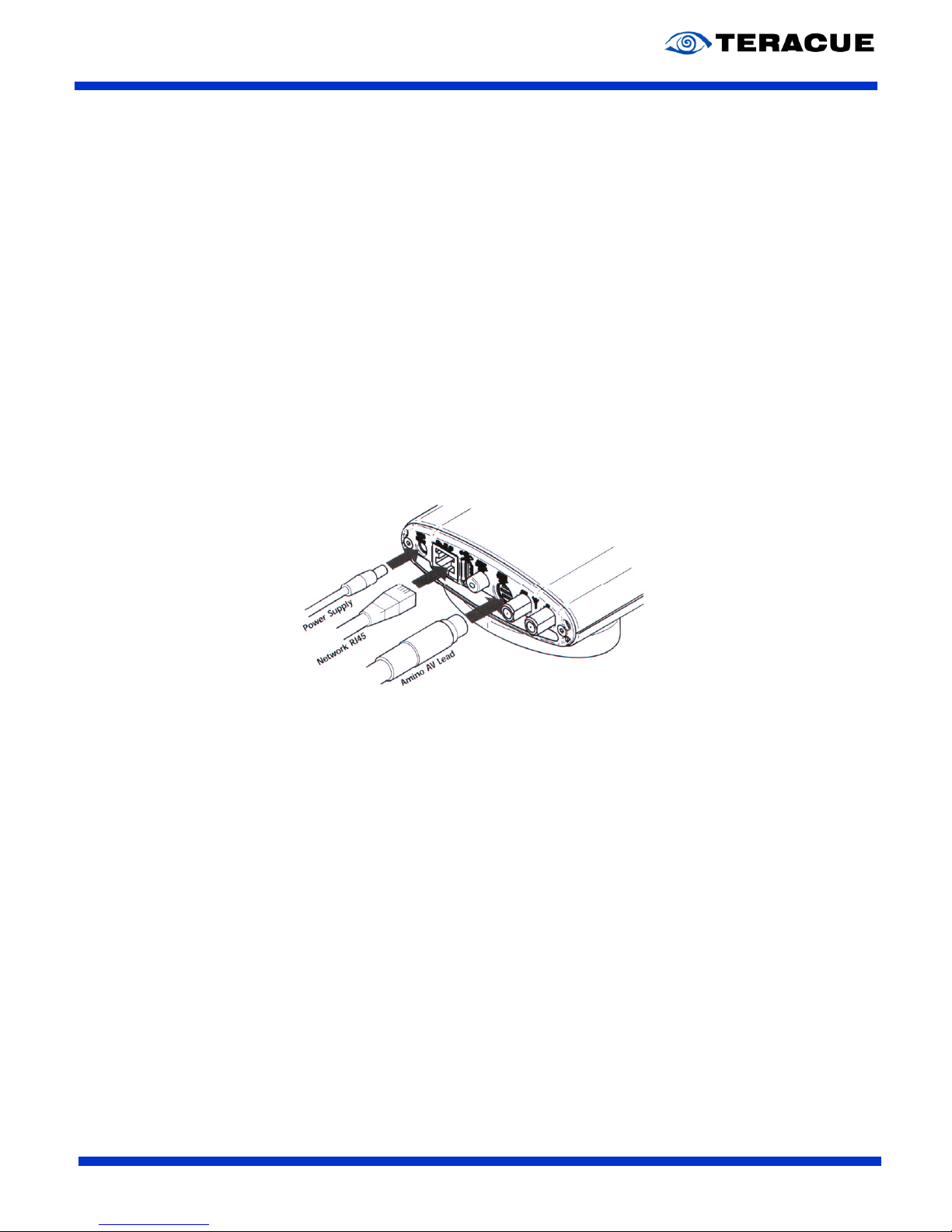
Connect the A/V SCART cable to the AmiNet110 and to your TV.
Connect the Ethernet cable to the AmiNet110 and to your network.
Connect the power supply.
.!. The first time it is powered up it is possible that the box will spend a few moments
updating itself with the latest software (available from your service provider).
Once completed, the box will navigate to a channel (video stream) or a website (home page) that is
entered in the setup menu of the AmiNet110.

AmiNet110
User Guide V1.0.3
8
3.2 AmiNet110 connected to TV via RF
This scenario should be used if your television has no composite, S-Video or SCART inputs. (Where
available it is recommended to connect via composite, S-Video or RGB SCART inputs).
Connect your incoming RF cable (from your aerial, cable TV box, etc.) to the RF In on the
AmiNet110 and connect an RF cable from AmiNet110´s RF Out to your television.
Connect the Ethernet cable to the AmiNet110 and to your network.
Connect the power supply.

AmiNet110
User Guide V1.0.3
9
3.3 AmiNet110 connected to TV via Teracue A/V, to
amplifier via SP-DIF and to VCR via RF
This scenario gives you access to all the functionality of the AmiNet110. Digital audio is delivered to
your home theatre system via SP-DIF, video is delivered to your television via the A/V SCART lead,
and your existing RF signal is passed through the AmiNet110 directly to your VCR.
Connect the A/V SCART CABLE to the AmiNet110 and your television.
Connect a SP-DIF cable to the AmiNet110 and your digital audio capable amplifier.
Connect the incoming RF signal from your aerial/cable box to the RF In on the AmiNet110.
Connect RF cable from the RF Out on the AmiNet110 to the RF Input on your VCR.
Connect the Ethernet cable to the AmiNet110 and to your service providers Network Access
point.
Connect the power supply.

AmiNet110
User Guide V1.0.3
10
4. Mounting the AmiNet110
The AmiNet110 can be mounted either horizontally or vertically, and is supported securely in both
positions.
4.1 Horizontal mounting
To mount the unit horizontally simply
place it onto the upper surface of the
base moulding, which is contoured to
reflect the products shape.
The two rubber pads will retain the
AmiNet110 in position.
4.2 Vertical mounting
To ensure more stability the
AmiNet110 can also be mounted
vertically.
At the end of the rear panel moulding
there is a pair of elliptical holes which
fit onto the two elliptical prongs on the
base moulding. Push the AmiNet110
firmly onto the two prongs to mount the
product vertically.
Indice
Altri manuali Teracue Decoder


