
Uniden evolo PCW 100 Manuale utente

Wireless USB Adapter
ii
TABLE OF CONTENTS
Welcome....................................................................................1
Features .................................................................................1
Installation of the USB Adapter to your Computer...............2
Hardware Installation..............................................................2
Driver Installation.....................................................................2
Windows 98 Driver Installation...............................................2
Windows ME Driver Installation..............................................7
Windows 2000 Driver Installation.........................................12
Windows XP Driver Installation ............................................18
Configuration Utility...............................................................23
Install the Configuration Utility..............................................23
Using the Configuration Utility..............................................28
Status................................................................................28
Statistics............................................................................31
Site Survey........................................................................32
Encryption.........................................................................33
Advanced..........................................................................36
Version..............................................................................37
The Configuration Utility for Windows XP ............................38
Legal Notice............................................................................40
IC Notice:.................................................................................41
FCC Information.....................................................................41
Precautions! ...........................................................................43
One Year Limited Warranty ...................................................46
Appendix: Glossary...............................................................48

Wireless USB Adapter
1
Welcome
Congratulations on your purchase of
PCW100 802.11b Wireless USB Adapter.This USB Adapter
is designed and engineered to exacting standards for reliability,
long life and outstanding performance.
Features
§Complies with the IEEE 802.11b Direct Sequence
Spread Spectrum
§Complies with USB specification 1.0
§Supports 1, 2, 5.5 and 11Mbps data rates
§Wired Equivalent Privacy (WEP) 64-bit and 128-bit
data encryption
§USB-powered with no external power supply needed
§Dipole antenna
§Driver supports Microsoft®Windows® 98, 2000,
Millennium, and XP.
Uniden®is a registered trademark of Uniden America Corporation.
and Your Gateway To The Evolutionare a trademarks of Uniden America Corporation.
Windows®98/2000, Millennium, and XP are registered trademarks of Microsoft® in the United States and/or other countries.
Other brand and product names are trademarks or registered trademarks of their respective holders.
Information is subject to change without notice.
Wireless USB Adapter
2
Installation of the USB Adapter to
your Computer
Hardware Installation
§Power On your computer.
§Connect the USB cord to the PCW100 Wireless
USB Adapter and to the USB port of your computer
§The hardware installation has been completed.
Driver Installation
Windows 98 Driver Installation
1. Turn On your computer and insert the CD into your
CD-ROM drive, if you have not done so already.
Windows 98 automatically recognizes a new USB Device.
Click the Next button to continue.

Wireless USB Adapter
3
2. Select “Search for the best driver for your device” and
click the Next button to continue.
3. Make sure “Specify a location” is selected and click the
Browse button. At this point, Windows will ask you to
browse for the folder. Simply select the CD-ROM drive in
which the driver is located, click on the Win98 folder and
click the OK button or you can type in “F:\Win98” (where
“F” represents the letter of your CD-ROM drive). Click the
Next button to continue
Wireless USB Adapter
4
4. Windows is now ready to install the driver. Click the Next
button to continue.
5. Windows has completed installing the driver. Click the
Finish button to continue.

Wireless USB Adapter
5
6. To finish installing the USB adapter, you must restart your
computer. Click the Yes button to restart your computer.
Wireless USB Adapter
6
7. To verify the drivers were set up correctly, after your
computer restarts, place the cursor over the My
Computer icon and right click your mouse. Select
Properties then select Device Manager and double click
on Network adapters. You will find the PCW100
Wireless 802.11b USB Adapter, if it is installed
successfully. The USB adapter driver installation is
complete. Click Cancel to dismiss this screen.

Wireless USB Adapter
7
Windows ME Driver Installation
1. Turn On your computer and insert the CD into your
CD-ROM drive, if you have not done so already.
Windows automatically recognizes a new USB Device.
Select “Specify the location of the driver”. Click the
Next button to continue.
Wireless USB Adapter
8
2. At this point, the following screen will appear. Make sure
“Search for the best driver for your device” and
“Specify a location” are selected. Click the Browse
button. Select the CD-ROM drive in which the driver is
located. Now search for the WinME (Windows ME)
folder and click on it or you can type in “F:\WinME\”
(where “F” represents the letter of your CD-ROM drive).
Click the Next button to continue.

Wireless USB Adapter
9
3. Windows is now ready to install the driver. Click the
Next button to continue.
4. Windows will indicate that the installation has been
completed. Click the Finish button to continue.
Wireless USB Adapter
10
5. To finish installing the new hardware, you must restart
your computer. Click the Yes button to restart your
computer.

Wireless USB Adapter
11
6. To verify the drivers were setup correctly, after your
computer restarts, place the cursor over the My
Computer icon and right click your mouse. Select
Properties then select Device Manager and double click
on Network adapters. You will find the PCW100
Wireless 802.11b USB Adapter if it is installed
successfully. The USB adapter driver installation is
complete. Click Cancel to dismiss this screen.
Wireless USB Adapter
12
Windows 2000 Driver Installation
1. Turn On your computer and insert the CD into your
CD-ROM drive, if you have not done so already.
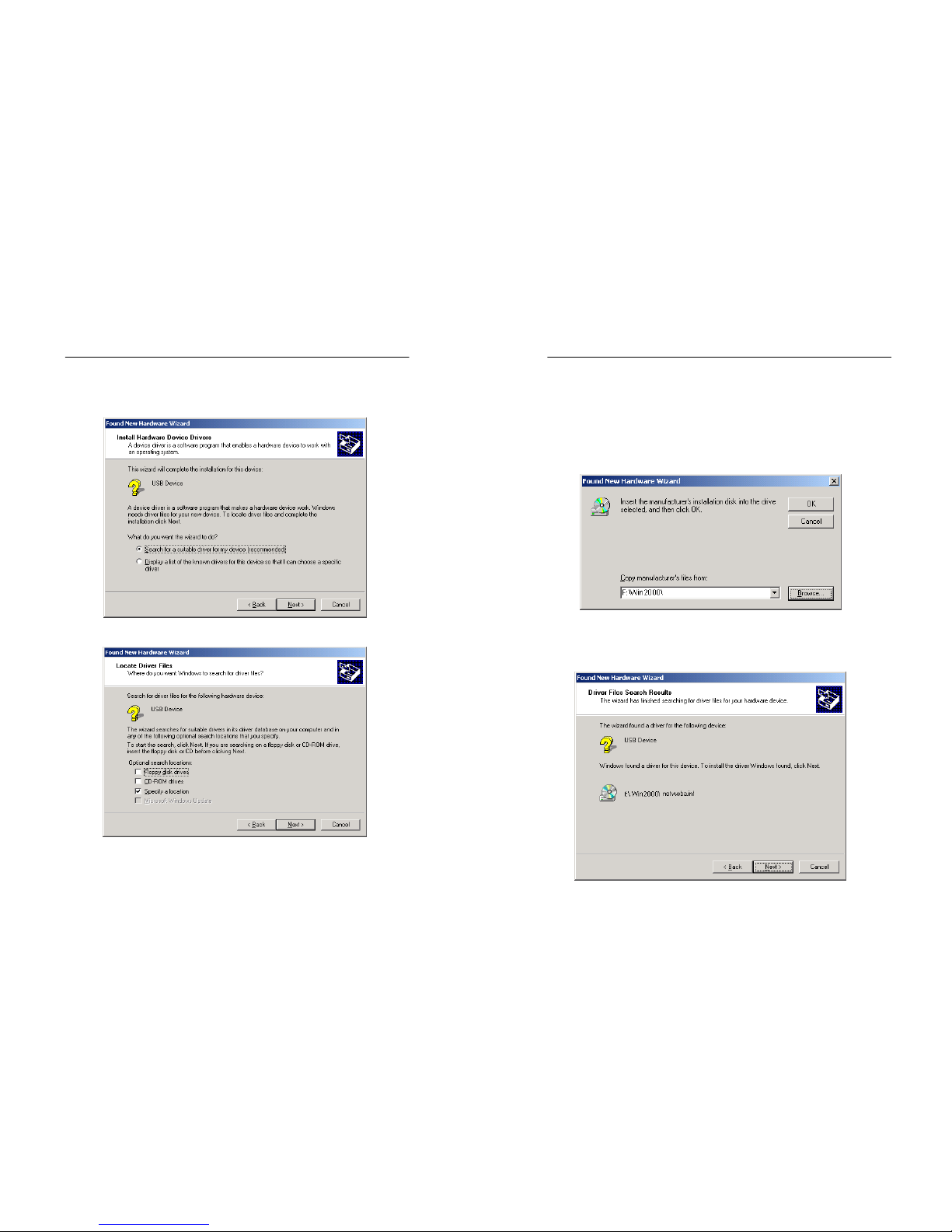
Windows 2000 automatically recognizes the USB adapter.
Click the Next button to continue.
Wireless USB Adapter
13
2. Select “Search for a suitable driver for my device” and
click the Next button to continue.
3. Make sure “Specify a location” is selected and click the
Next button to continue.
Wireless USB Adapter
14
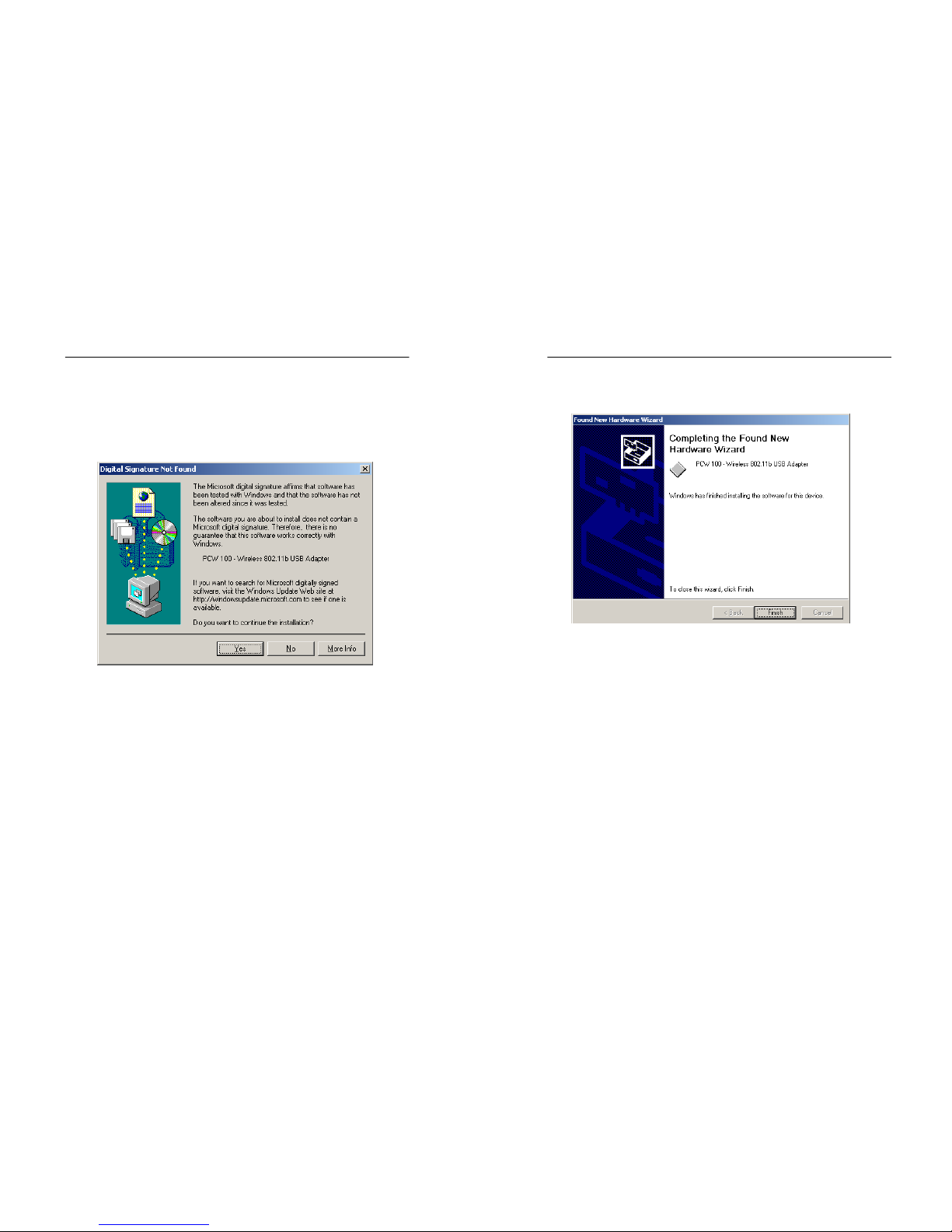
4. At this point, the following screen will appear.
Simply select the CD-ROM drive in which the driver is
located, click on the Win2000 (Windows 2000) folder or
you can type in “F:\Win2000\” (where “F” represents the
letter of your CD-ROM drive). Click the Next button to
continue.
5. Windows will search for the driver. Once the driver is
located, the following screen will appear. Click the Next
button to continue.
Wireless USB Adapter
15
6. The Digital Signature Not Found screen is a notification
by Windows 2000. However, this does not mean that
there is a problem. The PCW100 has been tested
extensively and has been found to work with Windows
2000. Click the Yes button to continue.
Wireless USB Adapter
16
7. Windows has completed installing the driver. Click the
Finish button to continue.

Wireless USB Adapter
17
8. To verify the drivers were setup correctly, place the cursor
over the My Computer icon and right click your mouse.
Select Properties then select Hardware then Device
Manager and double click on Network adapters.
You will find the PCW100-Wireless 802.11bUSB
Adapter, if it is installed successfully. The USB adapter
driver installation is complete.
Wireless USB Adapter
18
Windows XP Driver Installation
1. Turn On your computer and insert the CD into your
CD-ROM drive, if you have not done so already.
Windows XP will automatically recognize a new USB
Device. Select “Install from a list or specific location”
Click the Next button to continue.
Indice
Altri manuali Uniden Scheda di rete


Manuali Scheda di rete popolari di altre marche


Buffalo
Buffalo AirStation WLI-PCM-L11GP Manuale utente

National Instruments
National Instruments NI 9234 Manuale utente

Hama
Hama 49276 Manuale utente

Linksys
Linksys WCF54G - Wireless-G Compact Flash Card Manuale operativo

Compaq
Compaq Wireless LAN 100 Manuale utente

Bose
Bose PowerMatch Dante Manuale utente