
World TvPro STB box Manuale utente

User manual STB box
1 Short Instructions STB.
1. Plug in the cables.
2. Switch on STB box and turn on the TV.
3. Wait at least 2 min.
4. I the image does not appear:
a) Check that the cables are connected properly, the box is on (blue light on the le t side in
ront and blue lashing (unevenly) on the right. This light is steady blue when it's playback)
b) The box is in de ault mode YpbPr (see description o colored buttons)
The buttons at the bottom of the remote control must be selected correctly otherwise
there will be no picture. Depending on your television.
To switch between the di erent signal inputs, press the colored button and then play / pause
button
Coloured buttons:
Red button: PAL = yellow - red - white wire
Green button: NTSC = U.S. Standard, yellow - red - white wire
Yellow button: YPbPr = HD signal, is used on HD TV
Blue button: HDMI = when you have hdmi cable.
http://world-tvpro.com

STB box Manual
For sa e and e ective use o STB BOX product, please read the ollowing be ore use
Warning-
Do not place the product in an ambient temperature too high or too low (10-30'C is normal).
Keep the appliance indoors.
Do not place the product in the vicinity o a magnetic ields.
Do not place the product in direct sunlight.
Do not use any other power adapter.
Note
Keep the body clean, do not scratch the chassis and inter aces.
Do not place heavy objects on the product.
Do not attempt to disassemble the product.
3 Introduction
This guide introduces you systematically in the use o this product. Please read this manual
ully be ore use.
It is your responsibility to read this manual prior to installation.
http://world-tvpro.com

4.
1 Short Instructions STB 1
STB box Manual
3 Introduction
4 Chapter 3
5 The basic functions 4
6 Parameter list 4
7 Item List 5
8 Remote Control icon 6
8.1. Key Description 6
9 Installing the remote control 7
10 Connected display devices 7
11 PAL audio and video output 7
1 YPbPr (component) video and audio output 8
13 HDMI audio and video output 9
14 Connected to the network 9
14.1 Wired network connection 9
14.1.1 Connection cable 9
15 Network settings 10
16 Boot 10
17 Select and play the channel 10
18 Stop playing 10
19 Control during channel playing 11
19.1 Directly switch Channel when another channel is playing 11
19. Adjust sound volume 11
0 System Set-up 11
1 Failure reference table 1
Frequently Asked Questions 13
http://world-tvpro.com

5 The basic functions
Full HD decoder 720P, 1080I, 1080P (1920 * 1080);
All ormats compatible with almost all support the current popular ormat or the market to
support the H264, VC1, MPEG 1/2/4-SP, WMV, ASF, DivX 3.X video encoding ormat;
support the Real ormat, RM, RMVB8/9/10 (1920 * 1080);
FLV mainstream network video and Flash Video Streaming Media;
supports MP3, AAC, MPEG4-AAC, MPEG4-BSAC;
support video, photos ull-screen playback, support or pause, stop, ast orward, rewind;
support HDMIν 1.3, AV composite video / audio, YPbPr component output;
RJ-45 network inter ace;
Support SD card;
USB 2.0:ν Support U disk, mobile hard disk hot pinching pulling;
USB 1.1: Built-in support or wireless Wi i;
support large-capacity storage;
support subtitles play;
remote control, convenient;
6 Parameter list
CPU ARM11 720MHz
Linux Operating System
File system FAT/FAT32, NTFS, EXT3
Video output HDMI 1.3, CVBS, YPbPr
Analogue stereo audio output, HDMI 1.3
Video ormat H264, VC1, MPEG 1/2/4-SP, WMV, ASF, DivX 3.X, RM, RMVB and other
http://world-tvpro.com

video encoding ormat
Audio ormats MP3, AAC, MPEG4-AAC, MPEG4-BSAC
USB inter ace, USB Host 2.0 * 2
RJ45 LAN Inter ace
SD card memory card support
Working environment temperature: 10 ℃ ~ +35 ℃: Humidity: <90%
Storage temperature: -20 ℃ ~ +70 ℃: Humidity: <95%
7 Item List
1 remote control
Power Line
1 power adapter
CVBS audio and video line 1
YPbPr AV cable 1
Battery 2
Manual 1
NB. Contents may vary depending rom country to country!
http://world-tvpro.com

Introduction Chapter remote control
8 Remote Control icon
8.1. Key Description
Power: Off / On
Mute: on / off the sound
0-9 numeric keys: nter numbers, alphabet, letters
← Backspace: Delete the character input
Vol + Volume up
Vol - Volume down
Previous Flip key: In the list interface, quick page up
Next Flip key: In the list interface, quick page down
@ (future)
URL button (future)
Home key: rapid return to the main interface
Back button: Returns the parent directory
Select up
Select down
Select left
Select right
OK button
Information button: video playback for movie information
Set-up button
Play film through USB input
Play, Pause
Last
Next
Slow
Stop button: Stop and exit the playback
Rewind
Fast forward
F1 Message center
F2 Free
F3 Free
F4 Recording mode
PAL Output - yellow - red - white wire
NTSC Output - U.S. standard
YPbPr Output - HD signal, is used on HD TV
http://world-tvpro.com

HDMI Output - when you have hdmi cable.
9 Installing the remote control
Install the batteries included into the remote control correctly.
10 Connected display devices
Note: This product de ault by YPbPr (component) output video signal.
11 PAL audio and video output
To switch between the di erent signal inputs, press the colored button and then play / pause
button.
http://world-tvpro.com

1 YPbPr (component) video and audio output
To switch between the di erent signal inputs, press the colored button and then play / pause
button.
http://world-tvpro.com

13 HDMI audio and video output
To switch between the di erent signal inputs, press the colored button and then play / pause
button.
14 Connected to the network
14.1 Wired network connection
14.1.1 Connection cable
http://world-tvpro.com
15 Network settings
Connect the network cable, go to the set-top box "Settings" -> "wired network" inter ace,
according to the router
16 Boot
Turn on the TV, select the correct video input channel. Connect power to the set-top box,
click the power on/o , the set-top boxes takes about 30 seconds - the boot screen then
appears, as ollows:
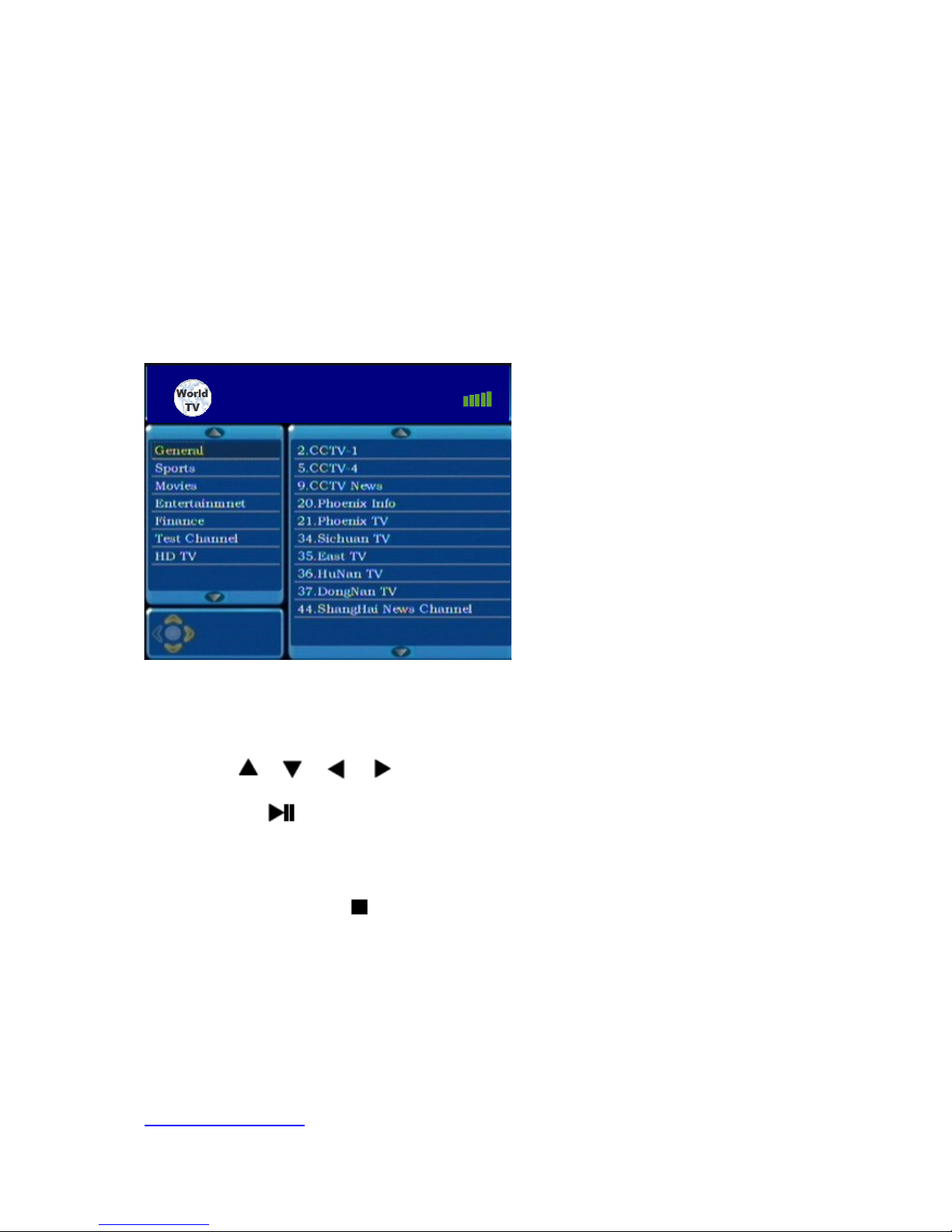
17 Select and play the channel
Use button on the remote control to move the cursor to select
channels, or directly press the number buttons according to the channel number on the
left, then press to start the channel.
18 Stop playing
When playing, press button on the remote control to stop channel playing and return
to channel list.
http://world-tvpro.com
World TvPro
Indice


