X-Vision XPB750WIR Manuale utente

Before you begin
Model: XPB750WIR
700 TVL 120m IR Camera
Model:
XPB750WIR
700 TVL 120m IR Camera
• Please unpack the box carefully and identify that all the parts are present.
• Do not cut the camera cables, this will void the warranty.
• Make sure you use only the recommended power supply. Damage caused to the
camera by incorrect voltage or wiring is not covered by the warranty.
Please bear in mind the following points when choosing a mounting position.
• The camera must be positioned so that it will not point directly into the sun (sunrise
and sunset) or any bright light, as this may cause damage to the camera.

2
Contents
1. Safety Precautions ......................................................... 3
2. Product Description ....................................................... 4
3. Features ........................................................................ 4
4. Contents ....................................................................... 5
5. Product Assembly .......................................................... 5
6. Installation .................................................................... 5
7. Camera OSD Control ..................................................... 7
8. OSD Menu Structure ...................................................... 8
9. SETUP Menu Functions .................................................. 9
9.1 Lens ......................................................................... 9
9.2 Exposure .................................................................. 9
9.3 White Balance .......................................................... 10
9.4 Backlight .................................................................. 10
9.5 Day/Night ................................................................. 11
9.6 DPC .......................................................................... 12
9.7 Special ...................................................................... 12
9.8 Reset ........................................................................ 15
9.9 Exit ........................................................................... 15

3
Thank you for purchasing this Xvision camera. Before operating this product, please read
this instruction manual carefully.
zDo not disassemble or modify the camera. Please refer repairs or service to a qualified
service technician.
zTake care when installing the camera. Avoid scratching the front glass window.
zAvoid shock and vibration. Do not install the camera on an unstable surface. It can be
damaged by improper use or storage.
zDo not attempt to point the camera at the sun or other extremely bright objects. It can
cause image smearing whether the camera is powered on or not and can lead to the
damage of the CCD (Charge Coupled Device).
zWhen camera is installed next to equipment, such as wireless communication device,
that emits a strong electromagnetic field, some irregularity such as noise on the
monitor screen may occur.
zOperating temperature: -20° ~ +50°C
zProvide ample slack in the video and power cables once the camera is installed in its
final position.
zRequest the service of a qualified technician if the camera malfunctions or generates
excessive amounts of heat.
1. Safety Precautions

4
The XPB750WIR IR camera is designed for high risk applications. It offers very high
resolution images of 600 TVL in Colour mode and 700 TVL in B/W mode, with a low lux
sensitivity of 0.009 lux. It features, 30m Number Plate Recognition, Wide Dynamic Range,
Smart DNR for disk saving and an Auto Iris Varifocal Lens. It is designed for internal or
external use and can be wall or ceiling mounted.
In addition to this the camera features high output LEDs for up to 120 metres IR night vision
in complete darkness.
z700 TVL resolution images in B/W mode and 600 TVL in Colour.
zSony 1/3” Next Generation CCD Sensor with Xvision DSP.
z5.0 to 50.0mm Varifocal Auto Iris Lens for 7.4 to 66.5° viewing angle for super sharp
images and easy selection of the optimum viewing angle during installation.
zIntegrated Long Life Infra Red LEDs turn on automatically in low light conditions or
complete darkness and provide up to 120 metres Night Vision.
zNumber Plate Recognition using advanced Highlight Suppression Technology.
zSmart DNR (Digital Noise Reduction) reduces the noise on the image when viewing
in low lux environments (like at night). This reduces the size of the image when being
recorded by a DVR, resulting in a saving of disk space.
zWDR (Wide Dynamic Range) feature allows the camera to display balanced pictures
even when the scene being watched has bright spots or various light levels and back
light conditions.
zDesigned for wall mounting and is suitable for internal or external use.
3. Features
2. Product Description

5
5. Product Assembly
4. Contents
• XPB750WIR Camera
• User Manual
• Drill Stencil
• Video Testing Cable
• Bracket Extension Rod
BRACKET
IR LEDs
CAMERA LENS
SUN-SHIELD
6. Installation
FIX THE CAMERA BRACKET
1. Drill a hole in the wall approximately 20mm in diameter, to feed the cables through.
2. Drill 4 holes and insert the wall plugs.
3. Feed the cables into the central hole before fixing the camera using the 4 fixing screws.
• x4 Screws & x4 Wall Plugs
• x2 Allen Key
• Screwdriver
• DC Power Socket
• Rubber Sleeve

6
UP
LEFT SET RIGHT
DOWN
SPOT
MONITOR
FOCUS ZOOM
LED
LEVEL
6. Installation continued
ADJUST THE CAMERA LENS
The XPB750WIR is fitted with a Varifocal lens. You can make adjustments to both the Zoom
and Focal Length by following these easy steps:
1. Remove the sunshield and screw off the camera’s back cover and pull the casing away.
2. Connect the Video Output to a monitor or other video device through a 75 Ohms type
coaxial cable.
3. Once the picture appears on the monitor, use a screw driver to make the Zoom
Adjustment by rotating the ZOOM Handle adjustment until you get the desired view.
Next make the Focal Adjustment by rotating the FOCUS Handle adjustment until you get
a clear image.
4. After adjustment, reattach the back cover and the sunshield on the camera.
3
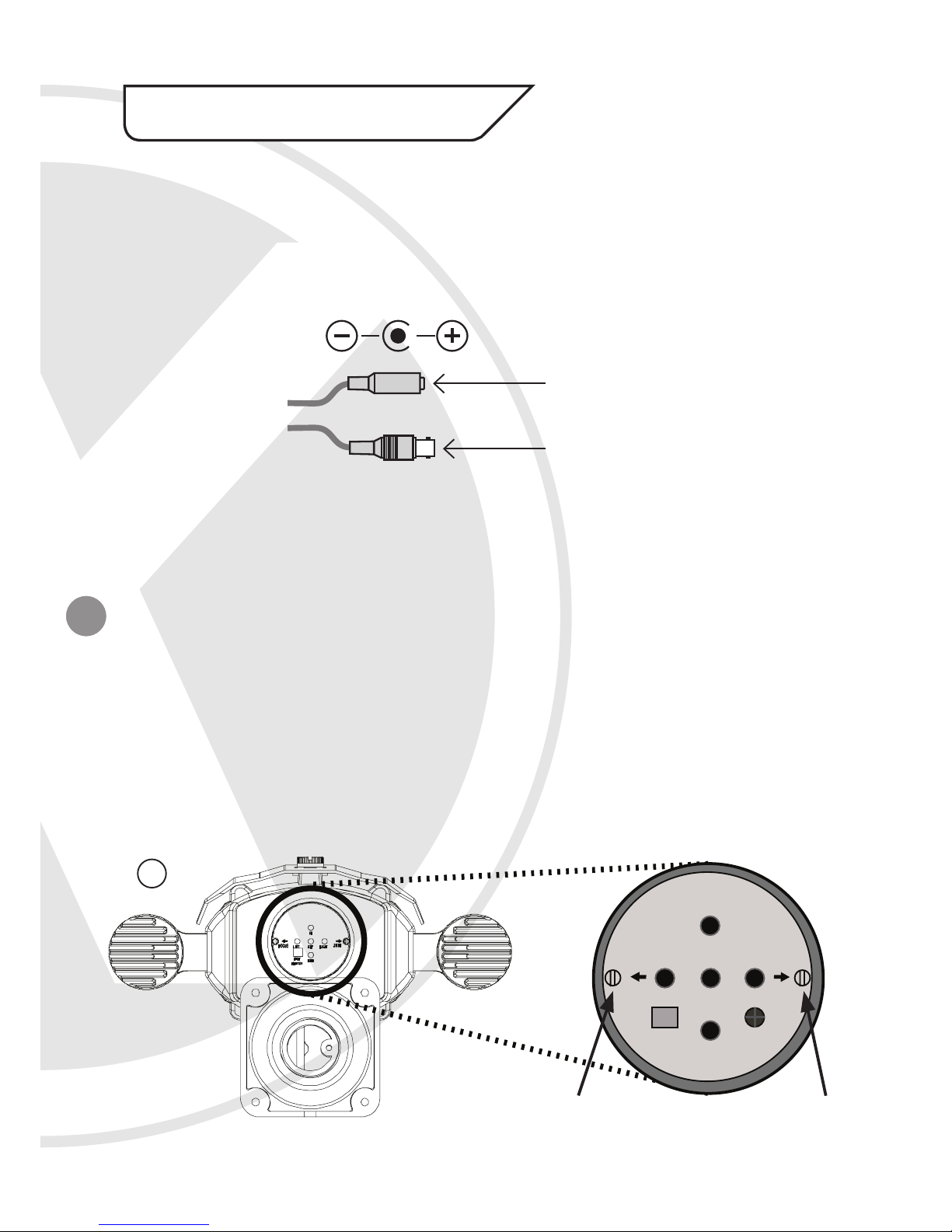
CONNECT THE POWER & VIDEO CABLES
1. Connect the video output to the monitor or other video device through a 75 Ohms type
coaxial cable.
2. Connect the power source, insert the AC plug into the AC socket and the DC plug into the
DC Jack (+12V DC in jack centre).
12V DC Power Cable
Video Cable
ZOOM
HANDLE
FOCUS
HANDLE

7
7. Camera OSD Control
Various camera settings can be adjusted using the OSD buttons located at the rear end of
the camera.
To access the OSD buttons, remove the sunshield and screw off the camera’s back cover
and pull the casing away, the buttons are located in the centre of the rear panel.
Please Note: Use the screwdriver as a tool to help loosen/tighten the back cover. Please use
the rubber sleeve provided to cover the screwdriver to prevent scratching the external casing.
Press the SET button to enter the OSD Menu.
Press these controls For this Action
UP, DOWN Select between items in a list
LEFT, RIGHT Select a menu item to change its setting
SET (MENU) Access a sub menu
OSD Button Control Actions
UP
LEFT SET RIGHT
DOWN
SPOT
MONITOR
FOCUS ZOOM
LED
LEVEL

8
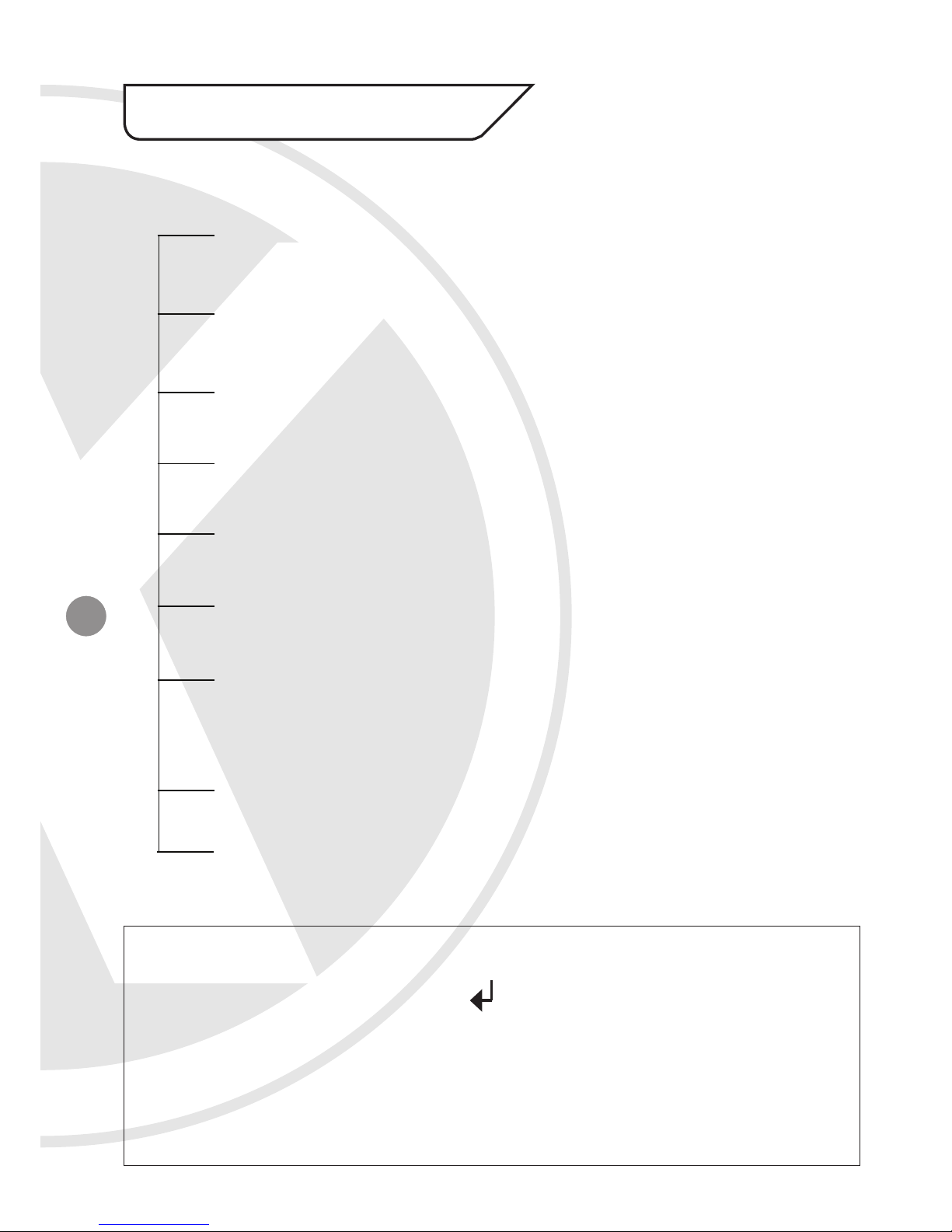
8. OSD Menu Structure
SETUP MENU
Please Note:
• The arrow symbol on the OSD menu indicates that there is a sub-menu
available. You can enter the sub-menu by pressing the SET(Menu) button.
• The RETURN (RET) option on the OSD menu allows the user to return back to the
previous menu.
• The sub-menu within the RETURN option brings up the END option, which allows the
user to exit the OSD menu completely.
EXPOSURE
WHITE BALANCE
BACKLIGHT
DAY/NIGHT
DPC
SPECIAL
RESET
> DC > MANUAL
> SHUTTER > BRIGHTNESS > AGC > DWDR > RETURN
> MANUAL > ATW1 >ATW2 > AWC-SET
> AUTO > COLOR > B/W > EXT
> CAM TITLE > MOTION > PRIVACY > PARK LINE > IMAGE ADJ
> COMM ADJ > LANGUAGE > VERSION > RETURN
> OFF > BLC > HLC
LENS
EXIT
> FACTORY > RETURN

9
9. SETUP Menu Functions
9.1. LENS <Option : DC>
This should be left on the default DC setting.
9.2. EXPOSURE
<Option : SHUTTER / BRIGHTNESS / AGC / DWDR / RETURN>
• SHUTTER: Adjusts shutter settings <AUTO / FLK / MANUAL>
- AUTO - Adjusts shutter settings to control the brightness level on screen.
- FLK (Flickerless mode) - Reduces on-screen flickering.
- MANUAL - Allows you to adjust the shutter speed from 1/50~1/100,000 (PAL).
• BRIGHTNESS: Adjusts brightness settings (range 0-255).
• AGC: Automatic Gain Control <OFF / LOW / MIDDLE / HIGH>
For better performance in low light conditions the AGC can be increased. This has
the effect of making the picture brighter (however it may also add more noise to the
picture as it is amplifying all aspects of the video signal).
Please Note: that the AGC function is only activated once the DAY/NIGHT function is
NOT set in AUTO mode.
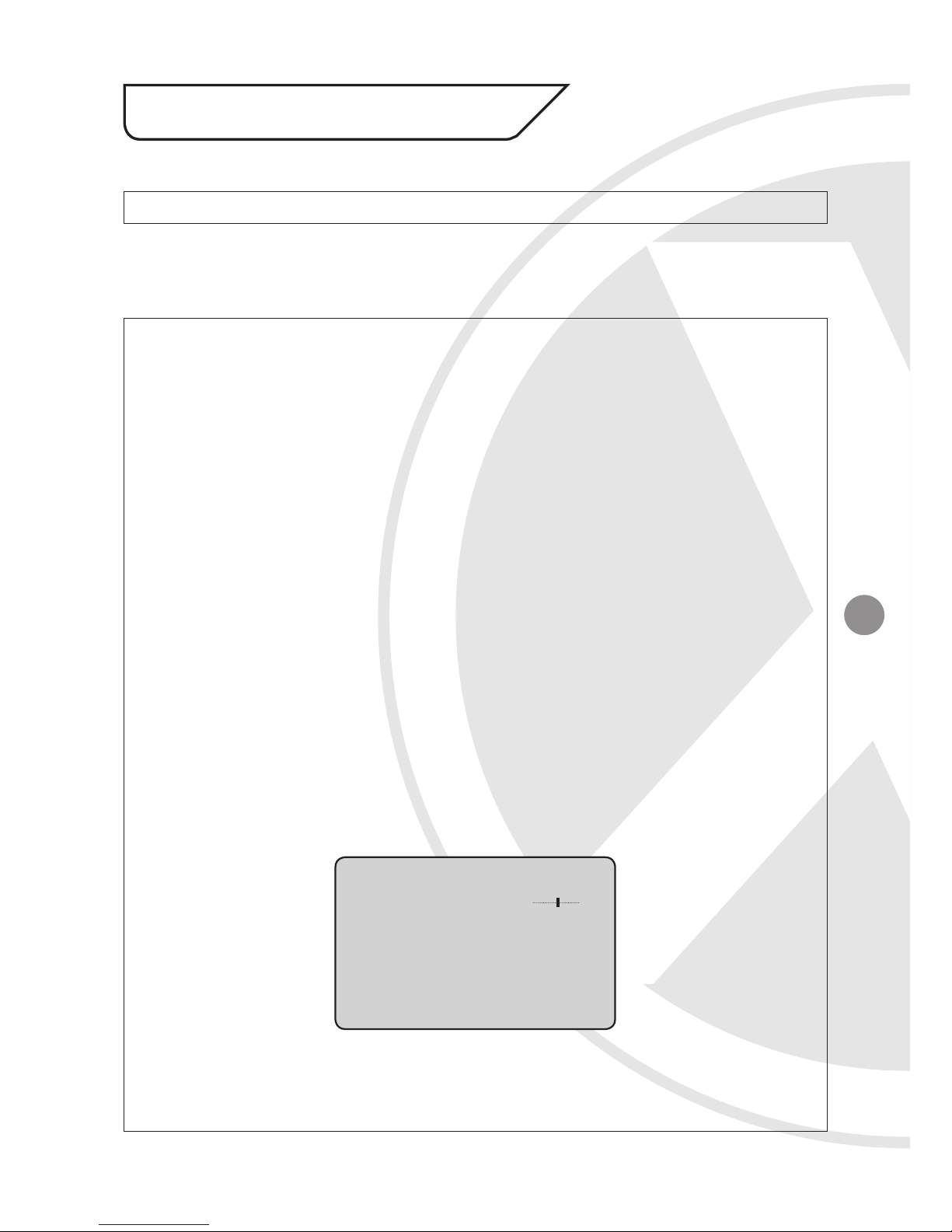
• DWDR: Digital Wide Dynamic Range <ON / OFF>
Wide Dynamic Range allows the camera to display balanced pictures even when the
scene being watched has bright spots or various light level and back light conditions.
-ON - Activate DWDR feature (range 0-63).
- OFF - Deactivate DWDR feature (default setting).
• RETURN: Select to return to Main Menu.
DWDR
LEVEL 063
RETURN RET

10
9.3. WHITE BALANCE (WHITE BALANCE MENU)
<Option : MANUAL / ATW1 / ATW2 / AWC-SET>
• White Balance adjusts the colour temperature of the camera image to match the type
of light available, so that white and other colours appear as natural as possible.
- MANUAL: To fine-tune the White Balance manually adjust the Red Gain and Blue
Gain between 0~255. There is also the option of using the INDOOR or OUTDOOR
presets.
- ATW1: Auto Tracking White Balance preset 1.
- ATW2: Auto Tracking White Balance preset 2.
- AWC-SET: Find the optimal setting for the current luminance environment in this
mode. Set the point the camera towards a sheet of white paper and press the SET
button. If the environment changes, re-adjust it.
- RETURN: Select to return to Main Menu.
9. SETUP Menu Functions continued
9.4. BACKLIGHT
<Option : OFF / BLC / HLC>
• OFF: Deactivate BACKLIGHT feature (default setting).
• BLC: (Back Light Compensation ) The BLC function makes objects in front of a bright
scene (such as a window on a bright sunny day) clearer to see by increasing their
brightness and making the background darker. To fine-tune the BLC manually enter the
sub-menu by pressing the SET button.
continued
WB MANUAL
COLOR TEMP
BLUE 080
BLUE 110
RETURN RET
BLC
AREA SEL. AREA1
AREA STATE ON
GAIN 110
HEIGHT 006
WIDTH 007
LEFT/RIGHT 003
TOP/BOTTOM 005
RETURN RET
Indice
Altri manuali X-Vision Telecamera IP

X-Vision
X-Vision XIP3101 Guida all'installazione

X-Vision
X-Vision pro-hd Manuale utente

X-Vision
X-Vision X2C4000BP Manuale utente

X-Vision
X-Vision XIP3101 Manuale utente

X-Vision
X-Vision Pro HD Manuale utente

X-Vision
X-Vision X720B Manuale utente

X-Vision
X-Vision VIS600E Manuale utente

X-Vision
X-Vision XPB621 Manuale utente

X-Vision
X-Vision XIR504 Guida

X-Vision
X-Vision XPB700WDR Manuale utente

X-Vision
X-Vision XP5000T Manuale utente

X-Vision
X-Vision VIS449EX Manuale utente

X-Vision
X-Vision X720D Manuale utente

X-Vision
X-Vision VIS600ZR Manuale utente

X-Vision
X-Vision X101T Manuale utente

X-Vision
X-Vision XPB731WIR-2 Manuale utente

X-Vision
X-Vision XPB650 Manuale utente

X-Vision
X-Vision X2C4000 Manuale utente