Zte Maven 2 Manuale utente

User Guide

Copyright ©2017 ZTE CORPORATION. All rights reserved. ZTE, Maven,
and the ZTE logos are trademarks of the ZTE Corporation. AT&T, the
AT&T logo and all other AT&T marks contained herein are trademarks
of AT&T Intellectual Property and/or AT&T.
No part of this publication may be excerpted, reproduced, translated or
utilized in any form or by any means, electronic or mechanical, including
photocopying and microlm, without the prior written permission of
ZTE Corporation.
The manual is published by ZTE Corporation. We reserve the right to
make modications on print errors or update specications without
prior notice.
microSDHC is a trademark of SD-3C LLC. The Bluetooth® word mark
and logos are registered trademarks owned by Bluetooth SIG, Inc.
Manufactured under license from Dolby Laboratories. Dolby, Dolby
Audio, and the double-D symbol are trademarks of Dolby Laboratories.
Qualcomm and Snapdragon are trademarks of Qualcomm Incorporated,
registered in the United States and other countries. Used with permission.
Version No. : V2.0
Edition Time: August 2017

1
CONTENTS
Contents
Getting Started ..................................................7
Installing the Nano-SIM Card and the Battery.................7
Installing a microSDHC Card.................................. 8
Charging the Battery ......................................... 8
Extending the Battery Life ................................... 9
Powering Your Phone On/O ................................ 9
Setting Up Your Phone for the First Time ................... 10
Locking/Unlocking the Screen and Keys .................... 10
Using the Touch Screen ......................................11
Getting to Know Your Phone.................................13
Key Functions. . . . . . . . . . . . . . . . . . . . . . . . . . . . . . . . . . . . . . . . . . . . . . . . 14
Getting to Know the Home Screen...........................15
Personalizing....................................................17
Changing the System Language .............................17
Setting the Date and Time ...................................17
Changing the Ringtone and Notication Sound. . . . . . . . . . . . . 18
Turning System Sounds On/O............................. 18
Adjusting Volumes. . . . . . . . . . . . . . . . . . . . . . . . . . . . . . . . . . . . . . . . . . . 19
Switching to Silent or Vibration Mode. . . . . . . . . . . . . . . . . . . . . . . 19
Using Do Not Disturb Mode .................................20
Applying New Wallpapers.....................................21
Setting the Theme ...........................................21
Setting the Home Screen Transition Eect ................. 22
Changing the Screen Brightness ............................ 22

2CONTENTS
Protecting Your Phone With Screen Locks.................. 22
Protecting Your Phone With Screen Pinning ................ 23
Knowing the Basics ............................................ 25
Monitoring the Phone Status................................ 25
Managing Notications......................................26
Managing Shortcuts and Widgets ...........................30
Organizing With Folders .....................................30
Rearranging the Primary Shortcuts ......................... 31
Entering Text ................................................ 31
Editing Text..................................................34
Opening and Switching Apps................................ 35
Connecting to Networks and Devices......................... 37
Connecting to Mobile Networks............................. 37
Connecting to Wi-Fi®.........................................38
Connecting to Bluetooth®Devices. . . . . . . . . . . . . . . . . . . . . . . . . . . 42
Connecting to Your Computer via USB .....................44
Using the microSDHC Card as Portable or
Internal Storage .............................................46
Sharing Your Mobile Data Connection ......................49
Connecting to Virtual Private Networks .....................51
Phone Calls..................................................... 53
Placing and Ending Calls ..................................... 53
Answering or Rejecting Calls ................................54
Working With the Call History ............................... 55
Calling Your Contacts ....................................... 55

3
CONTENTS
Checking Voicemail..........................................56
Using Options During a Call .................................56
Managing Multi-party Calls .................................. 57
Adjusting Your Call Settings.................................58
Contacts. . . . . . . . . . . . . . . . . . . . . . . . . . . . . . . . . . . . . . . . . . . . . . . . . . . . . . . . 64
Checking Contact Details ...................................64
Adding a New Contact.......................................64
Setting Up Your Own Prole ................................65
Importing, Exporting, and Sharing Contacts ................65
Working With Favorite Contacts ............................66
Working With Groups........................................67
Searching for a Contact .....................................68
Editing Contacts.............................................68
Accounts ........................................................71
Adding or Removing Accounts ...............................71
Conguring Account Sync................................... 72
Email............................................................74
Setting Up the First Email Account..........................74
Writing and Sending an Email ...............................74
Checking Your Email......................................... 75
Responding to an Email ..................................... 75
Adding a Signature to Your Emails ..........................76
Adding, Editing, or Deleting an Email Account .............. 77
Changing General Email Settings............................78

4CONTENTS
Messaging......................................................79
Opening the Messaging Screen .............................79
Sending a Message ..........................................79
Replying to a Message.......................................80
Deleting Messages or Threads ..............................80
Forwarding a Message. . . . . . . . . . . . . . . . . . . . . . . . . . . . . . . . . . . . . . . 81
Changing Message Settings................................. 81
Calendar........................................................82
Viewing Your Calendars and Events.........................82
Creating an Event ...........................................83
Editing, Deleting, or Sharing an Event .......................83
Changing Calendar Settings.................................84
Searching an Event ..........................................84
Browser ........................................................85
Opening the Browser........................................85
Using Multiple Browser Tabs ................................85
Downloading Files ...........................................86
Changing Browser Settings .................................86
Camera .........................................................87
Capturing a Photo ........................................... 87
Using Manual Camera Mode.................................89
Recording a Video ...........................................90
Customizing Camera and Video Settings ...................90

5
CONTENTS
Gallery..........................................................92
Opening the Gallery .........................................92
Working With Albums........................................92
Working With Pictures .......................................93
Playing Videos ...............................................96
Music ...........................................................97
Copying Music Files to Your Phone..........................97
Viewing Your Music Library..................................98
Setting a Song as the Default Ringtone.....................98
Playing Music ................................................99
Managing Playlists..........................................100
Video Player................................................... 101
Opening the Video Library. . . . . . . . . . . . . . . . . . . . . . . . . . . . . . . . . . 101
Playing and Controlling Videos ............................. 101
Managing Video Files .......................................102
More Apps.....................................................104
Backup & Restore. . . . . . . . . . . . . . . . . . . . . . . . . . . . . . . . . . . . . . . . . . . 104
Calculator...................................................104
Clock........................................................104
Downloads..................................................105
File Manager ................................................105
Sound Recorder ............................................106
Google Apps ................................................107

6CONTENTS
Settings .......................................................109
Wireless & Networks. . . . . . . . . . . . . . . . . . . . . . . . . . . . . . . . . . . . . . . . 109
Device .......................................................111
Personal .....................................................115
System ......................................................119
Upgrading the Phone Soware ..............................120
Troubleshooting ...............................................121
For Your Safety ...............................................124
General Safety Information ................................124
FCC Regulations ............................................ 125
RF Exposure Information (SAR) ............................126
Hearing Aid Compatibility (HAC) Regulations
for Mobile Phones .......................................... 127
CTIA.........................................................129
Distraction..................................................130
Product Handling ...........................................130
Electrical Safety ............................................ 133
Interference ................................................134
Explosive Environments ....................................136
Warranty ...................................................... 137
Limited Warranty ...........................................138
How to Get Warranty Service ..............................139
Other Warranty Programs..................................139
Specications .................................................140

7GETTING STARTED
Getting Started
Installing the Nano-SIM Card and the Battery
Power o your phone before installing or
replacing the nano-SIM card.
1. Insert your ngernail into the slot at the
bottom le of the back cover, and li it
up gently.
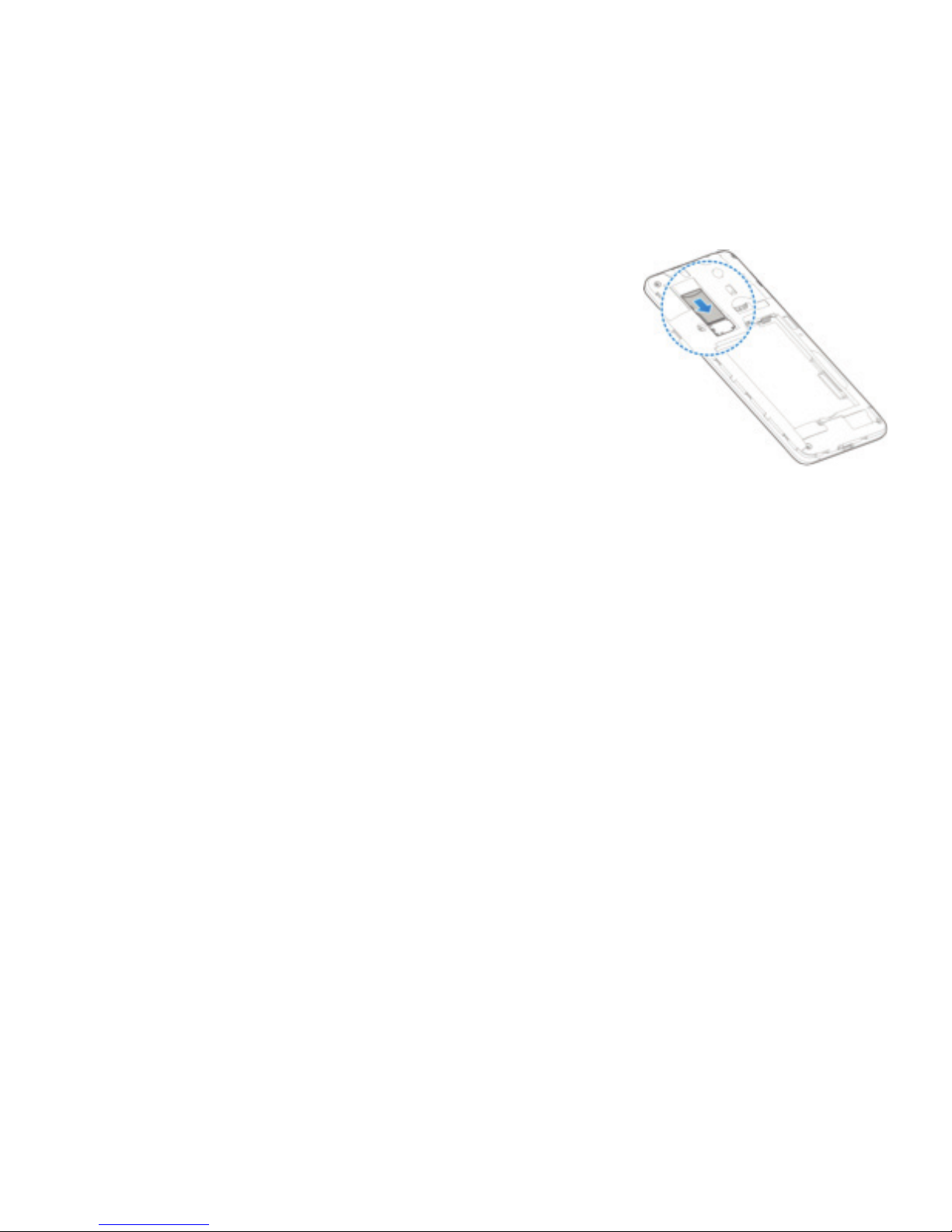
2. Hold the nano-SIM card with the cut corner
oriented as shown, and slide it into the
card slot.
Important: To avoid damage to the phone,
do not use other kinds of SIM cards or a
non-standard nano-SIM card cut from a
SIM card. You can obtain a standard
nano-SIM card from your service provider.
3. Insert the battery by aligning the metal
contacts on the battery with the metal
contacts in the battery compartment.
Gently push down on the battery until it
clicks into place.
4. Align the back cover with the back of the
phone, and press the cover back into place.
Make sure all the tabs are secure and there
are no gaps around the cover.

Installing a microSDHC Card (not included)
The microSDHC card can be installed and removed while
the phone is powered on. Unmount the microSDHC
card before removing or replacing it.
1. Remove the back cover.
2. Hold your microSDHC card with the metal
contacts facing down, and slide it into the
card slot.
Note: Some applications may require a microSDHC
card to work normally, or may store certain data on it.
Therefore, it is recommended that you keep a microSDHC
card installed and not remove or replace it randomly.
3. Press the back cover gently back into place until you hear
a click.
Charging the Battery
Your phone’s battery should have enough power for the phone
to turn on, nd a signal, and make a few calls. You should fully
charge the battery as soon as possible.
If the battery is low, there will be a pop-up message on the
screen. As you charge your phone, the screen will show you the
exact battery level each time you wake up your phone.
Note: To charge your ZTE Maven 2, you must use the USB cable
and connector that is included with your phone. The ZTE Maven 2
cannot be charged with a standard micro-USB charger.
Warning! Use only ZTE-approved chargers and cables. The use of
unapproved accessories could damage your phone or cause the
battery to explode.
8GETTING STARTED
Altri manuali per Maven 2
1
Questo manuale è adatto per i seguenti modelli
1
Indice
Altri manuali Zte Telefono cellulare

Zte
Zte Blade V40 Vita Manuale utente

Zte
Zte Blade III Manuale utente

Zte
Zte V809 Manuale utente

Zte
Zte BLADE A910 Manuale utente

Zte
Zte Happy Phone C310 Manuale utente

Zte
Zte Z557BL Manuale utente

Zte
Zte Blade A506 Manuale utente

Zte
Zte S165 Manuale utente

Zte
Zte v791 Manuale utente

Zte
Zte blade V8 PRO Manuale utente