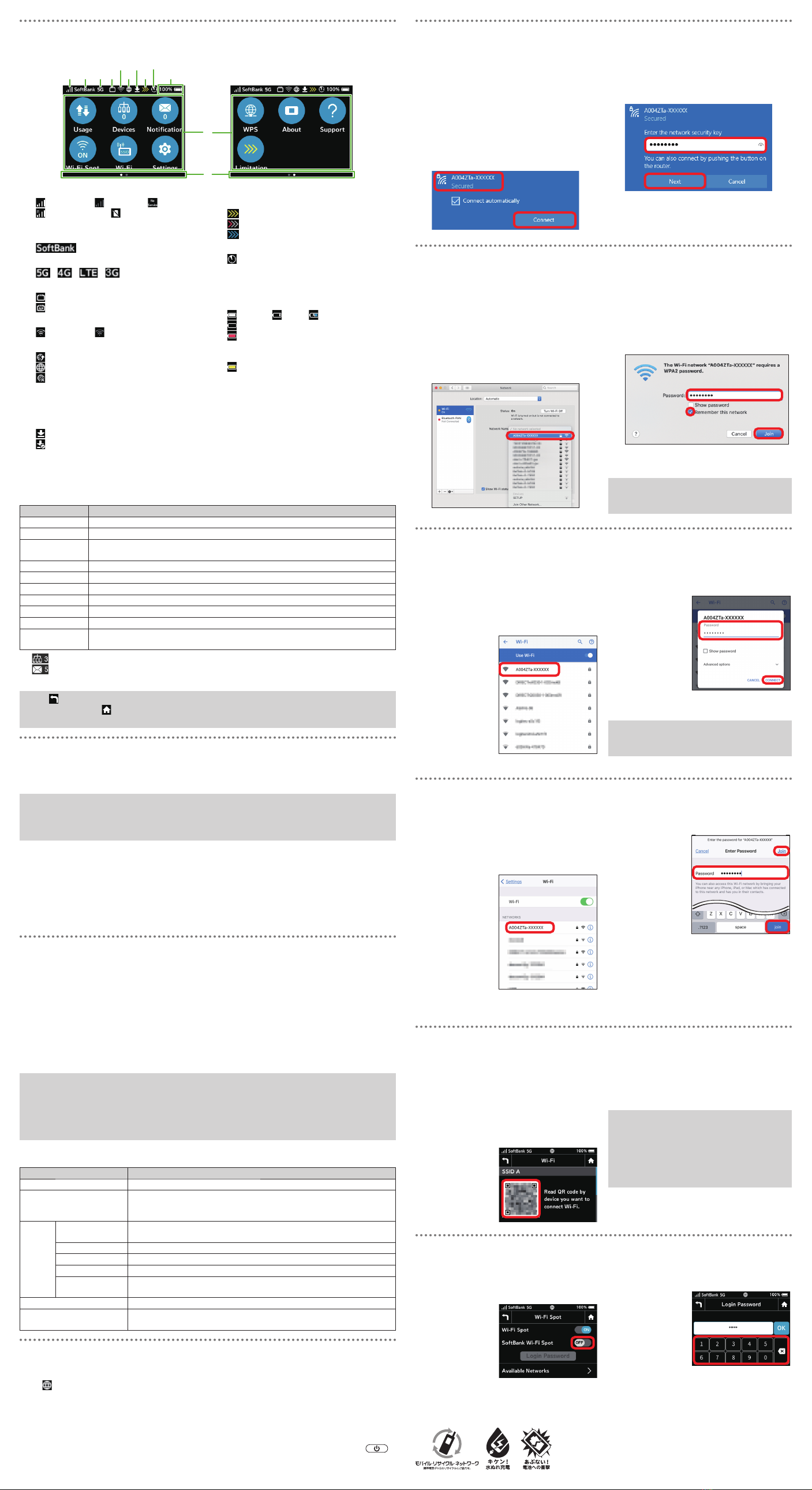
Mobilenetworksignallevel
(Strong)⇔ (Weak)⇔ (Nosignal)
:Dataroaming :USIMCardnot
inserted
Networkoperator
:Networkoperatorname
Network
/ / / :Connectednetwork
Wiredportsetting
:RouterMode
:AP/bridgeMode
Wi-FiSpotsignallevel
(Strong)⇔ (Weak)
Statuswithmobilenetwork
:Connectingtomobilenetwork
:Connectedtomobilenetwork
*
:Mobilenetworknotconnected
*AppearswhenWi-Firouterisconnected
toWi-FiSpotorconnectedtothe
InternetwithLANCable.
Softwaredownload
:Softwaredownloading
:Softwaredownloaded
Datavolume
(whensubscribedasanindividual)
:
Noticeofslow-speedcommunication
:Startofslow-speedcommunication
:Endofslow-speedcommunication
Searchradar
:Checkradiointerferencecausedto
theweatherradar,etc.
Batterylevel
Batterylevelisdisplayedinpercentage
andanicon.
(Full)⇔ (Low) :Charging
:Batterylevelinsufficient
*:Chargingstoppedbybattery
protectionfunction(Whentemperature
ofWi-Firouterishigh)
*
:Chargingstoppedbybattery
protectionfunction
*Appearswhenchargingcontinuesfora
longtimeorchargingtooklonger.
TouchMenuicons
TapTouchMenuiconsforsettings.
PageIndicator
HomeScreenhastwopagesoficons.
Indicatesthepageposition.
FlickTouchscreentodisplaythenextpage.
■ TouchMenuIcons
Tapiconsforsettingsandnotifications.
Item Description
Usage Showmobilenetworkdatausageetc.
Devices*1 Shownumberofconnecteddevices.
Notification Checkanddeletereceivednotifications;numberofunreadnotifications
isshown.*2
Wi-FiSpot ConnecttoWi-FiSpotorSoftBankWi-Fispotandmakesettings.
Wi-Fi
ShowandsetWi-Finame(SSID)andpassword(SecurityKey)forWi-Firouter.
Settings Makevarioussettings.
WPS SetaWPSconnection.
About ShowWi-Firouter'sinformation.
Support ShowHelpforIconsonDisplay.
Limitation*3 Applyarequestforareservation/cancellationforslow-speed
communicationstatus.
*1 (Devicesicon)appearsinLockScreen.
*2 (Unreadnotification)appearsinLockScreen.
*3
Appearswhenslow-speedcommunicationapproachesorstarts.(whensubscribedasanindividual)
•Tap onthesettingswindowornotificationwindowtogobacktotheprevious
windowandtap togobacktoHomeScreen.
•FordetailsonTouchMenuicons,seeUserGuide.
InstallingDriver
Uponconnectingthefirsttime,thedevicedriverisinstalledautomatically.
Manualinstallation/uninstallationisnotrequired.
•DonotremoveWi-Firouterduringinstallation.Maycauseinstallationfailureor
PCshutdownetc.
•Logintoanaccountwithadministratorprivileges.Forcheckingadministrator
privileges,see"CheckHereFirst"inUserGuide.
a
PoweronPC/MactoactivateOS→ConnectWi-Firouter
ThedevicedriveronPC/Macisinstalledautomatically.Installationoperationisnotneeded.
■ WhenDriverisNotInstalledAutomaticallyonMac
a
ConnectWi-FiroutertoMac→Ondesktop,double-click"PocketWiFi"→
Click"PocketWiFi"→Enterusernameandpassword
Driverisinstalled.
UsingWEBUI
UseWEBUItochangesettingsforWi-Firouter,fromacomputerormobile
deviceconnectedviaaWLAN.
a
ActivateacomputerorWLANdeviceandconnectittoWi-FirouterviaWLAN
b
Activatewebbrowserandenter"(http://web.setting)"inaddressbar
c
OnWEBUIHomePage,click"Login"intheupperright→Enterpassword
→Click"Login"
Passwordis"admin"bydefault.
d
InWEBUIMainMenu,select"Settings"tab→Makesettings
•FordetailsonWEBUIsettings,seeUserGuide.
•WEBUIcanalsobeusedbyconnectingPCandWi-FirouterwithUSBCable.
Operatefromstep2.
•WhileoperatingWi-Firouter,logintoWEBUIisnotavailable.
•WhenusingamobiledevicesuchasasmartphoneconnectedtoWi-Firouter,
someWEBUIsettingitemsonPCareunavailableonthemobile.
■ MainOperation
Item Description
Home
Checkconnectionstatus,communicationtime,datausageetc.
ConnectedDevices ShowlistofWLANdevicesconnectedtoWi-Firouter(SSIDA/
SSIDB).DevicenamesandMACaddressesappear.Enable
MACAddressFilteringtorestrictconnections.
Settings
LANWi-Fi SetBasicSettings,AdvancedSettings,andLANIPAddress
Setting.
Wi-FiSpot SetWi-FiSpot,accesspoints,andPriorityManagement.
Usage
Setdatausageappearance,Maximumtraffic,andAutoResetDate.
MobileNetwork
MakeNetworkSettings,ProfileManagement,andSIMsettings.
Device SetLog-inPasswordSetting,SoftwareUpdate,Connection
History,QuickBoot,SettingsResetetc.
Notifications Checkanddeletereceivednotifications.
About CheckdetailedinformationofWi-FirouterincludingPhone
NumberandIMEI.
ActivatingWLANFunction
PowerontoconnecttotheInternetautomaticallyandenableWLAN.Confirm
that isshownonDisplayofWi-Firouter.
■ SleepMode
•WhenfiveminuteselapseafternoWLANdevicesareconnected,Wi-Firouter
goesintoSleepmode(defaultsetting).
•InSleepmode,WLANisoff.
•ToreleaseSleepmodeandturnonWLANtoreconnectWLANdevices,press .
•Sleepmodeisnotactivatedduringcharging.
ConnectingWindowsPC(Windows10)
ThissectiondescribessetupoperationswithscreenshotsandstepsforWi-Fi
(SSIDA)atWPA2securitysetting.
a
ActivatePCWLANfunction
b
SelectACTIONCENTERinthe
lowerright→SelectInternet
access
c
SelectWi-Firouter'sWi-Finame
(A004ZTa-XXXXXX)→Select
"Connect"
d
EnterWi-Firouterpassword
(SecurityKey)→Select"Next"
WLANconnectioncounternumberon
TouchMenuincreasesbyone.
ConnectingMac(MacOSX10.15)
ThissectiondescribessetupoperationswithscreenshotsandstepsforWi-Fi
(SSIDA)atWPA2securitysetting.
a
InApplemenu,select"System
Preferences..."→"Network"
b
Select"Wi-Fi"→"TurnWi-FiOn"
c
In"NetworkName"pulldownlist,
selectWi-Firouter'sWi-Finame
(A004ZTa-XXXXXX)
d
EnterWi-Firouterpassword
(SecurityKey)→Checkmark
"Rememberthisnetwork"→
Select"Join"
WLANconnectioncounternumberon
TouchMenuincreasesbyone.
•Whenthemessage"FindandjoinaWi-Fi
network."appears,uncheck"Asktojoin
newnetworks"in"Network"screen.
ConnectingAndroidTMDevice(AndroidTM11)
ConnectanAndroidTMdevicetoconnecttotheInternet.Thissectiondescribes
setupoperationswithscreenshotsandstepsforWi-Fi(SSIDA)atWPA2
securitysetting.Someoperationsandscreenshotsvarybysecuritymethod.
a
ActivateAndroidTMdevice→In
menu,select"Settings"
b
TurnonWi-Fi
c
Select
Wi-Firouter's
Wi-Finame
(A004ZTa-
XXXXXX)
d
EnterWi-
Firouter
password
(Security
Key)→
Select
"CONNECT"
WLANconnectioncounternumberon
TouchMenuincreasesbyone.
•Operationstepsforconnectionvary
byAndroidTMdevice.Fordetails,refer
toAndroidTMdeviceuserguide.
ConnectingiPhone/iPad(iOS14)
ThissectiondescribessetupoperationswithscreenshotsandstepsforWi-Fi
(SSIDA)atWPA2securitysetting.
a
ActivateiPhoneoriPad→Inhome
screen,select"Settings"→"Wi-Fi"
b
TurnonWi-Fi
c
Select
Wi-Firouter's
Wi-Finame
(A004ZTa-
XXXXXX)
d
EnterWi-
Firouter
password
(Security
Key)→
Select"Join"
or"join"
WLANconnectioncounternumberon
TouchMenuincreasesbyone.
・Apple,theApplelogo,iPad,iPhone,Mac,Macintosh,andSafariaretrademarksofAppleInc.registered
intheUnitedStatesandothercountries.Thetrademark"iPhone"isusedwithalicensefromAiphoneK.K.
AppStoreisaservicemarkofAppleInc.TMand©2021AppleInc.Allrightsreserved.
ConnectingUsingQRCode
ConnecttoWi-FirouterautomaticallybyscanningaQRcodeshownonWi-Fi
routerusinganapplication.
a
InHomeScreen,tap"Wi-Fi"
b
ReadtheQRcodeshown
onDisplayofWi-Firouterby
ascanningapplicationofa
smartphone
Followthe
instructionon
thescanning
application
toreadand
connect.
c
CheckthattheWi-Fisignaliconis
onthesmartphonescreen.
•UseaQRcodeapplication,such
as" お父さん QR",etc.Installitona
smartphoneforreading.
•AlsobyreadingtheQRcodeonthe
suppliedWi-Finame(SSID)label,a
smartphonecanconnecttoWi-Fi
router.
ConnectingtoSoftBankWi-FiSpot
TouseSoftBankWi-FiSpot,afour-digitsecuritycodesetatsubscriptionis
required.Followthesestepstoenter.
a
InHomeScreen,tap"Wi-FiSpot"
b
Checkthat
"Wi-FiSpot"is
setto"ON",
andtap"OFF"
for"SoftBank
Wi-FiSpot"to
turnit"ON"
c
TapNumber
Keysto
enterfour-
digitlogin
password→
Tap"OK"
January2021,FirstEdition
SoftBankCorp.
VisitSoftBankShopforassistance
Model:A004ZT
Manufacturer:ZTECorporation