
Arduino NRF24L01 Istruzioni operative

Arduino Wireless Communication –
NRF24L01 Tutorial
Dejan Nedelkovski
Arduino Tutorials
36
In this Arduino tutorial we will learn how to make a wireless communication between two
Arduino boards using the NRF2 L01 transceiver module. You can watch the following
video or read the written tutorial below.
Overview
For explaining the wireless communication we will make two examples, the first one will be
sending a simple “Hello World” message from one Arduino to another, and in the second
example we will have a bi-directional communication between the Arduino boards, where
using the Joystick at the first Arduino we will control the servo motor at the second
Arduino, and vice versa, using the push button at the second Arduino we will control the
LED at the first Arduino.
NRF24L01 Transceiver Module
Let’s take a closer look at the NRF2 L01 transceiver module. It uses the 2. GHz band
and it can operate with baud rates from 250 kbps up to 2 Mbps. If used in open space and
with lower baud rate its range can reach up to 100 meters.
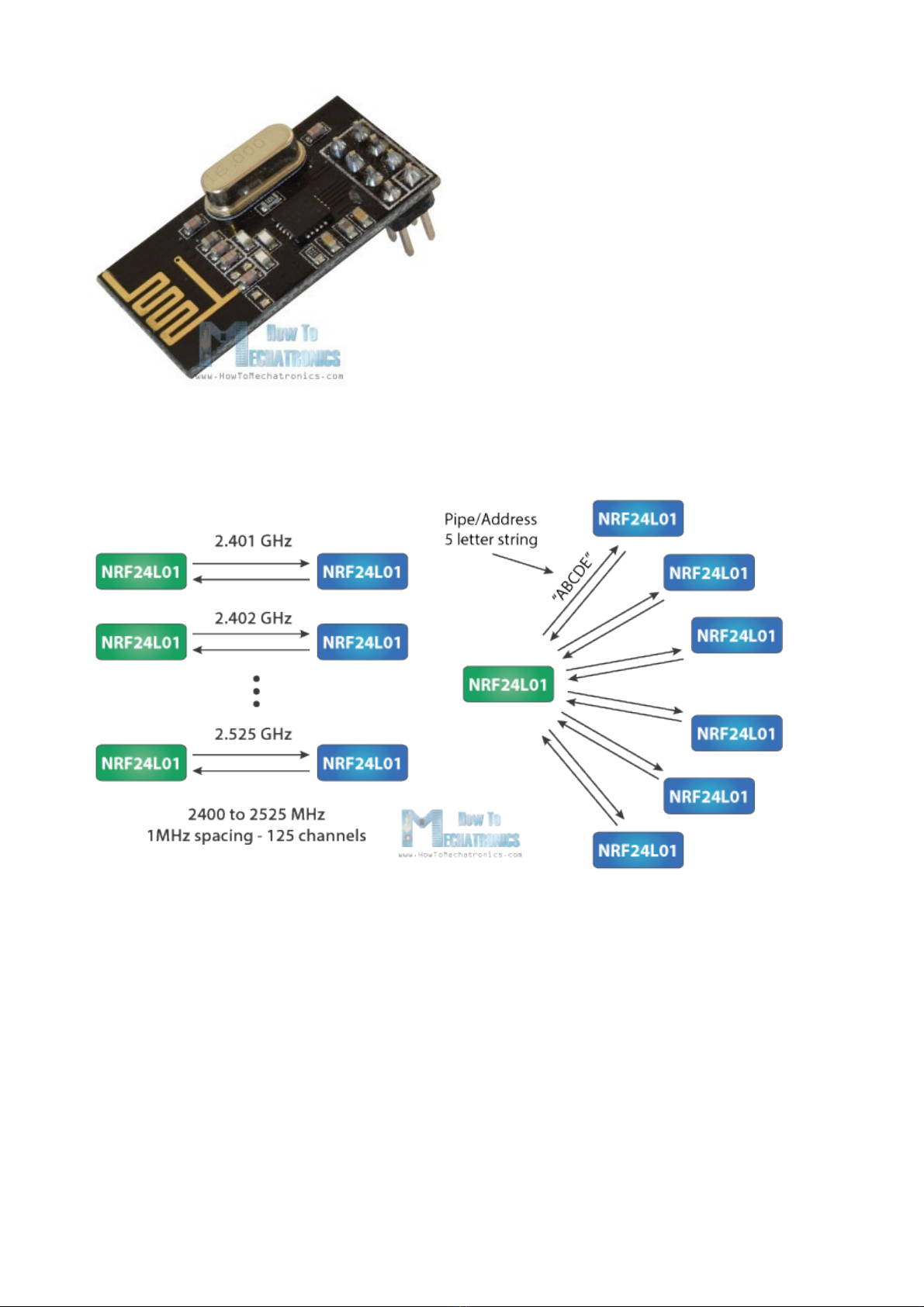
The module can use 125 different channels which gives a possibility to have a network of
125 independently working modems in one place. Each channel can have up to 6
addresses, or each unit can communicate with up to 6 other units at the same time.
The power consumption of this module is just around 12mA during transmission, which is
even lower than a single LED. The operating voltage of the module is from 1.9 to 3.6V, but
the good thing is that the other pins tolerate 5V logic, so we can easily connect it to an
Arduino without using any logic level converters.

Three of these pins are for the SPI communication and they need to be connected to the
SPI pins of the Arduino, but note that each Arduino board have different SPI pins. The pins
CSN and CE can be connected to any digital pin of the Arduino board and they are used
for setting the module in standby or active mode, as well as for switching between transmit
or command mode. The last pin is an interrupt pin which doesn’t have to be used.
So once we connect the NRF2 L01 modules to the Arduino boards we are ready to
make the codes for both the transmitter and the receiver.
You can get the components needed for this Arduino Tutorial from the links below:
•NRF24L 1 Transceiver Module…………. Amazon / DealExtreme
•Arduino Board ………………………………… Amazon

Arduino Codes
First we need to download and install the RF24 library which makes the programming less difficult.
Here are the two codes for the wireless communication and below is the description of them.
Transmitter Code
1./*
2.* Arduino Wireless Communication Tutorial
3.* Example 1 - Transmitter Code
4.*
5.* b Dejan Nedelkovski, www.HowToMechatronics.com
6.*
7.* Librar : TMRh20/RF24, https://github.com/tmrh20/RF24/
8.*/
9.#include <SPI.h>
10.#include <nRF24L01.h>
11.#include <RF24.h>
12.RF24 radio(7, 8); // CE, CSN
13.const b te address[6] = "00001";
14.void setup() {
15.radio.begin();
16.radio.openWritingPipe(address);
17.radio.setPALevel(RF24_PA_MIN);
18.radio.stopListening();
19.}
20.void loop() {
21.const char text[] = "Hello World";
22.radio.write(&text, sizeof(text));
23.dela (1000);
24.}

Receiver Code
1./*
2.* Arduino Wireless Communication Tutorial
3.* Example 1 - Receiver Code
4.*
5.* b Dejan Nedelkovski, www.HowToMechatronics.com
6.*
7.* Librar : TMRh20/RF24, https://github.com/tmrh20/RF24/
8.*/
9.#include <SPI.h>
10.#include <nRF24L01.h>
11.#include <RF24.h>
12.RF24 radio(7, 8); // CE, CSN
13.const b te address[6] = "00001";
14.void setup() {
15.Serial.begin(9600);
16.radio.begin();
17.radio.openReadingPipe(0, address);
18.radio.setPALevel(RF24_PA_MIN);
19.radio.startListening();
20.}
21.void loop() {
22.if (radio.available()) {
23.char text[32] = "";
24.radio.read(&text, sizeof(text));
25.Serial.println(text);
26.}
27.}

escription:
So we need to include the basic SPI and the newly installed RF2 libraries and create an
RF2 object. The two arguments here are the CSN and CE pins.
1.RF24 radio(7, 8); // CE, CSN
Next we need to create a byte array which will represent the address, or the so called pipe
through which the two modules will communicate.
1.const b te address[6] = "00001";
We can change the value of this address to any 5 letter string and this enables to choose
to which receiver we will talk, so in our case we will have the same address at both the
receiver and the transmitter.
In the setup section we need to initialize the radio object and using the
radio.openWritingPipe() function we set the address of the receiver to which we will send
data, the 5 letter string we previously set.
1.radio.openWritingPipe(address);
On the other side, at the receiver, using the radio.setReadingPipe() function we set the
same address and in that way we enable the communication between the two modules.
1.radio.openReadingPipe(0, address);
Then using the radio.setPALevel() function we set the Power Amplifier level, in our case I
will set it to minimum as my modules are very close to each other.
1.radio.setPALevel(RF24_PA_MIN);
Note that if using a higher level it is recommended to use a bypass capacitors across GND
and 3.3V of the modules so that they have more stable voltage while operating.
Next we have the radio.stopListening() function which sets module as transmitter, and on
the other side, we have the radio.startListening() function which sets the module as
receiver.
1.// at the Transmitter
2.radio.stopListening();
1.// at the Receiver
2.radio.startListening();
In the loop section, at the transmitter, we create an array of characters to which we assign
the message “Hello World”. Using the radio.write() function we will send that message to
the receiver. The first argument here is the variable that we want to be sent.
1.void loop() {
2.const char text[] = "Hello World";
3.radio.write(&text, sizeof(text));
4.dela (1000);
5.}

By using the “&” before the variable name we actually set an indicating of the variable that
stores the data that we want to be sent and using the second argument we set the number
of bytes that we want to take from that variable. In this case the sizeof() function gets all
bytes of the strings “text”. At the end of the program we will add 1 second delay.
On the other side, at the receiver, in the loop section using the radio.available() function
we check whether there is data to be received. If that’s true, first we create an array of 32
elements, called “text”, in which we will save the incoming data.
1.void loop() {
2.if (radio.available()) {
3.char text[32] = "";
4.radio.read(&text, sizeof(text));
5.Serial.println(text);
6.}
7.}
Using the radion.read() function we read and store the data into the “text” variable. At the
end we just print text on the serial monitor. So once we upload both programs, we can run
the serial monitor at the receiver and we will notice the message “Hello World” gets printed
each second.
Arduino Wireless Bi-directional Communication
Let’s see the second example, a bi-directional wireless communication between two
Arduino boards. Here’s the circuit schematics:
You can get the components needed for this example from the links below:
•NRF2 L01 Transceiver Module…………. Amazon / DealExtreme


Source codes : Here are the two codes and below is the description of them.
Transmitter Code
1./*
2.* Arduino Wireless Communication Tutorial
3.* Example 2 - Transmitter Code
4.*
5.* b Dejan Nedelkovski, www.HowToMechatronics.com
6.*
7.* Librar : TMRh20/RF24, https://github.com/tmrh20/RF24/
8.*/
9.#include <SPI.h>
10.#include <nRF24L01.h>
11.#include <RF24.h>
12.#define led 12
13.RF24 radio(7, 8); // CE, CSN
14.const b te addresses[][6] = {"00001", "00002"};
15.boolean buttonState = 0;
16.void setup() {
17.pinMode(12, OUTPUT);
18.radio.begin();
19.radio.openWritingPipe(addresses[1]); // 00001
20.radio.openReadingPipe(1, addresses[0]); // 00002
21.radio.setPALevel(RF24_PA_MIN);
22.}
23.void loop() {
24.dela (5);
25.radio.stopListening();
26.int potValue = analogRead(A0);
27.int angleValue = map(potValue, 0, 1023, 0, 180);
28.radio.write(&angleValue, sizeof(angleValue));
29.dela (5);
30.radio.startListening();
31.while (!radio.available());
32.radio.read(&buttonState, sizeof(buttonState));
33.if (buttonState == HIGH) {
34.digitalWrite(led, HIGH);
35.}
36.else {
37.digitalWrite(led, LOW);
38.}
39.}

Receiver Code
1./*
2.* Arduino Wireless Communication Tutorial
3.* Example 2 - Receiver Code
4.*
5.* b Dejan Nedelkovski, www.HowToMechatronics.com
6.*
7.* Librar : TMRh20/RF24, https://github.com/tmrh20/RF24/
8.*/
9.#include <SPI.h>
10.#include <nRF24L01.h>
11.#include <RF24.h>
12.#include <Servo.h>
13.#define button 4
14.RF24 radio(7, 8); // CE, CSN
15.const b te addresses[][6] = {"00001", "00002"};
16.Servo m Servo;
17.boolean buttonState = 0;
18.void setup() {
19.pinMode(button, INPUT);
20.m Servo.attach(5);
21.radio.begin();
22.radio.openWritingPipe(addresses[0]); // 00002
23.radio.openReadingPipe(1, addresses[1]); // 00001
24.radio.setPALevel(RF24_PA_MIN);
25.}
26.void loop() {
27.dela (5);
28.radio.startListening();
29.if ( radio.available()) {
30.while (radio.available()) {
31.int angleV = 0;
32.radio.read(&angleV, sizeof(angleV));
33.m Servo.write(angleV);
34.}
35.dela (5);
36.radio.stopListening();
37.buttonState = digitalRead(button);
38.radio.write(&buttonState, sizeof(buttonState));
39.}
40.}
Indice
Altri manuali Arduino Unità di controllo

Arduino
Arduino MKR1000 Manuale utente

Arduino
Arduino HM-11 Manuale utente

Arduino
Arduino Ethernet Shield 2 Manuale utente

Arduino
Arduino Nano 33 BLE Manuale utente

Arduino
Arduino Nano 33 BLE Rev2 Manuale utente

Arduino
Arduino MLT-BT05 Guida all'installazione

Arduino
Arduino Nano 33 BLE Sense Rev2 Manuale utente
Manuali Unità di controllo popolari di altre marche

Festo
Festo Compact Performance CP-FB6-E Manuale elenco delle parti

Elo TouchSystems
Elo TouchSystems DMS-SA19P-EXTME Manuale utente

JS Automation
JS Automation MPC3034A Manuale utente

JAUDT
JAUDT SW GII 6406 Series Guida rapida

Spektrum
Spektrum Air Module System Manuale utente

BOC Edwards
BOC Edwards Q Series Manuale utente


