BAFANG DP C263.CAN Manuale utente

1
BF-UM-C-DP C263-EN May 2022
USER MANUAL FOR DISPLAY
CONTENT
7.1 Important Notice
7.2 Introduction of Display
7.3 Product Description
7.3.1 Specifications 3
7.3.2 Functional Overview 3
7.4 Display Information
7.5 Key Definition
7.6 Normal Operation
7.6.1 Switching the System ON/OFF 5
7.6.2 Selection of Support Levels 5
7.6.3 Headlights / backlighting 5
7.6.4 Walk Assistance 6
7.6.5 Selection of Mode 6
7.6.6 Service 7
7.6.7 Battery Capacity Indication 7
7.6.8 Bluetooth Function 7
7.7 Settings
7.7.1 “Setting” interface 8
7.7.2 “Information” interface 9
7.8 Error Code Definition 12
7.9 Warn Code Definition 16
7 USER MANUAL FOR
DP C263.CAN

2BF-UM-C-DP C263-EN May 2022
7.2 INTRODUCTION OF DISPLAY
• Model: DP C263.CAN BUS
• The housing material is ABS, the cover and
window are made from soda-lime glass, the
button is TPV material, as following:
• The label marking is as follow:
Note: Please keep the QR code label attached
to the display cable. The information from the
Label is used for a later possible software
update.
7.1 IMPORTANT NOTICE
• If the error information from the display
cannot be corrected according to the inst-
ructions, please contact your retailer.
• The product is designed to be waterproof. It
is highly recommended to avoid submerging
the display under water.
• Do not clean the display with a steam jet,
high-pressure cleaner or water hose.
• Please use this product with care.
• Do not use thinners or other solvents to
clean the display. Such substances can
damage the surfaces.
• Warranty is not included due to wear and
normal use and aging.

3
BF-UM-C-DP C263-EN May 2022
USER MANUAL FOR DISPLAY
7.3 PRODUCT DESCRIPTION
7.3.1 Specifications
• Operating temperature: -20℃~45℃
• Storage temperature: -20℃~60℃
• Waterproof: IP65
• Bearing humidity: 30%-70% RH
7.3.2 Functional Overview
• Speed indication (including the real-time
speed, max. speed and average speed)
• Unit switching between km and mile.
• Battery capacity indication
• Control and indication for the headlight
• Indication of support level
• Trip indication (including TRIP, ODO and
RANGE)
• Motor power indication (including motor
input power, human input power)
• Time indication for single ride
• Walk assistance model
• Indication for error messages
• Indication for consumption of energy
CALORIES (NOTE: If the controller has this
function)
• Indication for the remaining distance. (NOTE:
it needs the controller has this function)

4BF-UM-C-DP C263-EN May 2022
7.4 DISPLAY INFORMATION
2
3
4
6
9
1
5
7
8
10
1Headlight indication
2Battery capacity indication
3Bluetooth indication
4Service indication
5Speed display in real-time
6Speed unit indication
7Mode selection: single-trip distance (TRIP),
total distance ODO, maximum speed (MAX), ave-
rage speed (AVG), remaining distance (RANGE),
energy consumption (CALORIES), time (TIME).
(Note: same function needs the Controller
supports).
8Support level and walk assistance indication
9Power indication
10 Motor power input indication
11 Human power input indication
7.5 KEY DEFINITION
Down
Up
Mode
Power On/Off
11

5
BF-UM-C-DP C263-EN May 2022
USER MANUAL FOR DISPLAY
7.6 NORMAL OPERATION
7.6.1 Switching the System ON/OFF
Press and hold (>2S) to power on the display, the HMI begin to show the boot up LOGO. Press
and hold (>2S) again can power off the HMI.
7.6.2 Selection of Support Levels
When HMI power on, briefly press or (<0.5s) to select the assistance level (the number of
assistance level needs to be adapted to controller), The lowest level is Level 0, the highest Level is 5.
On the default is Level 1,“0”means no power assistance. The interface is as following:
7.6.3 Headlights / backlighting
Press and hold (>2S) to turn on the backlight as well as headlight.
Press and hold (>2S) again to turn off the backlight and the headlight.

6BF-UM-C-DP C263-EN May 2022
7.6.4 Walk Assistance
When your Pedelec is motionless, briefly press button until the Walk assistance indicator is
displayed. At this point, long press button, the Pedelec enters the walk assistance mode, the in-
dicator will flash. If release the button will stop this, if no any operations within 5s will automatically
return to 0 level. That is stopped from the Walk assistance mode.(as following)
7.6.5 Selection of Mode
Briefly press “Mode” button (<0.5s) to view the different mode and information.
1. System with torque sensor, circularly show single trip distance (Trip,km) → total distance (ODO,km)
→ maximum speed (MAX,km/h) → average speed (AVG,km/h) → remaining distance (RANGE,km) →
cadence (CADENCE) → energy consumption (CALORIES/CAL,KCal) → riding time (TIME,min) → cycle.
2. If system with a speed sensor, circularly show single trip distance (Trip,km) → total distance
(ODO,km) → maximum speed (MAX,km/h) → average speed (AVG,km/h) → remaining distance
(RANGE,km) → riding time (TIME,min) → cycle.

7
BF-UM-C-DP C263-EN May 2022
USER MANUAL FOR DISPLAY
7.6.6 Service
HMI will prompt for maintenance according to the mileage. When mileage exceeds 5000km and the
"Service" function is enabled, the "Service" indication will be displayed on the HMI. This function
can be set in the interface. For the operation is detailed in the following text.
7.6.7 Battery Capacity Indication
The percentage of current battery capacity is displayed from 100% to 0% according to the actual
capacity (as shown in the figure below). When the capacity is less than 5%, the indicator outline will
flash at a frequency of 1 HZ.
7.6.8 Bluetooth Function
This display can be connected to the Bafang Go APP through Bluetooth.
This display is equipped with the OAT function, which can provide firmware update for other parts.

8BF-UM-C-DP C263-EN May 2022
7.7 SETTINGS
After the HMI powered on, briefly press
“Mode” button two times to enter into the
“Setting”. Briefly press or (<0.5s) to
select and then briefly press (<0.5S) “Mode”
button to confirm and enter into the option.
Note: the speed must be "0" then can enter
the setting interface.
Into the Setting function
You can quickly press the “Mode” (<0.5S)
button twice at any time, or select “Back” →
“Exit”to exit back to the main interface.
7.7.1 “Setting” interface
In “Setting” interface, briefly press (<0.5S)
or to select “Setting” and then briefly press
(<0.5S) “Mode” to confirm and enter into
“Setting”.
The operations in “Setting” item
7.7.1.1 “Trip Reset”---set reset function for
single-trip
Briefly press or to select “Trip Reset”,
and then briefly press “Mode” to enter
into the item. Select “NO”/“YES” (“YES”-
to clear, “NO”-no operation), then briefly
press “Mode” to save and exit back to the
"Setting" interface.
NOTE: the cycling time, average speed and
maximum speed are reset at the same time.
7.7.1.2 “Unit”--- set unit for km/mile
Briefly press or to select “Unit”, and
then briefly press “Mode” to enter into the
item. Select “Metric”/ “Imperial”, then briefly
press “Mode” to save and exit back to the
"Setting" interface.

9
BF-UM-C-DP C263-EN May 2022
USER MANUAL FOR DISPLAY
7.7.1.3 “Brightness”--- set backlight
brightness
Briefly press or to select “Brightness”,
and then briefly press “Mode” to enter into
the item. Select the percentage as “100%”/
“75%”/“50%”/“30%”/“10%”, then briefly
press “Mode” to save and exit back to the
"Setting" interface.
Notice: “10%” is the lowest brightness and
100%” is the highest brightness.
7.7.1.4 “Auto Off”--- set automatic Off
time
Briefly press or to select “Auto Off”,
and then briefly press “Mode” to enter into
the item. Select the automatic Off time as
“OFF”/“9”/“8”/“7”/“6”/“5”/“4”/“3”/“2”/“1”,
briefly press “Mode” to save the setting and
exit back to the "Setting" interface.
Notice: “OFF” means this function is off, the
unit is minute.
7.7.1.5 “Assist Mode”---set assistance level
Briefly press or to select “Assist
Mode”, and then briefly press “Mode” to en-
ter into the item. Select the assistance level
as “3”/“5”/“9”, then briefly press “Mode” to
save and exit back to the "Setting" interface.
7.7.1.6 “Service”--- turn on/off the Service
indication
Briefly press or to select “Service”,
and then briefly press “Mode” to enter into
the item. Select “NO”/“YES” (“YES” means
Service indication is on; “NO” means Service
indication is off), then briefly press “Mode”
to save and exit back to the "Setting"
interface.
7.7.2 “Information” interface
In Setting interface, briefly press (<0.5S)
or to select “Information” and then briefly
press (<0.5S) “Mode” to confirm and enter into
“Information”.

10 BF-UM-C-DP C263-EN May 2022
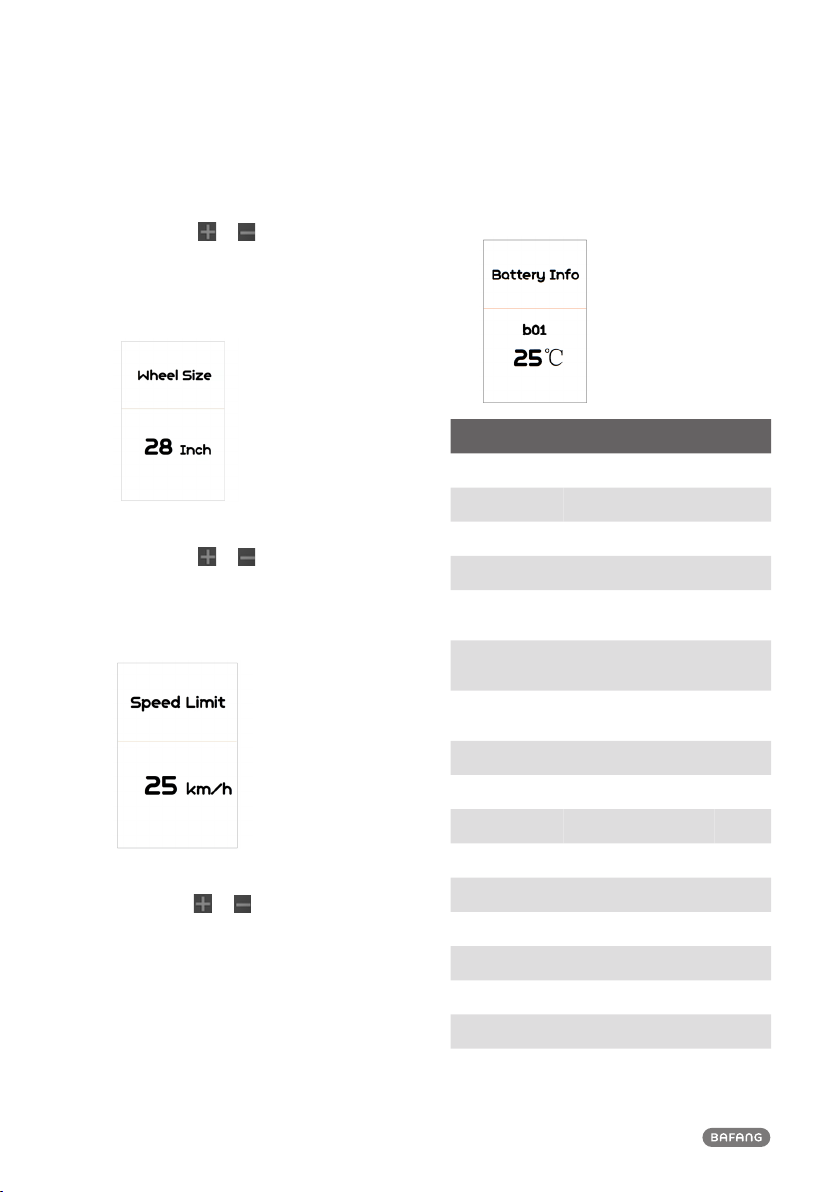
7.7.2.1 View “Wheel Size”
Briefly press or to select ” Wheel
Size”, and then briefly press “Mode” to view
the wheel size default, then briefly press
“Mode” to exit back to the "Information"
interface.
7.7.2.2 View “Speed Limit”
Briefly press or to select ” Speed Lim-
it”, and then briefly press “Mode” to view
the speed limit default, then briefly press
“Mode” to exit back to the "Information"
interface.
7.7.2.3 View “Battery Info.”
Briefly press or to go to “Battery
Info.”, and then briefly press “Mode” to
enter, then briefly press “+” or “-” to view
the battery data (b01 → b04 → b06 → b07 →
b08 → b09 → b10 → b11 → b12 → b13 → d00
→ d01 → d02 → … → dn → Hardware Ver →
Software Ver), then briefly press “Mode” to
exit back to the "Information" interface.
Notice: If the the battery doesn't have
communication function, you won’t see any
data from battery.
Code Code Definition Unit
b01 Current temperature ℃
b04 Total voltage mV
b06 Average current mA
b07 Remaining capacity mAh
b08 Battery capacity of
Full charged mAh
b09 Relative Charge in
percentage %
b10 Absolute Charge in
percentage %
b11 Cycle Times times
b12 Max Uncharge Time Hour
b13 Last Uncharge Time Hour
d00 The number of cell
d01 Voltage Cell 1 mV
d02 Voltage Cell 2 mV
dn Voltage Cell n mV
e01 Hardware Version
e02 Software Version
NOTE: If no data is detected, it displays“--”.
Indice
Altri manuali BAFANG Strumento di misura