
BIOS Professional 200TC Manuale utente

WIRELESS HACCP TEMPERATURE
MANAGER
INSTRUCTION MANUAL
200TC

IMPORTANT INFORMATION TO READ BEFORE OPERATING
THIS UNIT
System Requirements:
Windows: 2000, XP & Vista
Excel: 2002, 2003, & 2007
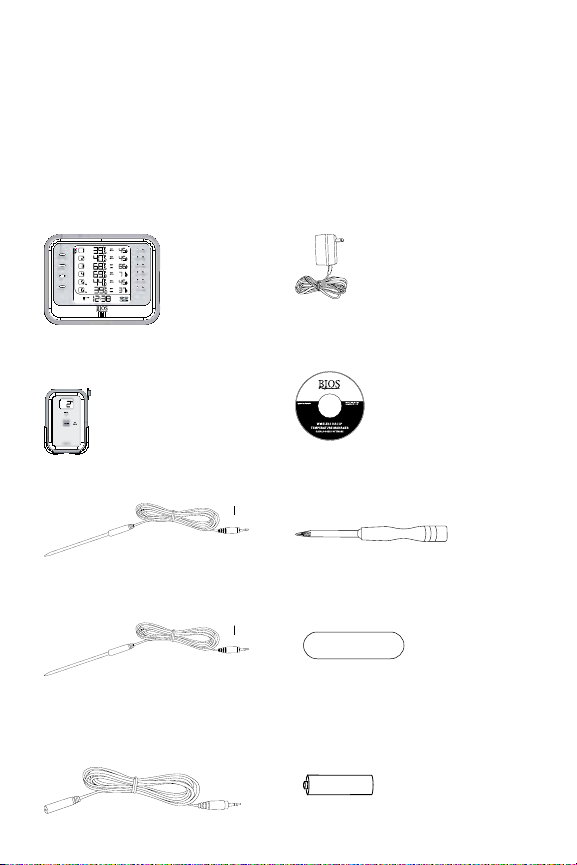
Before first use, check contents of box for the following components:
Monitor – 207TC (each) Adaptor – 204TC
6 x Temperature Sensors –
201TC(each)
Datalogger Software – 209TC
4 x Cold Probes – 203TC (each) Screwdriver
2 x Hot Probes – 202TC (each) 6 x Wall Mount Adhesive Strips
210TC
2 x 14’ Extension Cords – 208TC
(each)
18 x AAA Batteries
4 x AA Batteries
blue
red

1.0 Introduction
Congratulations on your purchase of the BIOS Professional Wireless HACCP
Temperature Monitor. This unit was designed with food safety and convenience
in mind.
Monitoring temperature of hot and cold foods throughout the day can be time
consuming and costly. This unit does all of the work, with accurate and precise
readings stored so that data can be uploaded onto a personal computer, and kept
for future reference.
NOTE: This system is for equipment testing only, and not for food temperature
monitoring.
1.1 Benefits of using the BIOS Professional HACCP Temperature
Manager
• ReducecostsassociatedwithmanagingHACCP
• Allowsuserstostoredetailedhistoricaldata
• Helpstoreducetheriskofservinghazardousfood
• Monitorsthetimefoodisinafoodtemperaturedangerzone
1.2 Features
The BIOS Professional Wireless HACCP Temperature Manager is a wireless
digital temperature device which is capable of reading, displaying and monitoring
current temperatures from up to 30 temperature sensors. These long range
sensors can transmit data through floors and from “out of sight” storage areas.
Aside from current temperatures, the monitor’s LCD screen displays a real time
clock and calendar, as well as maximum and minimum pre-set temperature
settings.
An audible alarm sounds when temperatures fall out of the pre-programmed
range. In addition to the audio alert, green and red LED lights indicate
temperature status for each sensor. The delay function defers the alarm for a user
specified period of 0, 15, 30, 45 or 60 minutes.
Every 15 minutes, PC uploadable temperature data for each sensor is logged.
Logged data is retrieved through the USB port and PC download software, as
provided.

1.3 Care of the Device
• Alwayswearaheatresistantglovetotouchthestainlesssteelprobeifbeing
used in an area where temperature is high.
• Washstainlesssteelprobesbetweenuses,dryingthoroughly.
• Donotsubmergetheprobeinwater.Moistureinsidetheprobe’splugorthe
thermometer might cause an incorrect temperature reading. Always wipe the
probe’s plug dry before plugging it into the sensor.
• Donotsubjecttheunittoexcessiveforce,shock,dust,temperatureor
humidity that may result in malfunction, shorter electronic life span, or
damage to the unit.
• Donotplacethemonitorindirectsunlight,orletitcomeintocontactwith
moisture or hot surfaces.
• Theprobeisasharpmetalobject.Takecarewhenhandlingtoavoidinjuries.
• Probeswithredplugsaredesignedformonitoringhightemperaturewhile
probes with blue plugs are designed for monitoring low temperature. Do not
mix the usage of the two probes.
• Donotexposeanypartoftheprobedirectlytoopenames.Thiswilldamage
the temperature sensor.
• Cleantheprobewithwaterandamilddetergent,orThermor’sSani-Wipes,
B37900. Do not use corrosive or abrasive materials. Do not clean the probe in
a dishwasher.
• Tocleanthemonitorortemperaturesensor,wipewithadampcloth.
• Donotimmersethemonitorortemperaturesensorunitinwater.Ifyouspill
liquid over the monitor or temperature sensor unit, dry immediately with a
soft, lint-free cloth.
• Donottamperwiththeinternalcomponentsofthemonitorortemperature
sensor units.

2.0 About the Wireless HACCP Temperature Monitor
This section describes the components of the unit.
Monitor
1. LCD Screen
2. Green/RedLEDLight
3. Scroll Buttons
4. Mode/Set Button
5. Temperature Max/Min Button
6. USB Port
7. AC/DC Socket
8. °C/°F Switch
Temperature Sensor
1. LCD Screen with Sensor #
2. Alarm Delay Button
3. Mute/Sleep Button
4. Probe Socket
5. RedLEDLight
6. Battery Compartment
7. ResetButton
8. Extension On/Off Slide Switch
9. ResetButton
10. Wall Mount Hole
11. Swing Out Stand
2.1 About the LCD Screen on Monitor
The LCD screen displays the sensor temperatures along with their actual and set
Max/Min temperatures. It also displays a real time clock and calendar, low/no battery
icon, AC/DC adaptor icon, REGistration mode icon, and SET TEMP mode icon.
RESETEXT
ON
OFF
Back: Back:
Monitor Front: Temperature Sensor Front:
Actual Temperature
Set and Recorded Max/Min
Temperature
Sensor Number
Registration Mode Icon
Time / Date
AC/DC Adaptor Icon
Low Battery Icon Set Temperature
Mode Icon
3.0 Getting Started
The monitor should be powered up by the AC/DC adaptor included with the kit,
with 4 x AA batteries used for back up purposes only, in the event of a power
outage.
1. Insert adaptor plug into the AC/DC Socket of the monitor. Monitor will power
on, with dashes displayed on each numbered line.
2. Insert 4 x AA batteries in the battery compartment located on the back of the
monitor, observing the indicated polarity.
3.1 Clearing Memory
Temperature data may have been stored during production. Before proceeding
with the set up procedure, the memory must be cleared.
1. Press and hold MODE/SET while pressing the reset button located in the
battery compartment on the back of the monitor.
2. Once a beep is heard, release reset button.
NOTE: The reset button must be released before the MODE/SET button.
3. ReleasetheMODE/SET button.
4. Dashes (“--“), or “LS”, will be displayed on the monitor. Memory has been
cleared.
4.0 Time & Date Setting
NOTE:Tomaximizethebenetsofthisunit,accuratetimeanddateshould
be set.
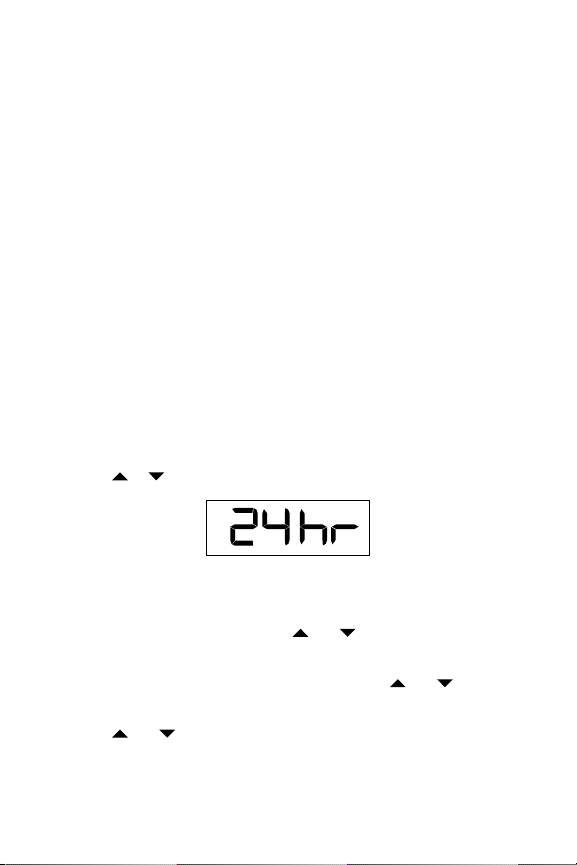
1. Press and hold MODE/SET until you hear a beep and the “12” begins to
flash.
2. Use the or arrow to choose either a 24 or 12 hr clock.
3. Press MODE/SET to confirm.
4. Once the clock beings to flash, repeat steps 2 and 3 to program the time.
5. The year will begin flashing. Use the and arrows to choose the correct
year.
6. Press MODE/SET to confirm.
7. “M” (month) and “D” (day) will begin to flash. Use the and arrows to
select the format in which you would like the date to be displayed. Press
MODE/SET to confirm.
8. Use the and arrows to program the month and day.
9. Press MODE/SET to confirm.

5.0 Using an Extension Cord
An extension cord can be used if the cord on the probe is not long enough to
reach the desired area from where the sensor is mounted.
1. Plug extension cord into temperature sensor.
2. Plug probe into extension cord.
3. Use the slide extension ON/OFF switch to select Ext. ON.
NOTE: If an extension cord is added after the sensor is registered, reset the
sensor by removing and re-inserting one battery.
6.0 Registering Temperature Sensors to Monitor
By registering each sensor to the monitor, you ensure that no cross
communication will occur. Each sensor will act independently to communicate its
temperature to the monitor.
NOTE: Ensure probe is fully inserted in sensor before registering. If using
extension cord, ensure cord is inserted in sensor and probe is inserted in the
extensioncord.Removethebackpanel(usingthescrewdriverprovided)fromall
sensors that will be registered before starting registration.
1. Press MODE/SET once on the monitor, the REG icon ( ) will appear.
2. Press and hold MODE/SET to enter registration mode. You will hear a beep
once it is confirmed.
3. The current sensor number and dashes (--.-) will flash on the monitor.
4. Insert 3 x AAA batteries into the back of the sensor.
NOTE: If no temperature sensor is registered within 1 minute the monitor will
go back to normal mode.
5. Once the batteries are inserted into the sensor you will hear a long beep from
the sensor. If registration was successful, a number will appear on the LCD
screen of the sensor. This number is the number of the sensor (see section
13.0 Troubleshooting if a number is not displayed).
6. Once the sensor is registered, the current temperature will be displayed
on the monitor and the SET MAX temperature will flash. Use the and
arrowstoadjustthemaximumtemperaturelimit.*PressMODE/SET to
confirm.
7. The SET MIN temperature will begin to flash. Use the and arrows to
adjusttheminimumtemperaturelimit.*PressMODE/SET to confirm.
ALARMALARMProbe not fully
inserted
Probe fully
inserted
ALARMALARM
Registered Not Registered

8. Repeatsteps4-7toregisterremainingsensors.
9. Once registration is completed, press and hold MODE/SET to exit registration
mode.
*Pressandhold or arrow for fast increment and decrement movement.
NOTE: If at any time the monitor goes back to normal mode, follow steps 1
and 2 to get back to registration mode.
Once registering is complete, ensure monitor and sensor are in an upright
position (see section 11.0 for wall-mount instructions).
7.0 Deleting a Registration
Sensors will need to be de-registered if they are no longer required, or if they will
be used for a location different than that which it was previously programmed for.
IMPORTANT: Both the monitor and sensor will need to be de-registered.
1. In registration mode (refer to section 6.0 steps 1-2), press and hold both
arrows on the monitor ( ) for 2 seconds to activate the de-registration
function. Digits on the first row will flash.
2. Press or to select the sensor to be de-registered. The digits of that
selected sensor will flash. Press MODE/SET to confirm, numbers will turn
into dashes.
Sensor has been
de-registered
3. Once de-registration is complete, press and hold both arrows ( )
toreturntoregistrationmodeORpressandholdMODE/SET to return to
normal mode.
4. To de-register the sensor, remove 1 battery from the sensor.
5. While pressing the MUTE/SLEEP button on the front of the sensor, insert the
battery back into the battery compartment. You will hear a beep. Continue to
hold the MUTE/SLEEP button while the beep sounds. Let go of button
after beep stops.
6. You will then see (- -) in the sensor display instead of a sensor number. When
the dashes are displayed the sensor has been de-registered successfully.
NOTE: If you are not going to re-register a sensor, remove all batteries.
Sensor will then be ready for registration when required.

8.0 Max/Min Temperature Setting
You can set each sensor with a maximum and minimum temperature alarm.
Once a sensor falls out of the programmed range, both the sensor and monitor
will beep. A red light will flash on the monitor to indicate which sensor is out of
range.
NOTE: The Min/Max temperature setting is done when the sensors are being
registered for the first time. To change the Min/Max temperature settings follow
the steps below.
1. In normal mode, press and release MODE/SET until SET TEMP icon
( ) appears.
2. Press and hold MODE/SET to enter temp setting mode.
3. When the digits on the first row flash, press or to select which sensor is
to be set.
4. Press MODE/SET to confirm.
5. SET MAX temperature will begin flashing. Use the and arrows to
adjustthemaximumtemperaturelimit.*Press MODE/SET to confirm.
6. SET MIN temperature will begin flashing. Use the and arrowstoadjust
the minimum temperature limit.*Press MODE/SET to confirm.
7. Repeatsteps3through6toadjusttheminimum/maximumtemperaturelimits
for other sensors.
8. Press and hold MODE/SET to exit temp setting mode.
* Press and hold or arrow for fast increment and decrement
9.0 Alarm delay operation
Users have the option of setting an alarm delay, so that once temperature falls
out of the programmed range, a timer will start counting down and the audio
alarm will not sound. If the temperature does not go back into the programmed
temperature range within the pre-set delay period, the alarm will sound once the
timerhitszero.Thisallowsfortemporaryuctuations.
1. Press the DELAY key on the sensor to toggle between 0, 15, 30, 45 and 60
minutes. Select the delay time desired, display will show the delay time and
confirm automatically after 5 seconds.
2. When sensor detects temperature has exceeded the programmed range, the
delay timer is triggered and begins counting down. The audio alarm will not
be triggered within the delay period.
3. Sensor will show “dE” by flashing every 0.5 seconds to indicate the delay
function is running. If temperature continues to exceed set range after the
delay period (e.g. 31 min), the alarm will sound on monitor and sensor.
NOTE: Once alarm is triggered, the red LED on the sensor will flash every
second for the first 2 minutes, and every 5 seconds after.
4. If temperature resumes within the programmed range during the delay period,
it will stop the delay timer immediately.
NOTE: Monitor will show “dE” when temperature exceeds set range so that
the user will know the delay period is running. Green LED will still flash to
show the operation is fine. If temperature continues to exceed set range after
the delay period (e.g. 31 min), monitor will show “Low” or “Hi” and red LED
will flash to indicate temperature is out of range.
Indice
Lingue:


