
Cirrus Optimus+ Manuale utente
Quick Start Guide
Using Bluetooth®and
dBAcve

Optimus sound level meter - Bluetooth and dBActive quick start guide
2
About this quick start guide
• The instrucons in this user manual refer to the operaon of Cirrus Research plc
Opmus+ sound level meters with version 5.0 or higher of the rmware
• Where the terms ‘Opmus+’ or ‘Opmus’ are used, it refers to all variants within
the Opmus+ range of instruments, including the Opmus+ Yellow (CR:150 series),
Opmus+ Red (CR:160 series), Opmus+ Green (CR:170 series) and Opmus+ Purple
(CR:190 series)
• The dBAcve mobile applicaon must be downloaded from either Google Play
(Android devices) or the App Store (iOS devices) in order for the funcons outlined in
this quick start guide to be ulised
• Full technical details for the Opmus+ range of instruments can be found on the Cirrus
Research website at www.cirrusresearch.co.uk/library/datasheets/
• For full operaonal instrucons, please consult the instrument handbook that was
supplied with your Opmus+
Please note: the screenshots that have been used for the purposes of demonstrang the
operaon of Bluetooth and the dBAcve smartphone applicaon on the Opmus+ have
been taken from a mobile device that runs the iOS mobile operang system. Screens and
menus may appear dierently for devices running the Android operang system.

Optimus sound level meter - Bluetooth and dBActive quick start guide 3
Copyright
Copyright © Cirrus Research plc 2010-2019
All rights reserved.
You may re-use this document/publicaon (not including the Cirrus Research plc logo and
other product logos) free of charge in any format for research, private study or internal
circulaon within an organisaon. You must re-use it accurately and not use it in a misleading
context.
You must not modify text, images or illustraons in any way. The material must be
acknowledged as Cirrus Research plc copyright and you must give the tle of the source
document/publicaon.
Where any third-party copyright material is idened you will need to obtain permission
from the copyright holders concerned.
Trademarks
Cirrus Research plc, the Cirrus Research plc Logo, doseBadge, DOSEBADGE, Opmus, the
NoiseTools Logo and the Noise-Hub Logo are either registered trademarks or trademarks of
Cirrus Research plc in the United Kingdom and/or other countries. Microso and Windows
are registered trademarks of Microso, Inc. The Bluetooth® word mark and logos are
registered trademarks owned by Bluetooth SIG, Inc. and any use of such marks by Cirrus
Research is under license. Other trademarks and trade names are those of their respecve
owners.
Updates
In the interests of connuous product improvement, Cirrus Research plc reserves the right
to make changes to product specicaons without noce.
To learn about the latest updates that have been implemented into this product and to
download the most current version of this user manual, visit our website at
www.cirrusresearch.co.uk
Version 1 Q1 2019

Optimus sound level meter - Bluetooth and dBActive quick start guide
4
Contents
1. Downloading dBActive and connecting to your Optimus+.............................
2. Using your Optimus+ with your mobile device through dBActive.................
2.1 Viewing live data...................................................................................................
2.2 Starting and stopping a measurement............................................................
2.3 Reviewing measurement data.........................................................................
2.4 Changing your instrument’s settings..............................................................
2.5 Viewing information about your instrument................................................
5
7
7
9
10
11
13
Optimus sound level meter - Bluetooth and dBActive quick start guide 5
1 DownloadingdBAcveandconnecngtoyour
Opmus+
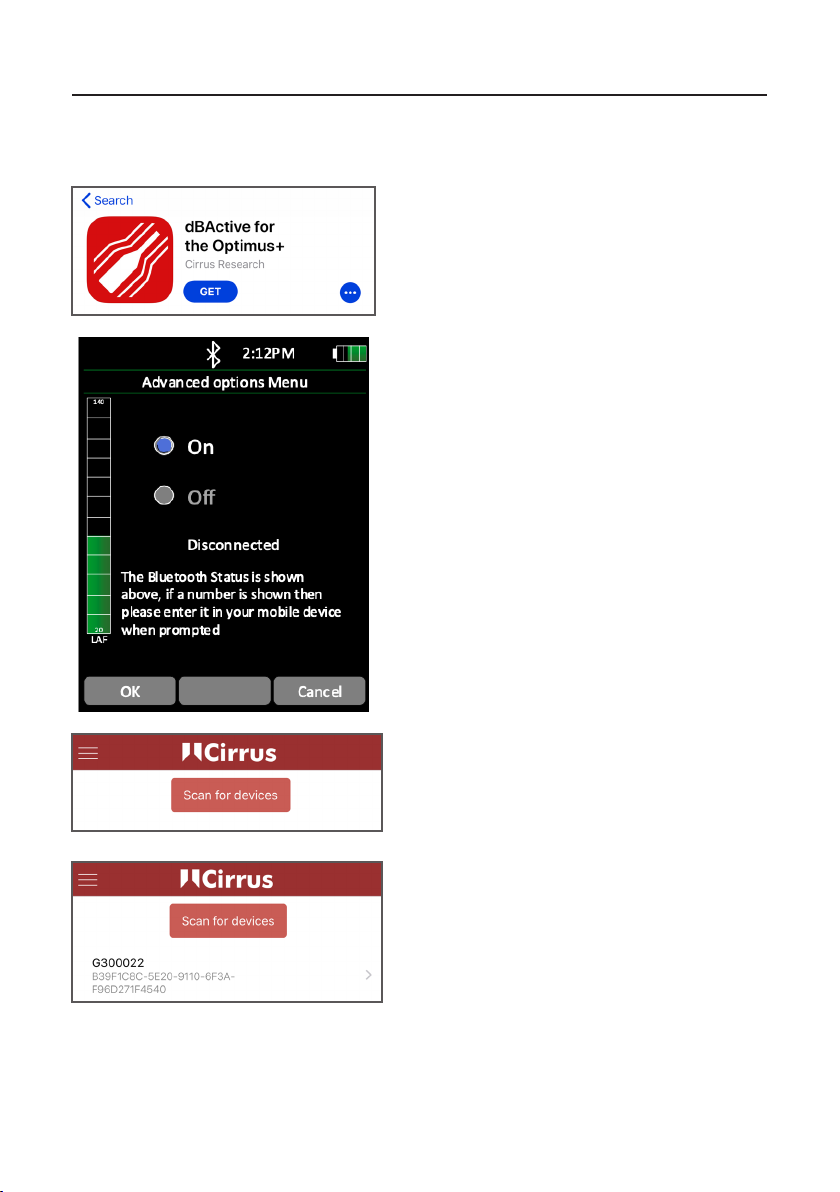
Search for dBAcve on either the App Store
(iOS devices) or Google Play (Android devices).
Download the app to your device.
Enable Blutooth on your Opmus+ instrument.
This can be found by navigang to the
‘Advanced Opons’ menu.
Open dBAcve on your device. Press ‘Scan for
devices’.
Once your instrument has been discovered,
press on its name to connect to it.
Optimus sound level meter - Bluetooth and dBActive quick start guide
6
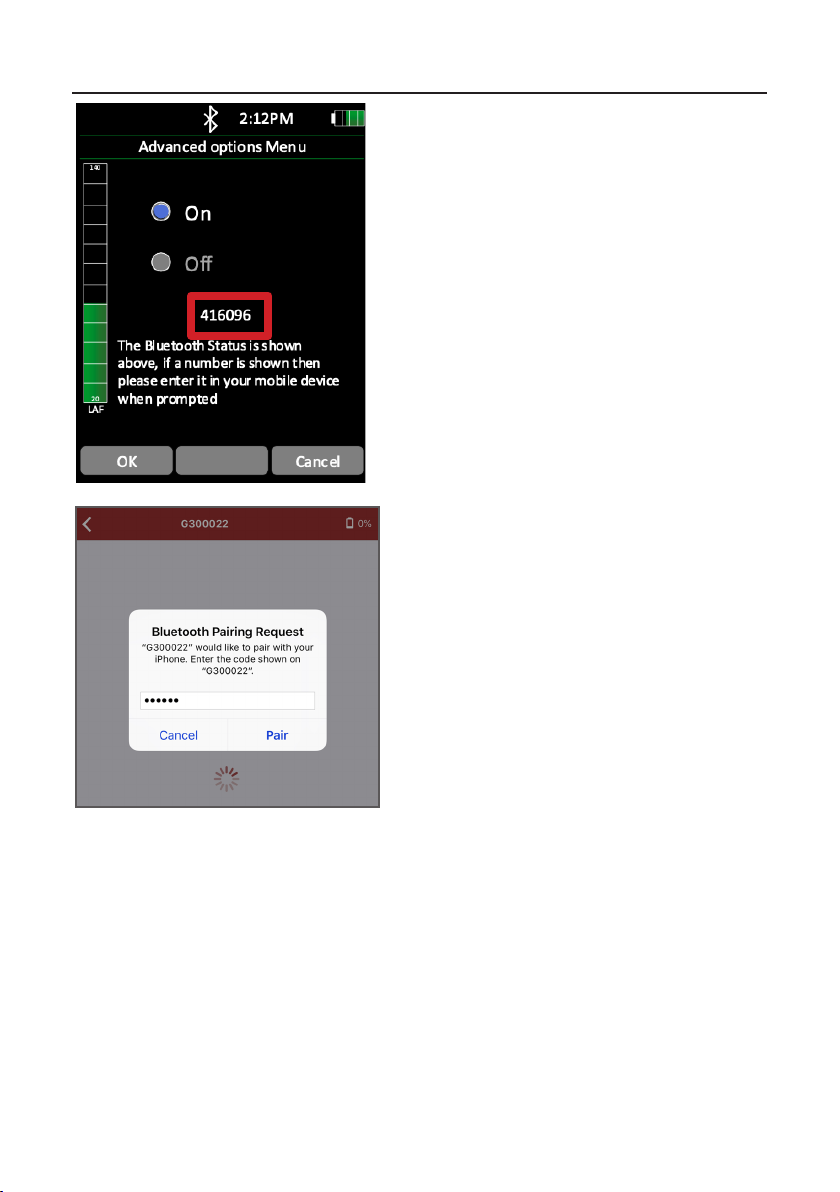
Enter the code from your Opmus+ into your
mobile device and press ‘Pair’.
Before your Opmus+ can connect to your
mobile device, you will be asked to input a code
that will be displayed on the Bluetooth menu
screen.
Your Opmus+ will now be paired with your mobile device. You will see the default home
screen on the dBAcve app, which displays live noise measurement informaon. From this
screen, you will be able to navigate around the app, which will be described in the coming
pages.
Optimus sound level meter - Bluetooth and dBActive quick start guide 7
2 UsingyourOpmus+withyourmobiledevicethrough
dBAcve
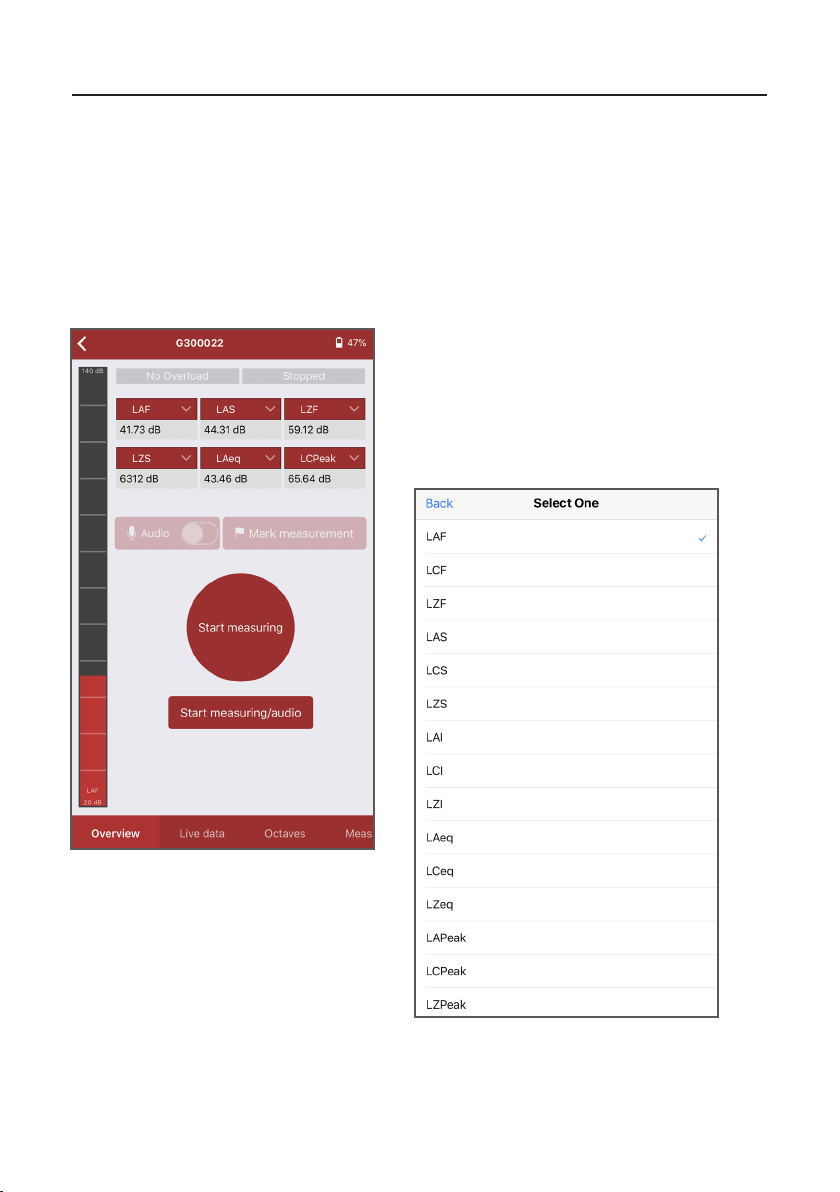
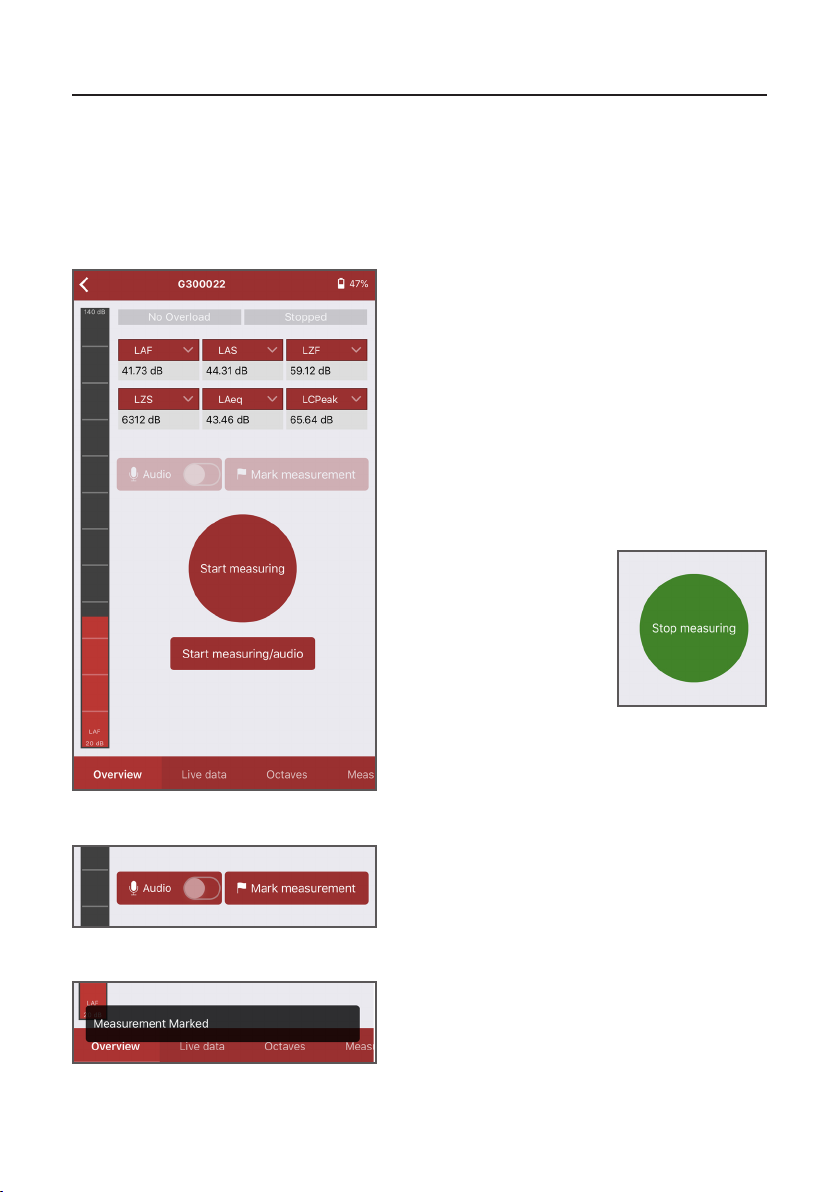
This screen is the default home screen for
dBAcve and displays live noise data for a
number of parameters, each of which can be
changed. Press the arrow on the value you wish
to change. A menu will appear allowing you
to select the value you wish to see (see image
below).
2.1 Viewinglivedata
One of the key features of dBAcve is the ability to view live noise data remotely. This
informaon can be viewed in a number of dierent ways, which are outlined below:
2.1.1 Using the overview screen
Please note: some noise parameters are unavailble on certain variants of the Opmus+.
Optimus sound level meter - Bluetooth and dBActive quick start guide
8
2.1.2 Using the live data screen
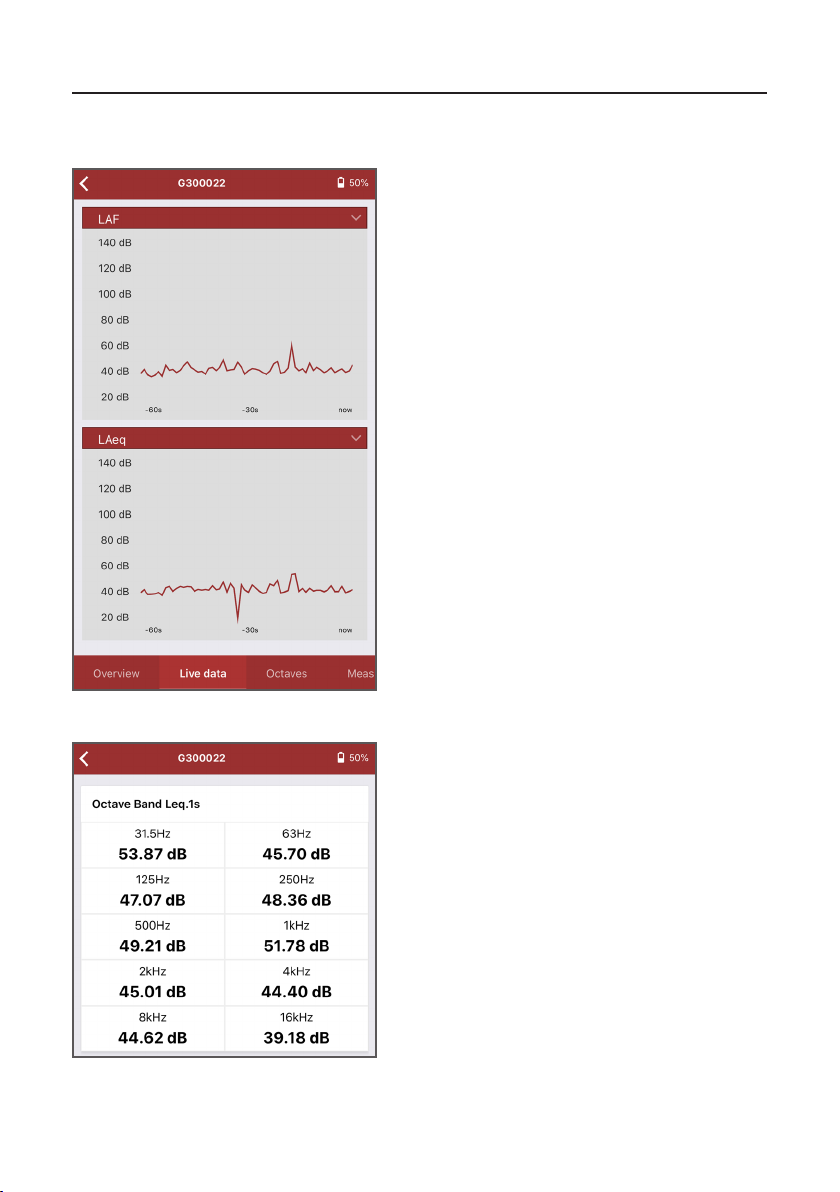
This screen displays live noise data for any two
chosen parameters (which can be changed by
pressing the arrows on the chosen parameter).
The graphs refresh every second and provide a
visual representaon of the noise levels where
your Opmus+ is measuring.
2.1.3 Using the octaves screen
This screen displays live data for 1:1 octave
bands.
Optimus sound level meter - Bluetooth and dBActive quick start guide 9
From the overview screen, choose either ‘Start
measuring’ or ‘Start measuring/audio’ to begin a
measurement. If you choose ‘Start measuring/
audio’, the measurement will include an audio
recording of the noise. If you choose ‘Start
measuring’, audio will not be recorded.
Please note: audio recording can be switched
on/o manually during a measurement using
the opon above the start buon. Audio
recording is only available on certain variants of
the Opmus+.
2.2 Starngandstoppingameasurement
As well as being able to view live noise data, dBAcve allows you to start and stop noise
measurements remotely, meaning that your Opmus+ can be used in potenally hazardous
and/or dicult-to-access areas.
2.2.1 Starngandstoppingameasurement
When a measurement is in
process, the red start buon
changes to a green stop
buon. Press this to end
your measurement.
If you need to highlight a specic event during
a measurement for when you come to review
your data in the NoiseTools analysis soware
(supplied with your Opmus+), press ‘Mark
measurement’ when a measurement is in
process.
2.2.2 Markingameasurement
A conrmaon box will appear at the boom
of the screen to let you know that the
measurement has been marked.
Optimus sound level meter - Bluetooth and dBActive quick start guide
10
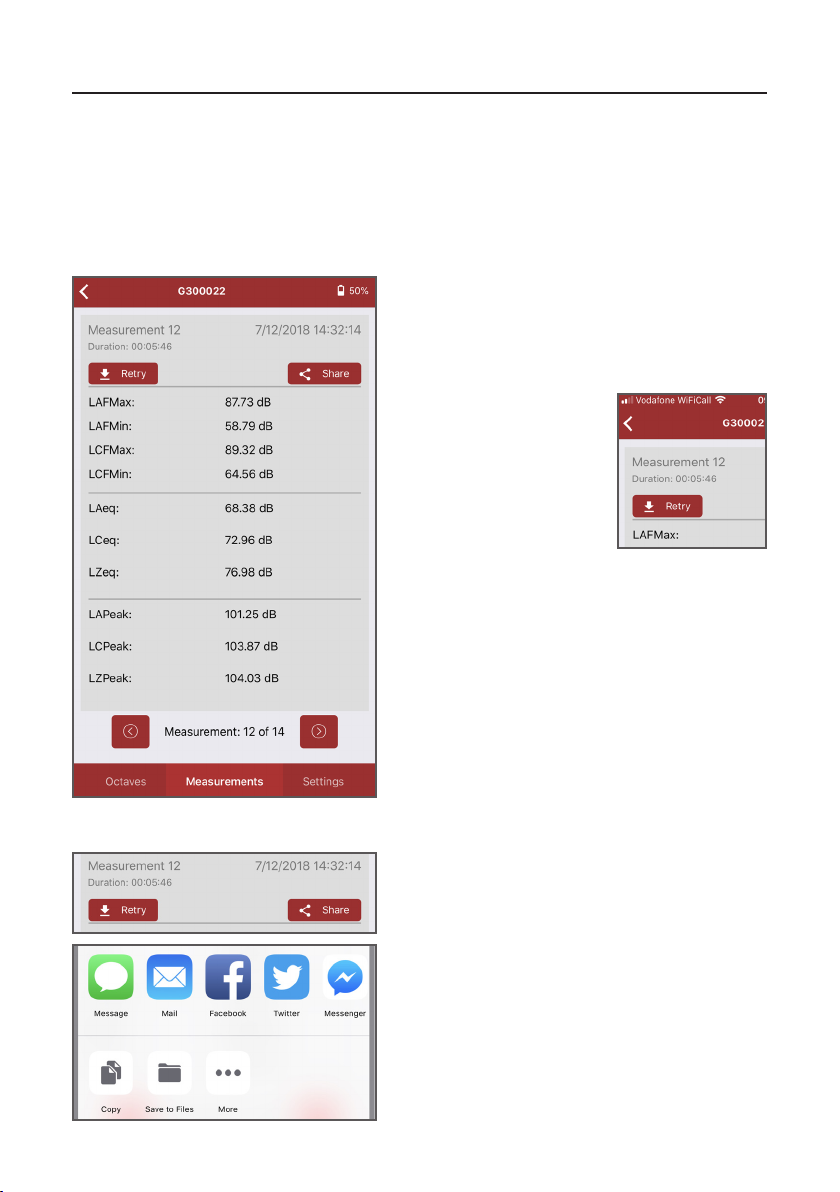
This screen displays the data for all main
noise parameters. You can cycle through
measurements by using the arrows at the
boom of the screen.
2.3 Reviewingmeasurementdata
The ‘Measurements’ screen allows you to review previous measurement data for the
connected instrument. This includes both measurements that have been made on dBAcve
and those that have been made navely on your Opmus+.
2.3.1 Reviewingmeasurements
If you’re experiencing
issues downloading your
measurement data or the app
is displaying measurements
from a previously connected
instrument, press ‘Retry’
to refresh the informaon
displayed.
If you want to share measurement data, press
the ‘Share’ buon.
2.2.2 Sharingmeasurementdata
A popup box will appear lisng the opons
available. The measurement data will be shared
as a text-only list, which you will then be able
to edit as you wish.
Please note: sharing opons will vary depending
on the operang system of your device and the
third-party applicaons you have installed.
Please note: you must ensure that any
measurement data you wish to keep is either
stored on your Opmus+ or downloaded to
a PC using NoiseTools. Measurement data is
not permenantly stored in dBAcve and will
be overwrien once a dierent instrument is
connected to the app.
Altri manuali per Optimus+
1
Indice
Altri manuali Cirrus Strumento di misura

Cirrus
Cirrus CR:270 Series Manuale utente

Cirrus
Cirrus INVICTUS Manuale utente

Cirrus
Cirrus CR:514 Manuale utente

Cirrus
Cirrus doseBadge5 CR:120A Manuale utente

Cirrus
Cirrus CR:800B Series Manuale utente

Cirrus
Cirrus Quantum Outdoor Manuale utente

Cirrus
Cirrus CR:262 Manuale utente

Cirrus
Cirrus Optimus+ Manuale utente

Cirrus
Cirrus CR800 series Manuale utente

Cirrus
Cirrus CK675 Manuale utente


