COMPRO DVB-U2200 - START UP GUIDE Manuale utente

Compro VideoMate DVB-U2200
Digital Terrestrial USB 2.0 TV Box
Start Up Guide
Compro Technology, Inc.
www.comprousa.com

ii
Copyright © 2001-2005. Compro Technology, Inc. No part of this
document may be copied or reproduced in any form or by any means
without the prior written consent of Compro Technology, Inc.
Compro, VideoMate, Poladyne, Play with Power, and the Compro
logo are trademarks of Compro Technology, Inc. Other names and
marks are trademarks of their respective owners.
Compro makes no warranties with respect to this documentation and
disclaims any implied warranties of merchantability, quality, or fitness
for any particular purpose. The information in this document is subject
to change without notice. Compro reserves the right to make
revisions to this publication without obligation to notify any person or
entity of any such changes.
Compro Technology, Inc.
Tel. +886 2 2918 0169, Fax +886 2 2915 2389
3/F, No.12, Alley 6, Lane 45, Pao Shin Road
Hsintein City, Taipei, Taiwan.
www.comprousa.com

1
About This Guide
This manual tells you how to install and use your VideoMate DVB-U2200
Digital Terrestrial USB TV Box.
VideoMate DVB-U2200 lets you watch and record digital terrestrial TV
broadcast on your computer or laptop. It can efficiently capture digital
terrestrial TV broadcast programs from your area. VideoMate DVB-U2200
features a TV tuner for digital TV broadcast, Digital Video Recording (DVR)
functions, scheduled recording at anytime, crystal video quality, and intelligent
TV viewing. Additionally, the Multi-function Remote Control gives you the
freedom of operating VideoMate DVB-U2200 without a keyboard.
Minimum System Requirements
•600 MHz CPU (for watching digital TV)
•128 MB RAM
•Sound card
•Available USB 2.0 port
•CD-ROM drive for software installation
•Windows XP SP1/ Windows 2000 SP4 or above
•50 MB free disk space for basic software installation.
•DVB-T Antenna.
Recommended System Requirements
•866MHz CPU (for watching and recording digital TV)
•2.4 GHz CPU for HDTV watching and recording.
•256 MB RAM
•Windows XP SP2 or above
•3 GB (DVD-quality) free disk space per hour of recorded video.
Note
In order to receive digital terrestrial TV broadcast, the antenna is crucial.
Digital terrestrial TV broadcast uses about the same wave as analog TV. It’s
recommended to have a fishbone-like antenna on the roof for receiving. More
detail is on the troubleshooting chapter in this manual.
VideoMate DVB-U2200 has to operate on USB 2.0 interface. Please check
your computer system to see if meets USB 2.0 requirement. More detail is on
the troubleshooting chapter in this manual.

2
VideoMate DVB-U2200 Contents
VideoMate DVB-U2200 Connectors
Back Side of Box
Item Function Description
1 USB Power-In Connect to a USB port for additional power.
(Optional, see troubleshooting chapter for more
information.)
2 USB connector Use the supplied USB cable to connect to a USB
port on the computer.
3 TV Tuner-In Connect to a digital terrestrial TV antenna.
VideoMate DVB-U2200
USB cableSoftware CD
Start Up Guide Wireless Remote Control
(batteries included)
2 31
Antenna
(Optional)
USB power cable

3
Installation
Start the computer. After plugging in the USB cable, Windows will start the
Found New Hardware Wizard. Please press Cancel.
Step 1. Insert the installation CD into your CD drive. If you have Autorun
enabled, the installer will start automatically. (If Autorun is not enabled,
double-click on “setup.exe” on the installation CD.)
Step 2. Choose Complete to install all necessary software (VideoMate
DVB-U2200 drivers, ComproDTV 2.5, ComproDVD 2, Ulead
PhotoExplore 8.5 SE).
Step 3. Follow the directions to install the drivers and software.
Step 4. If you see the Windows Logo testing message, you should ignore it
and press Continue Anyway to proceed. (See image on the
following.)
Step 5. After completing the installation, plug in the TV signal cable in the
VideoMate DVB-U2200 TV-In connector.
Step 6. Start ComproDTV 2.5 and scan channels as prompt.
Step 7. Enjoy the show.
Note
In order to decode DVB-T MPEG-2 file format, you have to install the Ulead
PhotoExplore 8.5 SE on the installation CD for decoding.

4
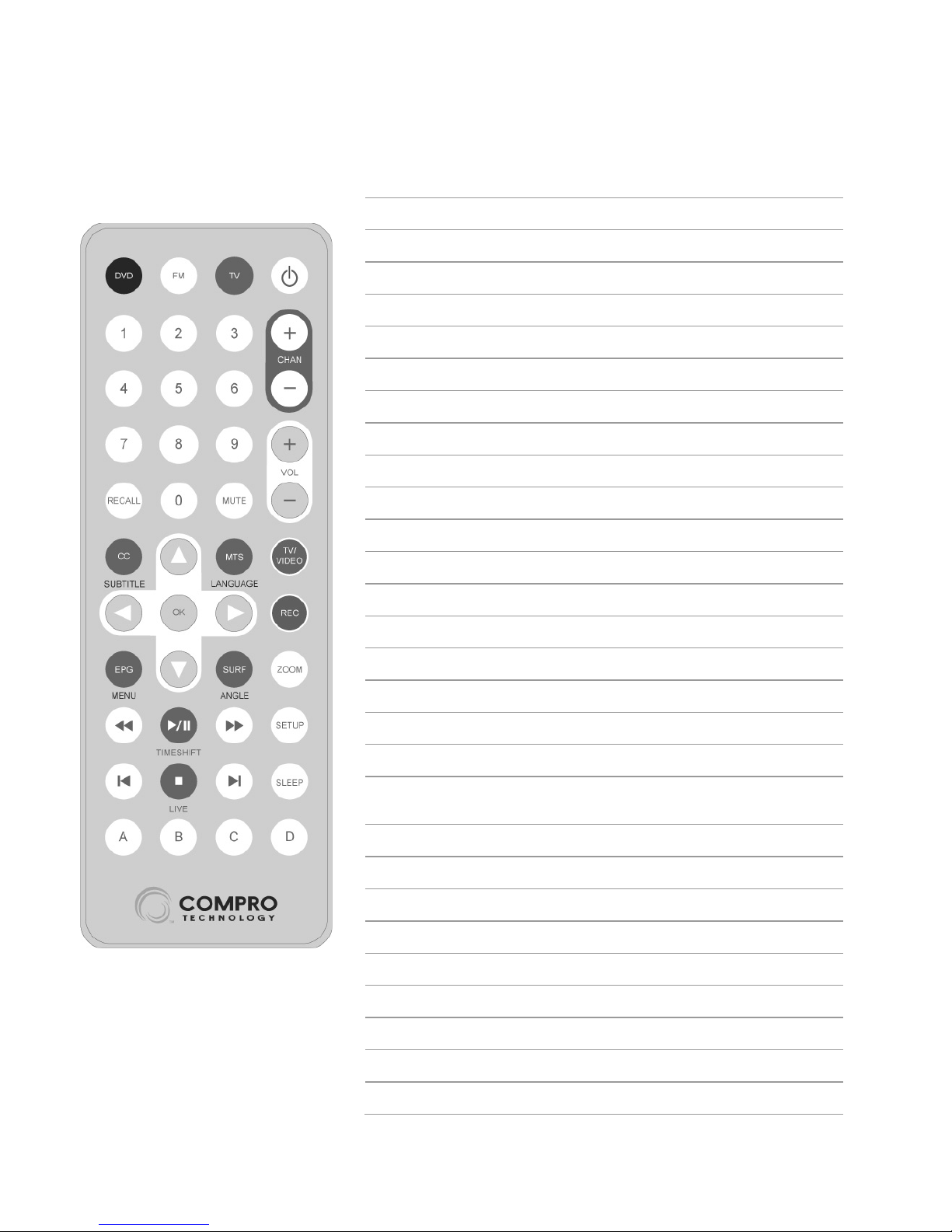
Remote Control Key Definition and Use
Icon ComproDTV 2.5 ComproDVD 2
DVD Start/Stop ComproDVD 2
TV Start/Stop ComproDTV 2.5
Power Start/Stop ComproDTV 2.5
0-9 Number keys Number keys
CHAN Switch channels Not used
VOL Volume Volume
RECALL Previous channel Not used
MUTE Mute Mute
CC N/A Select language
Up Arrow Up arrow Up arrow
MTS Select language Select language
TV/VIDEO N/A Add to bookmark
Left Arrow Replay Left arrow
OK Open play list OK
Right Arrow Advance Right arrow
REC Record Snapshot
EPG N/A Main manual
Down Arrow Down or snapshot Down arrow
SURF Channel surf Choose DVD
angle
ZOOM Zoom In/Out Zoom In/Out
Backward Replay Rewind
Play/Pause Timeshifting Play/Pause
Forward Advance Forward
SETUP N/A Setup dialog box
Last Previous channel Last chapter
Stop Stop Stop
Next Next channel Next chapter
SLEEP Sleep function N/A

5
ComproDTV 2.5
Introduction
ComproDTV is a complete digital entertainment solution for your PC. Watch
and record TV programs on your PC, in full-screen mode or in a window.
Timeshifting lets you watch TV, pause live TV, or review your favorite scenes
without missing a minute of the program. Integrated deinterlacing technology
assures the highest picture quality. All this, with the universal remote control.
Control Panel
The ComproDTV control panel resembles the controls on a VCR. Keep in mind
that not all options are available at all times, and may be grayed out or
inaccessible depending on your hardware setup and TV services available.
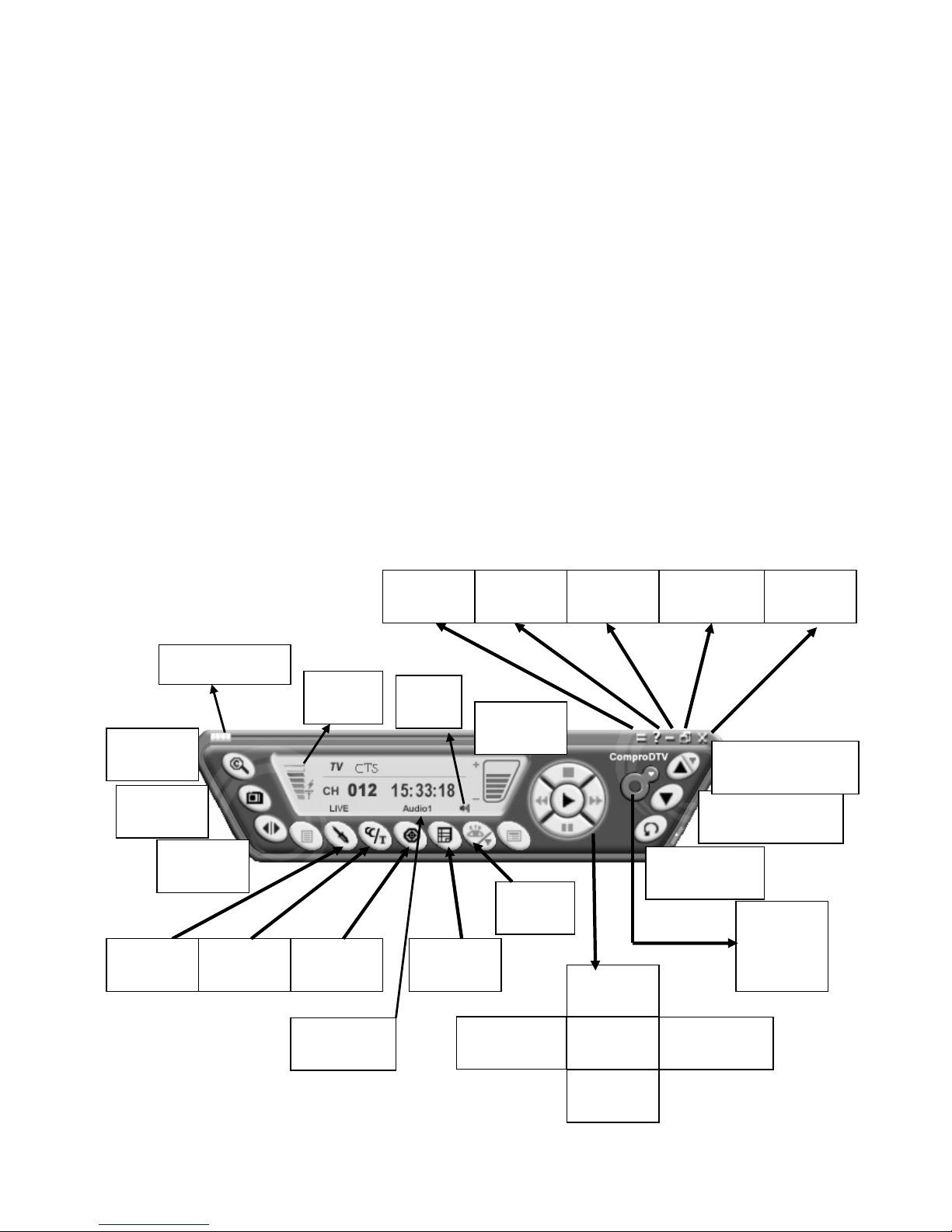
The following pages describe the ComproDTV control panel functions, and tips
for using ComproDTV. The following figure gives you the function of the button
with (Hot Key.)
Close
(CTRL+X)
Last Channel
(N)
Teletext
(C)
Schedule
(B)
Channel
Surf(F)
Language
Select (Q)
Timeshift
(T)
Channel Down
(Page down)
Snapshot
(Space)
Stop
(S)
Docking
(D)
Volume
(+, -)
Full Screen
(Z)
Mute
(M)
Record
(R) with
record
methods
Channel Up (Page
Up) with lists( I )
Help
(H)
Minimize
(G)
Timeshift bar
Play
(P)
Pause
(U)
Replay
(Right Arrow)
Advance
(Left Arrow)
Options
(O)
EPG
(E)
Source
(V)
Signal
Strength

6
Icon HotKey Description
A
Enable/Disable Always-on-Top function for
TV window.(Oregon circle on the upper-right
corner of the TV window)
n/a L Sleep function
Note: Language select is only available while the program supports it.
Watching
After installation, just press the ComproDTV button on the remote or double
click the ComproDTV icon on the desktop you will be able to watch TV. Same
as operating a normal TV set. Watch TV programs on your PC, in full-screen
mode or in a window. Channel up and down. Close ComproDTV and even
shutdown the computer with the full function remote control keypad.
Channel Surfing
While watching TV, the channel surfing feature displays a 4x4 grid of channel
images to give you an overview of available programming.

7
Right-Click Mouse Menu
If using mouse to right-click on the TV screen, you can see a menu pop up.
There are many useful options for your convenience.
Zooming image
If you would like to see more details on a certain part of a video image, you can
press the mouse right button to drag a zone of the screen. You will see the
zoomed image.
Also you can press the mouse right button and move on the screen to shift the
zoomed area of the image. Just click the mouse left button to resume normal
mode.
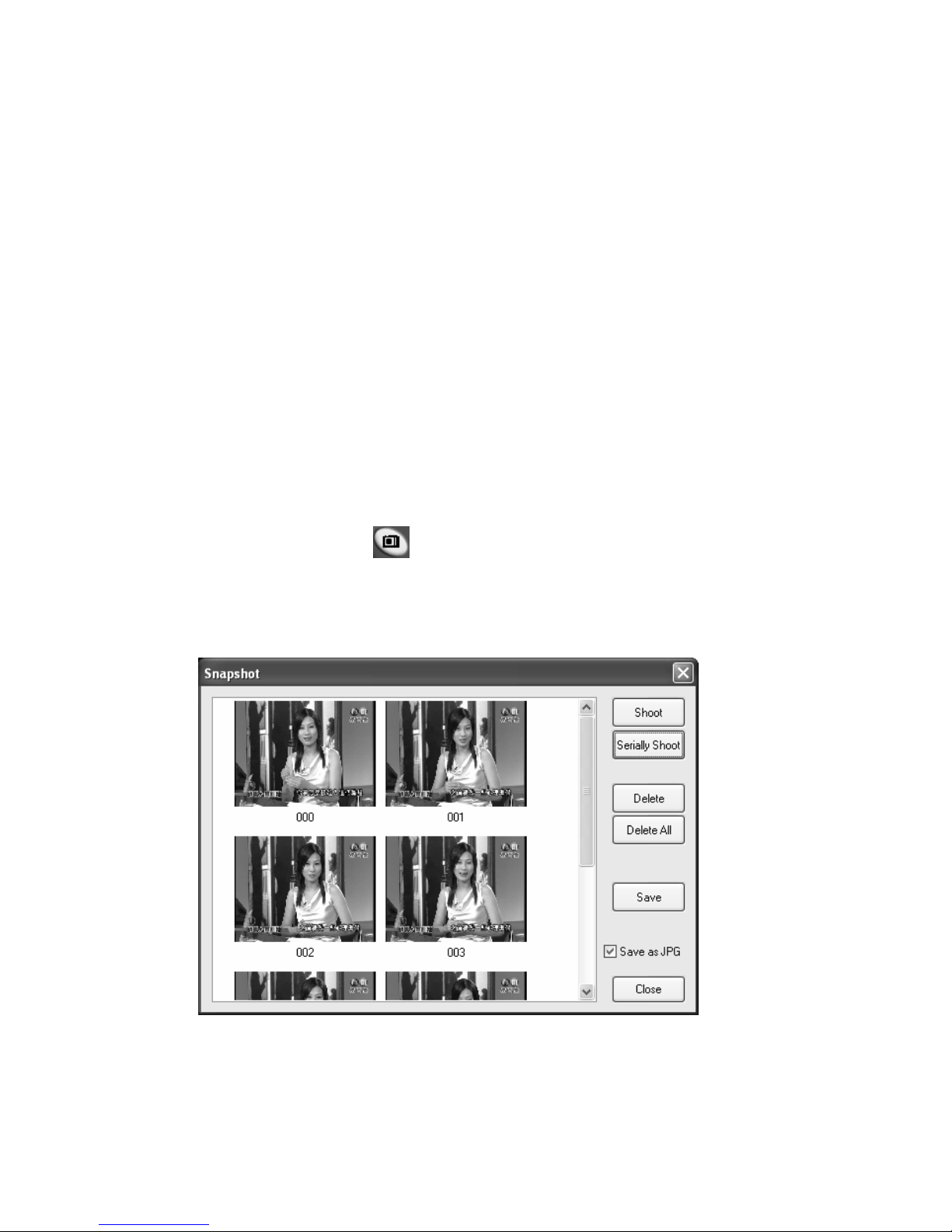
Still Image Capture
Click on the capture icon on the control panel or hit the "Space Bar" of
the keyboard shortcut to capture an image of the display window. You can see
the screen capture dialog as below.

8
EPG (Electronic Program Guide)
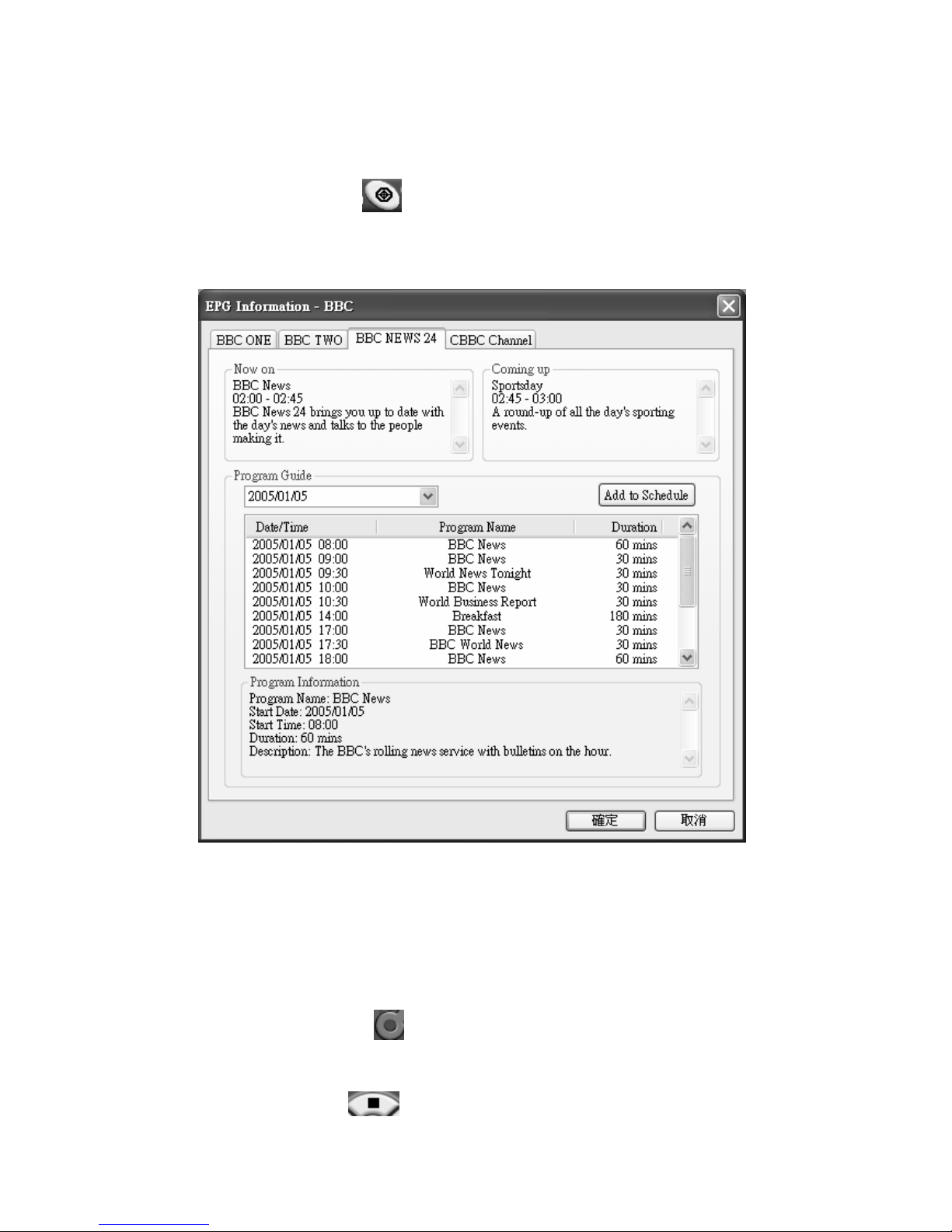
You can press the EPG button to open the EPG dialog box. EPG can
provides lots of information about the TV program when available. You can
easily add a program into a recording schedule with it.
Recording
ComproDTV is a digital video recorder and save the digital TV program which
is MPEG-II format to your hard disk.
To instantly start recording:
Press the Record button . ComproDTV starts recording the video source
currently showing in the display window. It will save it to a file on your disk.
Press the Stop button to stop recording. ComproDTV will save it
Questo manuale è adatto per i seguenti modelli
1
Indice
Altri manuali COMPRO Decoder

COMPRO
COMPRO DVB-U2000 - START UP GUIDE Manuale utente

COMPRO
COMPRO V300 - START UP GUIDE Manuale utente

COMPRO
COMPRO V600 - START UP GUIDE Manuale utente

COMPRO
COMPRO W800F - START UP GUIDE Manuale utente

COMPRO
COMPRO V150 - START UP GUIDE Manuale utente

COMPRO
COMPRO W700F - START UP GUIDE Manuale utente

COMPRO
COMPRO V550 - START UP GUIDE Manuale utente

COMPRO
COMPRO V200 - START UP GUIDE Manuale utente

COMPRO
COMPRO W700 - START UP GUIDE Manuale utente

COMPRO
COMPRO V220 - START UP GUIDE Manuale utente