Contro l4 Rroom-based control system Manuale utente


Disclaimer
Control4®makes no representations or warranties with respect to this publication,
and specifically disclaims any express or implied warranties of merchantability or
fitness for any particular purpose. Control4 reserves the right to make changes to
any and all parts of this publication at any time, without any obligation to notify any
person or entity of such changes.
Trademarks
Control4 and the Control4 logo are registered trademarks of Control4 Corporation.
Other product and company names mentioned in this document may be the
trademarks or registered trademarks of their respective owners.
Legal Notice
Fraunhofer IISandThomson. MPEGLayer-3audio codingtechnologylicensedfrom
Fraunhofer IIS and Thomson. Supply of this product does not convey a license nor
imply any right to distribute content created with this product in revenue-generating
broadcast systems (terrestrial, satellite, cable, and /or other distribution channels),
streaming applications (via Internet, intranets, and/or other networks), other content
distributionsystems(pay-audiooraudio-on-demandapplications,andthelike)oron
physical media (compact discs, digital versatile discs, semiconductor chips, hard
drives,memorycards,andthe like).Anindependentlicensefor suchuseis required.
For details, visit http://mp3licensing.com.
Decisionmark is the service provider of analog and digital TV off-air cable and
satellite channel list.
Radio Locator is the service provider of AM/FM channel list.
© 2005-2008 All Media Guide, LLC provides music and video recognition
technology that provides cover art and related text that enriches the Control4 user
interfaces.
Copyright
Copyright © 2004-2008 Control4. All rights reserved. No part of this publication may
be reproduced, photocopied, stored on a retrieval system, or transmitted without the
express written consent of the publisher.
Contact Information
Control4 Corporation
11734 S. Election Road
Salt Lake City, UT 84020 USA
http://www.control4.com
Part Number: 200-00001 Rev D (Release 1.7.0)

iii
Contents
Chapter 1 Getting Started ..............................................1
System Overview...................................1
Chapter 2 Interfaces Overview.......................................3
Interface Devices...................................3
System Remote Controls..................3
On-Screen Navigator........................4
Touch Screens..................................4
LCD Keypad .....................................5
2-, 3-, and 6-Button Keypads............5
4Sight Services—Web Navigator .....5
On-Screen Navigator Basics .................6
Touch Screen Basics.............................7
Main Menu Access ...........................7
Programmable Buttons.....................8
LCD Keypad Basics...............................8
About the LCD Keypad.....................8
System Remote Control Basics.............9
Supported Models.............................9
Install and Maintain Batteries..........10
Remote Control Modes...................11
Remote Control Features ...............11
Set Preferences for Remote's LCD 13
View Part Number or MAC Address13
Internet Services Basics ......................14
Chapter 3 System Activities .........................................15
Setting Up Your my.control4.com
Account................................................15
Registering Your Controller .................15
Playing the Radio.................................16
About the Radio Options.................17
Play a Station..................................17

iv
Control a Tuner...............................17
Playing Music.......................................19
About the Music Options.................19
Now Playing Display.......................30
Now Playing Dashboard.................30
Play Music (Create a Now Playing
Queue)............................................31
Edit the Now Playing Queue...........35
Save the Now Playing Queue as a
Control4 Playlist..............................37
Play a Saved Playlist......................39
Play a CD Stored in a Changer ......40
Play a CD Loaded in a CD Player ..41
Add a CD to the CD Catalog using
a CD Changer.................................41
Edit a Digital Playlist.......................42
Play Music from an iPod.................42
Use Zones ......................................43
Listen to Music from Rhapsody ......44
Watching TV ........................................70
Change Channels...........................71
Use a Video Wall (10.5" Touch
Screens Only).................................72
Playing a Movie ...................................74
Play a Video Stored in a Changer ..74
Play a Video Loaded in a Standard
DVD Player or VCR........................75
Edit DVD Information .....................75
Add a DVD to the DVD Catalog......75
Controlling Comfort..............................76
Control Ceiling Fans, Blinds, and
Fireplaces.......................................76
Control Wireless Thermostat..........77
Program the Thermostat.................79
Changing Locations.............................82
Controlling Lighting..............................83
Access the Lighting Options...........83

v
Control Your Lights.........................83
Create a Lighting Scene.................83
Activate a Lighting Scene...............84
Monitoring the House Security.............85
View Contact Switches or Relay.....85
Arm or Disarm Security Panels.......85
Use Security Cameras....................86
Adjusting Pool Settings........................86
Pool Control Basics ........................86
Adding or Hiding Relays.................87
Changing System Information .............87
Access the Info Screen...................87
Connect to a Director......................89
View or Change Network Settings..89
Allow Your Dealer to Remotely
Access Your System.......................91
Set Screen Saver Options..............91
Set Default Location .......................91
Enable or Disable Viewing Options 92
Using Control4 Internet Services.........93
Access Web Navigator ...................93
View Entire System at a Glance.....94
View or Change Lighting.................94
Check or Change Security Settings95
View or Change Thermostat...........96
View Sensors or Motors..................97
Setting Up a Custom Screen Saver.....98
Setting Up a Wakeup Scene................99
Using Additional Custom Options......100
Announcement Agents .................100
Customizeable Buttons.................100
Chapter 4 Frequently Asked Questions .....................101

vi

1
CHAPTER 1Getting Started
Welcome to your Control4 home! Life just got much easier. We hope
that you are excited to learn how touse your new system. We designed
the system to beas easy to use aspossible,sothiswon’t take long. We
don’t want this guide to bore you, but we do want to give you all the
information you need to have the best experience possible with your
new system.
This guide introduces the most important aspects of your system.
It explains the different features and how to use them on the different
interfaces (which include in-wall, table-top, and hand-held remote
controls).
To obtain the latest version of this Control4 System User Guide, go to
http://www.control4.com/products/documentation.
If you have any questions, please contact your certified Control4
dealer.
Enjoy!
The Control4 Team
System Overview
Let’s get started. First, it helps to understand some basics about your
Control4 system.
1. Control4 is a room-based control system. The
interfaces are set to control one room at a time (unless you
choose to control several rooms as a group). So, while
most interfaces are already set to their installed room, it
doesn’thurttorememberthat ifnothinghappenswhenyou
try to turn off the lights or turn on the music, your interface
may be set to a different room in the house. (That’s when
you hear the yelling from another room.) All interfaces

2
show the currently selected room, so you can easily check
which room you are working with.
2. Control4 interfaces manage up to eight sub-systems
per room. Depending on your setup, the menu options
may differ from room to room, with unavailable options
dimmed in on-screen displays. For instance, if you’re in a
room with no music available, the music icon appears
darker than the Lights, House, and Info icons. Here’s a
breakdown on everything you can do with a Control4
system:
Radio—Browse available radio stations, including AM,
FM, XM, satellite, and cable stations.
Music—Browsedigitalmusic integratedintoyour Control4
system by artist, genre, playlist, or album cover art.
Additional music sources such as iPorts or CD
players are incorporated into the Music sub-menu if
they are present in your system.
TV—Browse available TV channels (UHF/VHF, cable, or
satellite).
Videos—Browse available videos in your DVD changer or
select a video source (DVD player, VCR, etc.) to
control.
Comfort—Adjust the temperature in your home and
control ceiling fans, blinds, fireplaces, and other
home settings. Also includes access to your Control4
wakeup scene to set an alarm clock for any room in
your home.
Lights—Controlthelightsinyourcurrentroomandaccess
all lighting scenes in your home.
House—Switch between rooms and access security-
related devices in your home.
Info—Display system information such as network status,
screensavers, and other options.

3
CHAPTER 2Interfaces Overview
A user interface is any Control4 device that you use to control your
installed systems, such as a remote or a touch screen. Below is a
breakdownof alloftheinterface devices youmayhaveinyourControl4
system:
Interface Devices
System Remote Controls
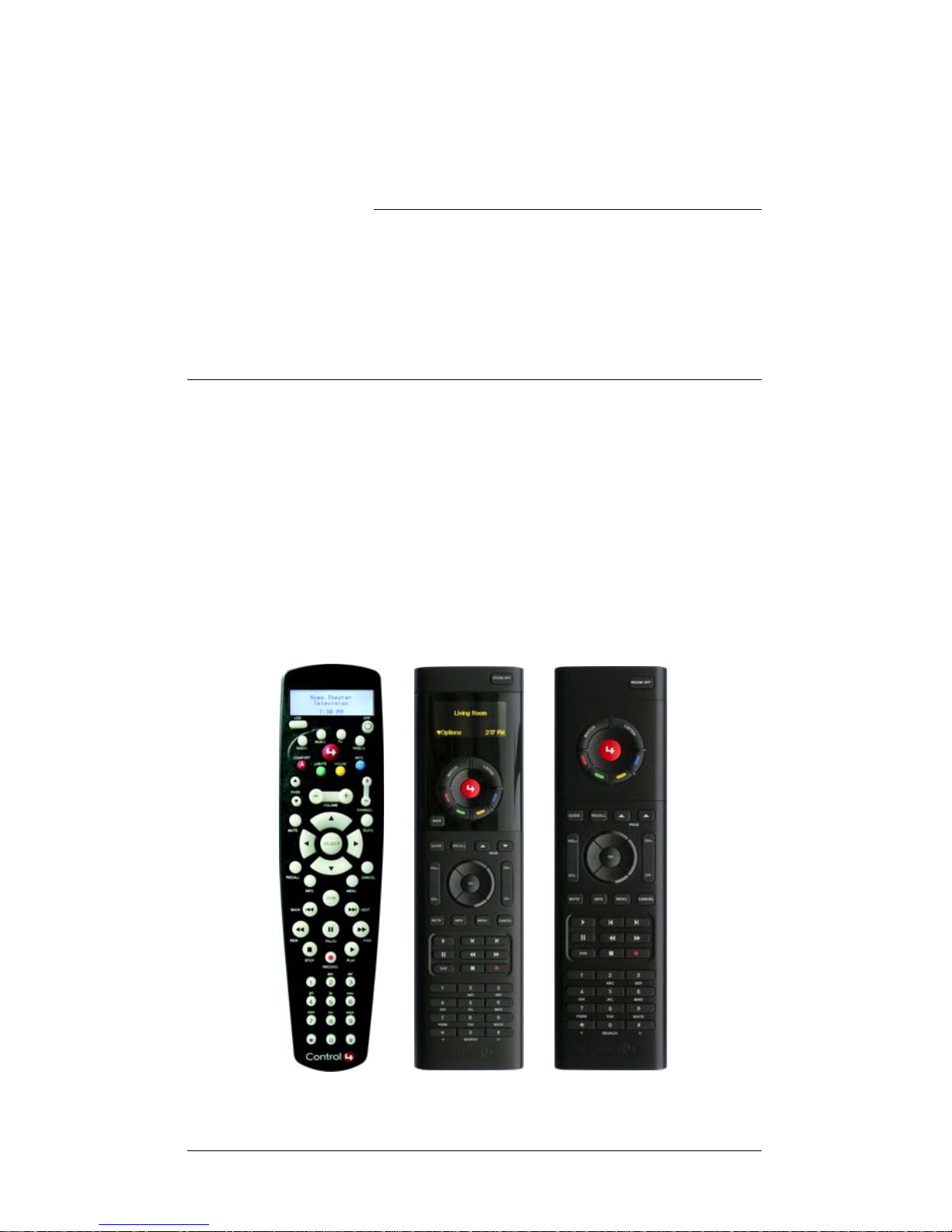
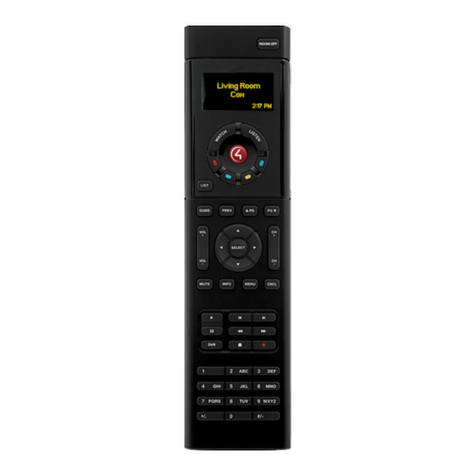
Control4 System Remote Controls are standard control devices for
most Control4 systems and work like a universal remote on steroids.
From one remote, you can control your home theater equipment, your
lights, your music, your room temperature, and any other installed sub-
system. You can also use it to browse sub-system menus on a
television or monitor screen (on-screen navigator) or in its display
window (LCD navigator).

4
On-Screen Navigator
The Control4 On-Screen
Navigator, accessed with the
Control4 System Remote,
uses a graphical sub-system
menu that you can see on a
connected TV or monitor.
Through the navigator, you
can access every aspect of
your Control4 system—from
music and movies to lighting
and temperature control.
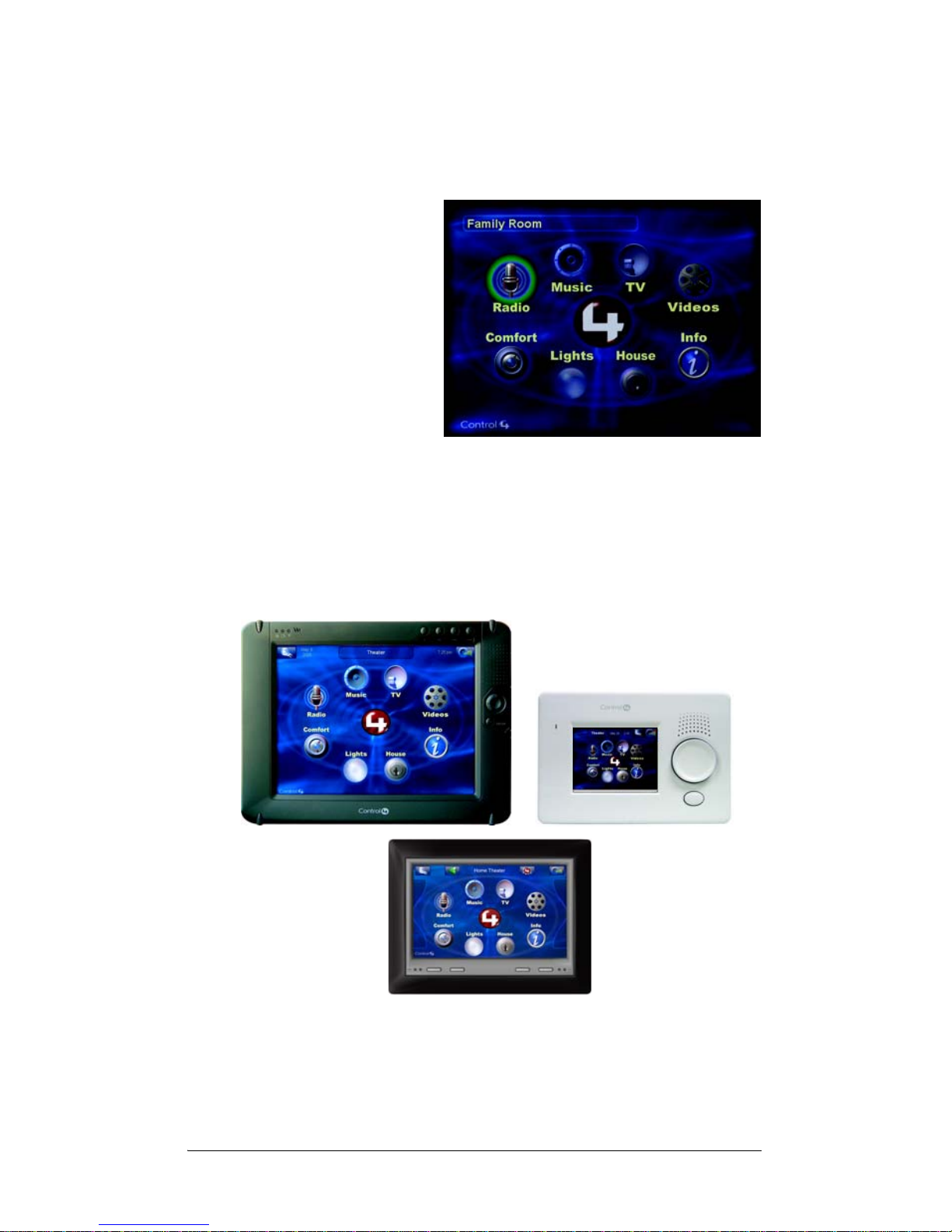
Touch Screens
Control4 Touch Screens come in a variety of shapes and sizes and
most can be installed in the wall or sit on your desktop. Every Control4
Touch Screen can control your entire Control4 system.
Questo manuale è adatto per i seguenti modelli
1
Indice
Altri manuali Contro l4 Sistema di controllo